Link Contracts
Contract Details: Link Contract Records
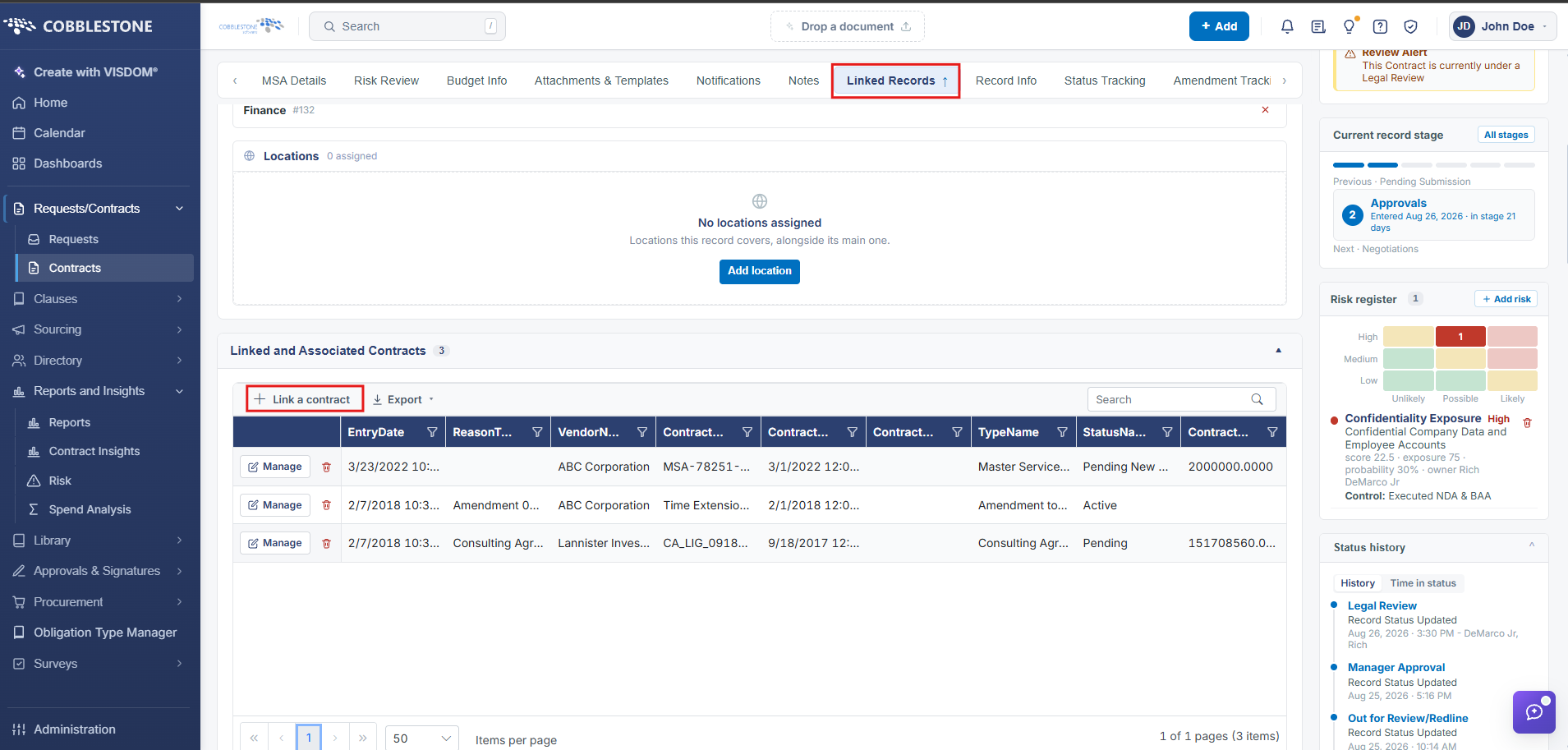
Two or more contracts can be connected as related records without placing them in a formal hierarchy. Actions → Link Contract (Manage Record Actions group) creates this connection, and once linked, the relationship appears on the Linked Records tab under Linked and Associated Contracts, alongside similar counts for linked vendor contracts, e-sourcing records, requests, and purchase orders.
- Actions → Link Contract (Manage Record Actions group)
- Linked Records tab → Linked and Associated Contracts shows the resulting connections
- The same tab also tracks Vendor Contracts, E-Sourcing Records, Requests, and Purchase Orders links
Linking a New Contract
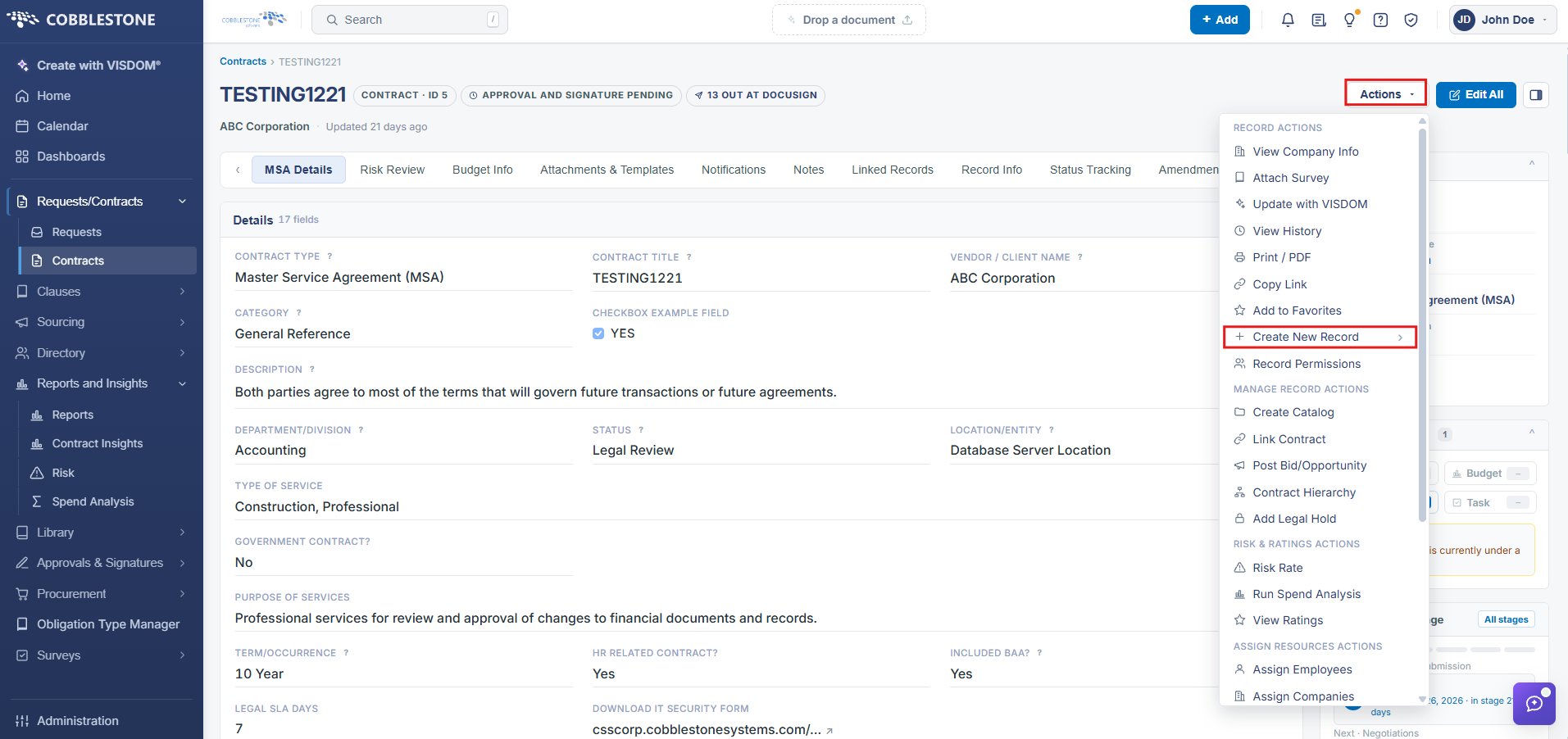
1. On the Contract Details screen, click the Actions dropdown > Create New Record > Copy this Contract.
2. Click Create Contract and Link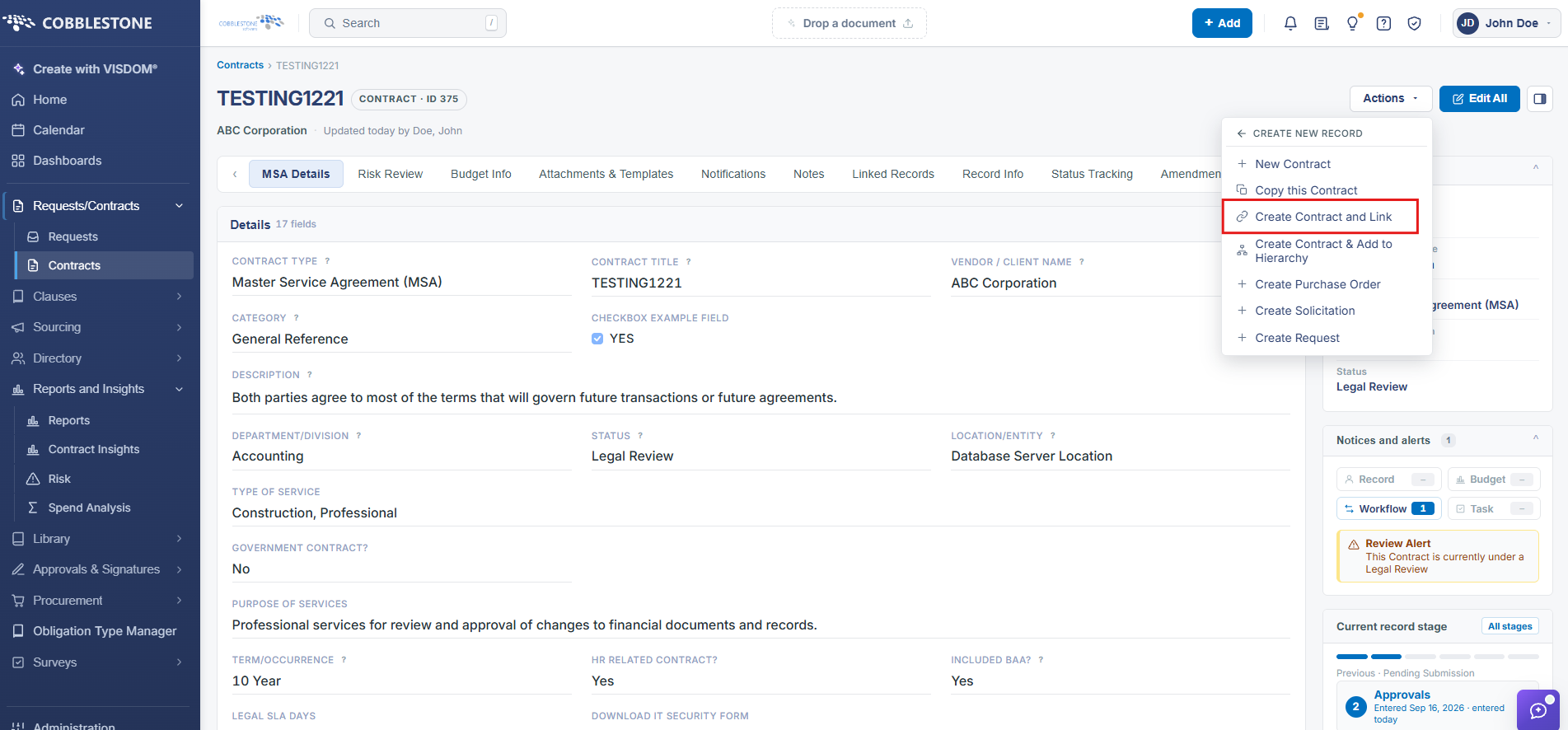
3. You will be taken to the Add a Contract Record Screen. The created contract will be automatically linked to the contract it was created from.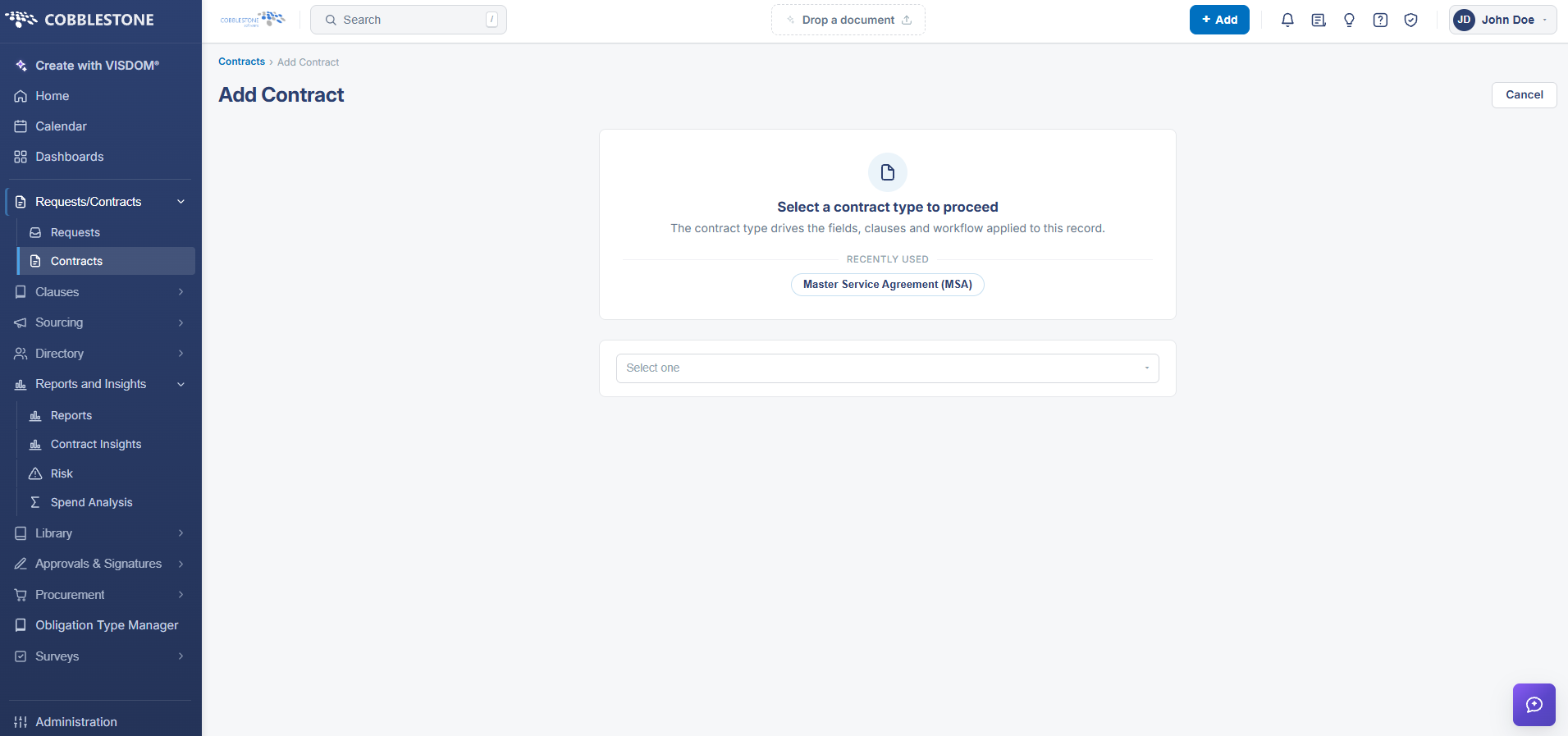
Linking an Existing Contract
1. On the Contract Details screen, click the Actions dropdown > Create New Record > Link Contract.
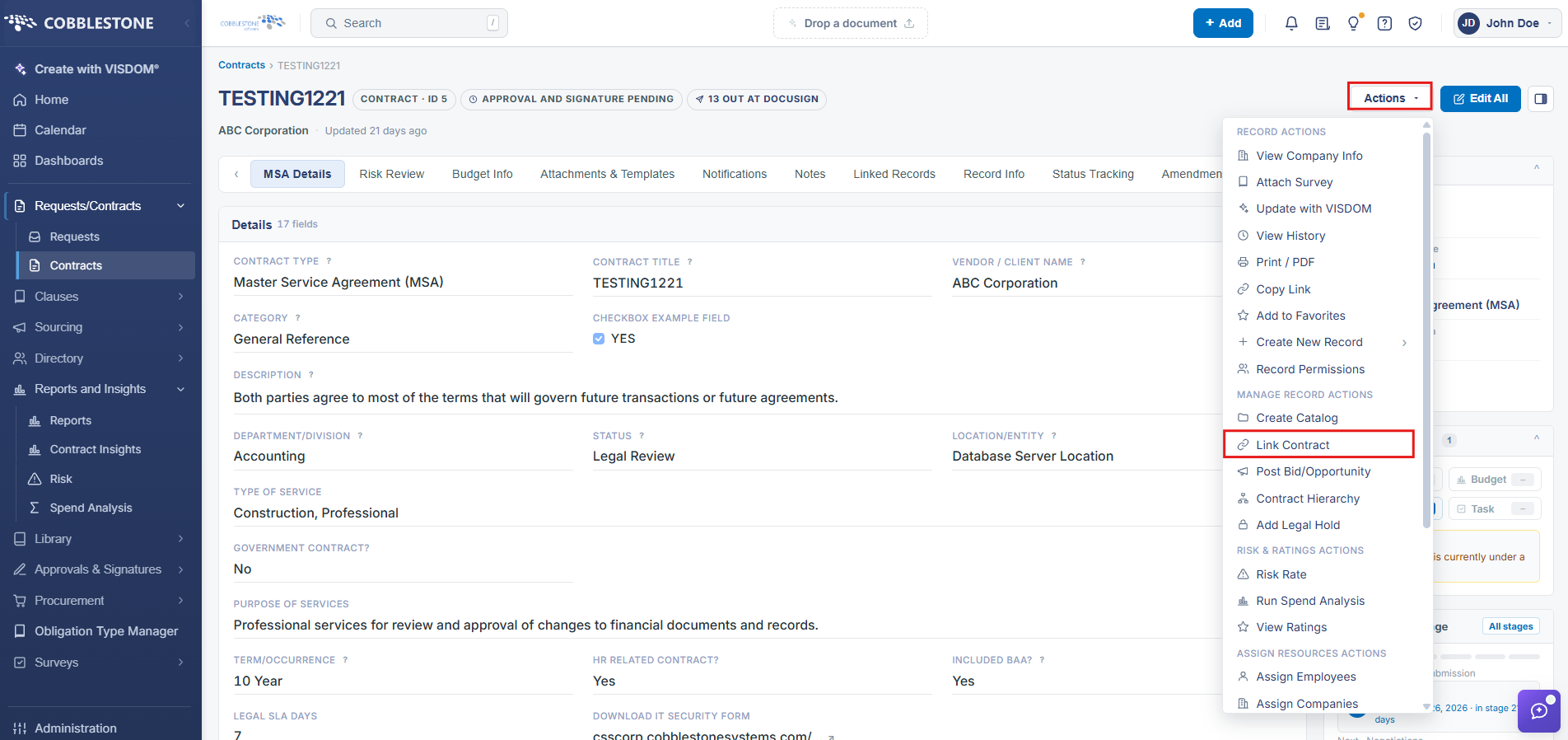
OR Click the Linked Records tab. Click Link Contract Record.
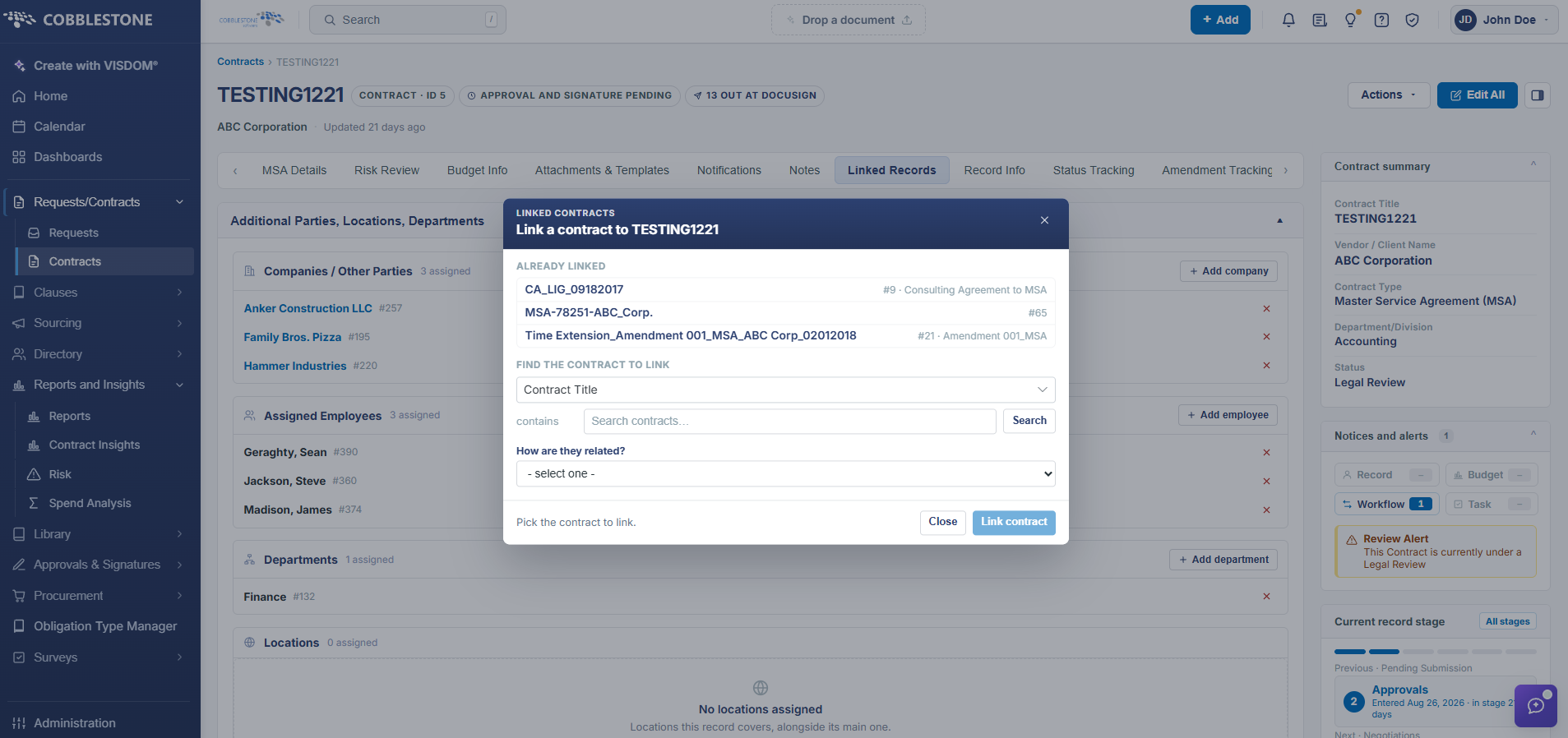
2. The Link Contracts screen displays on which the contract for which a link should be formed can be located.
3. In the drop down box, select the category by which to search. 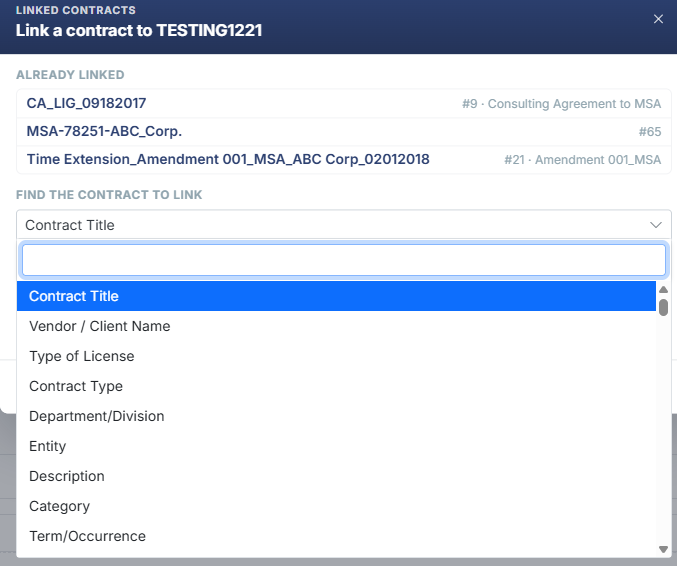
4. Click Search to display all contract records that meet the specified criteria.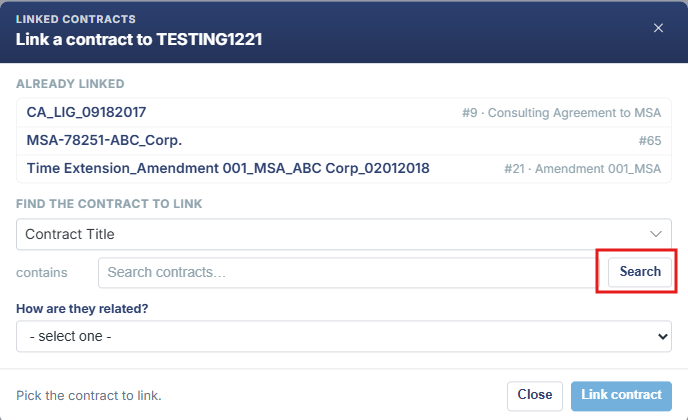
7. Click Link Contract for the contract line item to which to link to the contract. A prompt to (optionally) add a reason/note for linking the contract displays.
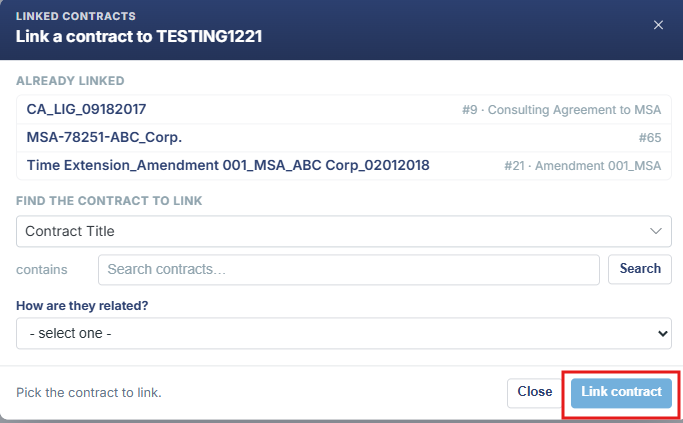
Note: At any time, click Return to Contract Details on the menu of the Link Contracts screen to cancel linking a contract.
9. The Contract Details page displays. Verify that the contract link was added to the Linked and Associated Contracts section.
To View the Details of a Contract Link
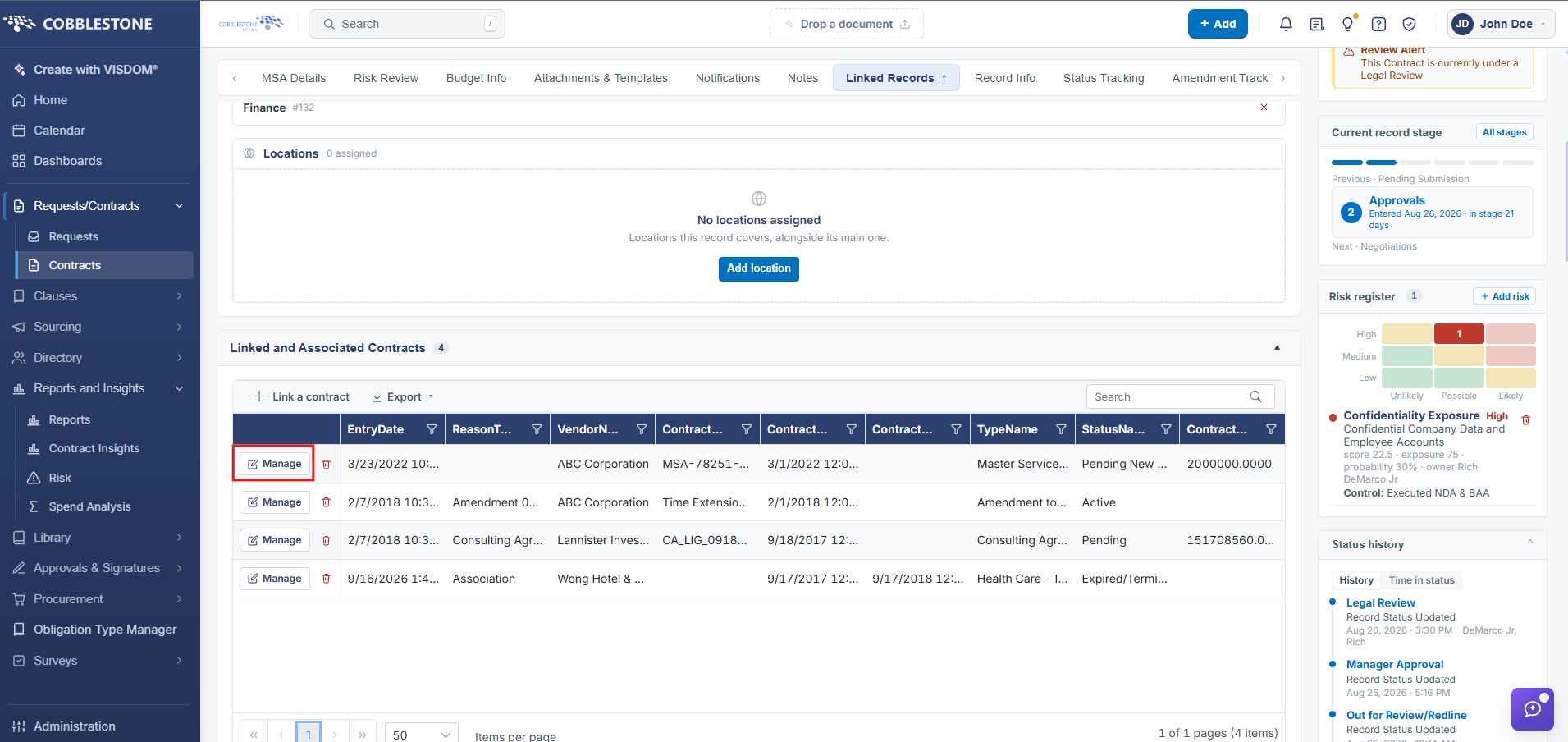
1. Click Manage for the line item on the contract in the Linked and Associated Contracts section.
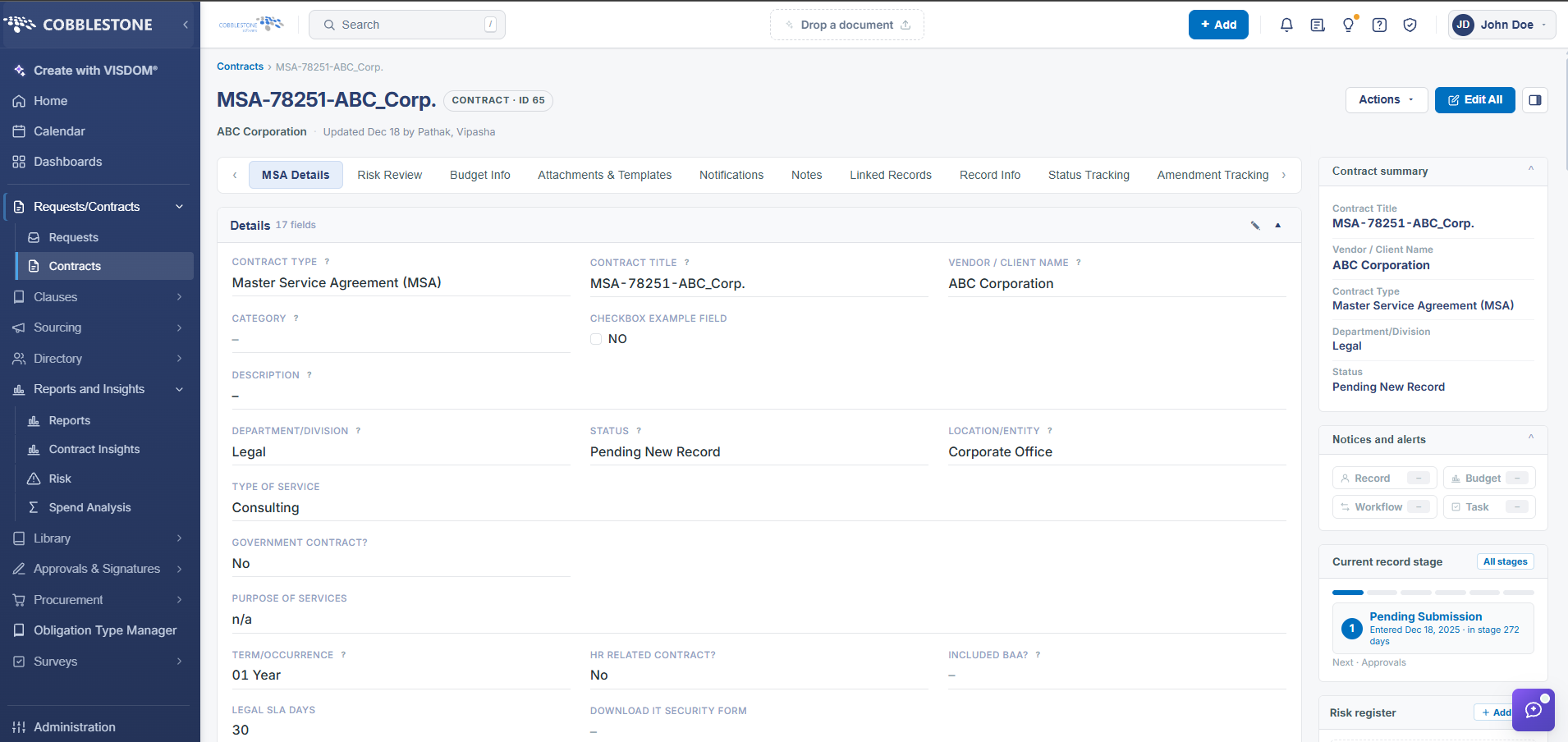
2. The Contract Details screen for the contract that was linked displays
To Remove a Link
1. Click Delete for the line item on the contract in the Linked and Associated Contracts section.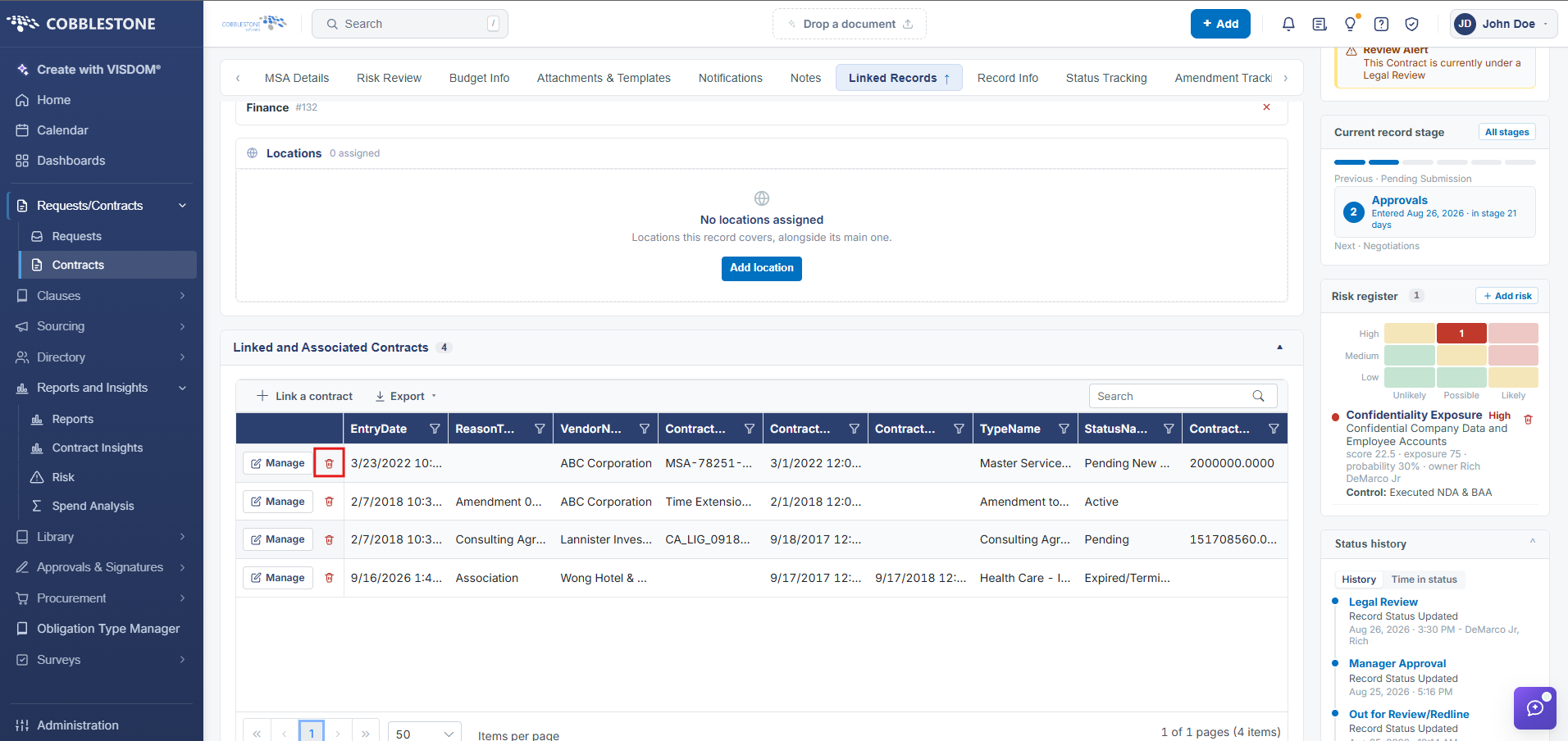
2. A verification box displays.
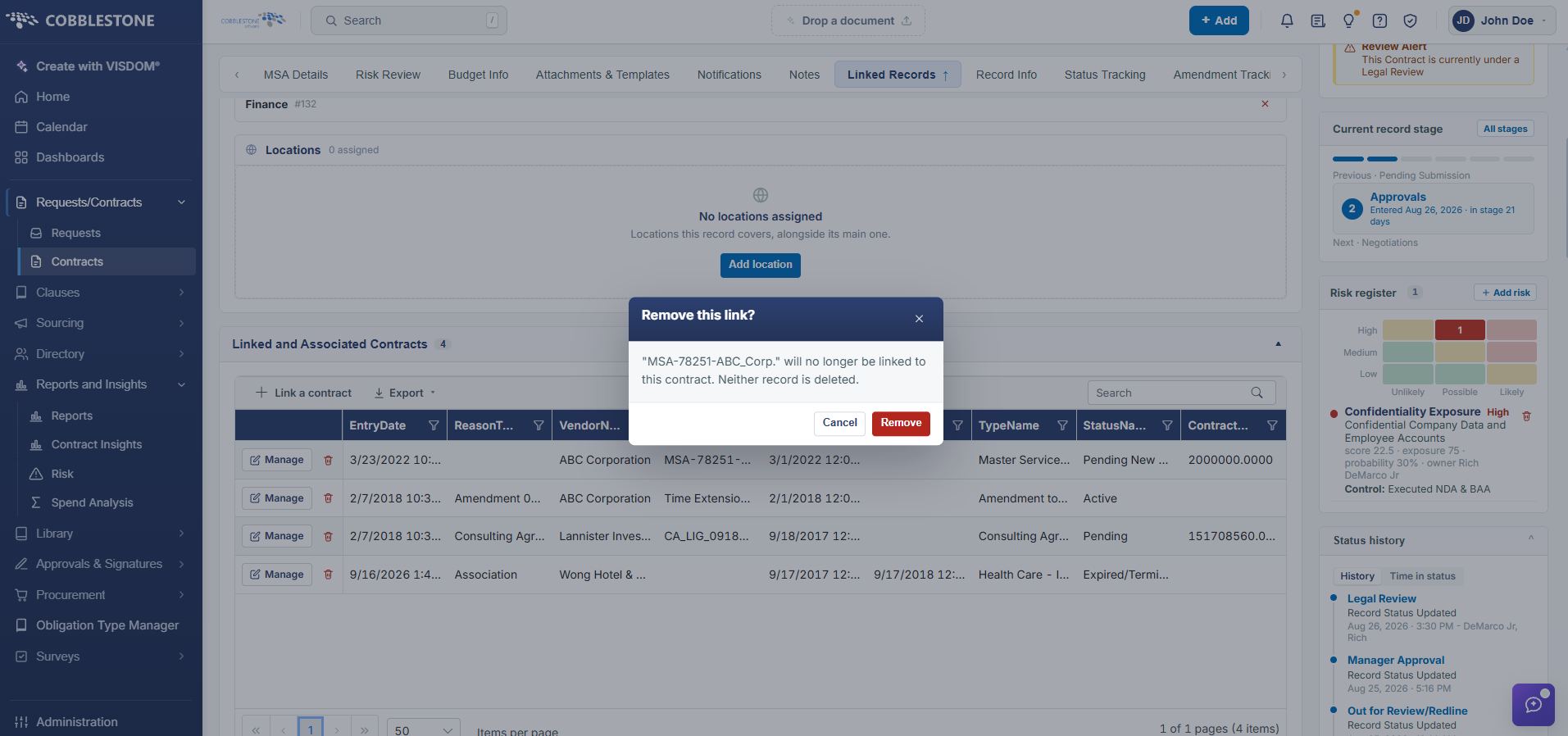
3. Click OK to confirm and remove the link between the contracts and return to the Contract Details screen.
4. Click Cancel to cancel the removal of the link and return to the Contract Details screen.