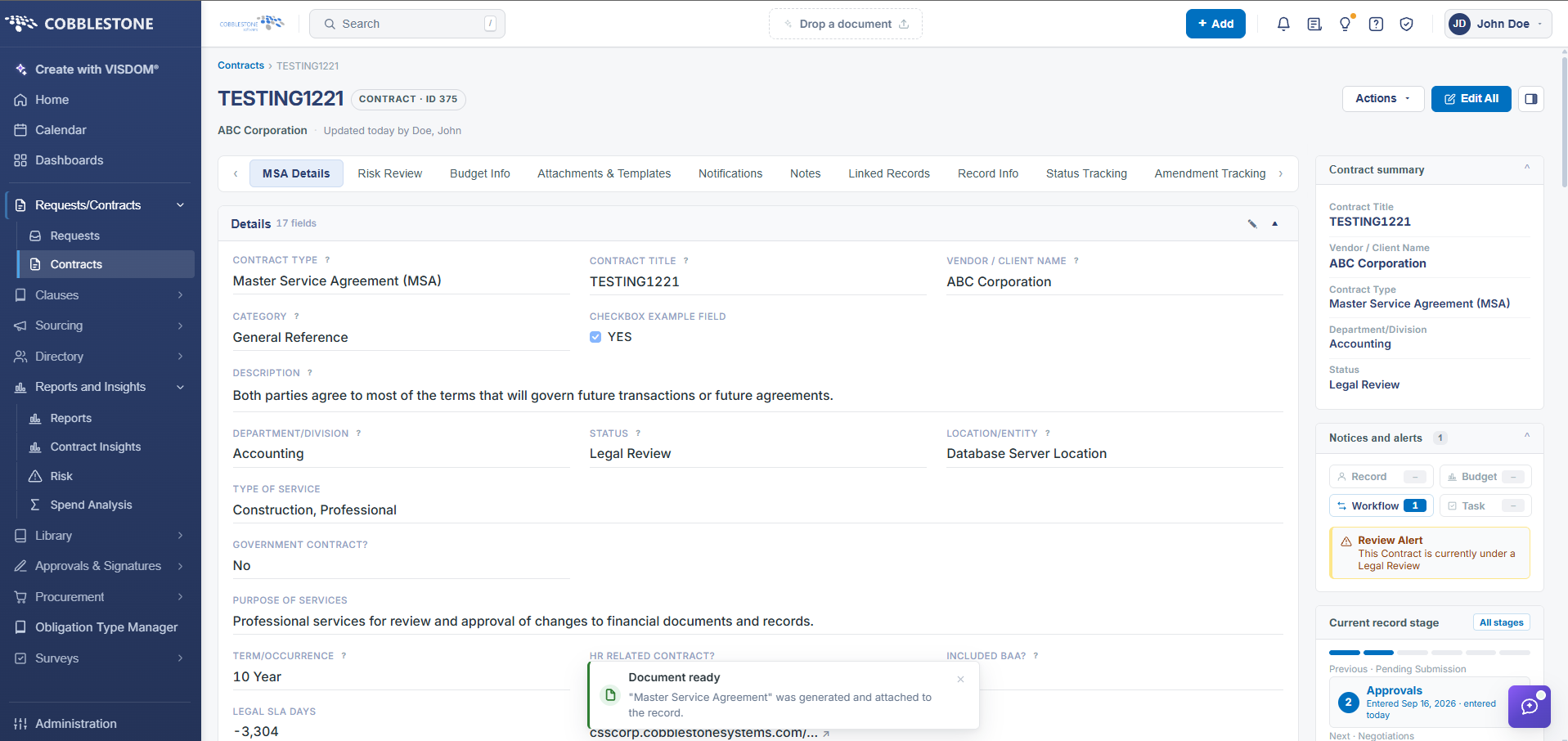
Copy a Contract Record
Contract Details: Copy a Contract Record
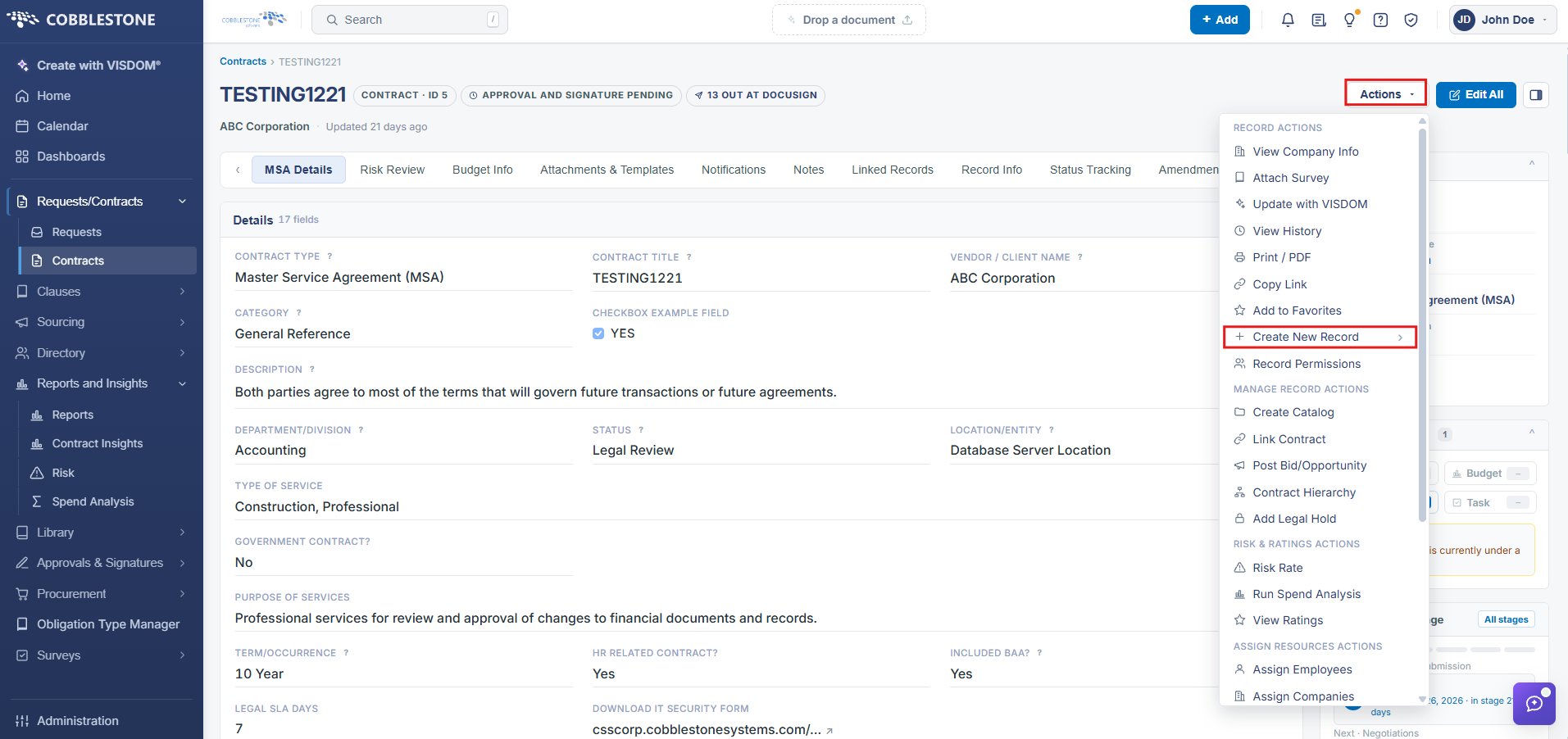
Rather than rebuilding a similar contract from scratch, an existing record can seed a new one. The Actions menu on a contract record includes a Create New Record option (under Record Actions) that opens into further choices for starting a new record from the current one, carrying its data forward as a starting point instead of a blank form.
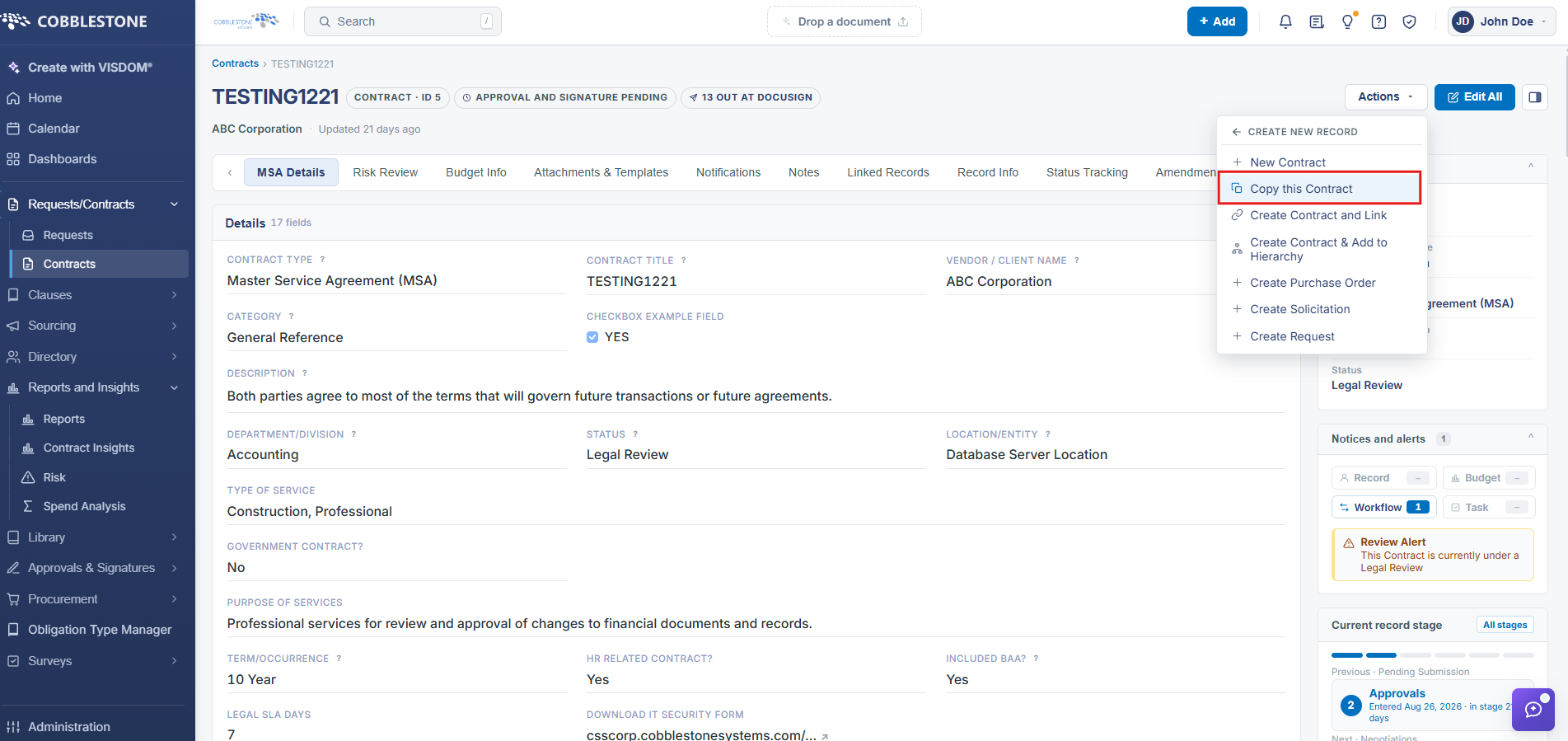
- Actions → Create New Record (Record Actions group) opens a submenu of new-record options
- Starting from an existing record avoids re-entering data shared with the copy
1. On the Contract Details screen, click the Actions dropdown > Create New Record > Copy this Contract.
2. The Copy Contract screen displays. Select also copy attached files if you wish to copy the attached files from the original record.
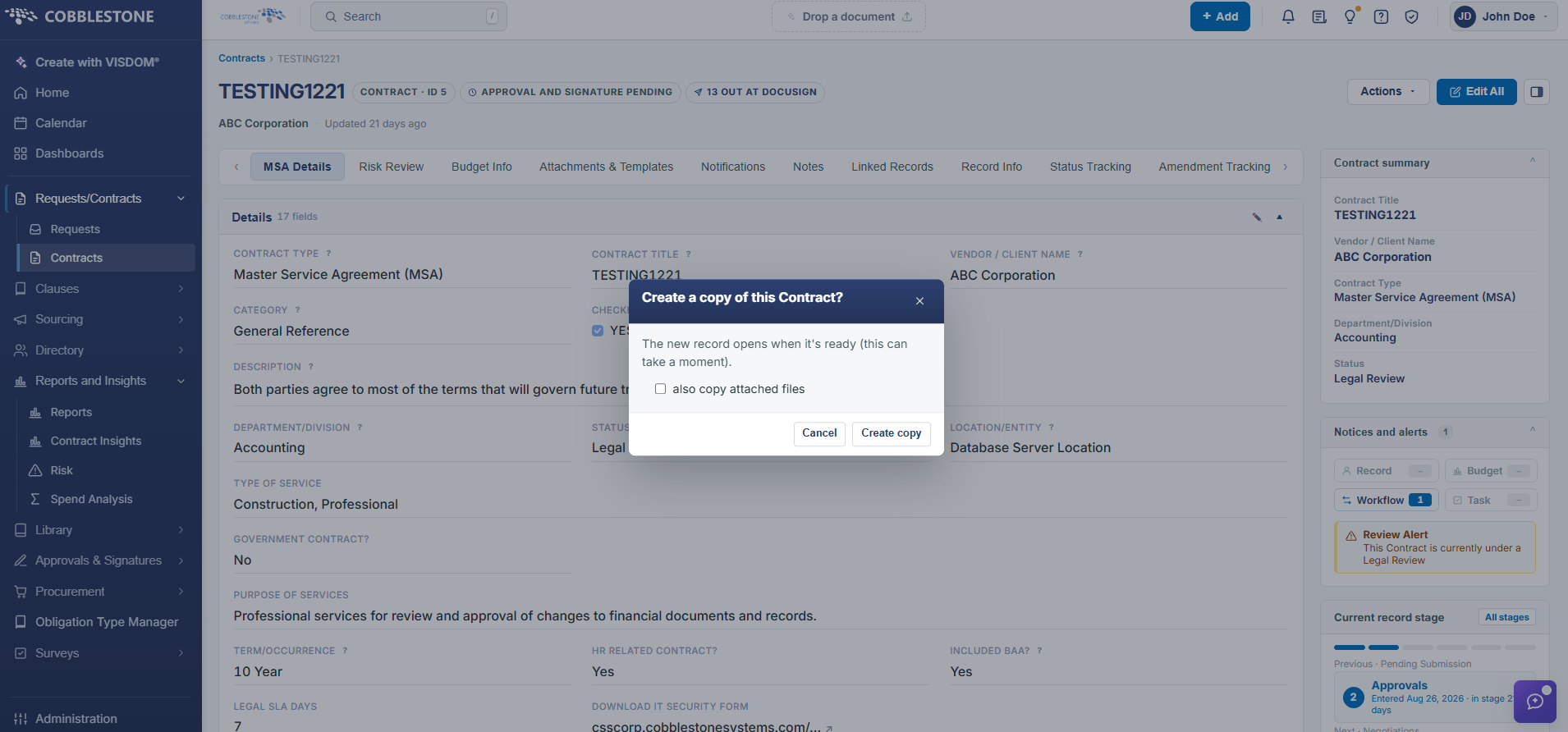
4. Click Create Copy to copy the contract to make a new record or click Cancel to cancel copying and return to the Contract Details screen.
5. If Yes is selected, a new contract record will be made with the same information as the original contract.
6. The Contract Details screen of the new contract record displays on which users can change and update the information as needed.