Contract Notes & Comments
Contract Details: Notes & Comments
The Notes & Additional Info tab's Notes & Comments panel is the record's running log of internal notes and system-generated messages, each entry showing its author and role, a title, an INTERNAL or EXTERNAL tag, a timestamp, and a Revise action. Notes generated from sent emails additionally display the message's To, CC, From, Subject, and Body, plus any attached files.
- + Add note creates a new note on the record
- Each note shows author/role, title, INTERNAL/EXTERNAL tag, and timestamp
- Revise lets a note be edited after it's posted
- A note count appears in the panel header
- Email-sourced notes include To, CC, From, Subject, Body, and Files
To Add a Note/Comment
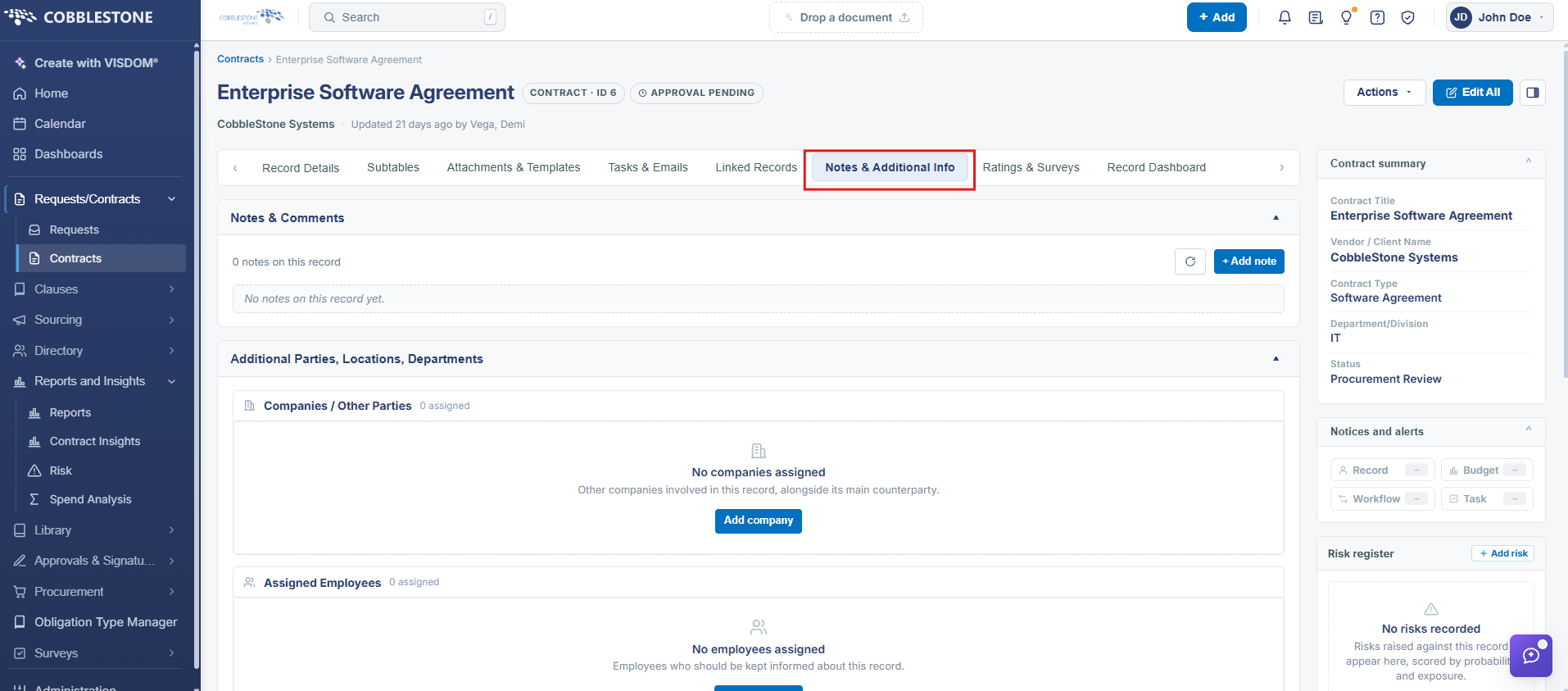
1. Click the Notes & Additional Info Tab on the Contract Details page.
2. The Notes & Comments dock displays on which users can add notes/comments in the Word-like text editor. 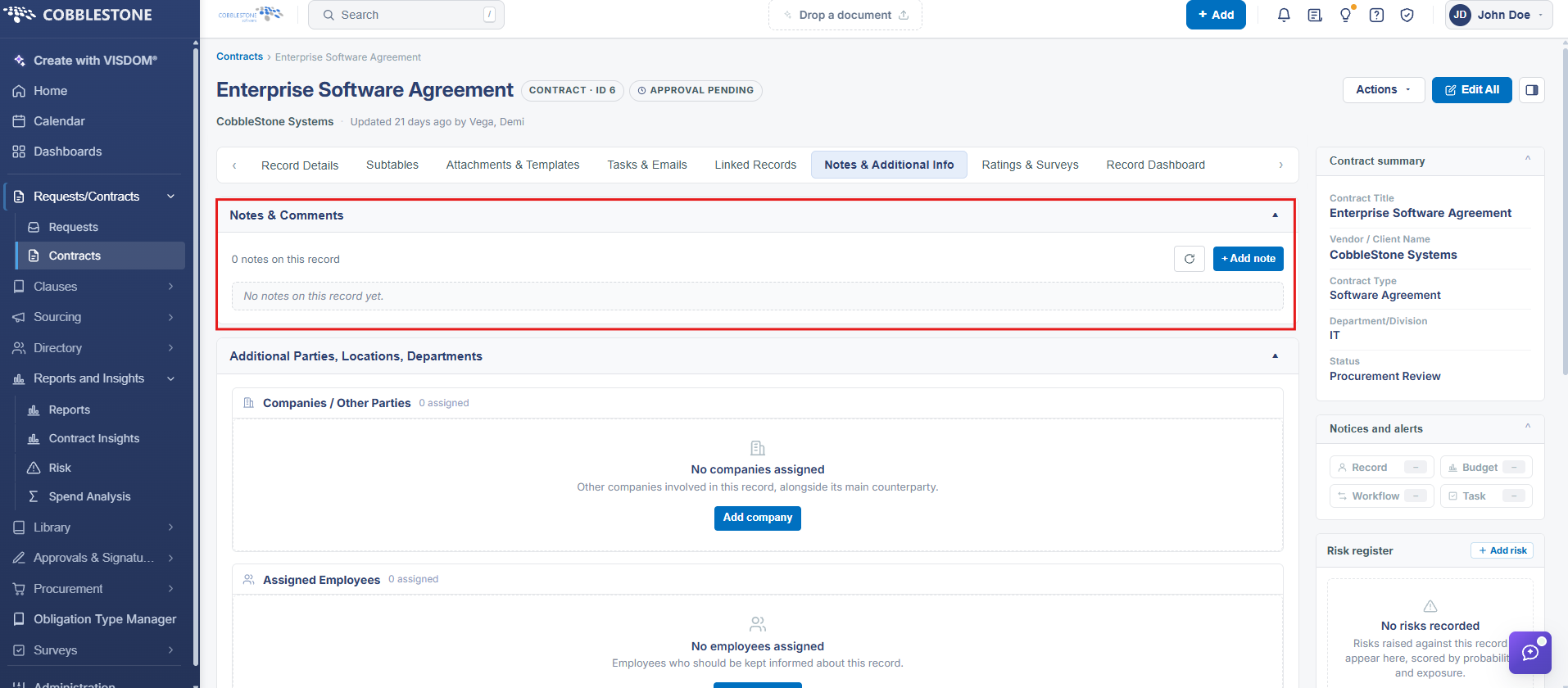
Note: The Internal, Public, Gateway drop down only needs to be specified if your organization has purchased the optional add-on module for the Vendor/Client Gateway. If Public or Gateway is selected and your organization has not purchased the add-on module, it will not affect any viewing capabilities of users with the proper permissions or allow the note to be viewed by anyone outside your organization.
If your organization has purchased the Vendor/Client Gateway Add-On Module, see the Contract Notes on the Vendor/Client Gateway Wiki page for more information.
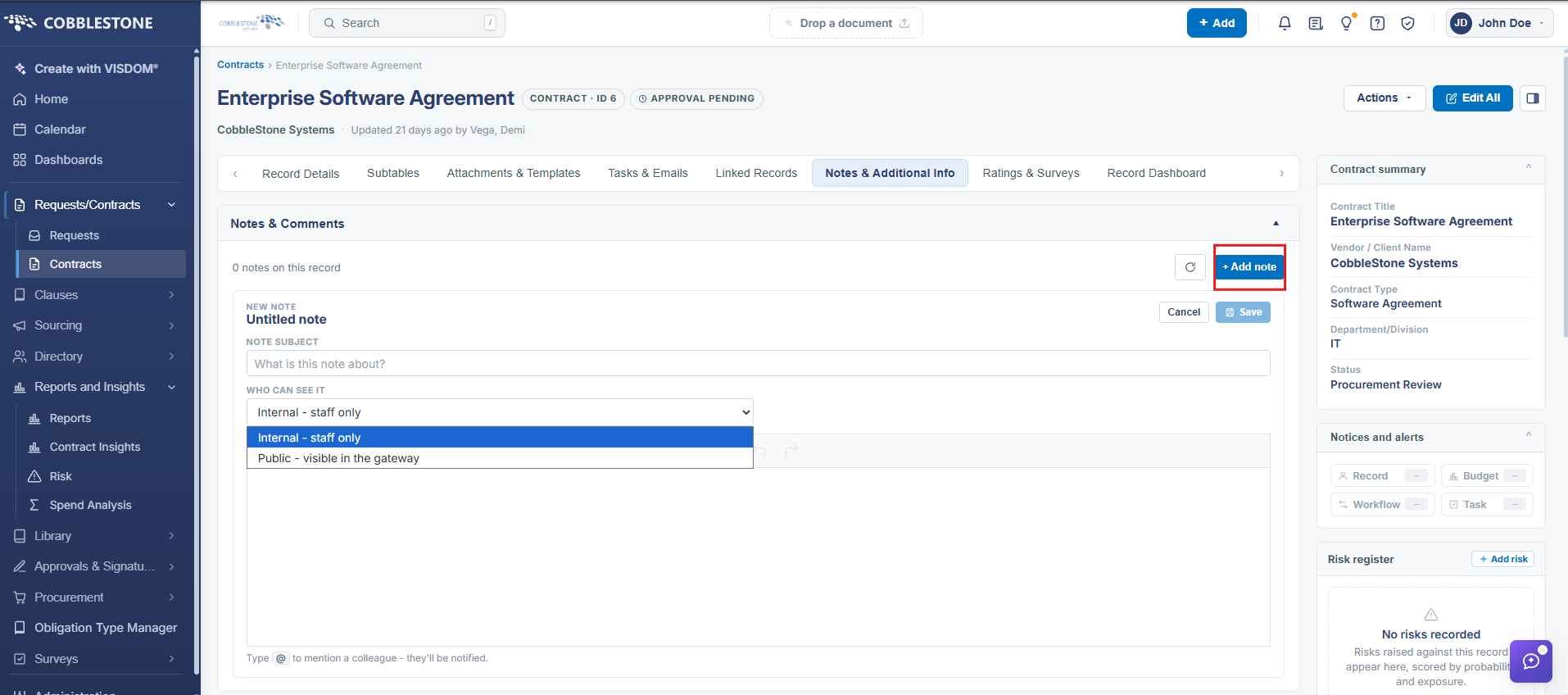
3. Click Save Note once you have entered the note.
4. The Notes are displayed below the notes repository.
To Edit/Delete a Note
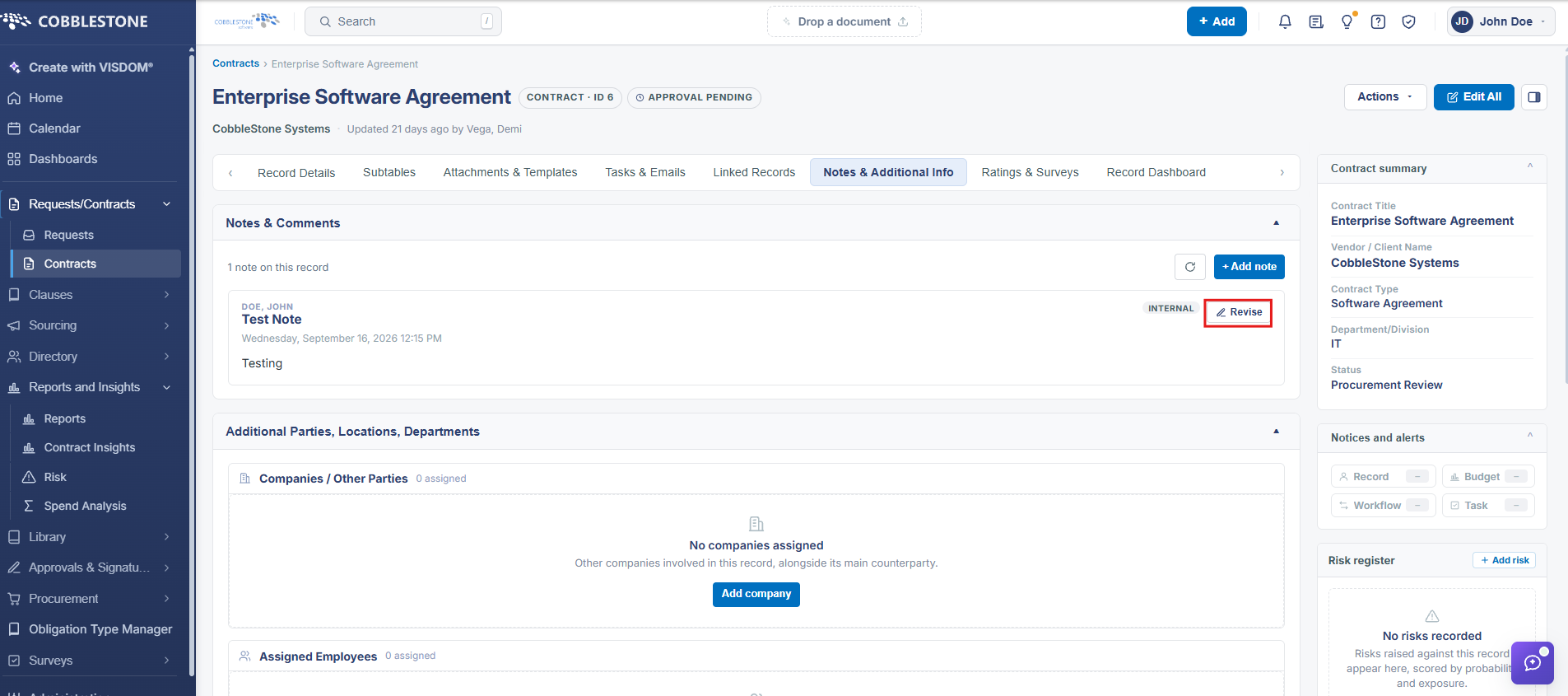
Edit
1. Click the Revise button next to the field to be edited.
2. Perform any changes.
3. Click Save Note.
Note: Editing a Note will create a new note line item so changes can be tracked for notes.
Delete
1. Click Delete next to the note you would like to remove. 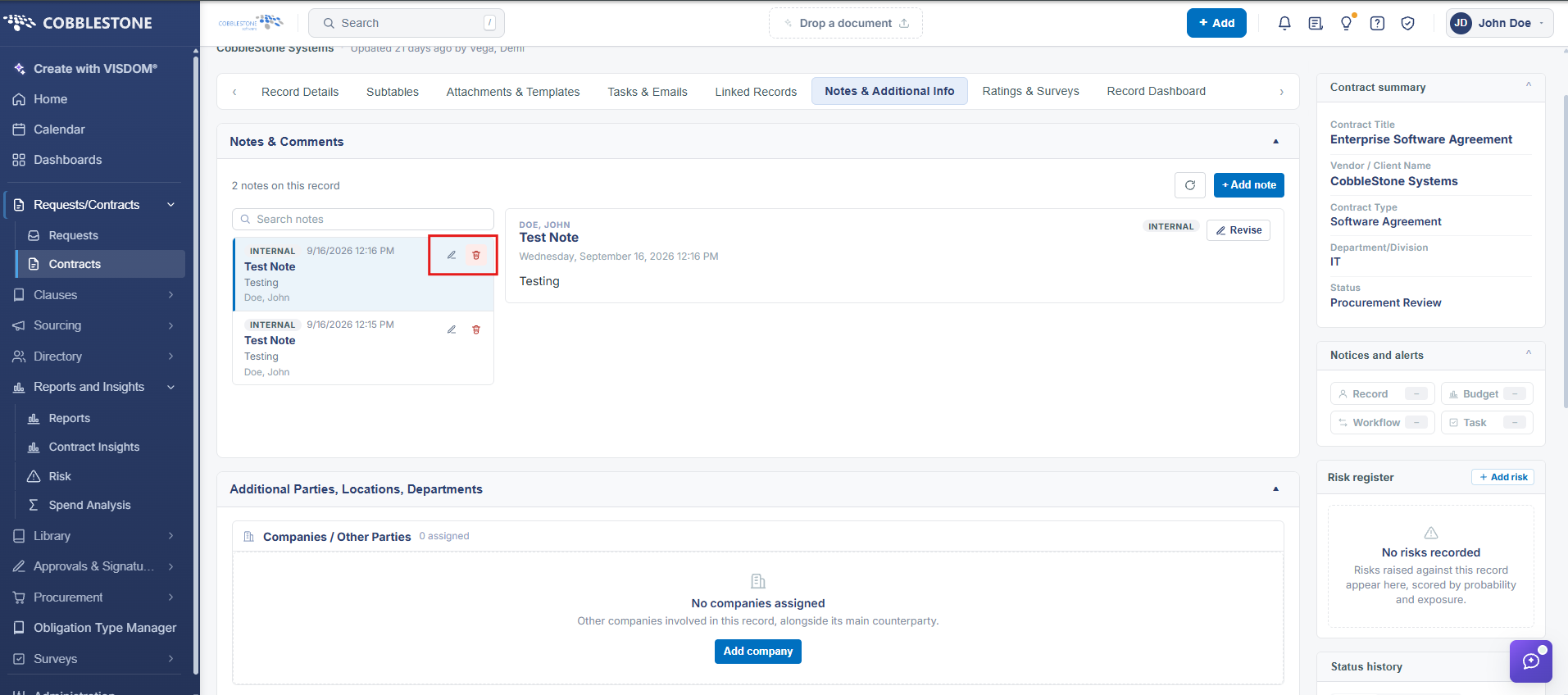
2. Confirm the deletion.
Add a Hyperlink
1. Click the hyperlink manager icon.
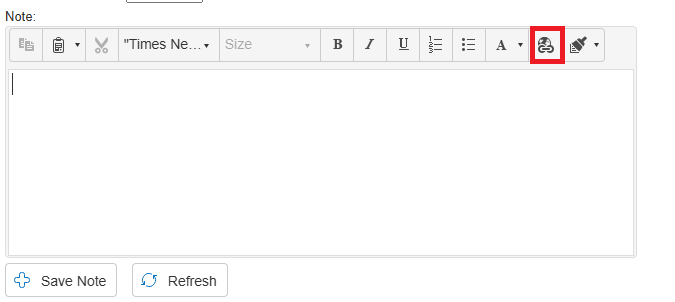
2. Enter the web address, hyperlink text, and other required data. Click OK when done editing the data.
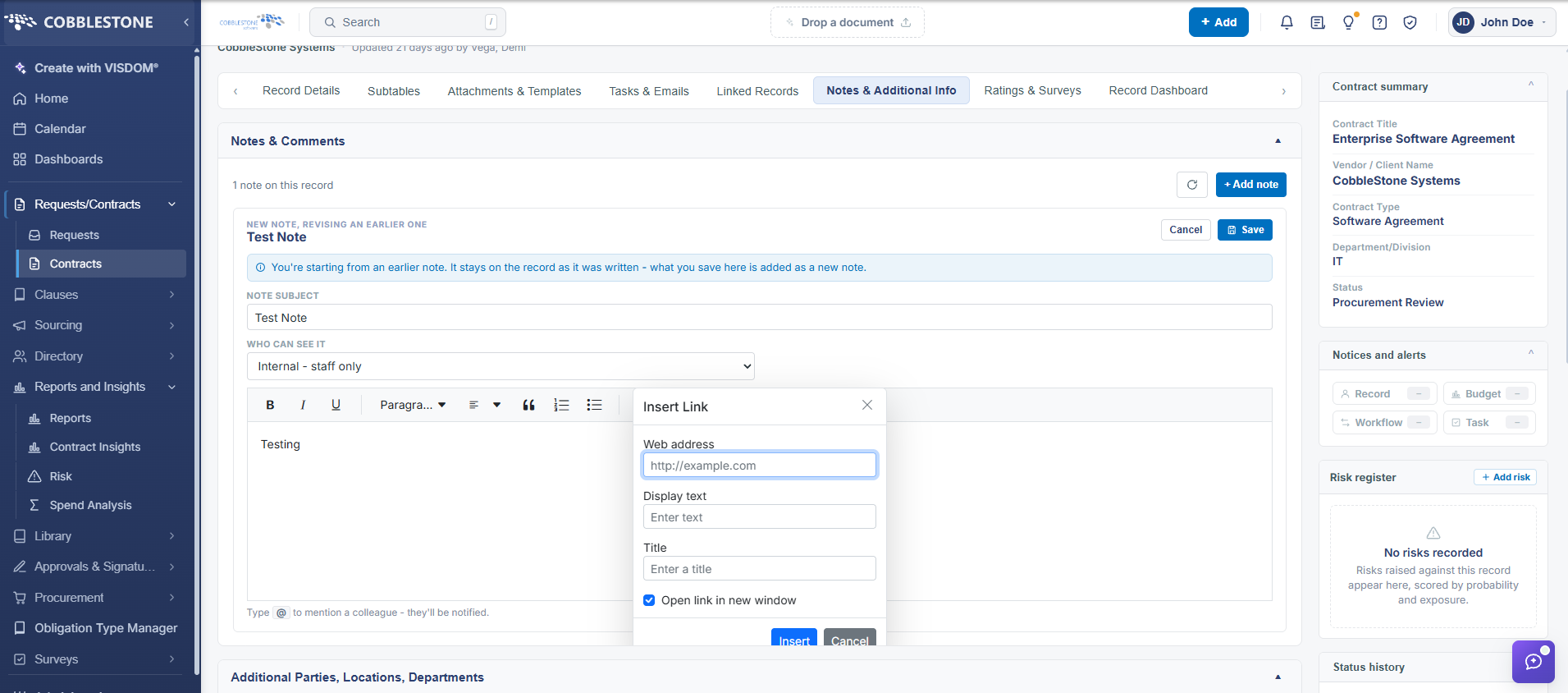
3. The hyperlink text appears in the note. Click Save Note to save the changes.