Contract Price/Cost Schedule
Contract Details: Price & Cost Scheduling
Price and cost details are captured as line items rather than a single field. The Subtables tab lists both Price / Cost Schedule and Price / Cost Line Items entries for a contract, each with its own running row count, so pricing can be broken out by line while still rolling up into the record's overall financial picture.
- Price / Cost Schedule and Price / Cost Line Items are separate subtable entries
- Each subtable tracks its own row count on the Subtables tab
Access the Price/Cost Scheduling section of the Contract Details screen by clicking the Subtables tab.
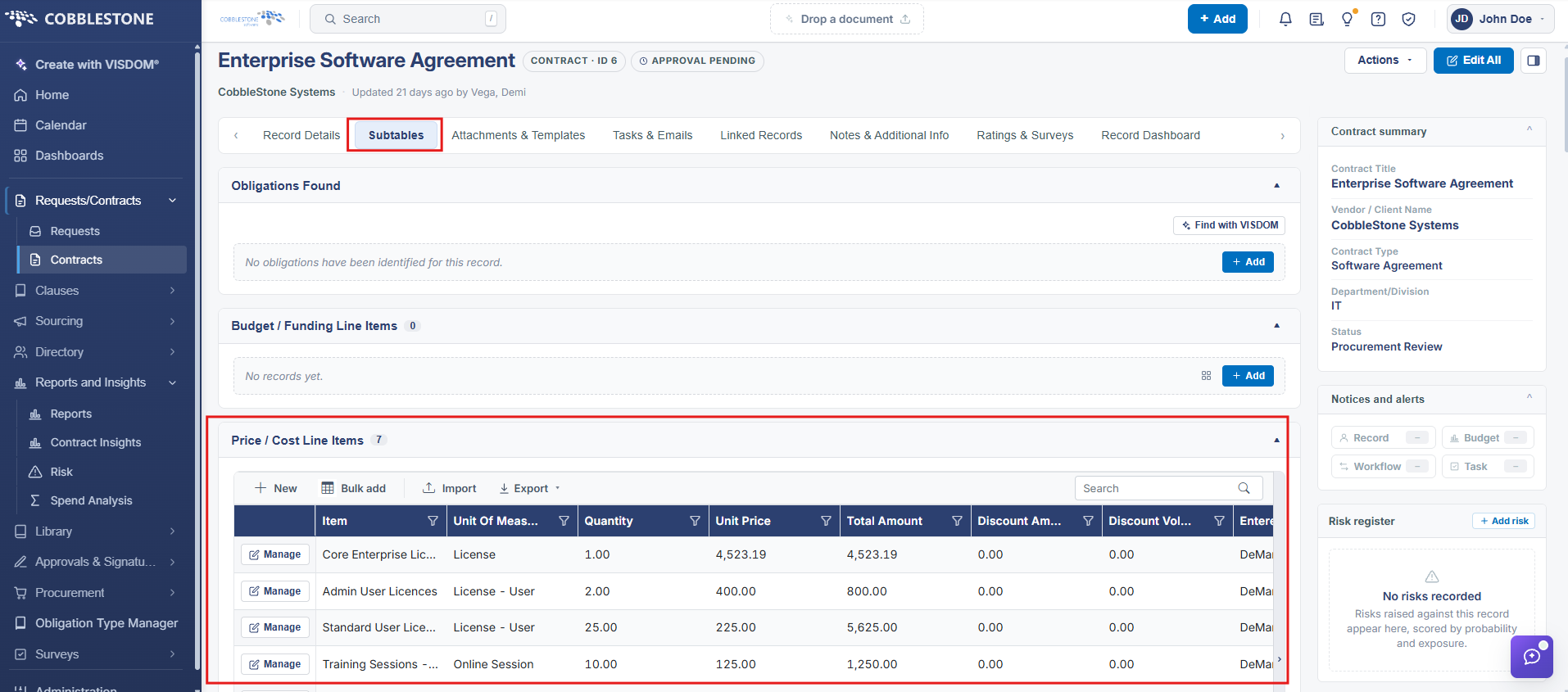
Adding a Price/Cost Schedule
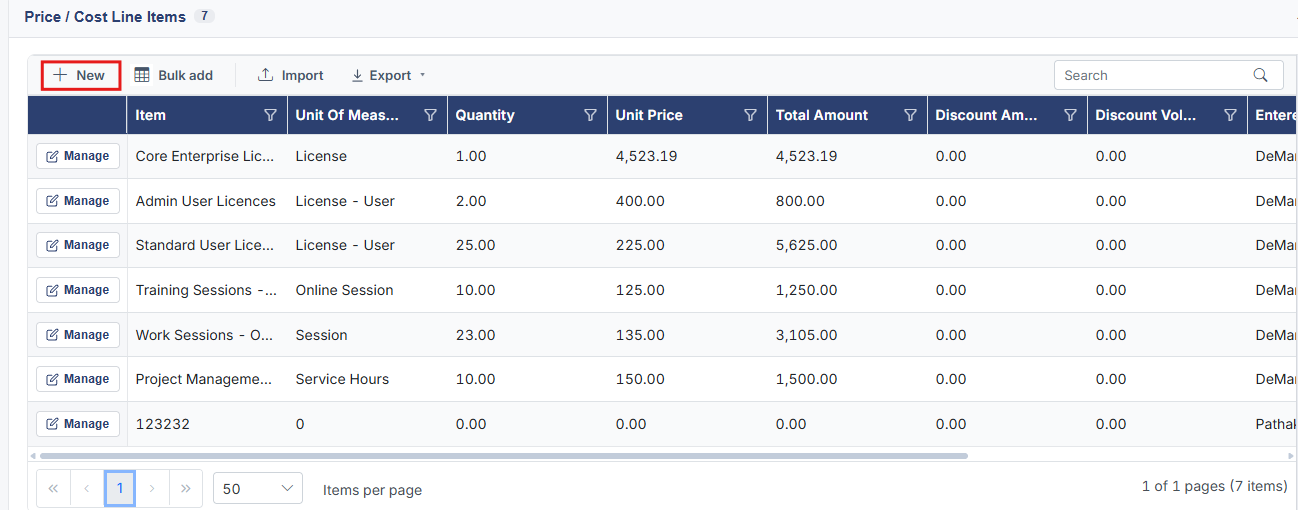
1. Click New.
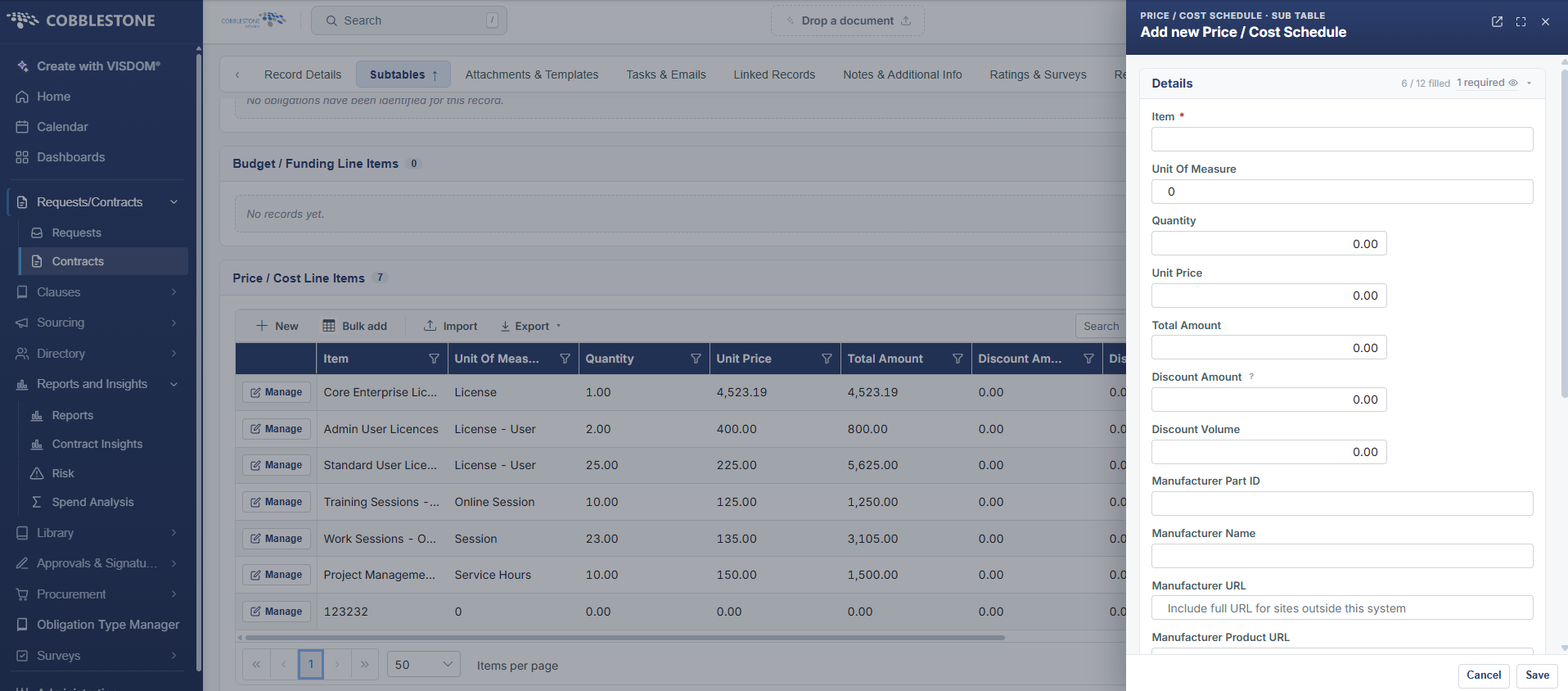
2. The Add Price/Cost Item screen displays. Enter the necessary data and click Save & Continue to save the data entered.
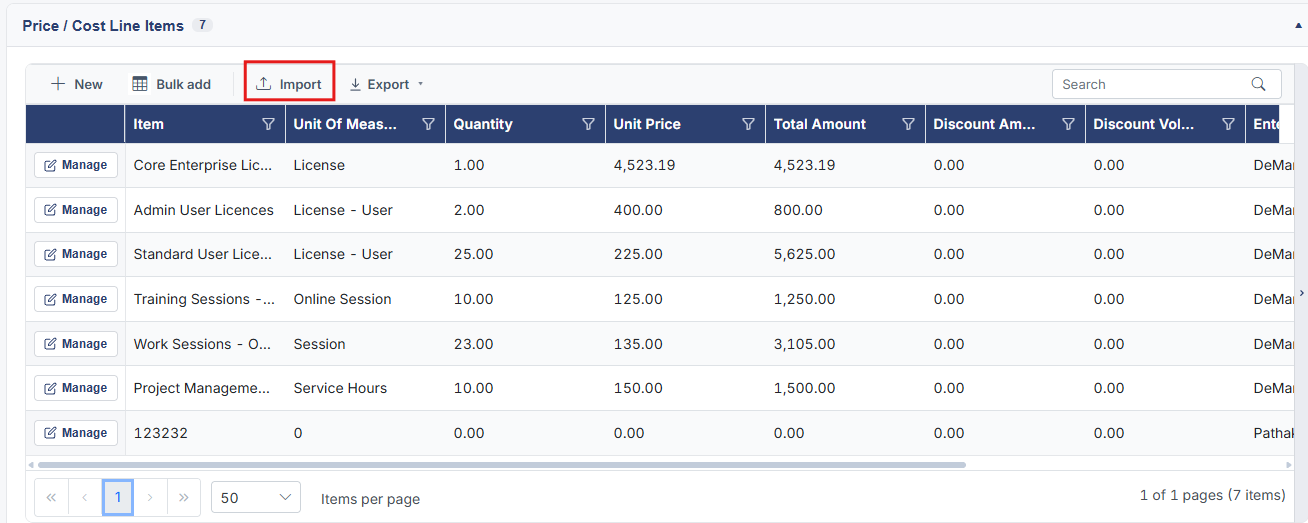
Import Price/Cost Data
Contract Insight users have the capability to import new and/or existing price/cost schedules to a contract.
1. Click Import Price/Cost Data in the Price/Cost Line Items section of the Contract Details screen.
2. Select the data source
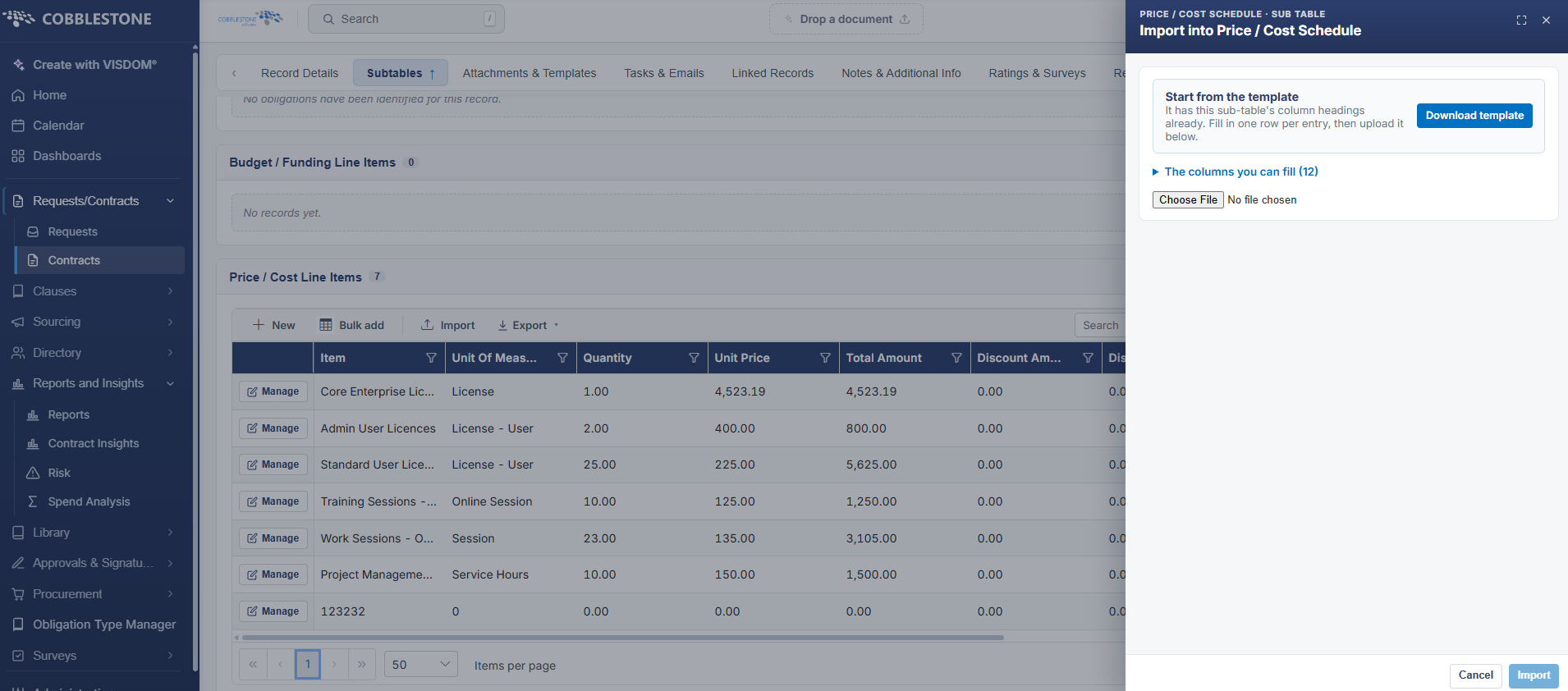
3. Click click to download this Template file to download an Excel importing template.
4. A dialogue box opens and asks to save the template.
5. From here, enter all data that to import to the Price/Cost Schedule.
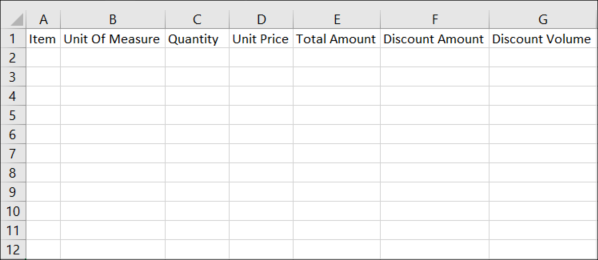
Note: Column headers and names must remain the same as how they are downloaded in the sample document.
6. Once all information is entered, click File > Save As and name your document. Make sure the file is saved as a .csv file and click Save. Be sure to note the save location.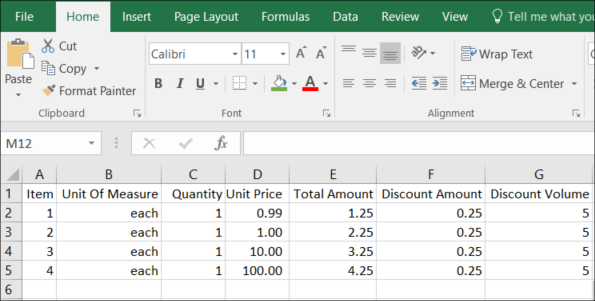
7. On the Contract Insight Import Contract Price/Cost Data screen, click Browse and select the location to which the .csv file just created was saved.
8. Click Open and the file name appears to the left of the Browse button in the text box.
9. Click Upload CSV and the screen verifies if the document was uploaded successfully.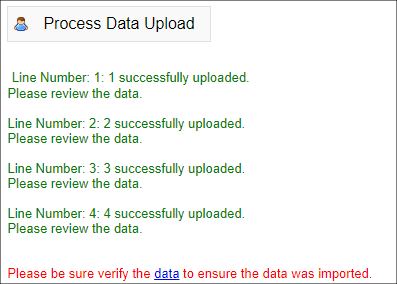
10. Click Data to verify the data was imported.
Note: CobbleStone® Software best practices recommend uploading and saving the original price/cost document to the Attached Files, Documents, Images section of the Contract Details page for auditing purposes. For instructions on how to attach files and documents, see the Contract Attachments page.
Viewing & Editing Price/Cost Schedule Line Items
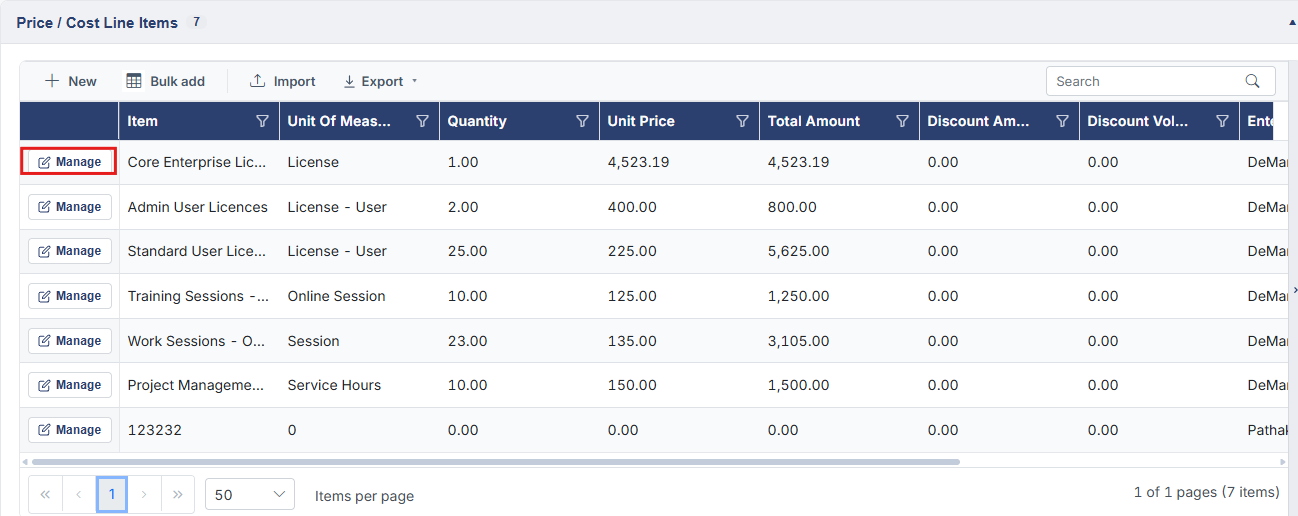
1. Click Manage for the line item in the price/cost schedule to edit.
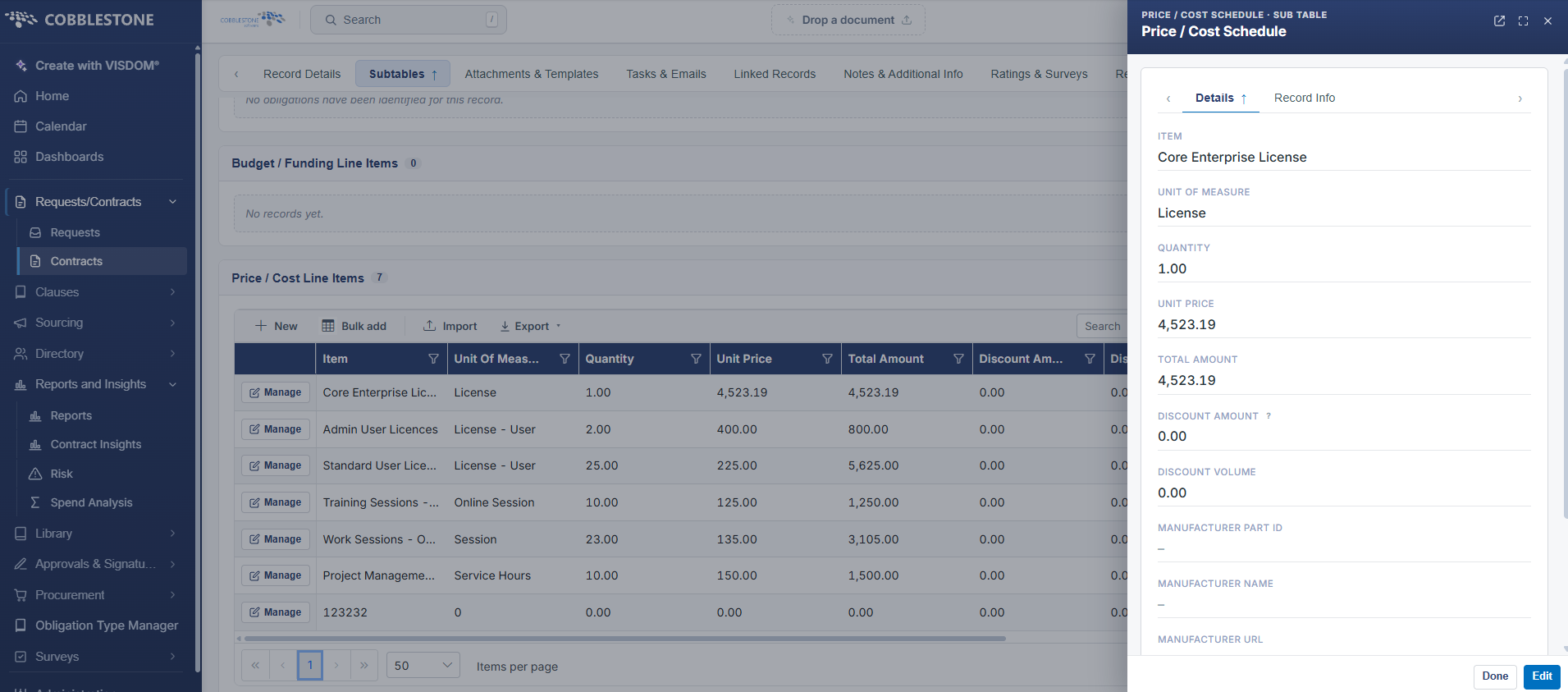
2. The Price/Cost Item Details screen displays.
3. Click the Pencil icon for the line item to edit. Click the Pencil icon for the Field Group to edit multiple fields at once.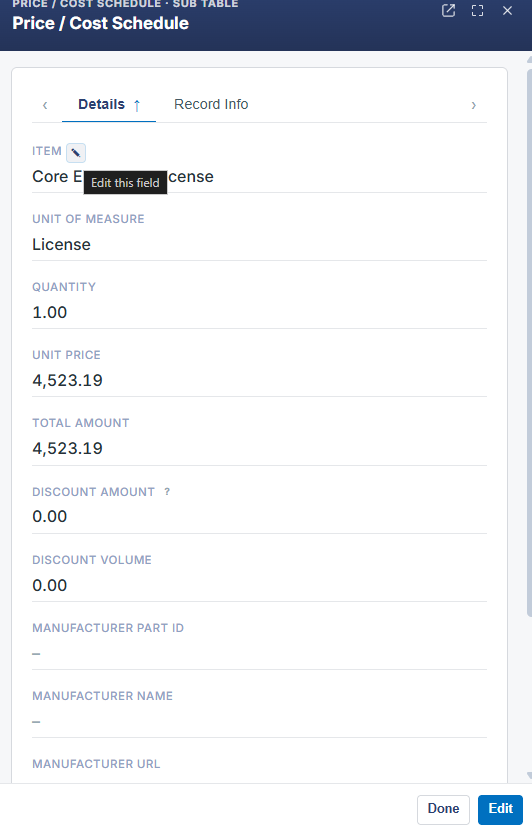
4. Edit the item in the Edit Field screen. Click Save Record to save the changes or click the X in the top-right to cancel the changes.