Contract Checklists & Milestones
Contract Details: Checklists & Milestones
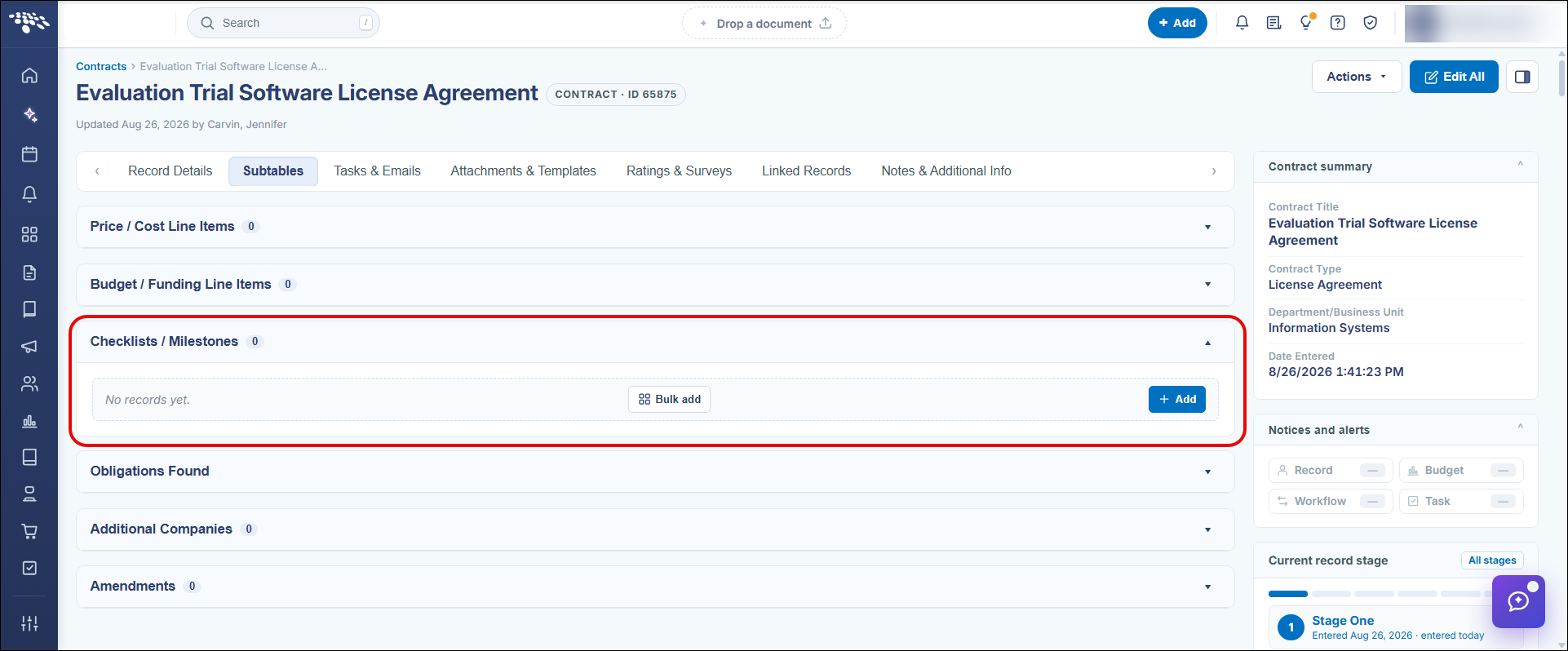
Checklists and milestones for a contract are tracked as a subtable on the record. The Subtables tab lists a Checklists / Milestones entry alongside the contract's other subtables, with a live count of how many checklist or milestone items the record currently has, letting users confirm required steps or dates are being tracked without leaving the record.
- Checklists / Milestones appears as its own entry on the Subtables tab
- A row count next to the entry reflects how many items exist on the record
Contract Insight offers users a way to track milestones throughout the contract life cycle through checklists. They are best used for documenting contract status changes that occur.
Access the Checklists & Milestones dock on the Contract Details screen by navigating to the Subtables tab (on the default setup).
Adding a Checklist
1. Click + Add in the Checklists/Milestones dock.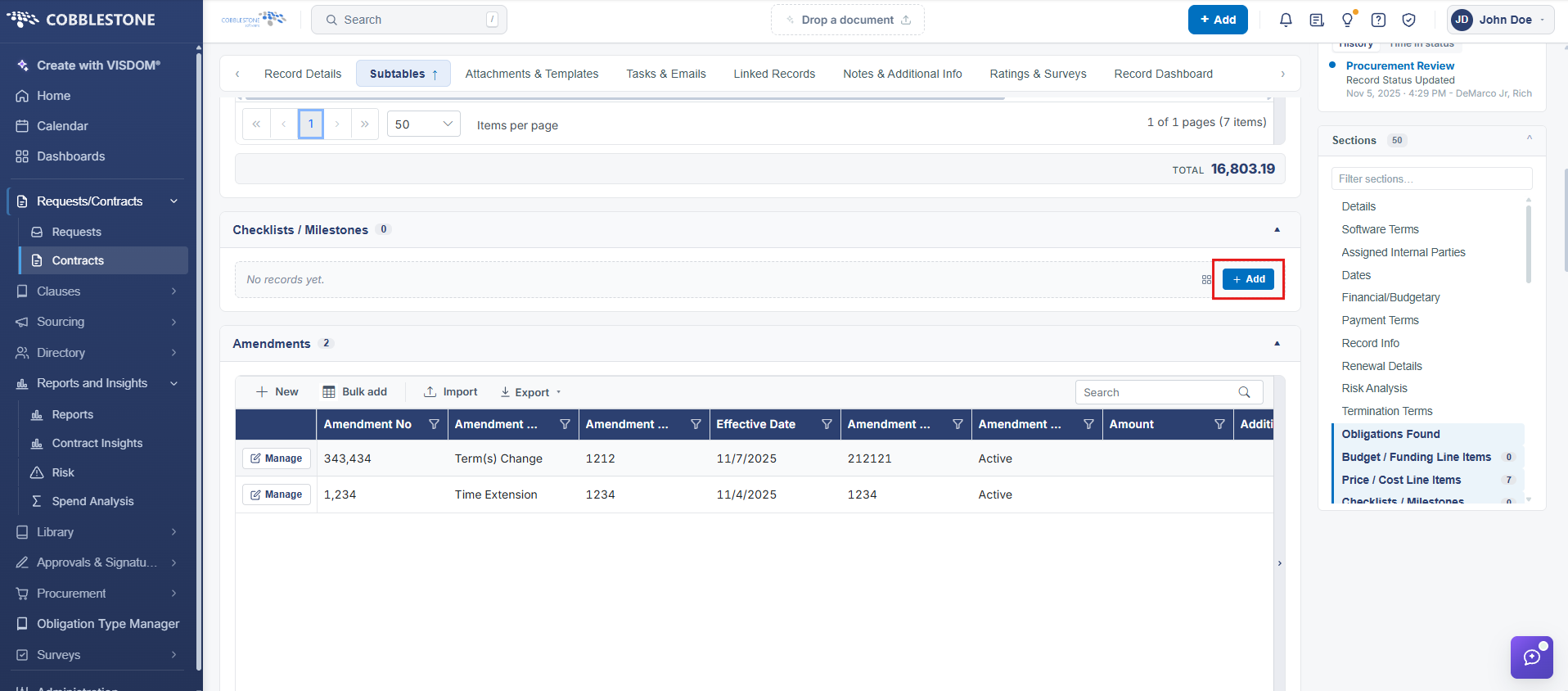
2. Enter all the required information to be recorded for the milestone.
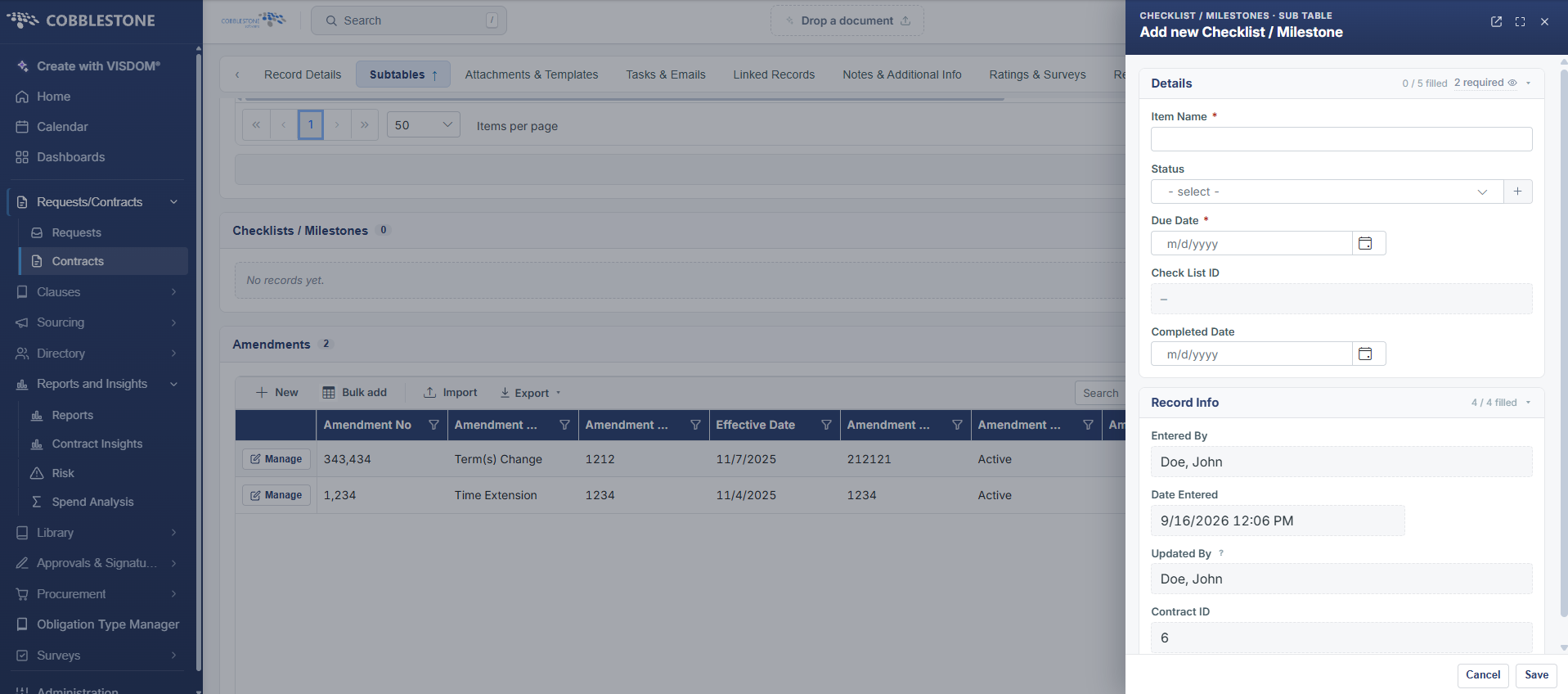
Note: Items that are grayed out will be auto-filled by the system upon clicking Save & Continue.
3. Click Save & Continue to save the milestone and open the Milestone/Checklist Details screen.
Viewing/Editing a Checklist or Milestone
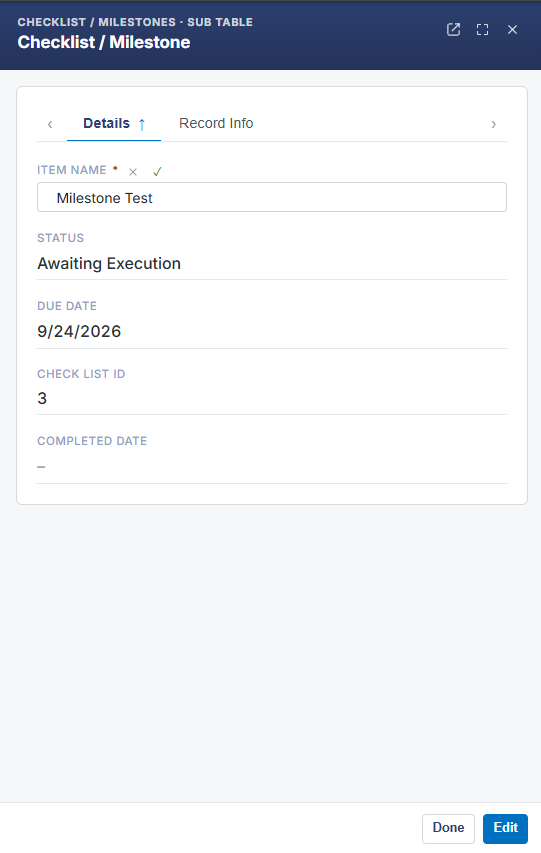
1. To view/edit the milestone/checklist, click the Manage button for the line item you would like to edit. The Milestone/Checklist Details screen displays.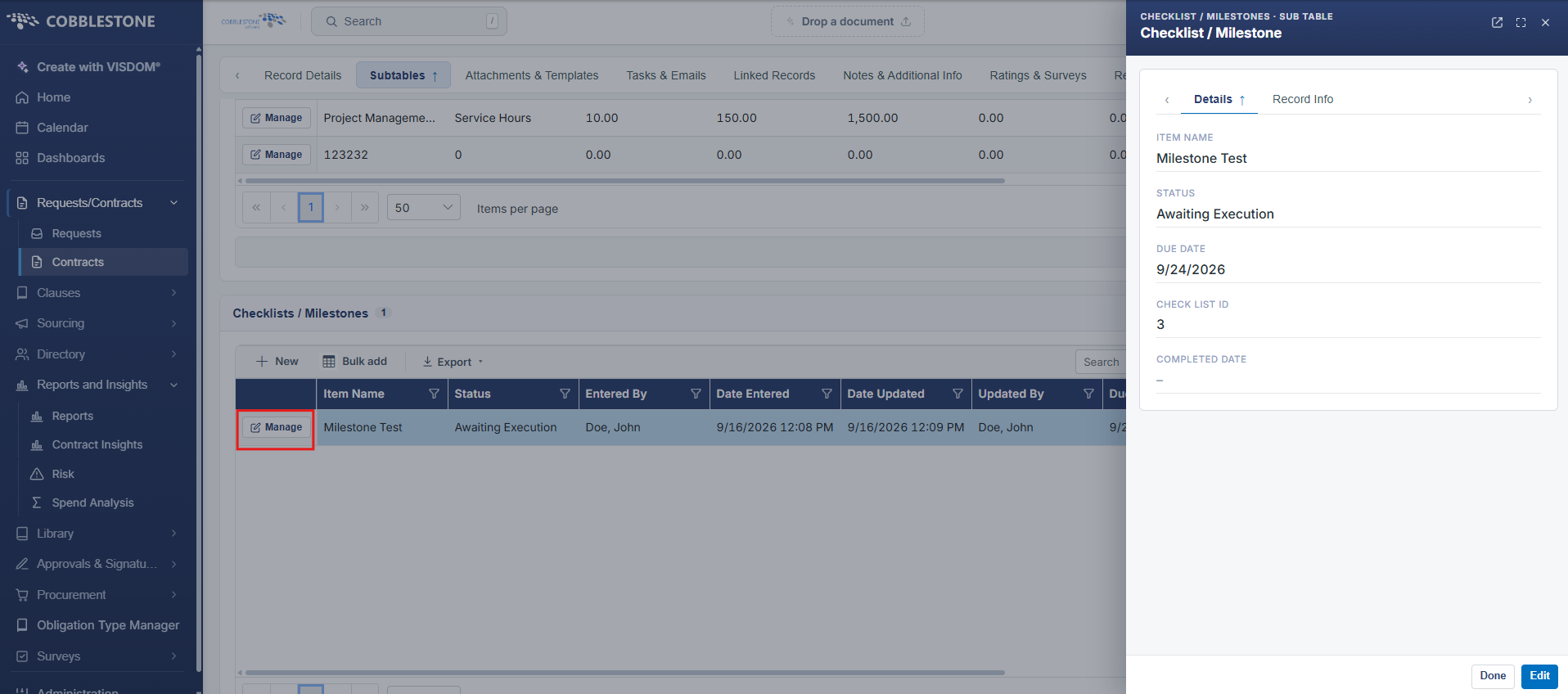
2. Click the Pencil icon next to the line item to edit to view the details and/or edit the milestone.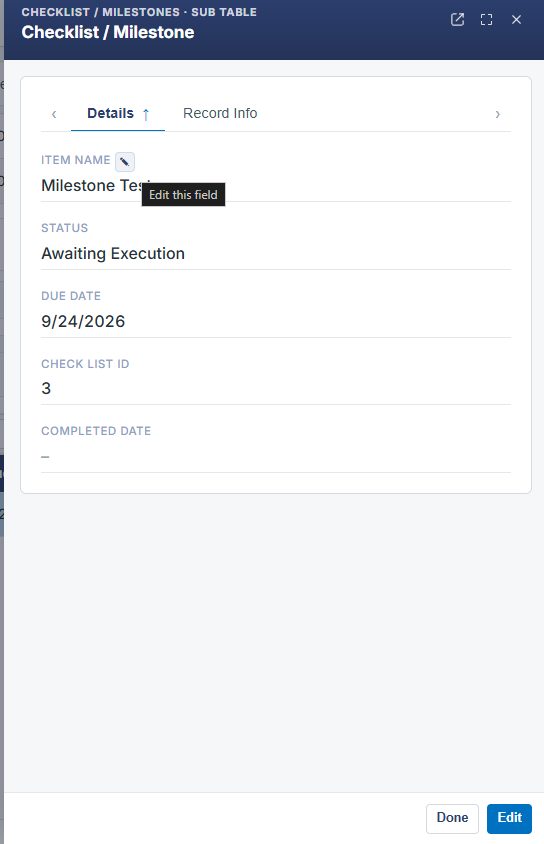
3. An Edit Field screen displays on which the value can be changed. Click Save Record or cancel the changes by clicking the X in the top-right corner of the window.