COBBLESTONE SOFTWARE
Contract Insight — User Guide
Contract Notes on the Vendor/Client Gateway
07. End Users - Contracts › Contract Details on the Vendor/Client Gateway › Contract Notes on the Vendor/Client Gateway
Note: Each procedure in this guide begins at the Contract Insight homepage, so any section can be followed on its own. Custom fields are configurable, so the exact field list on a contract category record may vary between environments.
1. Overview
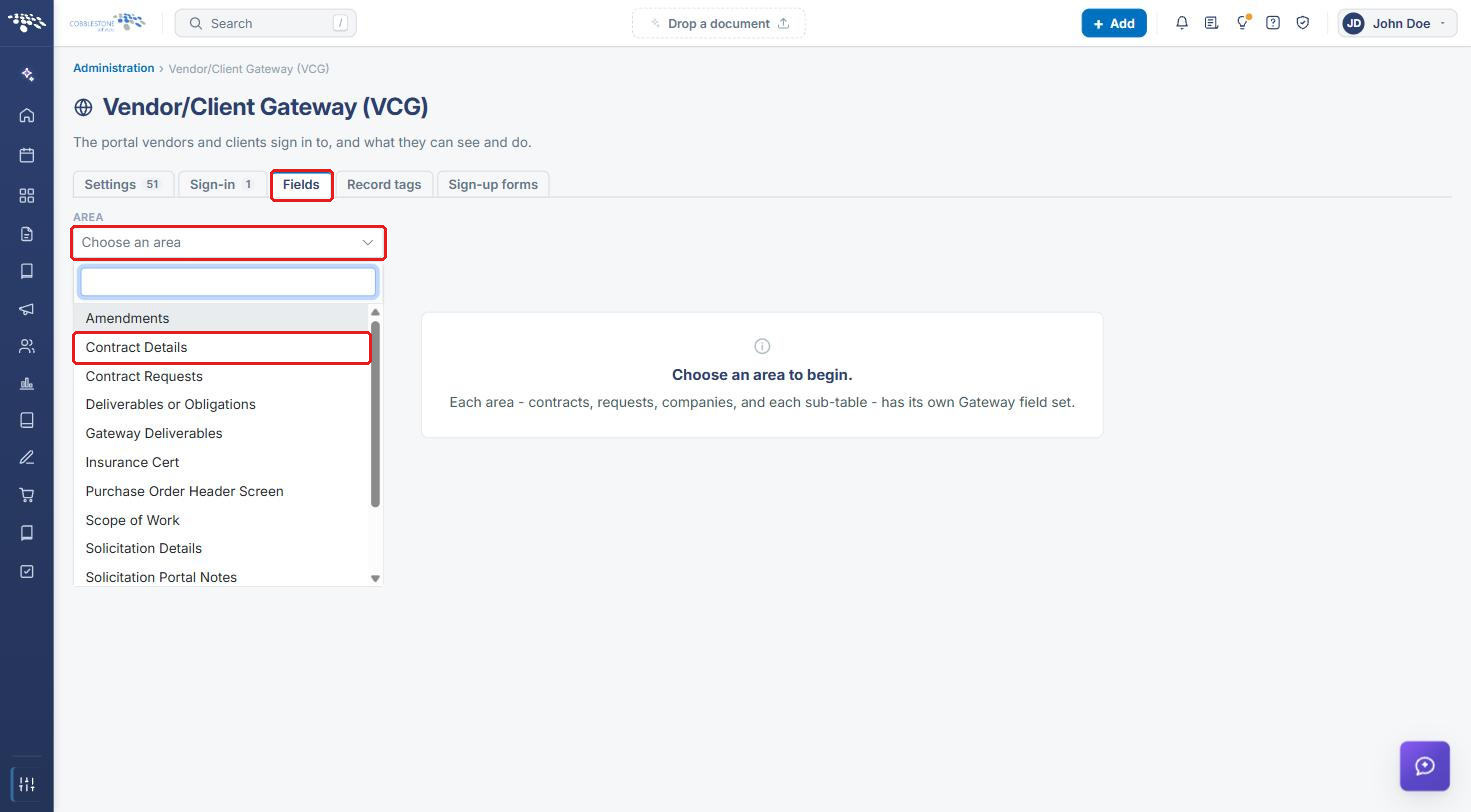
No dedicated "Notes" toggle or panel exists in the current VCG Settings, Fields, or Record tags configuration — a notes-style field would be added to a contract's Gateway-visible field set the same way any other field is, through VCG → Fields → Area: Contract Details, choosing a rich text or multi-line text field and adding it to the "On the Gateway" list for that record type.
2. Key Elements
- No standalone Notes setting or panel was found under VCG Settings, Fields, or Record tags in this environment
- A notes-type field is exposed the same way as any other Contract Details field: VCG → Fields → Area: Contract Details → « Add
- Rich Text and MultiLine Text field types (visible in the full Not shown field list) are the natural fit for note-style content
- Whether a note field is editable or read-only on the Gateway follows the same Edit toggle used for every other field there
3. Navigating to the Gateway Fields Tab
- From the Contract Insight homepage, click the Administration (settings) icon at the bottom of the left navigation bar.
- In the Search administration box, type Gateway.
- Click Vendor/Client Gateway (VCG).
The Vendor/Client Gateway (VCG) page opens on the Settings tab. Click the Fields tab to manage which fields vendors and clients see.
4. Adding a Notes Field to the Gateway
Gateway field sets are configured per area and per record type, so a note field must be added to each contract record type that should display it.
4a. Choosing the Area and Record Type
- On the Fields tab, click the Area dropdown and select Contract Details.
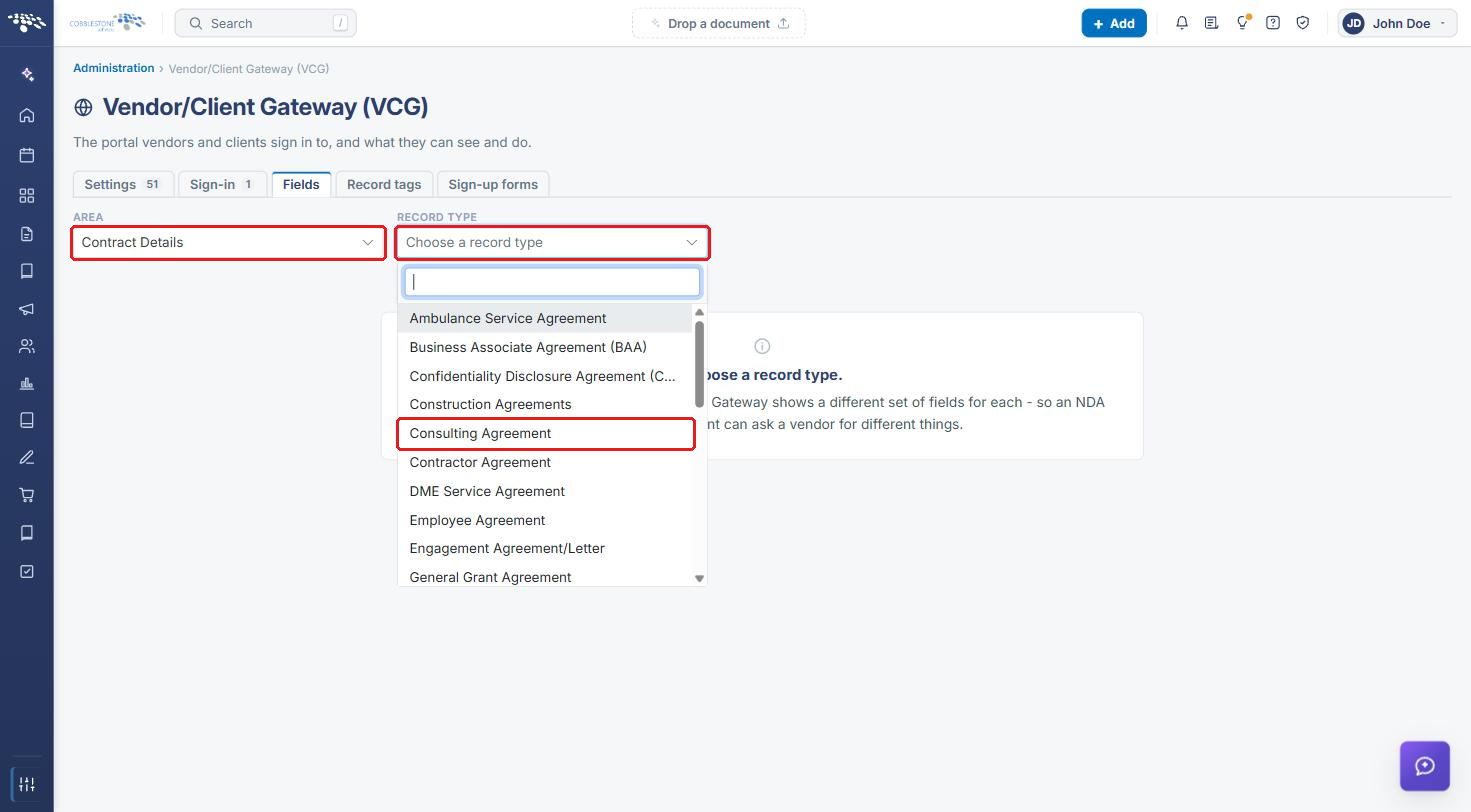
- Click the Record Type dropdown and select the contract record type to configure (for example, Consulting Agreement).
.png)
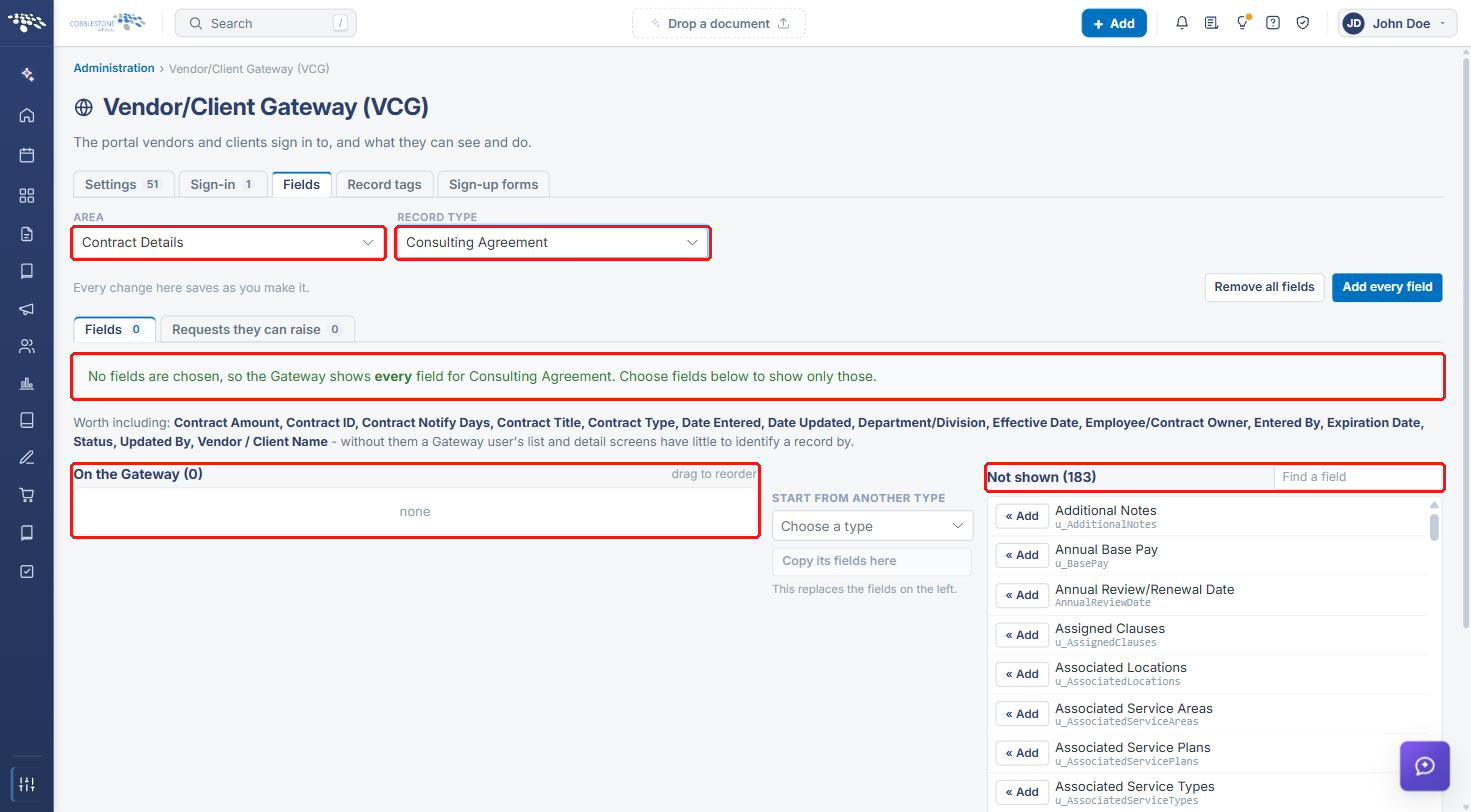
The field set for that record type opens. Changes on this screen save automatically as you make them. When no fields are chosen, a banner explains that the Gateway shows every field for the record type; once fields are added to On the Gateway, only the listed fields are shown. Fields not yet exposed appear in the Not shown list on the right.
4b. Finding and Adding the Notes Field
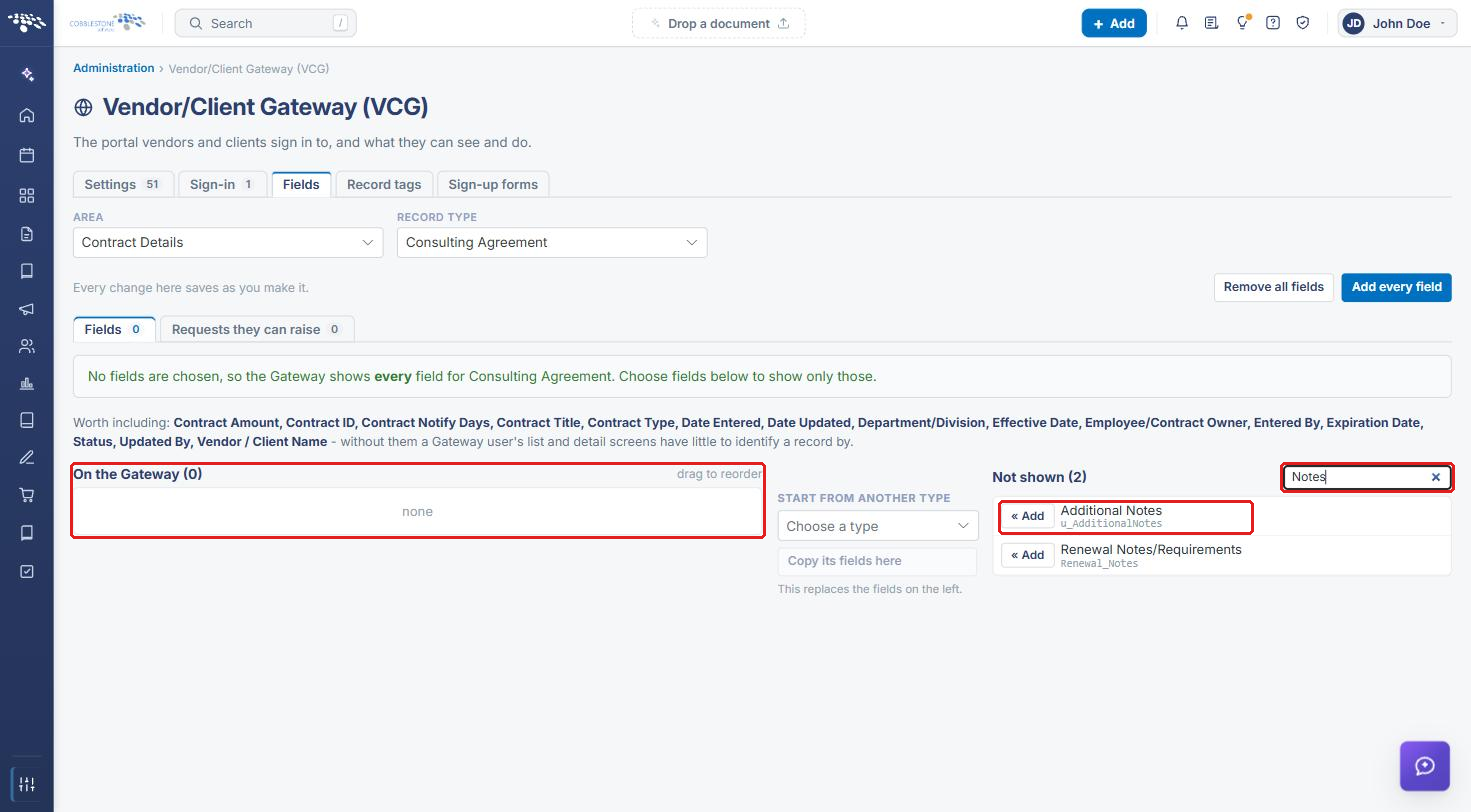
- In the Find a field box above the Not shown list, type Notes (or the name of your rich text or multi-line note field).
- Click « Add next to the field you want to expose (for example, Additional Notes).
Note: Adding the first field to On the Gateway limits the Gateway to only the listed fields. Before relying on the new field set, also add the identifying fields shown in the Worth including list (for example, Contract ID, Contract Title, and Vendor / Client Name).
4c. Setting Gateway Options for the Notes Field
The field moves to the On the Gateway list and the Fields count increases. Use the checkboxes on the field's row to control how it behaves on the Gateway:
- Search – include the field when vendors/clients search records on the Gateway.
- Add – show the field when a vendor/client adds a record.
- Edit – allow vendors/clients to edit the note. Leave it cleared to make the note read-only on the Gateway.
- Required – make the field mandatory.
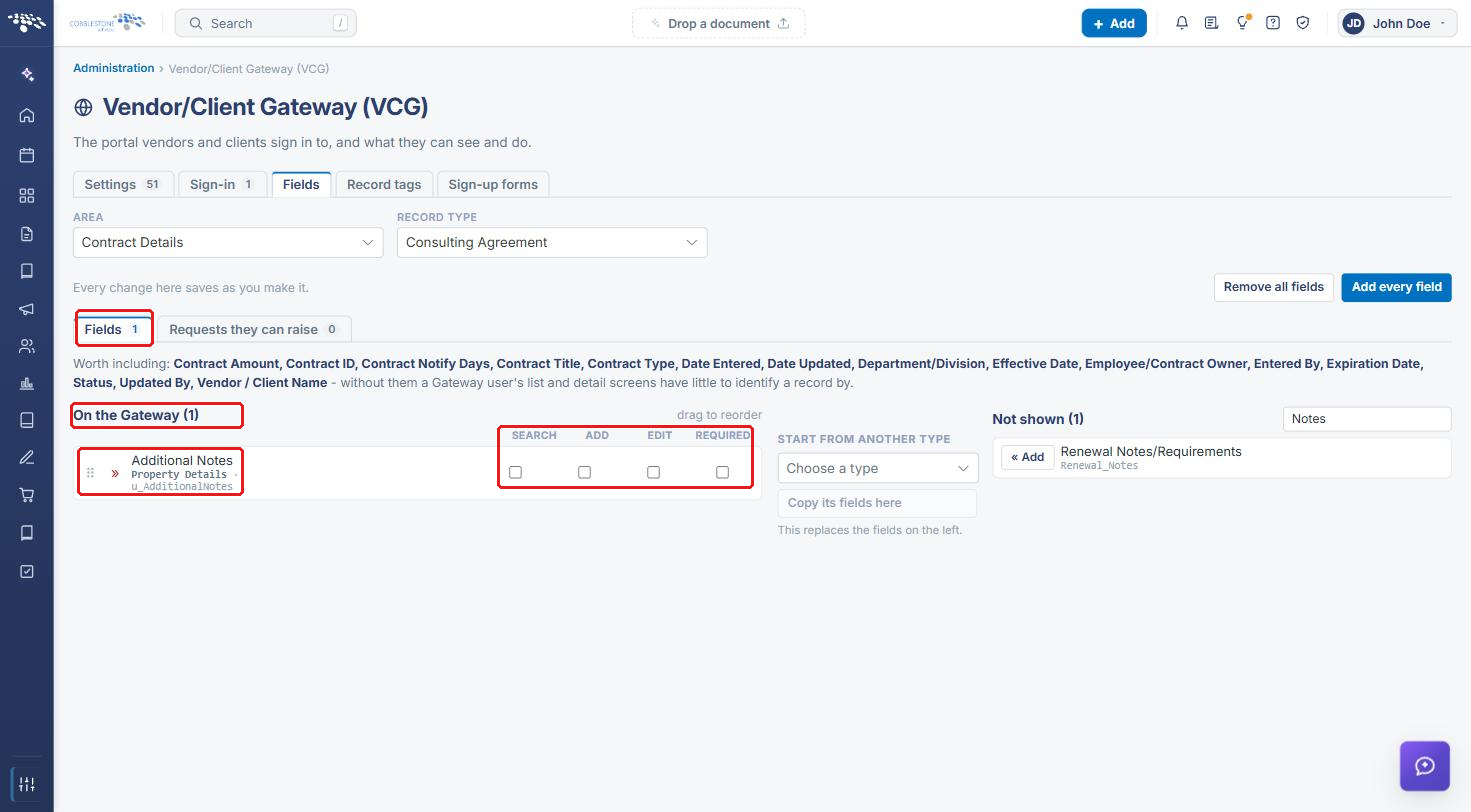
Drag the handle to the left of a field to reorder it. To stop showing the note on the Gateway, click the » icon on its row to return it to the Not shown list.
5. Quick Reference Summary
| Task | Where |
|---|---|
| Open Gateway field configuration | Administration → Vendor/Client Gateway (VCG) → Fields |
| Pick the contract record type | Area: Contract Details → Record Type: (your type) |
| Find a notes field | Find a field box above the Not shown list |
| Show the note on the Gateway | Click « Add next to the field |
| Make the note editable or read-only | Select or clear the Edit checkbox on the field's row |
| Remove the note from the Gateway | Click » on the field's row |