COBBLESTONE SOFTWARE
Contract Insight — User Guide
Workflow History
03. Admin User Manual › Workflow Management › Workflow History
Note: Each procedure in this guide begins at the Contract Insight homepage, so any section can be followed on its own. Custom fields are configurable, so the exact field list on a contract category record may vary between environments.
1. Overview
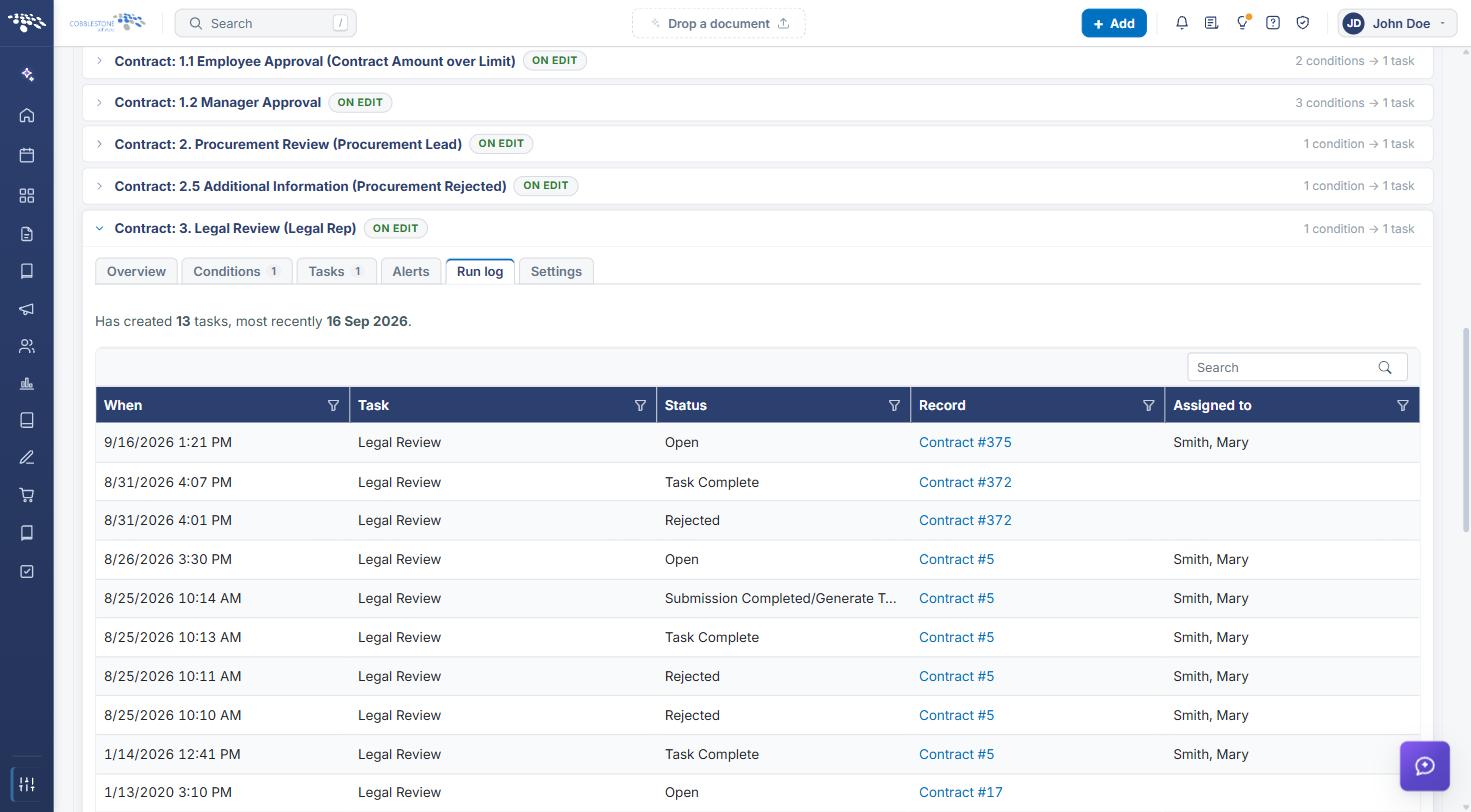
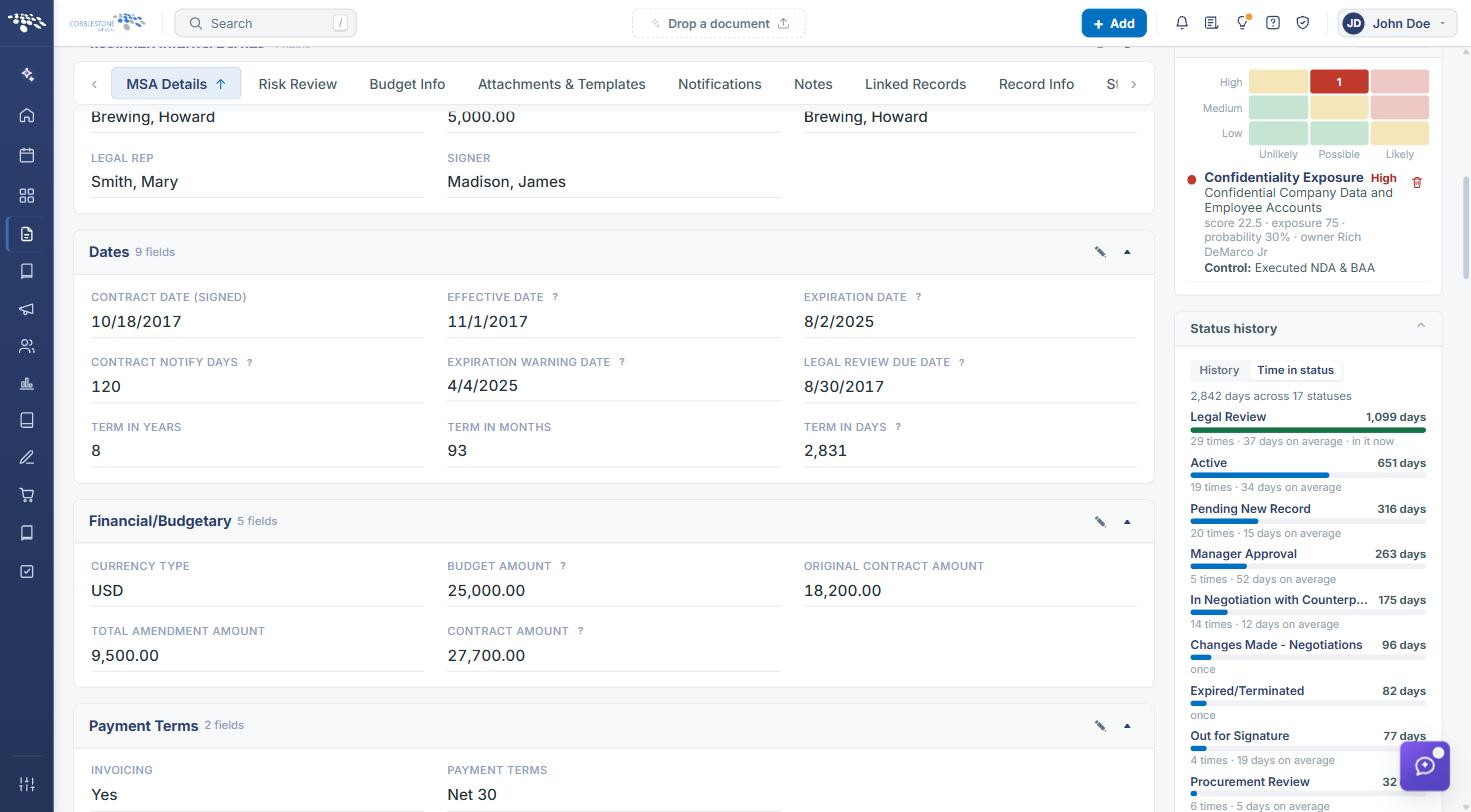
Each workflow keeps its own history on its Run log tab (Administration > Workflows → expand a workflow → Run log). The tab opens with a summary — for example, "Has created 13 tasks, most recently 16 Sep 2026" — followed by a searchable list of every task the workflow created: When, Task, Status, Record (a link to the record), and Assigned to. On an individual record, the Status history panel — with History and Time in status views — shows every status change and how long the record spent in each, which is what a chain of workflow-driven field updates (as in Field Update on Complete/Reject) produces over time.
2. Key Elements
- Workflow → Run log tab lists every task the workflow has created, newest first, with its current status (Open, Task Complete, Rejected, and so on) and the record it belongs to.
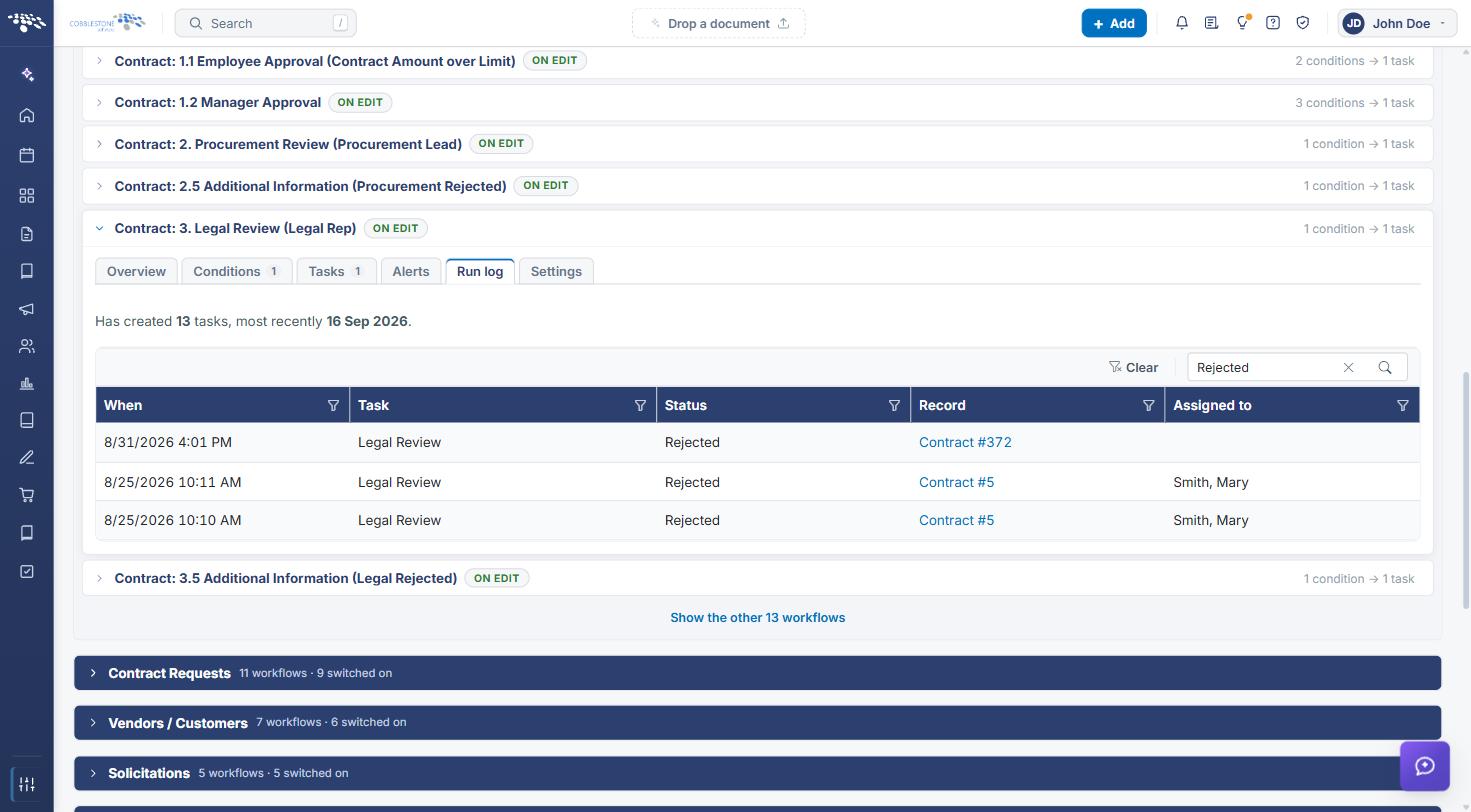
- The Run log's Search box and per-column filters narrow the list (for example, to Rejected tasks or one record); Clear removes them.
- Each Record entry (for example, Contract #5) links straight to that record.
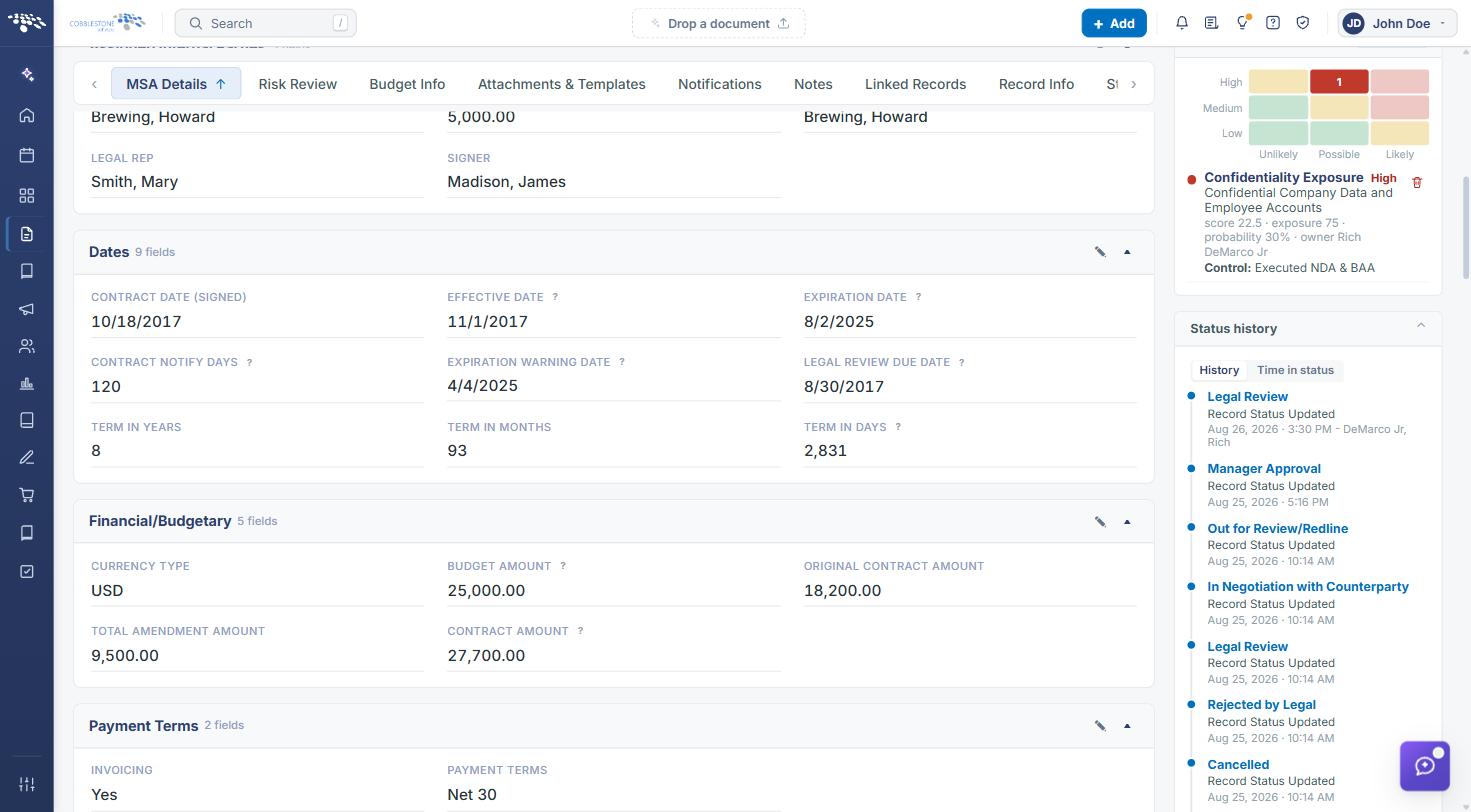
- A record's Status history panel (right-hand side) has a History view — each status change, labeled "Record Status Updated," timestamped and, where available, attributed to the employee who made it.
- The Time in status view totals the days spent in each status, how many times the record entered it, the average stay, and which status it is "in now."
- The Workflow Flow diagram shows the possible chain of status changes going forward, rather than a historical log of what already happened.
3. Viewing a Workflow's Run Log
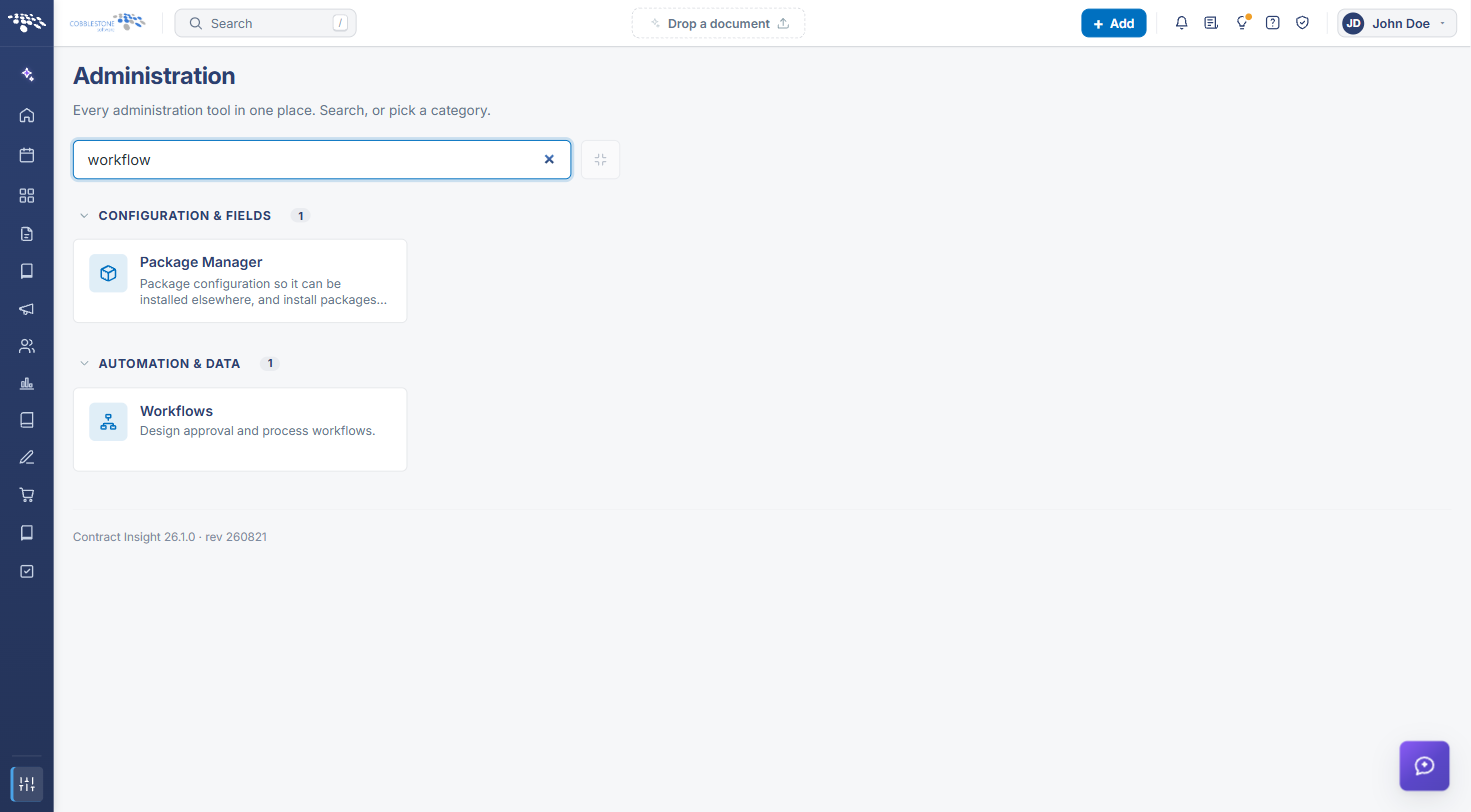
- From the Contract Insight homepage, click the Administration (sliders) icon at the bottom of the left navigation bar, search for workflow, and click Workflows.
- Click the workflow's row to expand it (for example, Contract: 3. Legal Review (Legal Rep)).
- Click the Run log tab. The summary line shows how many tasks the workflow has created and when it last ran.
- Review the list: When the task was created or updated, the Task, its Status, the Record, and who it was Assigned to.
4. Searching and Filtering the Run Log
- Type in the Run log's Search box and press Enter (for example, Rejected to see only rejected tasks), or use the funnel icon on a column header.
- Click a Record link to open that record.
- Click Clear to remove the search and filters.
5. Viewing a Record's Status History
- Open the record (for example, from a Run log Record link).
- In the right-hand panel, scroll to Status history.
- On the History view, review each status change in order, newest first, with its date, time, and the employee who made it where recorded.
- Click Time in status to see total days in each status, how many times the record entered it, the average stay, and the status it is in now.
6. Quick Reference Summary
| Task | How to Complete It |
|---|---|
| See everything a workflow has done | Administration → Workflows → expand → Run log. |
| Find specific runs | Run log → Search or column filters; Clear to reset. |
| Open the record a task belongs to | Run log → Record link. |
| See a record's status changes | Record → right-hand panel → Status history → History. |
| See how long a record spent in each status | Status history → Time in status. |
| See what a workflow could do next | Overview → See it as a diagram (Workflow Visualizer). |