COBBLESTONE SOFTWARE
Contract Insight — User Guide
VISDOM Auto Redline - Single .docx File
07. End Users - Contracts › Contract Attachments › VISDOM Auto Redline - Single .docx File
Note: Each procedure in this guide begins at the Contract Insight homepage, so any section can be followed on its own. Custom fields are configurable, so the exact field list on a contract category record may vary between environments.
1. Overview
Alongside the on-screen word-by-word comparison, the Compare documents screen offers a Download as tracked changes button. Rather than only showing the differences in the browser, it produces a single Word (.docx) file with the differences applied as native Microsoft Word tracked changes: insertions and deletions are marked the same way they would be if a reviewer had used Word's own Track Changes feature. The redline can then be opened, reviewed, accepted or rejected, and edited further in Word.
Because tracked changes are a Word feature, the button is available only when both selected documents are Word files. The on-screen redline works for any combination of file types.
2. Key Elements
- Compare documents button: on a record's Attachments & Templates tab, in the Files / Attachments panel. Opens the comparison screen for that record.
- Original and Revised drop-downs: list every document and saved version attached to the record, shown as file name (version · upload date · uploaded by).
- Compare: shows the word-by-word redline on screen, with a summary of words added and removed.
- Download as tracked changes: downloads one .docx file with the differences as native Word tracked changes. Enabled only when both documents are Word files.
- Legend: on screen, struck-through red text was removed from the original and highlighted green text was added in the revised copy. In the downloaded file, the same changes appear as Word insertions and deletions.
3. Opening the Compare Documents Screen
- From the Contract Insight homepage, hover over the Requests/Contracts icon in the left navigation bar.
- Select Contracts.
.jpg)
- On the Contracts list, locate the record (use the Search box if needed) and click Manage.
.jpg)
- On the record, click the Attachments & Templates tab.
- In the Files / Attachments panel, click Compare documents.
.jpg)
Note: Both documents (or both versions) must be attached to the record the screen was opened from.
4. Downloading the Redline as a Word File
- From the Original drop-down, select the baseline Word document or version.
- From the Revised drop-down, select the Word document or version to compare against it.
- Optionally, click Compare to review the redline on screen first. The summary line shows how many words were added and removed.
- Click Download as tracked changes. A single .docx file downloads with the differences applied as tracked changes.
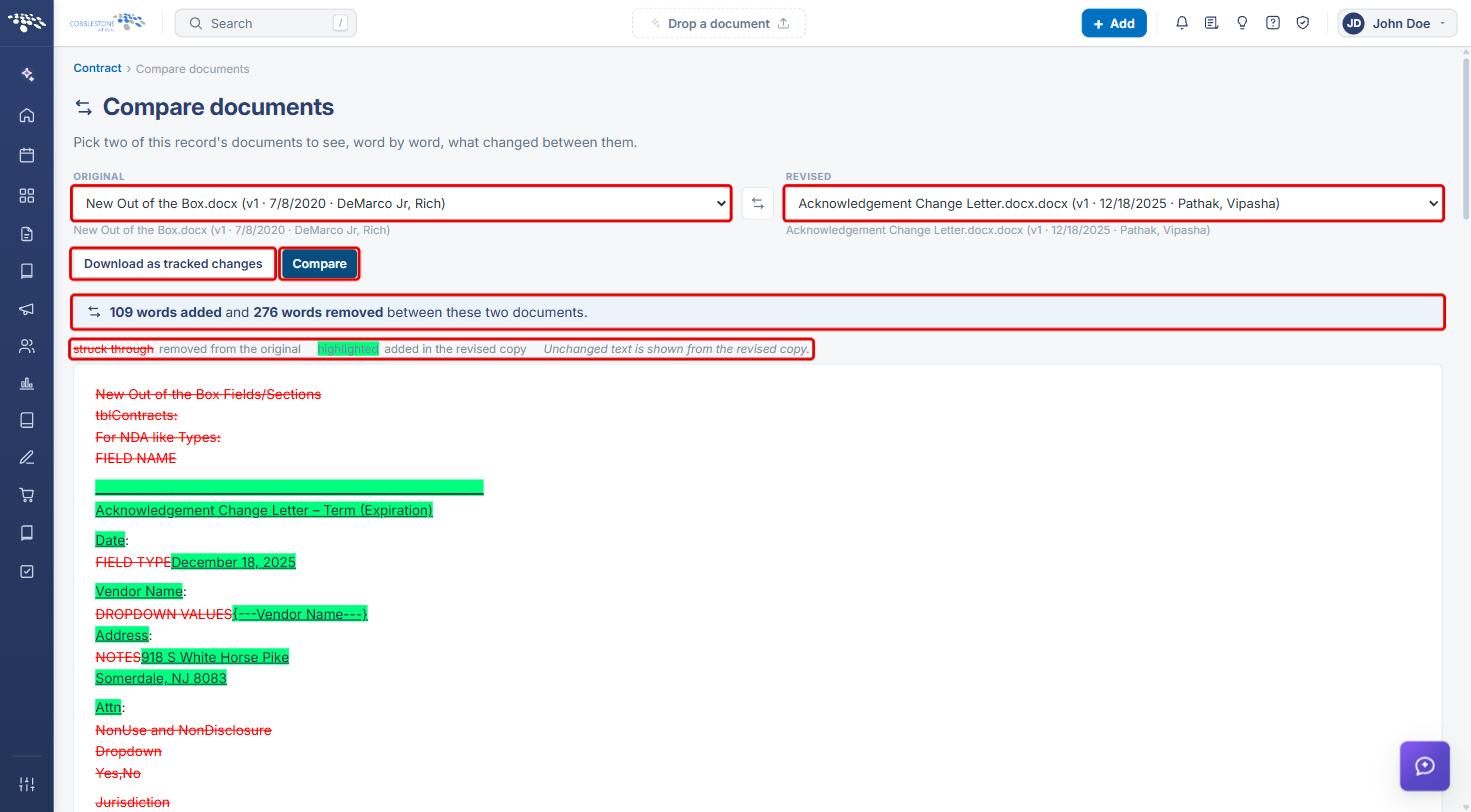
- Open the downloaded file in Microsoft Word. Use Word's Review tab to accept, reject or continue editing the changes.
Tip: To reverse which document counts as the original, click the Swap button (⇆) between the drop-downs before downloading.
5. When Download as Tracked Changes Is Unavailable
- If either drop-down has a PDF or another non-Word file selected, Download as tracked changes is greyed out. Its tooltip reads: "Tracked changes are a Word feature, so both documents have to be Word files. The redline on this page works either way."
- Select a Word version of the document in both drop-downs to enable the button, or click Compare to review the differences on screen instead.

6. Quick Reference Summary
| Task | Where / How |
|---|---|
| Open the comparison tool | Requests/Contracts › Contracts › Manage › Attachments & Templates › Compare documents |
| Choose the documents | Original and Revised drop-downs (both must be Word files to download) |
| Preview the redline | Compare |
| Download a Word redline | Download as tracked changes › open the .docx in Word |
| Accept or reject changes | In Word: Review tab |
| Button greyed out | One document is not a Word file; pick Word files or use the on-screen redline |