COBBLESTONE SOFTWARE
Contract Insight — User Guide
Online Document Editing
07. End Users - Contracts › Contract Attachments › Online Document Editing
Note: Each procedure in this guide begins at the Contract Insight homepage, so any section can be followed on its own. Custom fields are configurable, so the exact field list on a contract category record may vary between environments.
1. Overview
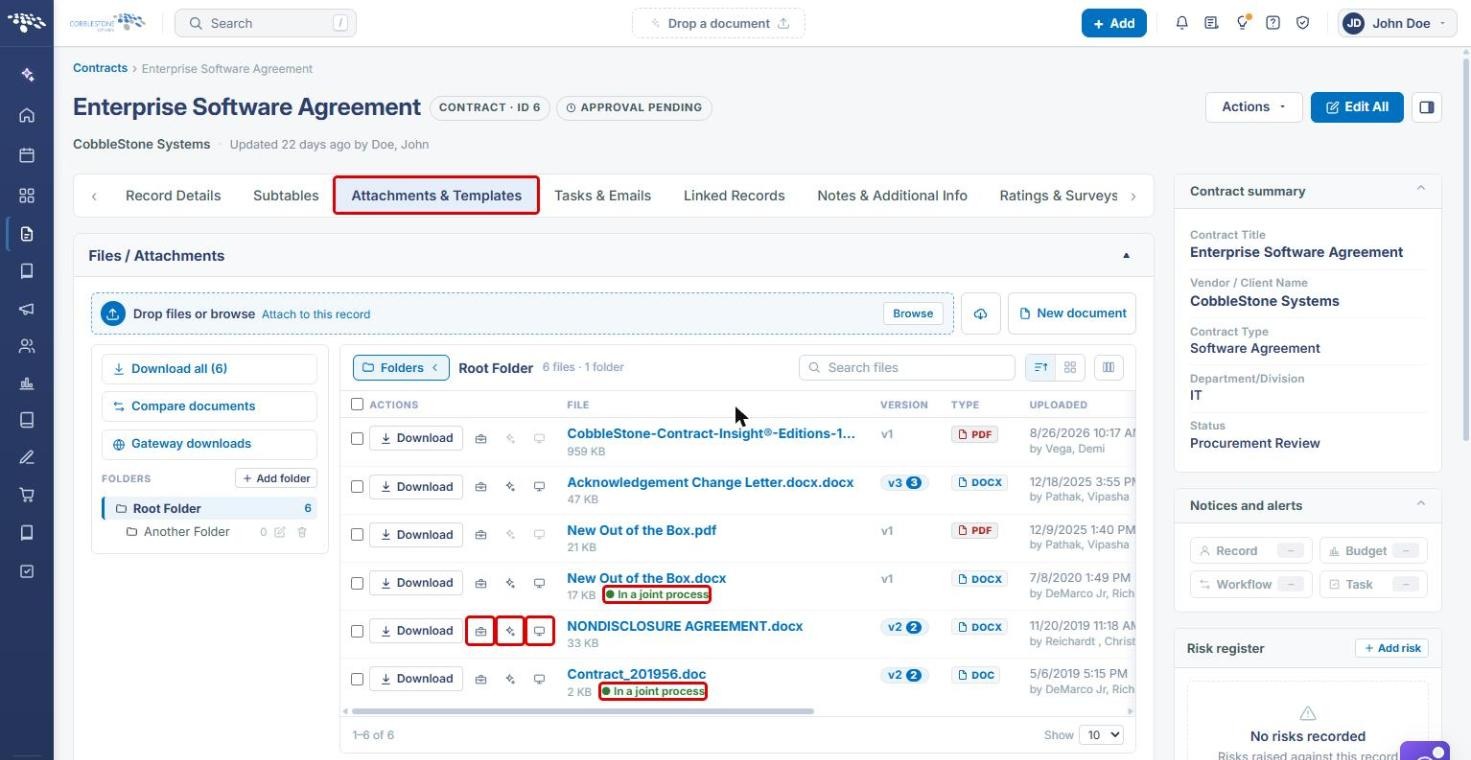
Contract Insight lets you edit a record's Word attachments online, without downloading them first. Editing starts from the file row on a record's Attachments & Templates tab, either from the quick-action icons on the row or from the Edit & collaborate section of the file's Document tools window.
There are three ways to edit online: Collaborative edit ("Edit with colleagues and outside parties at once") opens the file in the Collaborative Online Editor (COE); Edit with VISDOM ("Review, redline and co-edit with VISDOM at your side") opens the file with the VISDOM AI assistant alongside; and Edit in Word opens the file in Word Online once OneDrive is connected. Files that are currently being edited together show an In a joint process tag. Administrators control the COE's sidebars, collaborator invitations and Gateway sign-in in Administration › Application Settings › Collaborative Online Editor.
2. Key Elements
- Row icons: each file row on the Files / Attachments list has a Document tools (briefcase) icon, an Edit with VISDOM icon and a Collaborative edit icon next to Download.
- In a joint process tag: shown under a file name when "People are editing this document together right now".
- Document tools › Edit & collaborate: Collaborative edit, Edit with VISDOM and Edit in Word.
- Connect OneDrive (Document tools › Copies & conversions): must be done before Edit in Word becomes available.
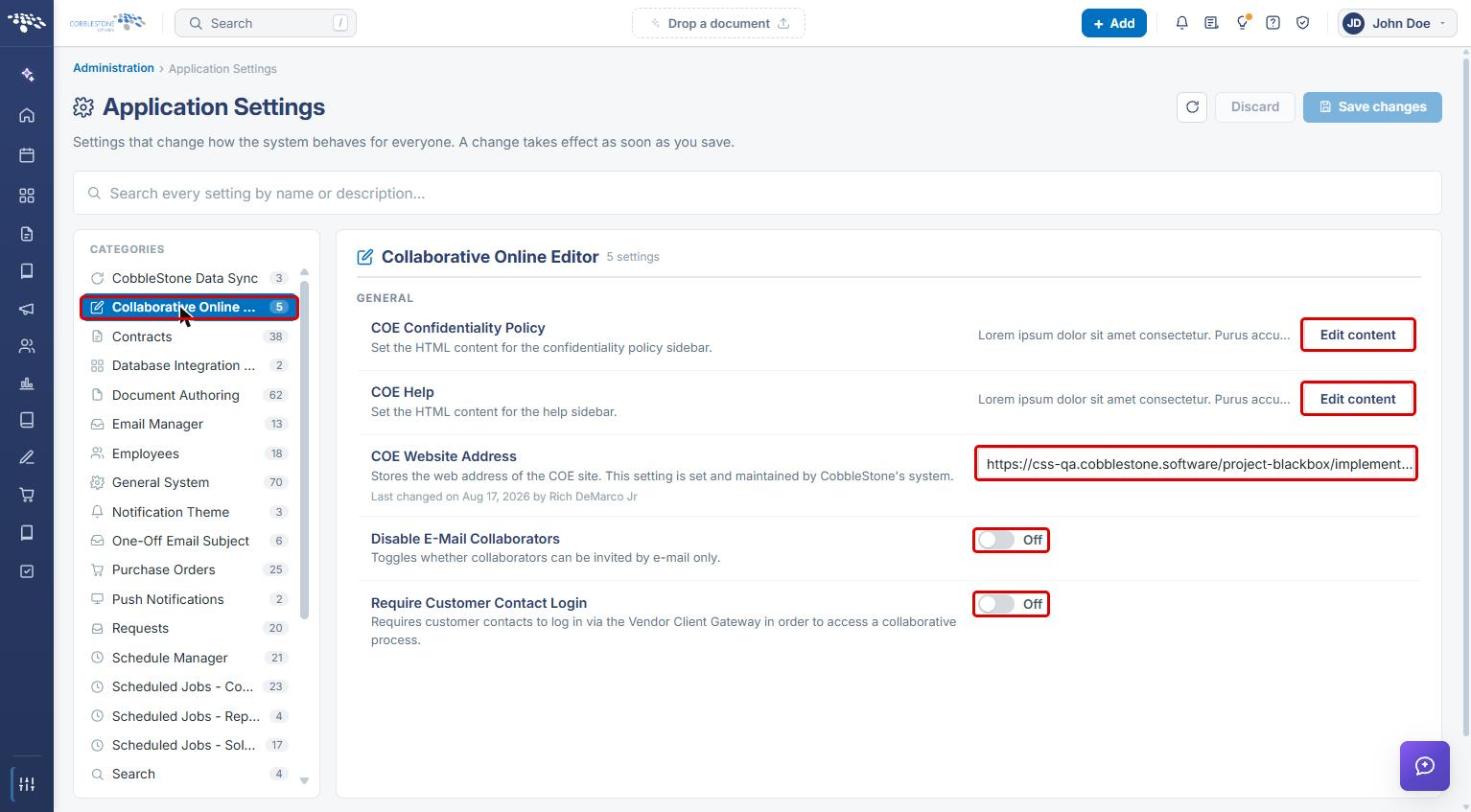
- Collaborative Online Editor settings (Administration › Application Settings, 5 settings): COE Confidentiality Policy, COE Help, COE Website Address, Disable E-Mail Collaborators and Require Customer Contact Login.
3. Opening a Contract's Attachments
- From the Contract Insight homepage, hover over the Requests/Contracts icon in the left navigation bar.
- Select Contracts.
.jpg)
- On the Contracts list, locate the record (use the Search box if needed) and click Manage.
.jpg)
- On the record, click the Attachments & Templates tab. The Files / Attachments list shows every file attached to the record.
4. Editing a File from the File Row
- On the Attachments & Templates tab, find the file you want to edit.
- Click one of the icons next to Downloadon that row:
- Collaborative edit (screen icon): opens the file in the Collaborative Online Editor, where colleagues and outside parties can edit at the same time.
- Edit with VISDOM (sparkle icon): opens the file for review, redlining and co-editing with VISDOM at your side.
- Document tools (briefcase icon): opens the Document tools window with all editing options (see Section 5).
- Check for an In a joint process tag under the file name. It means people are already editing the document together, so join that process rather than starting a separate edit.
Note: Only Word documents (and .rtf/.txt files) can be edited online. On a PDF row, the VISDOM icon is unavailable and its tooltip explains why.
5. Editing a File from Document Tools
- On the file row, click the Document tools (briefcase) icon.
- In the Document tools window, check the file details at the top (file type, version, size and who added it). If someone has the file checked out, you see that here.
- Under Edit & collaborate, choose how to edit:
- Collaborative edit: edit with colleagues and outside parties at once in the Collaborative Online Editor.
- Edit with VISDOM: review, redline and co-edit with VISDOM at your side.
- Edit in Word: edit the file in Word Online.
.jpg)
- If Edit in Word is greyed out, OneDrive is not connected yet. Under Copies & conversions, click Connect OneDrive and complete the sign-in, then return to Edit in Word.
- When you finish, click X to close the Document tools window.
Tip: Hover over any option in the Document tools window to see a short description of what it does.
6. Configuring the Collaborative Online Editor (Administrators)
- From the Contract Insight homepage, click the Administration icon at the bottom of the left navigation bar.
- Click Application Settings.
- In the Categories list, select Collaborative Online Editor.
- Click Edit content next to COE Confidentiality Policy or COE Help to set the HTML shown in the editor's confidentiality policy and help sidebars.
- Review COE Website Address, the web address of the COE site. This setting is set and maintained by CobbleStone's system, so do not change it.
- Switch Disable E-Mail Collaborators on to stop collaborators being invited by e-mail only.
- Switch Require Customer Contact Login on to require customer contacts to sign in through the Vendor Client Gateway before they can access a collaborative process.
- Click Save changes, or Discard to cancel all pending changes.
Note: A change in Application Settings takes effect for everyone as soon as it is saved.
7. Quick Reference Summary
| Task | Where / How |
|---|---|
| Find a contract's files | Requests/Contracts › Contracts › Manage › Attachments & Templates |
| Edit with others at once | File row › Collaborative edit icon, or Document tools › Collaborative edit |
| Edit with the VISDOM assistant | File row › Edit with VISDOM icon, or Document tools › Edit with VISDOM |
| Edit in Word Online | Document tools › Connect OneDrive (first time) › Edit in Word |
| See who is editing now | In a joint process tag under the file name |
| Set COE sidebars and invitation rules | Administration › Application Settings › Collaborative Online Editor › Save changes |