COBBLESTONE SOFTWARE
Contract Insight — User Guide
Contract Records on the Vendor/Client Gateway
07. End Users - Contracts › Contract Details on the Vendor/Client Gateway › Contract Records on the Vendor/Client Gateway
Note: Each procedure in this guide begins at the Contract Insight homepage, so any section can be followed on its own. Custom fields are configurable, so the exact field list on a contract category record may vary between environments.
1. Overview
Vendors and clients reach contract records through the Vendor/Client Gateway (VCG) menu. Administrators set up that menu in Administration › Navigation Menu by choosing the Vendor/Client Gateway workspace. In it, the Contracts group holds My Contracts, which lists the contracts tied to the signed-in vendor or client. The Find/Search Public Records group holds All Public Contracts, for browsing public contracts.
Menu items carried over from the previous application can still point at legacy .aspx pages. Where the application recognises the old page, the item opens its current equivalent (for example, ContractList.aspx opens the Contracts list). Where it does not, the item is marked UNAVAILABLE and appears greyed out on the Gateway until it is pointed at a current page.
What a vendor or client sees once a contract record is open is set in Administration › Vendor/Client Gateway (VCG): the Settings tab controls file and linked-contract access, the Fields tab controls which fields appear for each contract type, and the Record tags tab controls the tags shown on each record.
2. Key Elements
- Navigation Menu › Workspace › Vendor/Client Gateway: shows the menu Gateway users see. A banner counts the items marked UNAVAILABLE, with a Review them button.
- Contracts › My Contracts: lists contracts tied to the signed-in vendor or client. In this configuration it uses the legacy link ContractList.aspx, which is recognised and opens the Contracts list.
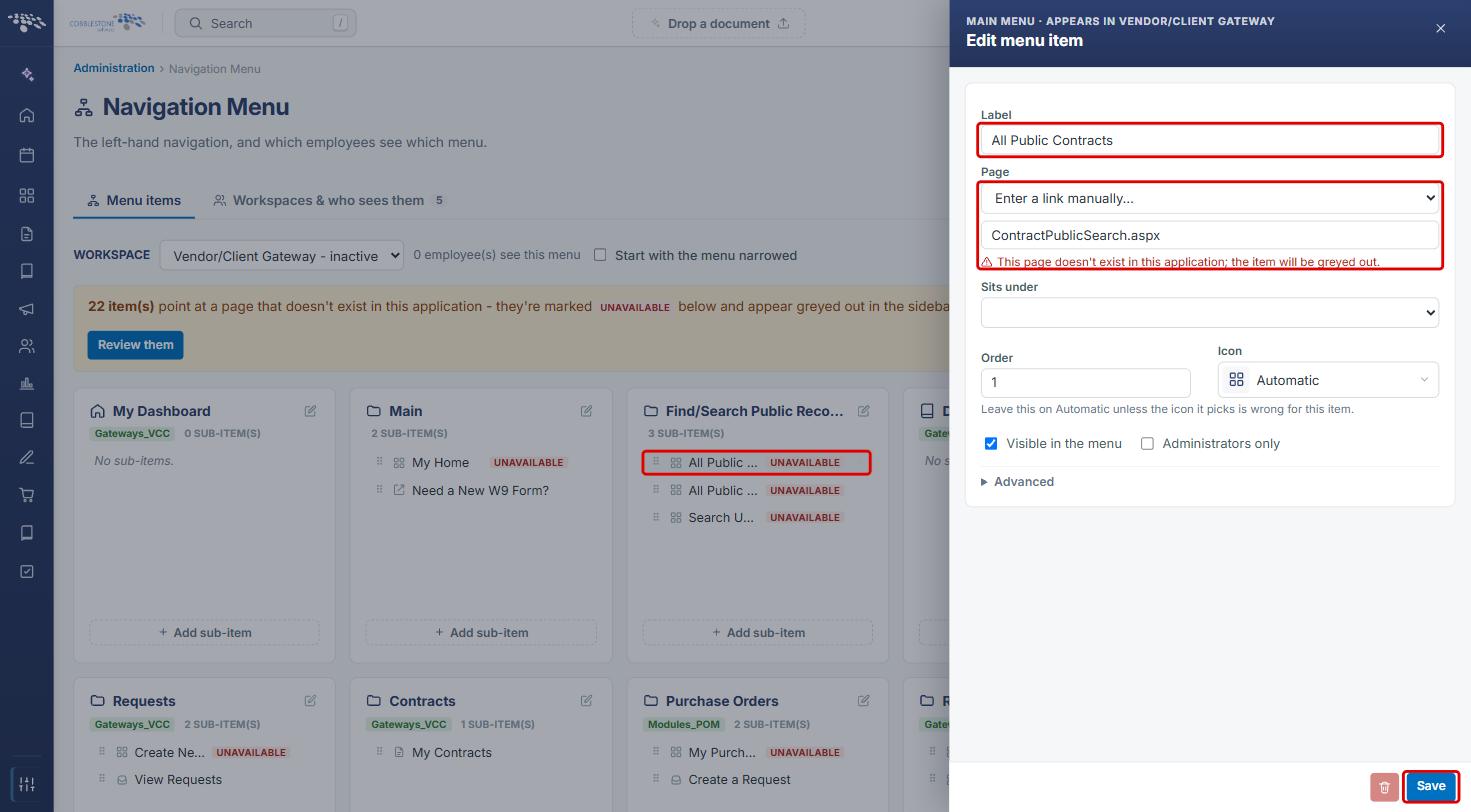
- Find/Search Public Records › All Public Contracts: intended for browsing public contracts. In this configuration it points at ContractPublicSearch.aspx, which does not exist in this application, so it is marked UNAVAILABLE.
- Edit menu item panel: Label, Page, Visible in the menu, Administrators only and, under Advanced, Only show when this module is licensed (for example, Gateways_VCC).
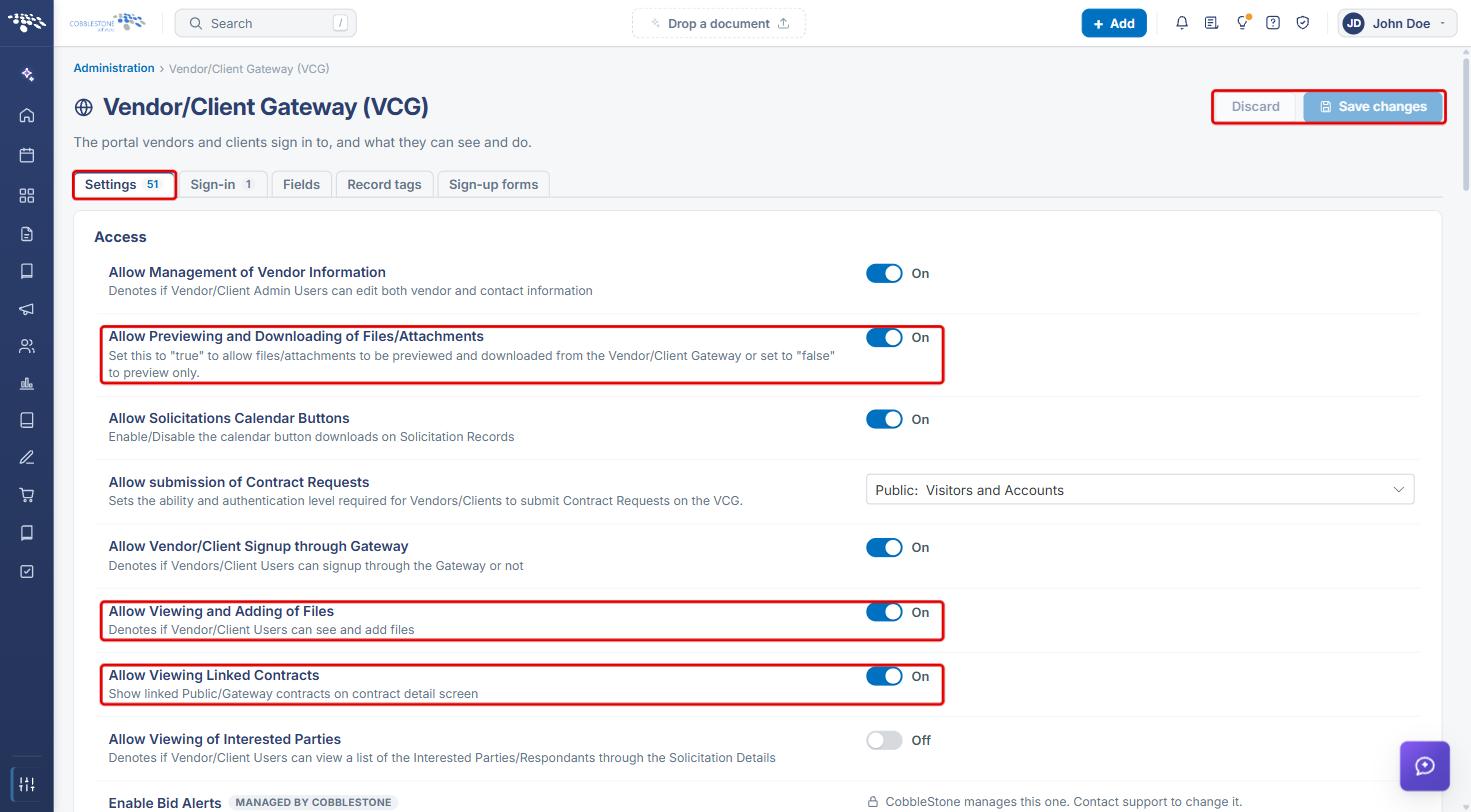
- VCG › Settings: Allow Previewing and Downloading of Files/Attachments, Allow Viewing and Adding of Files and Allow Viewing Linked Contracts.
- VCG › Fields (Area: Contract Details) and VCG › Record tags (Area: Contracts): choose the fields and tags a contract record shows on the Gateway.
3. Reviewing the Gateway Contract Menu Items
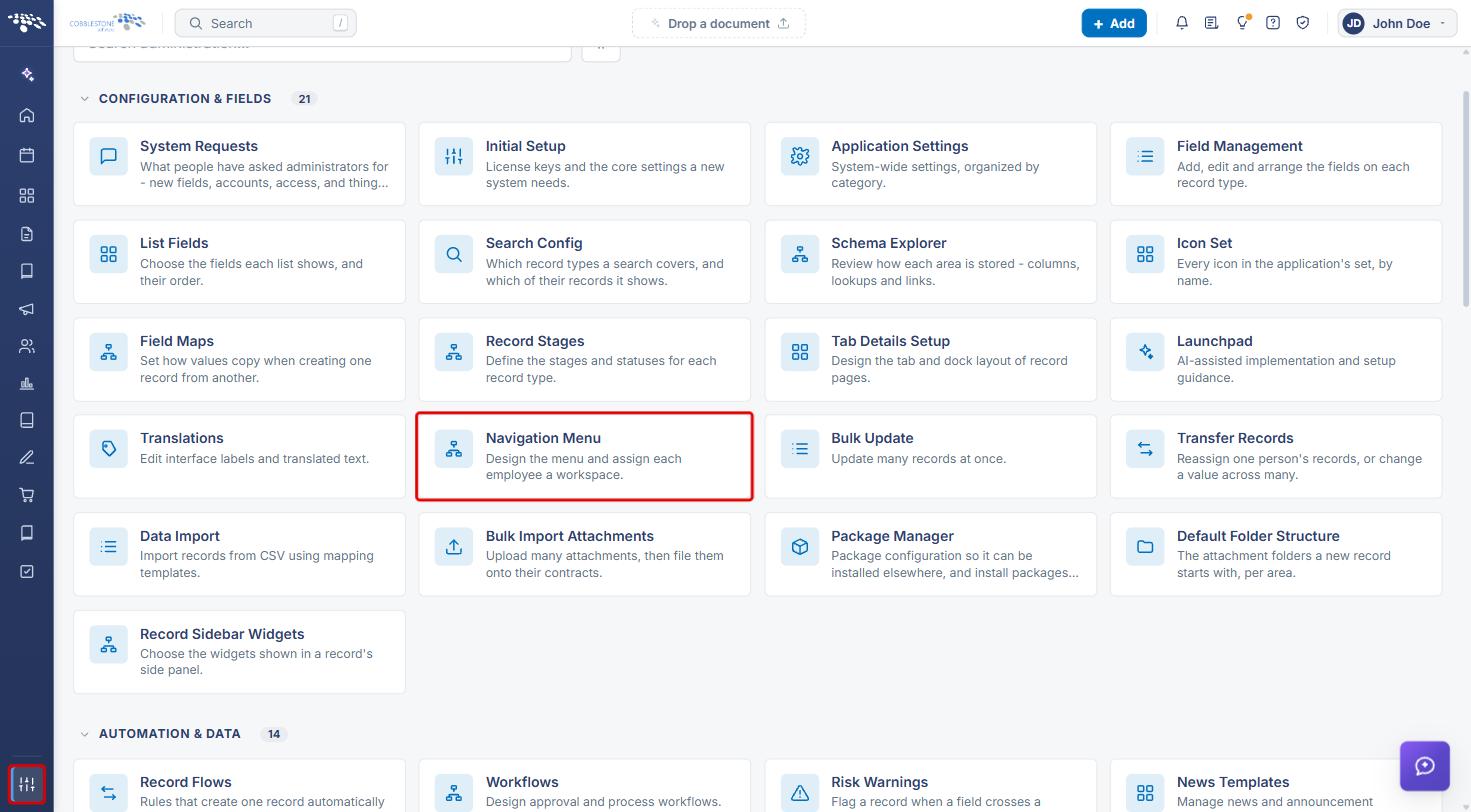
- From the Contract Insight homepage, click the Administration icon at the bottom of the left navigation bar.
- Under Configuration & Fields, click Navigation Menu.
- On the Menu items tab, choose Vendor/Client Gateway from the Workspace drop-down.
- Find the Contracts group (with My Contracts) and the Find/Search Public Records group (with All Public Contracts). Use Filter items to search for an item by name.
- If the banner shows items marked UNAVAILABLE, click Review them to work through them.
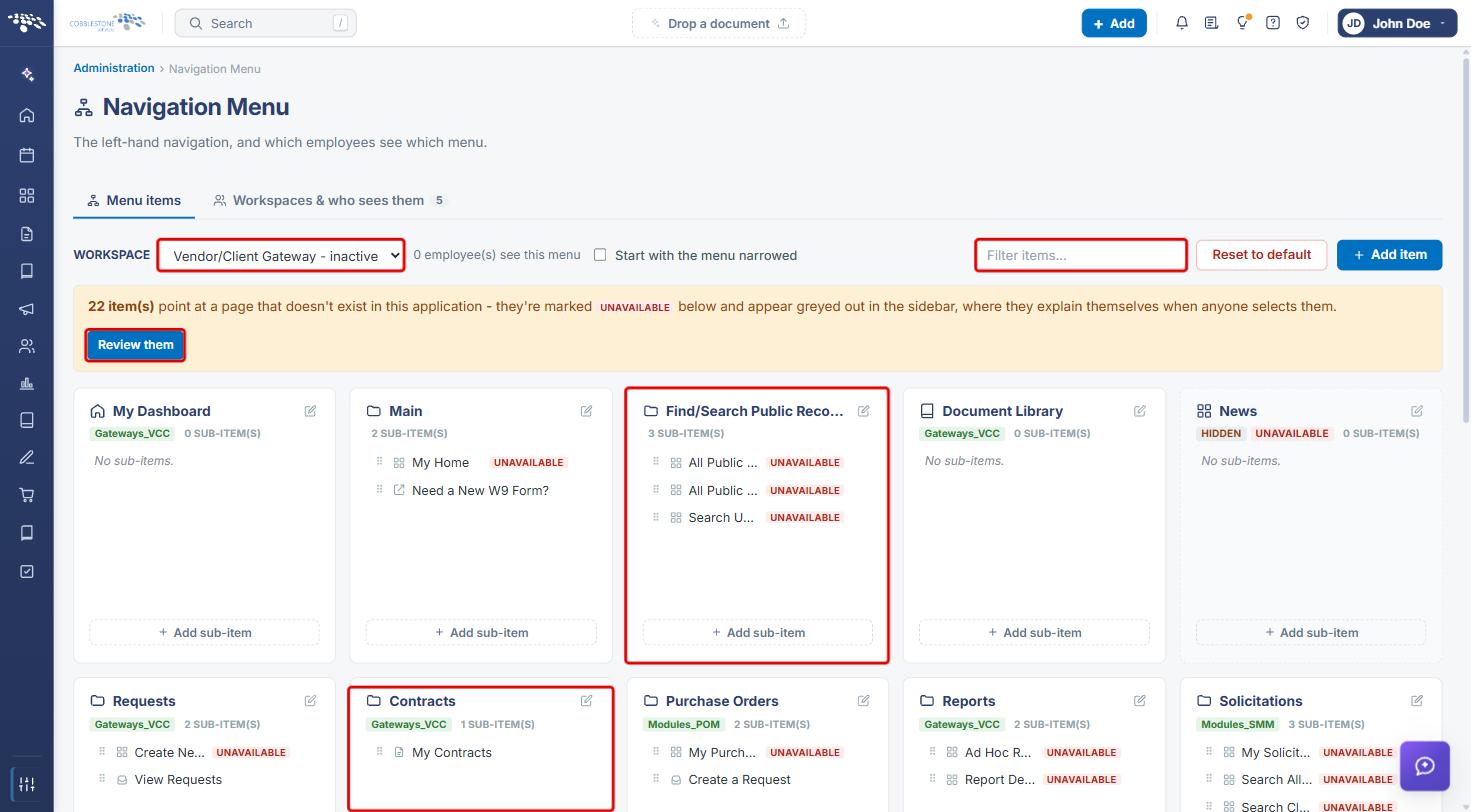
Note: A greyed-out item on the Gateway explains itself when a vendor or client selects it.
4. Checking Where a Contract Menu Item Points
- In the Contracts group, click My Contracts. The Edit menu item panel opens.
- Review the Label and the Page. A legacy link such as ContractList.aspx shows Recognised with the page it opens.
- Check that Visible in the menu is selected and Administrators only is cleared, so every Gateway user sees the item.
- Click Advanced to see Only show when this module is licensed, Require a named permission and Tooltip.
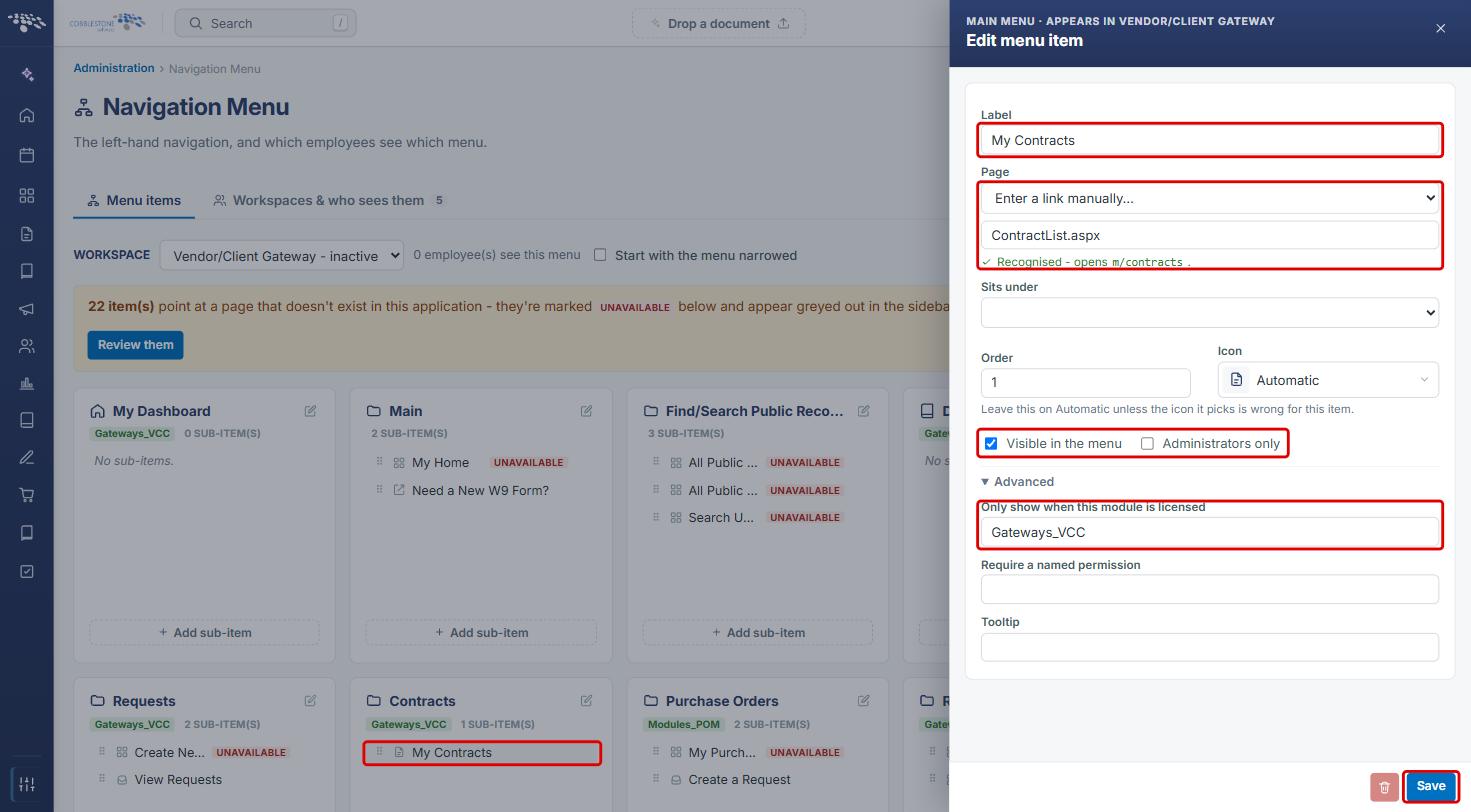
- Click Save to keep any changes, or X to close the panel without saving.
5. Fixing an Unavailable Contract Menu Item
- In the Find/Search Public Records group, click All Public Contracts.
- Under Page, note the warning: "This page doesn't exist in this application; the item will be greyed out."
- From the Page drop-down, choose a current page (for example, Contracts under the Contracts group) instead of Enter a link manually.
- Click Save.
Tip: If an item is not needed on the Gateway, clear Visible in the menu instead, so vendors and clients do not see a greyed-out entry.
6. Setting What Vendors Can Do on a Contract Record
- From the Contract Insight homepage, click the Administration icon, then click Vendor/Client Gateway (VCG).
- On the Settings tab, under Access, set:
- Allow Previewing and Downloading of Files/Attachments: on to allow previewing and downloading, off to allow previewing only.
- Allow Viewing and Adding of Files: whether vendors and clients can see and add files.
- Allow Viewing Linked Contracts: shows linked Public/Gateway contracts on the contract detail screen.
- Click Save changes, or Discard to cancel all pending changes.
7. Choosing the Fields a Contract Record Shows
- In Vendor/Client Gateway (VCG), click the Fields tab.
- From Area, choose Contract Details, then choose a Record type (for example, Software Agreement). Each record type has its own Gateway field set.
- If no fields are chosen, the Gateway shows every field for that record type. To show only some fields, click « Add next to a field under Not shown, or use Find a field to search.
- Drag fields under On the Gateway to reorder them. Use Add every field or Remove all fields to change the whole list at once.
- To reuse another record type's list, choose it under Start from another type and click Copy its fields here. This replaces the fields already on the left.
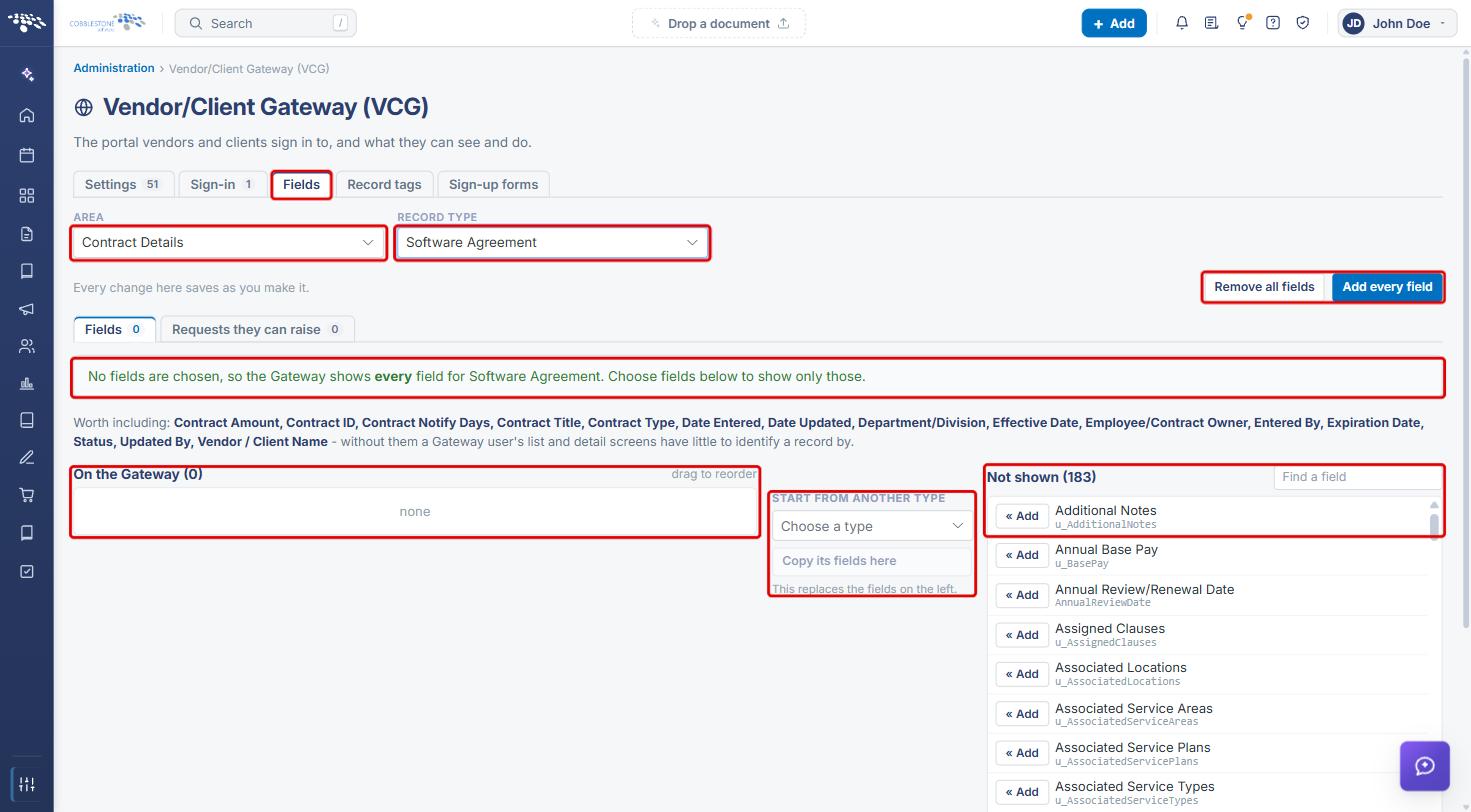
Note: Every change on this tab saves as you make it. The screen suggests fields worth including, such as Contract ID, Contract Title, Status and Vendor / Client Name, so Gateway users can identify each record.
8. Choosing the Tags a Contract Record Shows
- In Vendor/Client Gateway (VCG), click the Record tags tab.
- From Area, choose Contracts. Leave Record type on Default (every type) to set tags for all contract types, or choose a type to give it its own tags.
- Change a tag by choosing a different field in its drop-down, or click the trash icon to remove it.
- Click Add a tag to add another, or Standard tags to use the standard set.
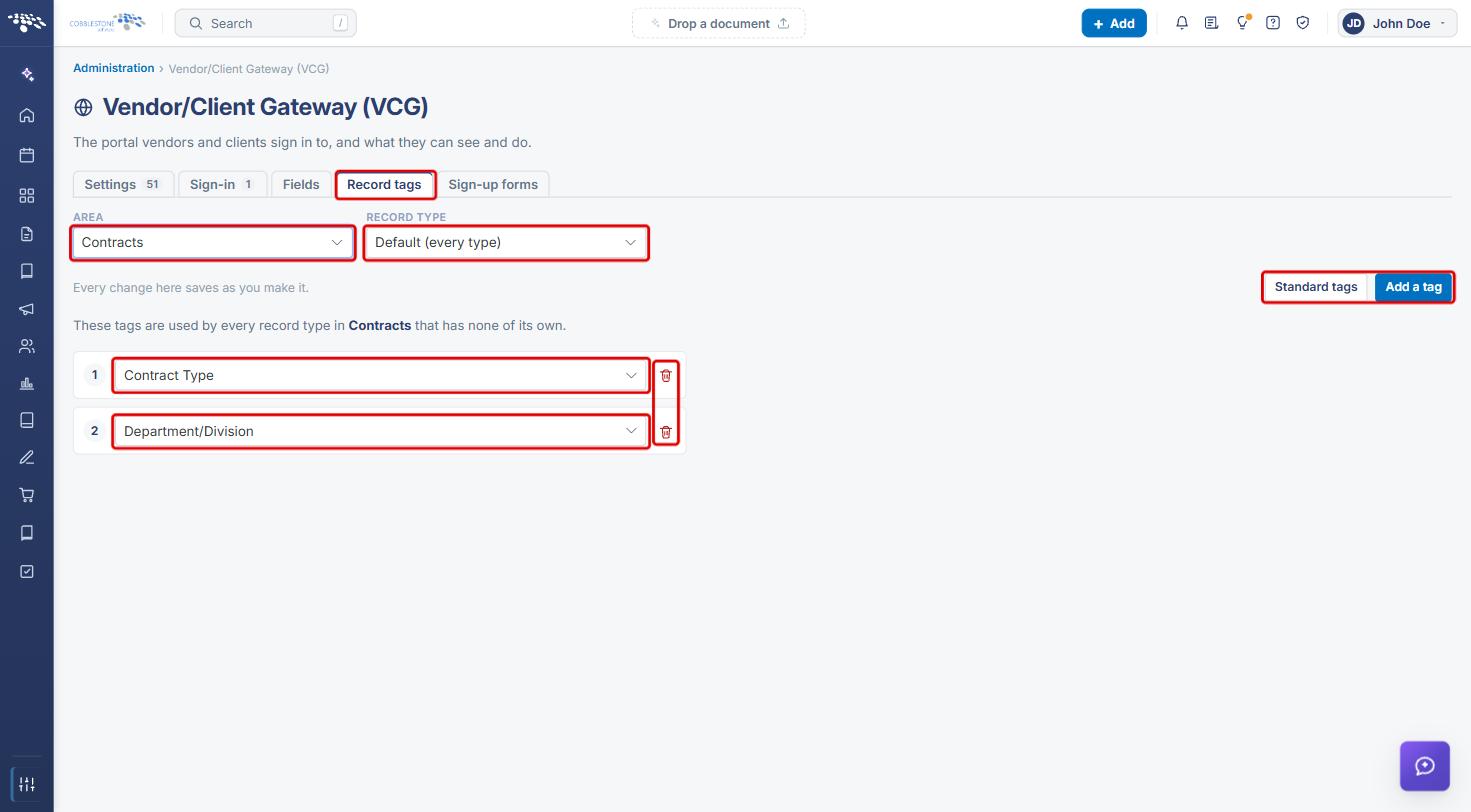
Note: Every change on this tab saves as you make it.
9. Quick Reference Summary
| Task | Where / How |
|---|---|
| See the Gateway's contract menu items | Administration › Navigation Menu › Workspace: Vendor/Client Gateway › Contracts and Find/Search Public Records |
| Check where an item points | Click the item › Edit menu item › Page |
| Fix an UNAVAILABLE item | Review them, or click the item › choose a current Page › Save |
| Hide an item from the Gateway | Click the item › clear Visible in the menu › Save |
| Control files and linked contracts | Administration › Vendor/Client Gateway (VCG) › Settings › Save changes |
| Choose contract fields | VCG › Fields › Area: Contract Details › Record type |
| Choose contract tags | VCG › Record tags › Area: Contracts |