COBBLESTONE SOFTWARE
Contract Insight — User Guide
VISDOM+
VISDOM+
Note: Each procedure in this guide begins at the Contract Insight homepage, so any section can be followed on its own. Custom fields are configurable, so the exact field list on a contract category record may vary between environments.
1. Overview
VISDOM is the application's AI layer. It's reachable throughout the interface rather than from one single screen:
- Create with VISDOM turns an uploaded document into a new, pre-filled record.
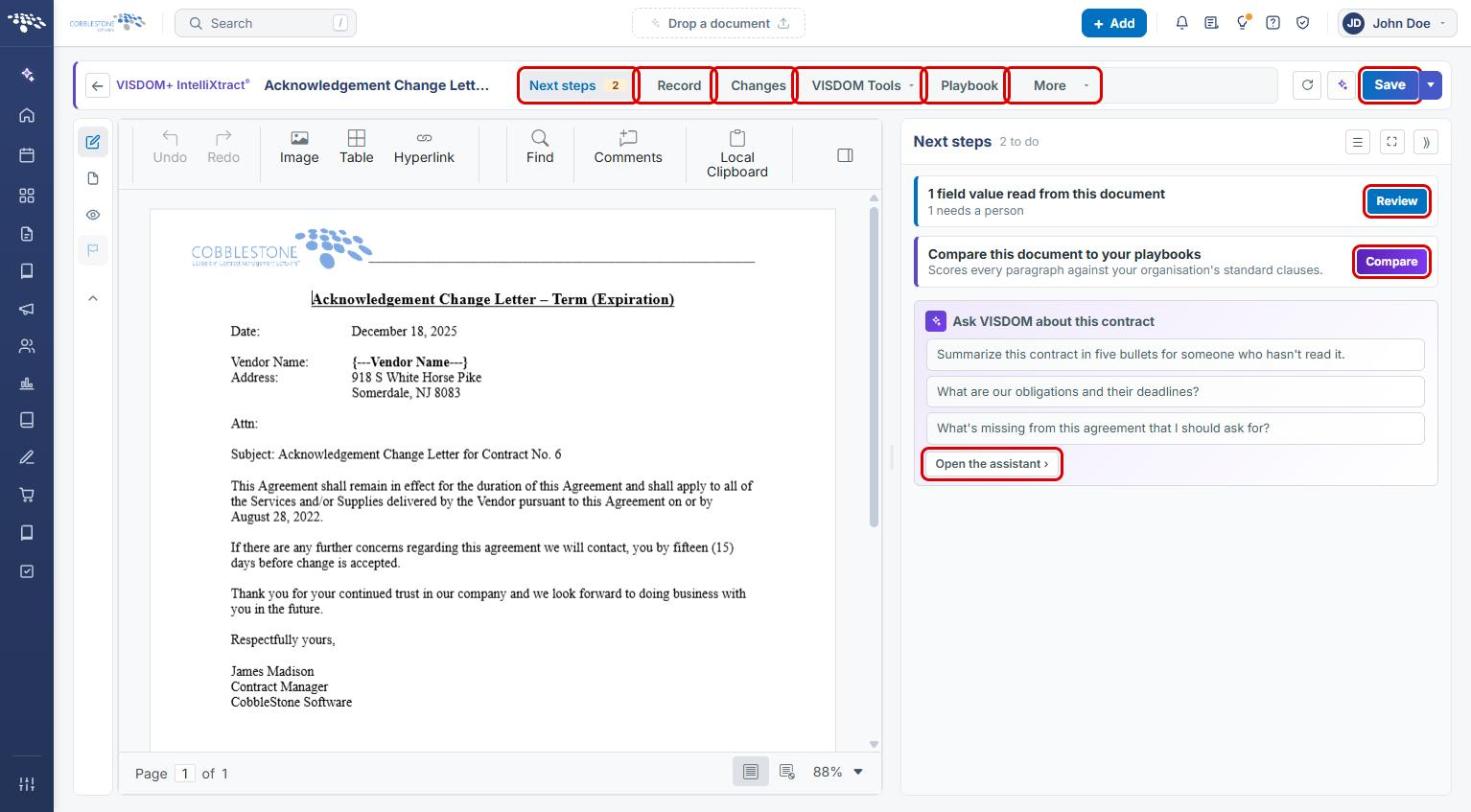
- Edit with VISDOM opens a record's document in the VISDOM+ IntelliXtract workbench. Word documents (and .rtf/.txt) open for editing; PDFs open for VISDOM analysis. The workbench has Next steps, Record, Changes, VISDOM Tools, and Playbook tabs.
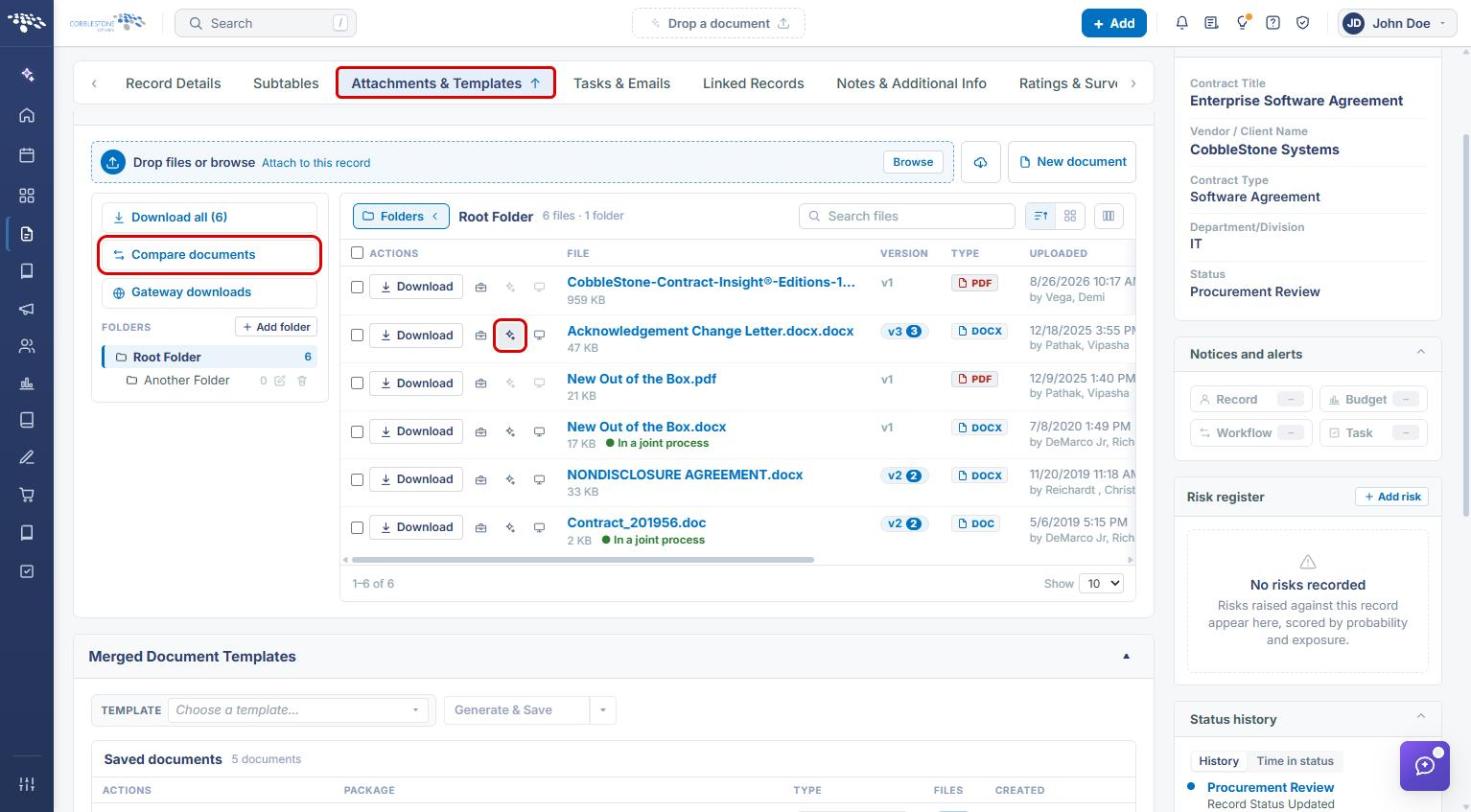
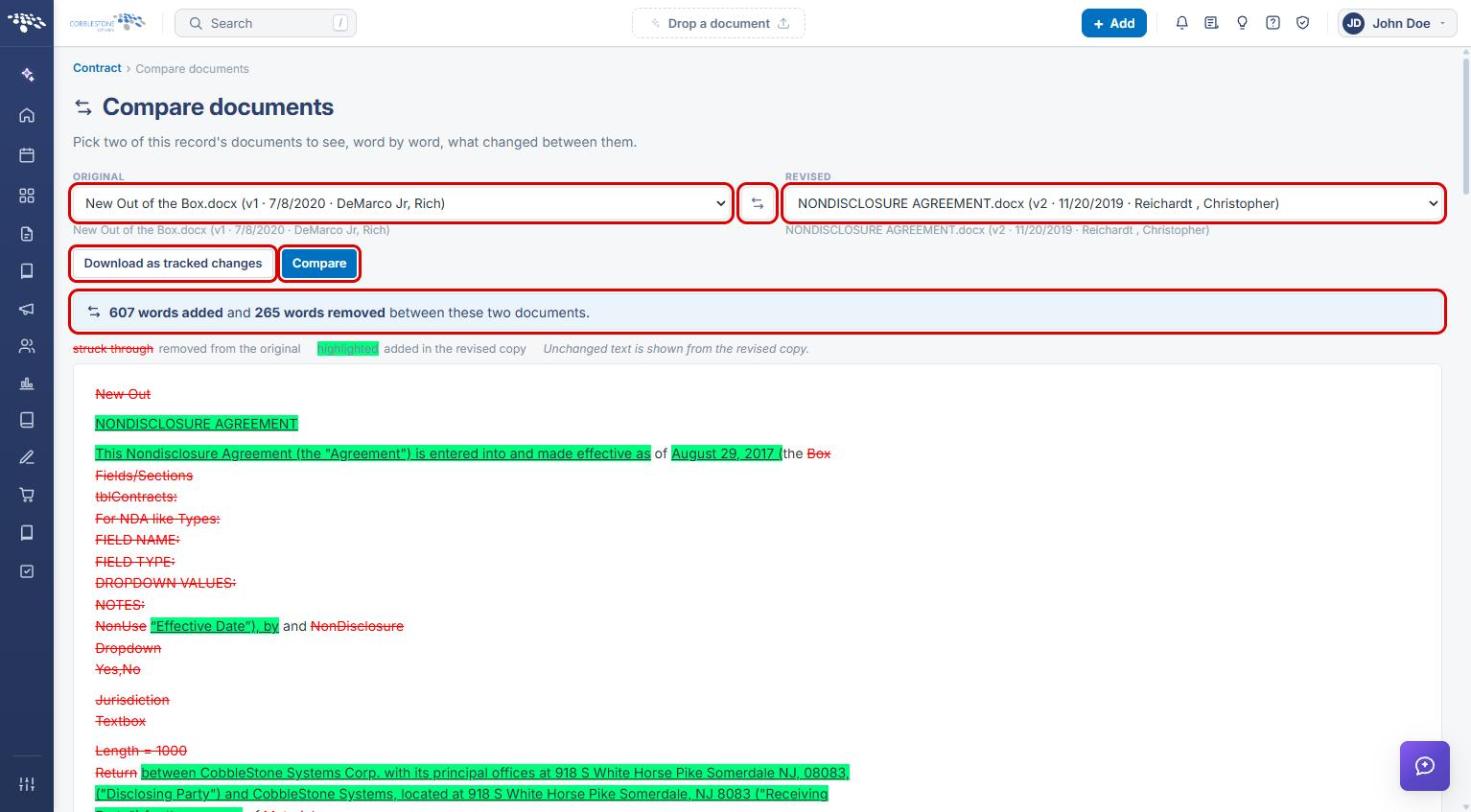
- Compare documents (on a record's Attachments & Templates tab) shows a word-by-word diff between two of the record's documents, with a Download as tracked changes option.
- The VISDOM Assistant chat bubble (bottom-right, purple icon) answers questions in plain English, using the record you're on as context.
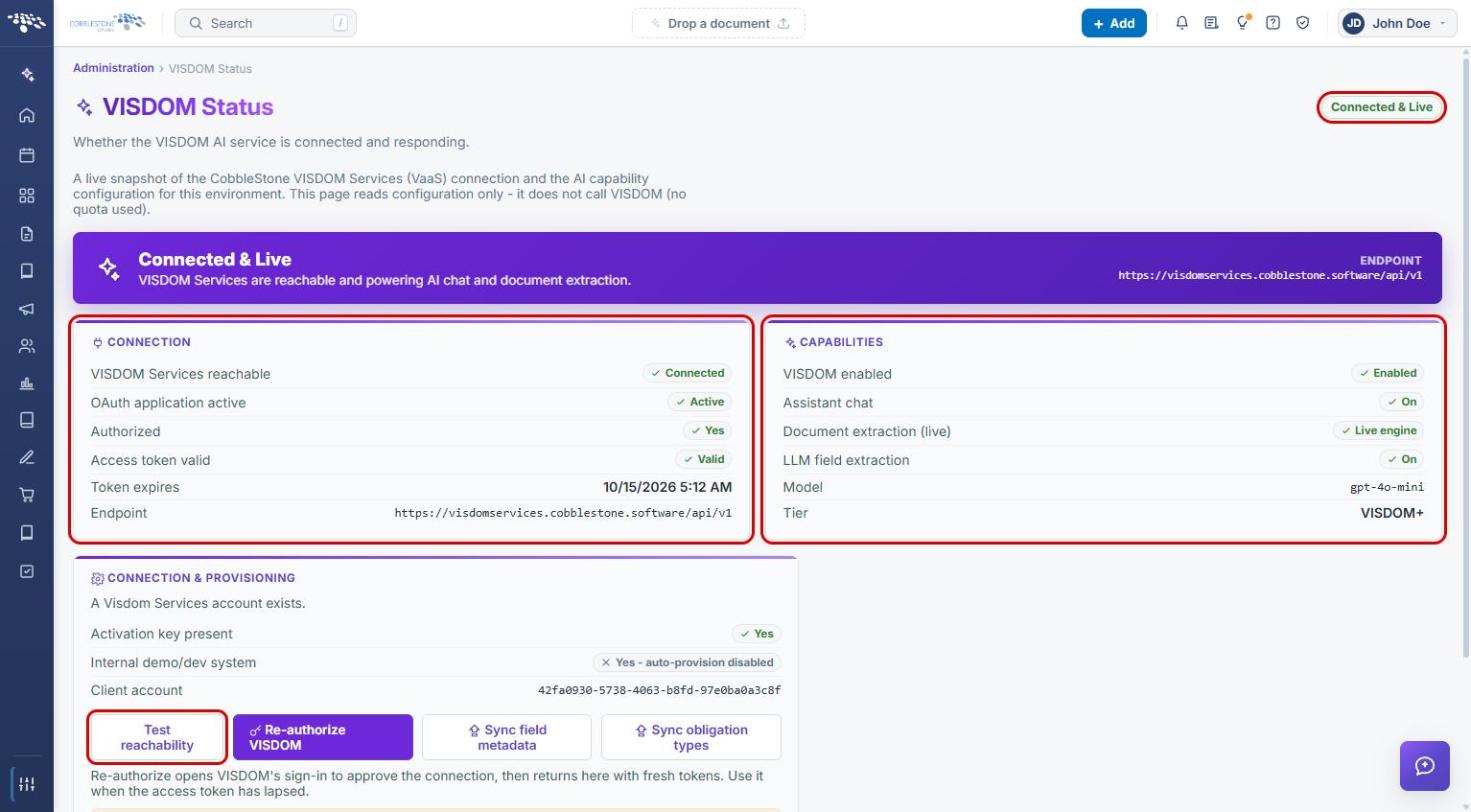
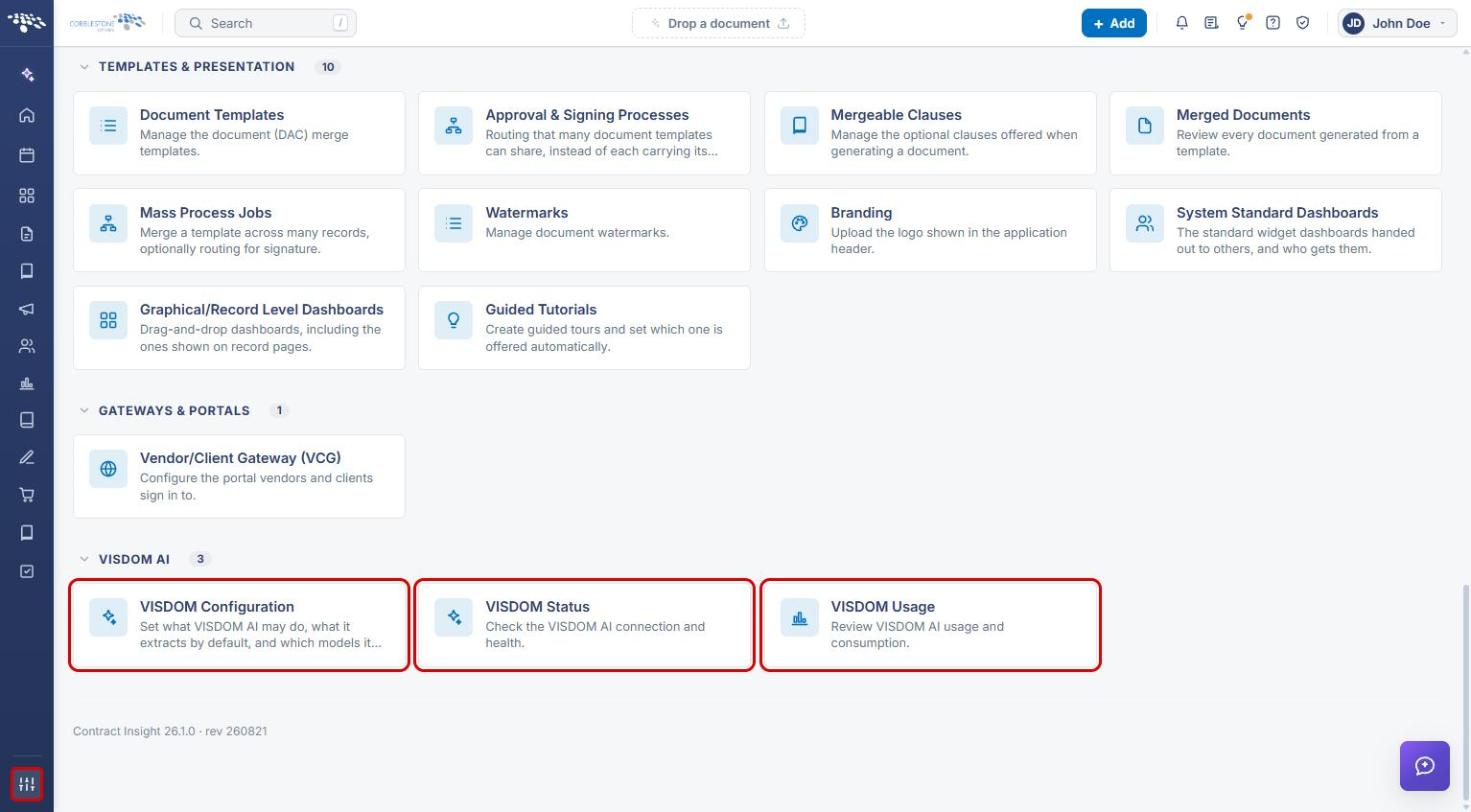
Administrators control VISDOM from Administration → VISDOM AI (VISDOM Configuration, VISDOM Status, VISDOM Usage). In this QA environment, VISDOM Status shows the CobbleStone VISDOM Services (VaaS) connection as Connected & Live on the VISDOM+ tier.
2. Key Elements
- Create with VISDOM (sparkle icon at the top of the left navigation bar): new record from a document, with Record Type, Type, VISDOM Tools features, and a document drop zone.
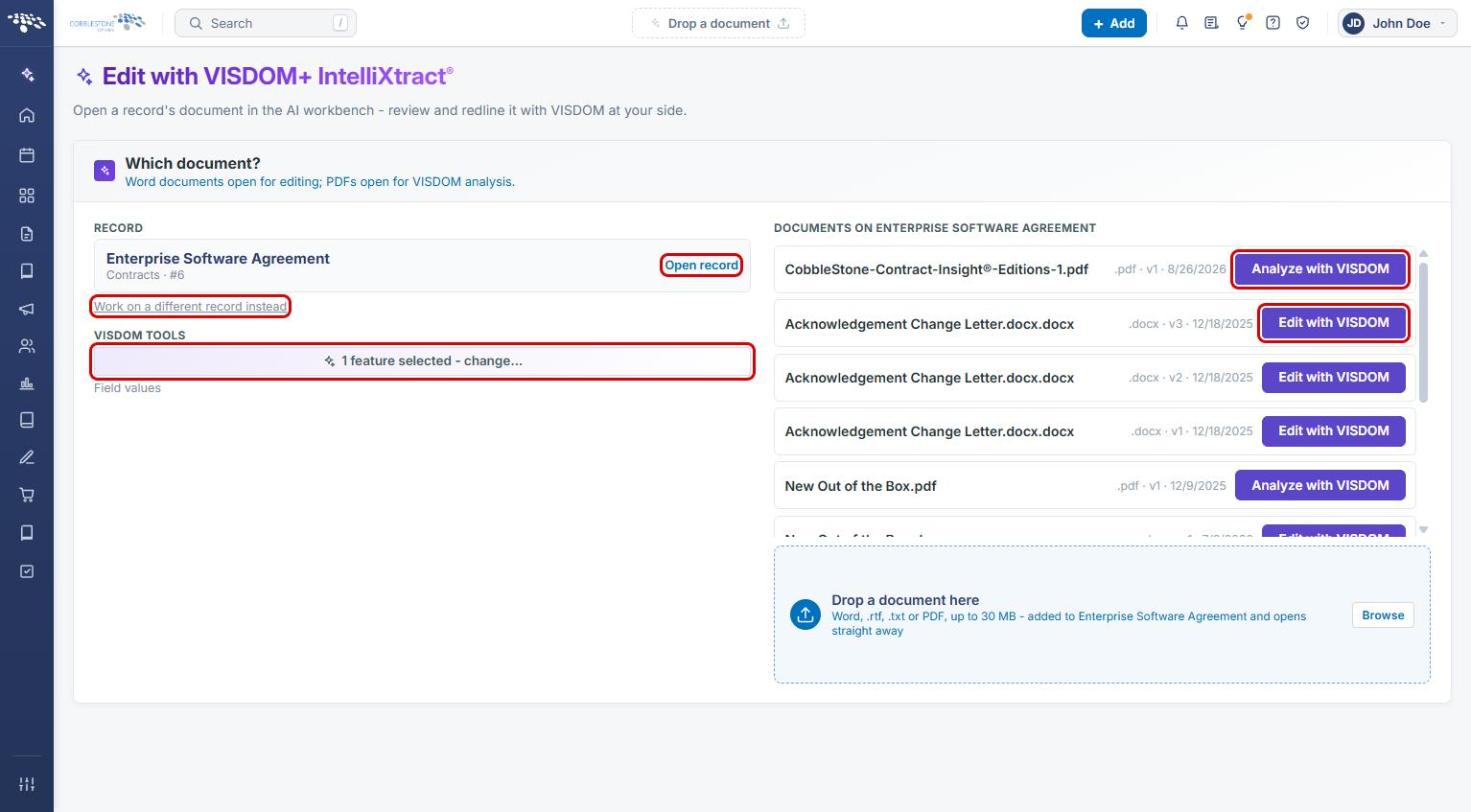
- Edit with VISDOM (sparkle icon on a Word attachment's row, or the Which document? page): opens the workbench. PDFs use Analyze with VISDOM.
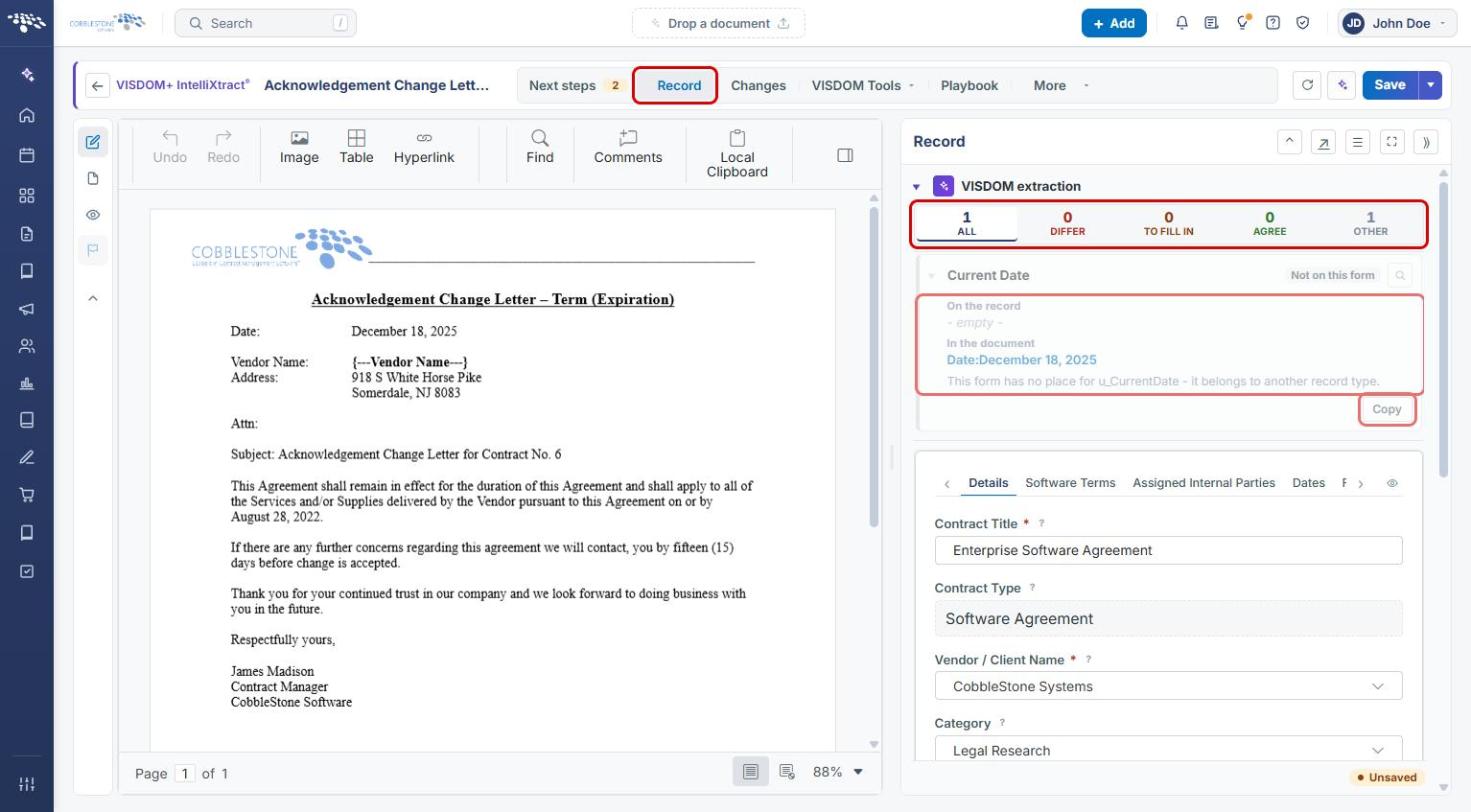
- Record tab: VISDOM extraction results filtered by All, Differ, To fill in, Agree, and Other, each showing On the record vs. In the document with actions such as Copy.
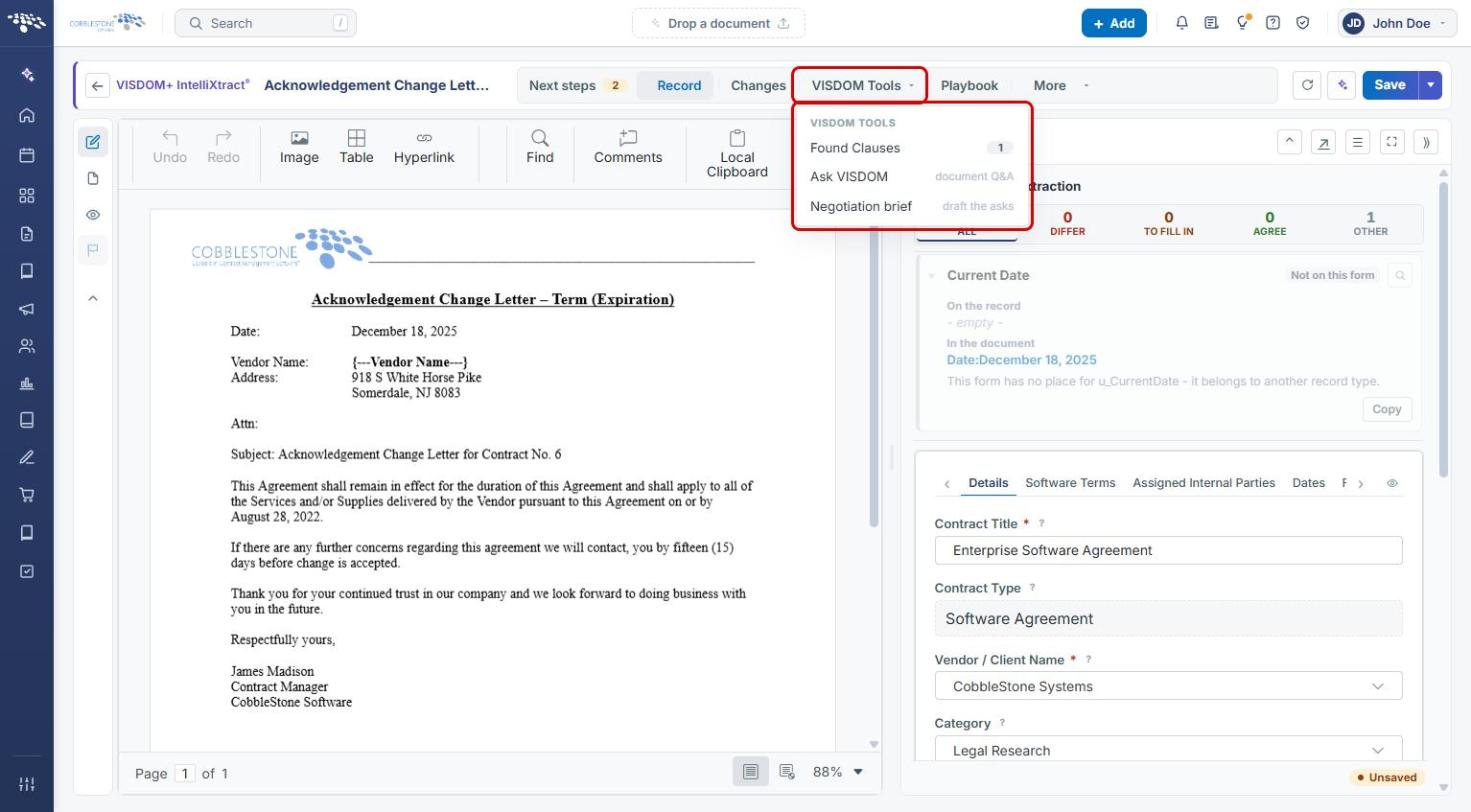
- VISDOM Tools menu: Found Clauses, Ask VISDOM (document Q&A), and Negotiation brief (draft the asks).
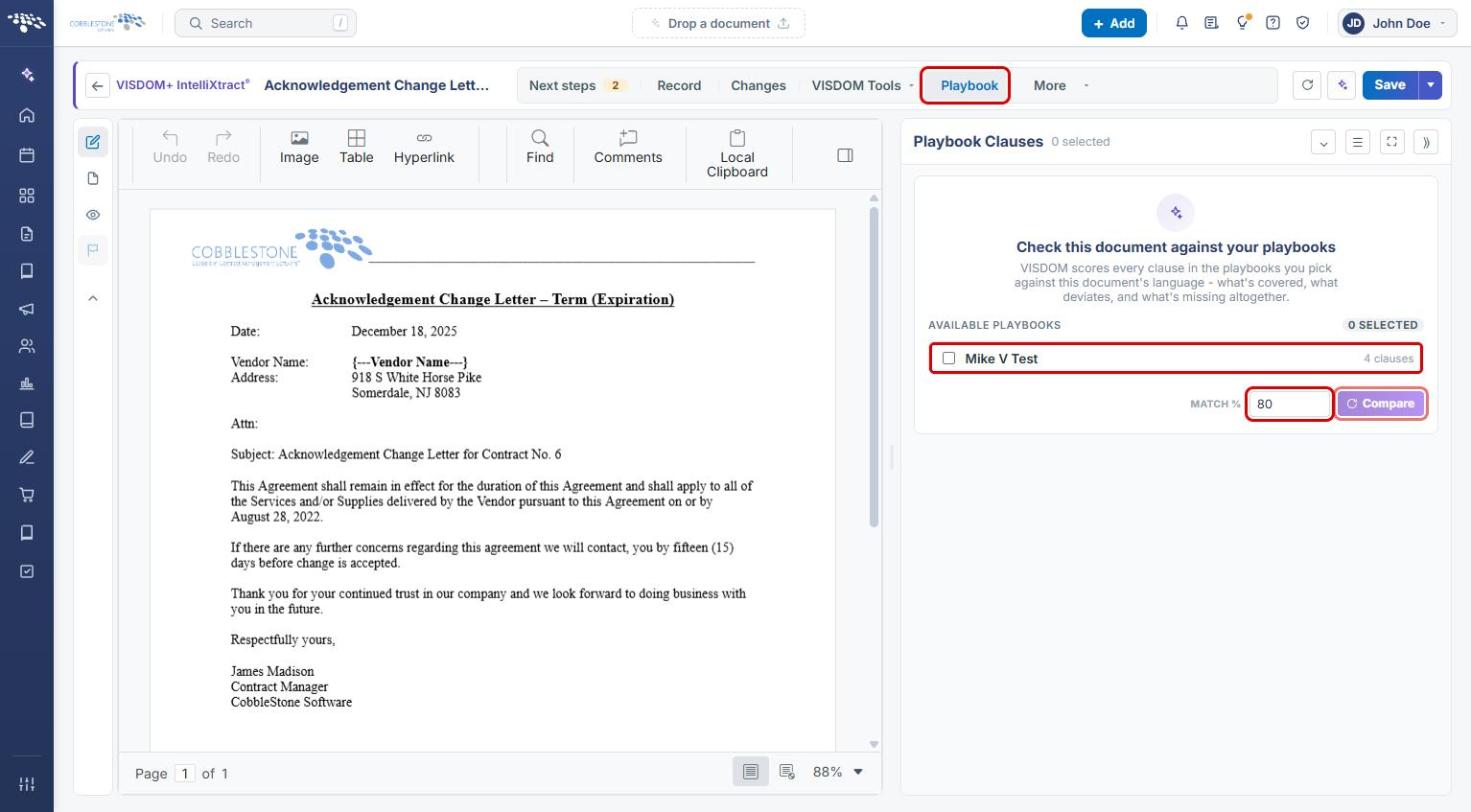
- Playbook tab: scores every clause in the playbooks you pick against the document.
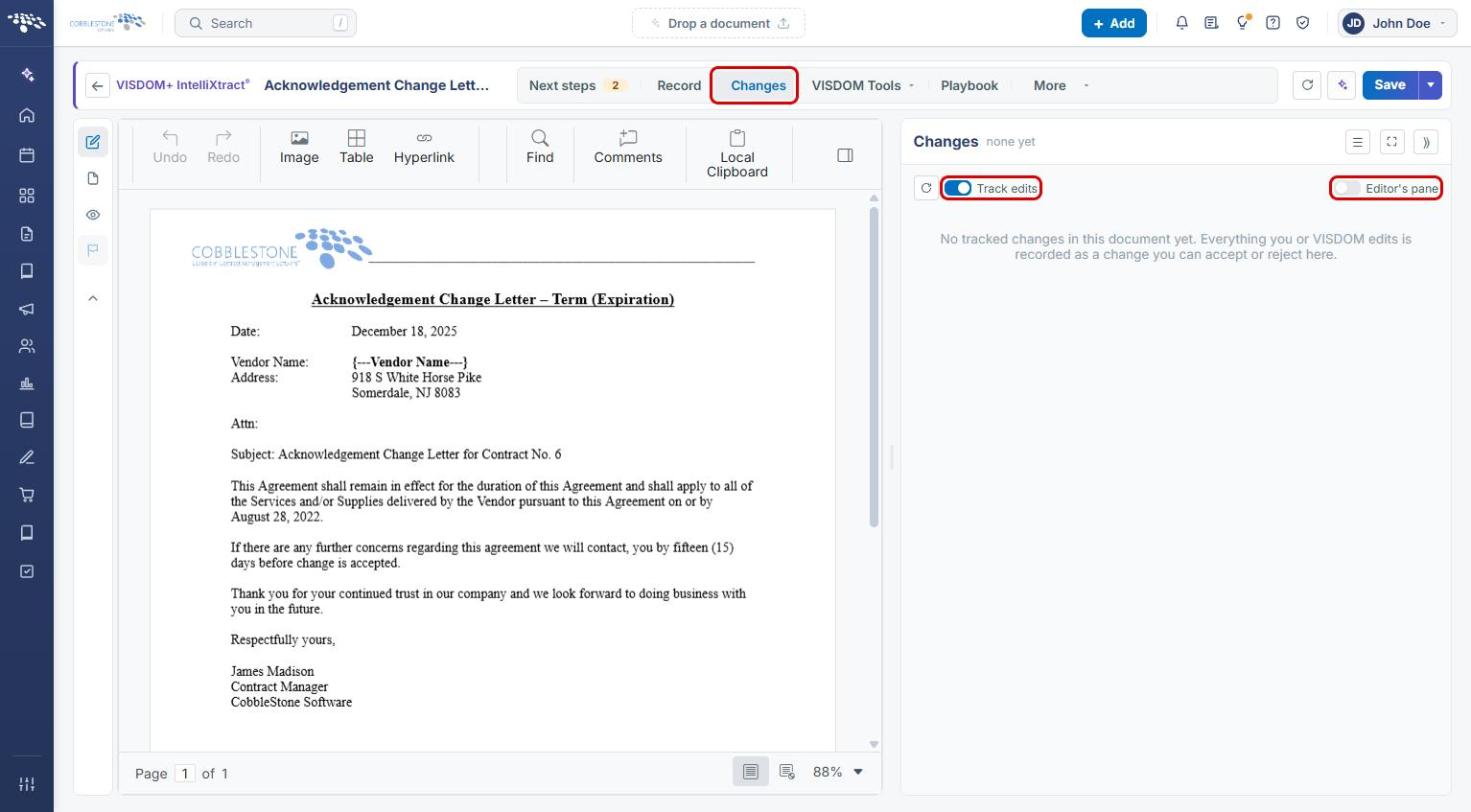
- Changes tab: tracked edits you or VISDOM make, which you can accept or reject.
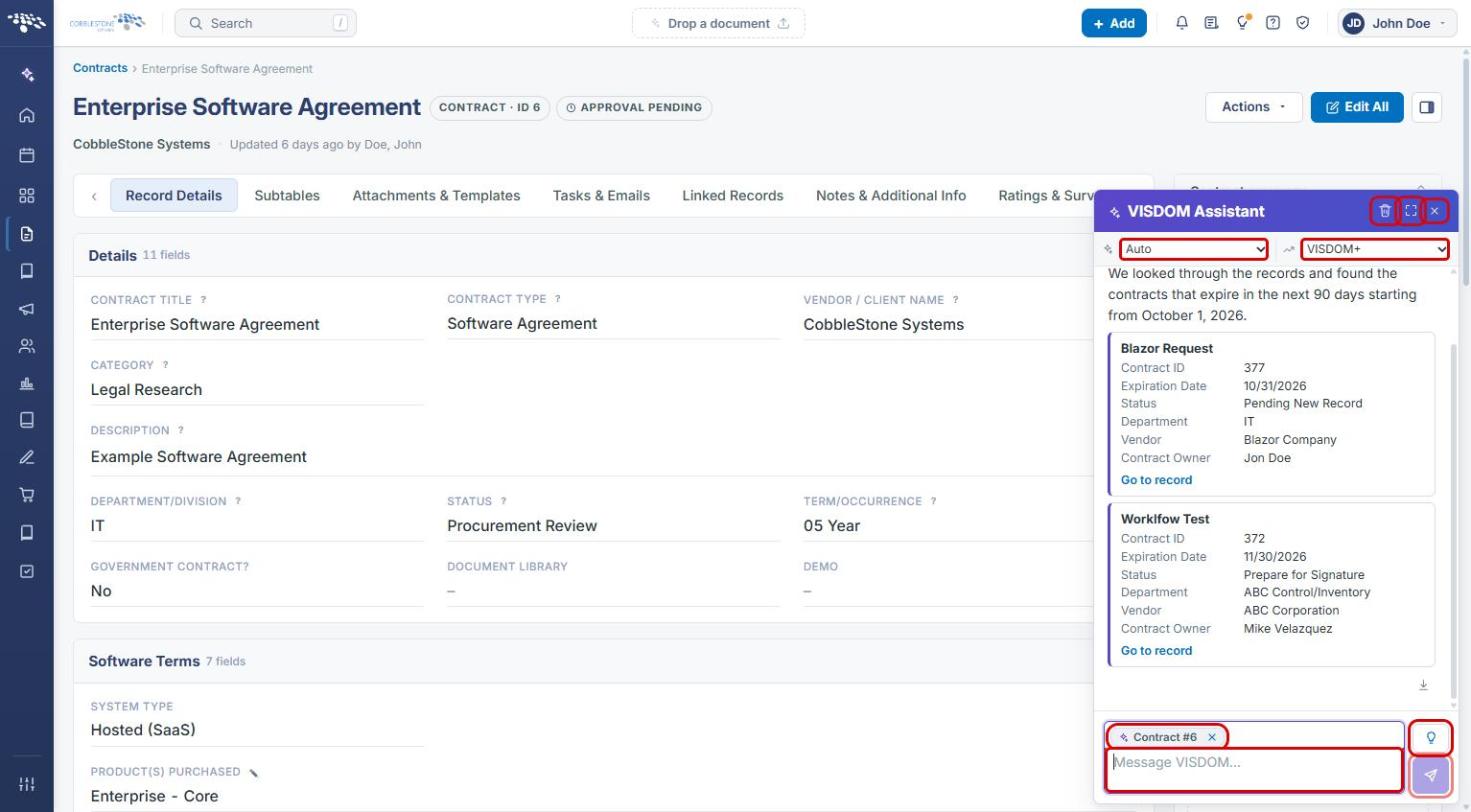
- VISDOM Assistant: chat panel with a mode drop-down (Auto, General, Clause drafting, Reports, Translate & summarize, Web search), a VISDOM+ tier drop-down, and record-context chips.
- Administration → VISDOM AI: VISDOM Configuration, VISDOM Status, and VISDOM Usage.
3. Finding VISDOM in the Application
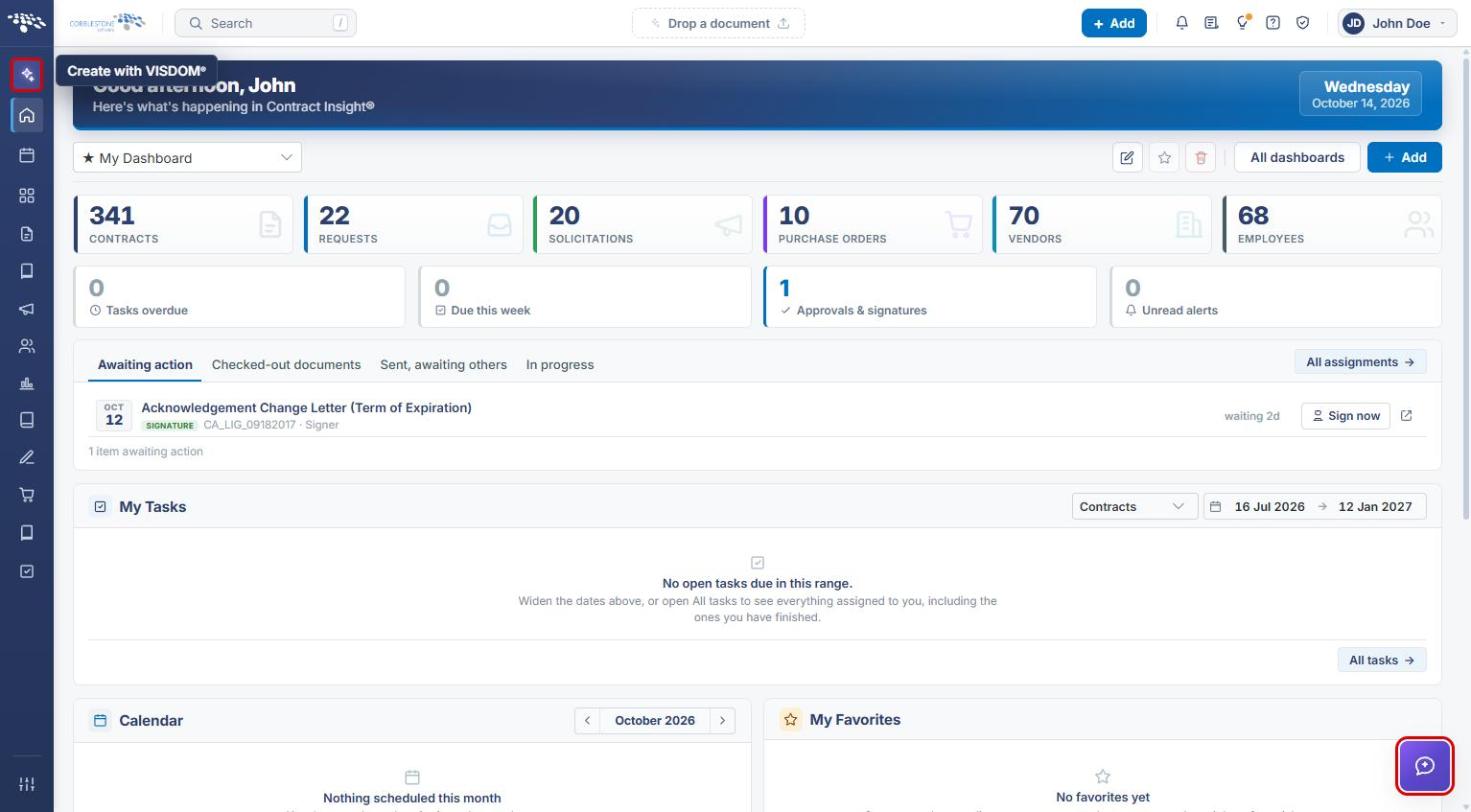
- From the Contract Insight homepage, find the Create with VISDOM icon (sparkle) at the top of the left navigation bar.
- Find the VISDOM Assistant button (purple chat icon) in the bottom-right corner of most pages.
4. Creating a Record with VISDOM
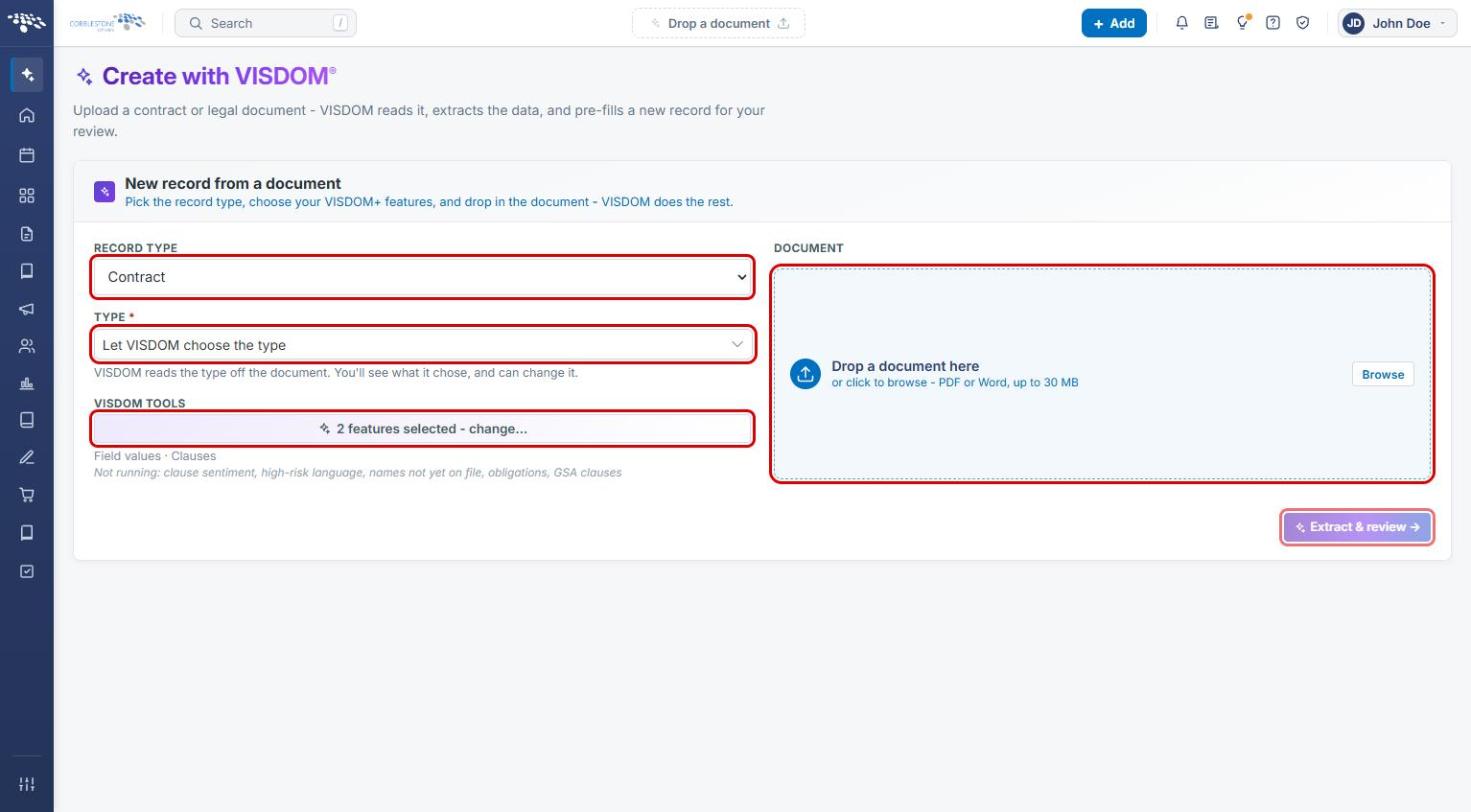
- Click the Create with VISDOM icon in the left navigation bar.
- Choose the Record Type (Contract, Request, Solicitation, Purchase Order, Vendor / Customer, or Employee).
- Choose a Type, or leave Let VISDOM choose the type selected. VISDOM reads the type from the document, and you can change it later.
- Drop a PDF or Word document (up to 30 MB) into the Document area, or click Browse.
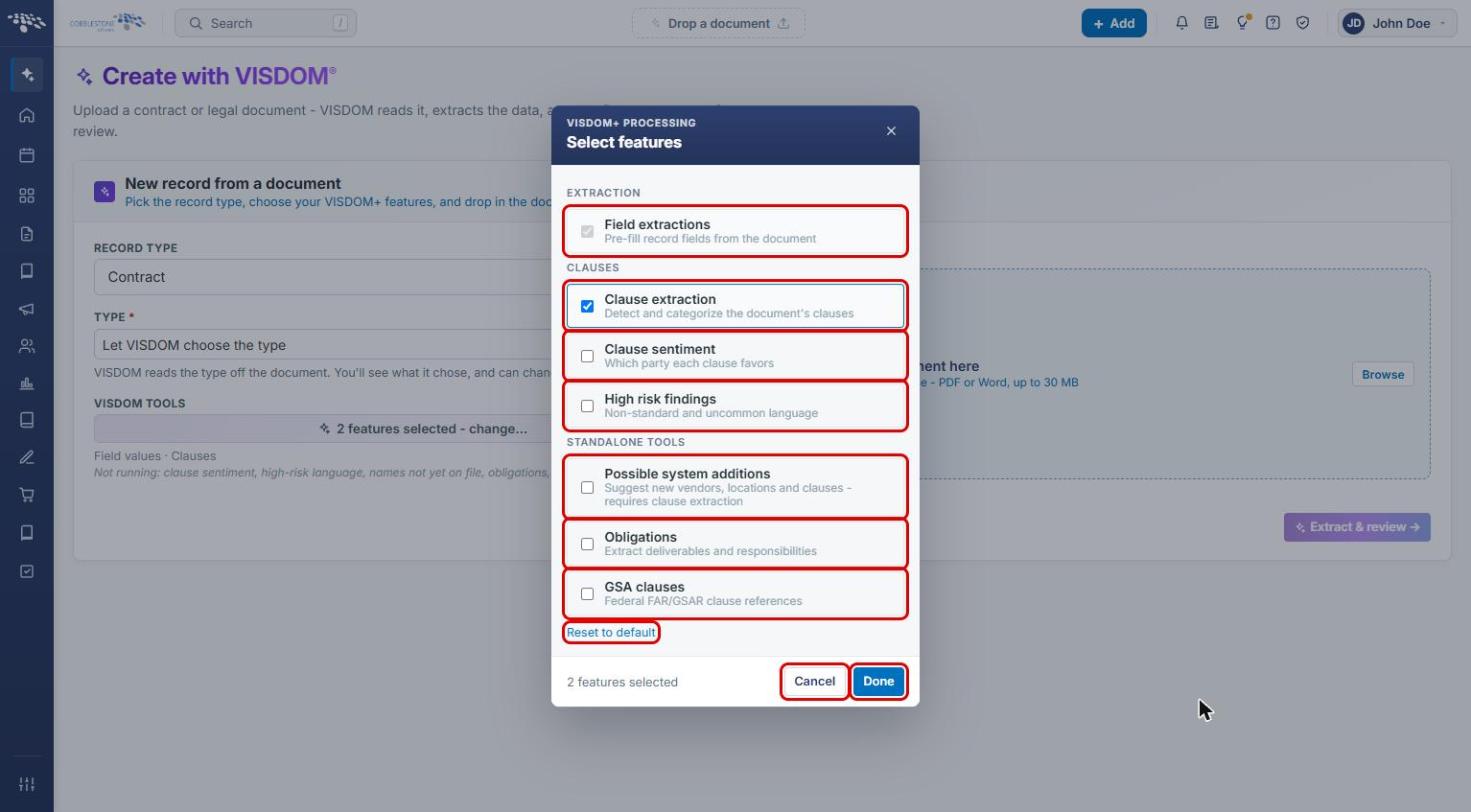
- To change what VISDOM extracts, click the VISDOM Tools button (for example, 2 features selected - change…). In the Select features window, choose from Field extractions, Clause extraction, Clause sentiment, High risk findings, Possible system additions, Obligations, and GSA clauses. Click Done to apply, Cancel to close, or Reset to default to restore the default features.
- Click Extract & review. VISDOM reads the document and pre-fills a new record for you to review before saving.
5. Editing a Document with VISDOM
5a. Opening a Document in the Workbench
- Open the record (for example, a contract) and click the Attachments & Templates tab.
- On a Word document's row, click the Edit with VISDOM icon (sparkle). The icon is unavailable for PDFs, since only Word documents (and .rtf/.txt) can be edited with VISDOM.
- You can also pick the document from the Which document? page (shown when you click the back arrow in the workbench). Click Edit with VISDOM next to a Word document, or Analyze with VISDOM next to a PDF. Use Open record to return to the record, Work on a different record instead to switch records, or the VISDOM Tools button to change features.
5b. Next Steps
- The workbench opens on the Next steps tab, with the document on the left and VISDOM's suggested actions on the right.
- Click Review to check field values VISDOM read from the document, or Compare to score the document against your playbooks.
- Under Ask VISDOM about this contract, click a suggested question or Open the assistant to ask your own.
5c. Record Tab
- Click the Record tab.
- Use the filters under VISDOM extraction (All, Differ, To fill in, Agree, Other) to narrow the list of extracted values.
- Expand an item to compare On the record with In the document. Use Copy to copy the document's value. When the two values differ, choose to keep the record's value or use the document's.
- The record's fields appear below the extraction list so you can edit them directly.
5d. Changes Tab
- Click the Changes tab.
- Leave Track edits on so everything you or VISDOM edits is recorded as a change you can accept or reject here. Turn on Editor's pane to show changes in the editor.
5e. VISDOM Tools
- Click VISDOM Tools to open the menu.
- Choose Found Clauses to see clauses VISDOM found in the document, Ask VISDOM for document Q&A, or Negotiation brief to draft the asks for a negotiation.
5f. Playbook Tab
- Click the Playbook tab.
- Under Available Playbooks, select one or more playbooks.
- Set the Match % threshold (80 by default) and click Compare. VISDOM scores every clause in the selected playbooks against the document, showing what's covered, what deviates, and what's missing.
5g. Saving Your Work
- Click Save in the top-right corner of the workbench to save your changes. An Unsaved badge appears while you have changes that haven't been saved.
- Click the back arrow next to VISDOM+ IntelliXtract to return to the Which document? page.
6. Comparing Two Documents
- Open the record and click the Attachments & Templates tab.
- Click Compare documents in the left panel (see the screenshot in Section 5a).
- Choose the Original and Revised documents. Use the swap button between them to switch the two.
- Click Compare. A summary shows how many words were added and removed. Removed text is struck through and added text is highlighted.
- Click Download as tracked changes to download the comparison as a document with tracked changes.
7. Using the VISDOM Assistant
- Click the purple VISDOM Assistant button in the bottom-right corner of the page.
- Choose a mode from the first drop-down: Auto, General, Clause drafting, Reports, Translate & summarize, or Web search. The second drop-down shows the VISDOM tier (VISDOM+).
- When you're on a record, a context chip (for example, Contract #6) is added to your message. Click the × on the chip to ask without that record's context.
- Type your question in Message VISDOM… and click Send (or press Enter). Click the light bulb (Things to ask) for suggested questions.
- Use the icons in the header to clear the chat history, widen the assistant, or close it.
8. Administering VISDOM AI (Administrators)
8a. Opening the VISDOM AI Settings
- From the Contract Insight homepage, click the Administration icon at the bottom of the left navigation bar.
- Scroll to VISDOM AI and click VISDOM Configuration, VISDOM Status, or VISDOM Usage.
8b. VISDOM Configuration
- Use the tabs to move between Availability, Default extractions, Clause categories, Extraction behaviour, and Models & providers.
- On Availability, turn on Turn VISDOM AI off for everyone to hide the assistant, AI-assisted creation, and document extraction across the system.
- Use Which VISDOM the AI doors open with to set the version Create with VISDOM and Edit with VISDOM start in.
- Click Save changes, or Discard changes to undo them.
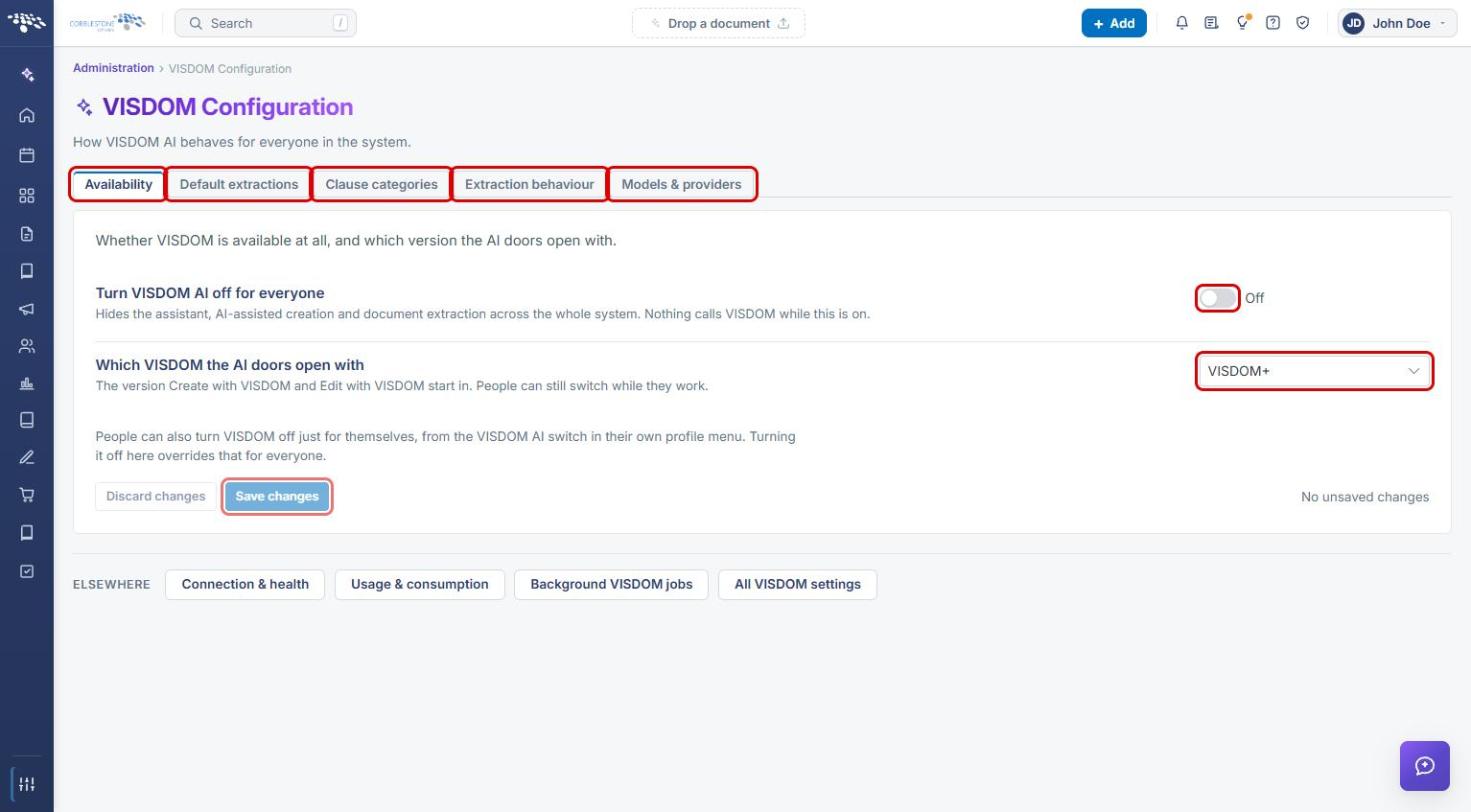
Tip: Individual users can also turn VISDOM off just for themselves from the VISDOM AI switch in their profile menu. Turning it off for everyone overrides that setting.
8c. VISDOM Status
- Open VISDOM Status (or click Connection & health on the VISDOM Configuration page).
- Check the status badge (for example, Connected & Live), the Connection panel (service reachable, OAuth application, authorization, access token), and the Capabilities panel (VISDOM enabled, assistant chat, document extraction, model, and tier). This page reads configuration only and doesn't use VISDOM quota.
- Click Test reachability to recheck the connection. Use Re-authorize VISDOM when the access token has lapsed.