COBBLESTONE SOFTWARE
Contract Insight — User Guide
Viewing Public Solicitations
Module: Vendor/Client Gateway › Users: Public Searches › Viewing Public Solicitations
Note: Each procedure in this guide begins at the Contract Insight homepage, so any section can be followed on its own. Custom fields are configurable, so the exact field list on a contract category record may vary between environments.
1. Overview
Whether a solicitation can be viewed publicly on the Vendor/Client Gateway is controlled by the solicitation's own Invitation Type field. Public solicitations can be viewed and responded to by any bidder, Invite Only solicitations are limited to invited or assigned bidders, and Not Published solicitations don't appear on the Gateway. Each solicitation also has a system-created GatewayURL field that links to the portal's public solicitation search page.
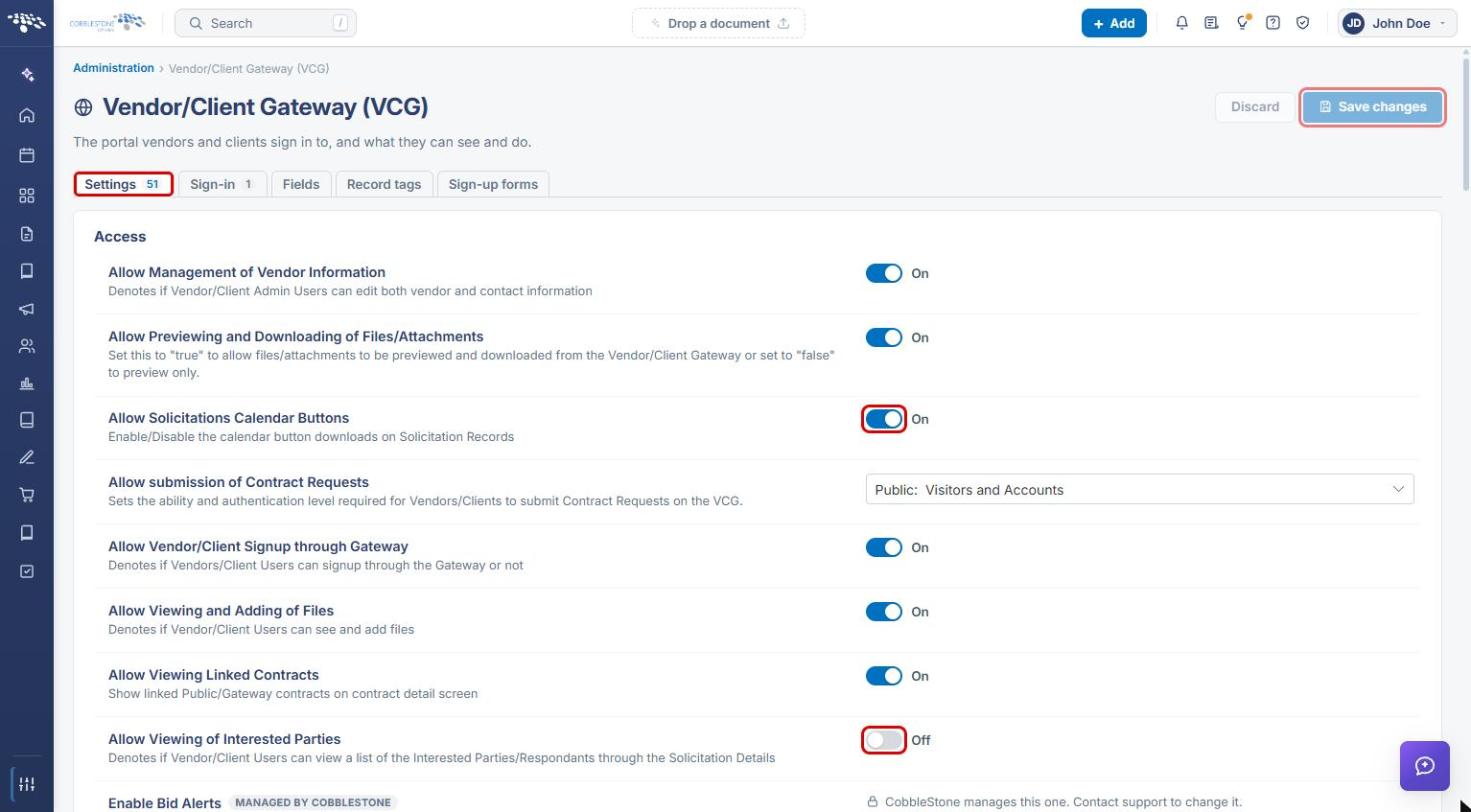
What Gateway visitors see on a solicitation is set by administrators in Administration → Vendor/Client Gateway (VCG) → Settings, including Allow Viewing of Interested Parties (Off in this environment, so the list of respondents isn't shown) and Allow Solicitations Calendar Buttons (On, so calendar download buttons appear on solicitation records).
2. Key Elements
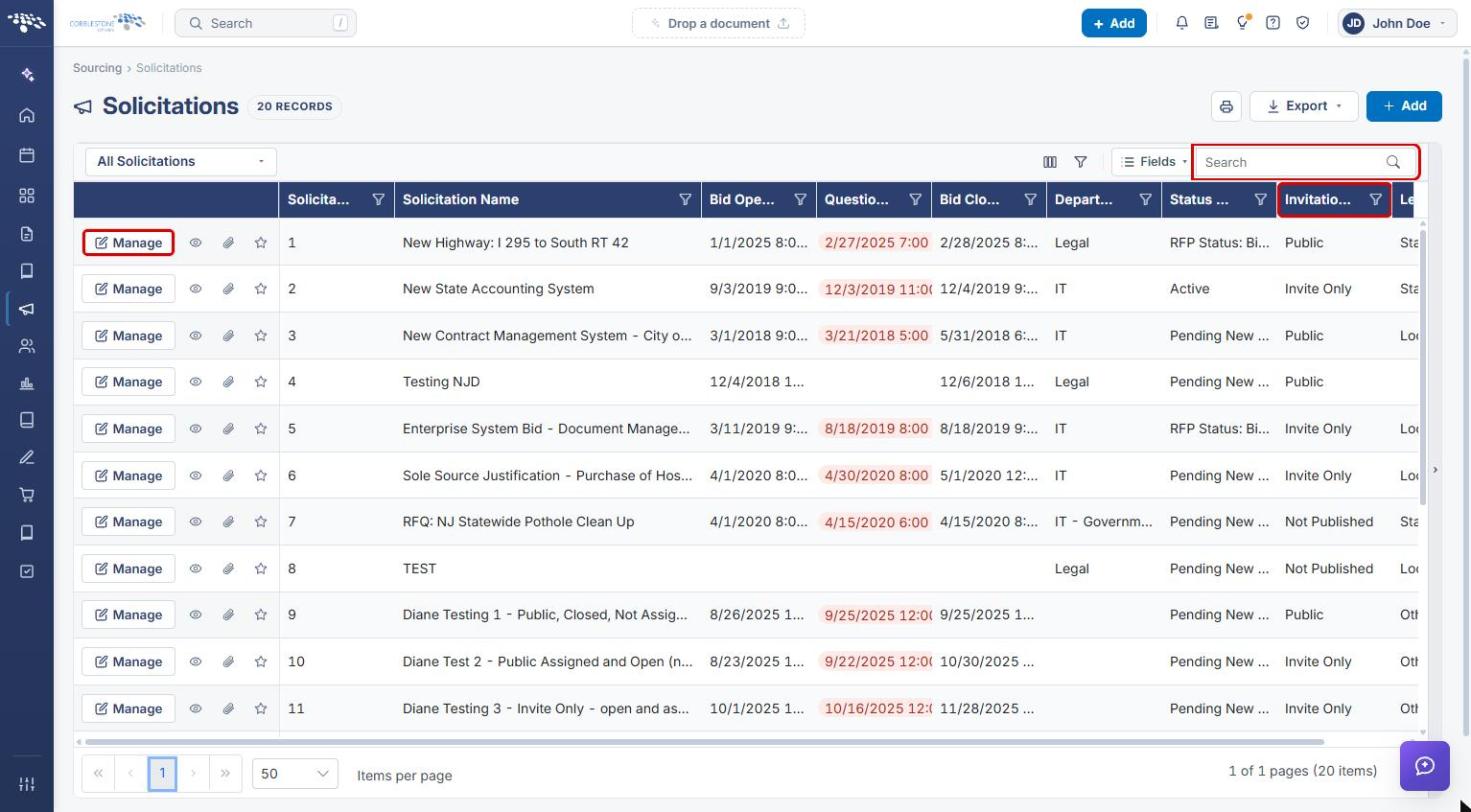
- Sourcing → Solicitations: the list of all solicitation records, with an Invitation Type column, a Search box, and a Manage button on each row.
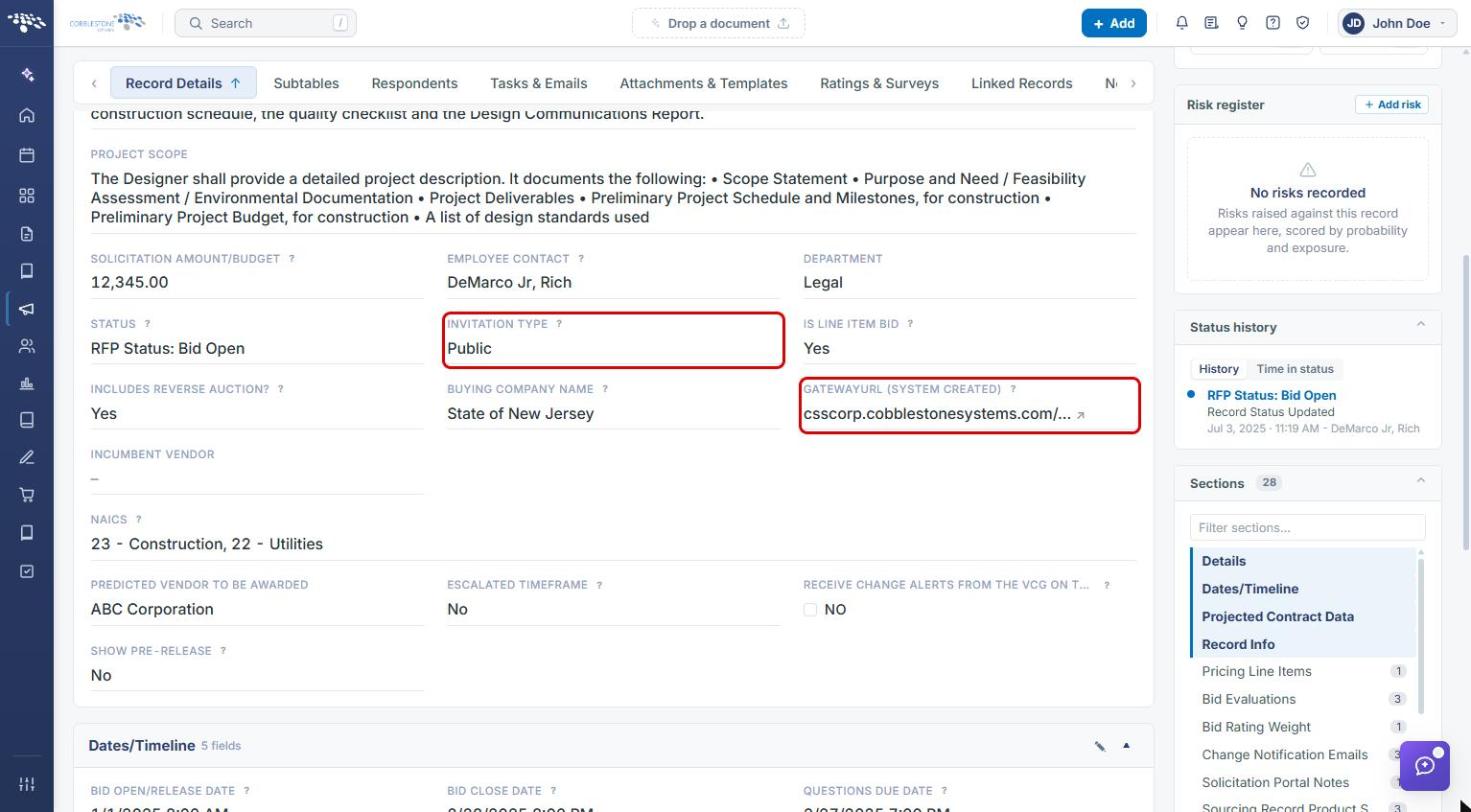
- Invitation Type (solicitation, Details section): Not Published (not on the Gateway), Public (any bidder can view and participate), or Invite Only (only invited/assigned bidders can participate). This field is required.
- GatewayURL (System Created) (solicitation, Details section): the portal or gateway link for the solicitation, pointing to the public solicitation search page.
- Bid Open/Release Date and Bid Close Date (Dates/Timeline section): when the solicitation is available for responses and when it closes to respondents.
- Administration → Vendor/Client Gateway (VCG) → Settings: Allow Solicitations Calendar Buttons (enables calendar download buttons on solicitation records) and Allow Viewing of Interested Parties (lets Vendor/Client users see the list of interested parties/respondents on the solicitation details).
- Enable Bid Alerts (VCG Settings): lets public and logged-in users set up bid alerts on the Gateway. This setting is managed by CobbleStone; contact support to change it.
3. Navigating to Solicitations
- From the Contract Insight homepage, click the Sourcing icon in the left navigation bar.
- Select Solicitations.
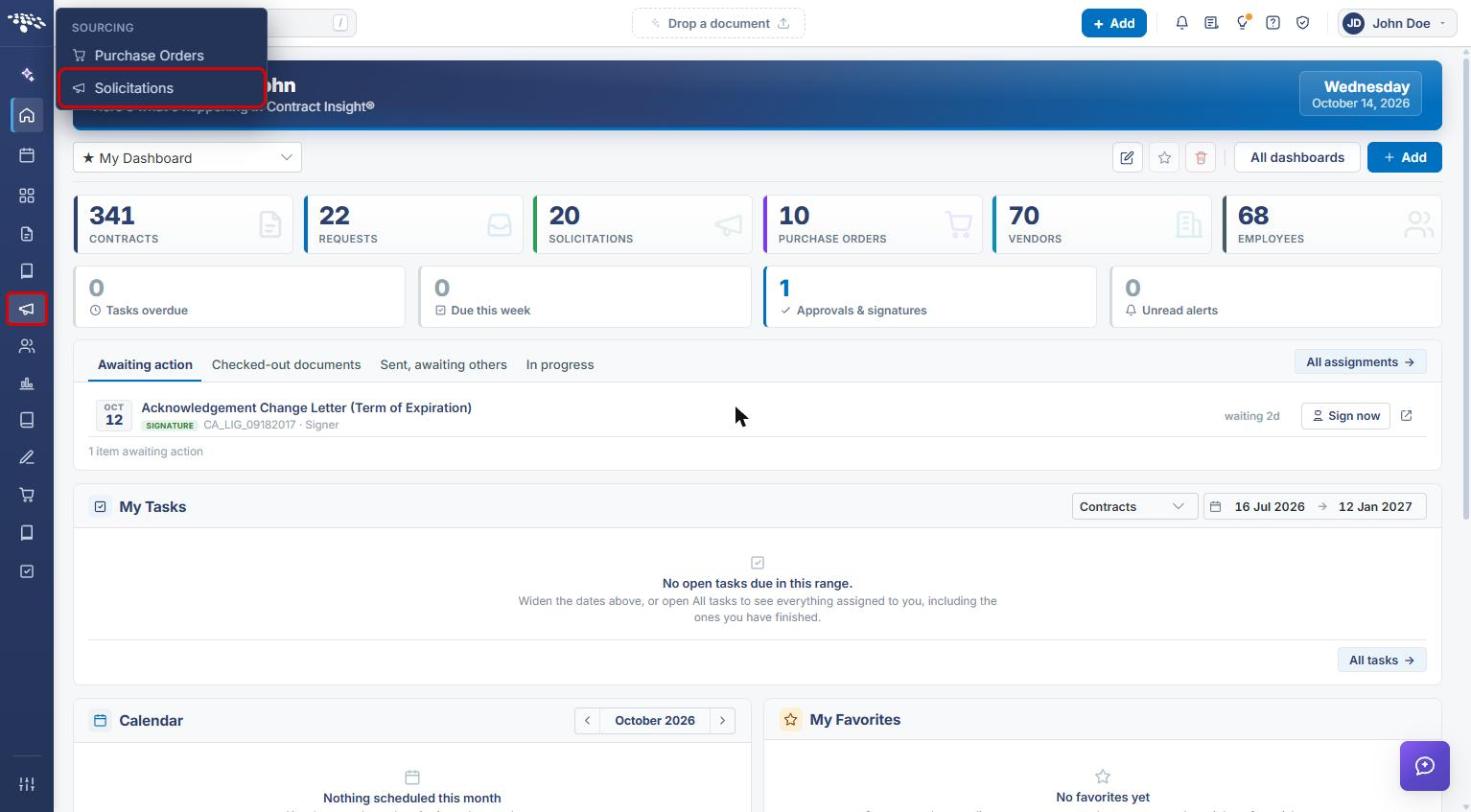
- The Solicitations list opens. Check the Invitation Type column to see which solicitations are Public, Invite Only, or Not Published.
- Use the Search box to find a specific solicitation, then click Manage on its row to open the record.
4. Making a Solicitation Publicly Visible
4a. Checking the Invitation Type and GatewayURL
- Open the solicitation (see Section 3). The record opens on the Record Details tab.
- In the Details section, find Invitation Type. A value of Public means any bidder can view the solicitation on the Gateway.
- Find GatewayURL (System Created). Click the link icon next to the URL to open the portal's public solicitation search page in a new tab.
4b. Changing the Invitation Type
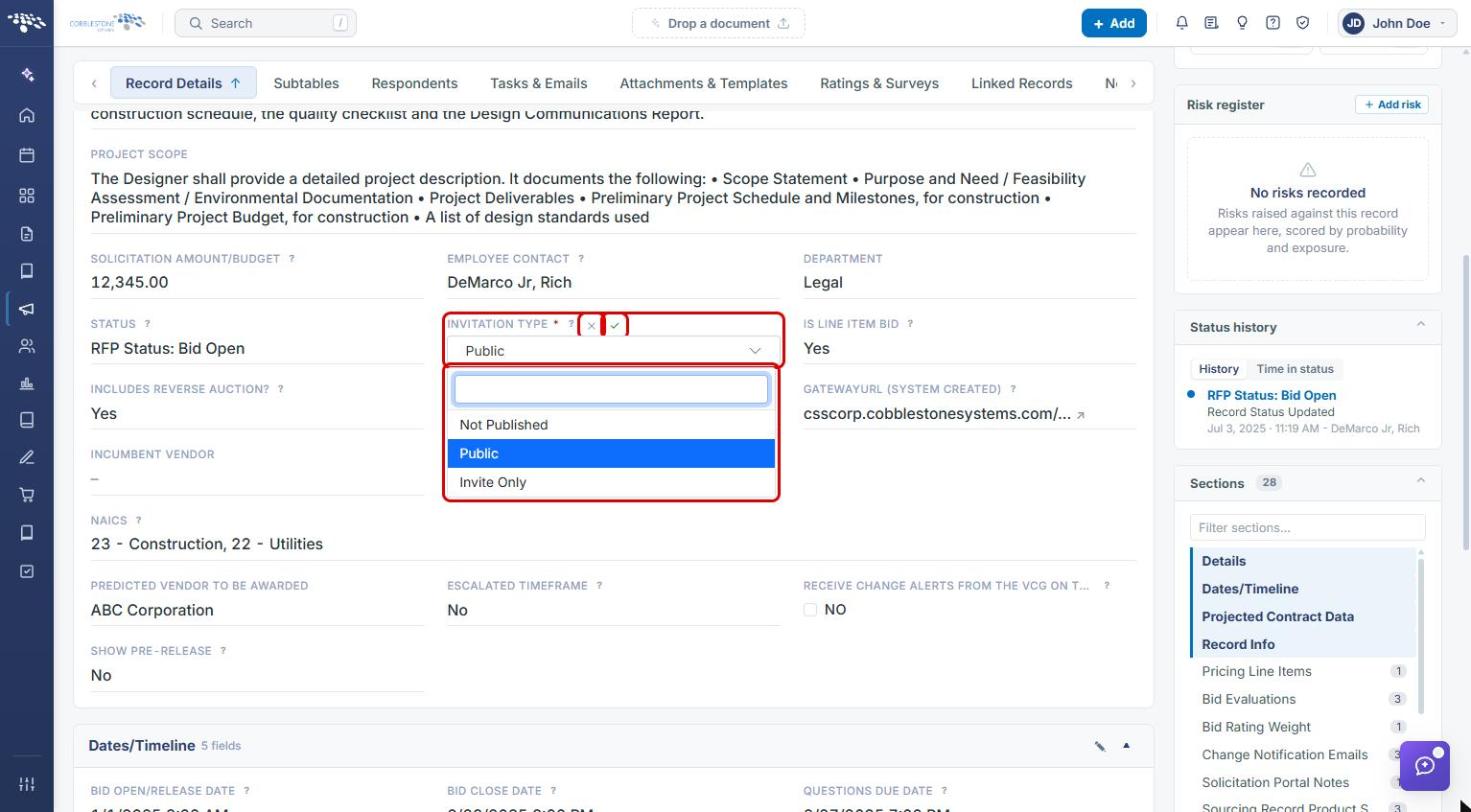
- Hover over Invitation Type and click the pencil icon to edit the field.
- Select Public, Invite Only, or Not Published from the drop-down.
- Click the check mark next to the field label to save, or the × to cancel.
Tip: Review the Bid Open/Release Date and Bid Close Date in the Dates/Timeline section as well, since they set when the solicitation is open for responses.
5. Configuring What Gateway Visitors See (Administrators)
5a. Opening the Vendor/Client Gateway Settings
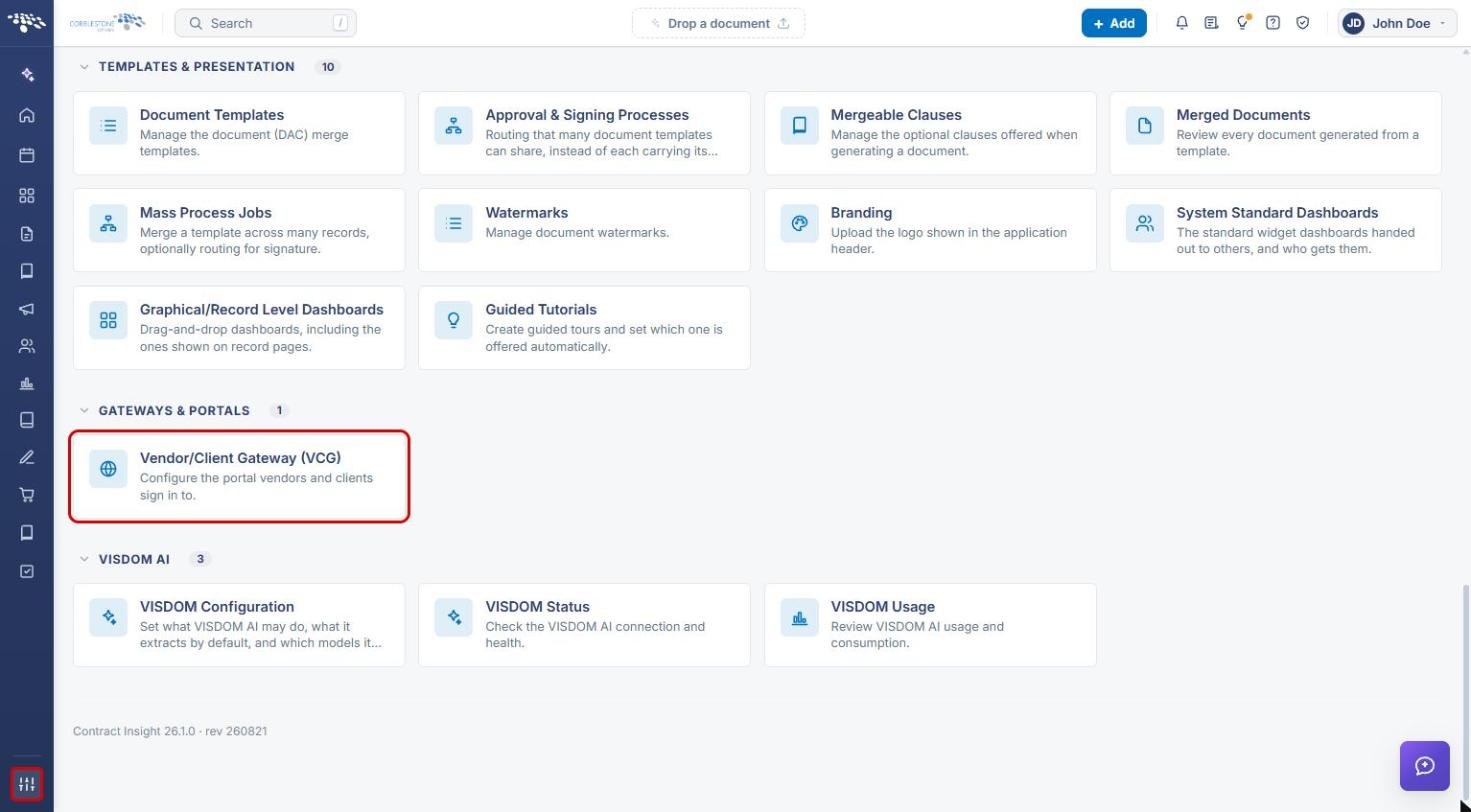
- From the Contract Insight homepage, click the Administration icon at the bottom of the left navigation bar.
- Scroll to Gateways & Portals and click Vendor/Client Gateway (VCG).
5b. Solicitation Display Settings
- On the Settings tab, review the Access group.
- Turn Allow Solicitations Calendar Buttons on to show calendar download buttons on solicitation records, or off to hide them.
- Turn Allow Viewing of Interested Parties on to let Vendor/Client users see the list of interested parties/respondents on a solicitation, or leave it off to keep that list hidden.
- Click Save changes to apply your changes, or Discard to undo them.
Note: The portal-side browsing screen (searching, filtering, sorting, and downloading public solicitation details) is covered in this guide's Vendor/Client Gateway module.