COBBLESTONE SOFTWARE
Contract Insight — User Guide
VISDOM+ Add Screen
VISDOM+ › VISDOM+ Add Screen
Note: Each procedure in this guide begins at the Contract Insight homepage, so any section can be followed on its own. Custom fields are configurable, so the exact field list on a contract category record may vary between environments.
1. Overview
The Create with VISDOM screen is the VISDOM+ entry point for adding a record from a document. After a file is dropped or browsed in (the same Drop a document control appears in the top navigation bar throughout the application), a feature-selection modal presents the available VISDOM+ capabilities in three groups: EXTRACTION (Field extractions), CLAUSES (Clause extraction, Clause sentiment, High risk findings), and STANDALONE TOOLS (Possible system additions, Obligations, GSA clauses). Whichever capabilities are checked run against the uploaded document before the new record is created, so the same Add screen can be used for a quick field-only extraction or a fuller clause-and-risk analysis depending on what is selected.
2. Key Elements
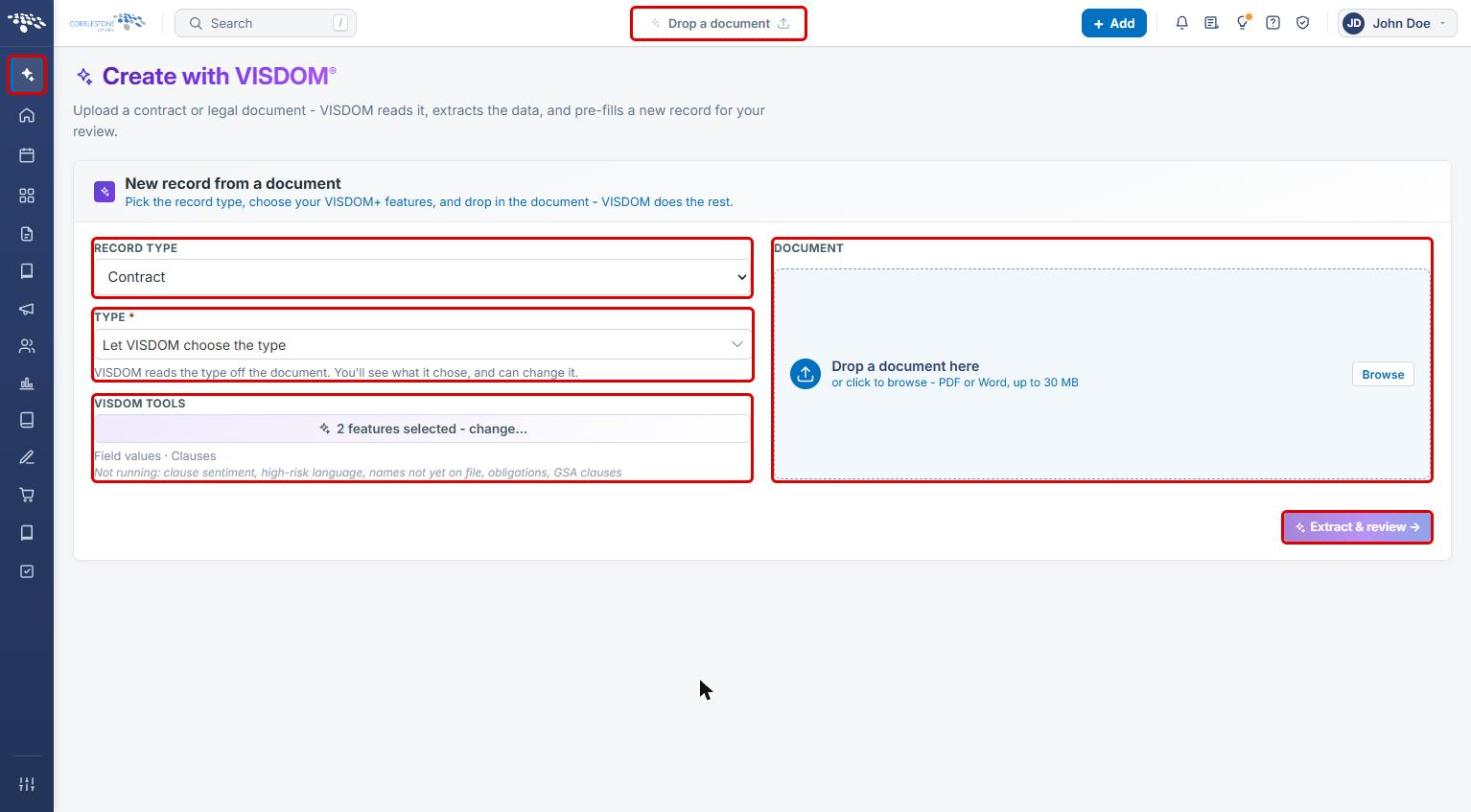
- Create with VISDOM / Drop a document is the entry point for adding a record from an uploaded file using VISDOM+.
- Record Type sets what kind of record is created: Contract, Request, Solicitation, Purchase Order, Vendor / Customer, or Employee.
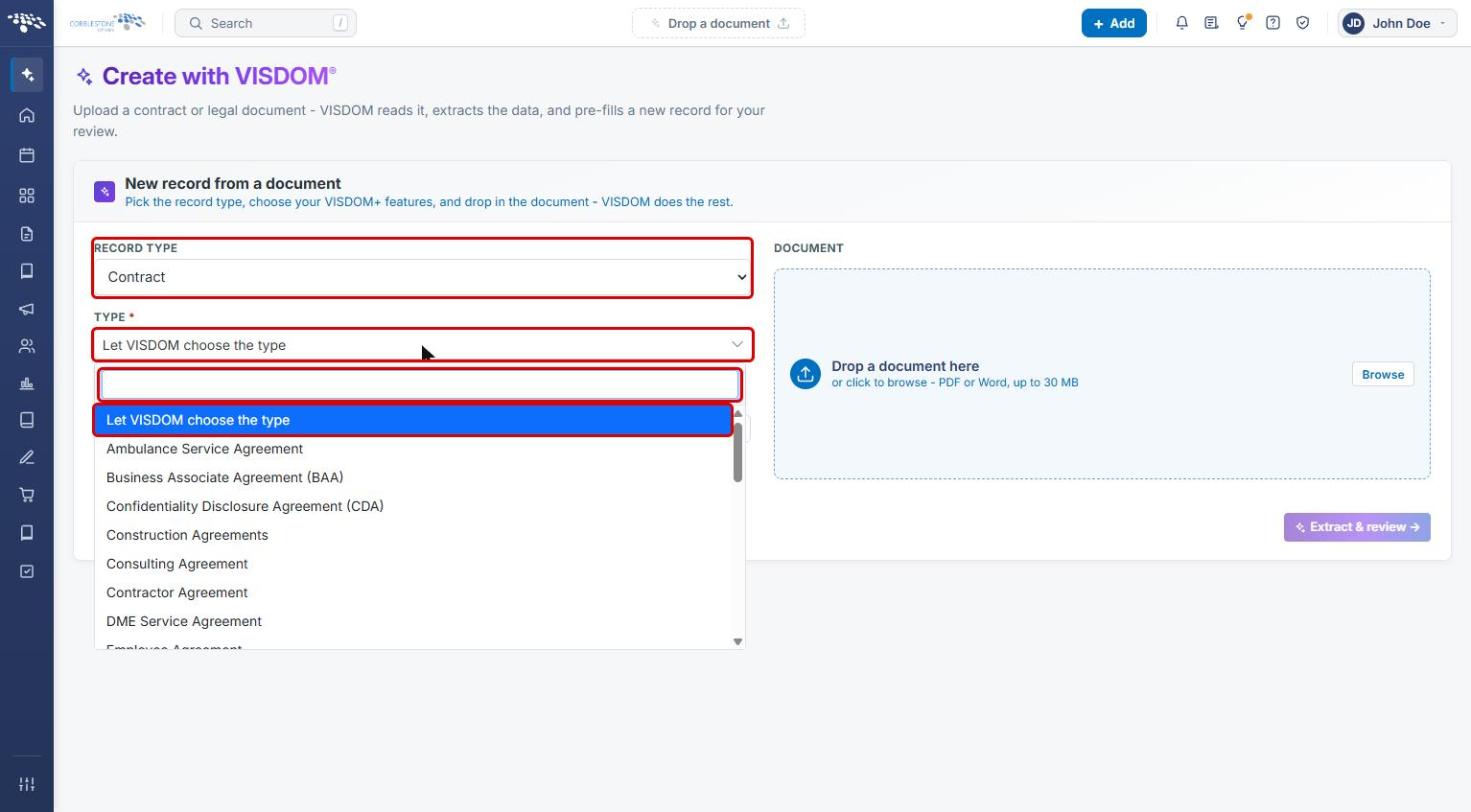
- Type can be left as Let VISDOM choose the type; VISDOM reads the type from the document, and you can change it during review.
- The VISDOM Tools feature-selection modal groups capabilities as EXTRACTION, CLAUSES, and STANDALONE TOOLS. Field extractions always run.
- Only the checked capabilities run against the document before the new record is created, letting the same screen scale from a quick extraction to a full analysis.
- Documents can be PDF or Word files up to 30 MB.
3. Opening Create with VISDOM
- From the Contract Insight homepage, click the Create with VISDOM (sparkle) icon at the top of the left navigation bar. You can also use Drop a document in the top navigation bar from any page.
- The Create with VISDOM page opens with the New record from a document panel.
4. Adding a Record from a Document
4a. Choosing the Record Type and Type
- In Record Type, select the kind of record to create (for example, Contract).
- In Type, keep Let VISDOM choose the type to have VISDOM read it from the document, or search for and select a specific type.
4b. Selecting VISDOM+ Features
- Under VISDOM Tools, click features selected - change… to open Select features.
- Check the capabilities to run. Field extractions is always included.
- Click Reset to default to return to the default selection if needed.
- Click Done to apply your choices, or Cancel to close without changes.
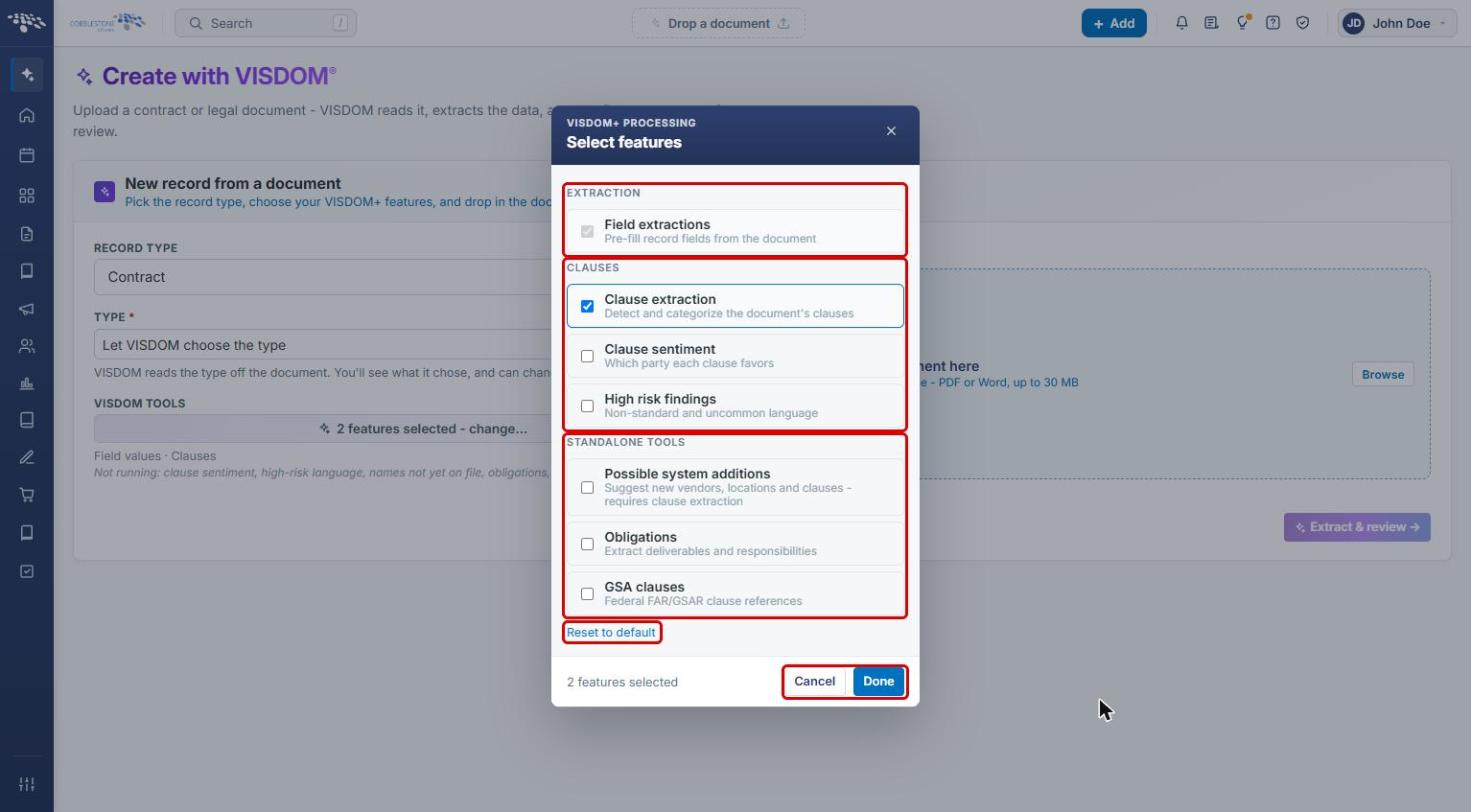
The line under VISDOM Tools lists the features that will run, followed by a Not running list of everything left unchecked.
Note: Possible system additions requires Clause extraction to be selected.
4c. Uploading the Document and Extracting
- Drag the file onto Drop a document here, or click Browse to select it. PDF and Word files up to 30 MB are supported.
- Click Extract & review. VISDOM reads the document, runs the selected features, and pre-fills a new record.
- Review the pre-filled values (and the type VISDOM chose, if you let it choose), make any corrections, and save the record.
See the screenshot in Section 3 for the Document drop zone, Browse, and Extract & review.
5. VISDOM+ Feature Reference
| Group | Feature | What It Does |
|---|---|---|
| Extraction | Field extractions | Pre-fills record fields from the document. Always runs. |
| Clauses | Clause extraction | Detects and categorizes the document's clauses. |
| Clauses | Clause sentiment | Shows which party each clause favors. |
| Clauses | High risk findings | Flags non-standard and uncommon language. |
| Standalone Tools | Possible system additions | Suggests new vendors, locations, and clauses. Requires clause extraction. |
| Standalone Tools | Obligations | Extracts deliverables and responsibilities. |
| Standalone Tools | GSA clauses | Finds Federal FAR/GSAR clause references. |
6. Quick Reference Summary
| Task | How to Complete It |
|---|---|
| Open the Add screen | Left navigation → Create with VISDOM, or top bar → Drop a document. |
| Choose what to create | Record Type → select a record type; Type → Let VISDOM choose the type or a specific type. |
| Choose VISDOM+ features | VISDOM Tools → features selected - change… → check features → Done. |
| Restore default features | Select features → Reset to default → Done. |
| Upload and extract | Drop the file or click Browse → Extract & review. |