COBBLESTONE SOFTWARE
Contract Insight — User Guide
Viewing/Downloading Contract Attachments
07. End Users - Contracts › Contract Attachments › Viewing/Downloading Contract Attachments
Note: Each procedure in this guide begins at the Contract Insight homepage, so any section can be followed on its own. Custom fields are configurable, so the exact field list on a contract category record may vary between environments.
1. Overview
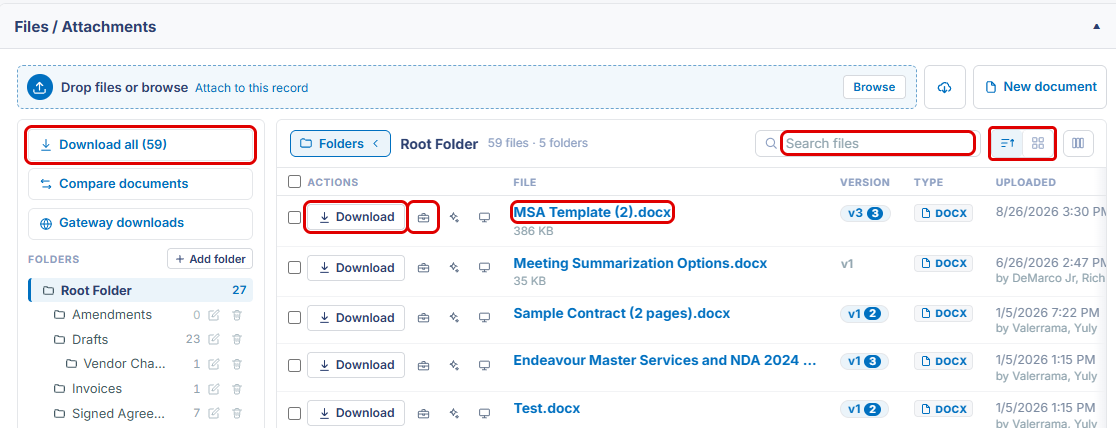
Every file listed on a record's Attachments & Templates tab can be downloaded or previewed without leaving the record. Each row has its own Download button, and clicking the file name (or choosing Preview in the file's Document Tools window) opens the file in an in-app viewer. The file list can be shown as a list or as tiles, searched by file name, and adjusted to show different fields. Download all, in the folder sidebar, downloads every file on the record as a single .zip.
2. Key Elements
- Download (per row): downloads that single file.
- File name: click it to preview the file in the in-app viewer.
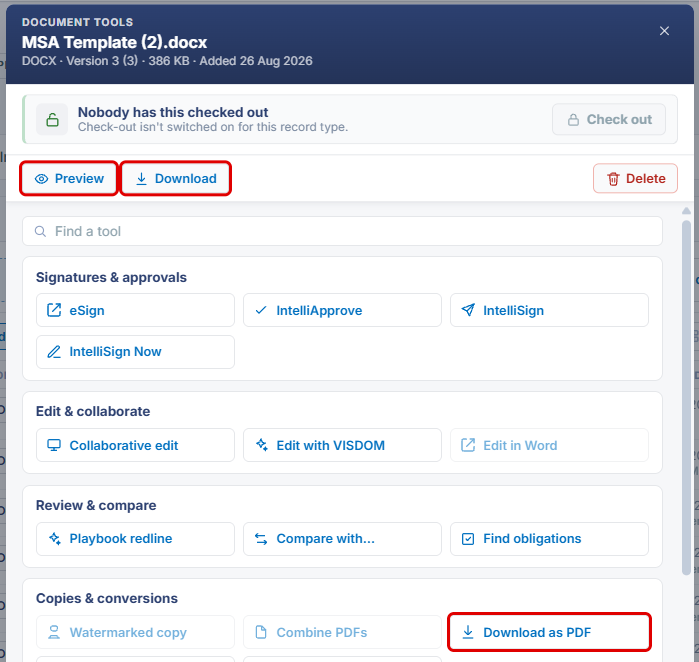
- Document tools (briefcase icon on each row): opens the Document Tools window, which includes Preview, Download, and Download as PDF, along with other file tools.
- Search files: above the file list; filters the current folder's files by name.
- Show as a list / Show as tiles: switch how the files are displayed. The icon beside them (Choose which fields this list shows) adds or removes list columns.
- Download all: at the top of the folder sidebar; downloads every file on the record as a .zip, including older versions. The number in parentheses is the record's total file count.
3. Navigating to a Record's Attachments
- From the Contract Insight homepage, click the Requests/Contracts icon in the left navigation bar, then select Contracts.
.png)
- On the Contracts list, locate the contract (use the Search box or the column filters if needed) and click Manage on its row.
.png)
- On the contract record, click the Attachments & Templates tab. The Files / Attachments panel opens.
.png)
4. Downloading a Single File
- Navigate to the record's Attachments & Templates tab (see Section 3).
- If the file is in a subfolder, select that folder in the Folders list, or type part of the file name in Search files.
- Click Download on the file's row. The file downloads to your computer.
Note: To download a Word file as a PDF instead, click the file's Document tools icon and choose Download as PDF (see Section 5).
5. Previewing a File
- Navigate to the record's Attachments & Templates tab (see Section 3).
- Click the file name to open it in the viewer. Alternatively, click the file's Document tools icon and click Preview.
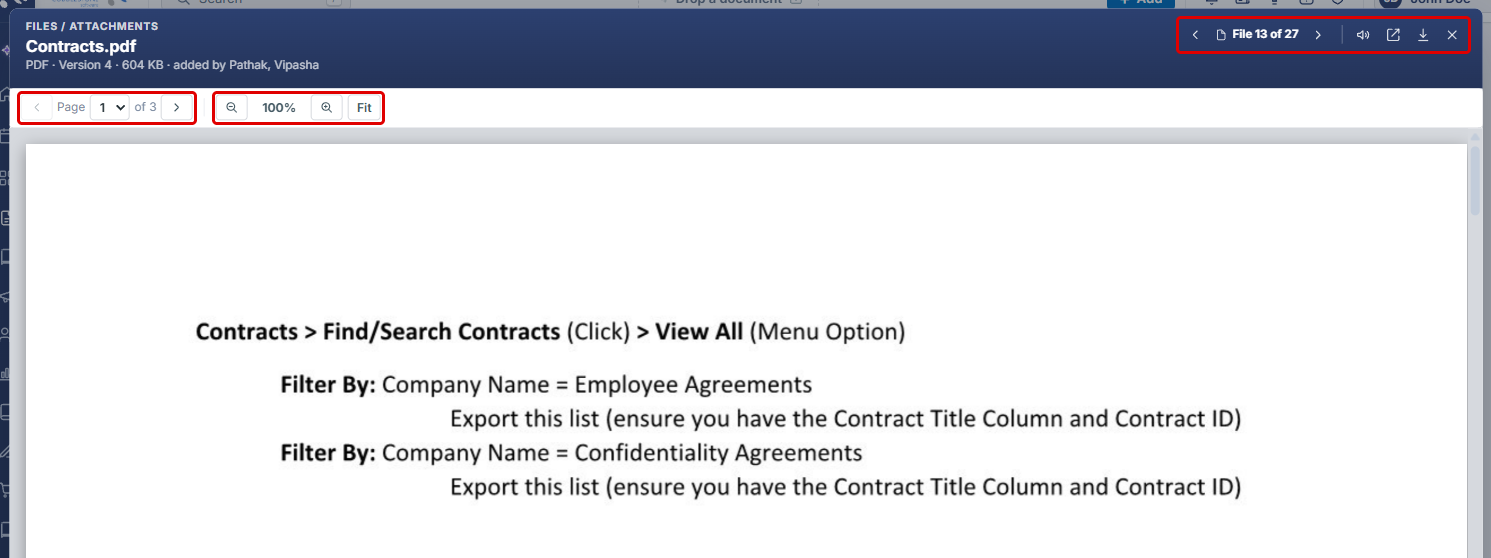
- Use the viewer controls to read the file:
- Page drop-down and arrows: move between pages.
- Zoom out / Zoom in and Fit: change the zoom level, or fit the page to the window width.
- File X of Y arrows: move to the previous or next file on the record without closing the viewer.
- Audio brief, Open in a new tab, and Download this file: hear a spoken summary, open the file in its own browser tab, or download it.
- Click X (Close) to return to the file list.
Note: Word files are converted for viewing first, so they can take a few moments to appear. If the viewer shows This document can't be shown, click Download this file to open it on your computer instead.
6. Downloading All Files on a Record
- Navigate to the record's Attachments & Templates tab (see Section 3).
- In the folder sidebar, click Download all (see the screenshot in Section 4). Every file on the record, including older versions, downloads as a single .zip file.
7. Finding and Displaying Files
- Search files: type part of a file name to filter the files in the current folder.
- Show as a list: displays files in rows with columns such as Version, Type, and Uploaded.
- Show as tiles: displays files as tiles.
- Choose which fields this list shows: adds or removes columns in list view.
8. Quick Reference Summary
| Task | Where | Action |
|---|---|---|
| Open a contract's attachments | Requests/Contracts → Contracts → Manage | Click the Attachments & Templates tab |
| Download one file | File row | Click Download |
| Download a Word file as a PDF | File row → Document tools | Click Download as PDF |
| Preview a file | File row | Click the file name, or Document tools → Preview |
| Download every file | Folder sidebar | Click Download all (.zip, includes older versions) |
| Find a file | Above the file list | Type in Search files |
| Change the layout | Above the file list | Show as a list / Show as tiles |