COBBLESTONE SOFTWARE
Contract Insight — User Guide
Attachment Level Viewing Privileges
07. End Users - Contracts › Contract Attachments › Attachment Level Viewing Privileges
Note: Each procedure in this guide begins at the Contract Insight homepage, so any section can be followed on its own. Custom fields are configurable, so the exact field list on a contract category record may vary between environments.
1. Overview
Viewing privileges can be set on individual attachments. By default, "anyone who can see this record can open this document." From a file's Document tools window, Access permissions lets you name specific People or Security groups to restrict that document, and every version of it, to just them.
Two related settings control who outside your organization can see a document. Each attachment has a Collaboration Type (Internal or Gateway), which is set by default from its File Category's Default Collaboration Type (Administration › Master Reference Data › File Categories). Documents in the shared Library each have their own Visible for value (Internal, Gateway or Public).
2. Key Elements
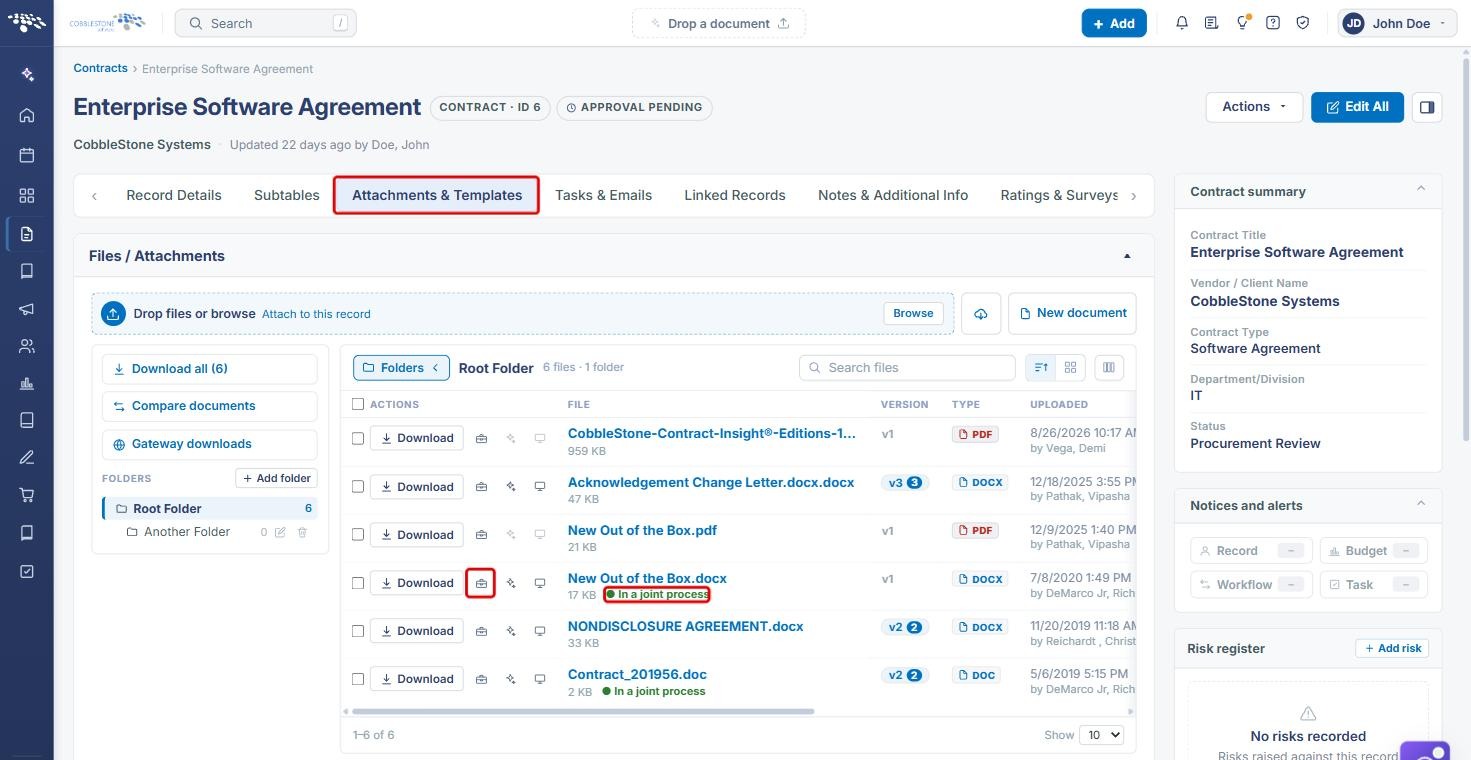
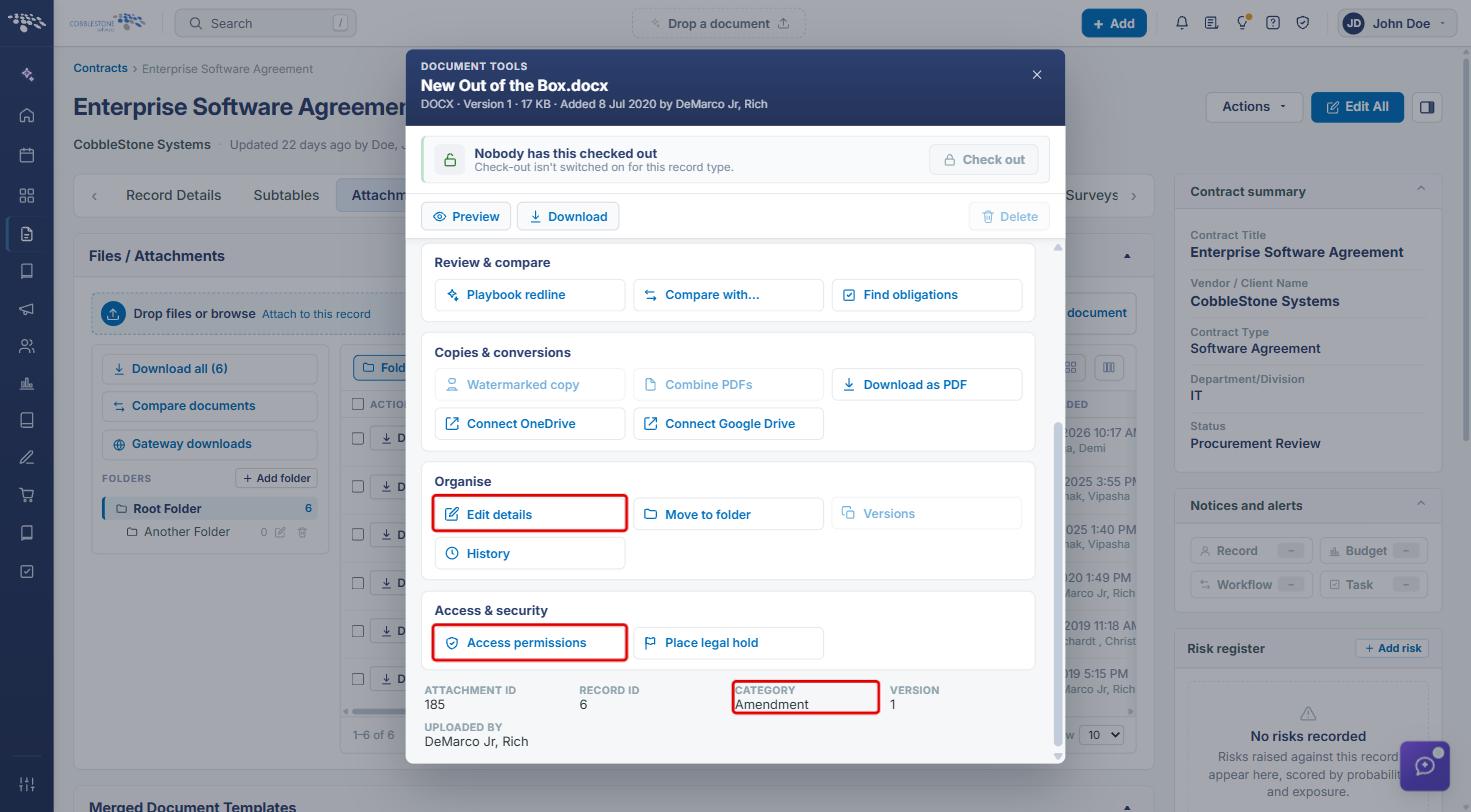
- Document tools (briefcase icon on each file row): opens a window with the file's tools, including Access permissions under Access & security, and the file's Category.
- Access permissions window: shows whether the document is restricted, and lets you add People (Find someone › Add) or Security groups (Find a group › Add). Each change takes effect as you make it.
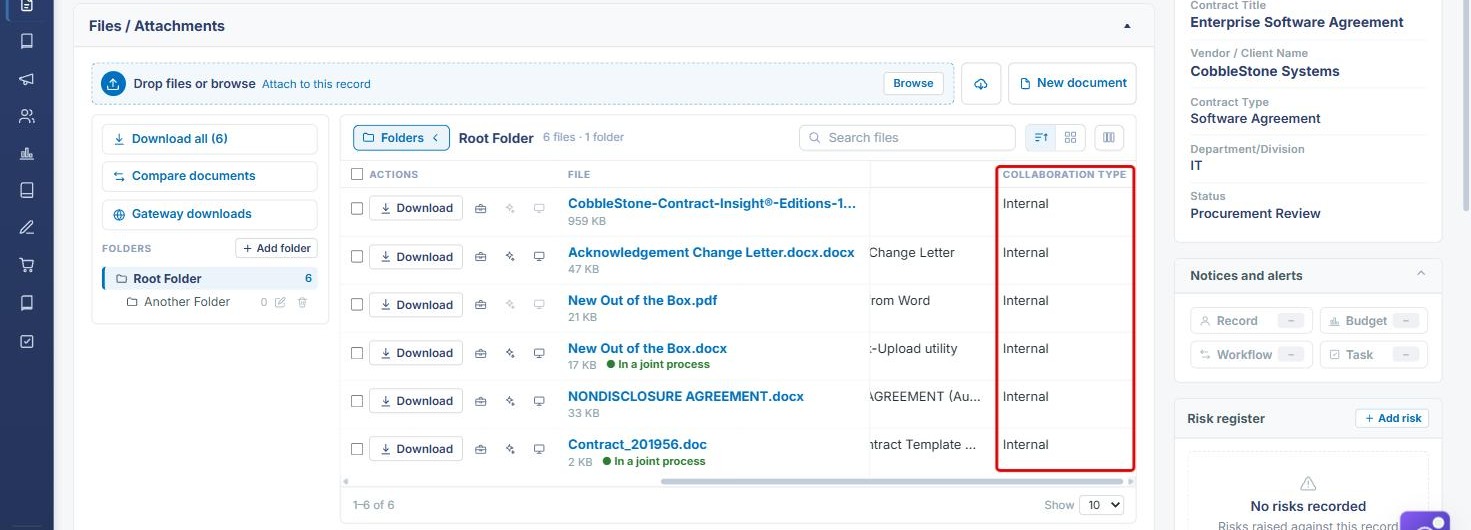
- Collaboration Type column: in the file list (scroll right), shows whether each attachment is Internal or Gateway.
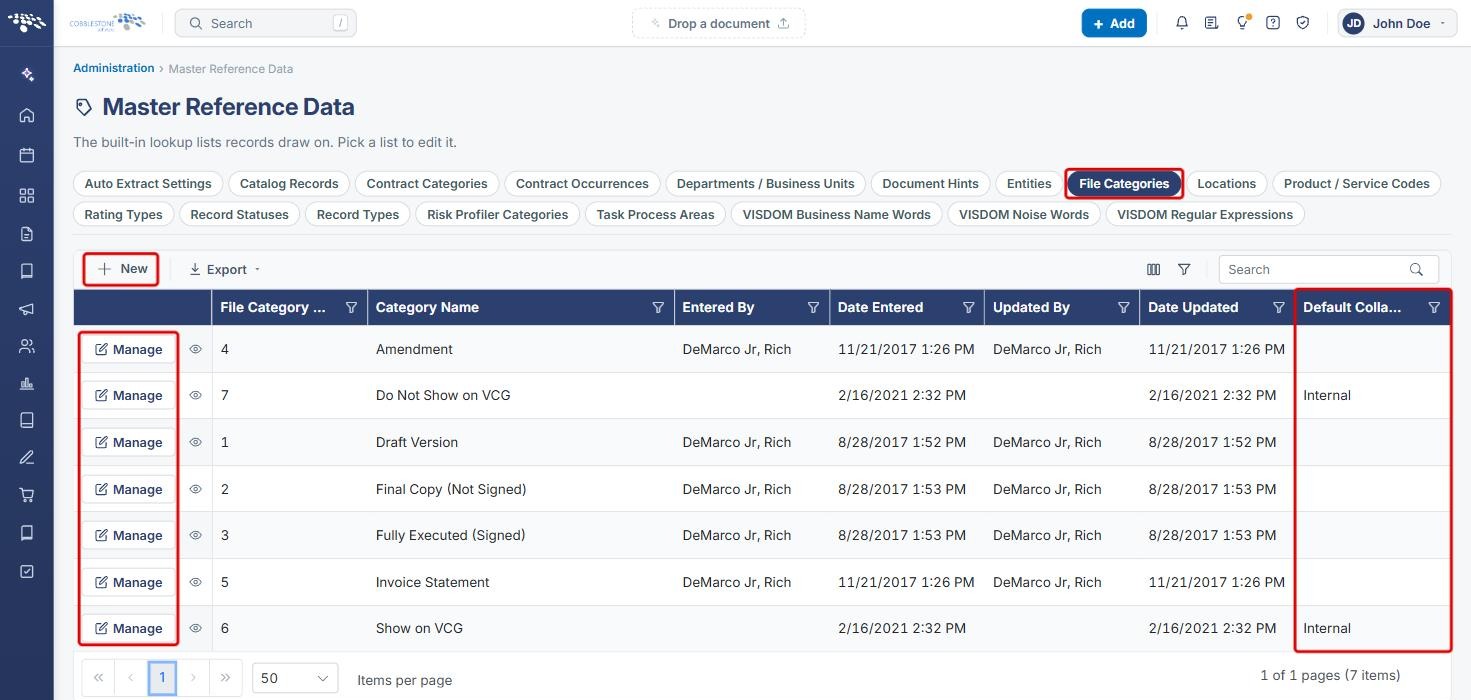
- File Categories (Master Reference Data): each category's Default Collaboration Type (Internal or Gateway) applies to files filed under that category.
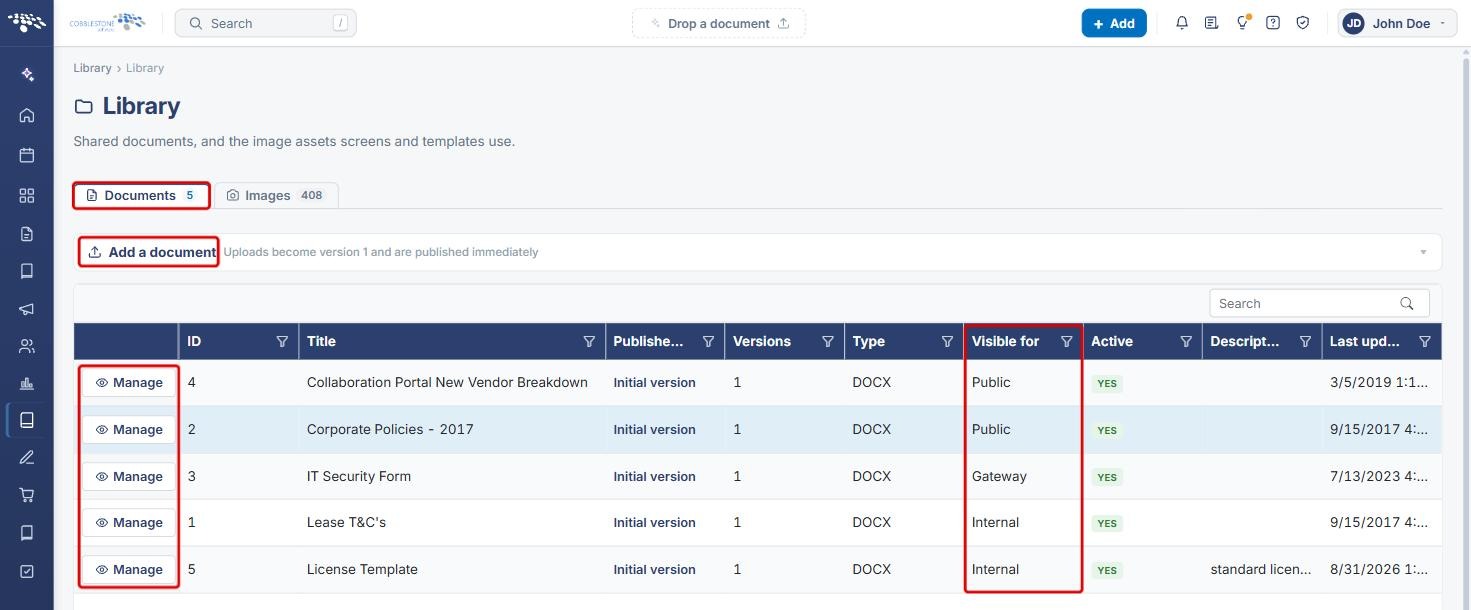
- Library › Documents: each document's Visible for setting (Internal, Gateway or Public) and Active setting.
- In a joint process tag: shows that people are currently editing the document together.
3. Restricting Who Can Open an Attachment
- From the Contract Insight homepage, hover over the Requests/Contracts icon in the left navigation bar and select Contracts.
.jpg)
- Locate the contract (use the Search box if needed) and click Manage.
.jpg)
- Click the Attachments & Templates tab, then click the Document tools (briefcase) icon on the file's row.
- In the Document tools window, scroll to Access & security and click Access permissions. The file's Category is shown at the bottom of the window.
- In the Access permissions window, check the banner. "Anyone who can see this record can open this document" means the file is not restricted.
- To restrict the file to specific users, choose someone from Find someone under People and click Add.
- To restrict it to a security group, choose a group from Find a group under Security groups and click Add.
- Click Close when finished.
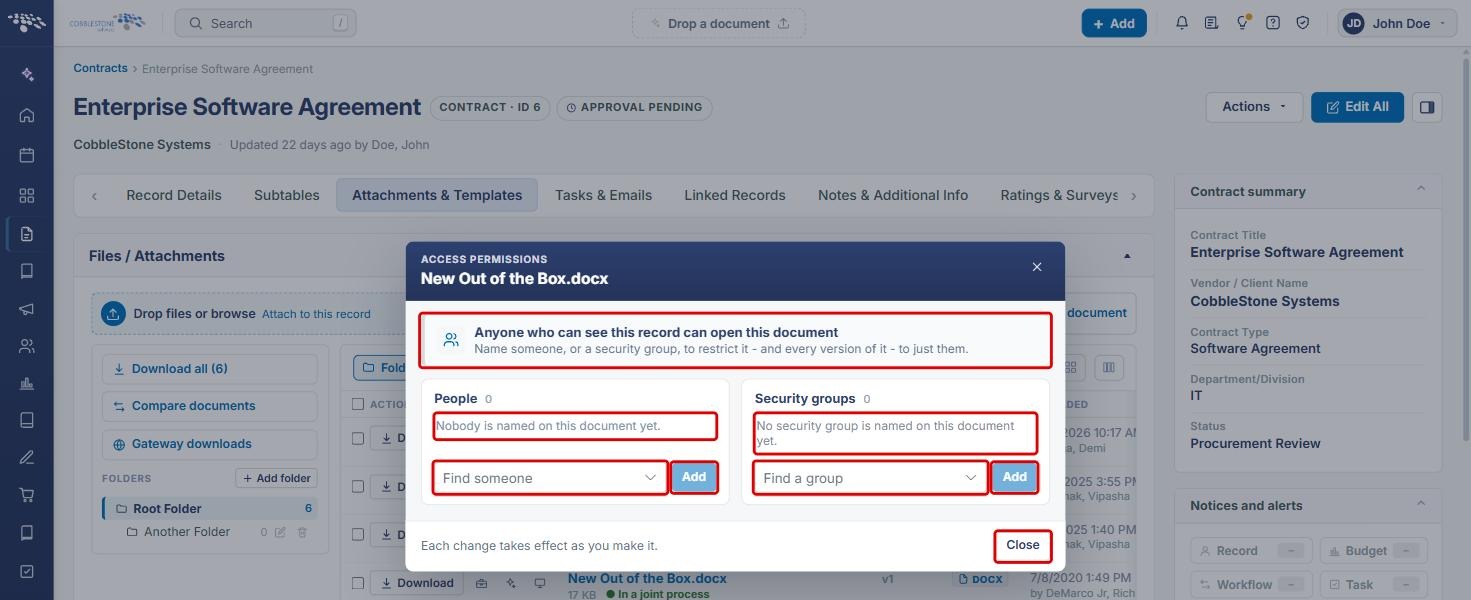
Note: Each change takes effect as you make it. Naming people or groups restricts the document, and every version of it, to only those people and groups.
4. Checking an Attachment's Collaboration Type
- On the record's Attachments & Templates tab, scroll the file list to the right.
- Review the Collaboration Type column. Internal files are for internal users; Gateway files can be shared through the Gateway with vendors and clients.
5. Setting a File Category's Default Collaboration Type (Administrators)
- From the Contract Insight homepage, click the Administration icon at the bottom of the left navigation bar, then click Master Reference Data.
- Click the File Categories tab. The Default Collaboration Type column shows each category's setting.
- Click Manage on a category, or New to add one.
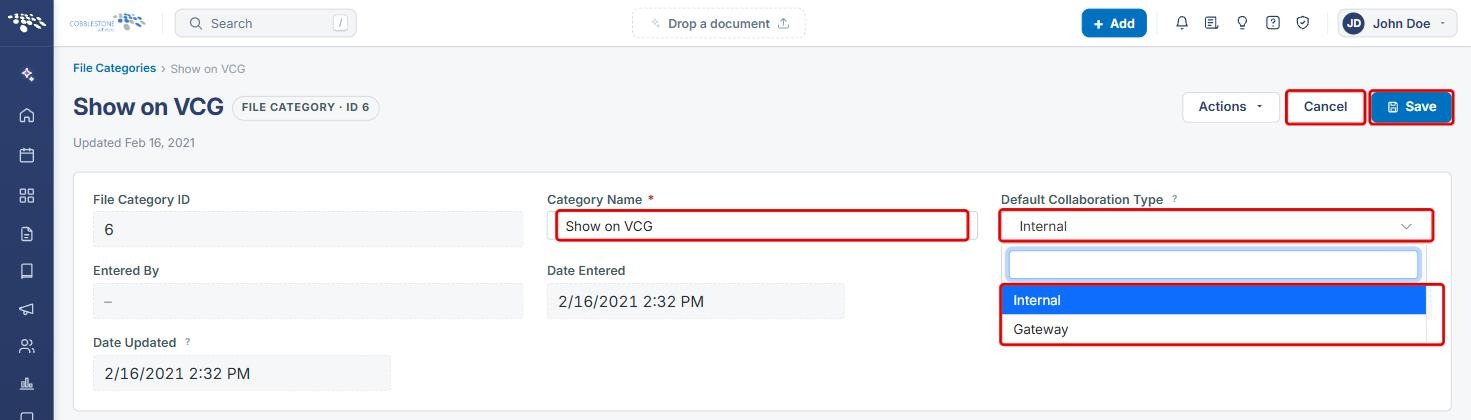
- Click Edit All, then choose Internal or Gateway from Default Collaboration Type.
- Click Save, or Cancel to discard your changes.
6. Setting Visibility for Library Documents
- From the Contract Insight homepage, hover over the Library icon in the left navigation bar and select Documents.
- Review the Visible for column for each document, then click Manage on the document to change.
- In the document panel, choose Internal, Gateway or Public from Visible for, and set Active to Yes - everyone can see it or No - hidden from non-admins.
- Click Save details.
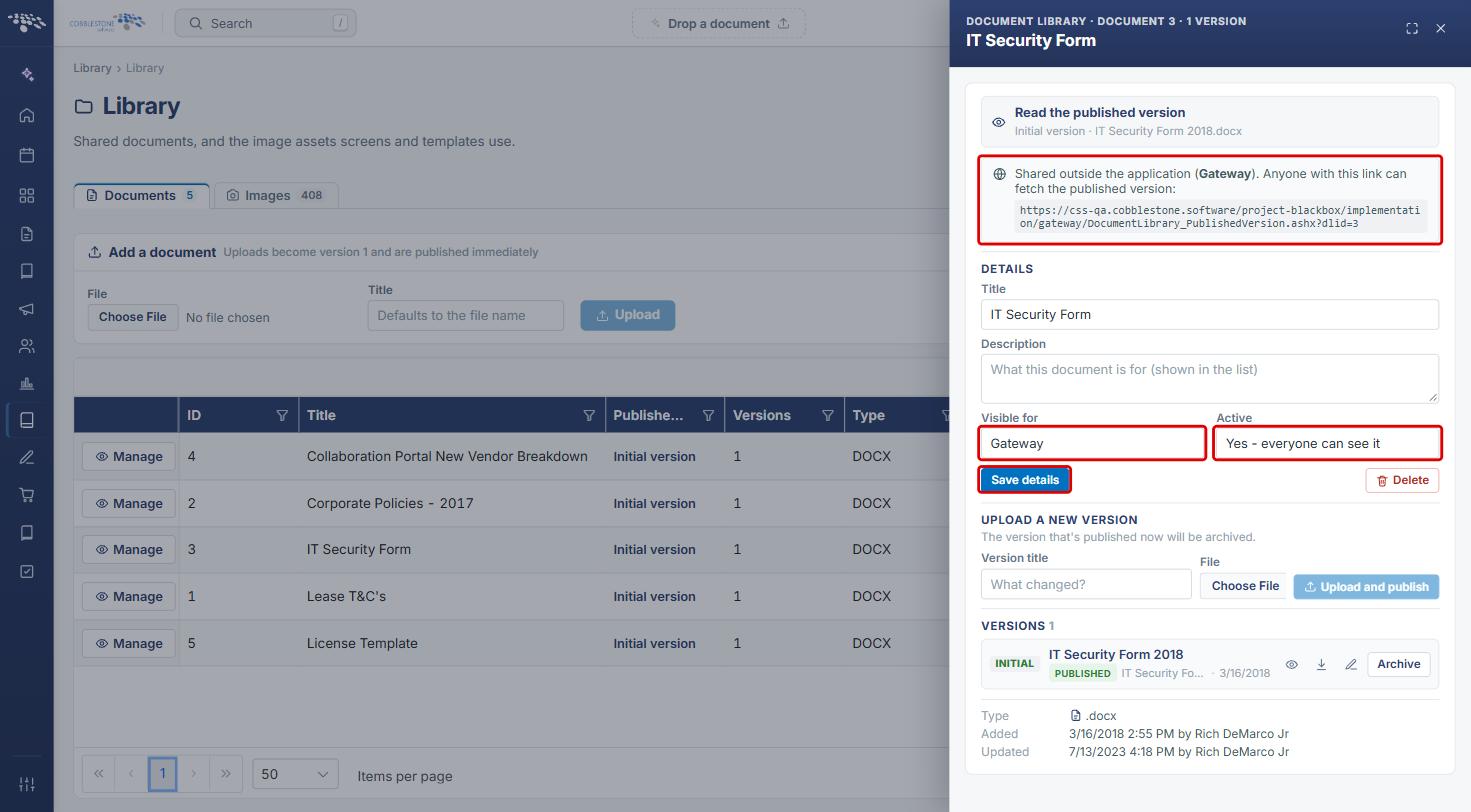
Note: When a library document is shared outside the application (Gateway), the panel shows a link that anyone can use to fetch the published version.
7. Quick Reference Summary
| Task | Where / How |
|---|---|
| Restrict an attachment to people or groups | Record › Attachments & Templates › Document tools › Access permissions › Find someone / Find a group › Add |
| Check an attachment's collaboration type | File list › scroll right › Collaboration Type column |
| Set a category's default visibility | Administration › Master Reference Data › File Categories › Manage › Edit All › Default Collaboration Type › Save |
| Set a library document's visibility | Library › Documents › Manage › Visible for › Save details |