COBBLESTONE SOFTWARE
Contract Insight — User Guide
Folders: Edit and Move
07. End Users - Contracts › Contract Attachments › Folders: Edit and Move
Note: Each procedure in this guide begins at the Contract Insight homepage, so any section can be followed on its own. Custom fields are configurable, so the exact field list on a contract category record may vary between environments.
1. Overview
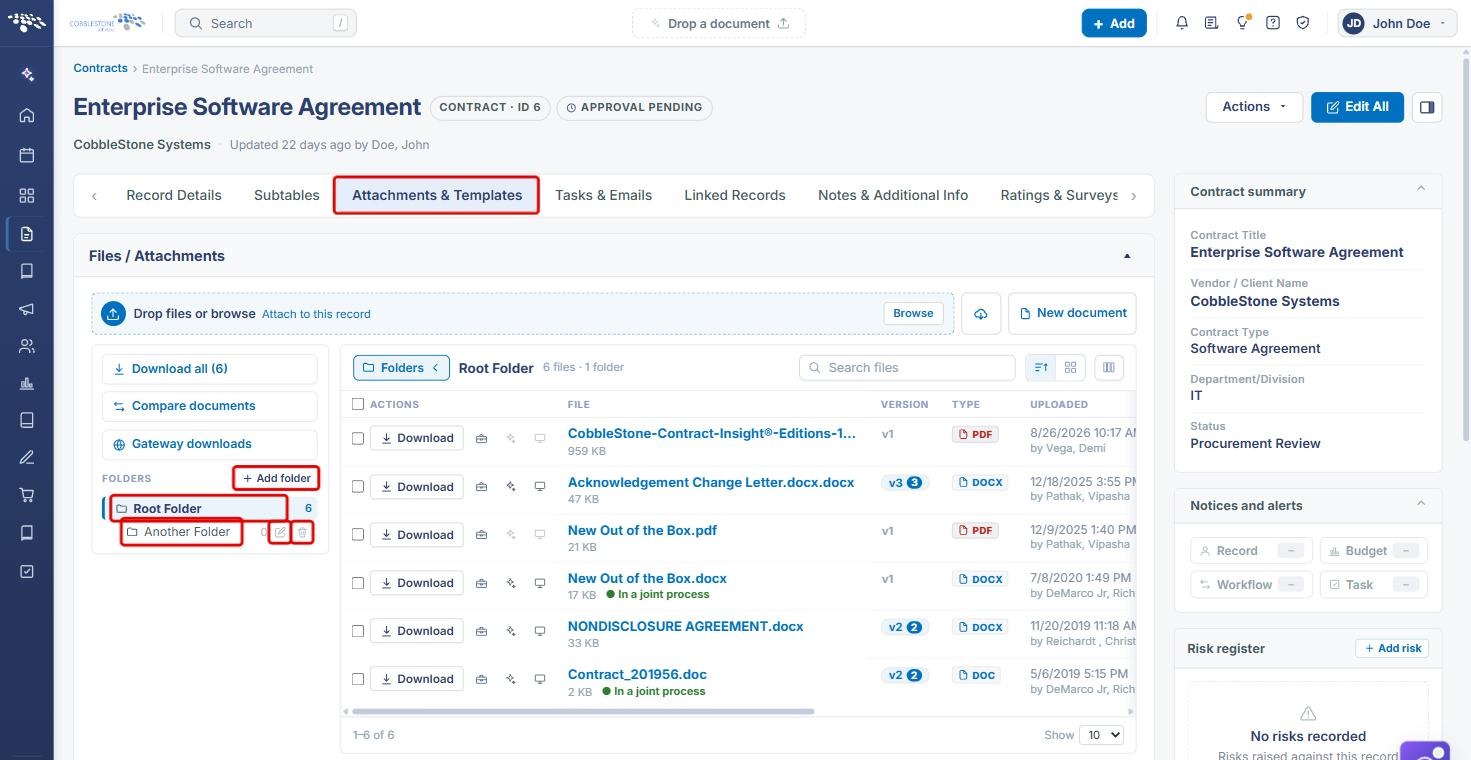
Each subfolder listed in a record's Folders panel (on the Attachments & Templates tab) has its own pencil and trash icons next to its file count. The pencil icon, described in the app as "Rename, describe it, or move it", opens a Folder window where you can change the folder's Name, add a Description (shown when you hover over the folder) and choose a different Parent Folder to move it. The trash icon deletes the folder.
Root Folder has neither icon, because it is the record's built-in default location rather than a folder a user created.
2. Key Elements
- Folders panel: lists Root Folder and any subfolders with their file counts, plus Add folder. Selecting a folder shows its files in the file list.
- Pencil icon (Rename, describe it, or move it): opens the Folder window for that subfolder.
- Trash icon (Delete the folder): removes the subfolder.
- Folder window: Name, Description (optional, shown when you hover over the folder), Parent Folder, Cancel and Save folder.
3. Navigating to a Record's Folders
- From the Contract Insight homepage, hover over the Requests/Contracts icon in the left navigation bar and select Contracts.
.jpg)
- Locate the contract (use the Search box if needed) and click Manage.
.jpg)
- Click the Attachments & Templates tab. The Folders panel appears on the left of the file list.
4. Renaming, Describing or Moving a Folder
- In the Folders panel, click the pencil icon next to the subfolder.
- In the Folder window, change the Name as needed.
- Optionally, enter a Description. It is shown when someone hovers over the folder.
- To move the folder, choose a different folder from Parent Folder. The folder moves inside the folder you choose.
- Click Save folder, or Cancel to close without changes.
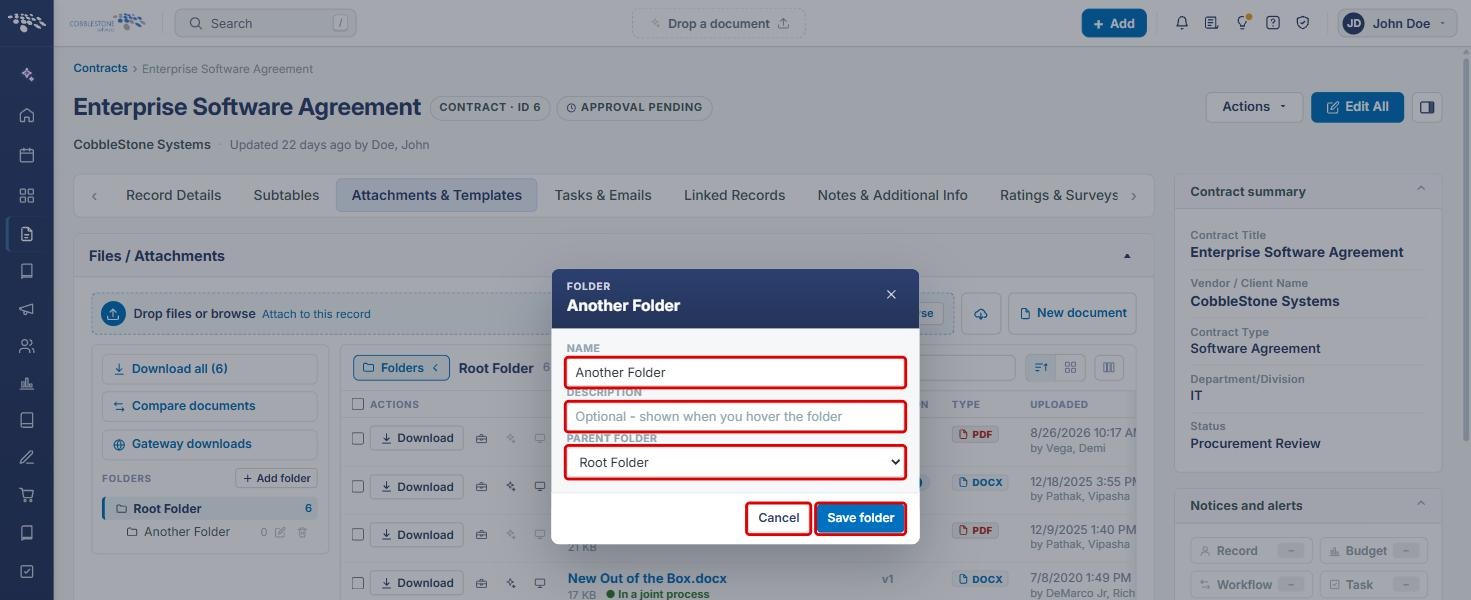
Note: The Parent Folder list shows the folders available on the record. If the record only has Root Folder and one subfolder, Root Folder is the only choice.
5. Deleting a Folder
- In the Folders panel, click the trash icon (Delete the folder) next to the subfolder.
- Confirm the deletion if prompted.
Note: Deleting a folder is a destructive action. Before deleting, select the folder to check which files it contains, and move any files you want to keep (see "Folders: Move Files").
6. Quick Reference Summary
| Task | Where / How |
|---|---|
| Open a record's folders | Contract › Manage › Attachments & Templates › Folders panel |
| Create a folder | Folders panel › Add folder |
| Rename or describe a folder | Pencil icon › Name / Description › Save folder |
| Move a folder | Pencil icon › Parent Folder › Save folder |
| Delete a folder | Trash icon (Delete the folder) |
| See a folder's files | Select the folder in the Folders panel |