COBBLESTONE SOFTWARE
Contract Insight — User Guide
Product Service Codes
Module: Vendor/Client Gateway › Users: Using the Vendor/Client Gateway › Product Service Codes
Note: Each procedure in this guide begins at the Contract Insight homepage, so any section can be followed on its own. Custom fields are configurable, so the exact field list on a contract category record may vary between environments.
1. Overview
The Product/Service Codes lookup list — managed under Administration → Master Reference Data → Product / Service Codes, with a code, description, and active flag per entry — is used by two subtables: Vendor Product Service Codes on vendor/customer records and Sourcing Record Product Service Codes on solicitation records. These identify the products and services relevant to a vendor's company or to a solicitation.
2. Key Elements
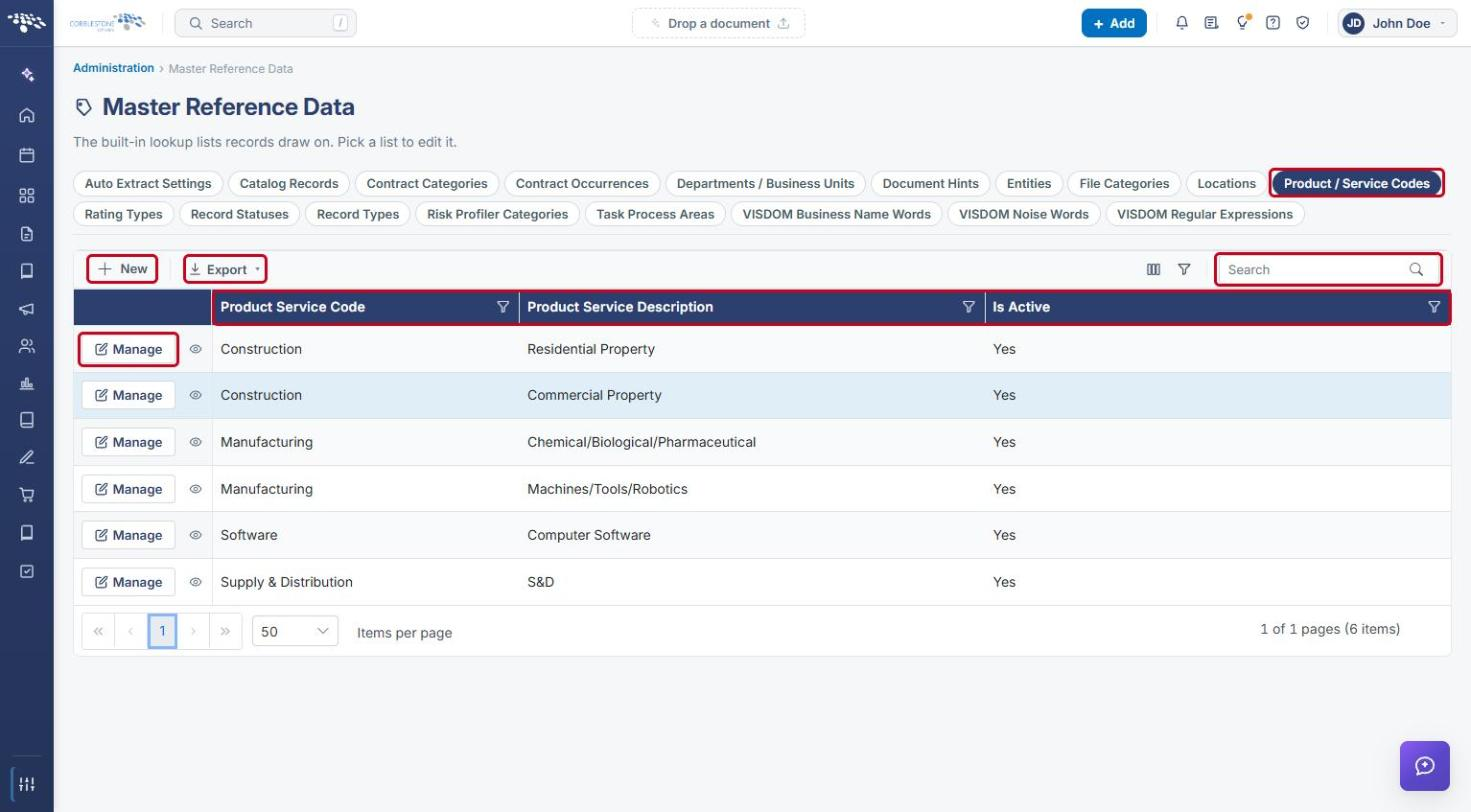
- Administration → Master Reference Data → Product / Service Codes is the master list (Product Service Code, Product Service Description, Is Active).
- New codes are added from the master list's New button, same as any other Master Reference Data list; existing codes are edited with Manage.
- Vendor Product Service Codes (vendor/customer record → Subtables) links codes to a vendor or company.
- Sourcing Record Product Service Codes (solicitation record → Subtables) links codes to a solicitation.
- Codes picked on either subtable come from the master list; each appears as Description (Code).
3. Navigating to the Product / Service Codes List
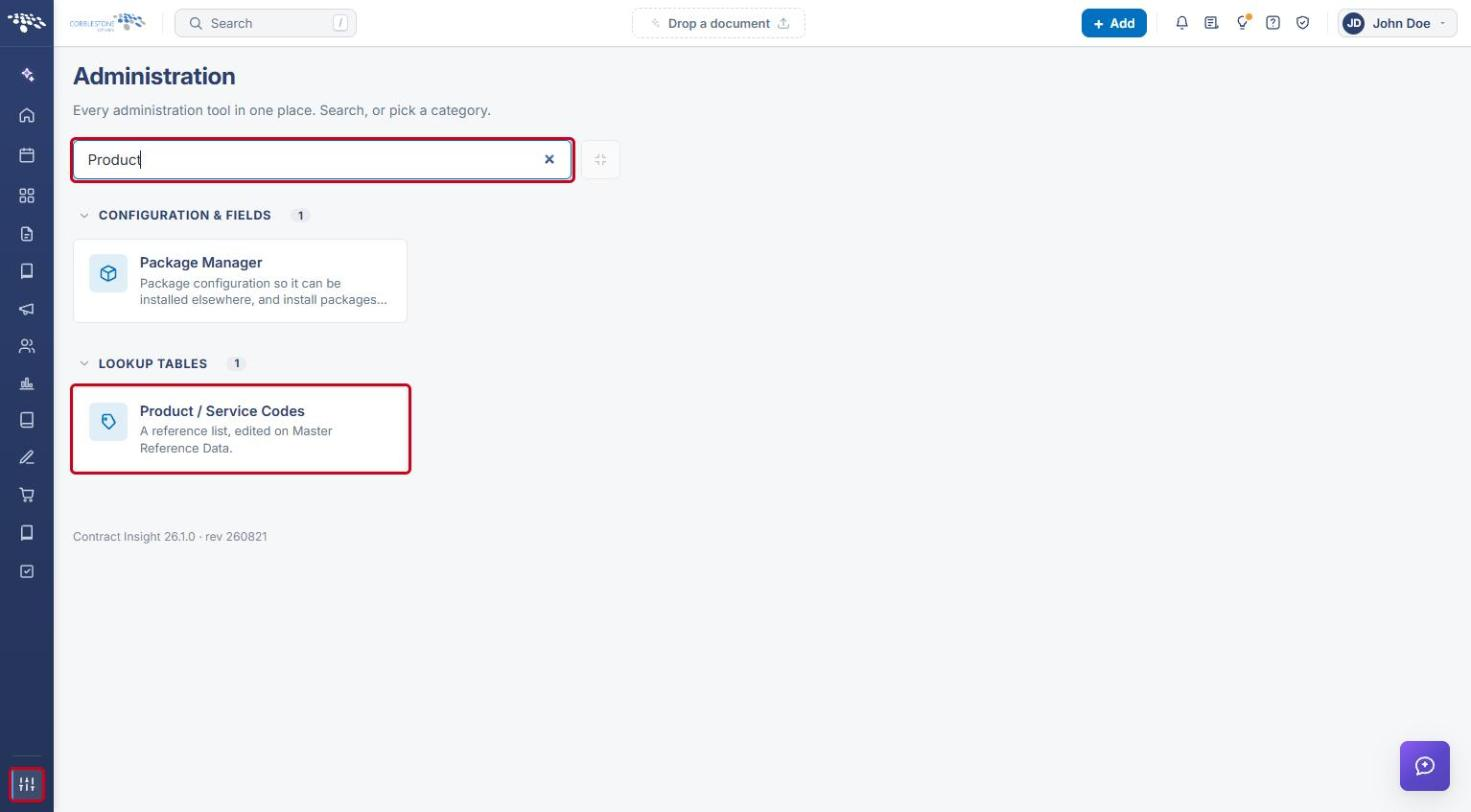
- From the Contract Insight homepage, click the Administration (settings) icon at the bottom of the left navigation bar.
- In the Search administration box, type Product, then click Product / Service Codes under Lookup Tables.
- The Master Reference Data page opens with the Product / Service Codes list selected. Use Search to find a code, or Export to download the list.
4. Adding or Editing a Product / Service Code
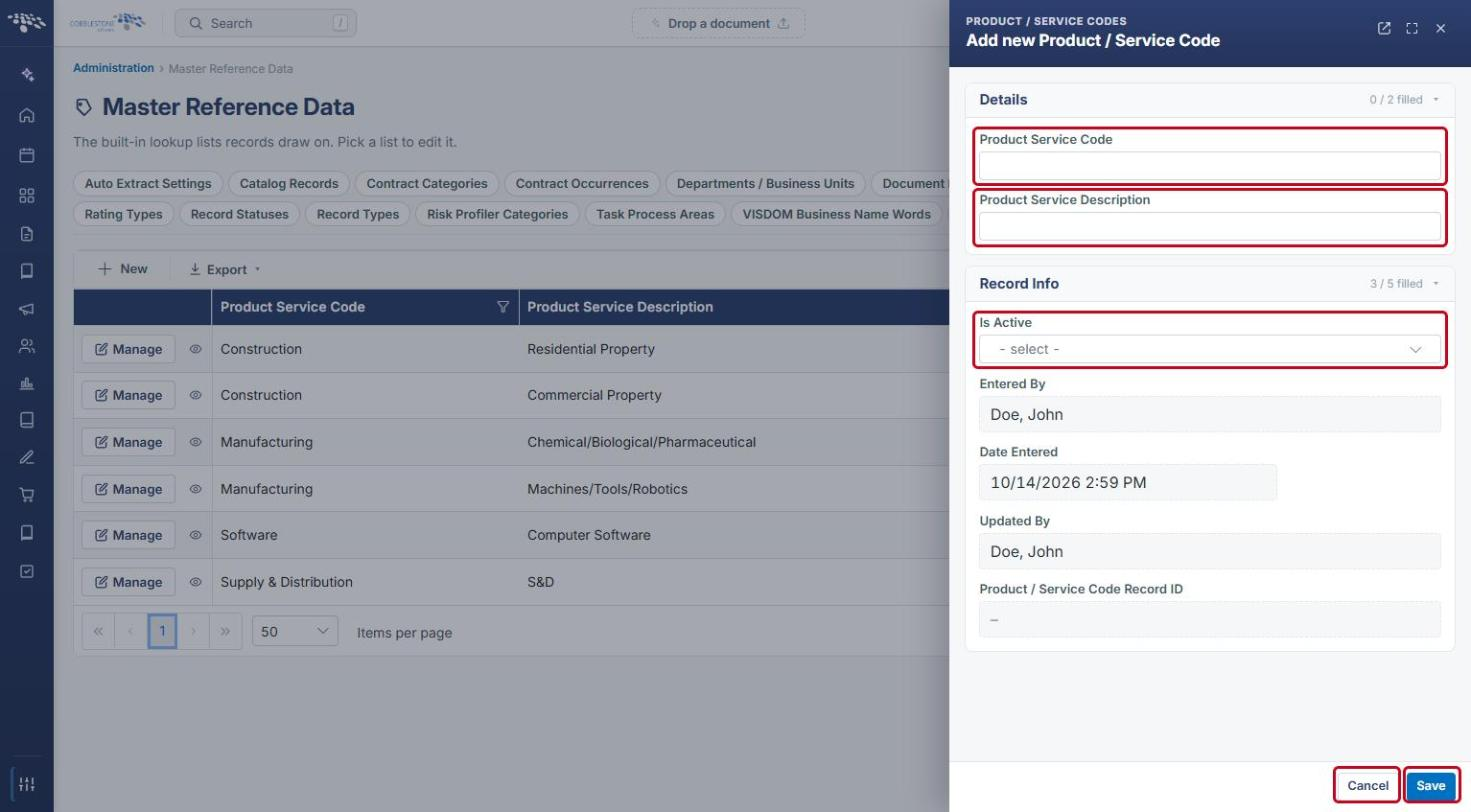
- On the Product / Service Codes list, click New to add a code, or click Manage on a row to edit an existing one (see Section 3).
- Enter the Product Service Code (the category, for example Construction) and the Product Service Description (for example, Commercial Property).
- In Is Active, choose whether the code is available for selection.
- Click Save, or Cancel to close without saving.
5. Assigning Codes to a Vendor/Customer
- From the Contract Insight homepage, click Directory → Vendors / Customers in the left navigation bar, then click Manage on the vendor's row.
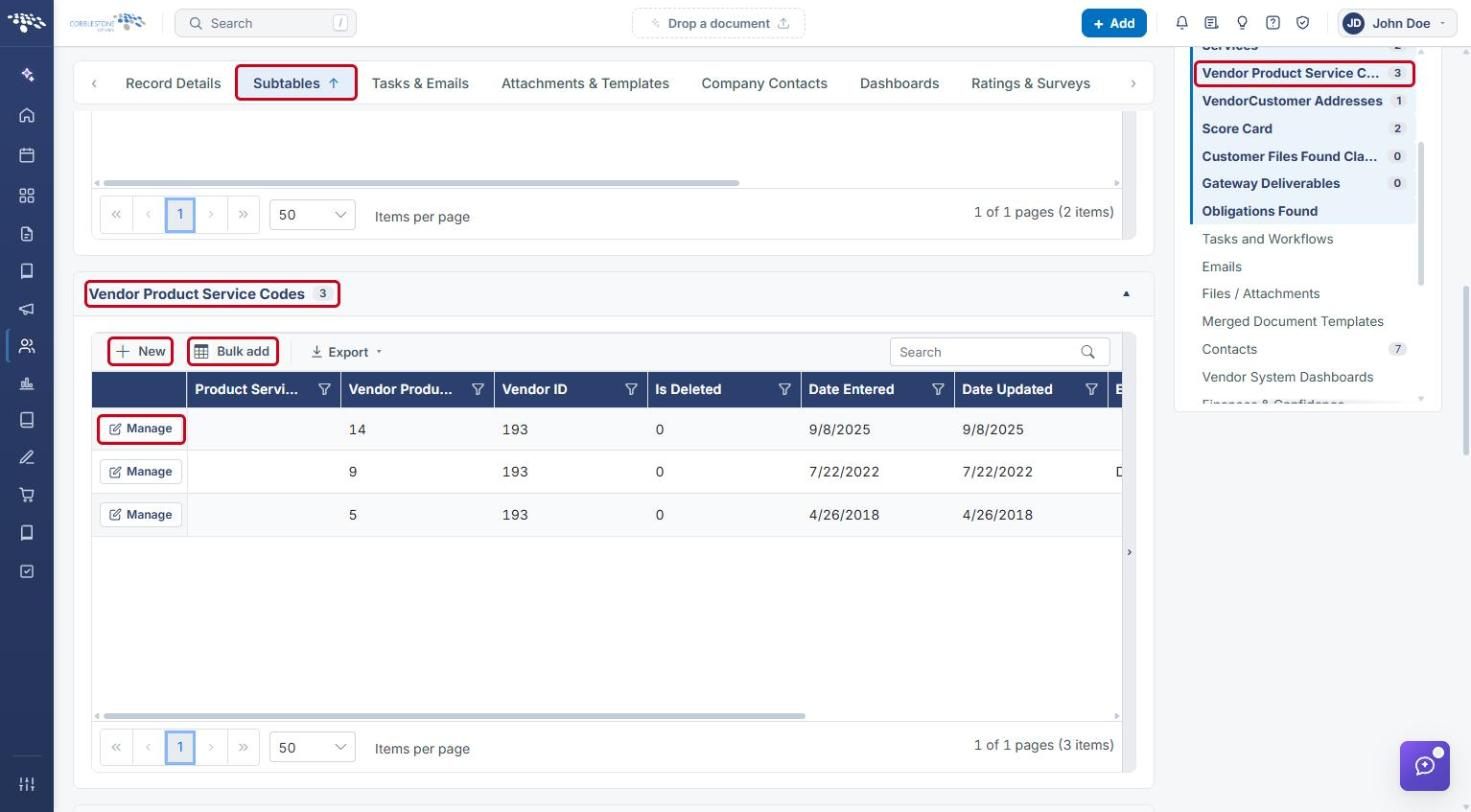
- Click the Subtables tab and scroll to Vendor Product Service Codes (or click it in the section list on the right).
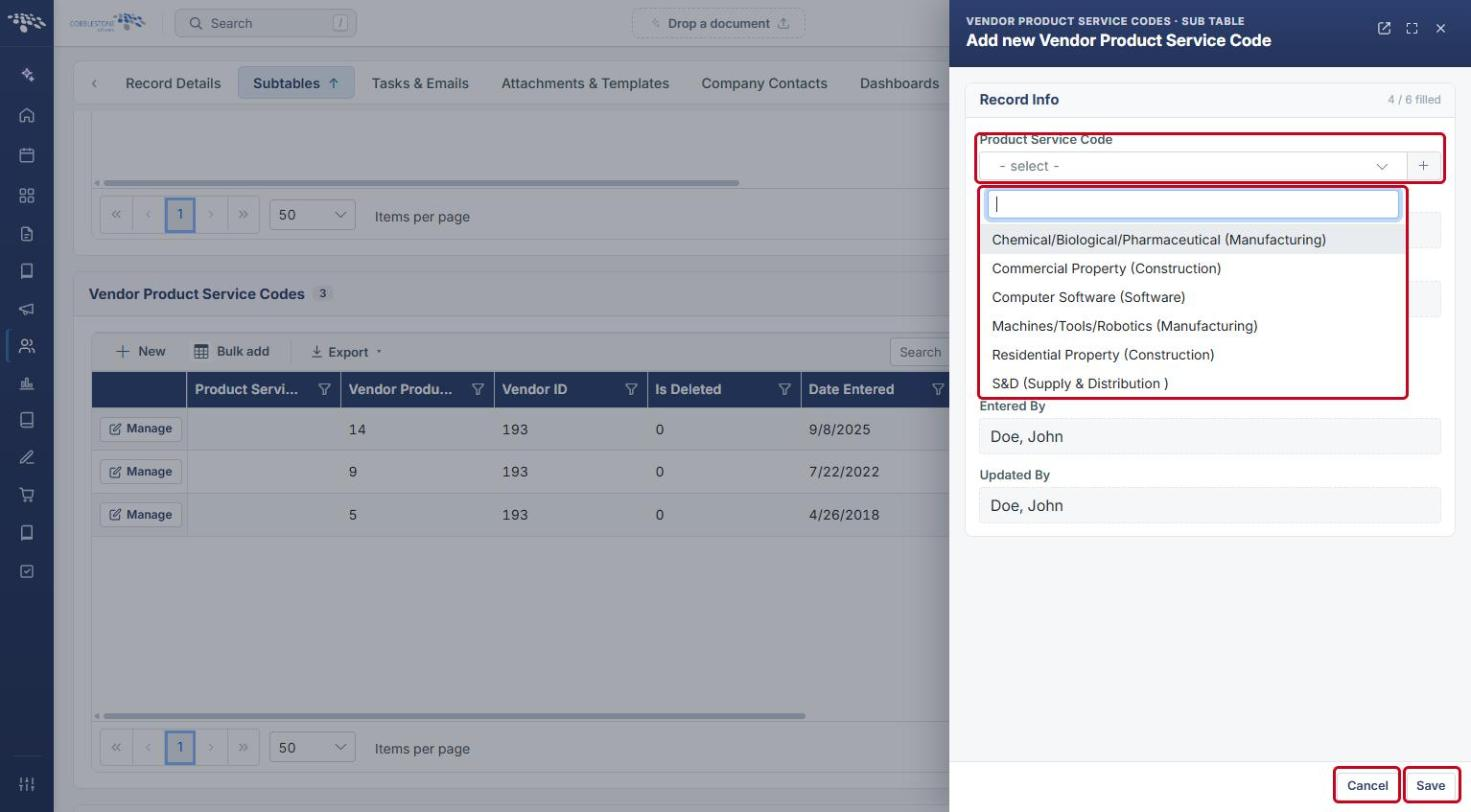
- Click New to add one code, or Bulk add to add several. Click Manage on a row to edit an existing entry.
- In the Add new Vendor Product Service Code panel, open the Product Service Code dropdown and select a code. Each option shows the description followed by the code in parentheses.
- Click Save.
6. Assigning Codes to a Solicitation
- From the Contract Insight homepage, click Sourcing → Solicitations in the left navigation bar, then click Manage on the solicitation's row.
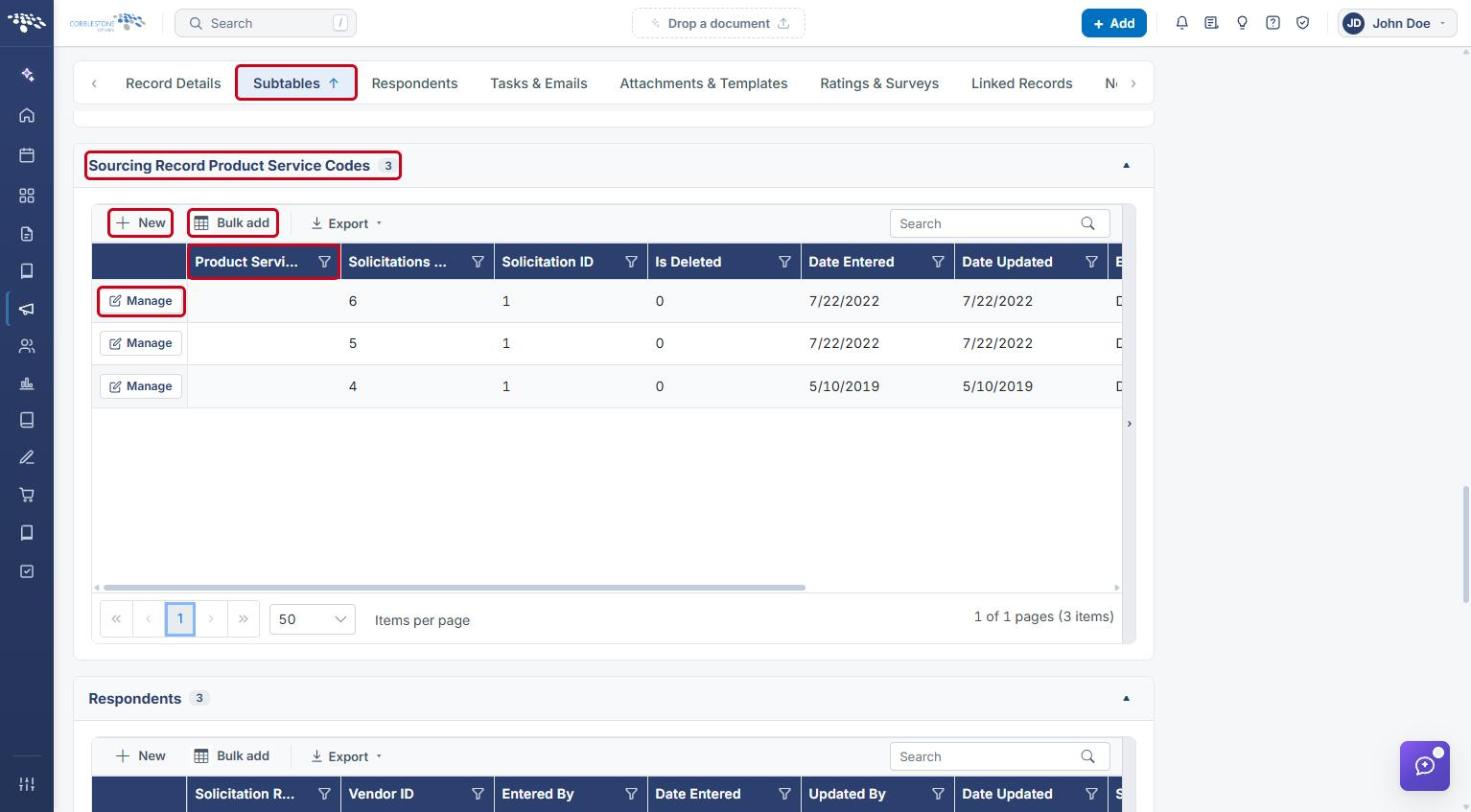
- Click the Subtables tab and scroll to Sourcing Record Product Service Codes.
- Click New (or Bulk add), select a Product Service Code, and click Save. Click Manage on a row to edit an existing entry.
7. Quick Reference Summary
| Task | How to Complete It |
|---|---|
| Open the master list | Administration → search “Product” → Product / Service Codes. |
| Add a code | Product / Service Codes list → New → enter code and description → set Is Active → Save. |
| Edit a code | Product / Service Codes list → Manage on the row → edit → Save. |
| Assign codes to a vendor | Vendor record → Subtables → Vendor Product Service Codes → New or Bulk add → Save. |
| Assign codes to a solicitation | Solicitation record → Subtables → Sourcing Record Product Service Codes → New or Bulk add → Save. |