COBBLESTONE SOFTWARE
Contract Insight — User Guide
Using Federal Clause Library (US) Clauses
Risk Compliance › Federal Clause Library (US) › Using Federal Clause Library (US) Clauses
Note: Each procedure in this guide begins at the Contract Insight homepage, so any section can be followed on its own. Custom fields are configurable, so the exact field list on a contract category record may vary between environments.
1. Overview
Federal Acquisition Regulation and Defense Federal Acquisition Regulation Supplement clauses are supported at two levels: Administration → Government Clause Monitoring tracks FAR, DFARS, and other GSA-published clauses and notifies designated users when they change, while Administration → Mergeable Clauses manages which optional clauses — including these government clauses — are offered when a document is generated from a contract.
2. Key Elements
- Administration → Government Clause Monitoring tracks FAR, DFARS, and GSA-published clauses
- Change notifications are sent to whoever is configured to receive them
- Administration → Mergeable Clauses controls which optional clauses appear during document generation
3. Tracking Government Clauses
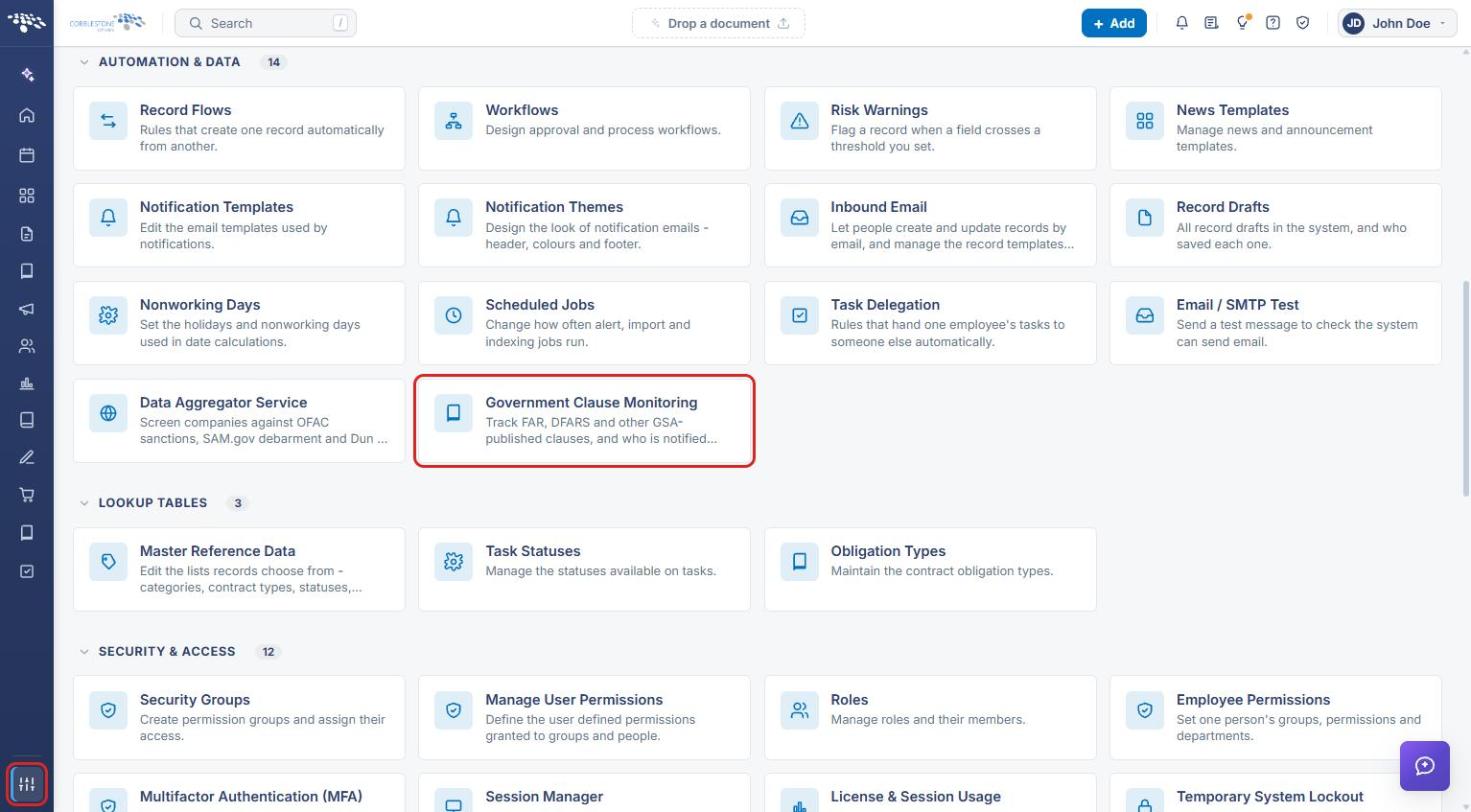
- From the Contract Insight homepage, click the Administration (settings) icon at the bottom of the left navigation bar.
- Under Automation & Data, click Government Clause Monitoring.
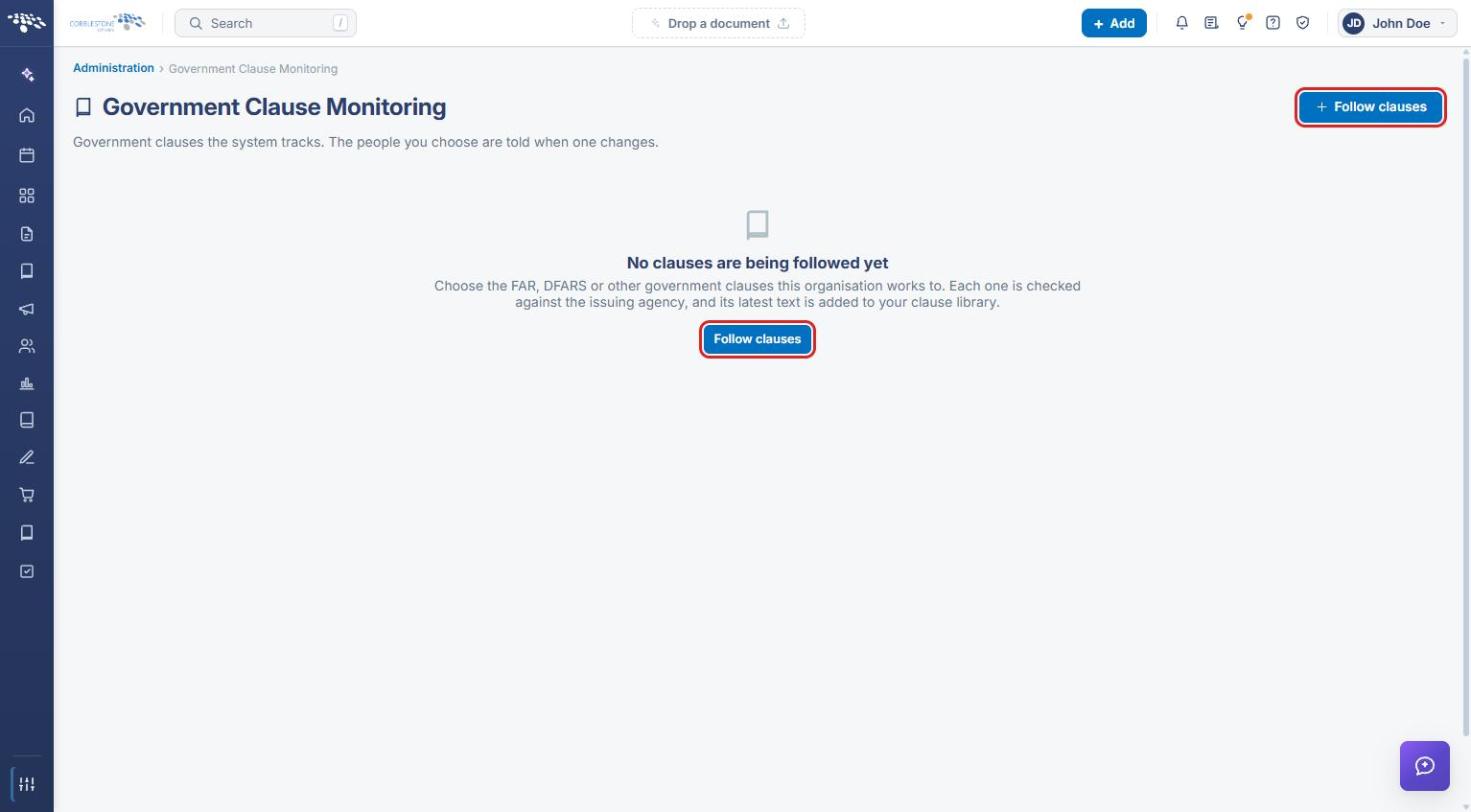
- The Government Clause Monitoring page lists the clauses the system tracks; the people you choose are told when one changes. Click + Follow clauses to add FAR, DFARS, or other government clauses (see Adding Federal Clause Library (US) Clauses).
4. Managing Mergeable Clauses
4a. Opening Mergeable Clauses
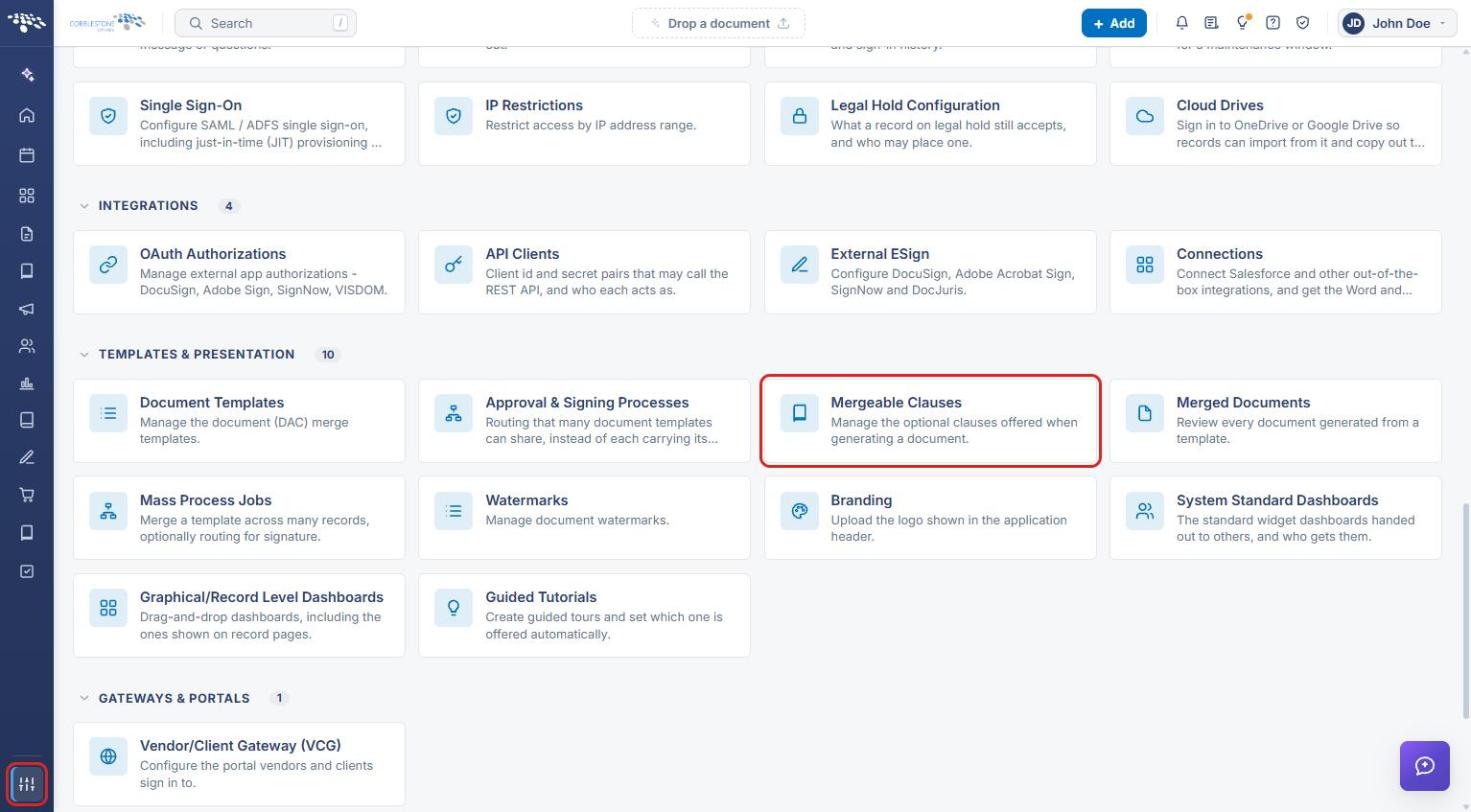
- From the Contract Insight homepage, click the Administration (settings) icon at the bottom of the left navigation bar.
- Under Templates & Presentation, click Mergeable Clauses.
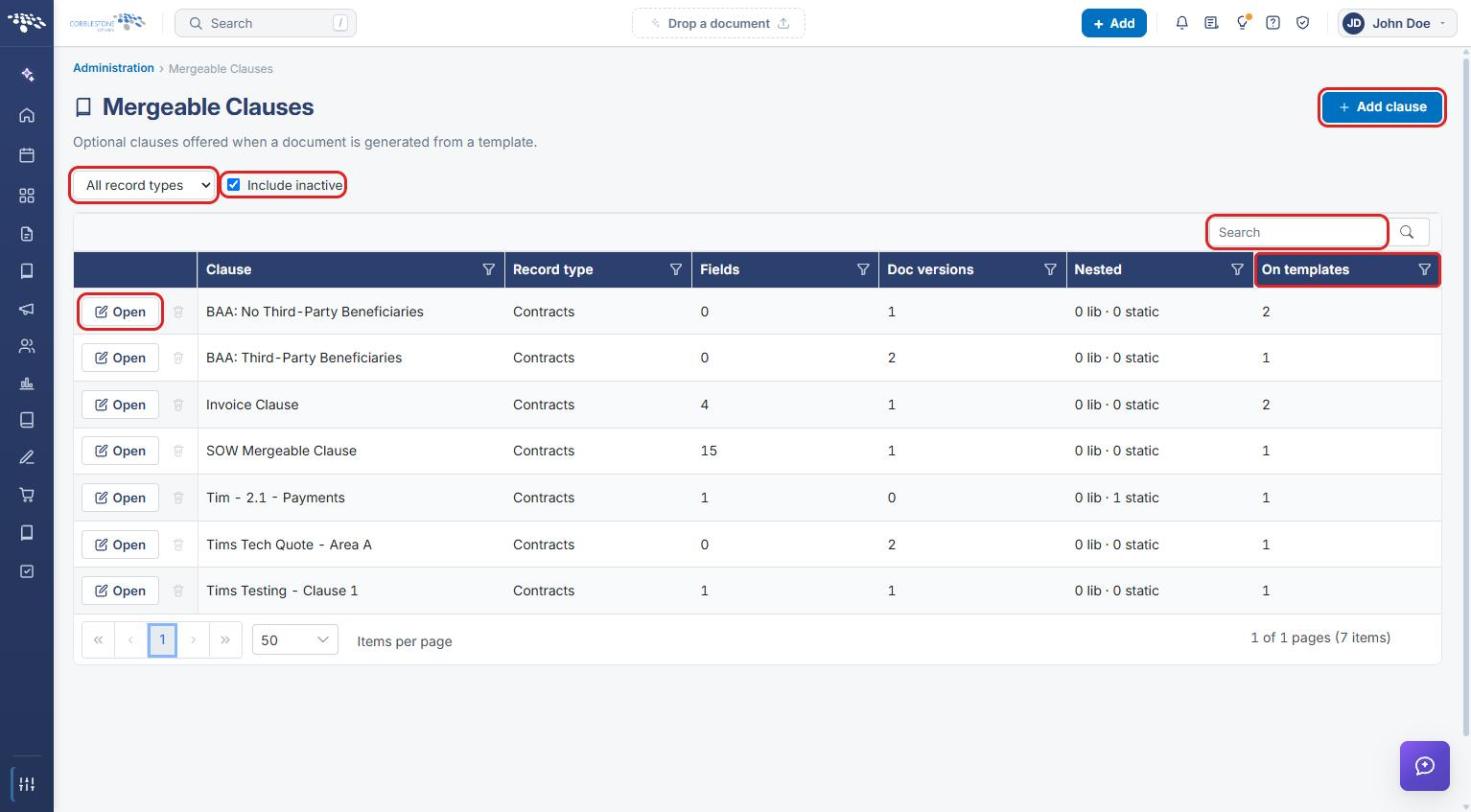
- The Mergeable Clauses page lists the optional clauses offered when a document is generated from a template. Use the record type list, Include inactive, and Search to narrow the list. The On templates column shows how many templates offer each clause.
- Click + Add clause to create a new clause, or click Open on a clause's row to edit it.
4b. Editing a Mergeable Clause
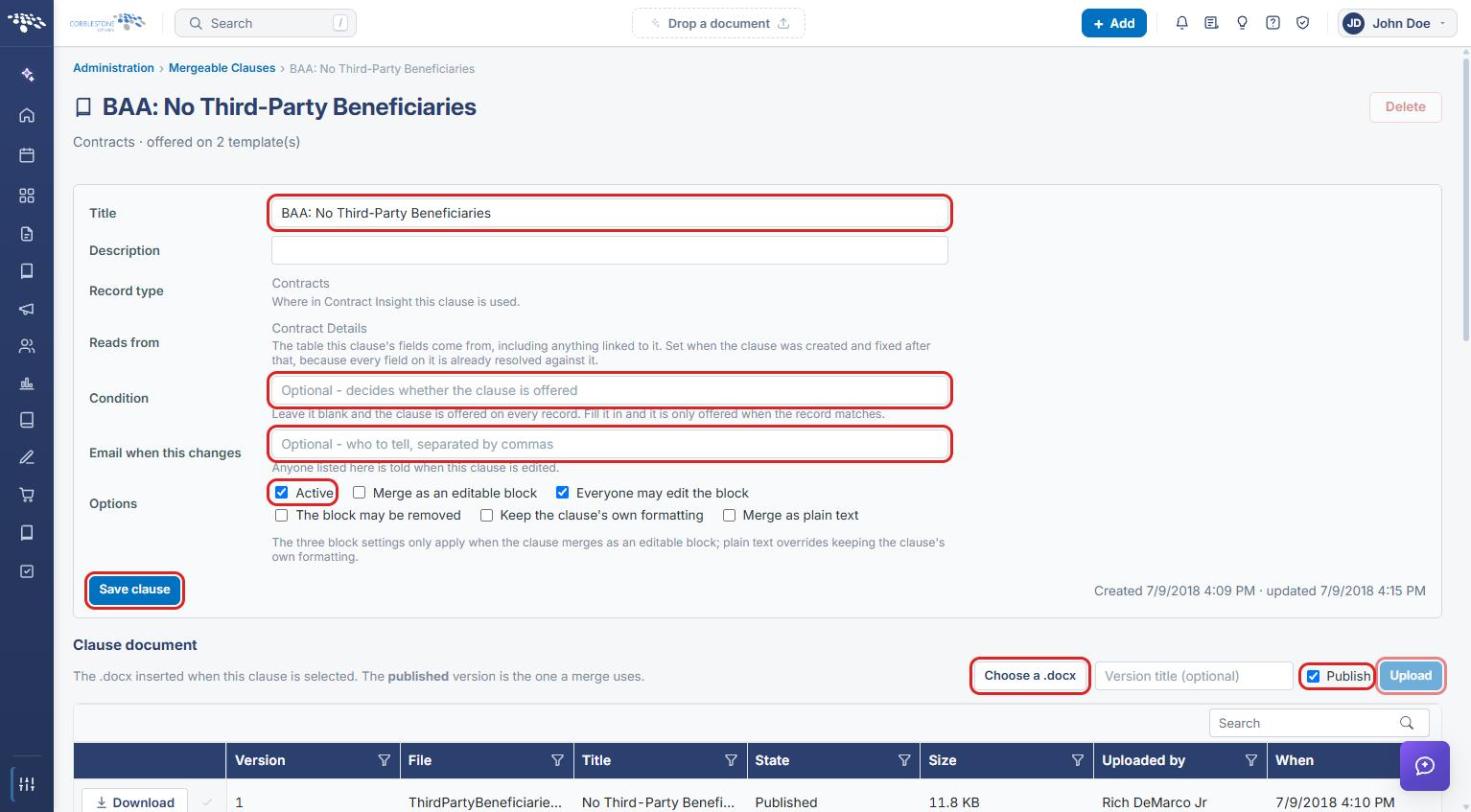
- On the clause page, update the Title and Description as needed.
- Optionally enter a Condition. Leave it blank and the clause is offered on every record; fill it in and it is only offered when the record matches.
- In Email when this changes, enter the people to notify when the clause is edited, separated by commas.
- Under Options, keep Active checked so the clause is offered, and set the block options as needed.
- Click Save clause.
- To replace the clause's text, under Clause document click Choose a .docx, optionally enter a version title, leave Publish checked so the merge uses the new version, and click Upload.
5. Including Clauses When Generating a Document
- From the Contract Insight homepage, open the contract (for example, Requests/Contracts → Contracts, then click Manage on the contract's row).
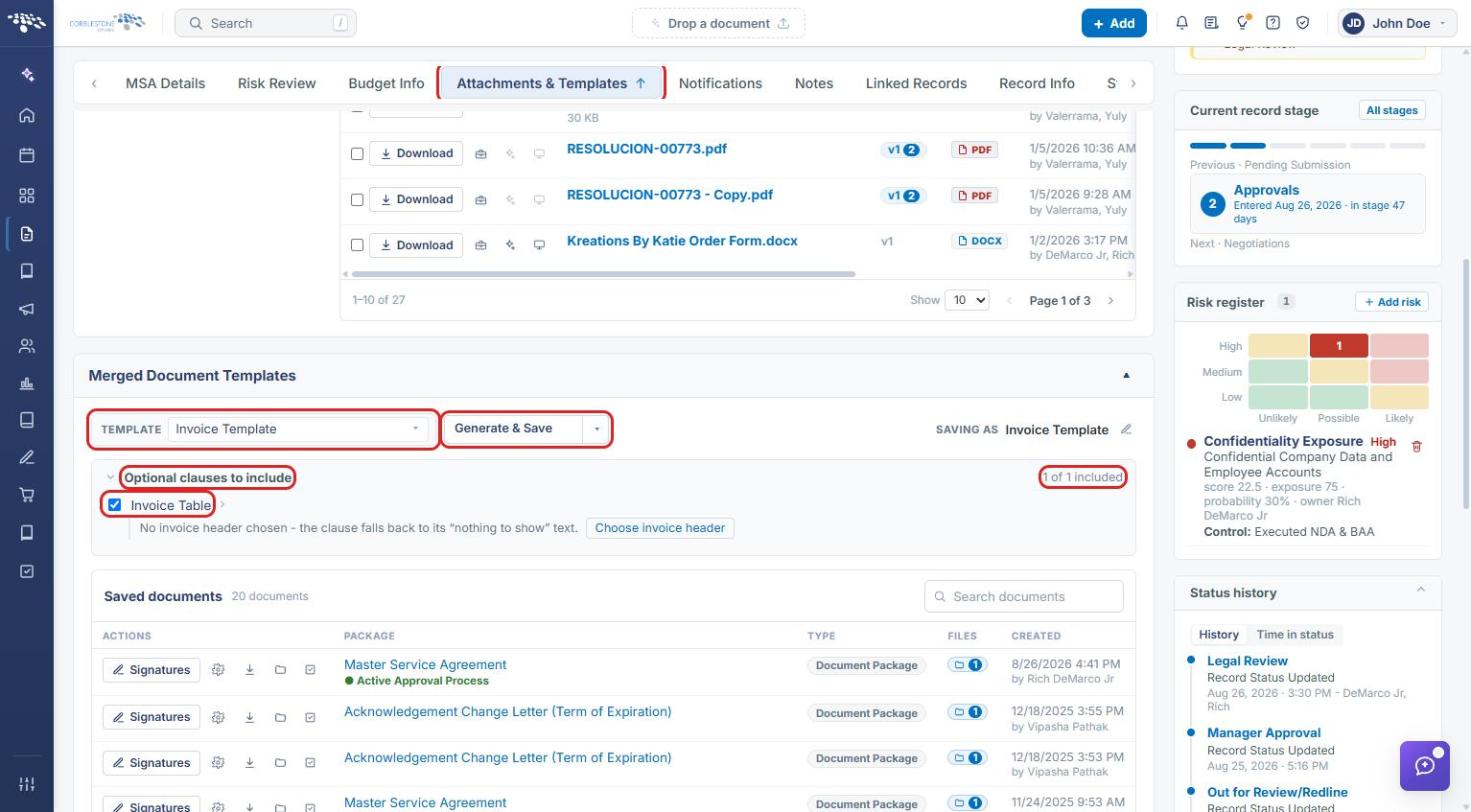
- Click the Attachments & Templates tab.
- In Merged Document Templates, choose a template from the Template list. Templates that offer optional clauses show a clauses tag in the list.
- Under Optional clauses to include, check each clause to include and uncheck any to leave out. The counter (for example, 1 of 1 included) shows how many are selected.
- Click Generate & Save.
6. Quick Reference Summary
| Task | How to Complete It |
|---|---|
| Track government clauses | Administration → Automation & Data → Government Clause Monitoring → + Follow clauses. |
| Open Mergeable Clauses | Administration → Templates & Presentation → Mergeable Clauses. |
| Add a mergeable clause | Mergeable Clauses → + Add clause. |
| Edit a clause or who is notified | Mergeable Clauses → Open → update fields / Email when this changes → Save clause. |
| Limit when a clause is offered | Clause page → Condition → Save clause. |
| Upload new clause text | Clause page → Choose a .docx → Publish → Upload. |
| Include clauses in a document | Record → Attachments & Templates → choose Template → check clauses under Optional clauses to include → Generate & Save. |