COBBLESTONE SOFTWARE
Contract Insight — User Guide
Managing Federal Clause Library (US) Clauses
Risk Compliance › Federal Clause Library (US) › Managing Federal Clause Library (US) Clauses
Note: Each procedure in this guide begins at the Contract Insight homepage, so any section can be followed on its own. Custom fields are configurable, so the exact field list on a contract category record may vary between environments.
1. Overview
Administration › Government Clause Monitoring lists every government clause the system tracks — FAR, DFARS, NFS, and other GSA-published clauses — and who is told when one changes. Use Follow clauses to choose clauses from a repository; each one's current text and document are taken from the issuing agency and checked again every night, and its latest text is added to your clause library. The list shows each followed clause's Clause, Title, Repository, Last updated, and Told on change (who is notified, or “Nobody”). Each row offers Check for update (a manual refresh — a background process already updates clauses automatically, so a manual check often returns the same data), Read this clause (preview), Choose who is told when it changes (notification recipients), and Stop following this clause (removes it from monitoring).
2. Key Elements
- Administration › Government Clause Monitoring is the list of tracked government clauses.
- Follow clauses opens a panel to pick a Repository, search with Find a clause, optionally Include retired clauses, and confirm with Follow these clauses.
- List columns: Clause, Title, Repository (FAR / DFARS / NFS), Last updated, Told on change.
- Row actions: Check for update, Read this clause, Choose who is told when it changes, and Stop following this clause.
- Clause updates depend on the Data Aggregator Service connection (see Data Aggregator Overview).
3. Navigating to Government Clause Monitoring
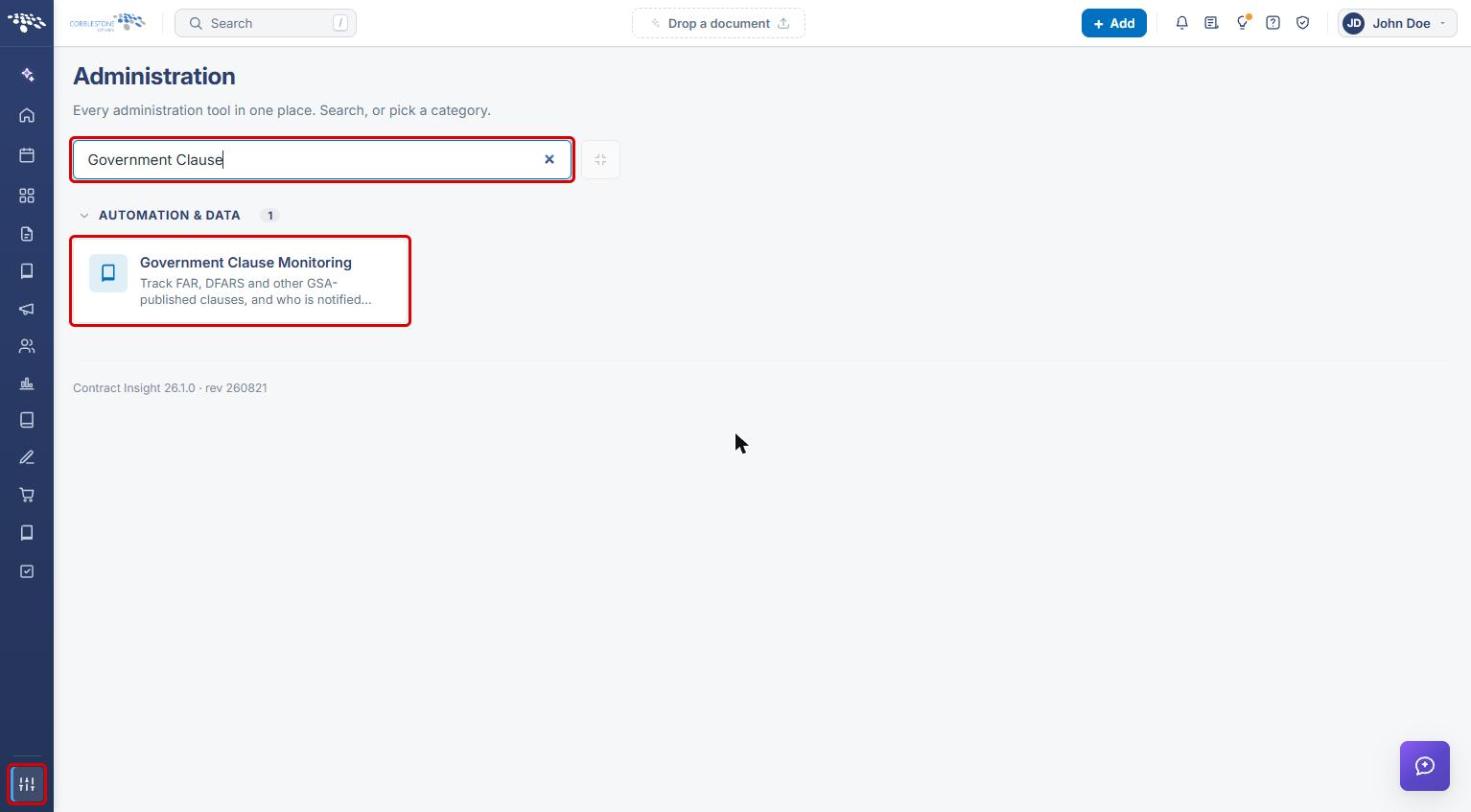
- From the Contract Insight homepage, click the Administration (settings) icon at the bottom of the left navigation bar.
- In the Search administration… box, type Government Clause, then click the Government Clause Monitoring card (under Automation & Data).
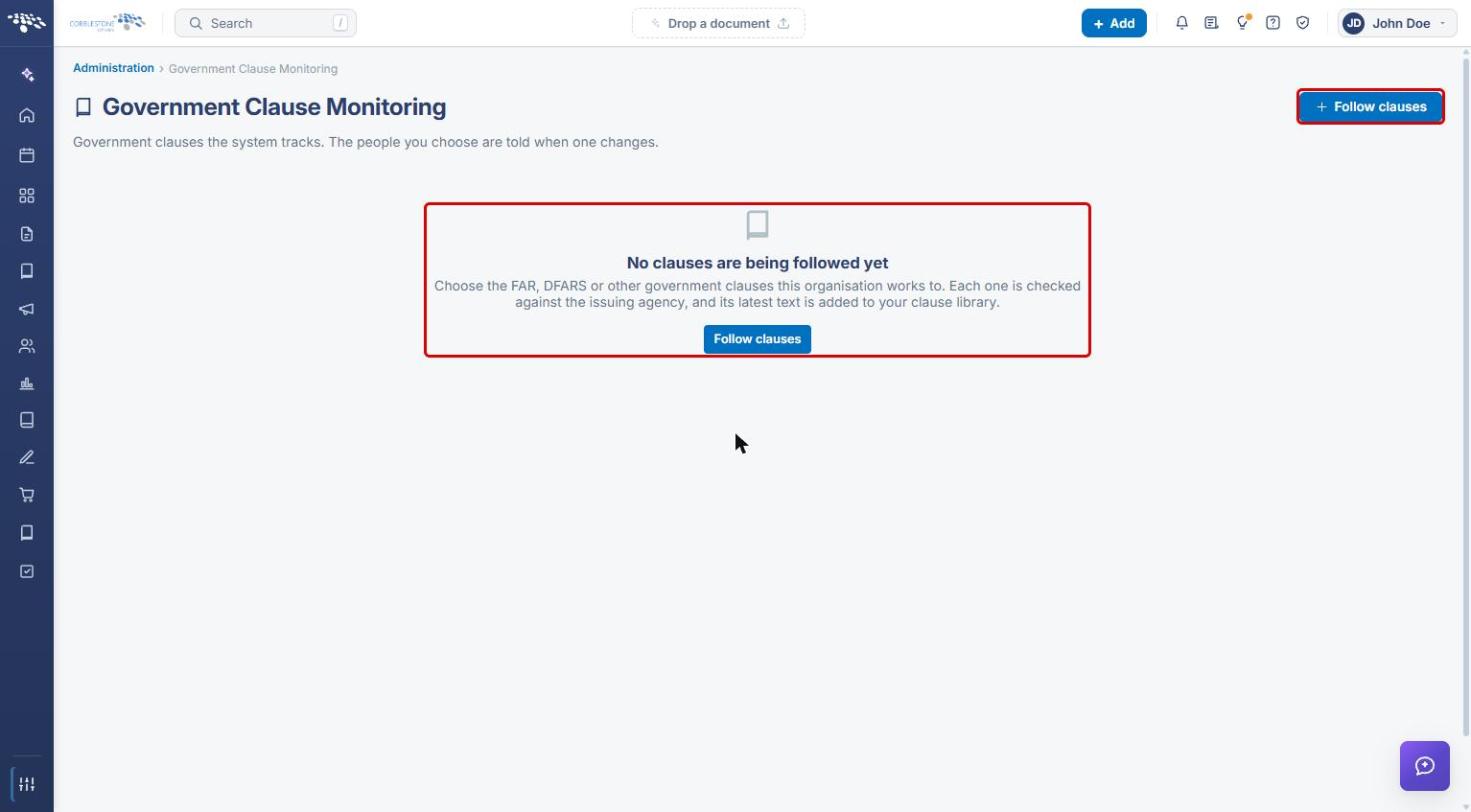
If no clauses are followed yet, the page reads No clauses are being followed yet and offers a Follow clauses button.
4. Following Clauses
- Click + Follow clauses at the top right (or Follow clauses in the empty-state message). The Follow government clauses panel opens.
- Pick a Repository (for example, FAR or DFARS).
- Use Find a clause to search by clause number or words in the title. Turn on Include retired clauses to include clauses that are no longer active.
- Tick the clauses to follow. The footer shows how many are picked.
- Click Follow these clauses, or Cancel to close without changes.
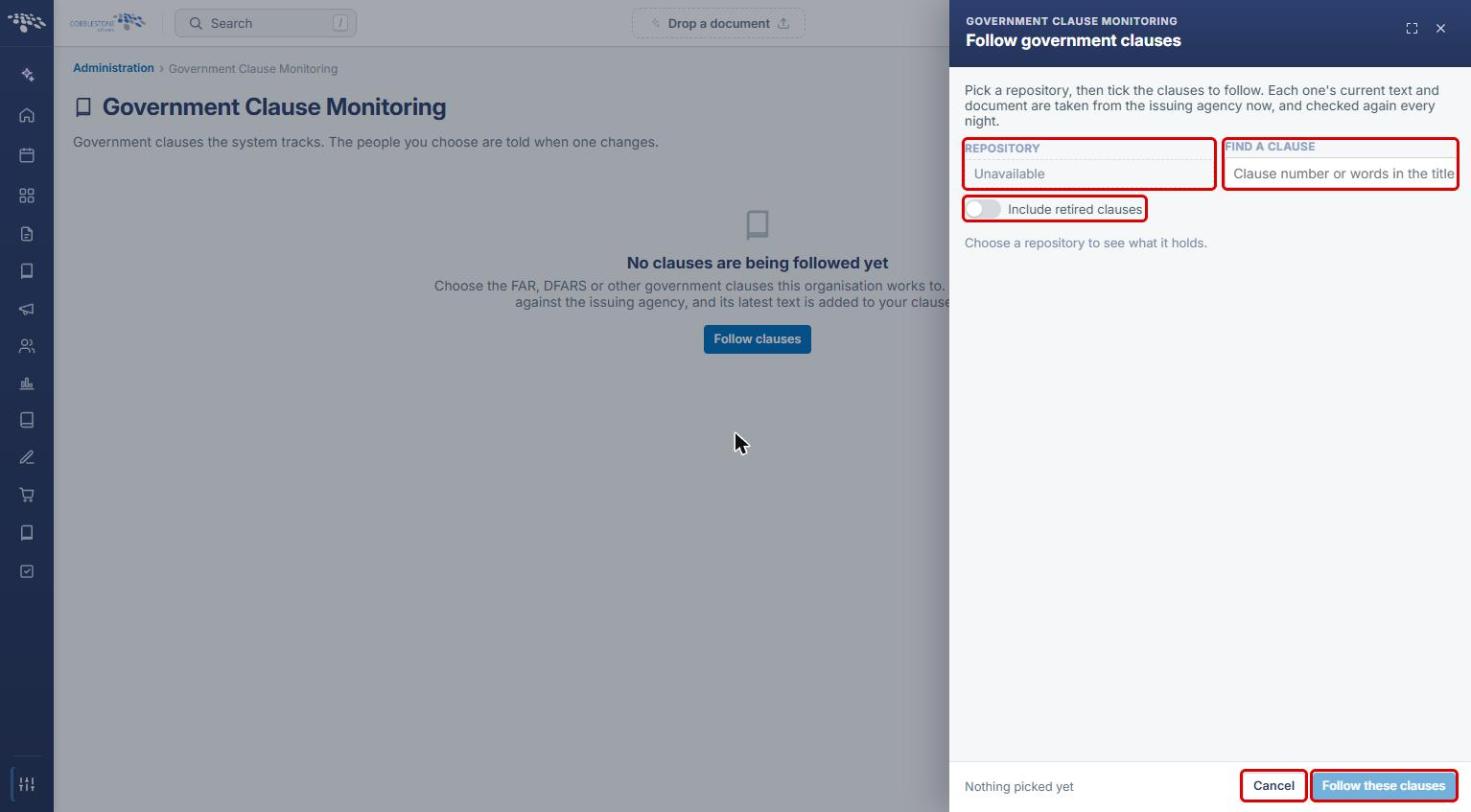
Note: The repository list comes from the clause server through the Data Aggregator Service. If the Data Aggregator credentials are not set up, the Repository field shows Unavailable and no clauses can be followed.
5. Managing Followed Clauses
Once clauses are followed, they appear in the list with the Clause, Title, Repository, Last updated, and Told on change columns. Use the actions on each row:
5a. Checking a Clause for Updates
- Click Check for update on the clause's row to re-check it against the issuing agency now.
- Review Last updated. Because a background process already updates clauses every night, a manual check often returns the same data.
5b. Reading a Clause
- Click Read this clause on the clause's row to preview its current text.
5c. Choosing Who Is Told When a Clause Changes
- Click Choose who is told when it changes on the clause's row.
- Select the people to notify and save. The Told on change column then lists them (or reads “Nobody”).
5d. Stopping Following a Clause
- Click Stop following this clause on the clause's row and confirm. The clause is removed from the monitored list.
[Screenshot pending: the followed-clauses list and its row actions could not be captured because no clauses are followed in the QA environment and the clause server was unavailable on 10/12/2026.]
6. Quick Reference Summary
| Task | How to Complete It |
|---|---|
| Open Government Clause Monitoring | Administration → search “Government Clause” → Government Clause Monitoring. |
| Follow new clauses | + Follow clauses → pick a Repository → tick clauses → Follow these clauses. |
| Find a specific clause | Follow clauses panel → Find a clause (number or title words). |
| Refresh a clause now | Check for update on the clause's row. |
| Preview a clause | Read this clause on the clause's row. |
| Set who is notified of changes | Choose who is told when it changes on the clause's row. |
| Stop monitoring a clause | Stop following this clause on the clause's row. |