COBBLESTONE SOFTWARE
Contract Insight — User Guide
SAM.Gov
Risk Compliance › SAM.Gov
Note: Each procedure in this guide begins at the Contract Insight homepage, so any section can be followed on its own. Custom fields are configurable, so the exact field list on a contract category record may vary between environments.
1. Overview
A company's Risk Management panel carries a set of SAM.gov fields — SAM.gov Identifier, SAM.gov Last Date Check, SAM.gov CAGE Code, and Allow SAM.gov Check — for tracking that vendor's federal System for Award Management status, screened by the same Administration → Data Aggregator Service used for OFAC and Dun & Bradstreet checks.
2. Key Elements
- Risk Management panel: SAM.gov Identifier, SAM.gov Last Date Check, SAM.gov CAGE Code, Allow SAM.gov Check
- Data Aggregator Service (Administration) screens against SAM.gov debarment alongside OFAC and D&B
3. Navigating to the SAM.gov Settings
- From the Contract Insight homepage, click the Administration (settings) icon at the bottom of the left navigation bar.
- Under Automation & Data, click Data Aggregator Service.
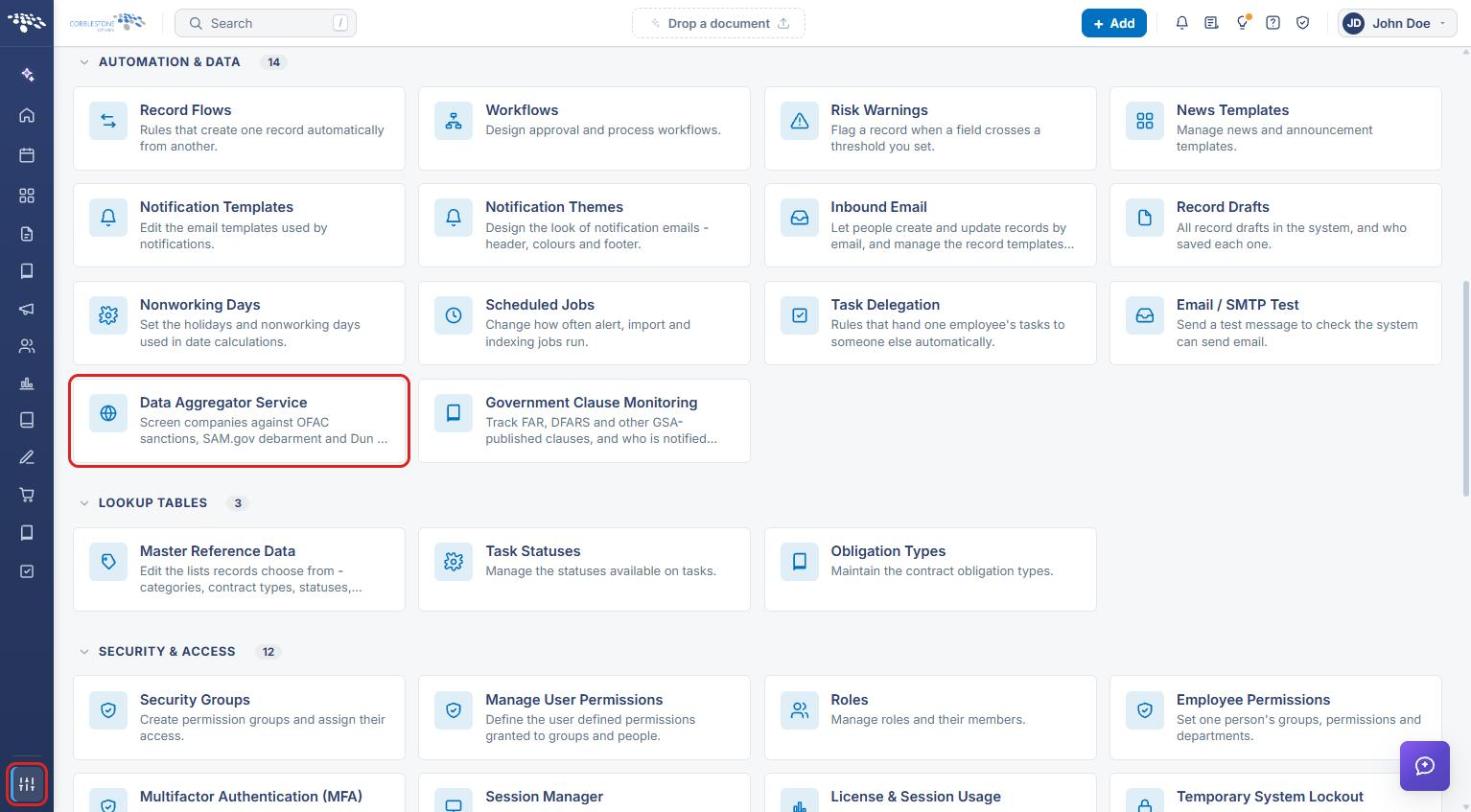
- Click the SAM.gov tab.
4. Configuring SAM.gov Screening
4a. Turning On Company Checks
- On the SAM.gov tab, under Companies and vendors, switch Check companies against SAM.gov on. While it is off, no company is checked against SAM.gov and no company can be looked up on it.
- Set Report a match at to the minimum % similarity that counts as a match (between 70 and 100). This governs the company-name search when someone looks a company up on SAM.gov.
- Under Which fields are compared, choose the Field on the record to use for each item. Name is required and is matched loosely; Street address, City, State or province, and Country are matched exactly, or can be left as Not compared.
- Click Save changes.
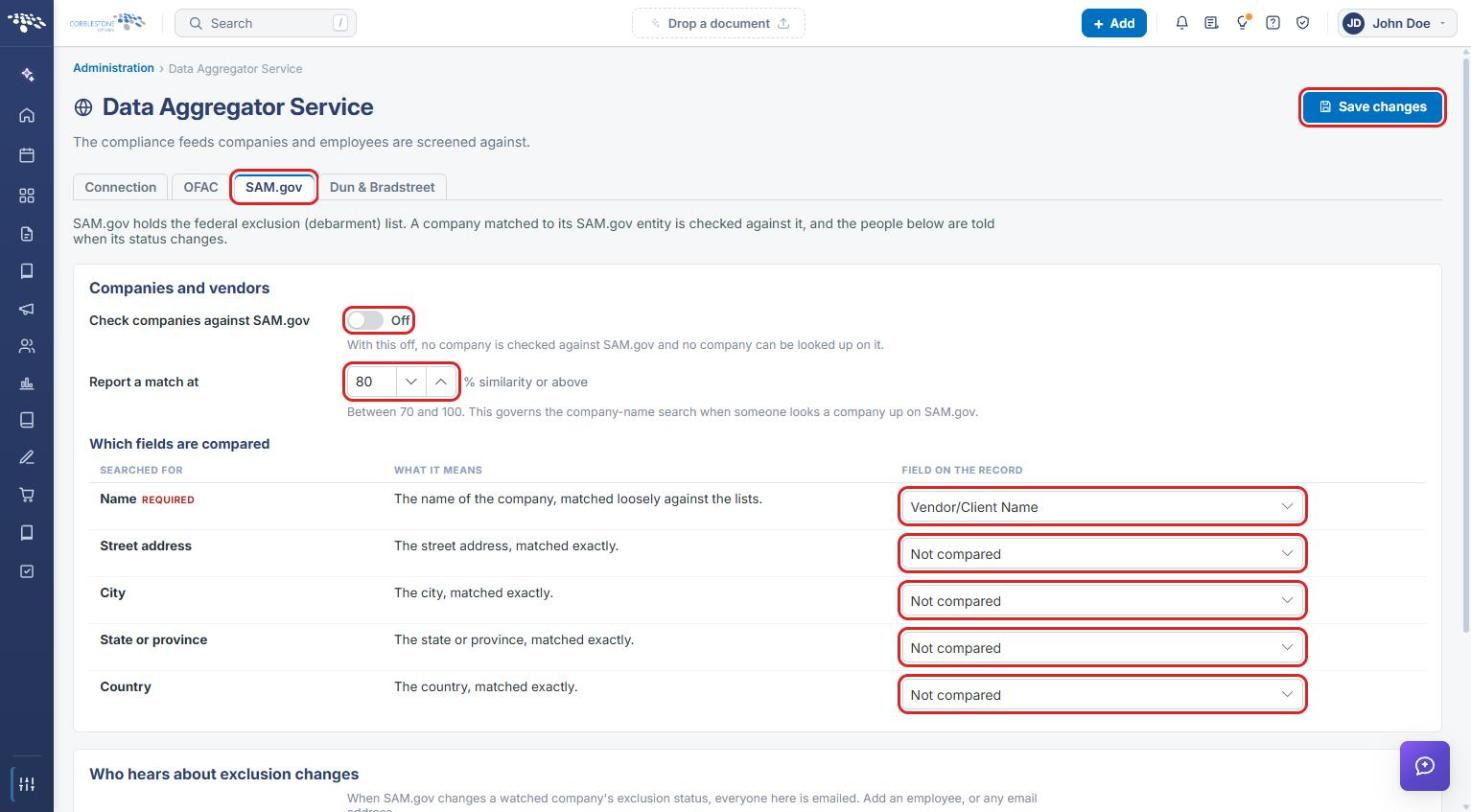
4b. Choosing Who Hears About Exclusion Changes
- Scroll to Who hears about exclusion changes. Everyone listed here is emailed when SAM.gov changes a watched company's exclusion status.
- Select an employee from Choose an employee, or type any address in Email address, then click Add. Repeat for each recipient.
- Scroll back to the top and click Save changes.
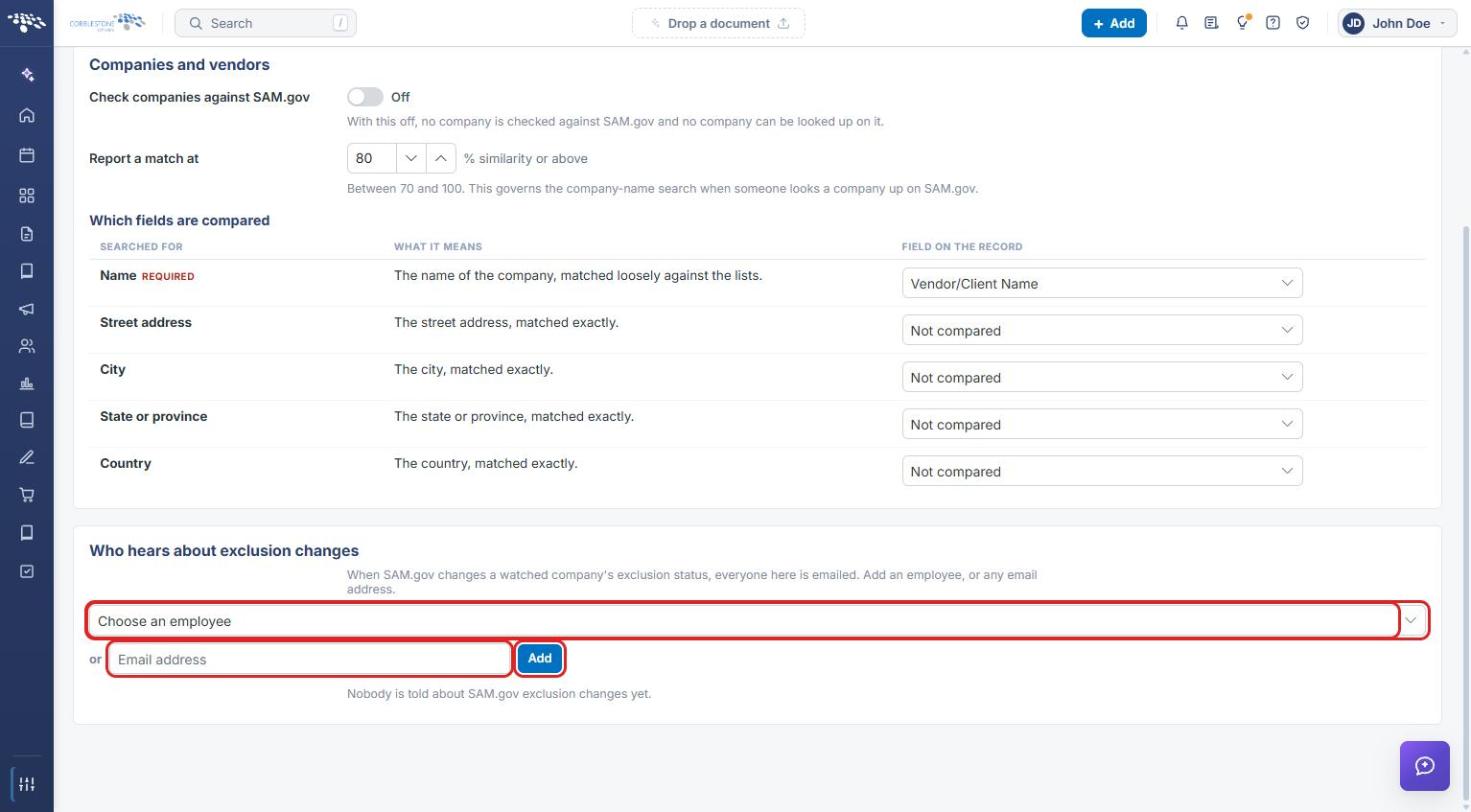
5. Viewing a Company's SAM.gov Status
- From the Contract Insight homepage, open the vendor record (for example, Directory → Vendors / Customers, then click Manage on the vendor's row).
- Go to the Finances & Confidence section (use the Sections list on the right to jump to it).
- Review the SAM.gov card. If SAM.gov hasn't been connected, the card reads Unavailable with a link to Data Aggregator Service for an administrator to set it up.
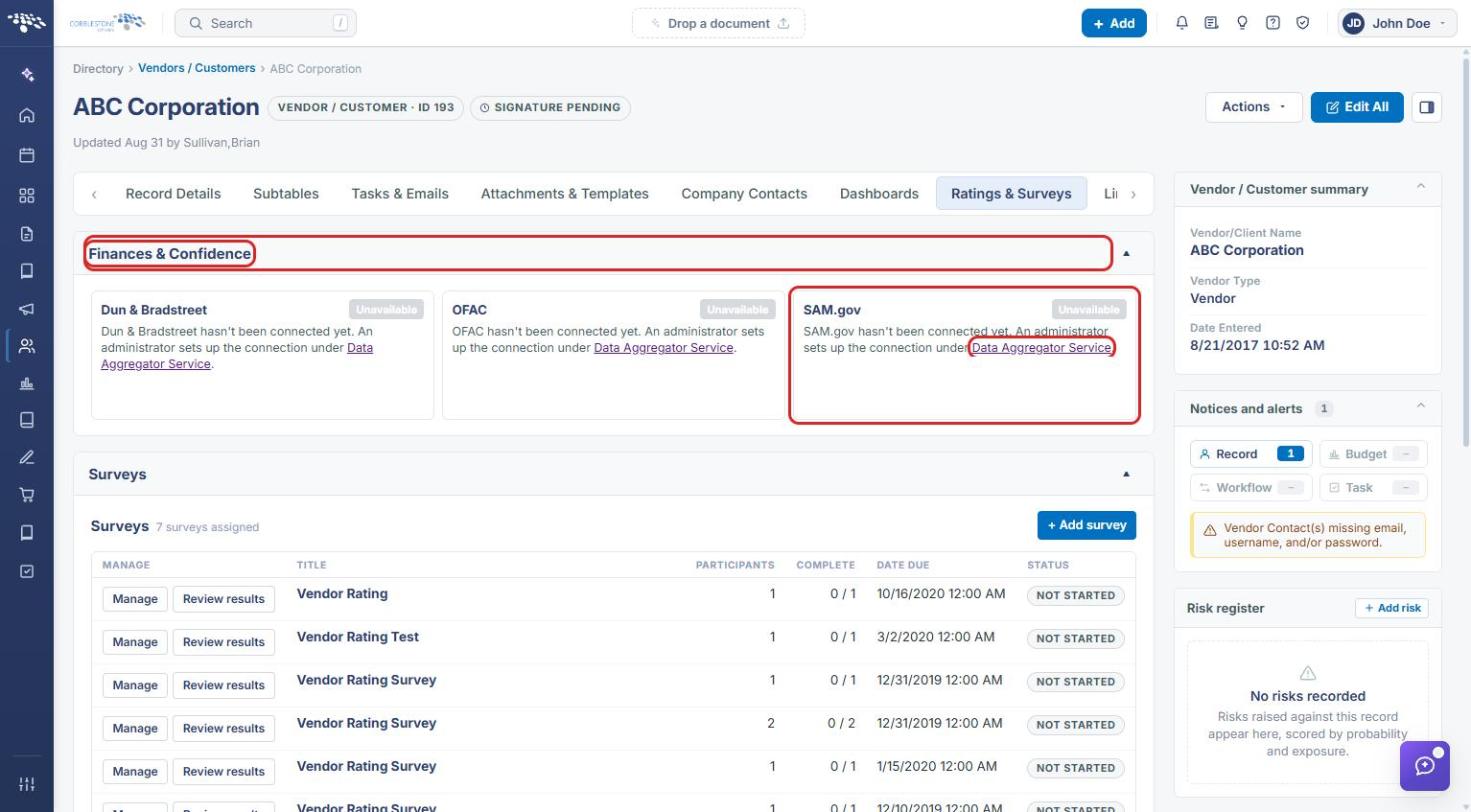
6. Quick Reference Summary
| Task | How to Complete It |
|---|---|
| Open the SAM.gov settings | Administration → Automation & Data → Data Aggregator Service → SAM.gov tab. |
| Turn on SAM.gov checks | Switch Check companies against SAM.gov on → Save changes. |
| Set match sensitivity | Report a match at (70–100%) → Save changes. |
| Choose compared fields | Which fields are compared → pick a Field on the record for each item → Save changes. |
| Notify people of exclusion changes | Who hears about exclusion changes → choose an employee or enter an email → Add → Save changes. |
| See a vendor's SAM.gov status | Vendor record → Finances & Confidence → SAM.gov card. |