COBBLESTONE SOFTWARE
Contract Insight — User Guide
Types of Authentication
Module: Document Collaboration Gateway › Document Collaboration Gateway E-Approvals & E-Signatures › Types of Authentication
Note: Each procedure in this guide begins at the Contract Insight homepage, so any section can be followed on its own. Custom fields are configurable, so the exact field list on a contract category record may vary between environments.
1. Overview
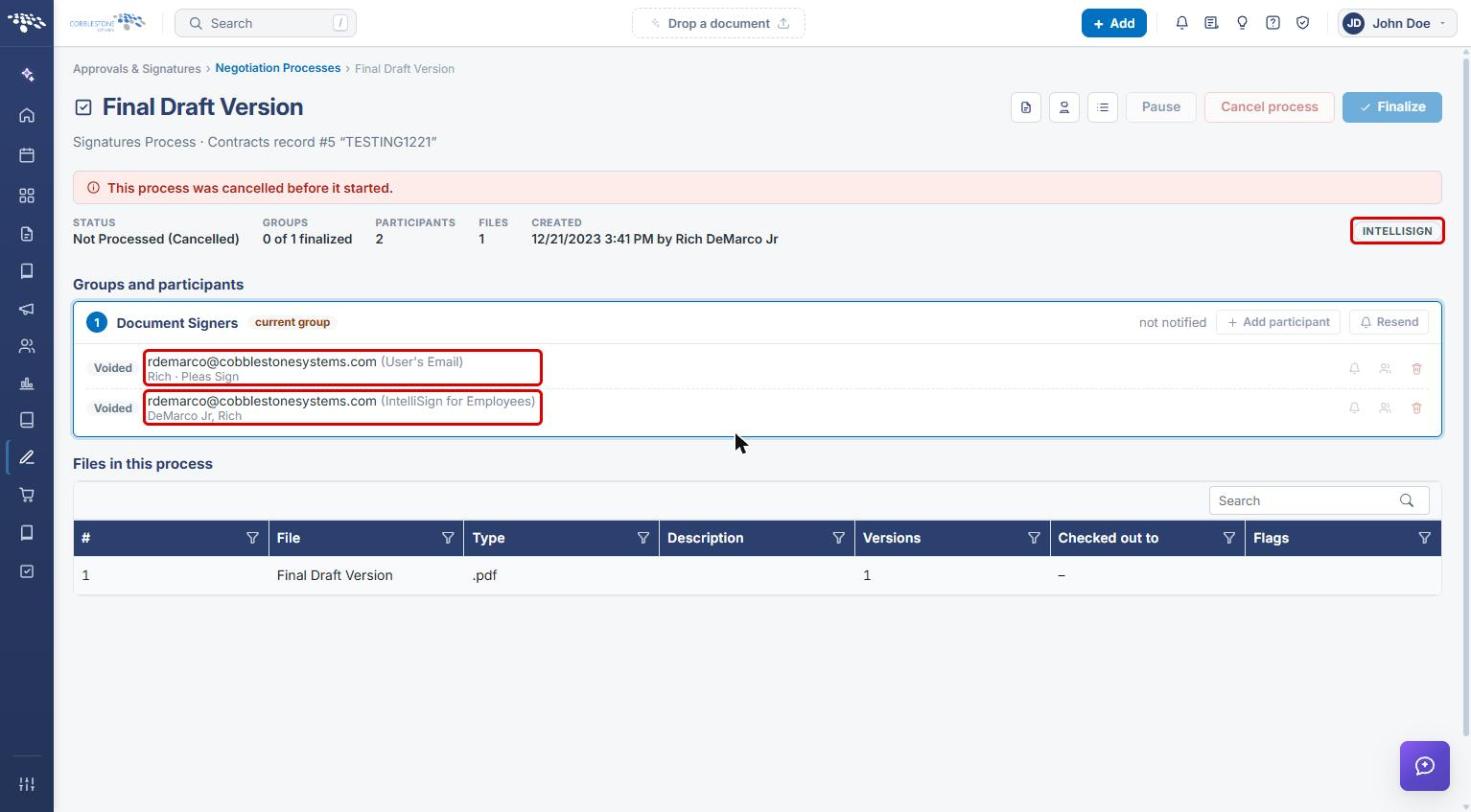
Participants in an e-approval or e-signature process can be authenticated in different ways. Internal users reach their steps through the standard application sign-in and the My Assignments page. Participants who receive an emailed link sign in according to the document template's Participant sign-in setting: either Open link (the link alone opens the document) or Secure PIN (the participant must also enter a PIN before completing their step). A running process's console flags the method with a badge — for example SECURE PIN, or INTELLISIGN / INTELLIAPPROVAL when IntelliSign or IntelliApprove handling applies.
2. Key Elements
- Standard application sign-in is the baseline authentication for reaching My Assignments and the steps assigned to you.
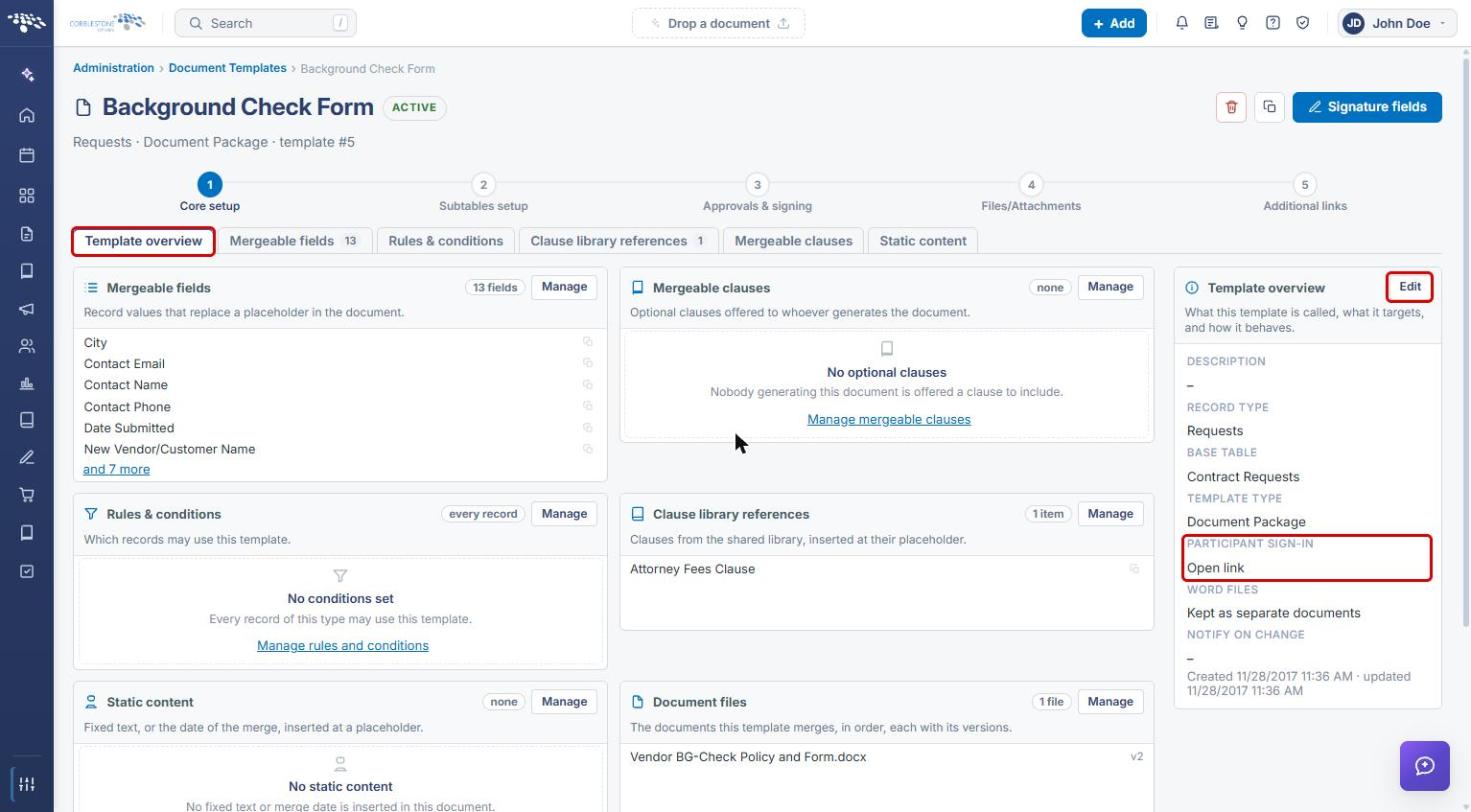
- Participant sign-in on a document template's Template overview shows Open link or Secure PIN.
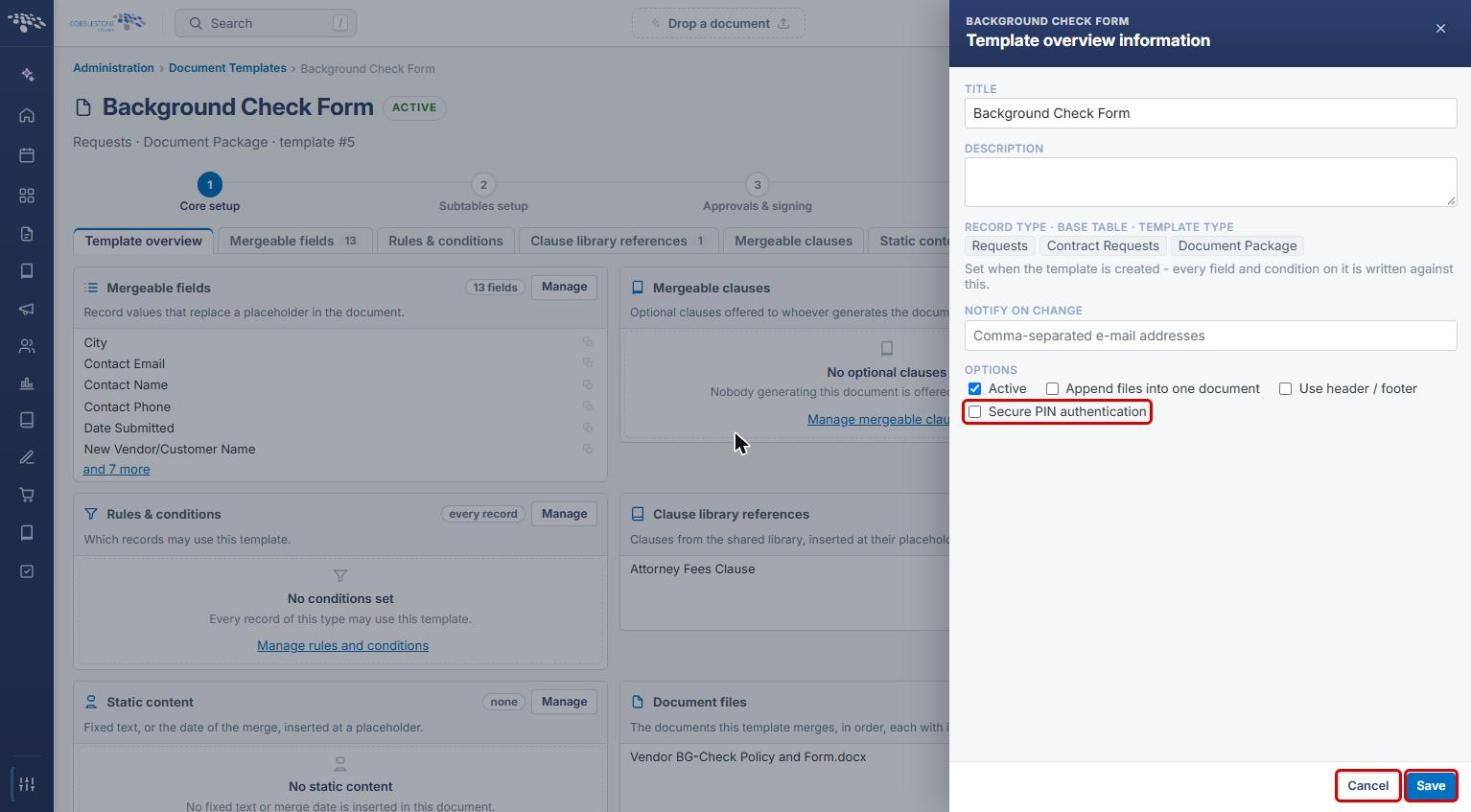
- The Secure PIN authentication option in Template overview information turns PIN-based authentication on for documents generated from the template.
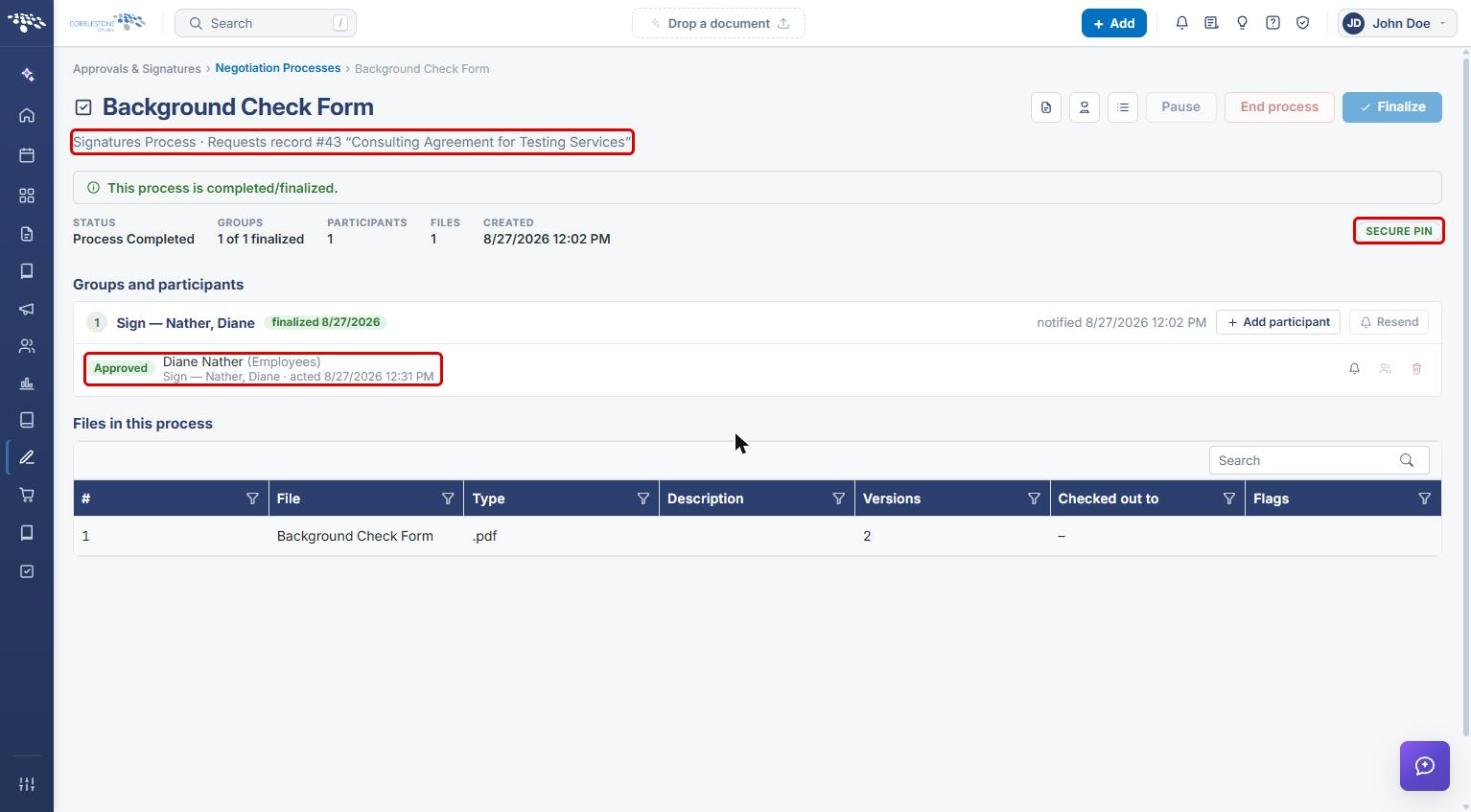
- The SECURE PIN badge on a process console flags PIN-based authentication for that process.
- The INTELLISIGN (or INTELLIAPPROVAL) badge flags that IntelliSign or IntelliApprove handling applies, with participants listed by email address.
3. Authentication Types at a Glance
| Type | How the participant authenticates | Where it is set or shown |
|---|---|---|
| Application sign-in | Signs in to Contract Insight and opens the step from My Assignments or the homepage. | Standard user account. |
| Open link | Opens the emailed link; no extra verification. | Template overview → Participant sign-in: Open link. |
| Secure PIN | Opens the emailed link, then enters a PIN before completing the step. | Template overview information → Secure PIN authentication; console shows SECURE PIN. |
| IntelliSign / IntelliApprove | Participants are routed by email address through IntelliSign or IntelliApprove. | Record Actions → IntelliSign / IntelliApprove; console shows INTELLISIGN / INTELLIAPPROVAL. |
4. Standard Application Sign-In
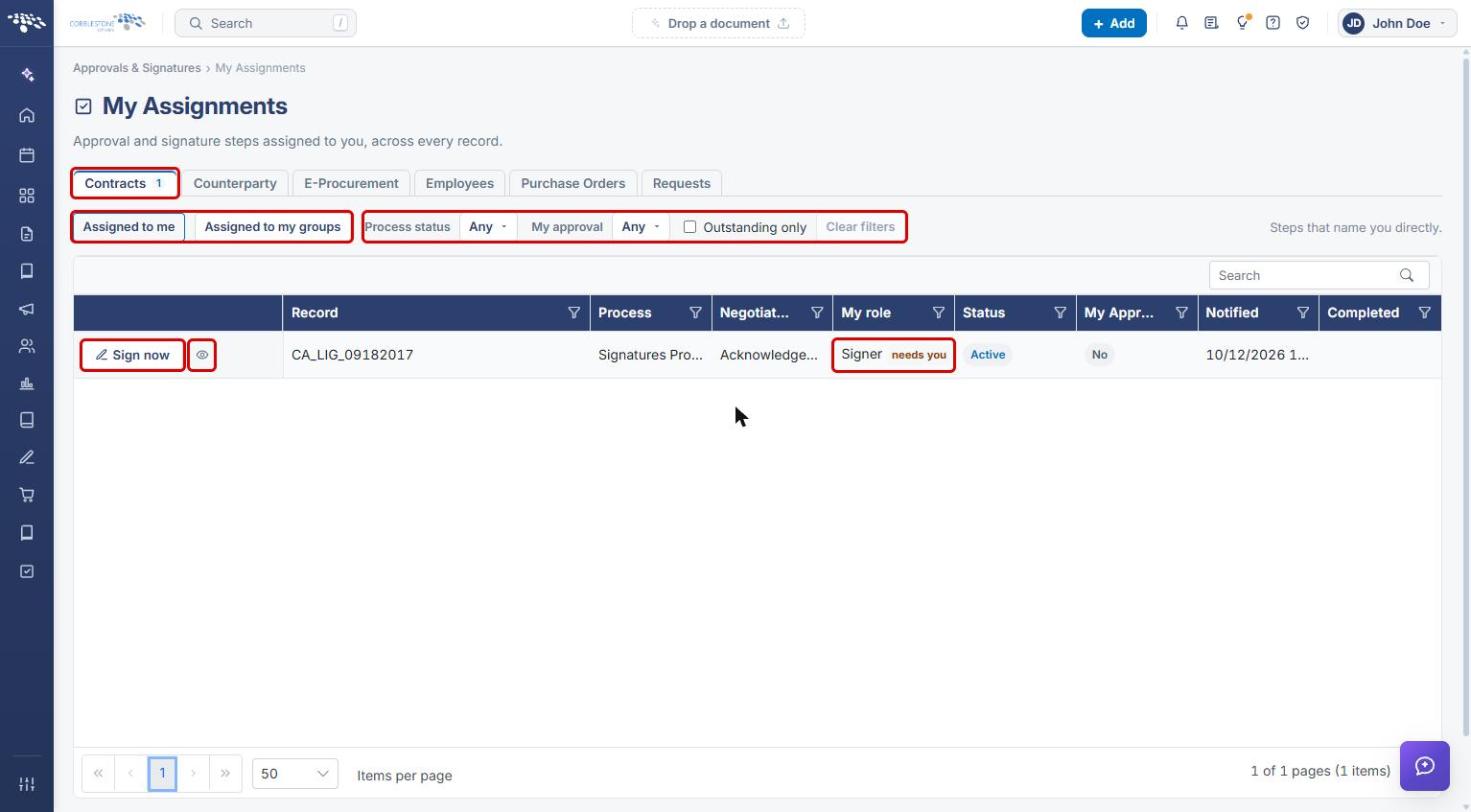
Internal users who are signed in to Contract Insight open their steps from the homepage (Awaiting action) or from Approvals & Signatures › My Assignments, then click Sign now. No additional PIN is requested unless the template uses Secure PIN.
5. Setting Secure PIN Authentication on a Template
- From the Contract Insight homepage, open Administration, search for Document Templates, and open the template.
- On Core setup › Template overview, check Participant sign-in. It reads Open link or Secure PIN.
- Click Edit on the Template overview panel.
- In Template overview information, under Options, check Secure PIN authentication to require a PIN, or clear it to use an open link.
- Click Save, or Cancel to leave without changes.
Note: The setting applies to documents generated from the template after it is saved. Processes already running keep the method they started with.
6. Identifying the Authentication Type on a Process
6a. Secure PIN
- Go to Approvals & Signatures › Negotiation Processes and click Open console on the process.
- A SECURE PIN badge at the right of the summary bar shows that participants must enter a PIN to complete their step.
6b. IntelliSign and IntelliApprove
- Open the process console as above.
- An INTELLISIGN (or INTELLIAPPROVAL) badge shows that IntelliSign or IntelliApprove handling applies. Participants are listed by email address with their source (for example, IntelliSign for Employees).
7. Quick Reference Summary
| Task | How to Complete It |
|---|---|
| Open your own approval or signature steps | Homepage → Awaiting action, or Approvals & Signatures → My Assignments → Sign now. |
| See a template's participant sign-in method | Administration → Document Templates → template → Template overview → Participant sign-in. |
| Require a PIN for a template | Template overview → Edit → Secure PIN authentication → Save. |
| Check a process's authentication type | Negotiation Processes → Open console → SECURE PIN / INTELLISIGN badge. |