COBBLESTONE SOFTWARE
Contract Insight — User Guide
Approving & Reviewing Documents - E-Approvals
Module: Document Collaboration Gateway › Document Collaboration Gateway E-Approvals & E-Signatures › Approving & Reviewing Documents - E-Approvals
Note: Each procedure in this guide begins at the Contract Insight homepage, so any section can be followed on its own. Custom fields are configurable, so the exact field list on a contract category record may vary between environments.
1. Overview
Approving a document is done from the approval process's console: Open record reviews the underlying document/record itself, and the console's step-level controls (visible to whoever the current step names) move that step from In Process toward finalized, advancing the overall process's Steps count.
2. Key Elements
- Open record on the console reviews the document or record being approved
- The current step's participant sees In Process status and can act on it
- Advancing a step moves the process's overall Steps finalized count forward
3. Navigating to Negotiation Processes
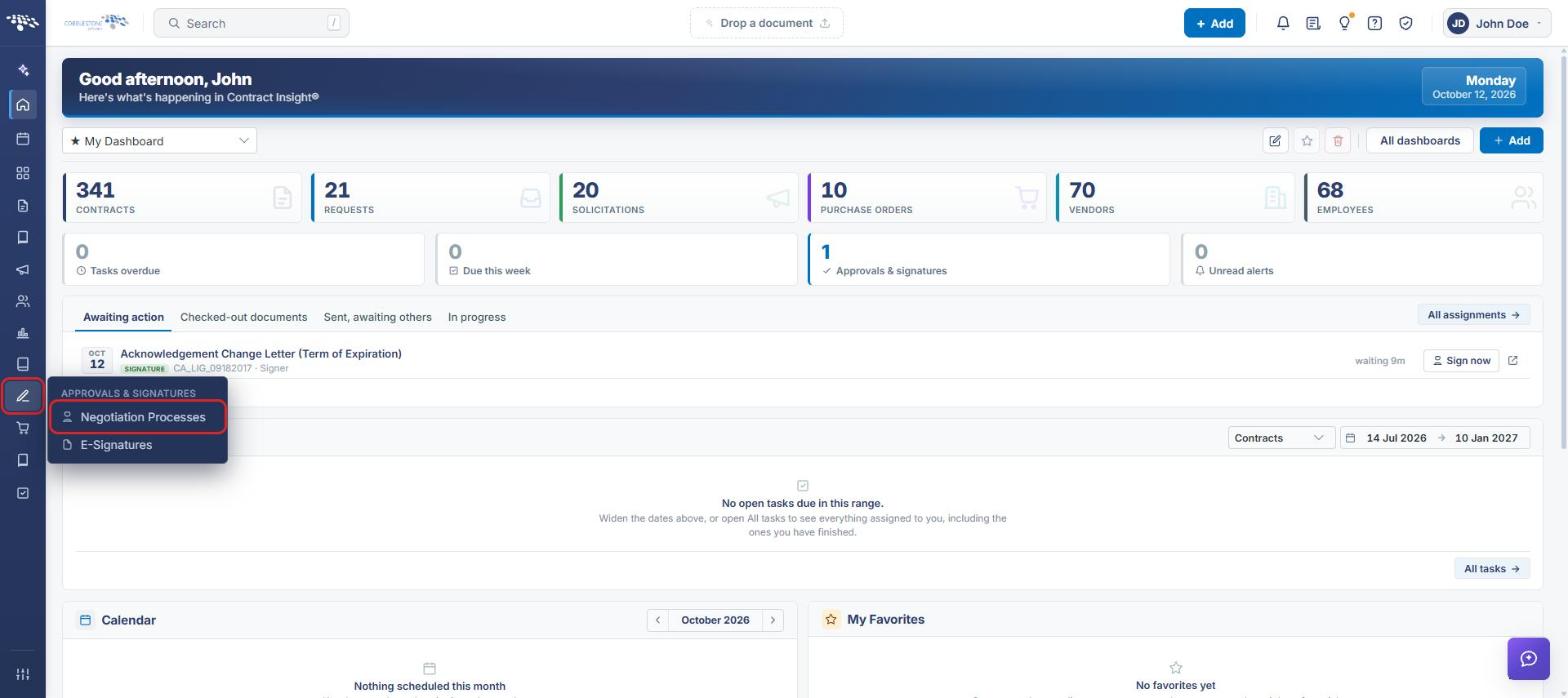
- From the Contract Insight homepage, click the Approvals & Signatures icon in the left navigation bar.
- Select Negotiation Processes.
4. Opening an Active Approval Process
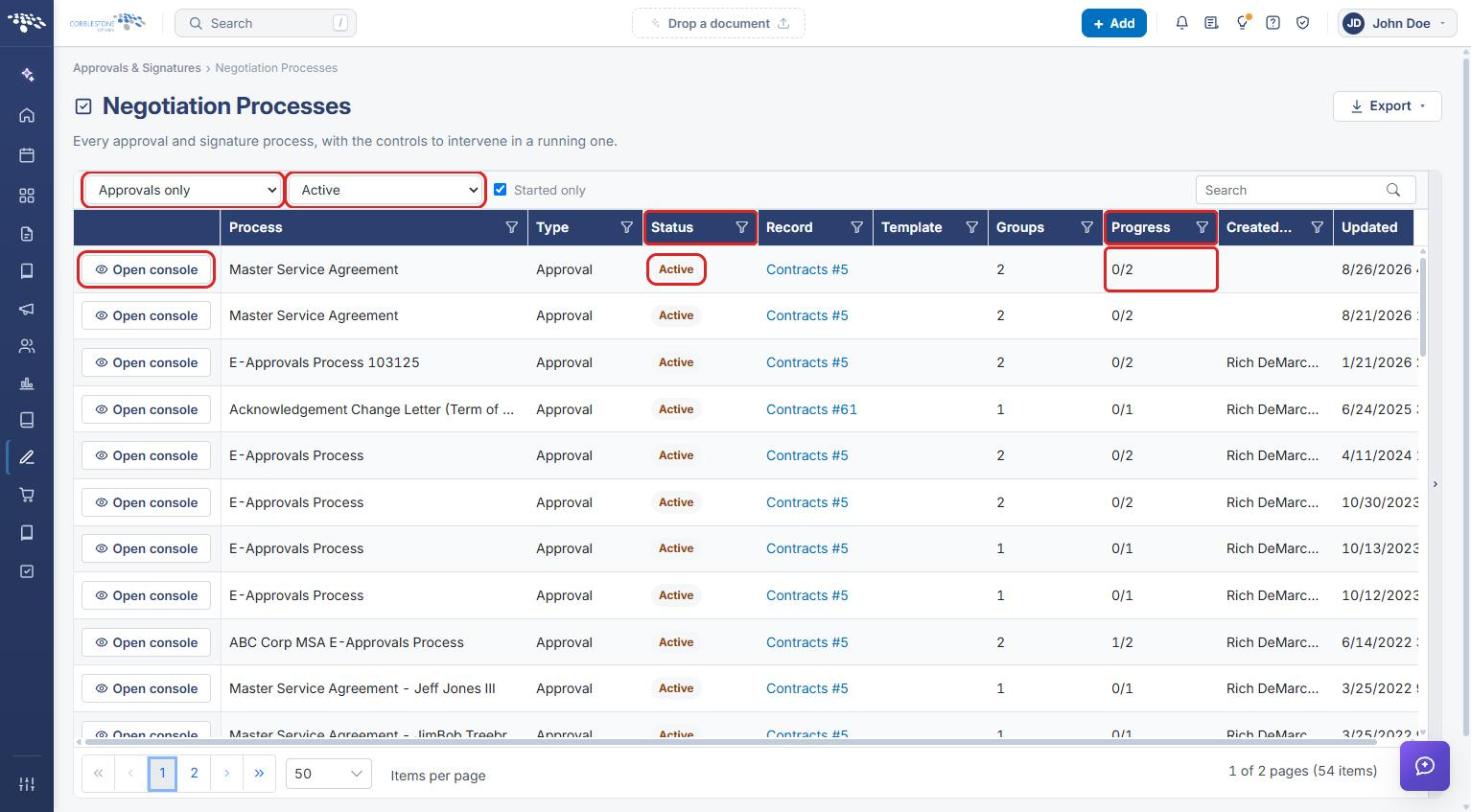
- On the Negotiation Processes page, set the status filter to Active and the type filter to Approvals only.
- Find the process. Active processes show an Active status tag, and Progress shows how many groups are finalized out of the total (for example, 0/2).
- Click Open console on the process's row.
5. Reviewing the Approval Console
- Click the Open record icon (next to Pause) to review the document or record being approved.
- Check Status (Active while the process is running) and Groups, which shows how many groups are finalized (for example, 0 of 2 finalized).
- Under Groups and participants, the group being worked on is tagged current group. Its participants show In Process until they act; participants in later groups show Pending and are not notified yet.
- As each participant in the current group acts, the group is finalized and the process moves to the next group, advancing the Groups count.
- Finalize stays unavailable until every group is finalized.
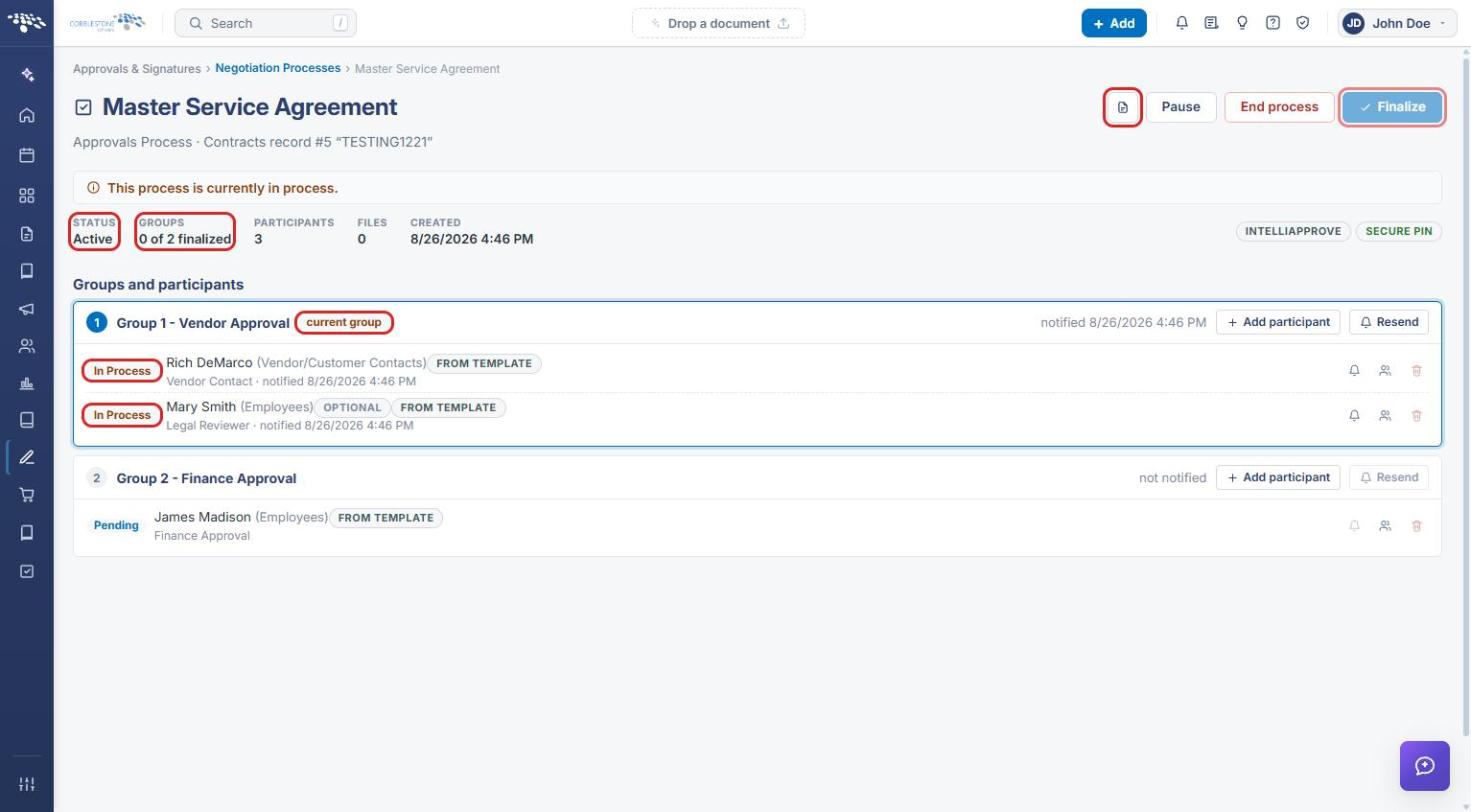
Tip: Use Resend to re-notify the current group, Add participant to add someone to a group, and the icons on a participant's row to re-send their invitation or replace them.
6. Finding Approvals Assigned to You
- From the Contract Insight homepage, click All assignments in the Awaiting action panel to open My Assignments.
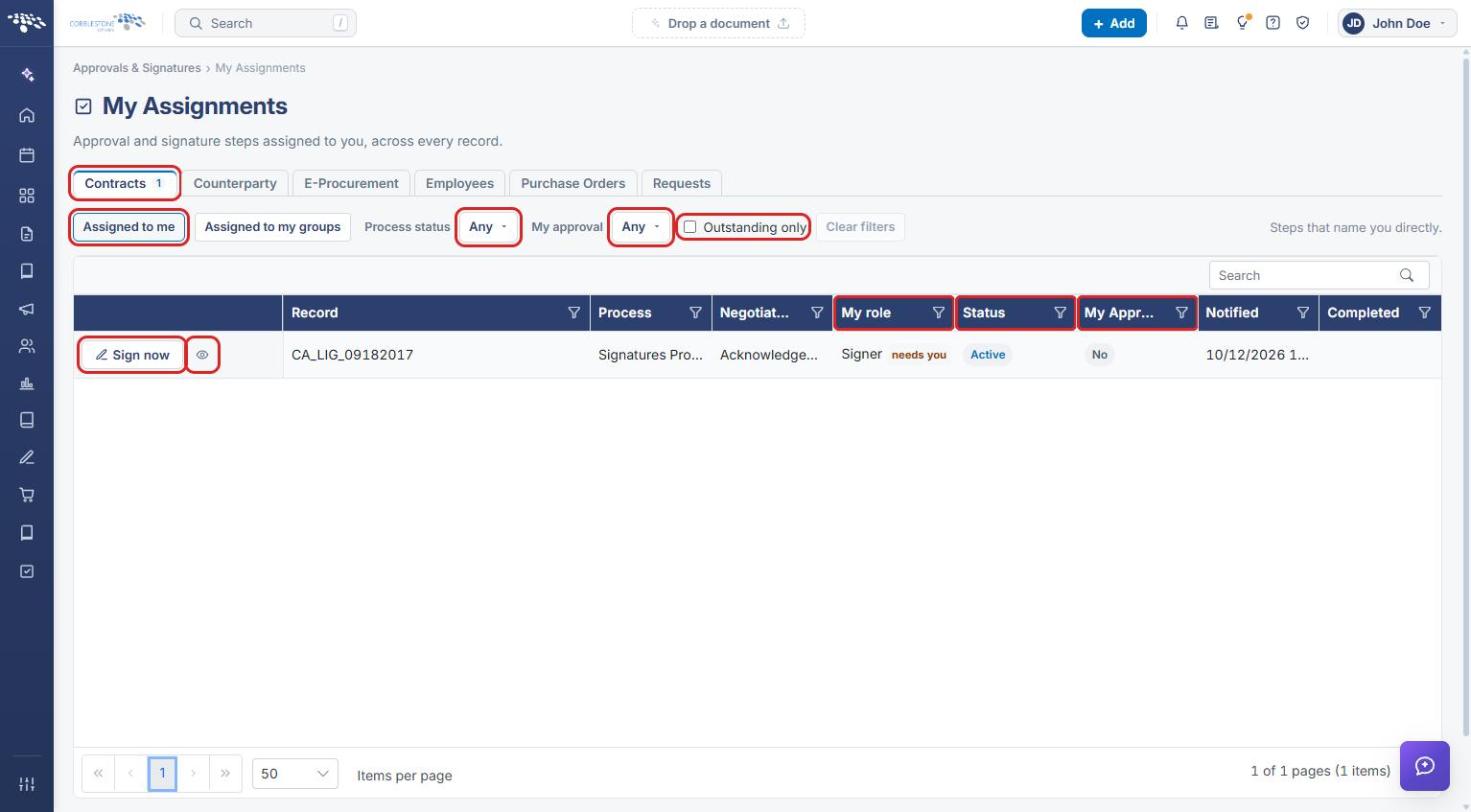
- Choose the record area tab (for example, Contracts). The number on a tab shows how many steps are assigned to you there.
- Click Assigned to me for steps that name you directly, or Assigned to my groups for steps assigned to your groups.
- Narrow the list with Process status, My approval, and Outstanding only. The My role, Status, and My Approval columns show where each step stands.
- Click the action button on the row to act on the step, or the eye icon (Open the record) to review the record first.
7. Quick Reference Summary
| Task | How to Complete It |
|---|---|
| Open Negotiation Processes | Approvals & Signatures → Negotiation Processes. |
| Find running approvals | Set filters to Active and Approvals only. |
| Open an approval process | Click Open console on the row. |
| Review the document or record | Console → Open record icon. |
| See which step is in progress | Console → group tagged current group; participants show In Process. |
| Track progress | Console → Groups (e.g. 0 of 2 finalized), or the list's Progress column. |
| Find steps assigned to you | Homepage → Awaiting action → All assignments. |