COBBLESTONE SOFTWARE
Contract Insight — User Guide
Signing Documents - E-Signatures
Module: Document Collaboration Gateway › Document Collaboration Gateway E-Approvals & E-Signatures › Signing Documents - E-Signatures
Note: Each procedure in this guide begins at the Contract Insight homepage, so any section can be followed on its own. Custom fields are configurable, so the exact field list on a contract category record may vary between environments.
1. Overview
The signing page renders the full document being signed, page by page, beneath its Place / My signature / Decline / Cancel / Submit signature toolbar, so the signer can scroll through every page of the underlying agreement before placing their signature and submitting. Signers reach the signing page from the Sign now button on their homepage or from the Your signature is pending badge on the record.
2. Key Elements
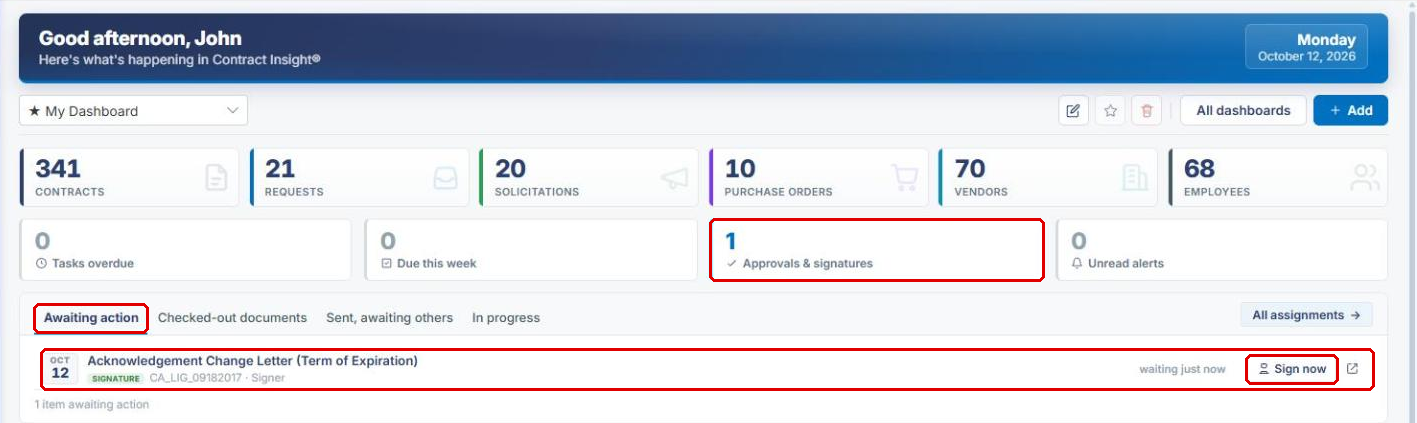
- The homepage Awaiting action tab lists each document waiting for your signature, with a Sign now button.
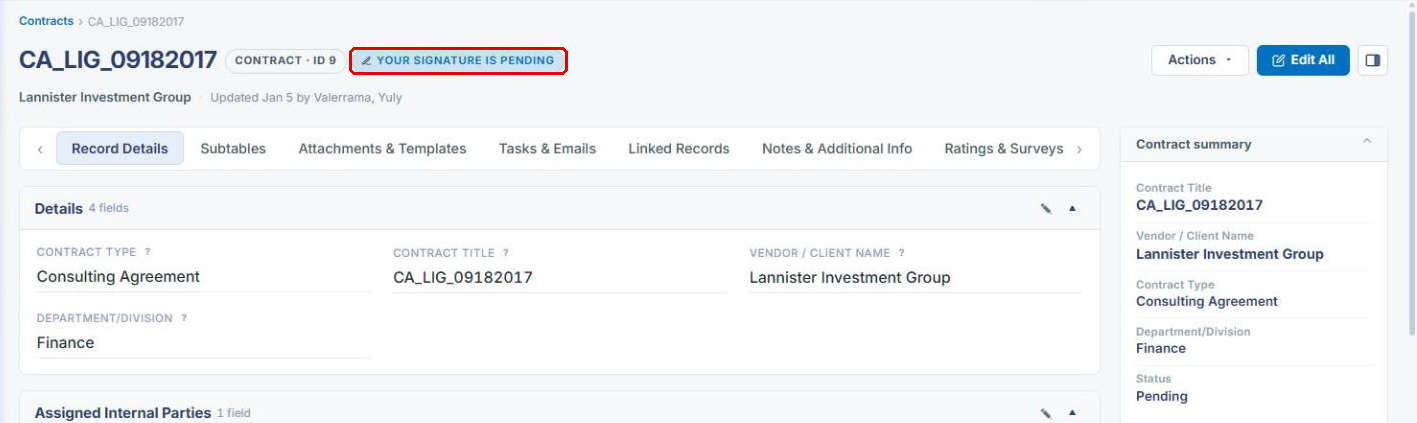
- A record with a document waiting for your signature shows a Your signature is pending badge, which opens the signing portal.
- The full document renders beneath the signing toolbar, page by page.
- Signers can scroll through the entire document before submitting.
- The toolbar (Place, My signature, Decline, Cancel, Submit signature) stays fixed at the top while scrolling.
3. Opening a Document to Sign
3a. From the Homepage
- From the Contract Insight homepage, check the Approvals & signatures count.
- On the Awaiting action tab, locate the document (it is tagged Signature, with the record name and your role).
- Click Sign now. The signing page opens in a new browser tab.
3b. From the Record
- Open the record the document belongs to (for example, Requests/Contracts → Contracts → Manage).
- Click the Your signature is pending badge beside the record name to sign on the signing portal.
4. Reviewing the Document
- On the signing page, scroll through the document. Every page of the agreement renders beneath the toolbar.
- The toolbar stays fixed at the top of the page while you scroll, so you can place your signature or submit from any page.
[Screenshot to come: signing page showing the toolbar and the document rendered page by page.]
5. Using the Signing Toolbar
| Button | Use It To |
|---|---|
| Place | Place your signature on the document. |
| My signature | Choose whose signature fills a placed Signature placeholder (see Setting Signature Place Holders - E-Signatures). |
| Decline | Decline to sign the document. |
| Cancel | Leave the signing page without submitting. |
| Submit signature | Submit your signature once it is placed. |
[Screenshot to come: signing toolbar with Place, My signature, Decline, Cancel, and Submit signature highlighted.]
6. Signing and Submitting
- Open the document to sign (see Section 3).
- Review every page of the document (see Section 4).
- Use Place and My signature to place your signature where required.
- Click Submit signature.
[Screenshot to come: placed signature and Submit signature button.]
7. Quick Reference Summary
| Task | How to Complete It |
|---|---|
| Find documents waiting for your signature | Homepage → Awaiting action tab. |
| Open the signing page | Sign now on the homepage, or the Your signature is pending badge on the record. |
| Review the document | Scroll through the pages beneath the signing toolbar. |
| Place your signature | Toolbar → Place / My signature. |
| Submit | Toolbar → Submit signature. |
| Refuse to sign | Toolbar → Decline. |
| Leave without signing | Toolbar → Cancel. |