COBBLESTONE SOFTWARE
Contract Insight — User Guide
Third Party Paper
Document Templates Management › Manage Document Package Template › Third Party Paper
Note: Each procedure in this guide begins at the Contract Insight homepage, so any section can be followed on its own. Custom fields are configurable, so the exact field list on a contract category record may vary between environments.
1. Overview
Third Party Paper is one of the two Type options for a document template (the other is Document Package). Use it for agreements that originate on a vendor's, customer's, supplier's, or other outside party's paper rather than on your organization's own templates. A Third Party Paper template is set up with the same steps as a Document Package template — Core setup (mergeable fields, Rules & conditions, and so on), Approvals & signing (E-Approvals / E-Signatures), and Files/Attachments — and its type is shown under the template name and in the Template overview panel.
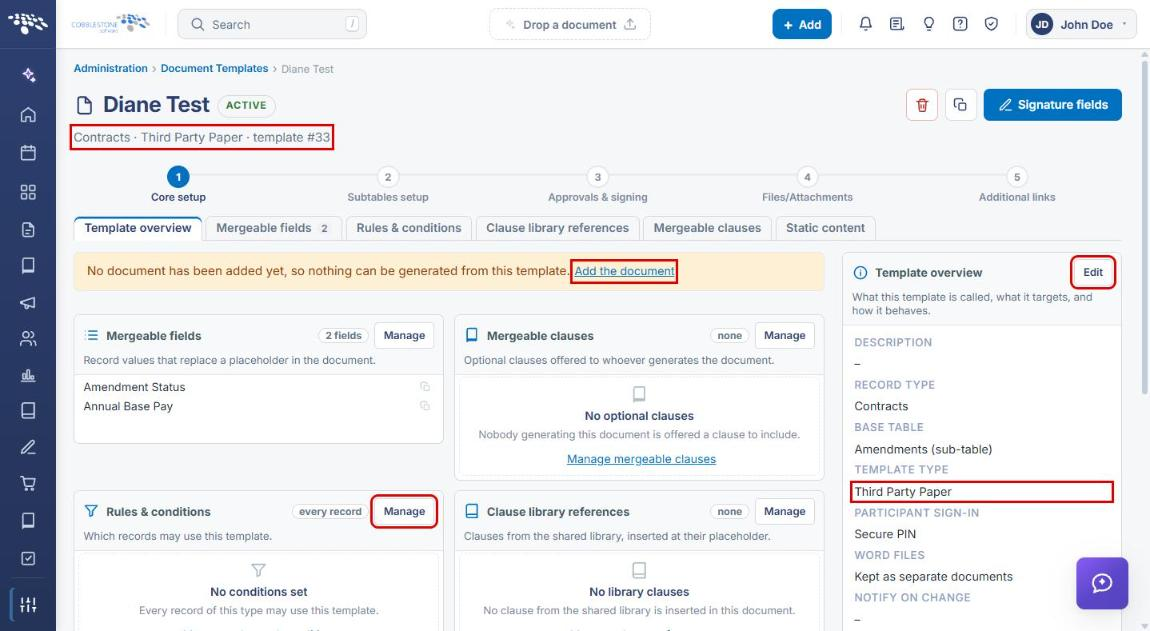
As with any template, nothing can be generated from a Third Party Paper template until a document is added on its Files/Attachments step. For example, the template "Diane Test" (Contracts, Third Party Paper) shows "No document yet" and has E-Approvals switched on, so it can't be generated until its document is added.
2. Key Elements
- Type is chosen when the template is created in the Add template form: Document Package or Third Party Paper.
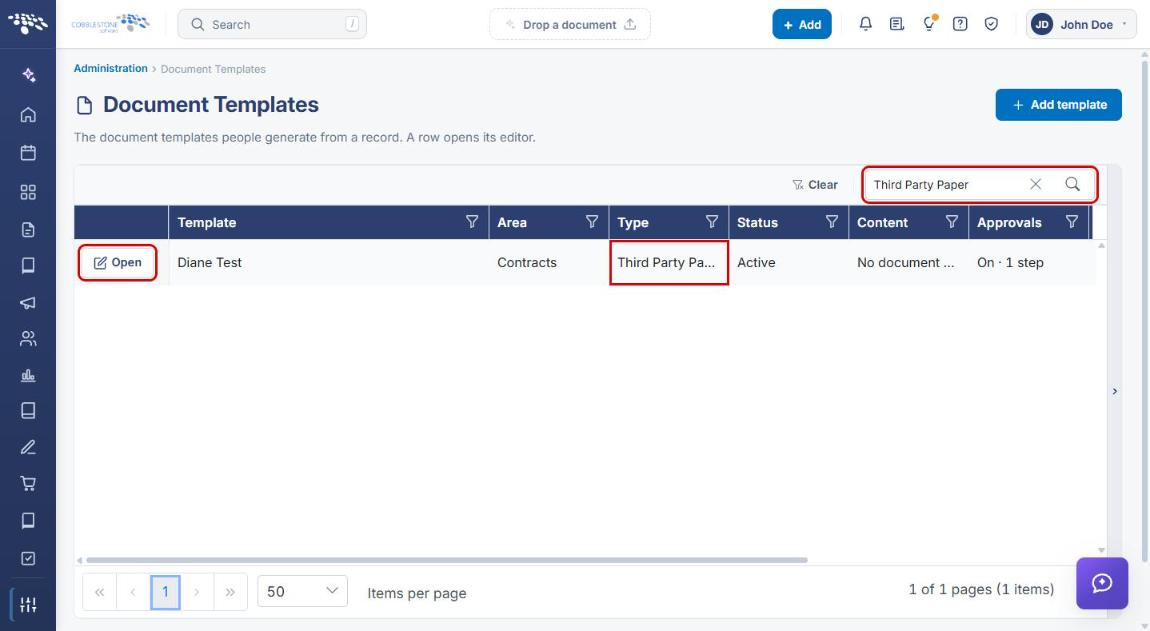
- The Document Templates grid's Type column identifies Third Party Paper templates, and the grid Search box can filter on it.
- The template header (for example, "Contracts · Third Party Paper · template #33") and the Template overview panel's TEMPLATE TYPE show the type.
- Rules & conditions and Approvals & signing work the same way as for a Document Package template.
- A yellow banner — "No document has been added yet, so nothing can be generated from this template" — appears until a file is added on the Files/Attachments step.
3. Navigating to Document Templates
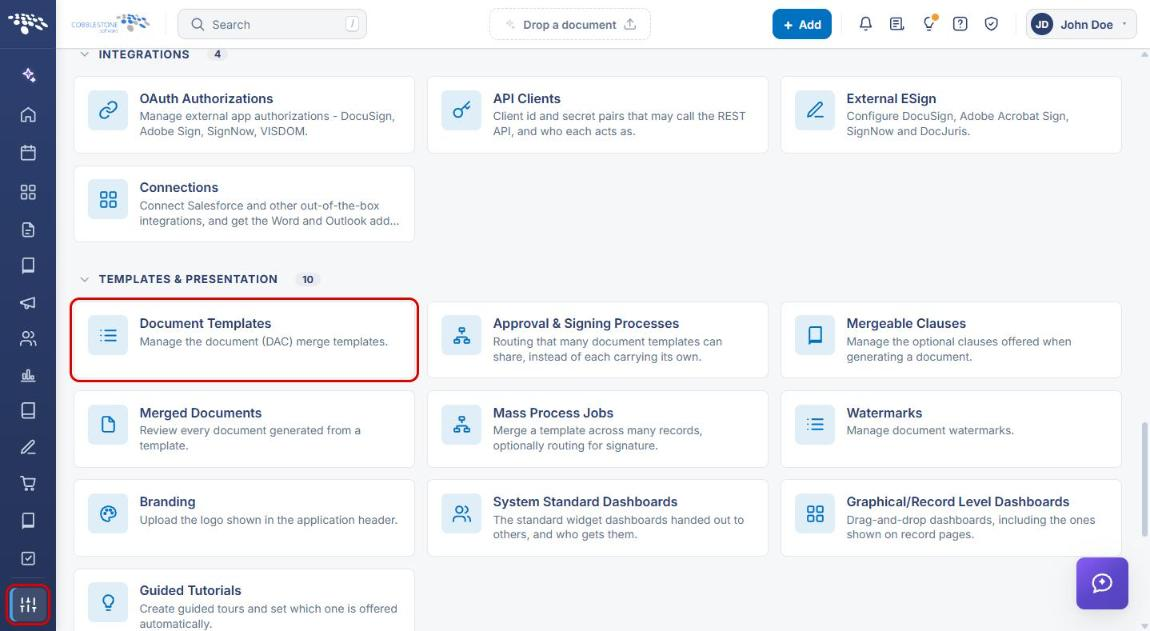
- From the Contract Insight homepage, click the Administration icon (sliders) at the bottom of the left navigation bar.
- Under Templates & Presentation, click Document Templates.
4. Adding a Third Party Paper Template
- Navigate to Administration → Document Templates (see Section 3).
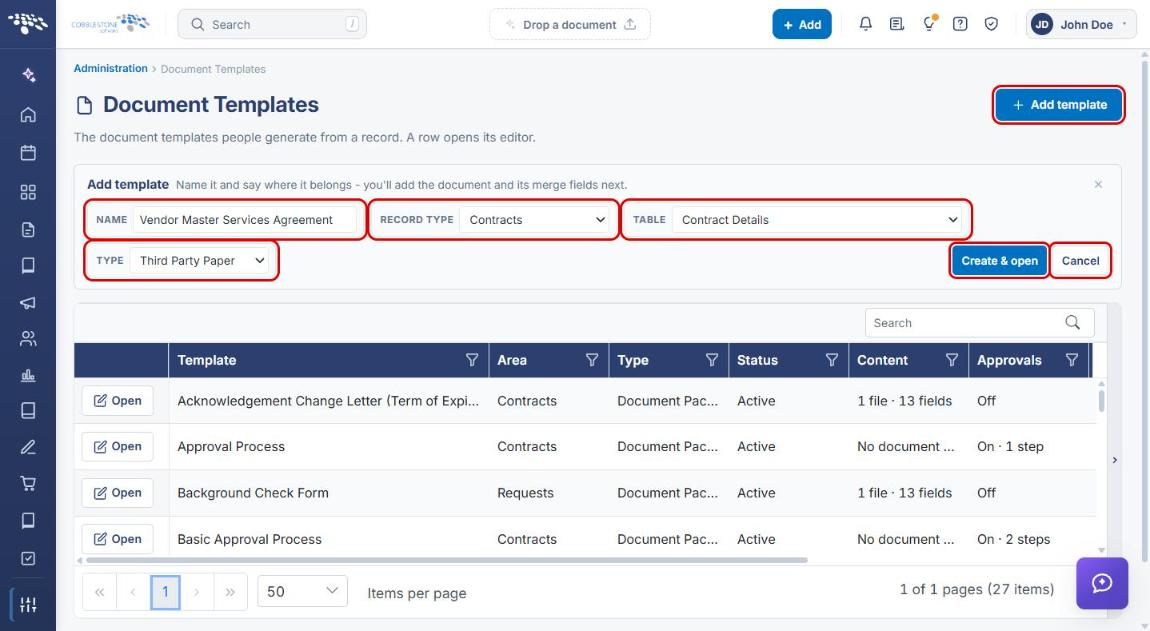
- Click + Add template. The Add template form opens above the grid.
- Enter a NAME for the template.
- Select the RECORD TYPE (for example, Contracts).
- Select the TABLE the template is based on (for example, Contract Details). This list is available after a record type is chosen.
- Set TYPE to Third Party Paper.
- Click Create & open. The new template opens in its editor. Click Cancel to close the form without creating a template.
5. Finding and Opening a Third Party Paper Template
- On the Document Templates page, type Third Party Paper (or the template name) in the grid's Search box and press Enter. Click Clear to remove the search.
- Confirm the Type column reads Third Party Paper.
- Click Open on the template's row.
- The template opens on the Core setup step. The header and the Template overview panel's TEMPLATE TYPE show Third Party Paper. Click Edit on the Template overview panel to change the template's settings.
- Use the Manage buttons on each card — for example, Rules & conditions — to configure the template. See the Rules & Conditions and Select Mergeable Fields articles for details.
6. Adding the Document
- Open the template (see Section 5).
- Click Add the document in the yellow banner, or click step 4 Files/Attachments.
- Click Add file and add the Word file for the template.
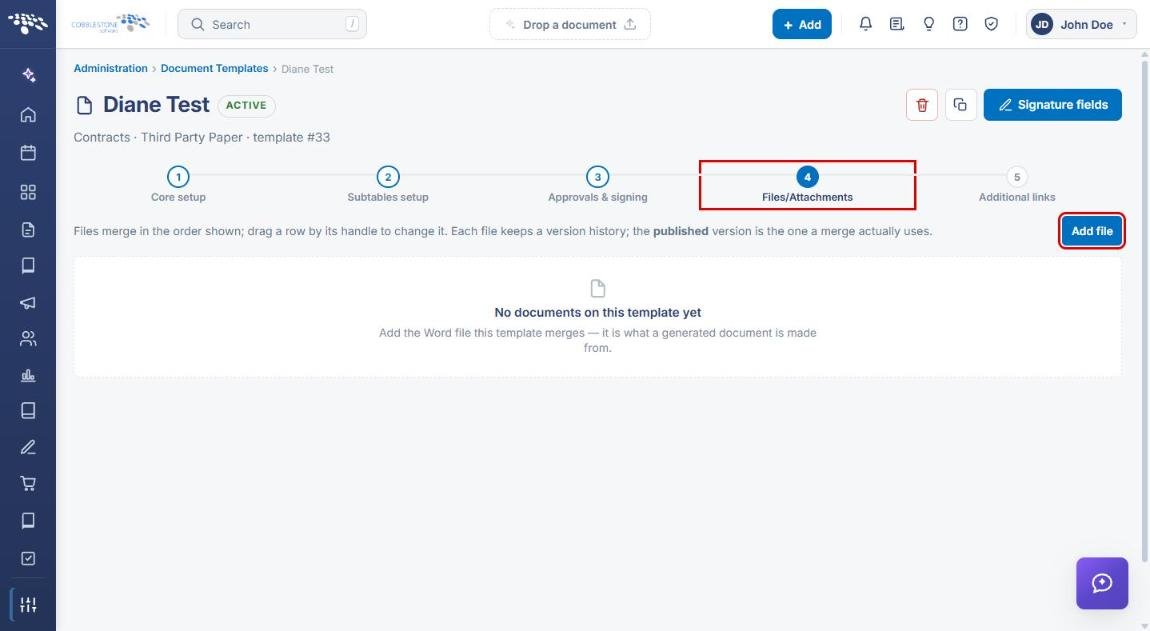
Note: Files merge in the order shown; drag a row by its handle to change the order. Each file keeps a version history, and the published version is the one a merge uses.
7. Setting Up Approvals & Signing
- Open the template and click step 3 Approvals & signing.
- On the E-Approvals tab, check Use E-Approvals to route generated documents for approval, then click Save approval settings.
- Under Who approves, and in what order, click Add group to add an approval group. Use Edit, Participant, and Rules on a group to name it, add approvers, and set when it applies.
- Click the E-Signatures tab to configure signature routing the same way.
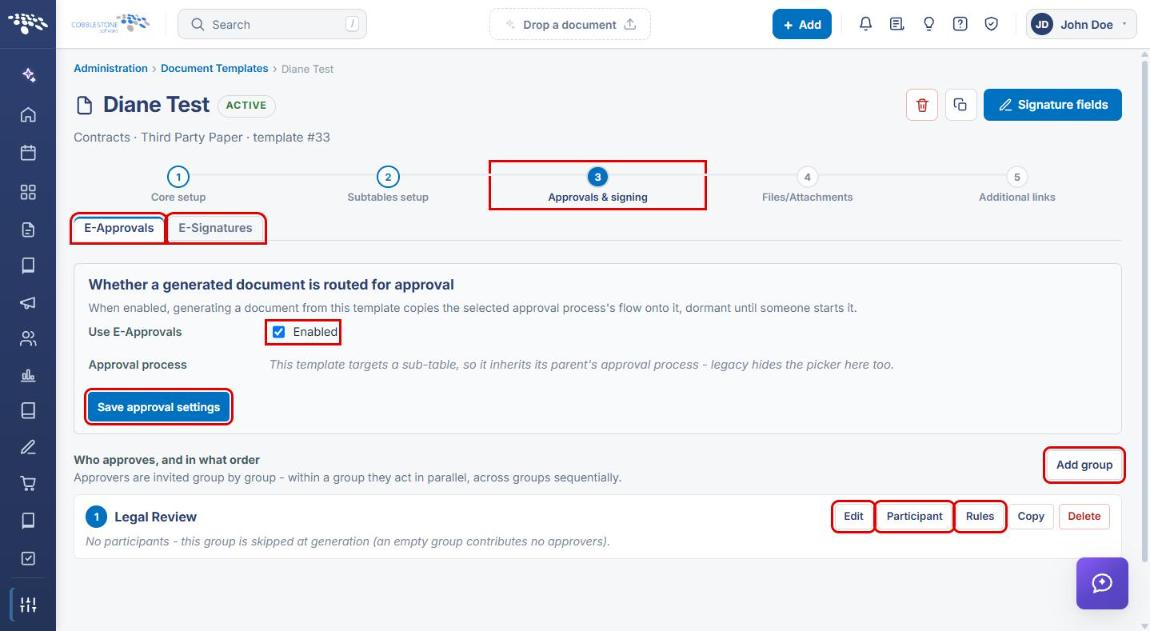
Note: Approvers are invited group by group — within a group they act in parallel, and across groups sequentially. A group with no participants is skipped when the document is generated.
8. Quick Reference Summary
| Task | How to Complete It |
|---|---|
| Open Document Templates | Administration → Document Templates. |
| Add a Third Party Paper template | + Add template → Name, Record type, Table → Type: Third Party Paper → Create & open. |
| Find Third Party Paper templates | Document Templates grid → Search "Third Party Paper" → check the Type column. |
| Add the template's document | Open the template → Add the document (or step 4 Files/Attachments) → Add file. |
| Limit which records can use it | Core setup → Rules & conditions tab. |
| Route for approval or signature | Step 3 Approvals & signing → E-Approvals / E-Signatures tabs. |