COBBLESTONE SOFTWARE
Contract Insight — User Guide
Mergeable Sub-Tables
Document Templates Management › Sub-Tables › Mergeable Sub-Tables
Note: Each procedure in this guide begins at the Contract Insight homepage, so any section can be followed on its own. Custom fields are configurable, so the exact field list on a contract category record may vary between environments.
1. Overview
A mergeable sub-table (subtable) is a list of child records — line items, amendments, contacts — that repeats in a merged document. Subtables are managed on the Subtables setup step (step 2) of a document template's editor. Paste the subtable's placeholder where the table should appear in the template document; the fields you add to the subtable become the table's columns, in the order they are listed, with an optional total at the foot.
2. Key Elements
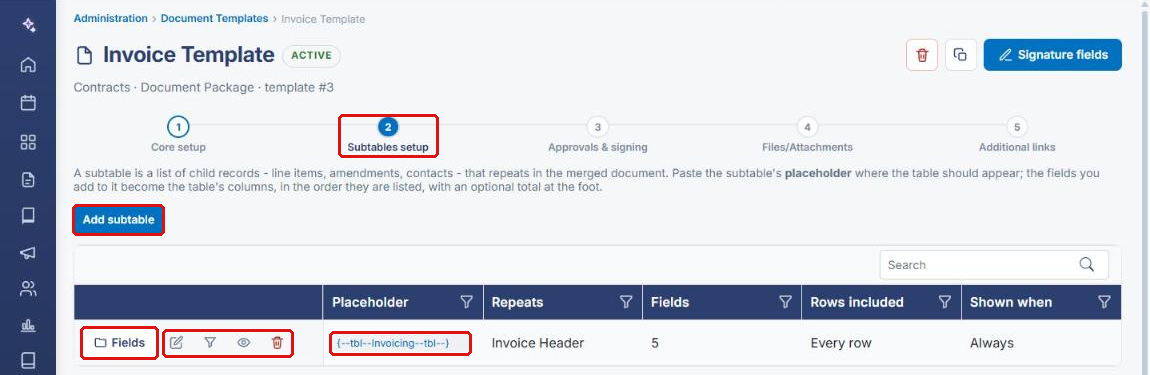
- Subtables setup (step 2 of the template editor) lists the template's subtables. If none exist, it shows “No subtables on this template.”
- Add subtable opens the Add a subtable panel, where you choose the child list to repeat, name the subtable, and see its generated placeholder (for example,
{--tbl--Amendments--tbl--}). - The subtables grid shows each subtable's Placeholder, what it Repeats (the child table), Fields (column count), Rows included, and Shown when.
- Row actions: Fields (opens the field/layout manager — the equivalent of the legacy “Manage Layout” step), Rename this subtable (pencil), Choose which rows are included (filter), Choose when the subtable is shown (eye), and Delete this subtable and its fields (trash).
3. Navigating to Document Templates
- From the Contract Insight homepage, click the Administration icon at the bottom of the left navigation bar.
- In the Search administration… box, type Document Templates (or find it under Templates & Presentation).
- Click the Document Templates card.
.png)
- On the Document Templates page, locate the template (use the Search box if needed) and click Open on its row. To start a new template instead, click + Add template.
.png)
4. Opening the Subtables Setup Step
- With the template open, click step 2 – Subtables setup in the step bar at the top of the editor.
- Review the subtables grid. Each row shows the subtable's placeholder, the child table it repeats, its field count, which rows are included, and when it is shown.
5. Adding a Subtable
- Open the template's Subtables setup step (see Section 4).
- Click Add subtable.
- In the Add a subtable panel, select the list to repeat (the child table) from the dropdown.
- Enter or adjust the subtable's name in the text box. The Placeholder updates to match (for example,
{--tbl--Amendments--tbl--}). - Click Add.
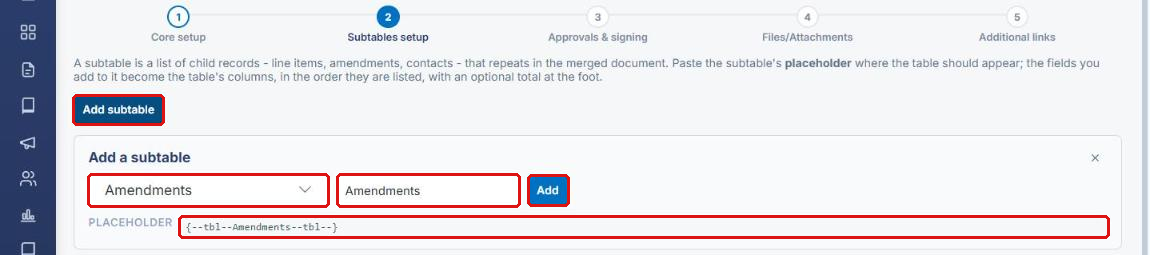
Note: Copy the placeholder and paste it into the template document where the table should appear. The table is merged at that location when a document is generated.
6. Managing Subtable Fields (Layout)
6a. Adding and Removing Columns
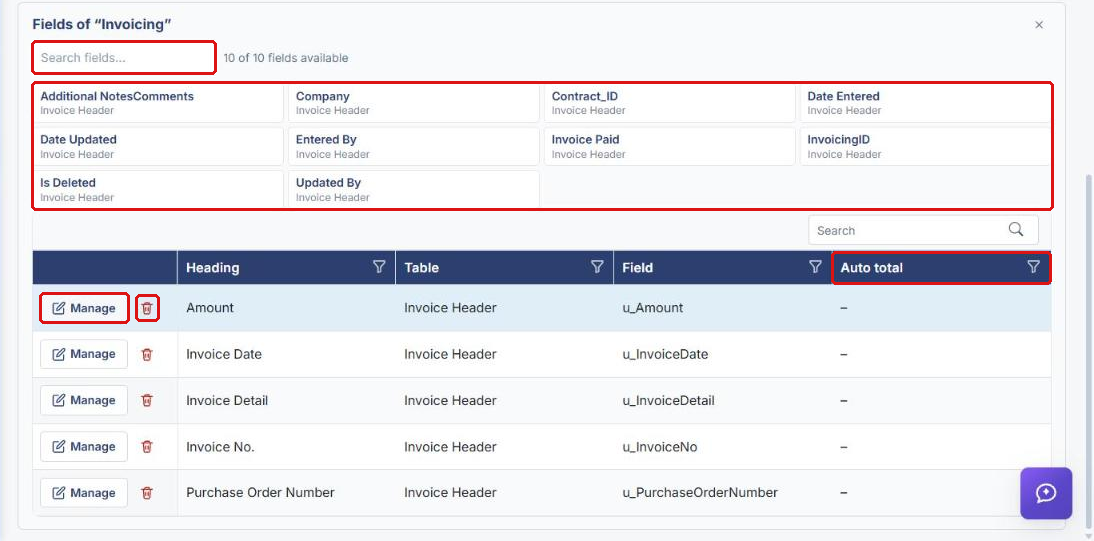
- On the subtable's row, click Fields. The Fields of “<subtable name>” panel opens below the grid.
- Use Search fields… to find a field, then click a field card in the available list to add it as a column.
- Columns appear in the grid below with their Heading, Table, Field, and Auto total. Columns are output in the order listed.
- To remove a column, click the trash icon on its row.
6b. Editing a Column's Settings
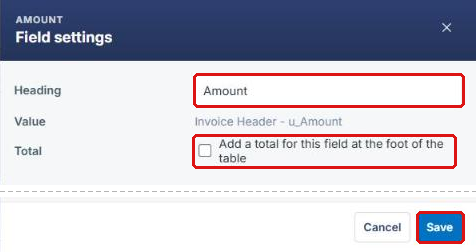
- Click Manage on the column's row. The Field settings panel opens.
- Edit the Heading (the column title shown in the merged table). The Value shows the source table and field.
- Check Add a total for this field at the foot of the table to total the column.
- Click Save.
7. Configuring an Existing Subtable
7a. Renaming a Subtable
- On the subtable's row, click the Rename this subtable (pencil) icon.
- Edit the Display name. The Placeholder is shown for reference.
- Click Save.

Note: If the placeholder changes, update it in the template document so the table still merges.
7b. Choosing Which Rows Are Included
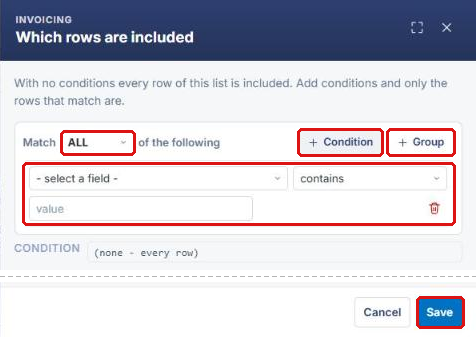
- Click the Choose which rows are included (filter) icon. With no conditions, every row of the list is included.
- Choose whether rows must Match ALL or ANY of the conditions.
- Click + Condition, then select a field, an operator (for example, contains), and a value. Click + Group to nest a group of conditions.
- Review the resulting Condition and click Save.
7c. Choosing When the Subtable Is Shown
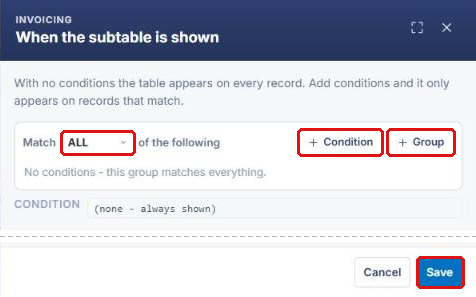
- Click the Choose when the subtable is shown (eye) icon. With no conditions, the table appears on every record.
- Set Match ALL or ANY, then add conditions with + Condition or + Group.
- Click Save. The table then appears only on records that match.
7d. Deleting a Subtable
- Click the Delete this subtable and its fields (trash) icon on the subtable's row and confirm.
- Remove the subtable's placeholder from the template document.
8. Quick Reference Summary
| Task | How to Complete It |
|---|---|
| Open Document Templates | Administration → Document Templates. |
| Open a template's subtables | Open the template → step 2, Subtables setup. |
| Add a subtable | Subtables setup → Add subtable → choose the list to repeat, name it → Add. |
| Place the table in the document | Copy the subtable's placeholder and paste it into the template document. |
| Add or remove columns | Fields on the subtable's row → click a field card to add; trash icon to remove. |
| Change a column heading or add a total | Fields → Manage on the column → edit Heading / check Total → Save. |
| Rename a subtable | Pencil icon on the subtable's row → Display name → Save. |
| Filter which rows are included | Filter icon → + Condition / + Group → Save. |
| Show the subtable only on some records | Eye icon → + Condition / + Group → Save. |
| Delete a subtable | Trash icon on the subtable's row. |