COBBLESTONE SOFTWARE
Contract Insight — User Guide
Template Overview
Document Templates Management › Manage Document Package Template › Template Overview
Note: Each procedure in this guide begins at the Contract Insight homepage, so any section can be followed on its own. Custom fields are configurable, so the exact field list on a contract category record may vary between environments.
1. Overview
Creating a template starts from Administration → Document Templates → Add template, and every template's editor opens on its Template overview tab. The tab shows summary cards for Mergeable fields, Mergeable clauses, Rules & conditions, Clause library references, Static content, Document files, Subtables, and Approvals & signatures, each with its own Manage button. A Template overview panel on the right (with an Edit button) shows the template's core setup: Description, Record type, Base table, Template type (Document Package or Third Party Paper), Participant sign-in, Word files handling, and Notify on change. Clicking Edit opens the Template overview information panel, the live equivalent of the legacy Title/Description/Template Area/Email on Change/Is Active/Participant Authentication/Append Word Docs setup form. The whole editor is organized as a 5-step wizard: Core setup, Subtables setup, Approvals & signing, Files/Attachments, and Additional links.
2. Key Elements
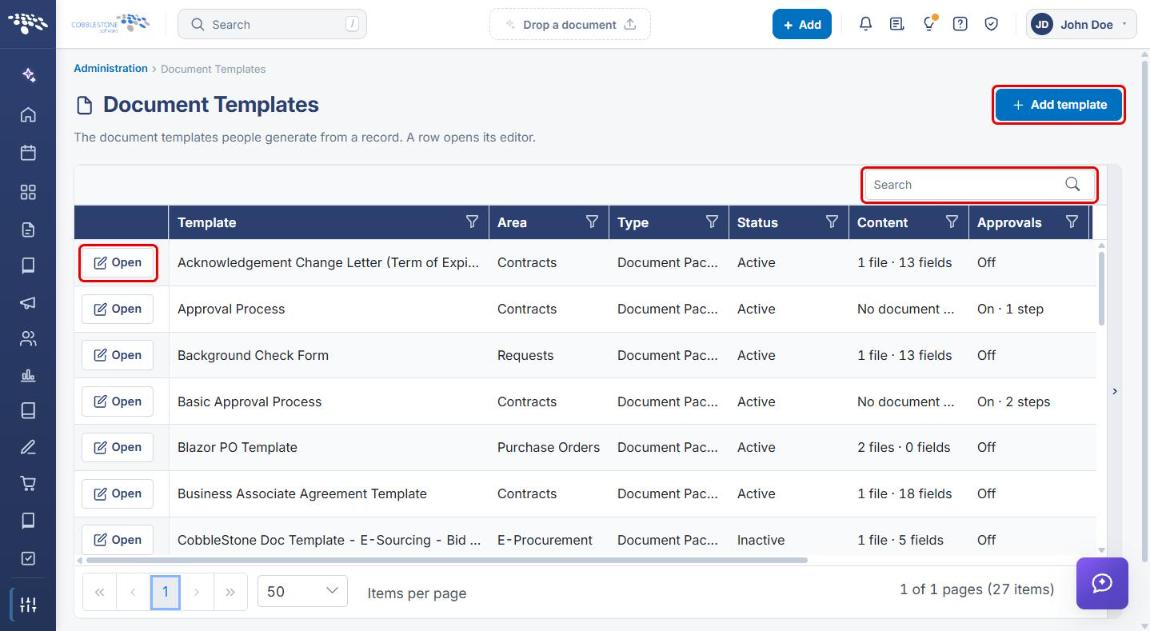
- Document Templates list: found under Administration → Templates & Presentation. Lists every template with its Area, Type, Status, Content, Approvals, and Signatures, plus a Search box and an Open button on each row.
- Add template panel: opens inline above the list and asks for Name, Record type, Table, and Type (Document Package or Third Party Paper), then Create & open.
- Wizard steps: Core setup, Subtables setup, Approvals & signing, Files/Attachments, Additional links.
- Template overview tab: summarizes every other section (Mergeable fields, Mergeable clauses, Rules & conditions, Clause library references, Static content, Document files, Subtables, Approvals & signatures), each with a Manage button.
- Template overview panel: shows Description, Record type, Base table, Template type, Participant sign-in, Word files, and Notify on change; Edit opens the Template overview information panel.
3. Navigating to Document Templates
- From the Contract Insight homepage, click the Administration icon at the bottom of the left navigation bar.
- In the Search administration box, type Document Templates (or scroll to the Templates & Presentation category).
- Click the Document Templates card.
.jpg)
The Document Templates page opens, listing every template in the system.
4. Adding a Template
- Navigate to Administration → Document Templates (see Section 3).
- Click + Add template in the upper-right corner of the page.
- In the Add template panel, enter a Name for the template.
- Select a Record type (for example, Contracts, Counterparty, E-Procurement, Employees, Purchase Orders, or Requests).
- Select the Table the template is based on. This list is available only after a record type is chosen (for example, Contracts → Contract Details).
- Select the Type: Document Package or Third Party Paper.
- Click Create & open to create the template and open its editor, or click Cancel to close the panel without saving.
.jpg)
Note: Record type, Base table, and Template type are set when the template is created and cannot be changed afterwards, because every field and condition on the template is written against them. Choose them carefully.
5. Opening an Existing Template
- Navigate to Administration → Document Templates (see Section 3).
- Use the Search box above the grid, or the filter icons in the column headers, to find the template.
- Click Open on the template's row. The template editor opens on the Template overview tab.
6. Using the Template Overview Tab
6a. Wizard Steps and Section Tabs
The top of the editor shows the template name, its status (for example, ACTIVE), and a summary line (record type · template type · template number). Below that:
- Wizard steps: click a step (1 Core setup, 2 Subtables setup, 3 Approvals & signing, 4 Files/Attachments, 5 Additional links) to move between areas of the template.
- Section tabs: within Core setup, the Template overview tab is selected by default. The other tabs (Mergeable fields, Rules & conditions, Clause library references, Mergeable clauses, Static content) open each area directly; a badge shows how many items each one holds.
.jpg)
6b. Summary Cards
Each card on the Template overview tab summarizes one area of the template and shows a count badge (for example, 13 fields, none, or every record). Click Manage on a card to go to that area and make changes.
.jpg)
Scroll down to see the remaining cards: Static content, Document files, Subtables, and Approvals & signatures.
.jpg)
| Card | What it shows |
|---|---|
| Mergeable fields | Record values that replace a placeholder in the document. |
| Mergeable clauses | Optional clauses offered to whoever generates the document. |
| Rules & conditions | Which records may use this template (every record, if no conditions are set). |
| Clause library references | Clauses from the shared library, inserted at their placeholder. |
| Static content | Fixed text, or the date of the merge, inserted at a placeholder. |
| Document files | The documents this template merges, in order, each with its versions. |
| Subtables | Lists of child records that repeat down a table in the document. |
| Approvals & signatures | Whether a generated document is routed for E-Approvals and E-Signatures. |
6c. Editing the Template Overview Information
- On the Template overview tab, click Edit in the upper-right corner of the Template overview panel.
- In the Template overview information panel, update the Title and Description as needed.
- Review the Record type · Base table · Template type values. These are read-only and were set when the template was created.
- In Notify on change, enter comma-separated e-mail addresses of anyone who should be notified when the template changes.
- Under Options, select any of the following: Active, Append files into one document, Use header / footer, and Secure PIN authentication.
- Click Save to apply your changes, or Cancel to close the panel without saving.
.jpg)
Note: Leaving Append files into one document unchecked keeps Word files as separate documents. Selecting Secure PIN authentication changes Participant sign-in from Open link to Secure PIN.
7. Quick Reference Summary
| Task | Where / How |
|---|---|
| Find Document Templates | Administration icon → search Document Templates → click the card |
| Add a template | Document Templates → + Add template → Name, Record type, Table, Type → Create & open |
| Open an existing template | Document Templates → Search → Open on the row |
| Move between areas of a template | Wizard steps (Core setup → Additional links) or the section tabs |
| Change a template area | Template overview tab → Manage on the area's card |
| Edit title, description, notifications, or options | Template overview panel → Edit → Save |
| Activate or deactivate a template | Template overview panel → Edit → Active option → Save |