COBBLESTONE SOFTWARE
Contract Insight — User Guide
Document Templates Overview
Document Templates Management › Document Templates Overview
Note: Each procedure in this guide begins at the Contract Insight homepage, so any section can be followed on its own. Custom fields are configurable, so the exact field list on a contract category record may vary between environments.
1. Overview
Administration > Document Templates is the redesigned counterpart to the legacy Document Authoring Module, used to build merge templates for contracts, purchase orders, requests, and other record types. Each template carries a Template Type of Document Package (full mergeable content, clauses, subtables, and attachments) or Third Party Paper (rules, conditions, and approval/signature groups only, with files supplied after generation) — the same Internal/Standard-vs-Third-Party-Paper split the legacy wiki described. A template's editor is organized into five steps — Core setup, Subtables setup, Approvals & signing, Files/Attachments, and Additional links — each covered by its own topic in this module (Template Overview, Mergeable Sub-Tables, Document Packages Without E-Approvals/Signatures, Mergeable Content & Attachments, and Generated Document Packages respectively).
2. Key Elements
- Administration > Document Templates — the live counterpart to the legacy Document Authoring Module.
- Template Type — every template is either Document Package (full merge content) or Third Party Paper (rules/approvals only, file added after generation).
- Document Templates list — shows every template with its Area, Type, Status, Content, and Approvals, with a Search box, column filters, and an Open button on each row.
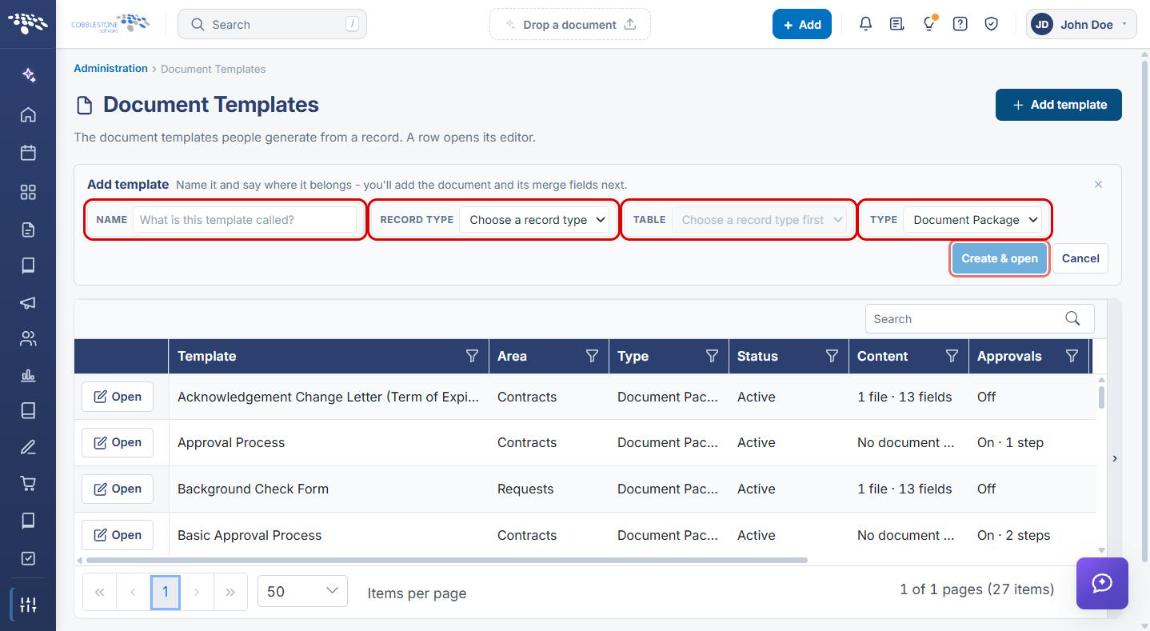
- + Add template — opens an inline form to name a new template and choose its Record Type, Table, and Type.
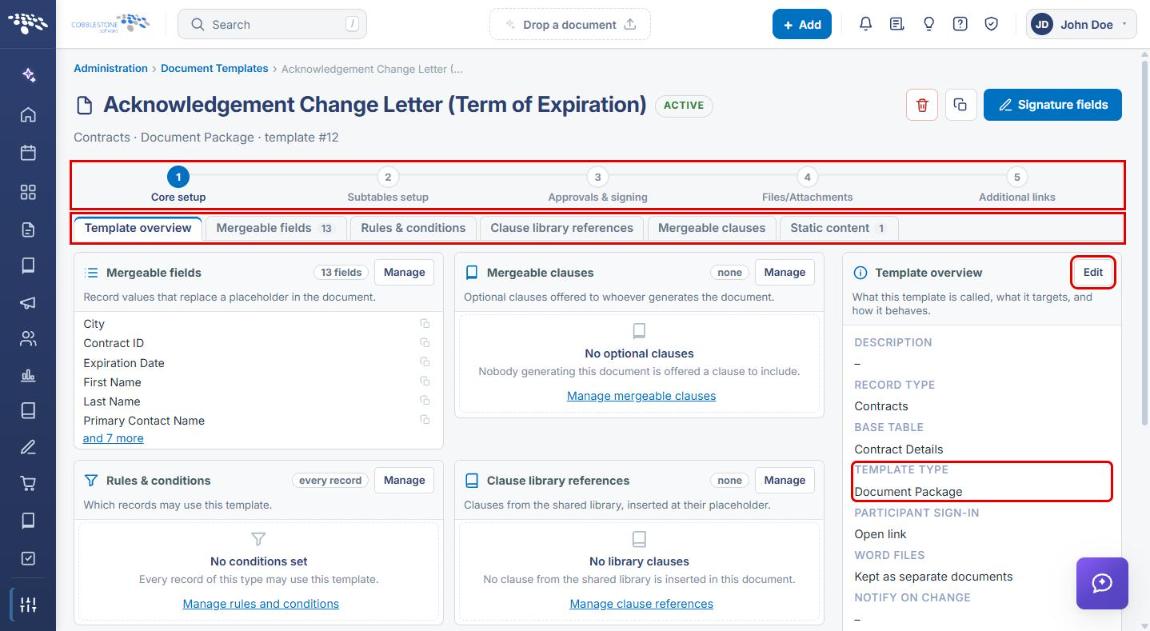
- 5-step editor — Core setup, Subtables setup, Approvals & signing, Files/Attachments, and Additional links. Each step has its own set of tabs and its own topic elsewhere in this module.
3. Navigating to Document Templates
- From the Contract Insight homepage, click the Administration icon at the bottom of the left navigation bar.
- On the Administration page, scroll to Templates & Presentation (or type Document Templates in the Search administration box) and click Document Templates.
.jpg)
4. Using the Document Templates List
The Document Templates page lists every merge template in the system. From here you can:
- Type in the Search box to find a template by name.
- Use the Type column (and its filter icon) to tell Document Package templates from Third Party Paper templates. The Area, Status, Content, and Approvals columns can be filtered the same way.
- Click Open on a row to open that template's editor (see Section 6).
- Click + Add template to create a new template (see Section 5).
.jpg)
5. Adding a Template
- Navigate to Administration → Document Templates (see Section 3) and click + Add template.
- In the Add template panel, enter a Name for the template.
- Select the Record Type the template merges from (for example, Contracts, Purchase Orders, or Requests).
- Select the Table. This list fills in after a Record Type is chosen.
- Select the Type: Document Package or Third Party Paper.
- Click Create & open. The new template opens in the editor on Core setup, where you add the document and its merge fields. Click Cancel to close the panel without creating a template.
6. Understanding the Template Editor
- From the Document Templates list, click Open on the template you want to work with.
- Use the step bar across the top to move between the five steps: Core setup, Subtables setup, Approvals & signing, Files/Attachments, and Additional links.
- Use the tabs under the step bar to move between the areas of the current step. On Core setup these are Template overview, Mergeable fields, Rules & conditions, Clause library references, Mergeable clauses, and Static content.
- On the Template overview tab, the Template overview card shows the template's Description, Record Type, Base Table, Template Type, and other settings. Click Edit to change them.
7. Quick Reference Summary
| Task | How to Complete It |
|---|---|
| Open Document Templates | Administration → Templates & Presentation → Document Templates. |
| Find a template | Type in the Search box, or filter the Area, Type, or Status column. |
| Add a template | + Add template → enter a Name, choose Record Type, Table, and Type → Create & open. |
| Open a template's editor | Click Open on the template's row. |
| Move between editor steps | Click a step in the step bar: Core setup, Subtables setup, Approvals & signing, Files/Attachments, Additional links. |
| Check or change a template's Type | Core setup → Template overview tab → Template overview card → Edit. |