COBBLESTONE SOFTWARE
Contract Insight — User Guide
Mergeable Content & Attachments
Document Templates Management › Manage Document Package Template › Mergeable Content & Attachments
Note: Each procedure in this guide begins at the Contract Insight homepage, so any section can be followed on its own. Custom fields are configurable, so the exact field list on a contract category record may vary between environments.
1. Overview
A template's Files/Attachments step (step 4 of the template editor) manages its document files: "Files merge in the order shown; drag a row by its handle to change it. Each file keeps a version history; the published version is the one a merge actually uses." The Add file button adds Word or PDF files, and the grid tracks the Published version, Type, Notes, Versions, Rules, and Flags (e.g. TOC) for each file. Each row has a Versions drawer for uploading and reviewing versions, and a More actions menu that opens the file's settings.
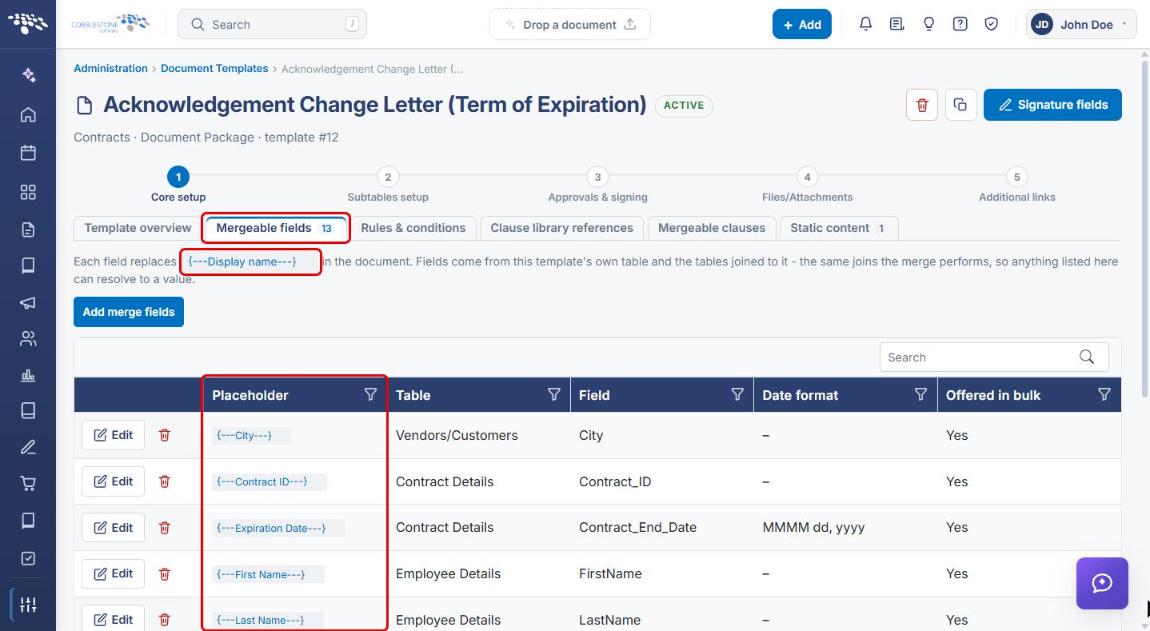
The mergeable content itself is written into the Word file as placeholder tokens. Database fields use {---Display name---} tokens from the Mergeable fields tab (see Select Mergeable Fields), the live equivalent of the legacy {---Placeholder---} syntax. Mergeable clauses, clause library references, and static content use their own {--rmc--}, {--rcl--}, and {--stc--} tokens.
2. Key Elements
- Files/Attachments step: step 4 of the template editor; lists every document file the template merges, in sequence order.
- Add file: opens a drop zone for one or more Word or PDF files. Each new file is added at the end of the merge order, published, and named after the file.
- Row tools: drag handle (reorder), Versions, More actions (⋮), Rules and conditions, signature-field placement, and Preview published version.
- Versions drawer: upload a new version, then download, preview, edit, or publish any version. Only the published version is used in a merge.
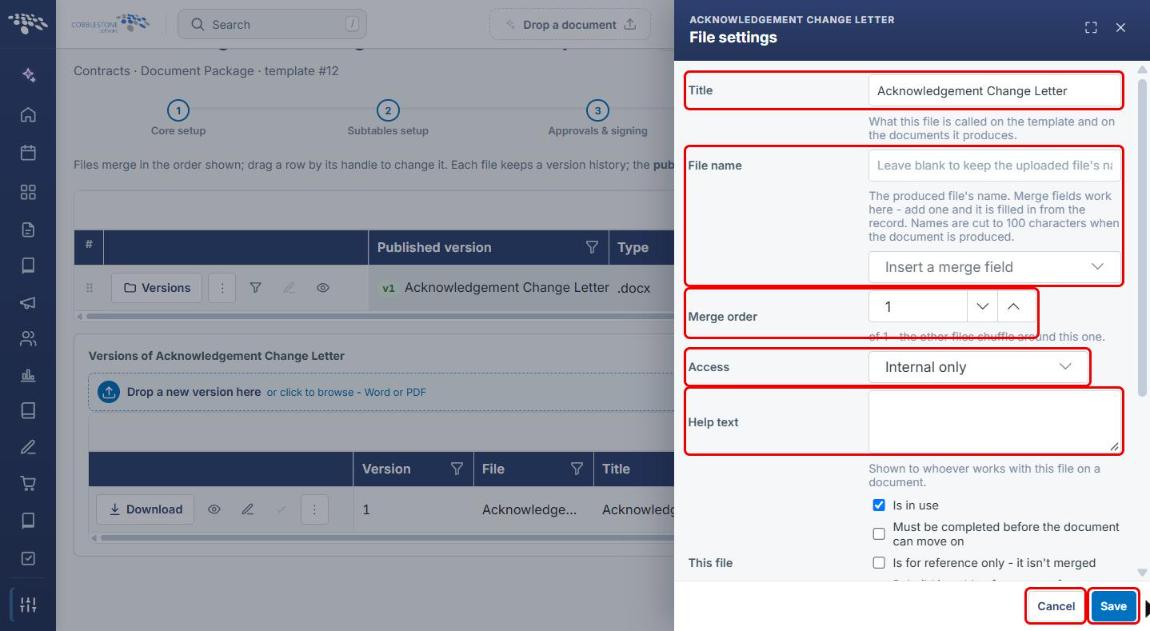
- File settings: Title, File name, Merge order, Access, Help text, file options, Password, and Protection.
- Placeholder tokens: {---Display name---} for mergeable fields, {--rmc--Display name--rmc--} for mergeable clauses, {--rcl--Display name--rcl--} for clause library references, and {--stc--Name--stc--} for static content.
3. Opening a Template's Files/Attachments Step
- From the Contract Insight homepage, click the Administration icon at the bottom of the left navigation bar.
- Search for or click Document Templates.
- Click Open on the template you want to work with (see Template Overview).
- In the wizard at the top of the template editor, click step 4 Files/Attachments.
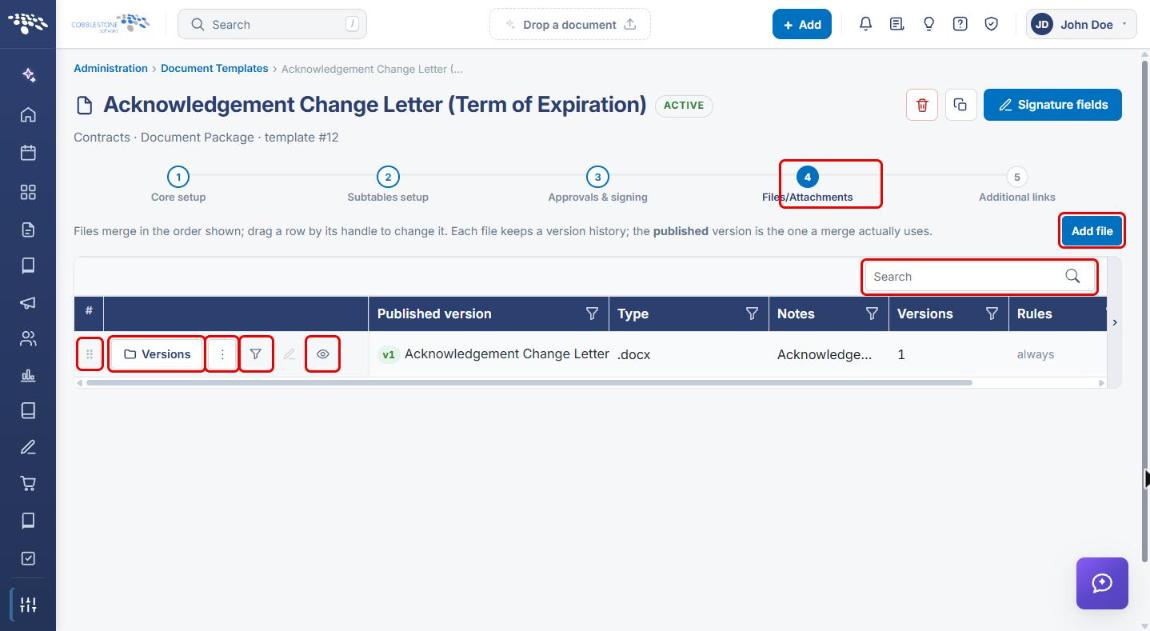
The grid lists each document file with its row tools, Published version, Type, Notes, Versions, Rules, and Flags. Use the Search box to find a file on templates with many attachments.
4. Adding a Document File
- Open the template's Files/Attachments step (see Section 3).
- Click Add file.
- In the Add a document to this template panel, drag one or more Word or PDF files onto the drop zone, or click Browse to select them.
- To close the panel without adding a file, click the X.
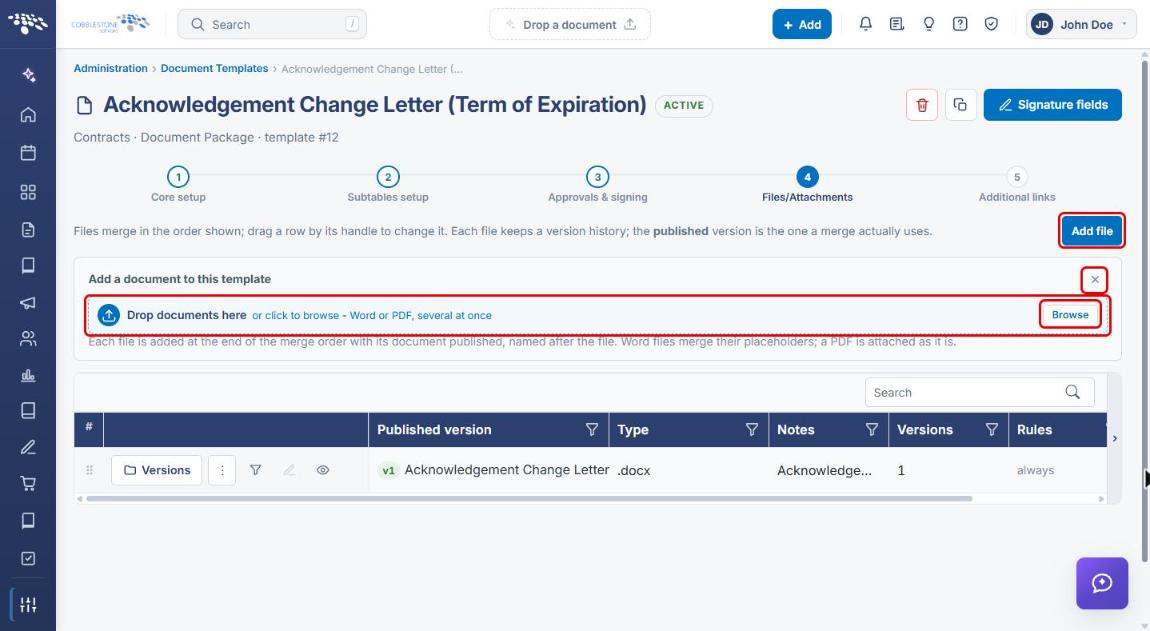
Note: Each file is added at the end of the merge order with its document published, named after the file. Word files merge their placeholders; a PDF is attached as it is.
5. Managing File Versions
- On the Files/Attachments step, click Versions on the file's row.
- The Versions of [file] drawer opens below the grid, listing each version's Version number, File, Title, State, Size, Uploaded by, and When.
- To add a new version, drop a Word or PDF file on Drop a new version here, or click Browse.
- Use the tools on a version's row to work with it (see the table below).
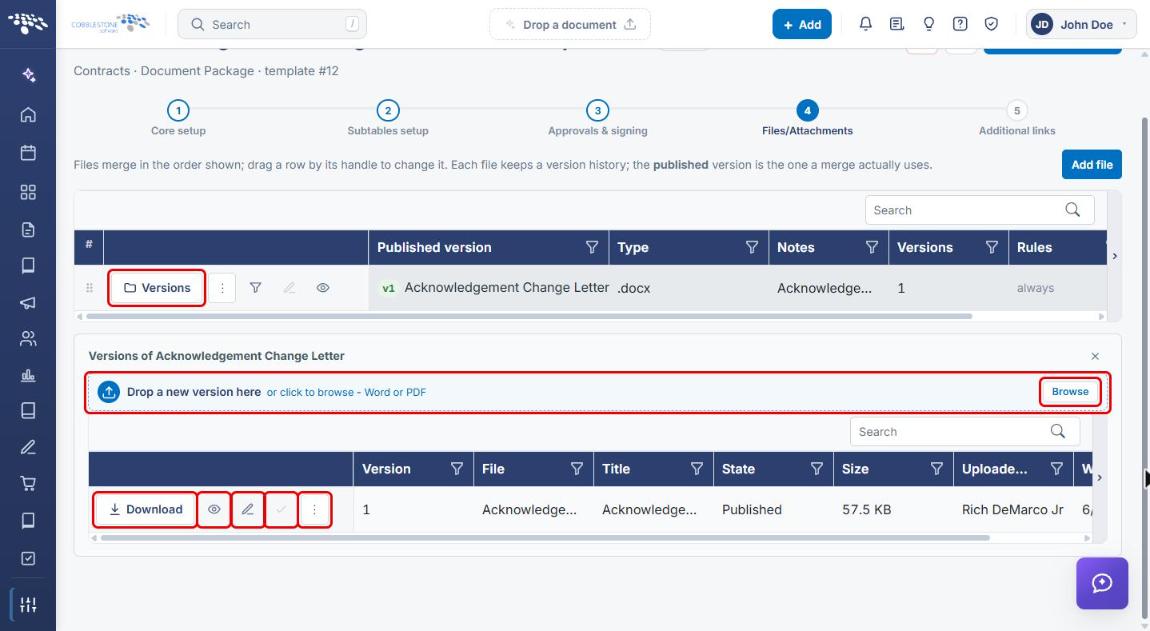
| Tool | What it does |
|---|---|
| Download | Downloads that version of the file. |
| Preview (eye icon) | Previews that version. |
| Edit (pencil icon) | Edits the file to create a new version. |
| Publish (check icon) | Makes that version the published version used by merges. Disabled for the version that is already published. |
| More actions (⋮) | Additional actions for that version. |
6. Changing a File's Settings
6a. Opening the File Settings
- On the Files/Attachments step, click More actions (⋮) on the file's row.
- Select Manage this file's information.
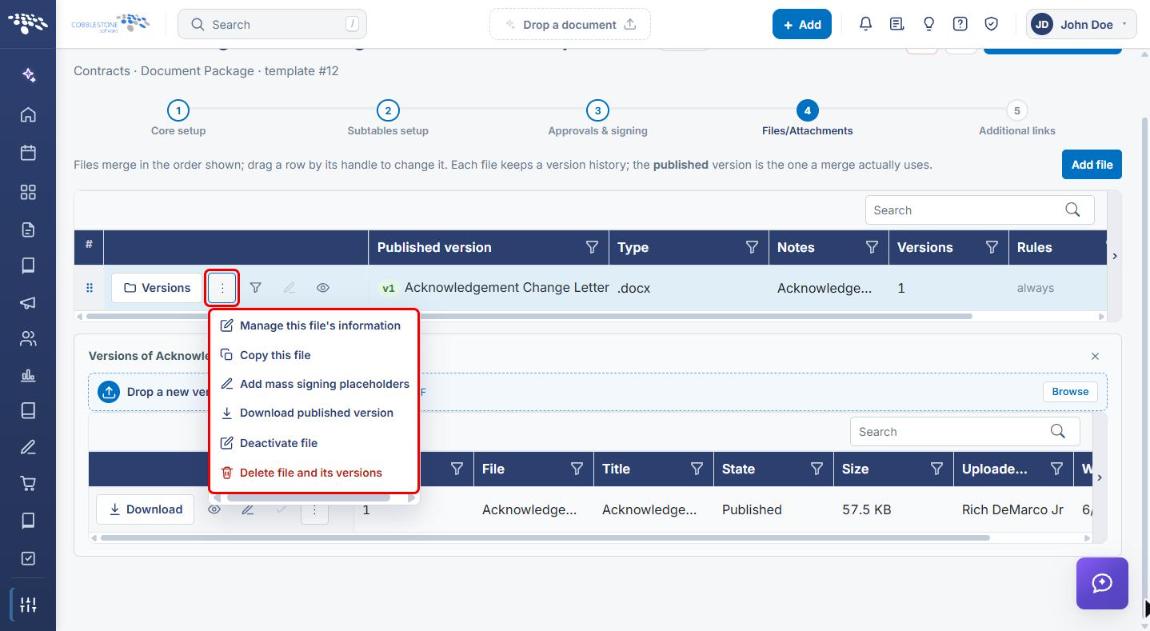
The More actions menu also lets you Copy this file, Add mass signing placeholders, Download published version, Deactivate file, or Delete file and its versions.
6b. Completing the File Settings
- In the File settings panel, update the Title: what this file is called on the template and on the documents it produces.
- Optionally enter a File name for the produced file. Leave it blank to keep the uploaded file's name, or use Insert a merge field to fill part of the name from the record.
- Set the Merge order with the arrows or by typing a number. The other files shuffle around this one.
- Choose who can see the file in Access (for example, Internal only).
- Enter any Help text to show whoever works with this file on a document.
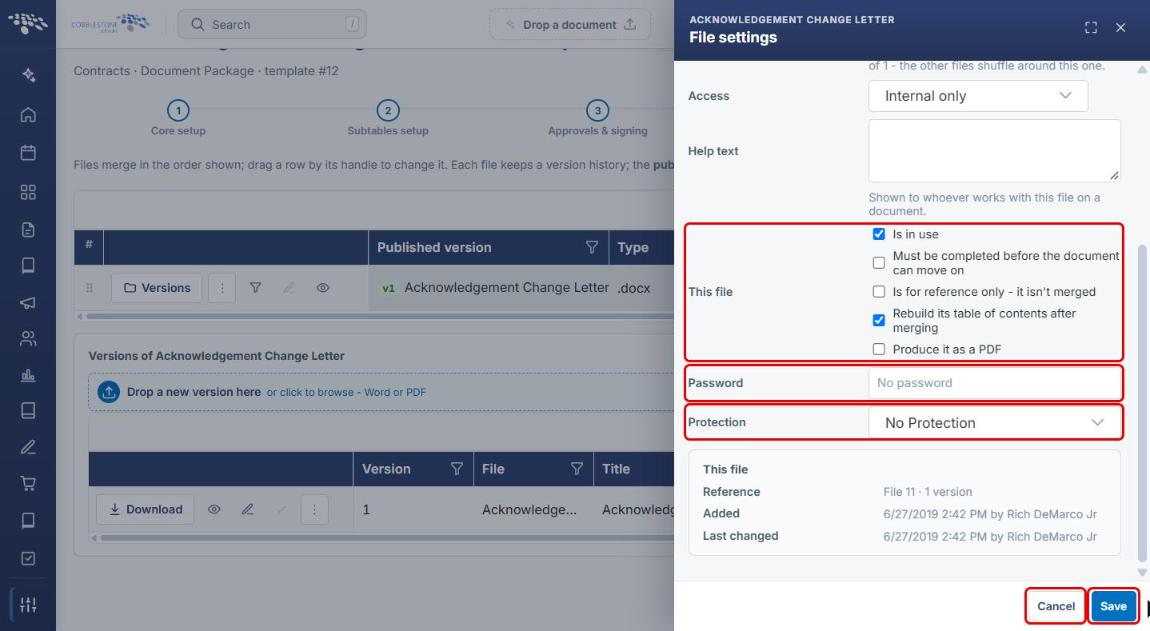
- Scroll down and select the options that apply under This file (see the table below).
- Optionally enter a Password and choose a Protection level for the produced file.
- Click Save to apply your changes, or Cancel to close the panel without saving.
| Option | Description |
|---|---|
| Is in use | The file is included when the template is generated. |
| Must be completed before the document can move on | The file must be completed before the generated document can move to its next step. |
| Is for reference only - it isn't merged | The file is attached for reference and its placeholders are not merged. |
| Rebuild its table of contents after merging | Updates the file's table of contents after the merge (shown as the TOC flag in the grid). |
| Produce it as a PDF | The merged file is produced as a PDF. |
Note: The bottom of the File settings panel shows the file's Reference number, version count, and who added and last changed it.
6c. Changing the Merge Order
Files merge in the order shown in the grid. To change the order, either drag a row by its handle (⠿) on the Files/Attachments step, or change Merge order in the file's settings (see Section 6b).
7. Placeholder Tokens
Mergeable content is placed in a Word file by typing the token where the value should appear. The token for each mergeable field is shown in the Placeholder column of the template's Mergeable fields tab (step 1, Core setup).
- Open the template and click step 1 Core setup.
- Click the Mergeable fields tab.
- Copy the token from the Placeholder column into the Word file, then upload the file as a new version (see Section 5).
| Content type | Token format | Where it's managed |
|---|---|---|
| Mergeable field | {---Display name---} | Mergeable fields tab |
| Mergeable clause (optional) | {--rmc--Display name--rmc--} | Mergeable clauses tab |
| Clause library reference | {--rcl--Display name--rcl--} | Clause library references tab |
| Static content (text or merge date) | {--stc--Name--stc--} | Static content tab |
8. Quick Reference Summary
| Task | Where / How |
|---|---|
| Open a template's files | Administration → Document Templates → Open → step 4 Files/Attachments |
| Add a document file | Add file → drop files or Browse (Word or PDF) |
| Upload a new version | Versions → Drop a new version here or Browse |
| Publish a version | Versions → check icon on the version's row |
| Edit a file's title, name, access, or options | More actions (⋮) → Manage this file's information → Save |
| Change merge order | Drag the row handle, or set Merge order in File settings |
| Preview the published file | Eye icon on the file's row |
| Find a placeholder token | Step 1 Core setup → Mergeable fields tab → Placeholder column |