COBBLESTONE SOFTWARE
Contract Insight — User Guide
Surveys & Questionnaires
Module: Vendor/Client Gateway › Users: Using the Vendor/Client Gateway › Surveys & Questionnaires
Note: Each procedure in this guide begins at the Contract Insight homepage, so any section can be followed on its own. Custom fields are configurable, so the exact field list on a contract category record may vary between environments.
1. Overview
Surveys & Questionnaires, as a category, is represented in the live application by the Surveys item in the main left navigation, which expands to five tools: Survey Templates (reusable survey definitions scoped by "For Area"), Question Library (a shared bank of reusable questions), Bulk Surveys (assigning one survey across many records at once), Survey Results (every survey instance actually attached to records, with response tracking), and Decision Matrices (branching question trees with their own Designer and a "Try it out" preview mode). Individual records elsewhere in the application connect back into this module via a per-record Surveys tab and an "Attach Survey" action. Together these tools cover the full lifecycle described in the legacy wiki's category: building reusable question content, assembling it into a survey, attaching that survey to one or many records, assigning/tracking respondents, and reviewing collected responses and scores.
2. Key Elements
- The Surveys left-navigation item is the live home for this entire category, expanding to Survey Templates, Question Library, Bulk Surveys, Survey Results, and Decision Matrices.
- Survey Templates and Question Library together cover building reusable survey content: templates define the survey (scoped to a For Area), while the Question Library supplies reusable questions.
- Bulk Surveys and each record's own Attach Survey action cover getting a survey onto records, whether one at a time or across a large batch.
- Survey Results is where collected responses are reviewed, per record and per respondent, with optional score visibility.
- Decision Matrices is a related but distinct concept — branching question trees with their own Designer and a non-recording "Try it out" preview mode — grouped under the same Surveys navigation area.
3. Opening the Surveys Menu
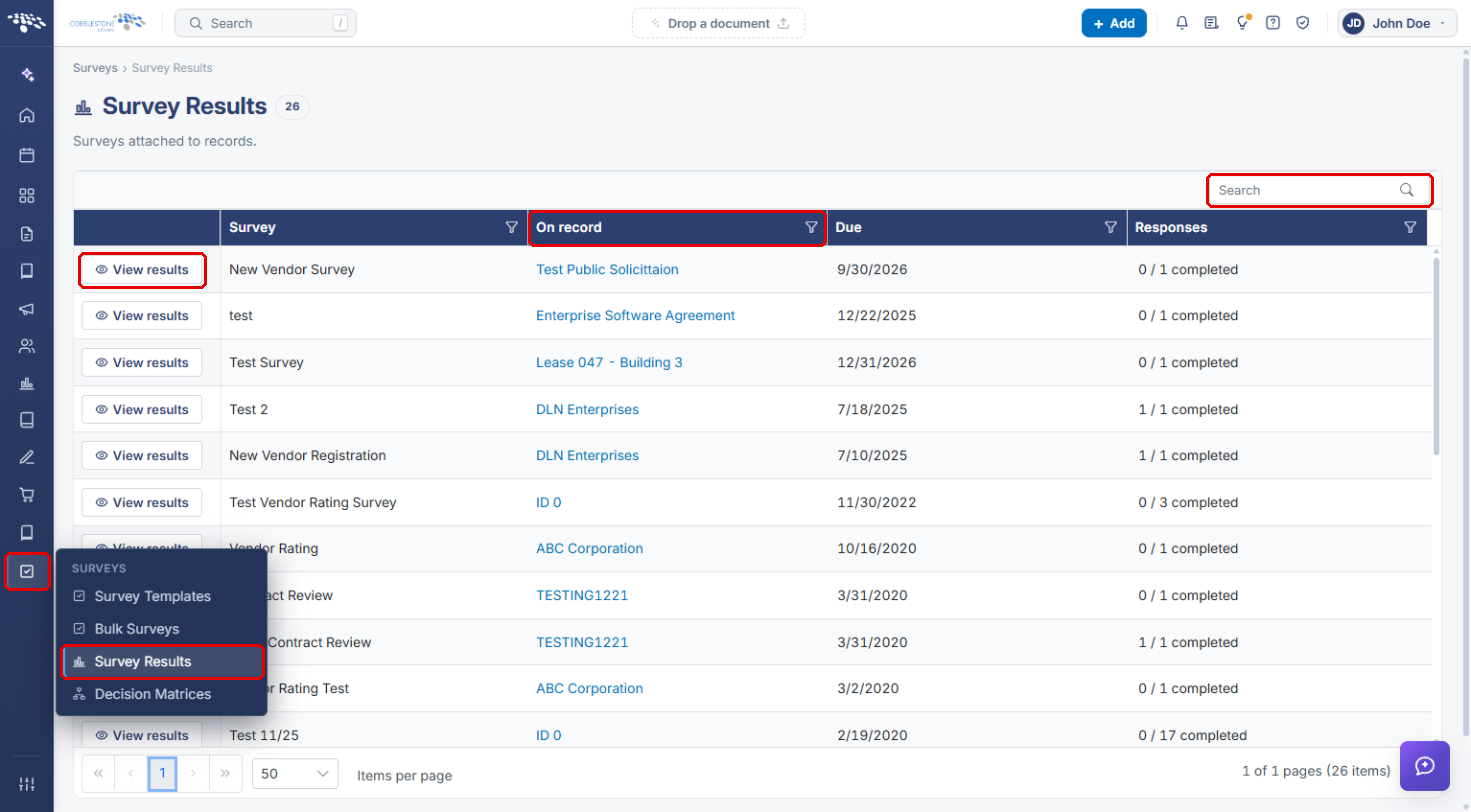
- From the Contract Insight homepage, click the Surveys icon in the left navigation bar.
- Select the tool you need: Survey Templates, Bulk Surveys, Survey Results or Decision Matrices.
.png)
Note: In the current build the Question Library is not a separate menu item. It opens from inside the Survey Builder with Add from library (see Section 4d).
4. Building a Survey Template
4a. Finding or Adding a Template
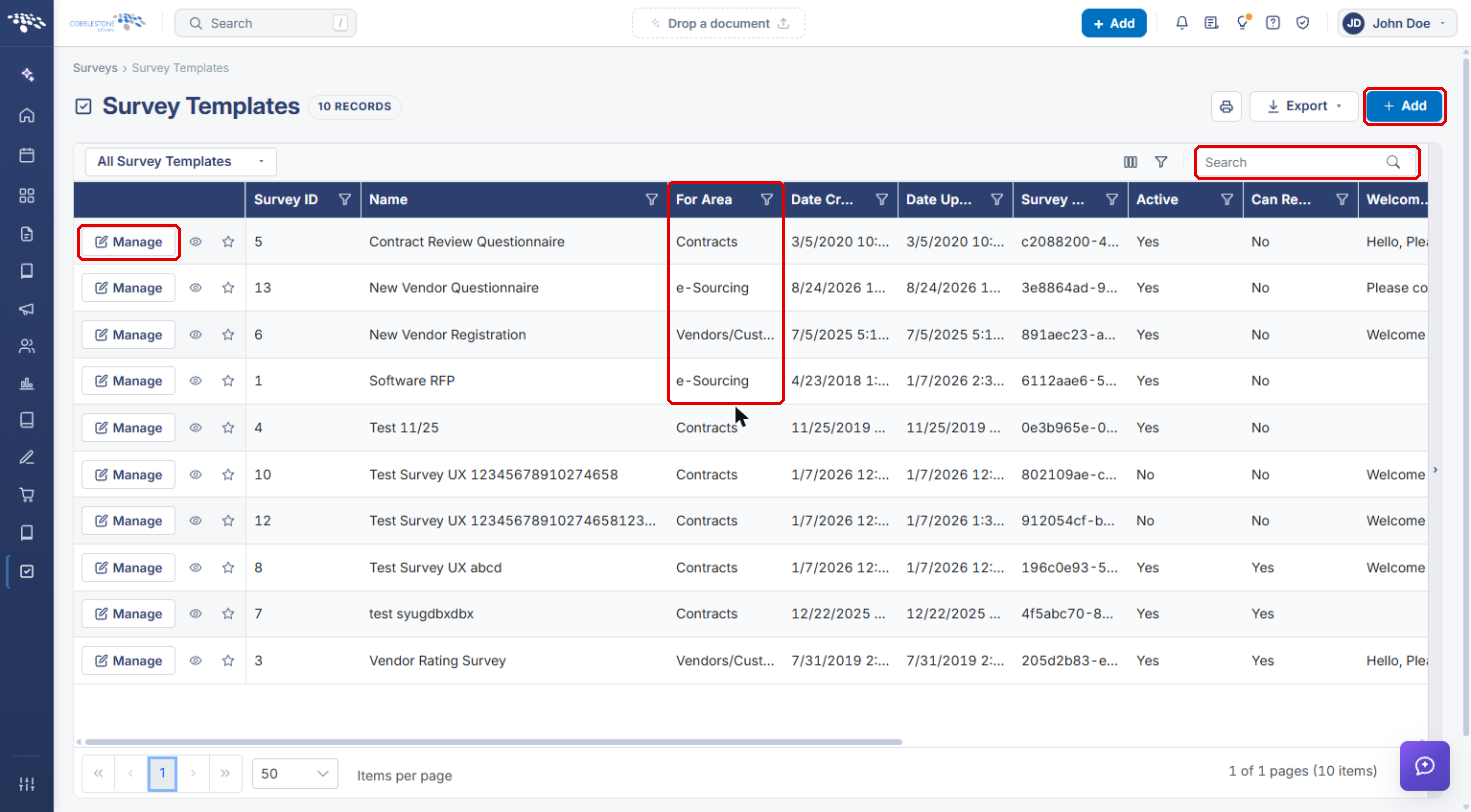
- Open Surveys → Survey Templates.
- Use Search to find a template, or check the For Area column to see which record type each template is built for.
- Click + Add to create a new template, or Manage to open an existing one.
4b. Reviewing the Template Settings
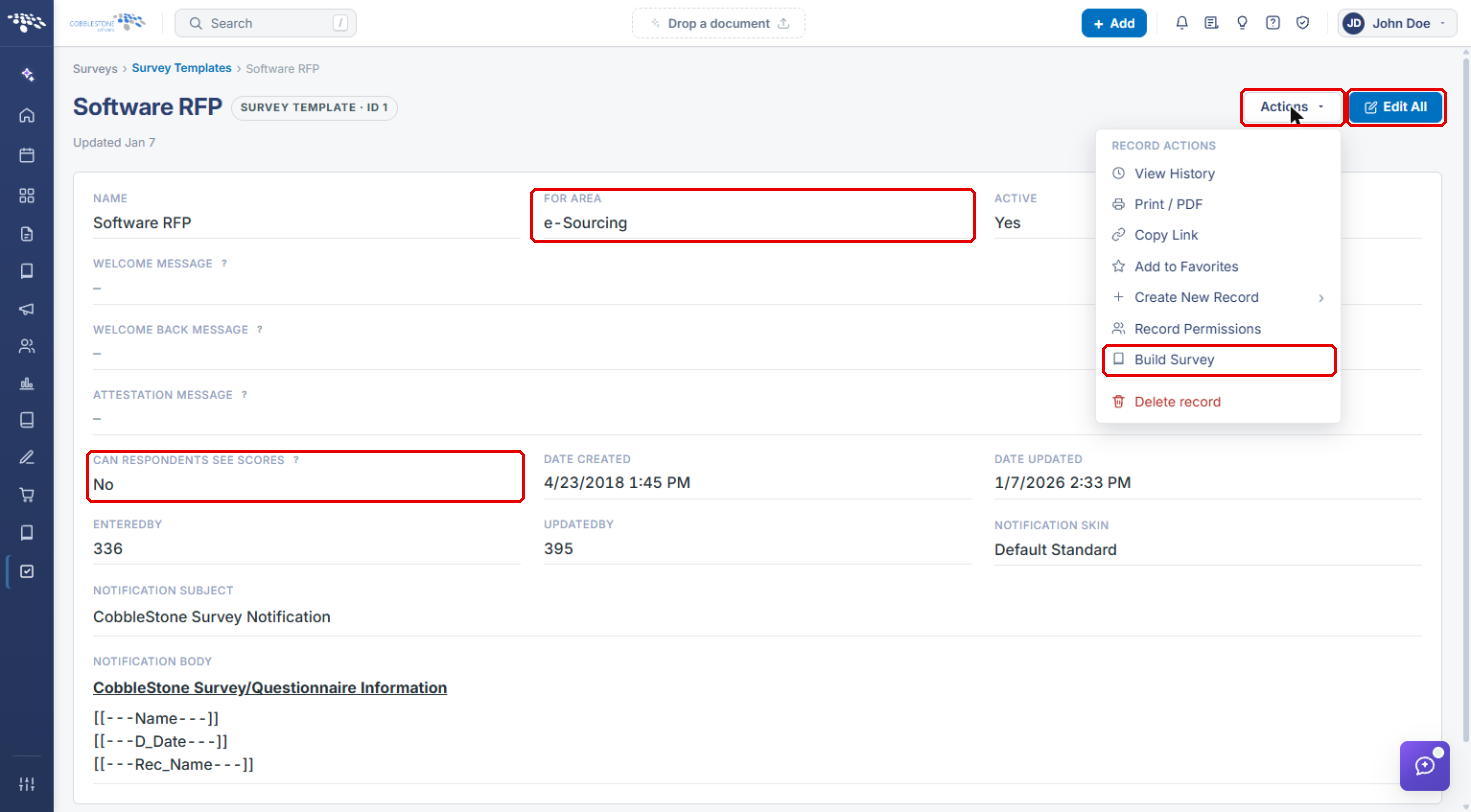
- The template record shows its Name, For Area and Active status, the welcome and attestation messages, Can Respondents See Scores, and the notification email settings.
- Click Edit All to change these settings.
- To work on the questions, click Actions and select Build Survey.
4c. Using the Survey Builder
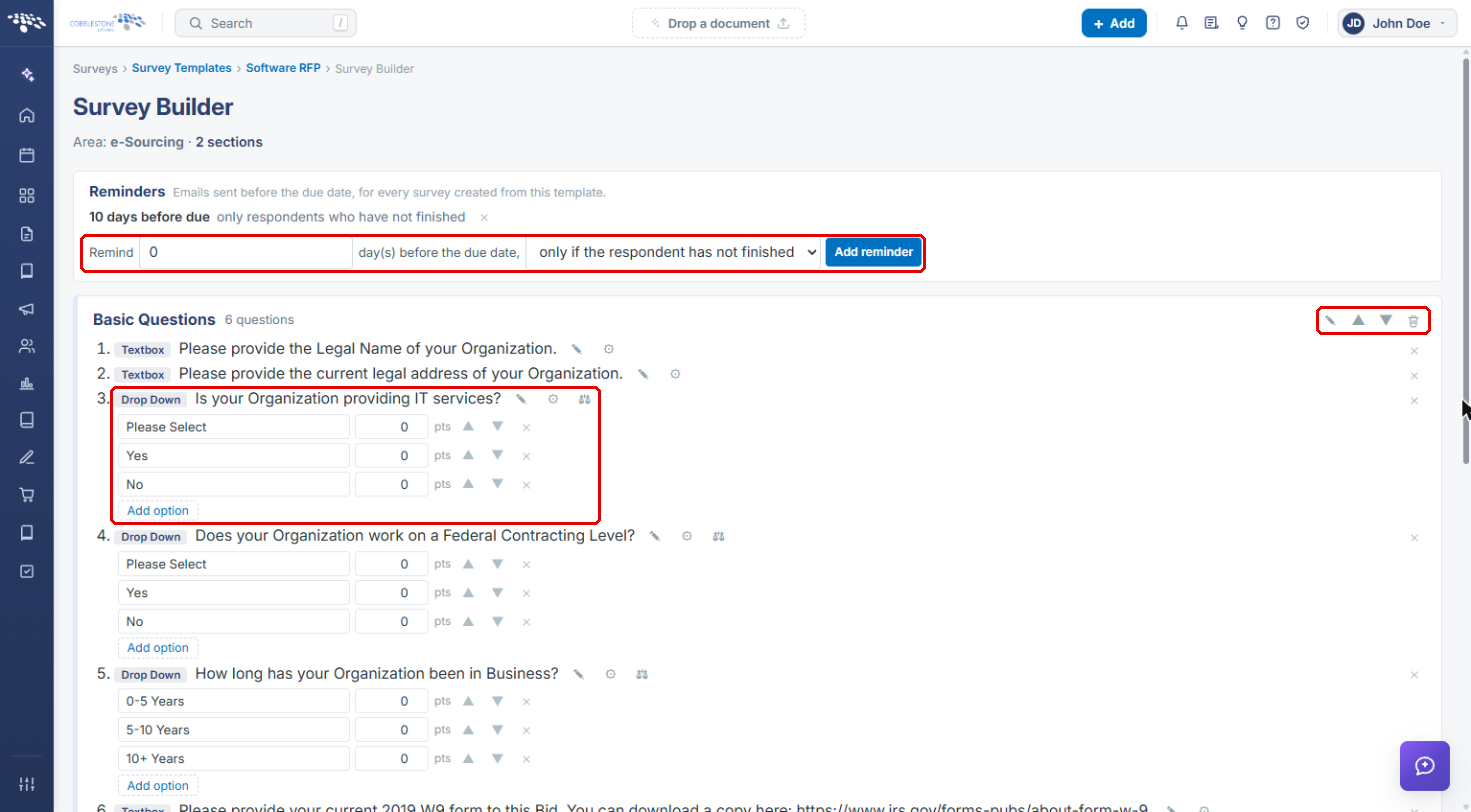
- In Reminders, enter the number of days before the due date, choose who receives the reminder, and click Add reminder. Reminders apply to every survey created from this template.
- Each section lists its questions. Use the section icons to rename, move up or down, or delete the section.
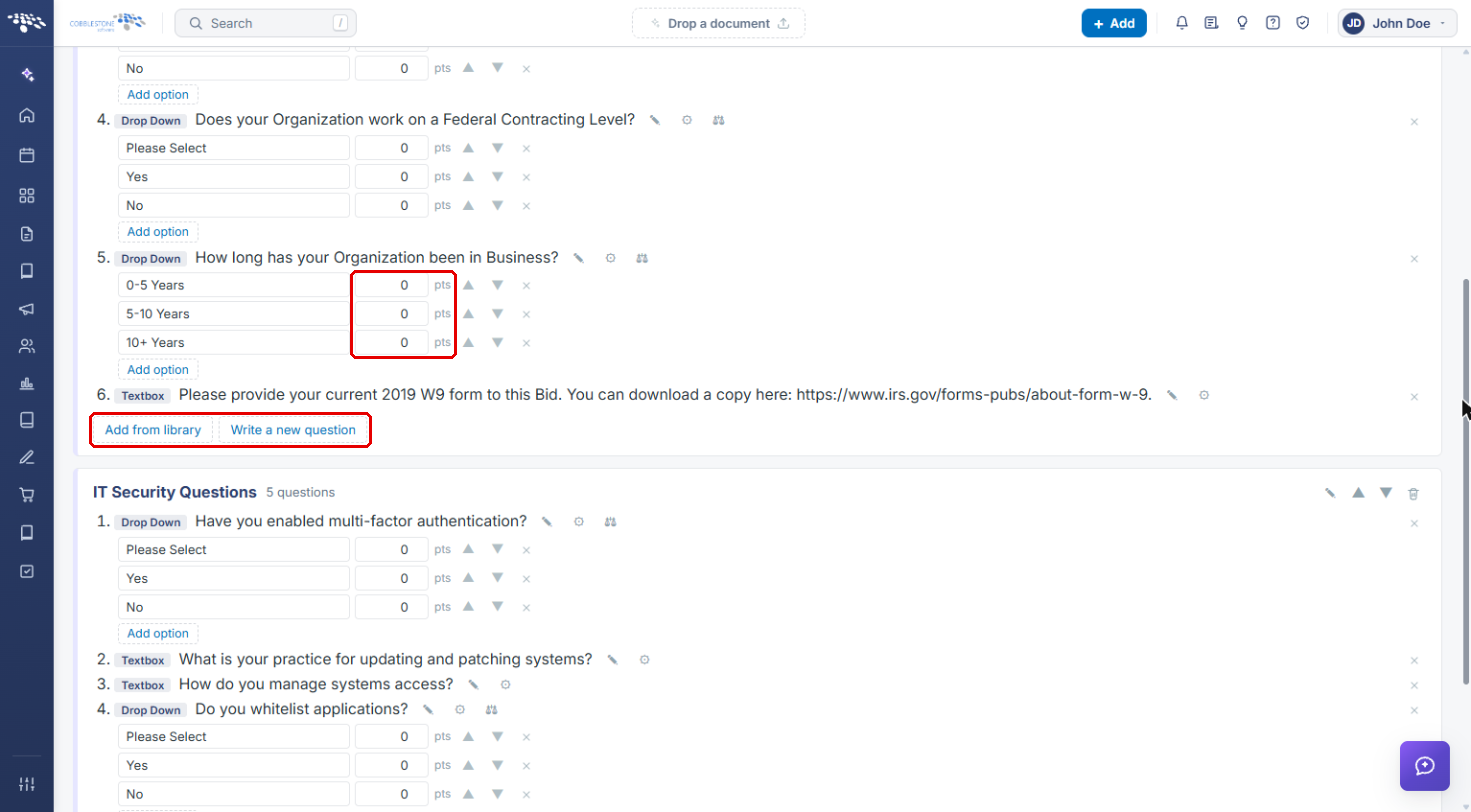
- For Drop Down and other choice questions, enter a pts value next to each option to score answers, and click Add option to add another choice.
4d. Adding Questions and Sections
- At the bottom of a section, click Add from library to reuse an existing question, or Write a new question to create one.
- Click Add Section at the bottom of the builder to start a new section.
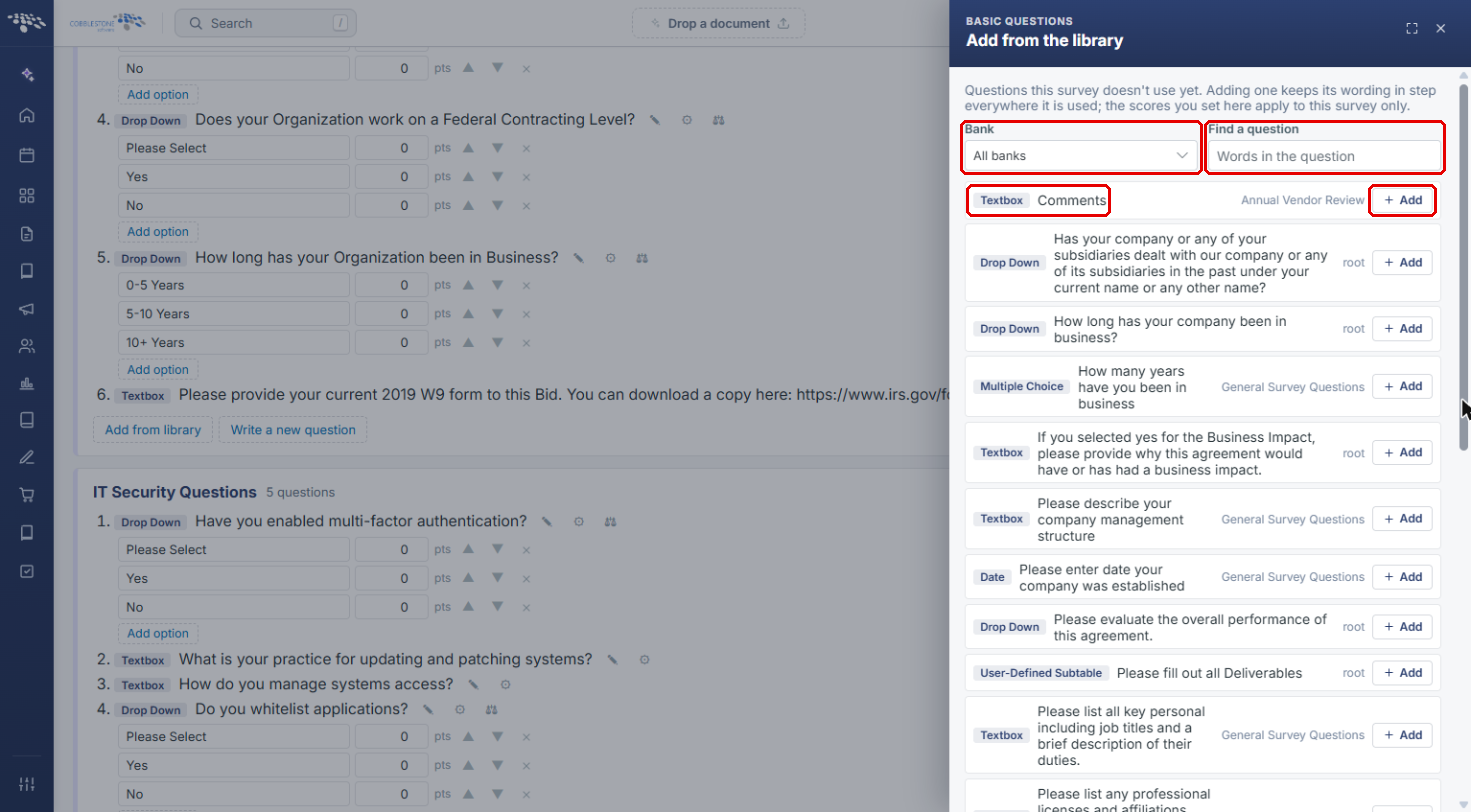
- In the Add from the library panel, filter by Bank or type in Find a question, then click + Add next to the question. Its wording stays in step everywhere it is used, while the scores you set apply only to this survey.
5. Attaching a Survey to a Single Record
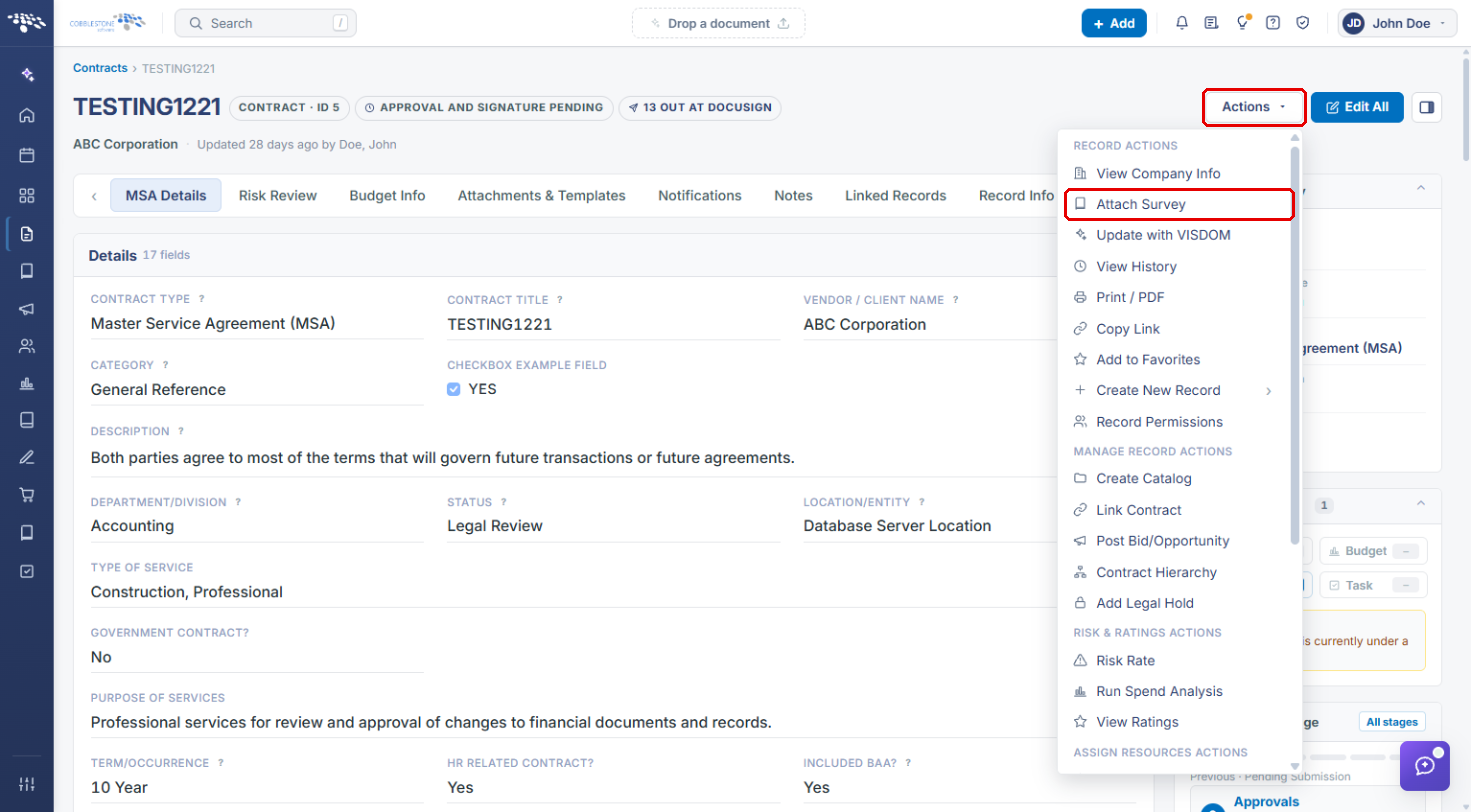
- Open the record (for example, a contract) and click Actions.
- Select Attach Survey.
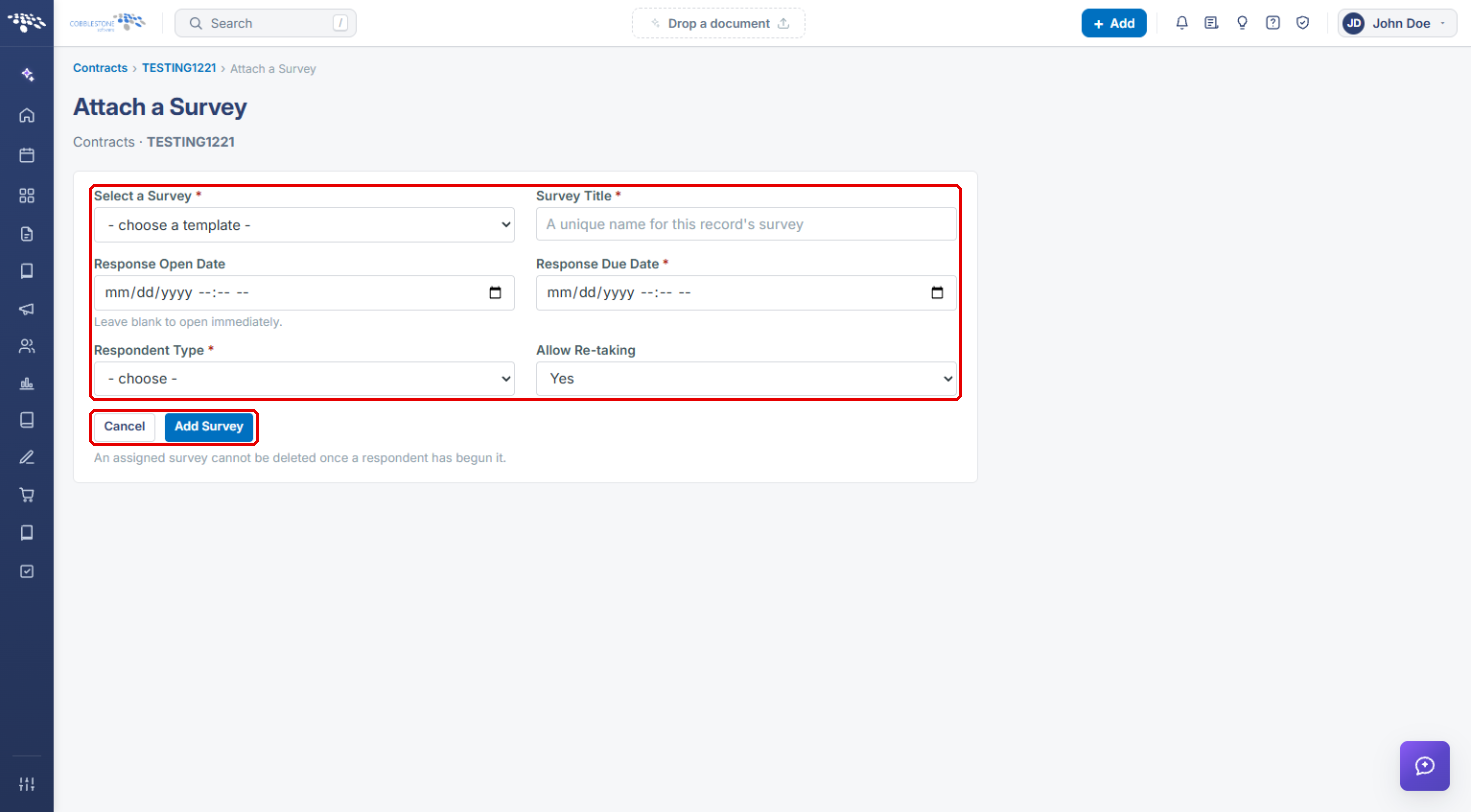
- In Select a Survey, choose the template and enter a unique Survey Title.
- Set the Response Open Date (leave blank to open immediately) and the Response Due Date.
- Choose the Respondent Type and whether to Allow Re-taking.
- Click Add Survey, or Cancel to leave without attaching.
Note: An assigned survey cannot be deleted once a respondent has begun it. On solicitations, surveys are attached from the Ratings & Surveys tab with + Add survey.
6. Sending a Survey to Many Records (Bulk Surveys)
- Open Surveys → Bulk Surveys. Each existing bulk survey shows its Completion count; click Dashboard to track it.
- Click + Add bulk survey to start a new one.
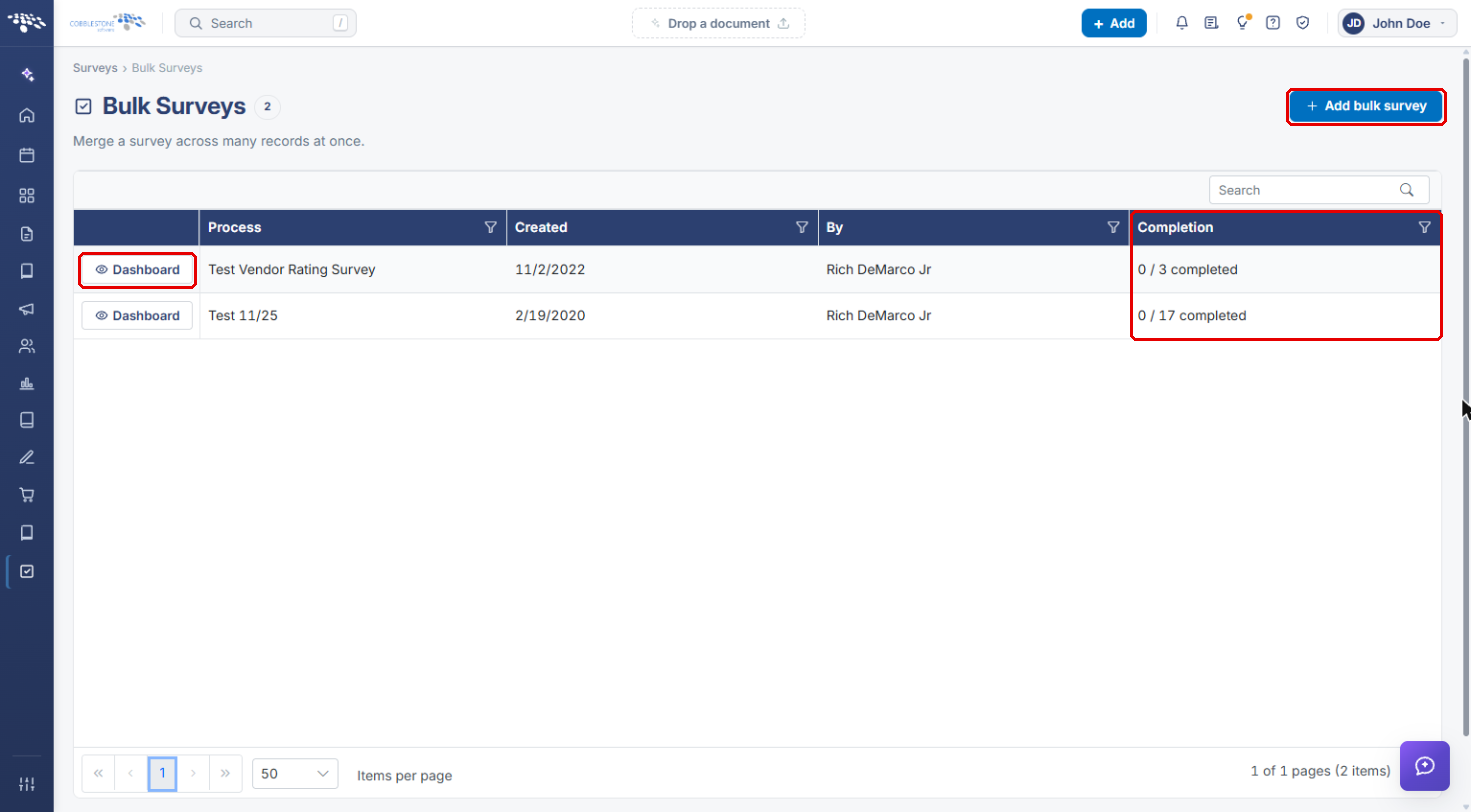
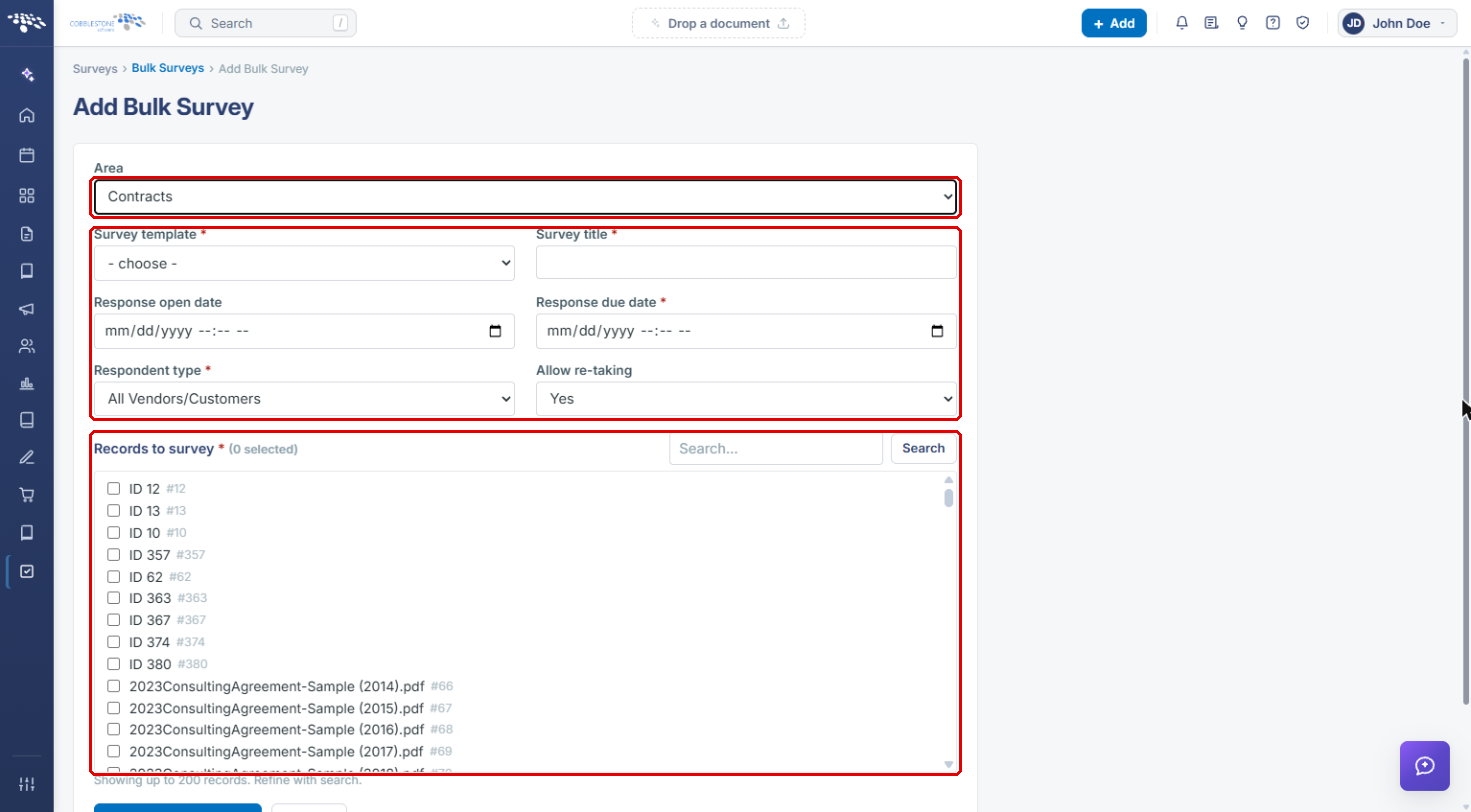
- Select the Area. The rest of the form appears once an area is chosen.
- Choose the Survey template, enter a Survey title, and set the open and due dates, Respondent type and Allow re-taking.
- Under Records to survey, search for and tick each record that should receive the survey.
- Click Create bulk survey.
7. Reviewing Survey Results
- Open Surveys → Survey Results. The list shows every survey attached to a record, with its On record link, due date and Responses count.
- Use Search to find a survey, then click View results.
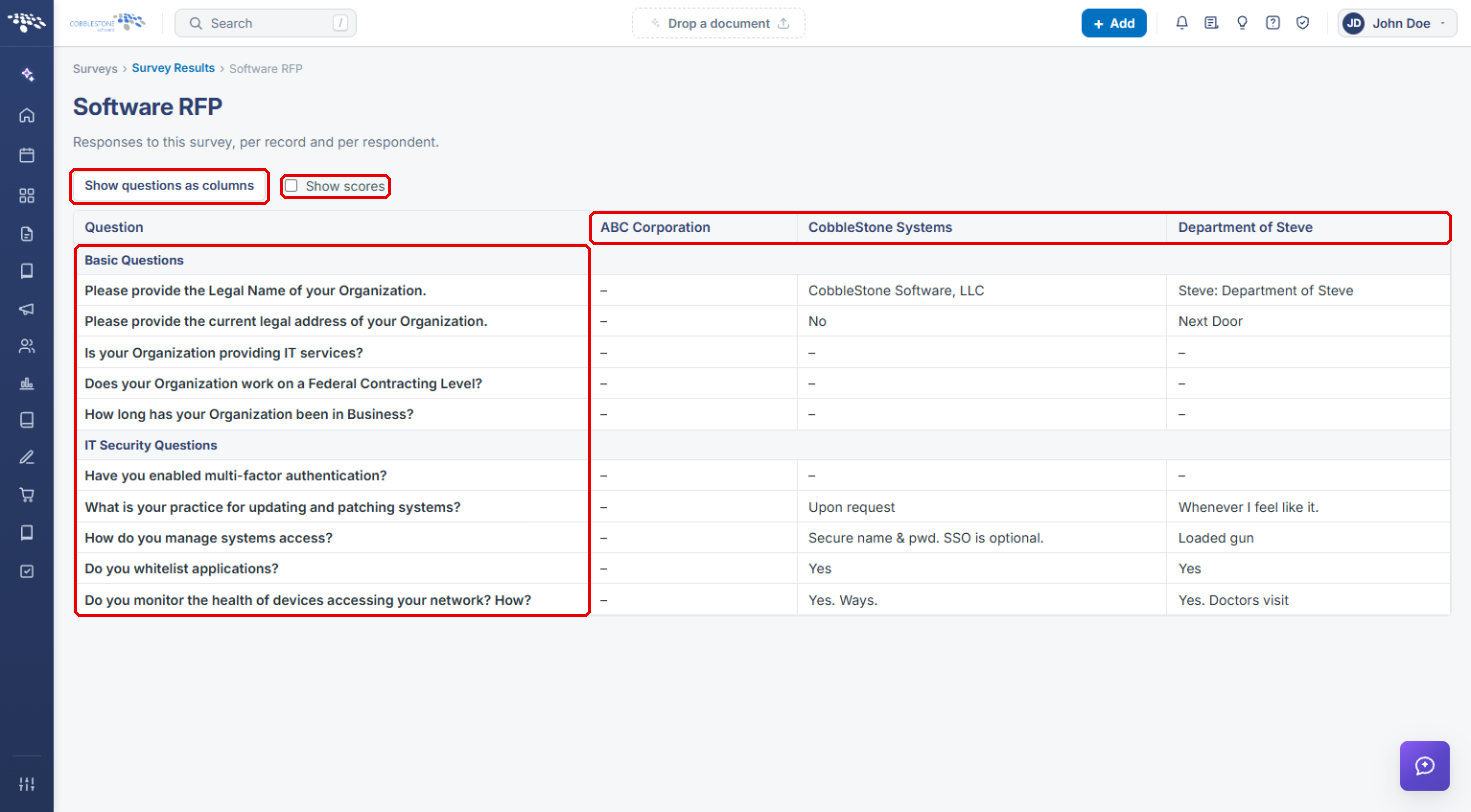
- The results screen shows one column per respondent and one row per question. Tick Show scores to add each answer's score, or click Show questions as columns to flip the grid.
8. Working with Decision Matrices
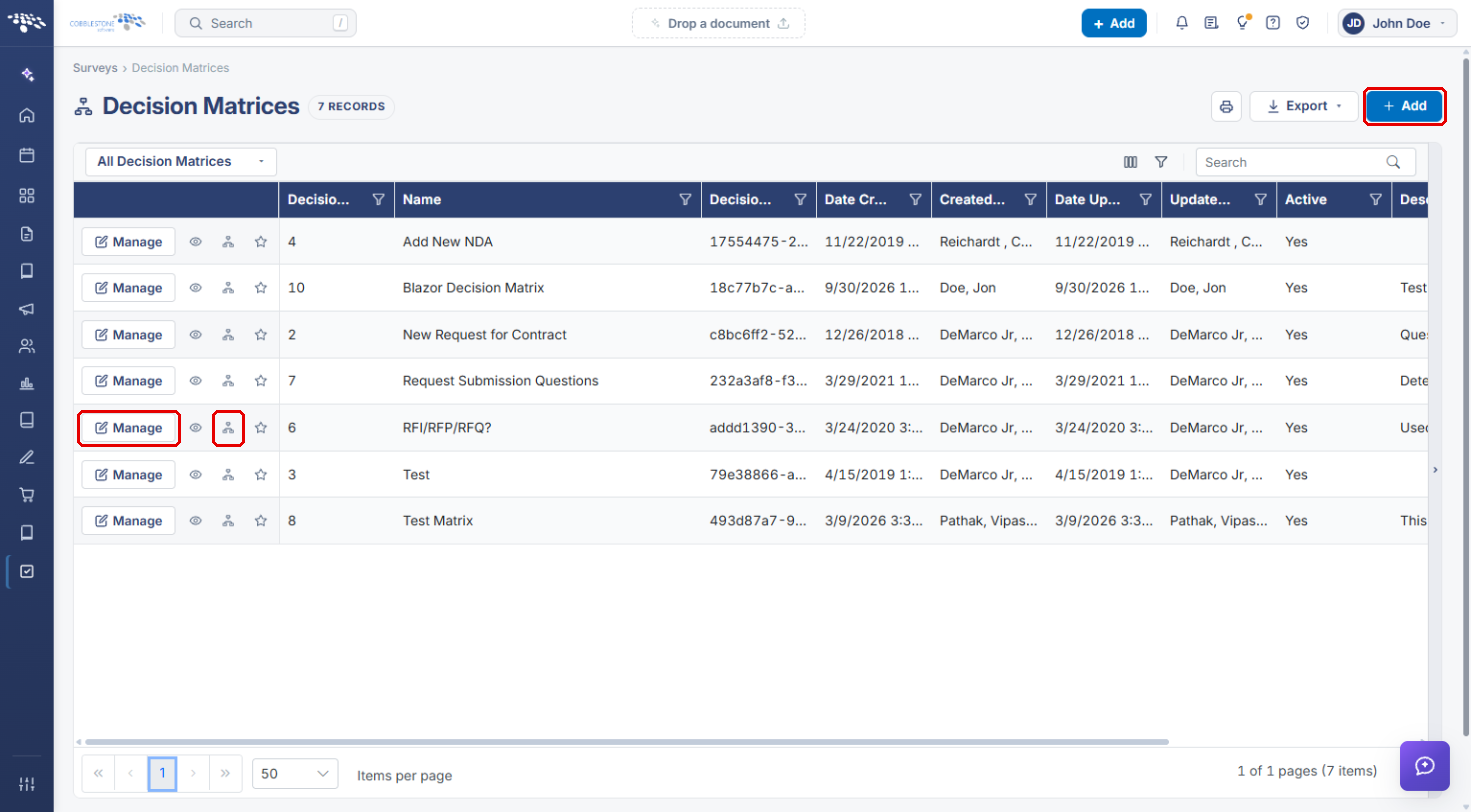
- Open Surveys → Decision Matrices.
- Click + Add to create a matrix, Manage to open its record, or the tree icon (Open the designer) to edit its questions.
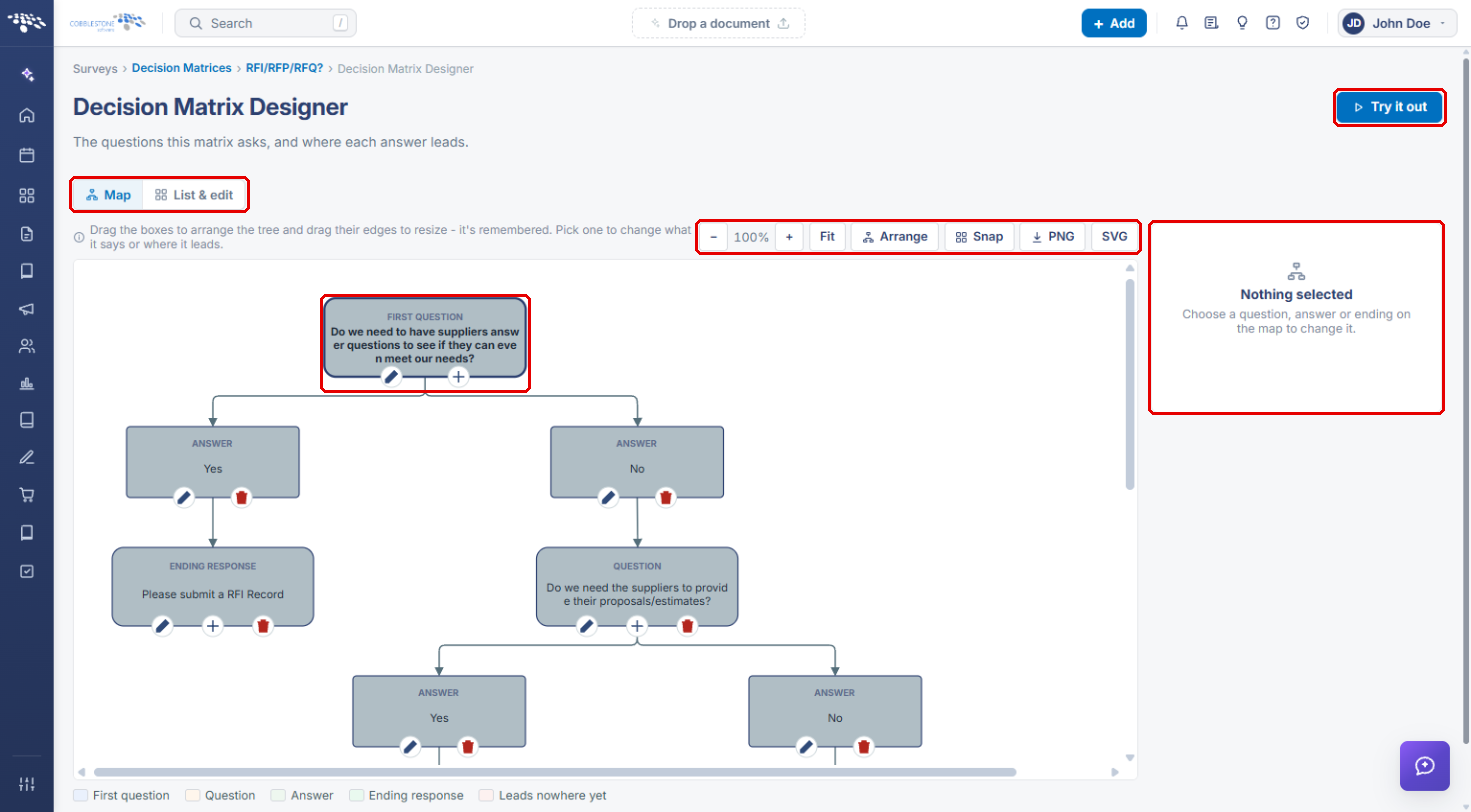
- In the Decision Matrix Designer, switch between the Map and List & edit views. Use the zoom, Fit, Arrange and Snap tools, or export the map as a PNG or SVG.
- Select a question, answer or ending on the map to change it in the panel on the right.
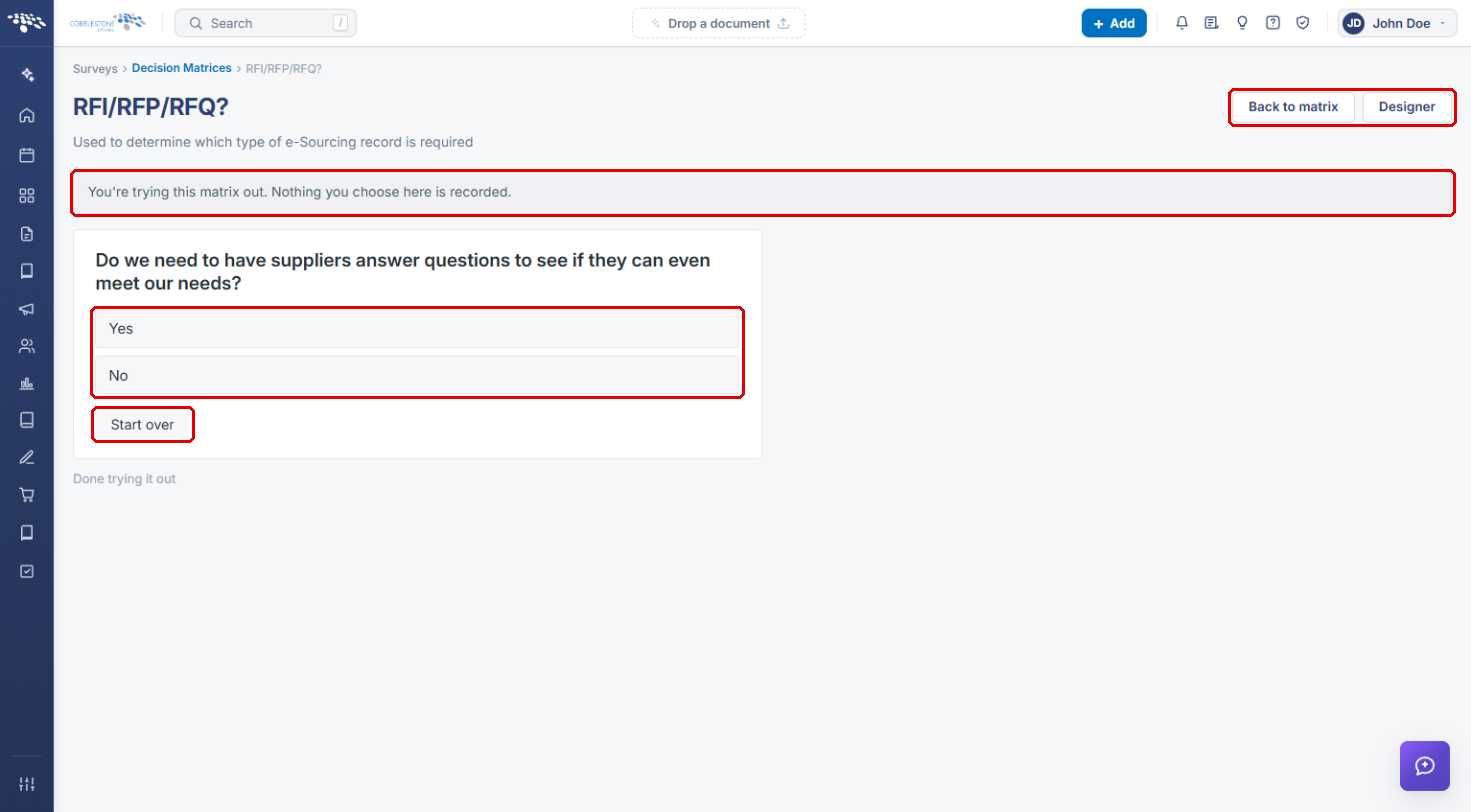
- Click Try it out to preview the matrix.
- In the preview, choose answers to walk through the tree. Nothing you choose is recorded. Click Start over to restart, or Back to matrix / Designer to leave the preview.