COBBLESTONE SOFTWARE
Contract Insight — User Guide
Contracts & Committals
Module: Vendor/Client Gateway › Users: Using the Vendor/Client Gateway › Contracts & Committals
Note: Each procedure in this guide begins at the Contract Insight homepage, so any section can be followed on its own. Custom fields are configurable, so the exact field list on a contract category record may vary between environments.
1. Overview
Taken together, the Gateway's Contracts experience is assembled from several separately-configured pieces: the gateway-side Contracts menu group for navigation, VCG Fields → Area: Contract Details for which fields show on a record, VCG Record tags → Area: Contracts for the header values, and the Access settings (Allow Viewing Linked Contracts, Allow Viewing and Adding of Files) for what's visible around it.
2. Key Elements
- Menu structure: gateway-side Contracts group (My Contracts) and the Find/Search Public Records group (All Public Contracts), set under Administration → Navigation Menu → Workspace: Vendor/Client Gateway.
- Field content: VCG Fields tab, Area: Contract Details, per record type. If no fields are chosen for a record type, the Gateway shows every field.
- Header values: VCG Record tags tab, Area: Contracts. Tags appear as labels under the contract title on the Gateway.
- Surrounding visibility: Allow Viewing Linked Contracts and the file-related Access settings on the VCG Settings tab.
- Changes on the Fields and Record tags tabs save as you make them; changes on the Settings tab need Save changes.
3. Navigating to the Vendor/Client Gateway Settings
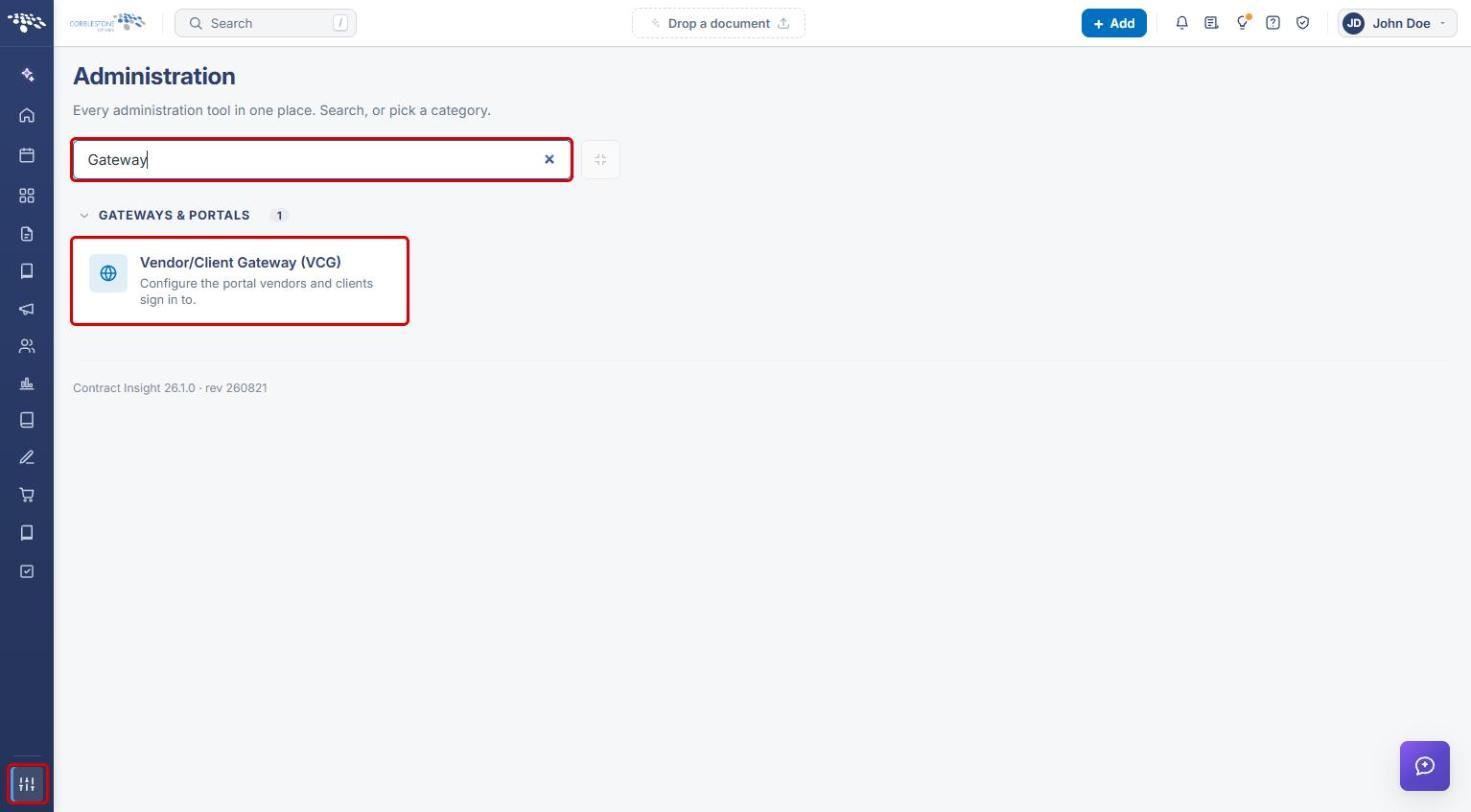
- From the Contract Insight homepage, click the Administration (settings) icon at the bottom of the left navigation bar.
- In the Search administration box, type Gateway.
- Click Vendor/Client Gateway (VCG).
4. Choosing Which Contract Fields Appear on the Gateway
4a. Selecting the Contract Details Area
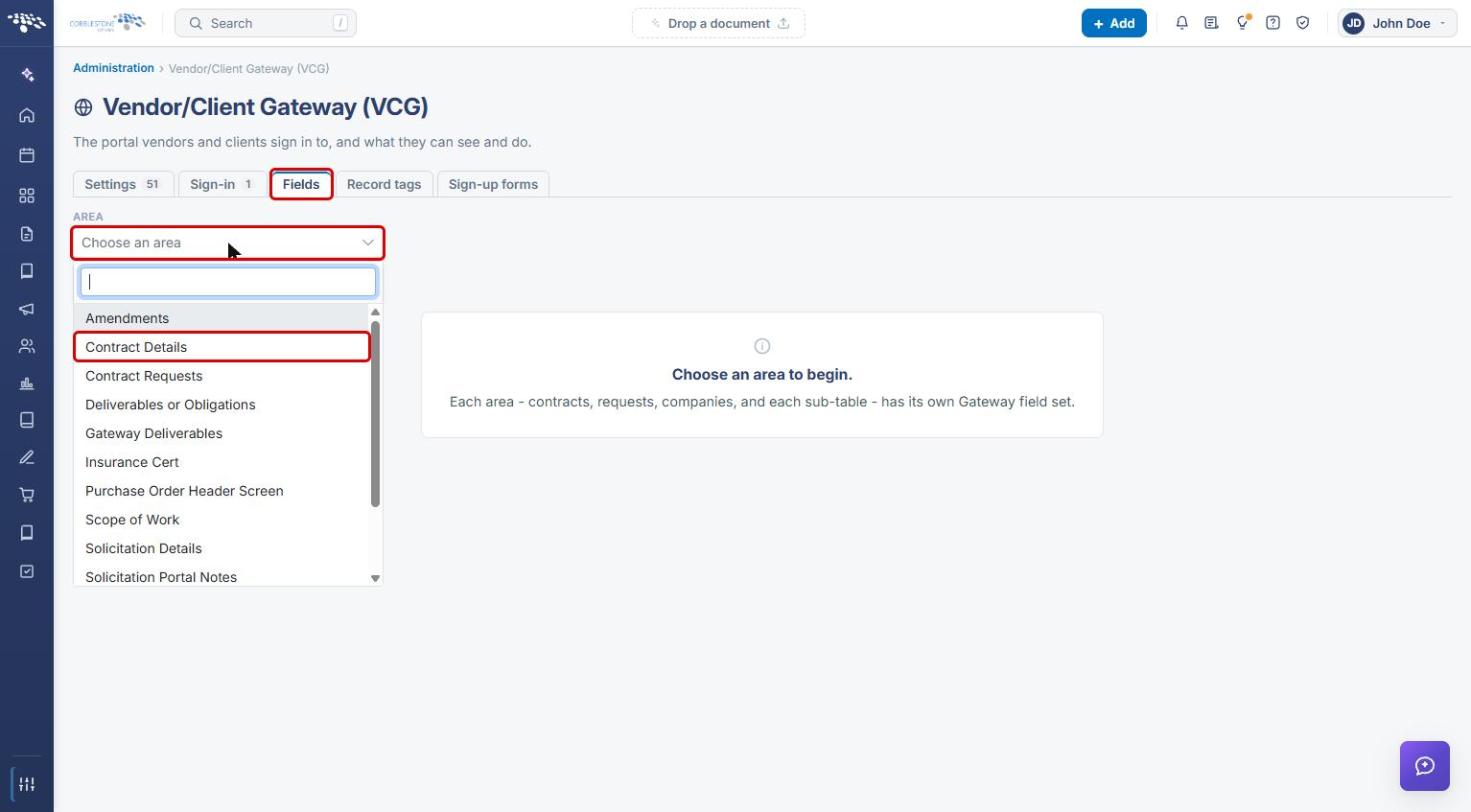
- On the Vendor/Client Gateway (VCG) page, click the Fields tab.
- Open the Area dropdown and select Contract Details.
4b. Picking Fields for a Record Type
- Open the Record Type dropdown and select the contract type to configure (for example, Consulting Agreement). Each record type has its own Gateway field set.
- In the Not shown list, use Find a field to locate a field, then click « Add to move it to On the Gateway.
- Drag fields in the On the Gateway list to set the order they appear in.
- To reuse another type's setup, choose it under Start from another type and click Copy its fields here. This replaces the fields already on the left.
- Use Add every field or Remove all fields to fill or clear the list in one step.
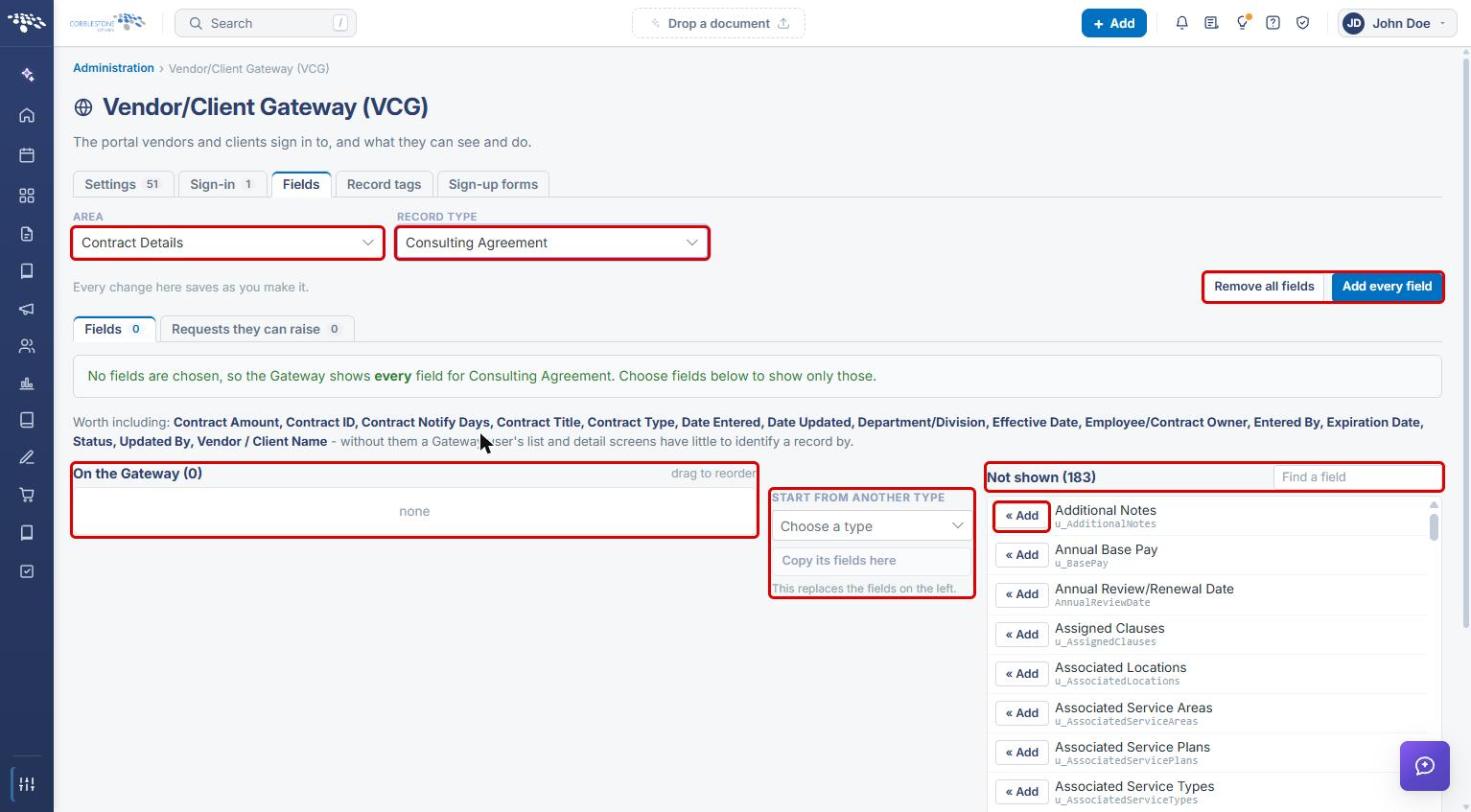
Note: Every change on this tab saves as you make it. When no fields are chosen, the Gateway shows every field for that record type. The Worth including line lists identifying fields (such as Contract Title, Contract Type, and Vendor / Client Name) that Gateway users need to recognize a record.
5. Setting the Contract Header Tags
- On the Vendor/Client Gateway (VCG) page, click the Record tags tab.
- Open the Area dropdown and select Contracts.
- In Record Type, keep Default (every type) to set tags for all contract types, or select a specific type to give it its own tags.
- Click Add a tag and choose the field to show, or click Standard tags to apply the standard set. Use the trash icon to remove a tag.
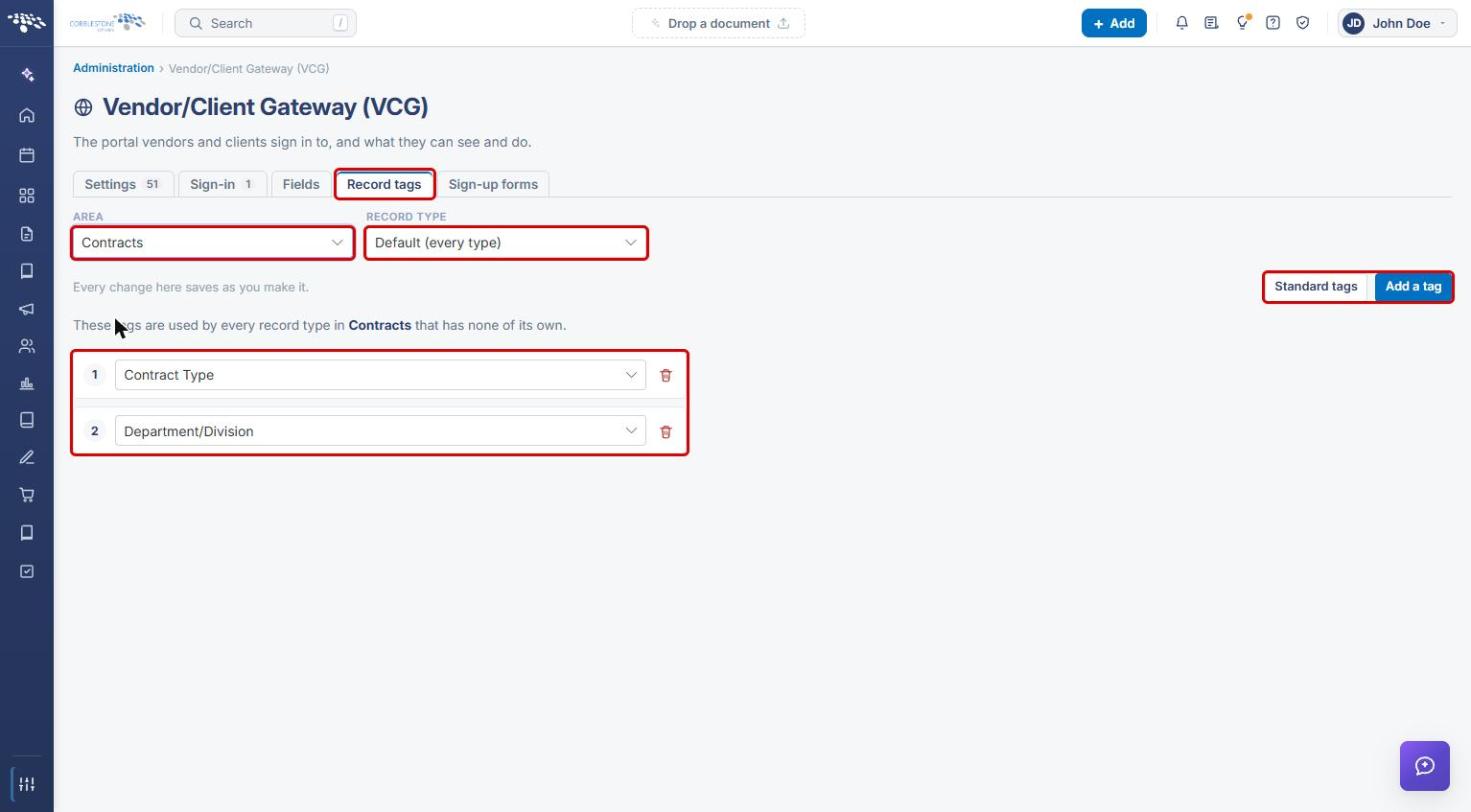
Note: Default tags are used by every contract record type that has none of its own. Changes on this tab save as you make them.
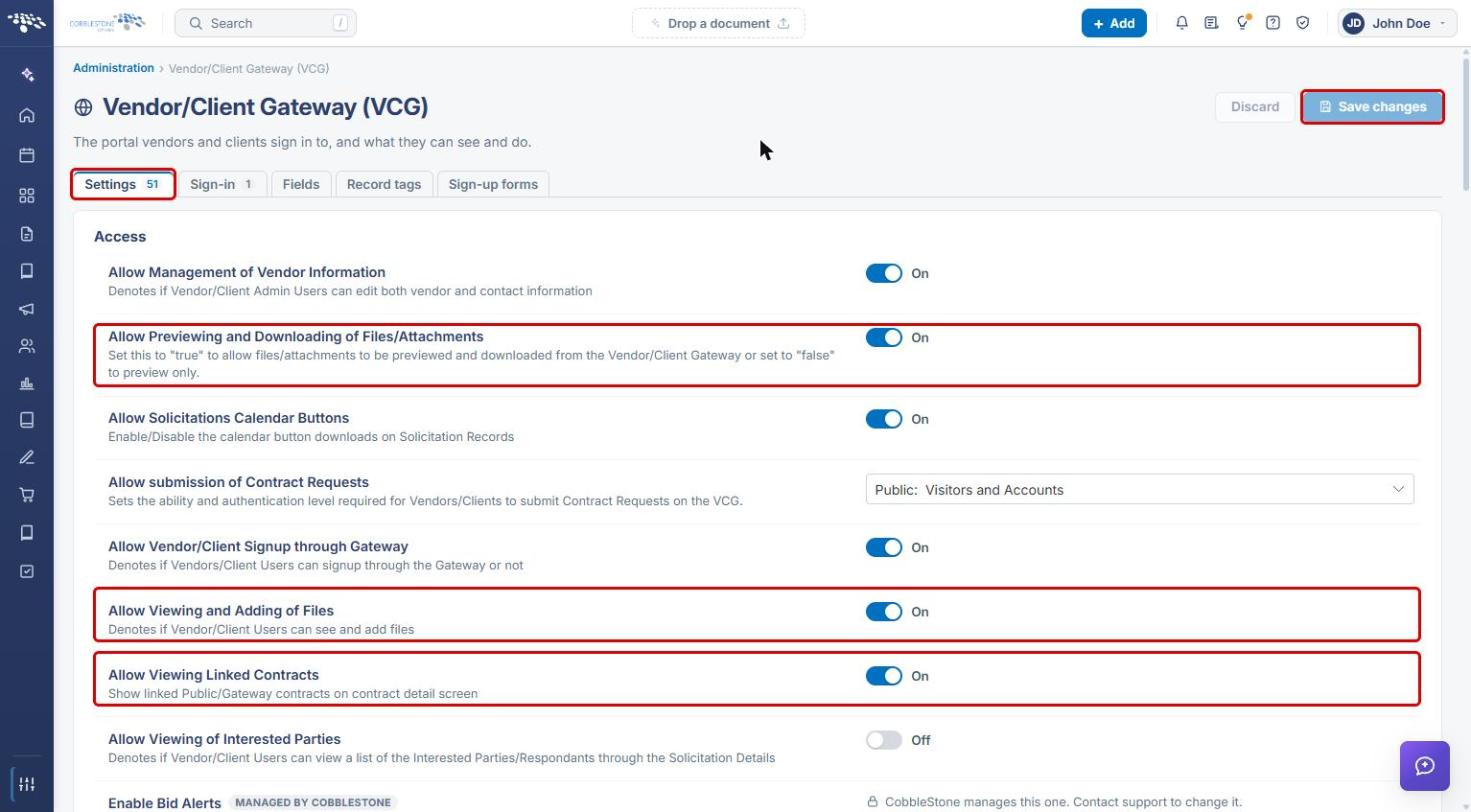
6. Setting Contract Access Options
- On the Vendor/Client Gateway (VCG) page, click the Settings tab. The Access section is at the top.
- Turn on Allow Viewing Linked Contracts to show linked Public/Gateway contracts on the contract detail screen.
- Turn on Allow Viewing and Adding of Files to let Gateway users see and add files.
- Turn on Allow Previewing and Downloading of Files/Attachments to allow downloads; turn it off to allow preview only.
- Click Save changes.
7. Reviewing the Gateway Contracts Menu
- From the Contract Insight homepage, click the Administration icon and open Navigation Menu.
- In the Workspace dropdown, select Vendor/Client Gateway.
- Review the Contracts group (My Contracts) and the Find/Search Public Records group (All Public Contracts, All Public Solicitations, Search Upcoming Solicitations). Use the edit (pencil) icon or Add sub-item to change them.
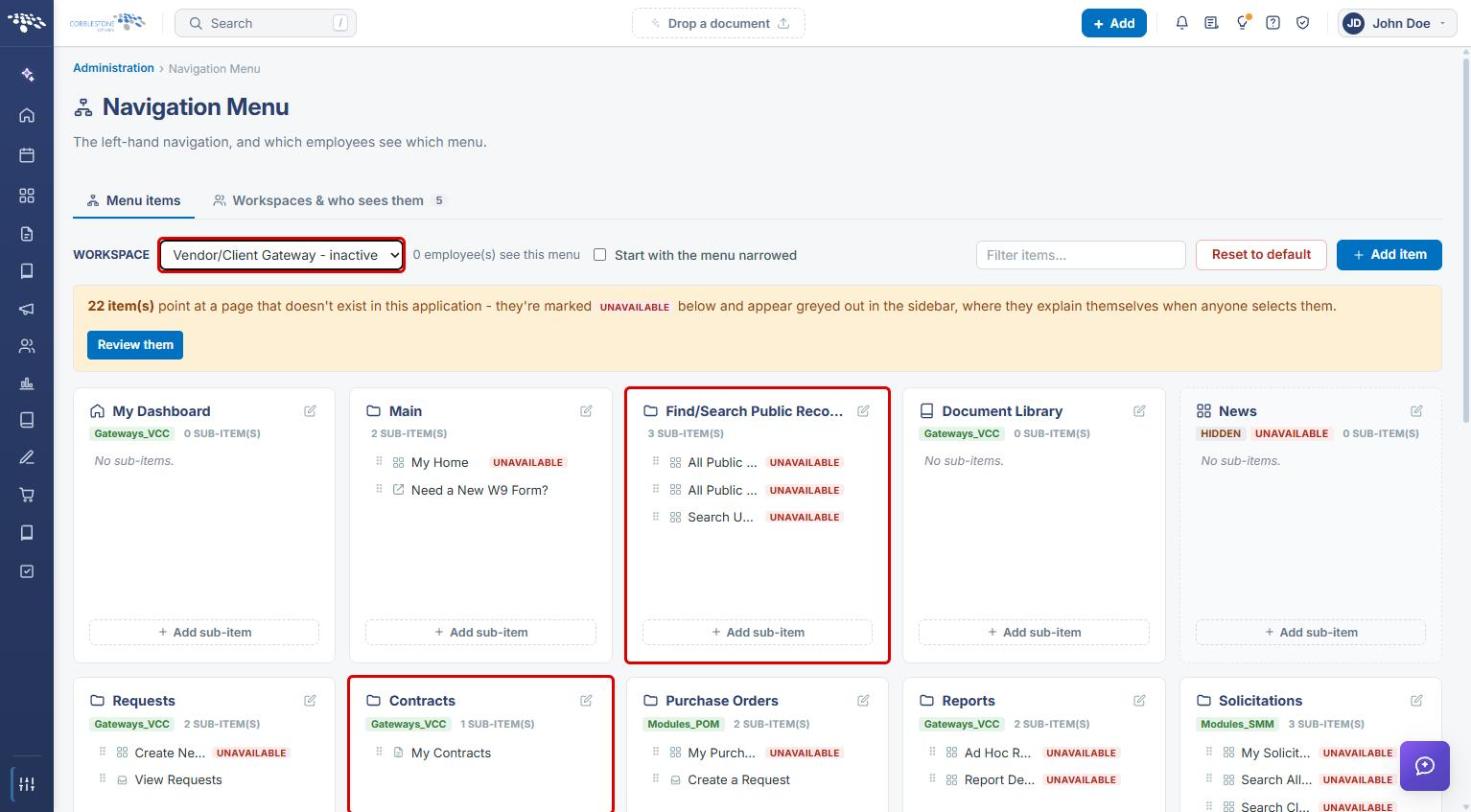
Note: Items marked UNAVAILABLE point at a page that doesn't exist in the internal application; this is expected for Gateway-only pages when the menu is viewed from Contract Insight.
8. Viewing Contracts on the Gateway
8a. Finding Public Contracts
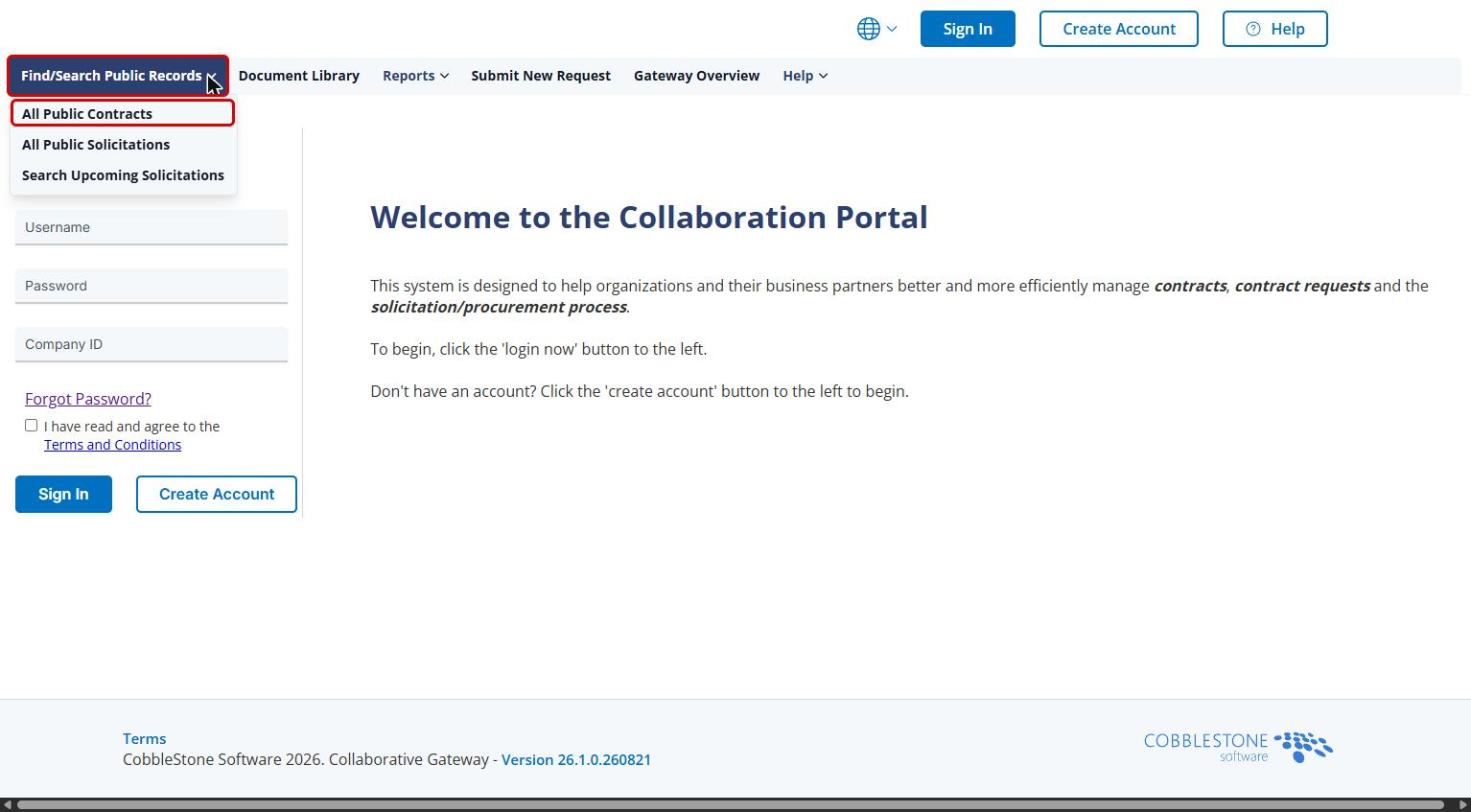
- On the Gateway, open Find/Search Public Records and select All Public Contracts. Signed-in vendors and clients can also open Contracts → My Contracts to see their own contracts.
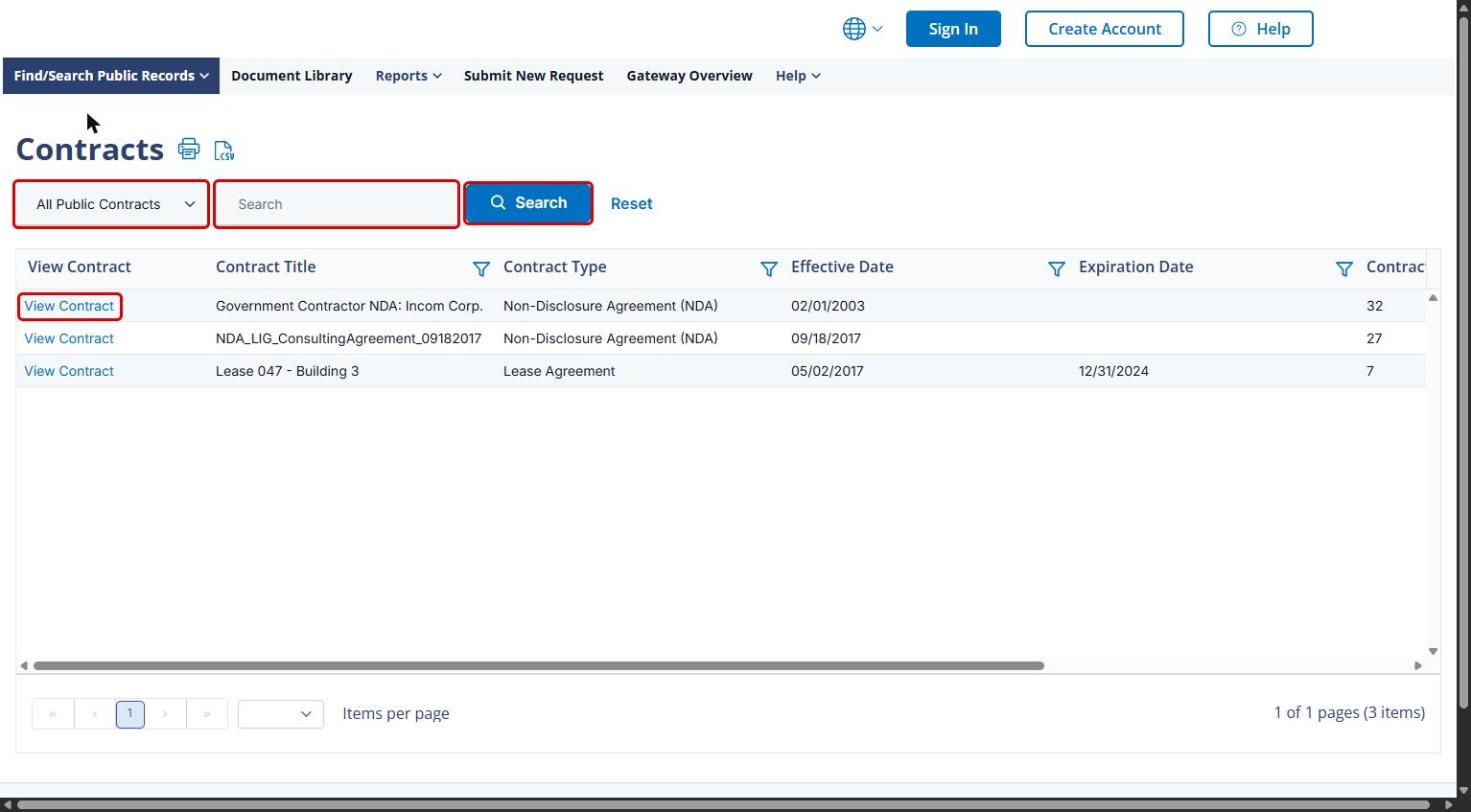
- Use the list selector and Search box to narrow the list, then click Search.
- Click View Contract on a row to open the contract.
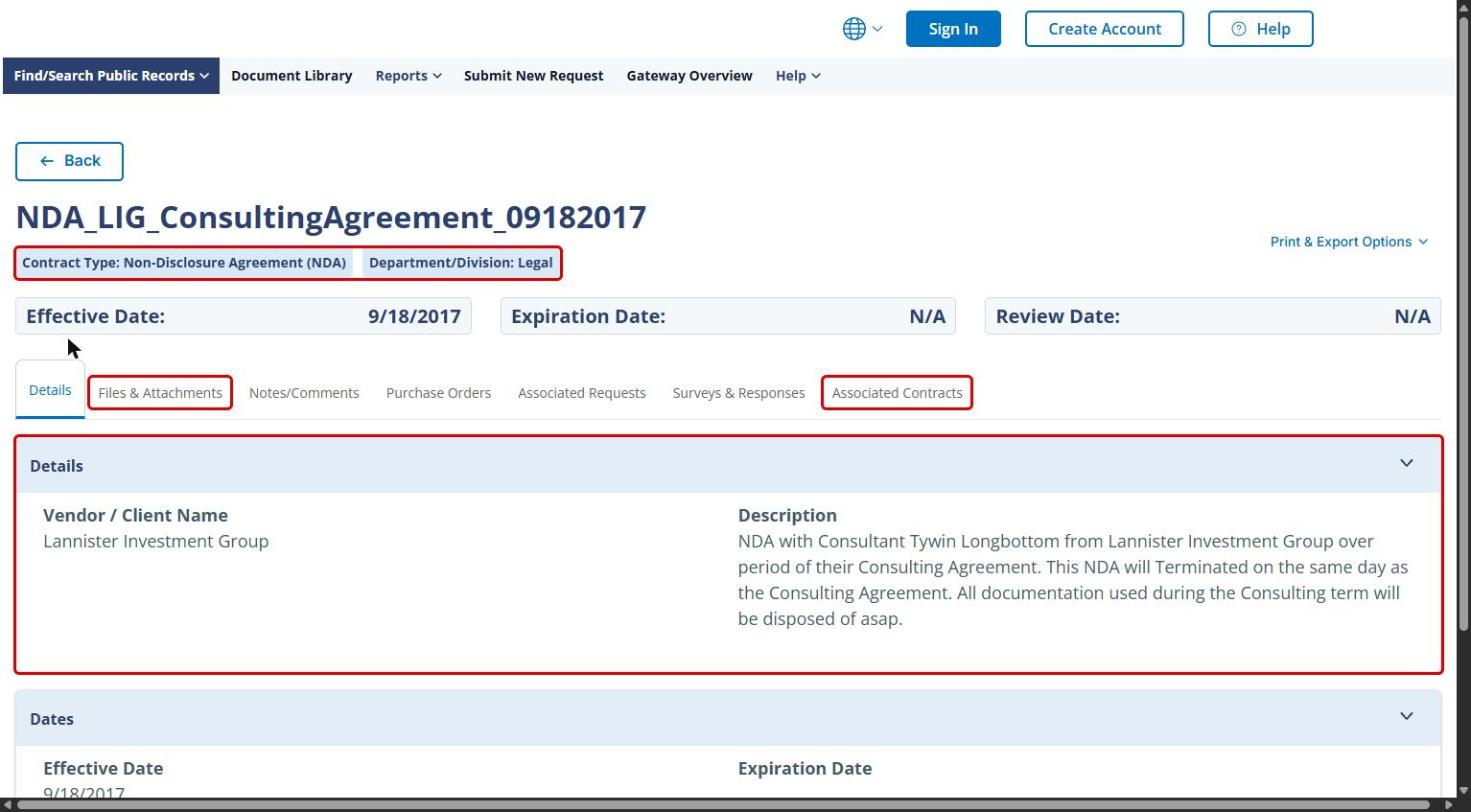
8b. Reading a Contract Record
The contract record reflects the settings above:
- The labels under the title (for example, Contract Type and Department/Division) come from Record tags (Section 5).
- The Details sections show the fields chosen on the Fields tab (Section 4).
- The Files & Attachments and Associated Contracts tabs depend on the Access settings (Section 6).
9. Quick Reference Summary
| Task | How to Complete It |
|---|---|
| Open the Gateway settings | Administration → search Gateway → Vendor/Client Gateway (VCG). |
| Choose contract fields shown on the Gateway | VCG → Fields → Area: Contract Details → Record Type → « Add fields (saves automatically). |
| Copy fields from another contract type | Fields tab → Start from another type → Copy its fields here. |
| Set contract header tags | VCG → Record tags → Area: Contracts → Add a tag or Standard tags. |
| Show linked contracts or files | VCG → Settings → Access → Allow Viewing Linked Contracts / Allow Viewing and Adding of Files → Save changes. |
| Edit the Gateway Contracts menu | Administration → Navigation Menu → Workspace: Vendor/Client Gateway → Contracts group. |
| Find public contracts on the Gateway | Gateway → Find/Search Public Records → All Public Contracts → View Contract. |