COBBLESTONE SOFTWARE
Contract Insight — User Guide
Starting an IntelliApprove Process
Module: Document Collaboration Gateway › IntelliApprove › Starting an IntelliApprove Process
Note: Each procedure in this guide begins at the Contract Insight homepage, so any section can be followed on its own. Custom fields are configurable, so the exact field list on a contract category record may vary between environments.
1. Overview
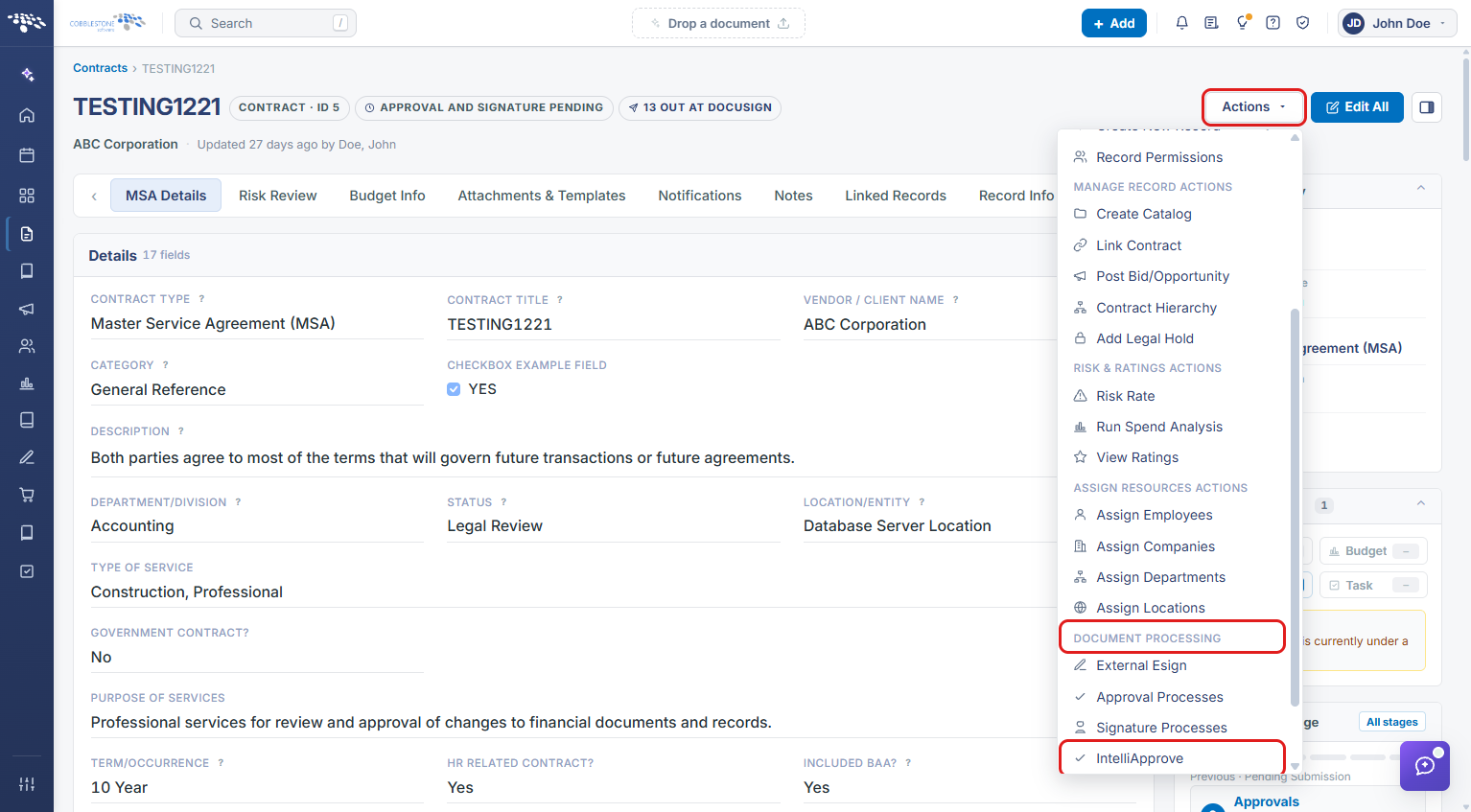
An IntelliApprove process is started from Actions → IntelliApprove on a record (Document Processing group, alongside Approval Processes, Signature Processes, and IntelliSign) — the same entry point used to start a standard approval process, but routed through IntelliApprove's own handling.
Starting a process has three stages: choose a document from the record in the Send a document for approval window, set up who approves and how on the process setup page, then click Start process. Nothing is sent to anyone until you start it.
2. Key Elements
- Record → Actions → IntelliApprove (Document Processing group).
- Sits alongside Approval Processes, Signature Processes, and IntelliSign in the same menu group.
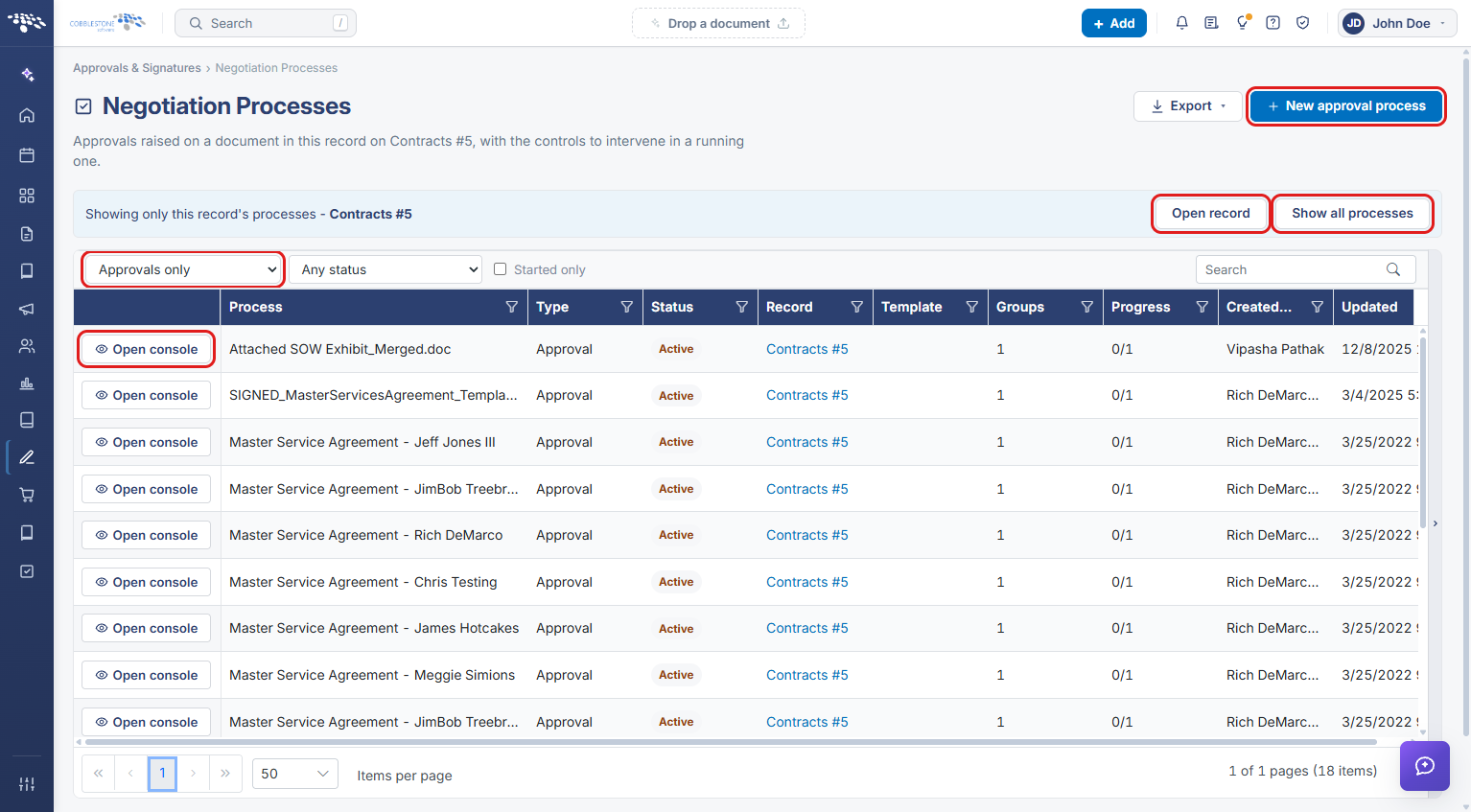
- IntelliApprove opens Negotiation Processes filtered to the record's approvals, with a + New approval process button.
- Send a document for approval window: Document from this record, Title, Description, Replies go to, Approval type, Track changes in the document, Checking the document out, and Approvers can see each other's comments.
- Process setup page: Documents, Employees to tell, Company contacts to tell, Approval groups, Process Settings, and a readiness badge that must clear before Start process is available.
3. Opening IntelliApprove from a Record
- From the Contract Insight homepage, open the record (for example, a contract) that holds the document to approve.
- Click Actions at the top right of the record.
- Scroll to Document Processing and click IntelliApprove.
4. Creating the IntelliApprove Process
4a. Starting a New Approval Process
- Negotiation Processes opens showing only this record's approval processes, with the type filter set to Approvals only. Click Open console on a row to view an existing process, or Show all processes / Open record to leave the record view.
- Click + New approval process.
4b. Sending a Document for Approval
- In the Send a document for approval window, select the Document from this record.
- Enter a Title describing what is being approved. Edit the Description if needed. It is shown to participants.
- Confirm who Replies go to.
- Set the Approval type: Full approvals or Acknowledge only.
- Choose whether to Track changes in the document (Yes or No), how Checking the document out works (Optional or Required before editing), and whether Approvers can see each other's comments.
- Click Create process. You add the people next.
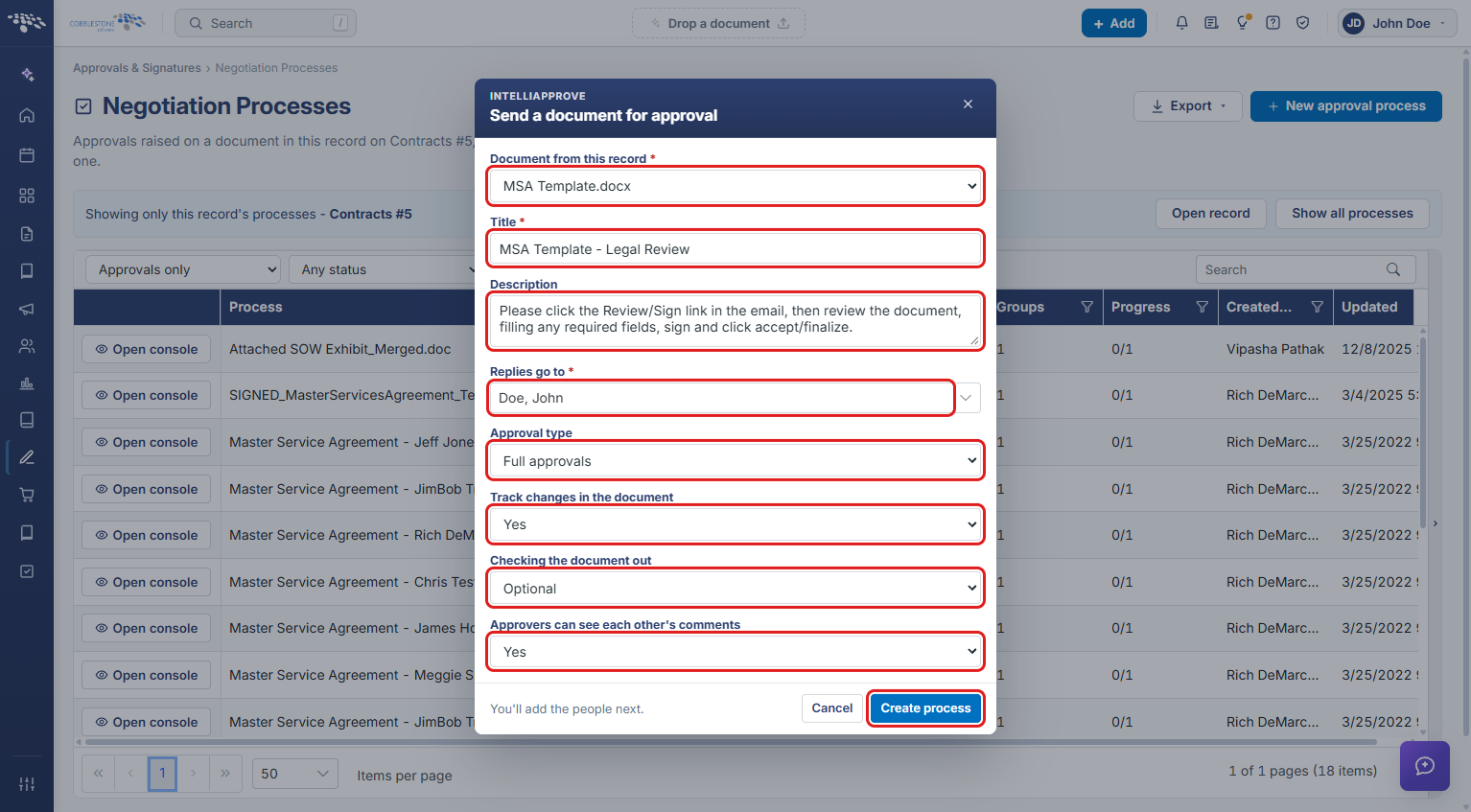
Note: Fields marked with a red asterisk are required. Create process stays unavailable until a document and title are chosen.
5. Setting Up and Starting the Process
- On the process setup page, review Documents to confirm the right file and version are included.
- Under Approval groups, click Add participant to add the people who will approve.
- Under Employees to tell and Company contacts to tell, search for anyone else who should be told and click Add.
- In Process Settings, review the name, description, what approvers are being asked for, check-out rules, and comment visibility. Click Save settings after any change.
- When the NOT READY - REVIEW EACH ITEM BELOW badge clears, click Start process.
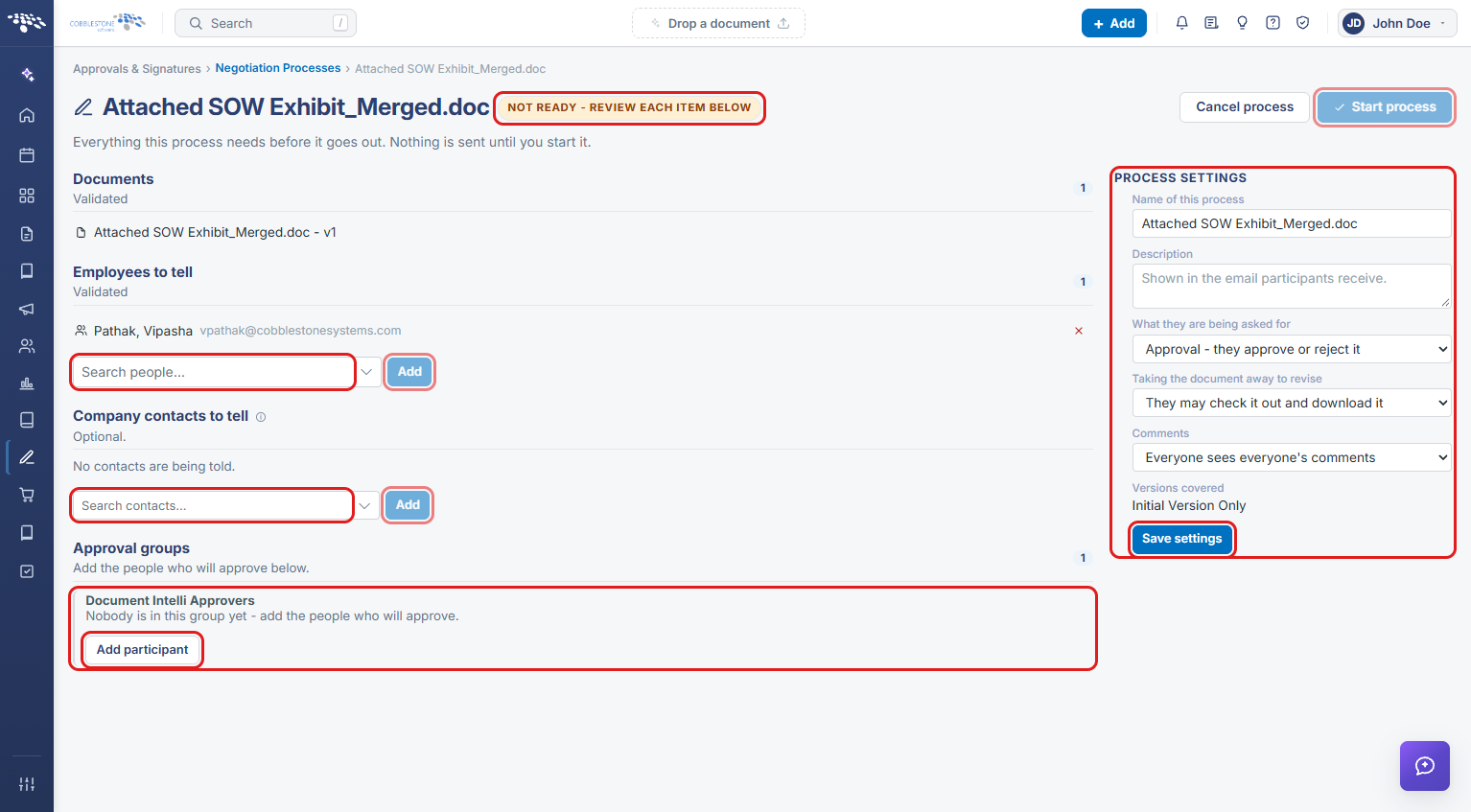
Note: Nothing is sent until you click Start process. Click Cancel process to discard the process instead.
6. Quick Reference Summary
| Task | How to Complete It |
|---|---|
| Open IntelliApprove | Record → Actions → Document Processing → IntelliApprove. |
| Create a new approval | + New approval process → choose document → enter Title → set options → Create process. |
| Add approvers | Setup page → Approval groups → Add participant. |
| Notify others | Employees to tell / Company contacts to tell → search → Add. |
| Change settings | Process Settings → edit → Save settings. |
| Send for approval | Start process (once the Not Ready badge clears). |
| View an existing process | Record's approvals list → Open console. |