COBBLESTONE SOFTWARE
Contract Insight — User Guide
3. Navigating the Solicitations Portal
Module: Solicitations › Solicitation Portal › 3. Navigating the Solicitations Portal
Note: Each procedure in this guide begins at the Contract Insight homepage, so any section can be followed on its own. Custom fields are configurable, so the exact field list on a contract category record may vary between environments.
1. Overview
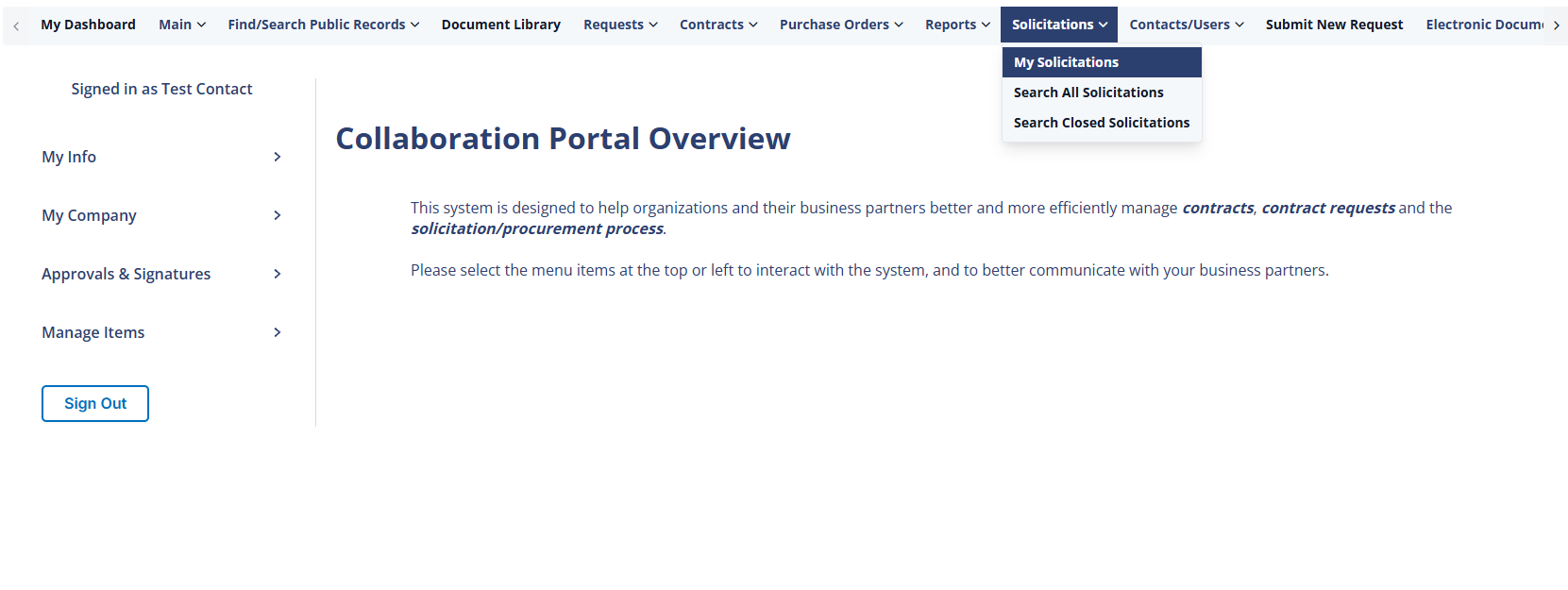
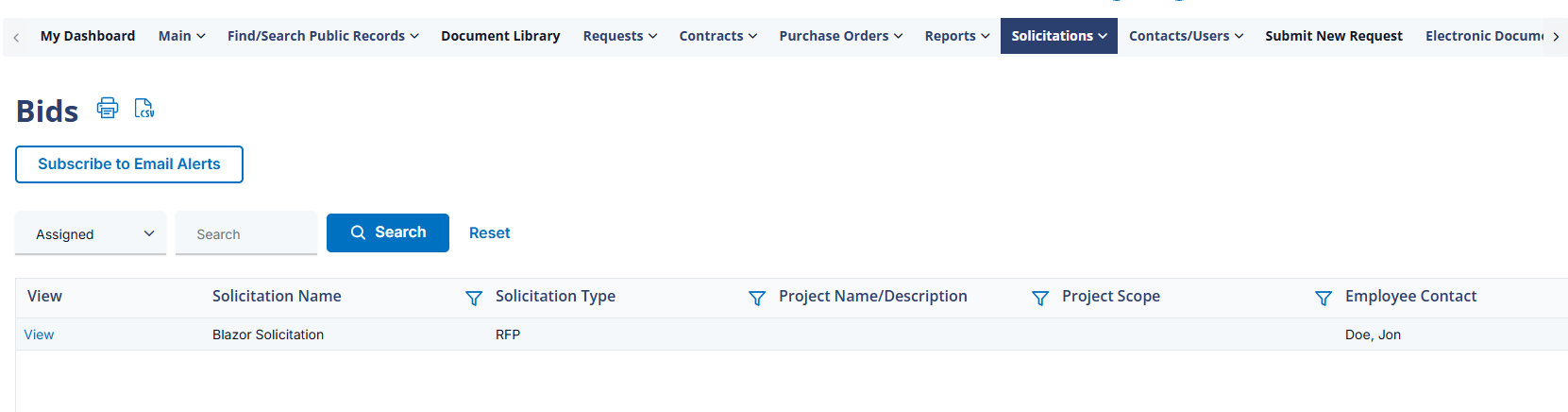
A respondent moves through the Solicitations side of the Gateway using the same menu structure administrators configure from Navigation Menu → Vendor/Client Gateway: My Solicitations for what they're already engaged with, the Search variants for finding new opportunities by status, and record-level controls like the calendar-download buttons and, if enabled, visibility into other interested parties.
2. Key Elements
- My Solicitations, Search All Solicitations, Search Public Solicitations, Search Upcoming Solicitations, and Search Closed Solicitations make up the Solicitations menu group
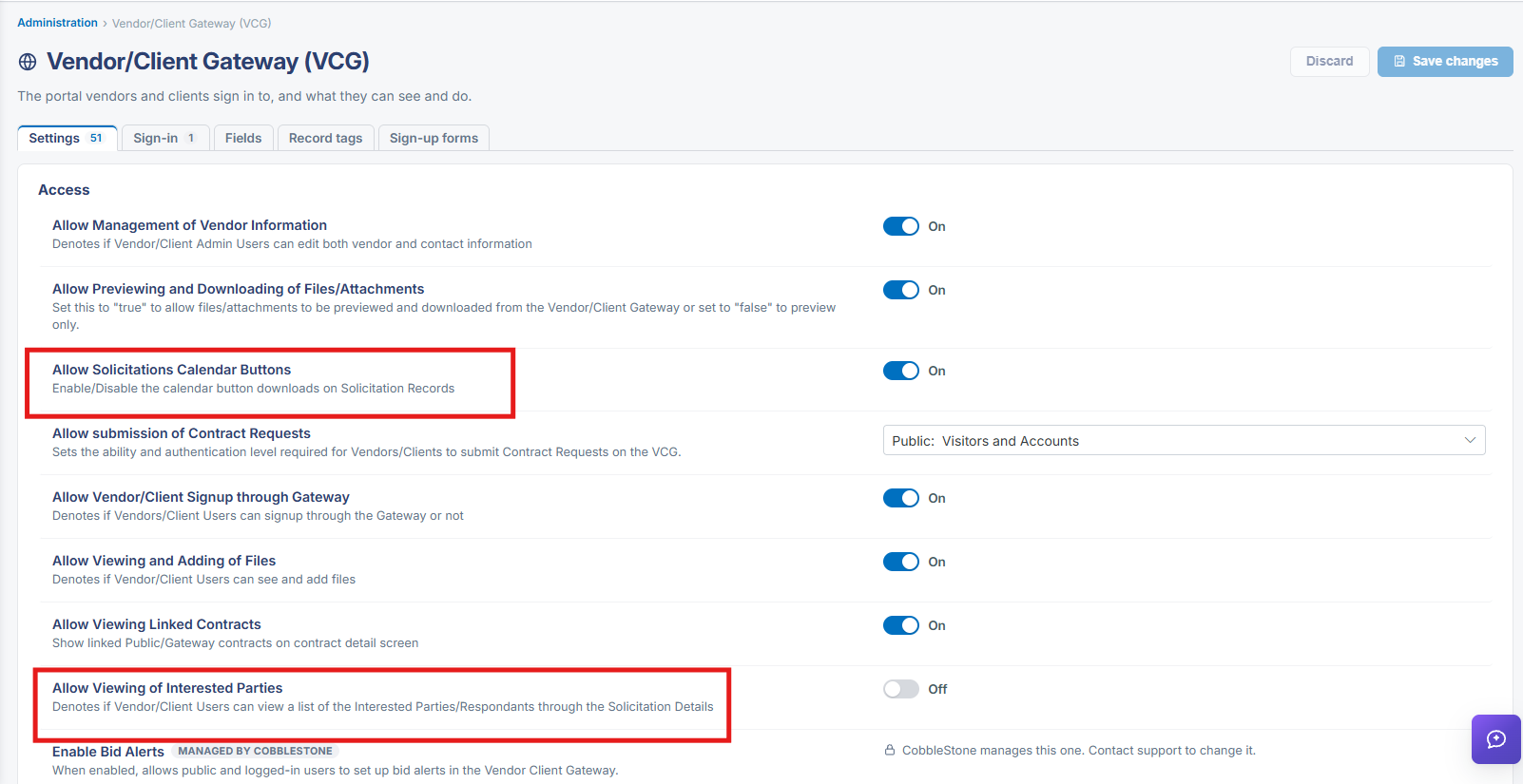
- Allow Solicitations Calendar Buttons (VCG Settings) shows or hides calendar-download buttons on a solicitation's detail screen
- Allow Viewing of Interested Parties (VCG Settings, off by default) controls whether a respondent can see the list of other respondents
- Solicitations Terms and Conditions must be agreed to before viewing or submitting a bid response, when Show/Hide Solicitations Terms and Conditions is on