COBBLESTONE SOFTWARE
Contract Insight — User Guide
Side Menu Show/Hide
04. End User General Information › General Navigation in Contract Insight › Side Menu Show/Hide
Note: Each procedure in this guide begins at the Contract Insight homepage, so any section can be followed on its own. Custom fields are configurable, so the exact field list on a contract category record may vary between environments.
1. Overview
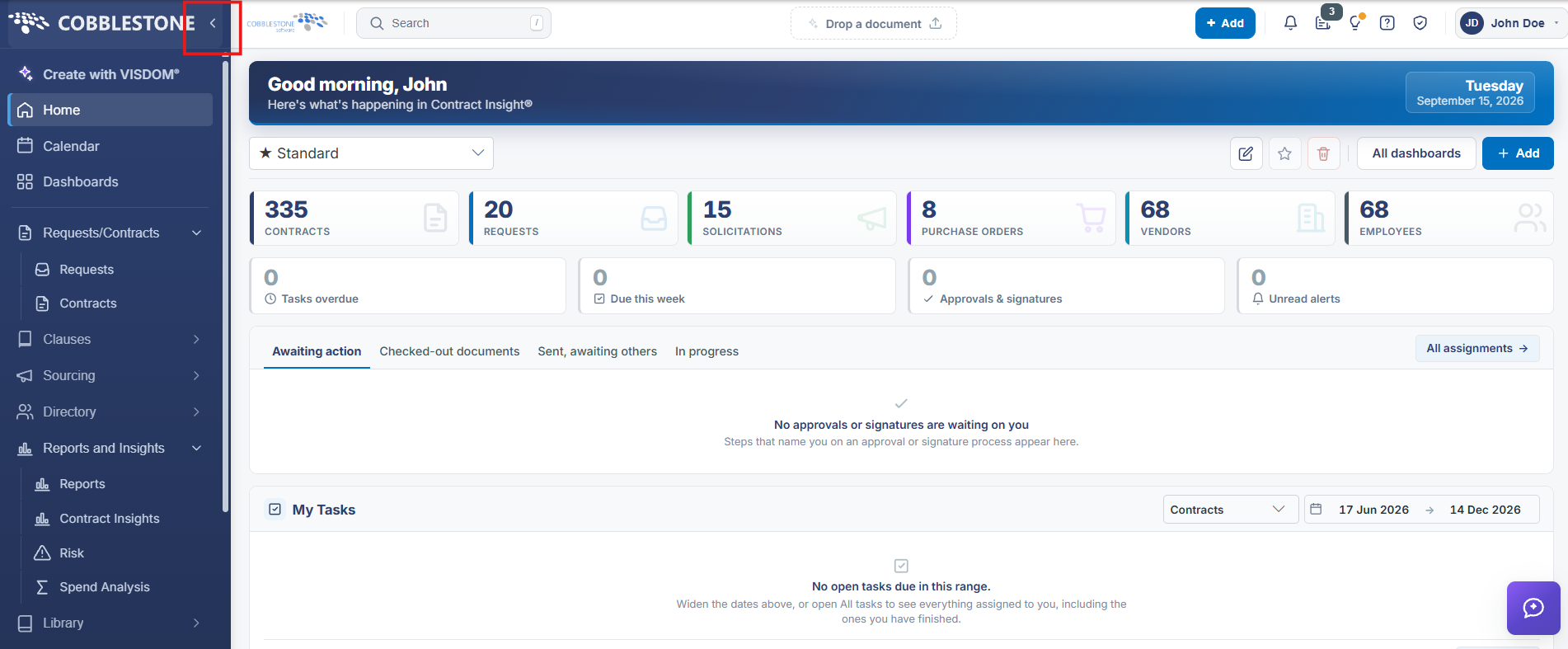
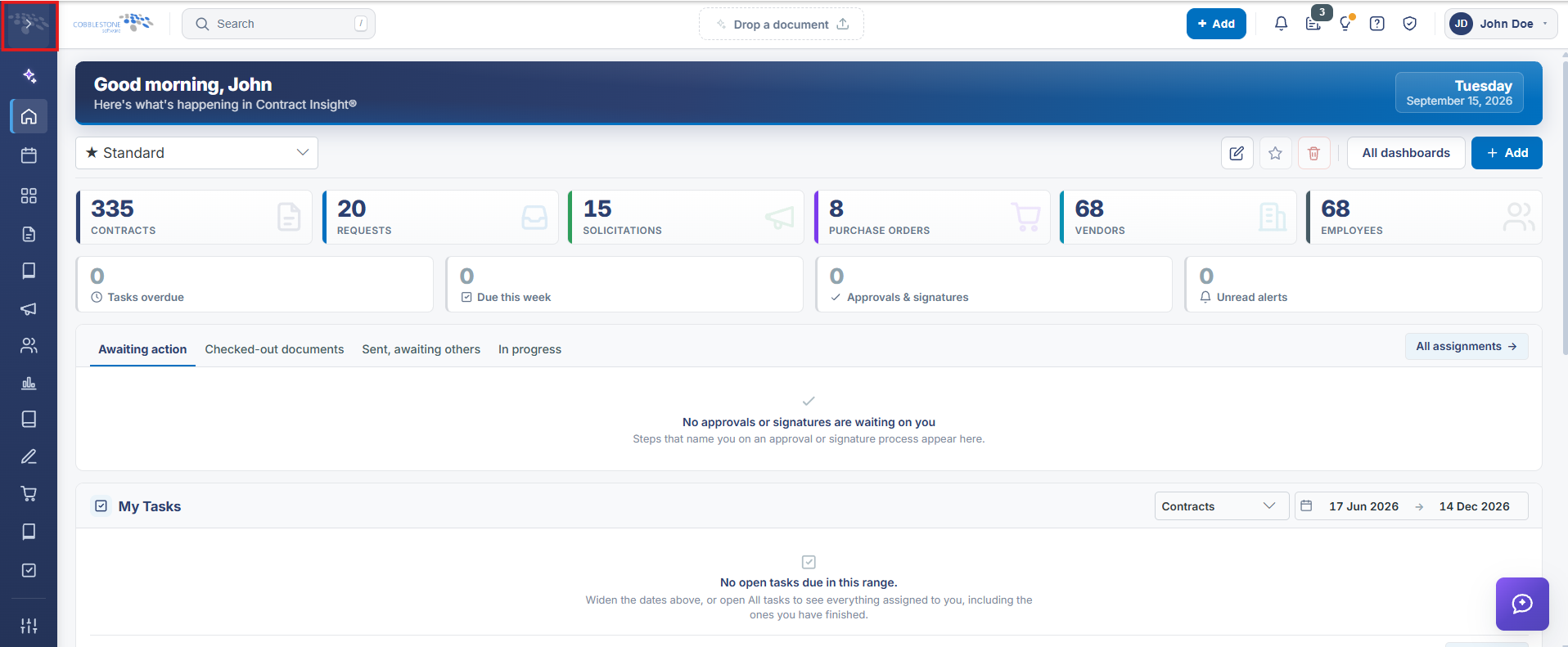
A "Collapse the navigation" control sits at the top-right edge of the side menu, next to the CobbleStone logo. Clicking it collapses the full side menu down to a narrow strip of icons only (labels hidden), and the main content area reflows to use the freed-up width — useful for screens with wide tables or dashboards. Clicking the same control again (now offering to expand) restores the full side menu with labels. The collapsed/expanded state is a simple UI toggle available on every screen, not a per-record or per-user saved setting confirmed in this session.
2. Key Elements
- A "Collapse the navigation" control at the top of the side menu toggles it between full-width (icons + labels) and icon-only.
- Collapsing frees up horizontal space for the main content area, useful for wide tables or dashboards.
- The toggle is available on every screen and switches back and forth with a single click.