COBBLESTONE SOFTWARE
Contract Insight — User Guide
Setting Signature Place Holders - E-Signatures
Document Templates: Generation/Merging › E-Signature - Document Generation › Setting Signature Place Holders - E-Signatures
Note: Each procedure in this guide begins at the Contract Insight homepage, so any section can be followed on its own. Custom fields are configurable, so the exact field list on a contract category record may vary between environments.
1. Overview
Signature placeholders (signature fields) mark exactly where each signer signs a generated document. They are set on the Signature fields screen of an electronic signature process whose Where they sign setting is Only where fields have been placed. Each placeholder is tied to a specific signer, so a multi-signer document can carry distinct placeholders for each participant as their turn in the flow comes up.
When a process is set to Anywhere on the document instead, signers place their own signature. Placeholders set via the Place toolbar are specific to the person currently signing — the My signature selector determines whose signature fills a placed Signature placeholder.
2. Key Elements
- Where they sign setting: Only where fields have been placed requires placeholders; Anywhere on the document lets signers place their own signature.
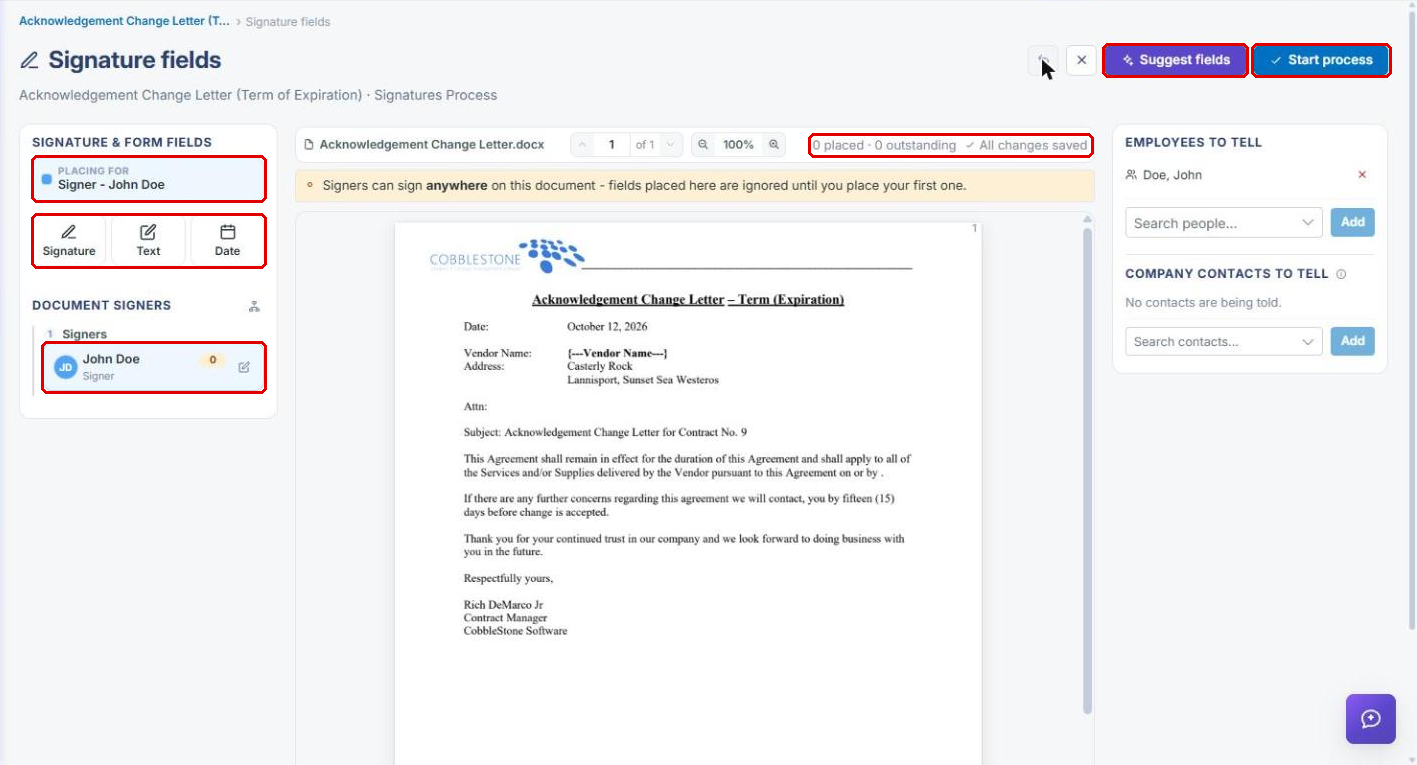
- Signature fields screen: Placing for shows the selected signer; Signature, Text, and Date tools place fields for that signer.
- Document signers lists each signing group and signer with a count of fields placed for them.
- Suggest fields uses VISDOM to read the document and place signature, date, and name fields where it finds signature lines.
- Each placed field can be moved, resized, removed, or given Signer instructions through Field settings.
- The screen saves as you work — every placement, move, and removal is saved immediately.
- My signature selector ties a placed Signature placeholder to the current signer.
- A multi-step signature process can place different signers' placeholders at different points in the flow.
3. Opening a Package's Signatures
- From the Contract Insight homepage, open the record (for example, Requests/Contracts → Contracts → Manage on the contract's row).
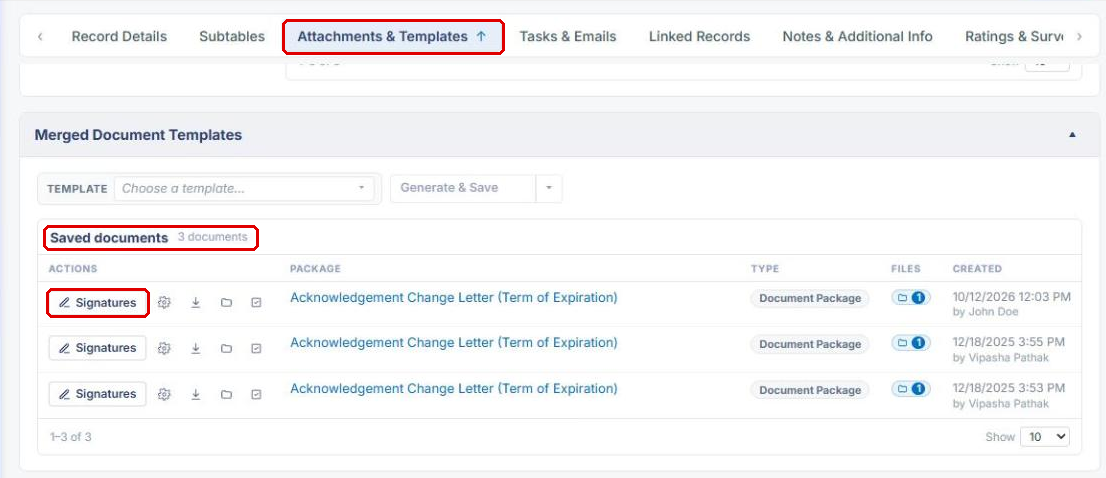
- Click the Attachments & Templates tab and scroll to Merged Document Templates → Saved documents.
- Click Signatures on the package's row.
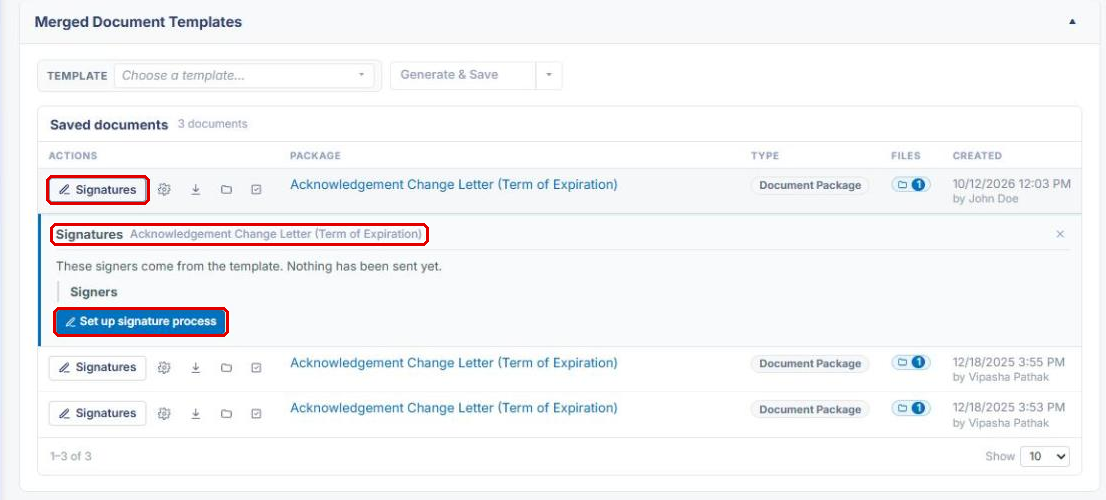
- The Signatures panel opens beneath the row, listing the signers that come from the template. Click Set up signature process.
Note: See Generated Document Packages for more on the Saved documents list.
4. Creating the Signature Process
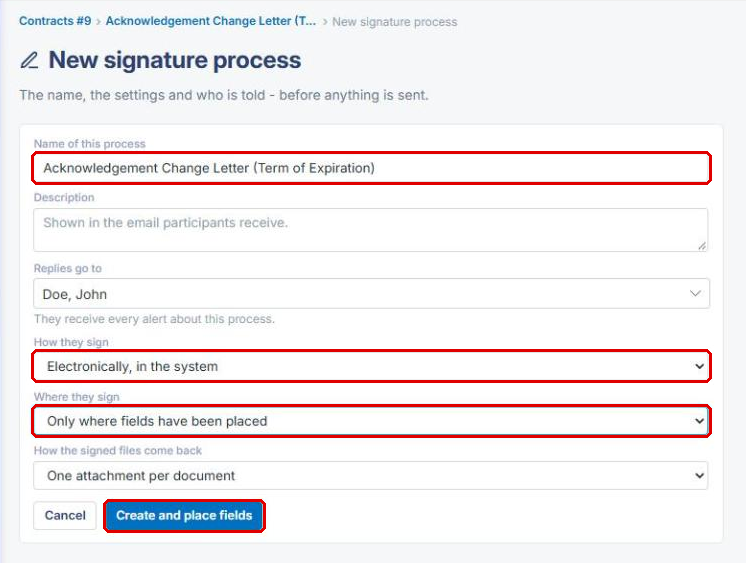
- On the New signature process page, confirm or edit the Name of this process and add an optional Description (shown in the email participants receive).
- Choose who Replies go to. This person receives every alert about the process.
- Set How they sign to Electronically, in the system.
- Set Where they sign to Only where fields have been placed.
- Choose How the signed files come back: One attachment per document or All of them as a single PDF.
- Click Create and place fields. Nothing is sent to anyone yet.
Note: If Where they sign is set to Anywhere on the document, the button reads Create process and no placeholders are needed — signers place their own signature.
5. Adding Signers to the Process
Placeholders can only be assigned to participants of the process, so add signers before placing fields.
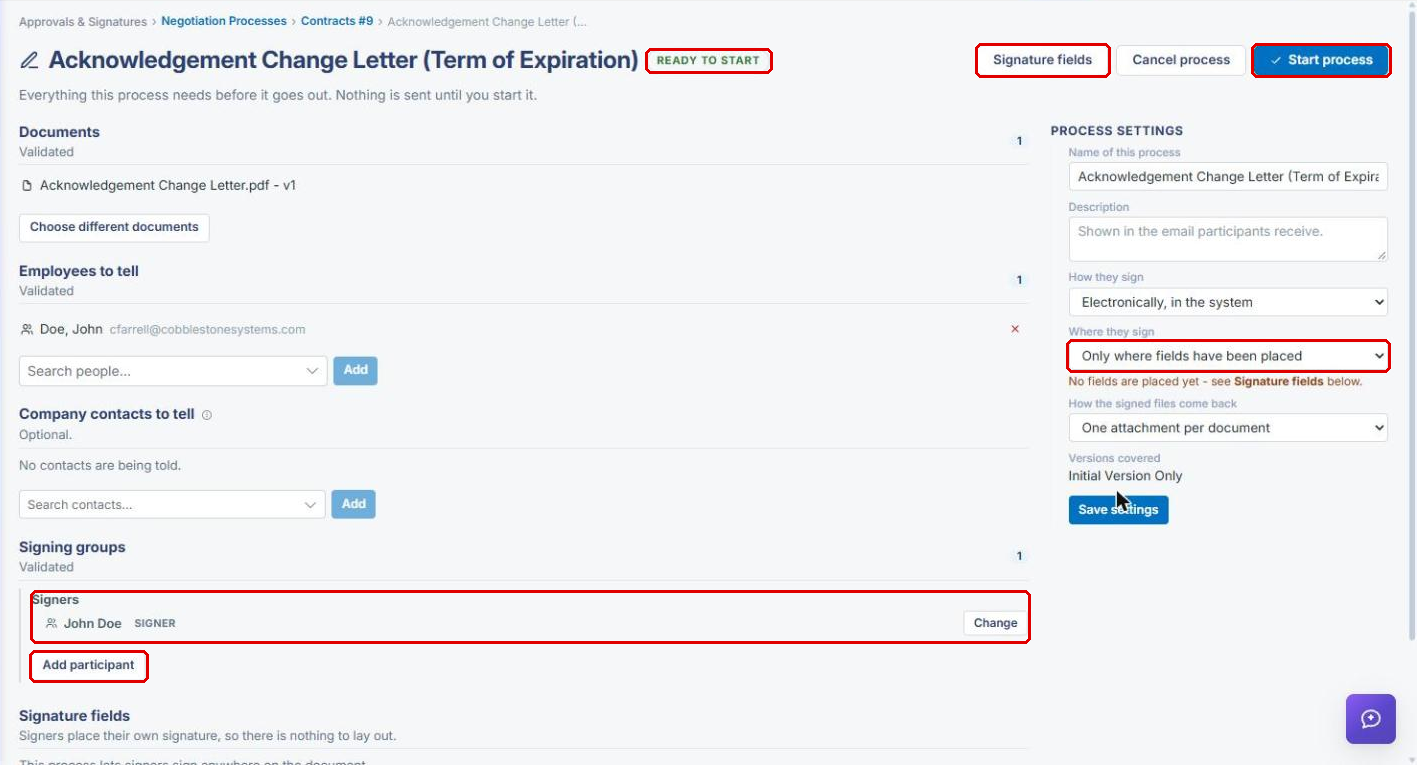
- On the process page (Approvals & Signatures → Negotiation Processes → the process), scroll to Signing groups.
- Click Add participant under the signing group (or Change to replace a participant).
- Choose the participant type (for example, Employees), select the person, and enter a Title (unique on this document) and an optional Reason they are signing.
- Click Add. Repeat for each signer, or click Add group to add another signing step.
- When every section shows Validated and the status reads READY TO START, click Signature fields at the top of the page.
Note: If Signing groups reads "Choose the document first - the groups are built from it," click Choose different documents → Choose again, tick the document, and click Attach documents. The groups and participants are rebuilt from the attached documents.
6. Placing Signature Placeholders
6a. Selecting the Signer
On the Signature fields screen, click the signer under Document signers. Placing for shows the selected signer, and the number beside each signer shows how many fields have been placed for them.
6b. Placing a Field
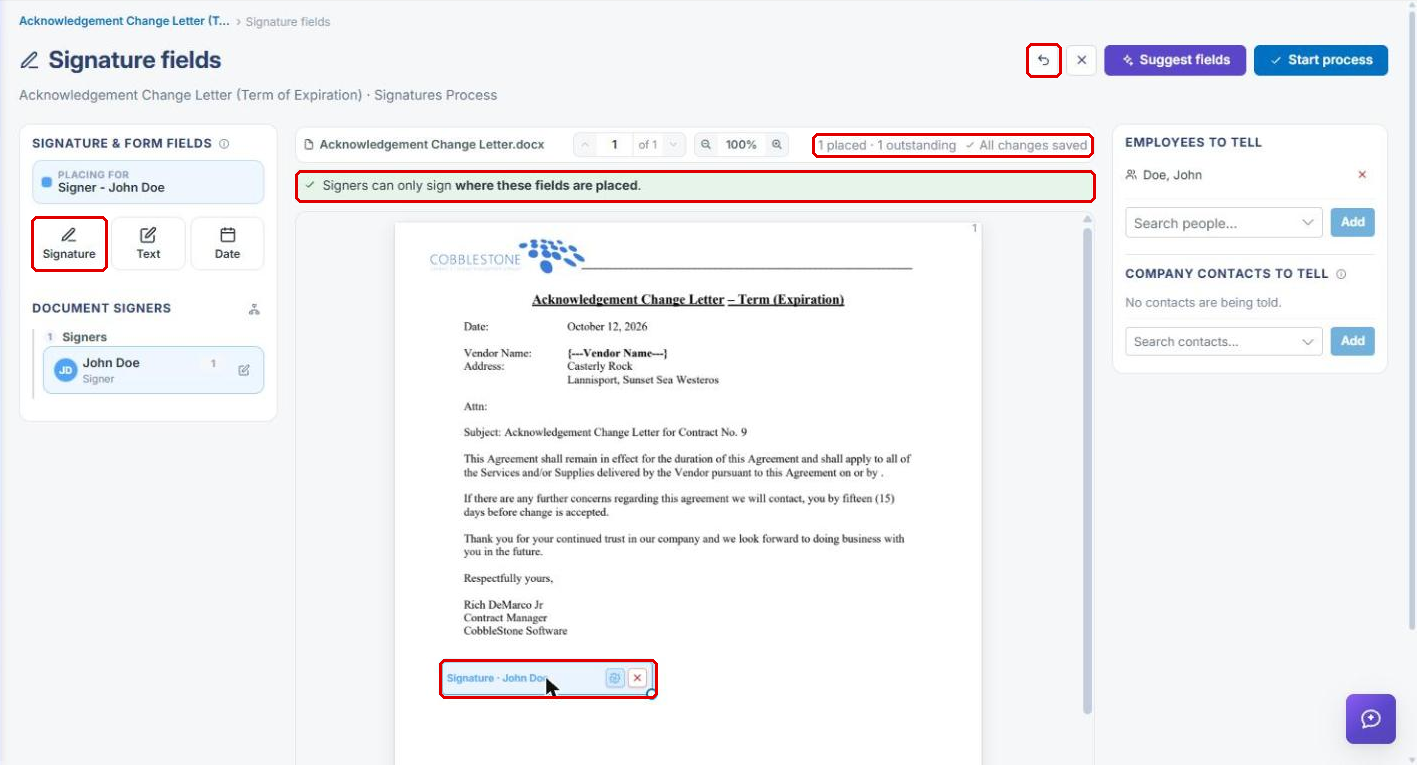
- Click Signature (or Text or Date) under Signature & Form Fields.
- Click the spot on the document where the signer should sign. The field appears labeled with the field type and signer name (for example, Signature · John Doe).
- Drag the field to move it, or drag its corner handle to resize it. Click the red × to remove it, or click Undo at the top of the screen to undo the last placement.
- Confirm the banner reads "Signers can only sign where these fields are placed." The status above the document shows how many fields are placed and outstanding, and All changes saved.
6c. Adding Signer Instructions
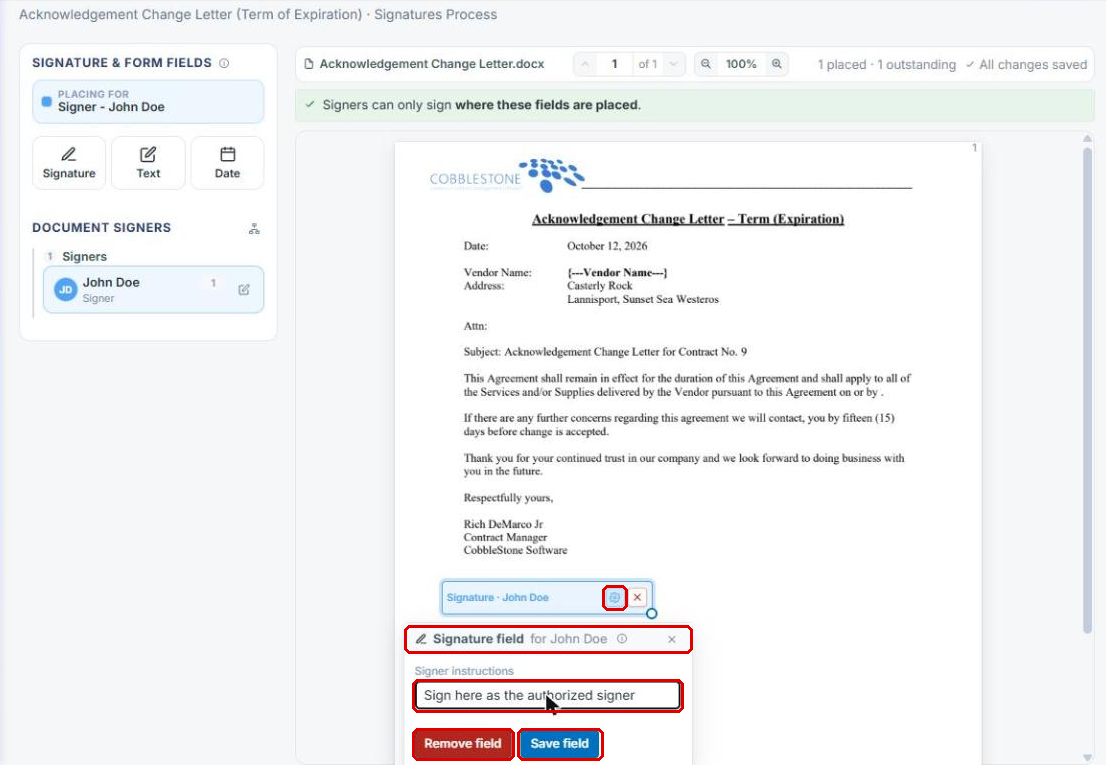
- Click the Field settings (gear) icon on a placed field.
- Enter Signer instructions (for example, "Sign here as the authorized signer").
- Click Save field, or click Remove field to delete it.
6d. Placing Fields for Multiple Signers
Select the next signer under Document signers and repeat Section 6b. Each signer's placeholders are labeled with their name, so a multi-signer document can carry distinct placeholders for each participant. To have the system place fields for you, click Suggest fields — VISDOM reads the document and places the signature, date, and name fields where it finds signature lines. Review and adjust any suggested fields before starting.
Note: Removing every field returns signing to anywhere on the document. To cancel before anyone is contacted, click the × (Cancel process) at the top of the screen.
7. Starting the Process
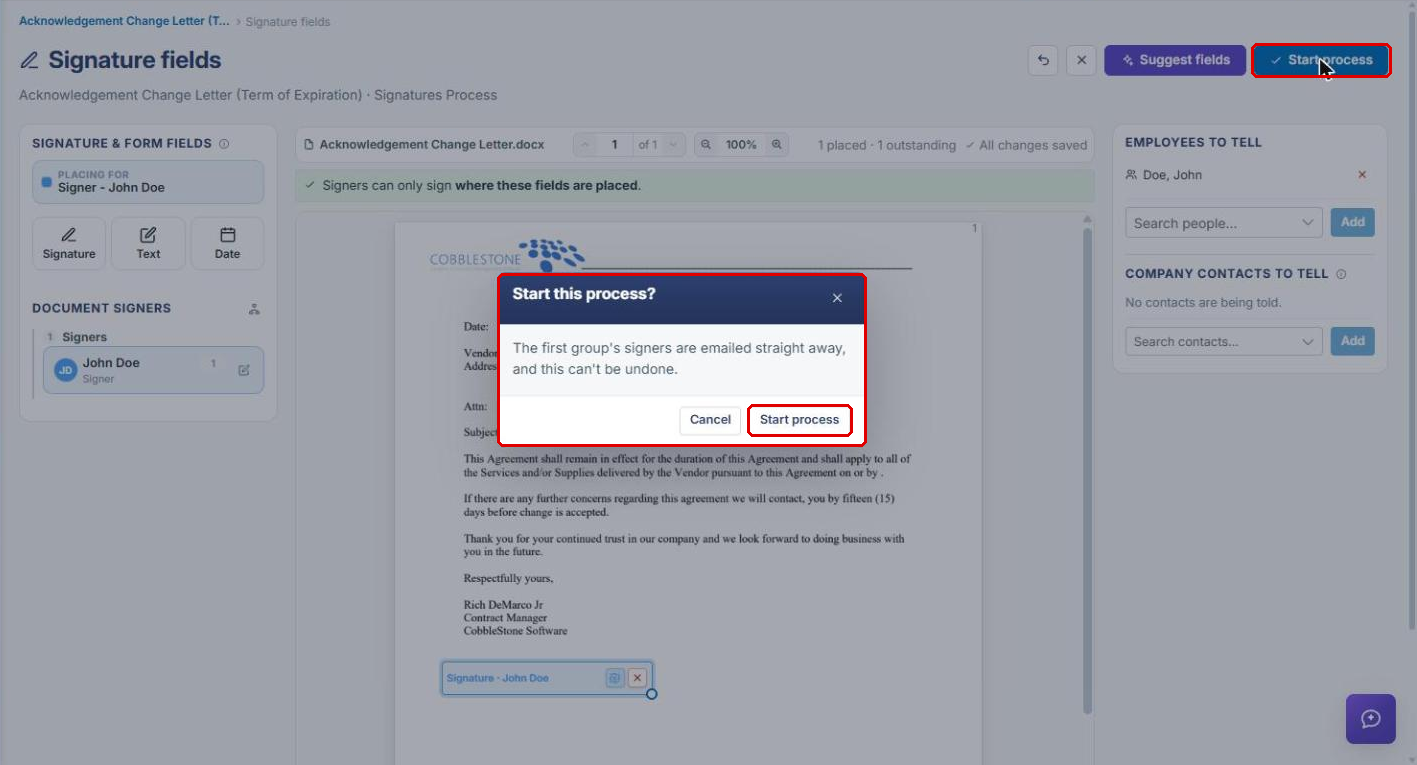
- Click Start process on the Signature fields screen or the process page.
- In the Start this process? window, click Start process. The first group's signers are emailed straight away, and this can't be undone.
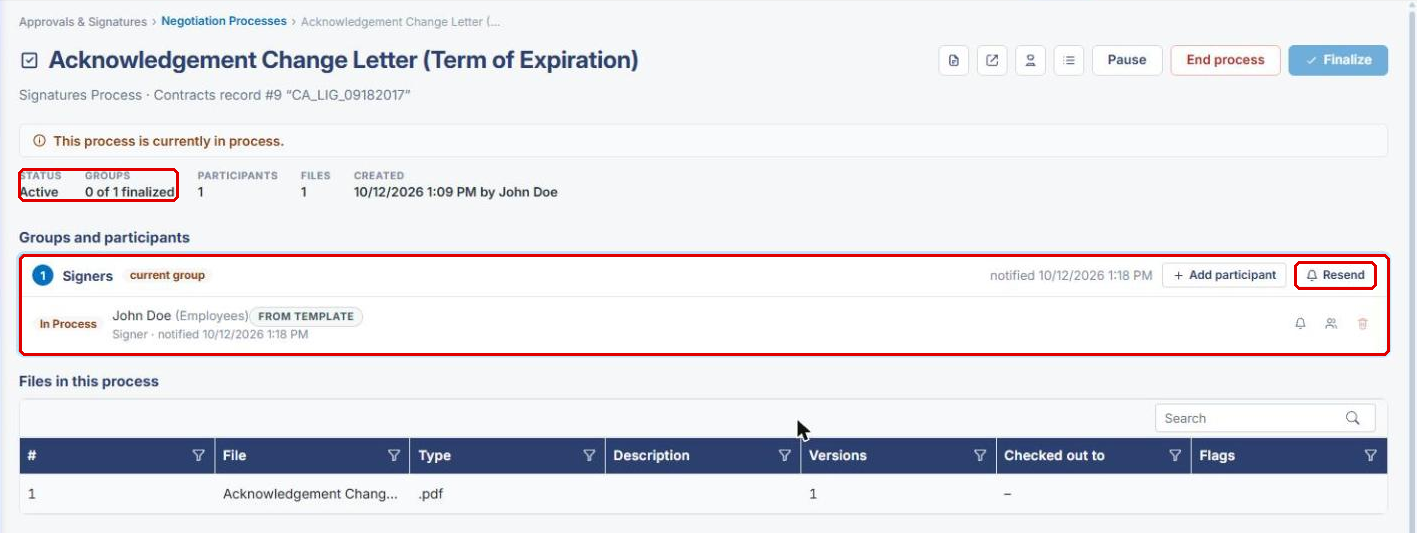
- The process page shows Status: Active, the current signing group and its participants, and Resend, Pause, and End process options.
8. Signing at the Placeholders
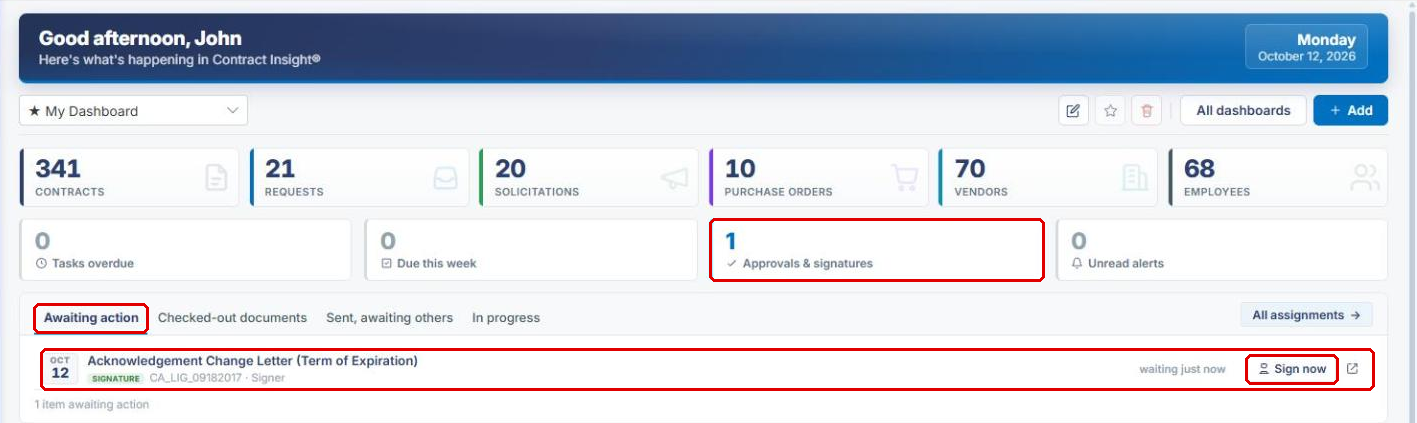
- The signer opens the Contract Insight homepage. The Approvals & signatures count and the Awaiting action tab list the document.
- The signer clicks Sign now and signs only where their placeholders were placed.
Note: See E- Signature Processing for full signing steps.
9. Quick Reference Summary
| Task | How to Complete It |
|---|---|
| Start a signature process for a package | Record → Attachments & Templates → Saved documents → Signatures → Set up signature process. |
| Require placeholders | Set Where they sign to Only where fields have been placed → Create and place fields. |
| Add a signer | Process page → Signing groups → Add participant → select person → Add. |
| Open the placeholder screen | Process page → Signature fields. |
| Place a signature placeholder | Select signer under Document signers → Signature → click the document. |
| Add signer instructions | Field's Field settings (gear) → Signer instructions → Save field. |
| Move, resize, or remove a placeholder | Drag the field, drag its corner handle, or click its red ×. |
| Let the system place fields | Suggest fields. |
| Send to signers | Start process → confirm Start process. |
| Sign as a signer | Homepage → Awaiting action → Sign now. |