COBBLESTONE SOFTWARE
Contract Insight — User Guide
E- Signature Processing
Document Templates: Generation/Merging › E-Signature - Document Generation › E- Signature Processing
Note: Each procedure in this guide begins at the Contract Insight homepage, so any section can be followed on its own. Custom fields are configurable, so the exact field list on a contract category record may vary between environments.
1. Overview
When a signature process reaches you, the step appears on your homepage under Awaiting action and on the My Assignments page with a Sign now button. Clicking Sign now opens the dedicated signing page in a new browser tab, rather than the process console. The signing page shows a Place toolbar (Signature, Date, Text) for dropping fields onto the document, a My signature selector, and Decline, Cancel, and Submit signature controls above the document pages. Administrators can follow the process, and pre-place where each signer signs, from the signature process console.
2. Key Elements
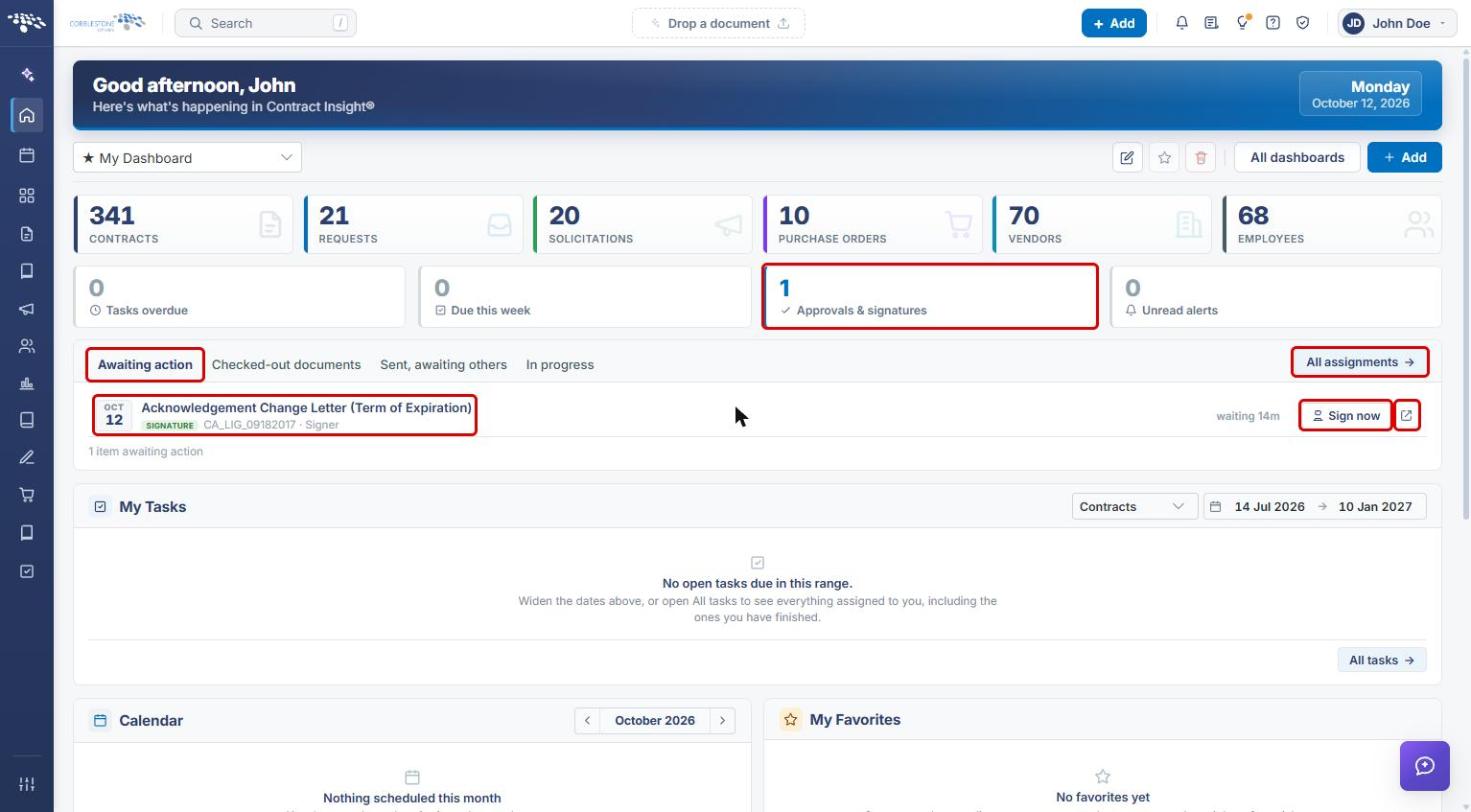
- The homepage Approvals & signatures tile and Awaiting action tab list steps waiting on you, each with Sign now.
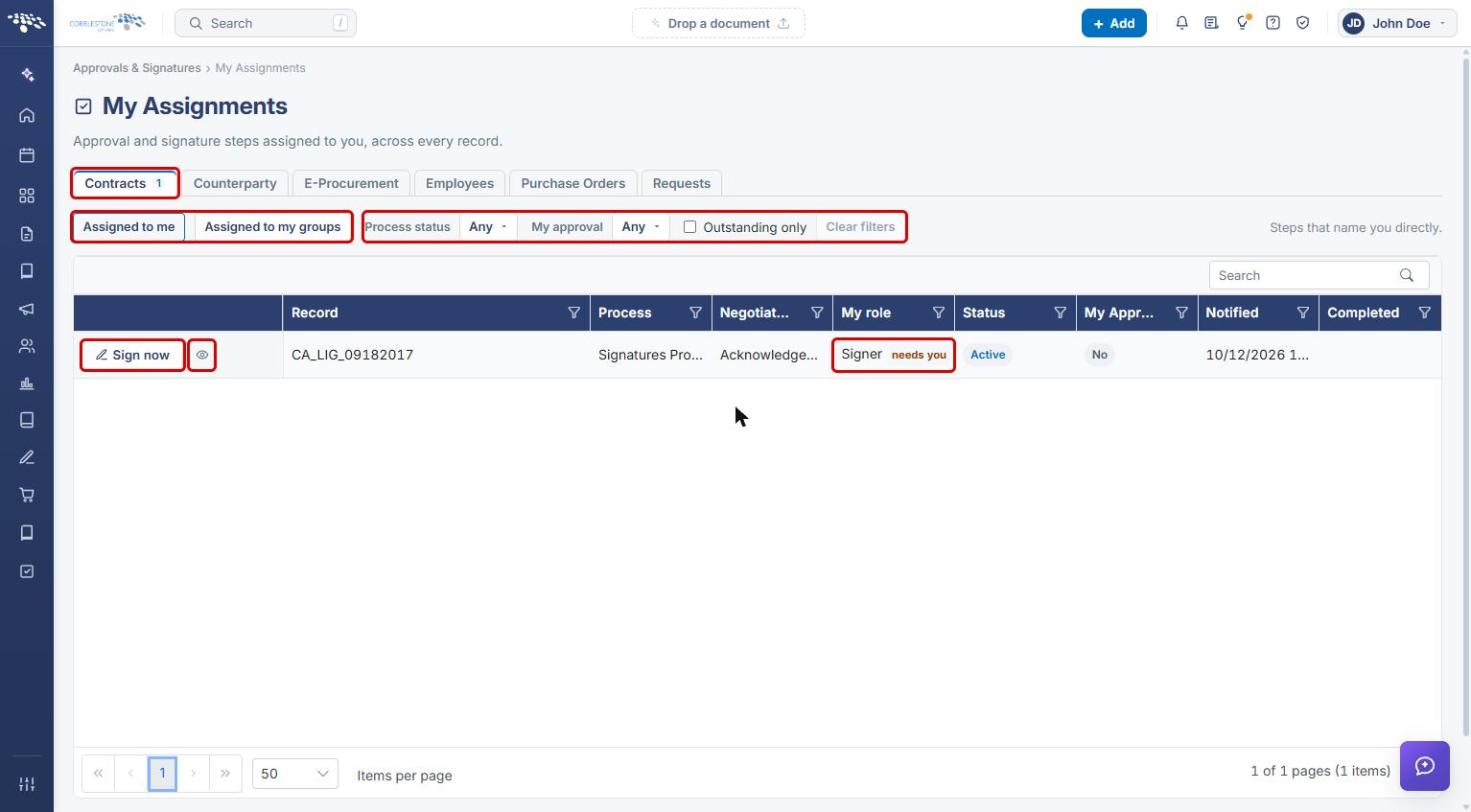
- My Assignments lists every approval and signature step assigned to you, by record type, with filters and a Sign now button on each row.
- The signing page offers a Place toolbar (Signature, Date, Text), a My signature selector, and Decline, Cancel, and Submit signature.
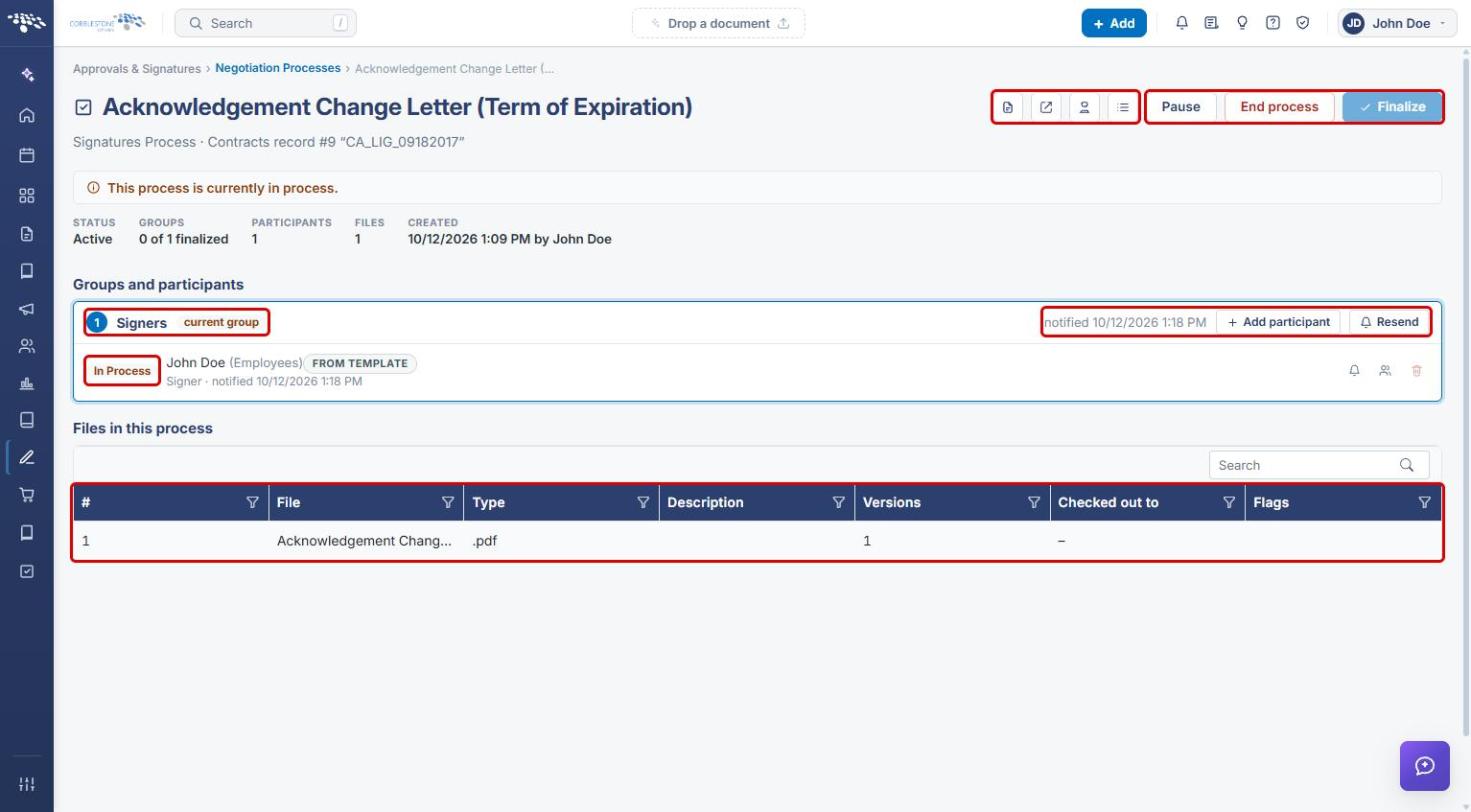
- The signature process console shows each signer's status (for example In Process) and links to the signing portal, the signature receipt, and Place fields.
3. Finding a Document Waiting for Your Signature
3a. From the Homepage
- On the Contract Insight homepage, check the Approvals & signatures tile for the number of steps waiting on you.
- On the Awaiting action tab, find the document. Signature steps are tagged SIGNATURE and show your role (for example, Signer).
- Click Sign now to open the signing page, or click All assignments to see every step assigned to you.
3b. From My Assignments
- Click All assignments on the homepage (or go to Approvals & Signatures › My Assignments).
- Select the record-type tab (for example, Contracts). The number on the tab shows how many steps are assigned to you.
- Use Assigned to me or Assigned to my groups, and the Process status, My approval, and Outstanding only filters, to narrow the list.
- Find the row where My role shows Signer · needs you, then click Sign now. Click the eye icon (Open the record) to view the record first.
4. Signing the Document
The signing page opens in a new browser tab.
- Review the document pages.
- If no field has been placed for you, use the Place toolbar to drop a Signature, Date, or Text field onto the page.
- Use the My signature selector to choose which saved signature to apply.
- Click Submit signature to sign. To refuse, click Decline. To leave without signing, click Cancel.
[Screenshot pending: the signing page could not be captured because the QA signing service returned HTTP 503 (Service Unavailable) on 10/12/2026.]
Note: Submitting a signature completes your step and cannot be undone. When every signer in a group has signed, the next group is notified.
5. Tracking a Signature Process (Administrators)
- Go to Approvals & Signatures › Negotiation Processes and click Open console on the signature process.
- In Groups and participants, check the group marked current group and each signer's status (for example, In Process). Use Add participant or Resend as needed.
- Use the header icons: Open record, Open this process on the signing portal, Signature receipt (who signed what, and when), and Place fields (pre-define where each participant signs). Pause, End process, and Finalize manage the process as a whole.
- Review the documents being signed in Files in this process.
6. Pre-placing Signature Fields (Administrators)
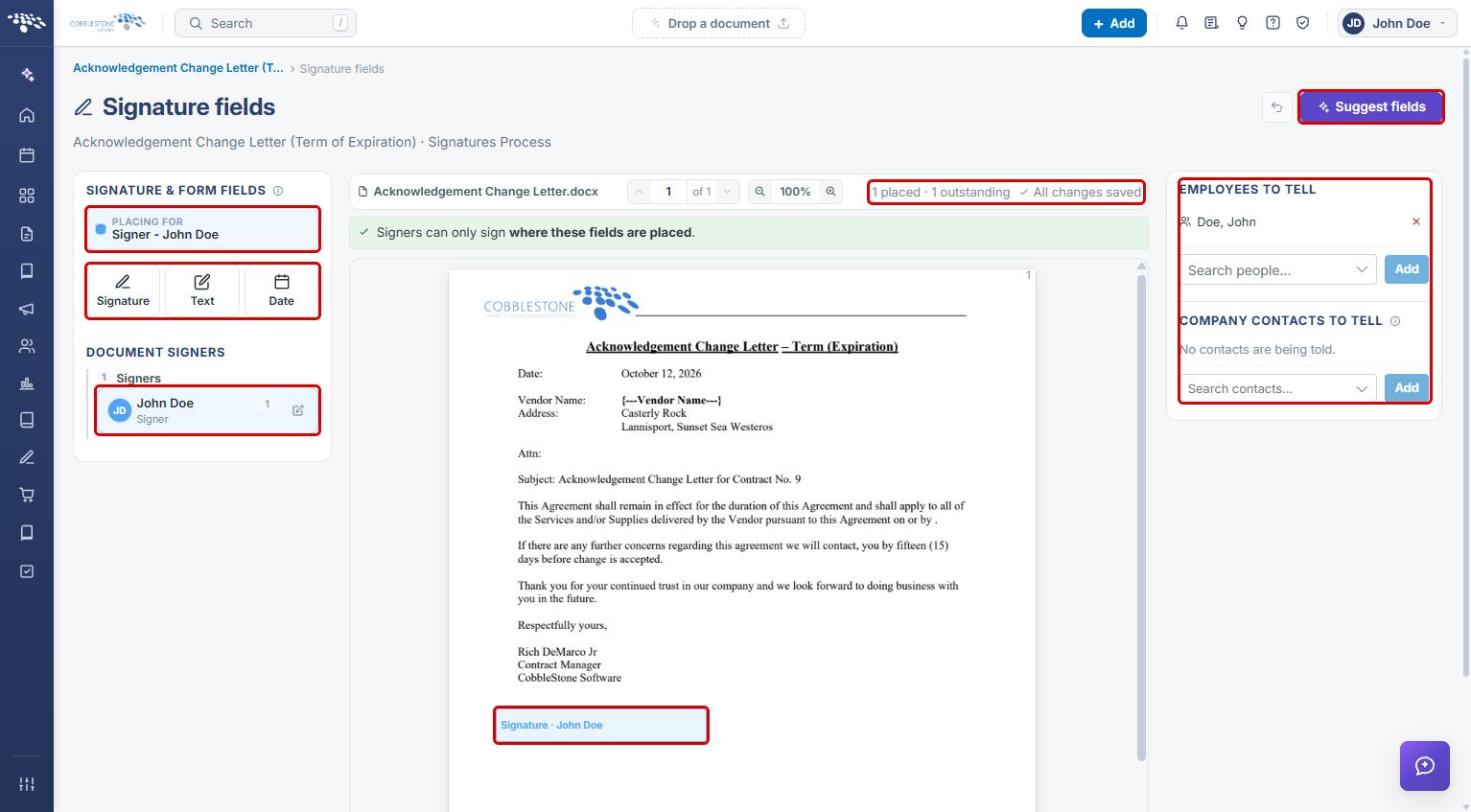
Click Place fields in the console header to open the Signature fields page. Signers can only sign where these fields are placed.
- Under Placing for, confirm which signer you are placing fields for. Select a different signer under Document signers to switch.
- Click Signature, Text, or Date, then click on the document to place the field. The counter above the document shows how many fields are placed and outstanding, and changes save automatically.
- Click Suggest fields to have fields suggested for you.
- Use Employees to tell and Company contacts to tell to choose who is notified.
7. Quick Reference Summary
| Task | How to Complete It |
|---|---|
| See what is waiting for your signature | Homepage → Approvals & signatures tile → Awaiting action tab. |
| See all your assignments | Homepage → All assignments, or Approvals & Signatures → My Assignments. |
| Open the signing page | Sign now on the homepage or My Assignments row. |
| Place a field while signing | Signing page → Place toolbar → Signature, Date, or Text. |
| Choose your signature | Signing page → My signature. |
| Sign, decline, or leave | Submit signature, Decline, or Cancel. |
| Track a signature process | Negotiation Processes → Open console. |
| Pre-place signature fields | Console → Place fields → Signature, Text, or Date. |