COBBLESTONE SOFTWARE
Contract Insight — User Guide
Audit Log History & Merged Content
Document Templates: Generation/Merging › Audit Log History & Merged Content - Document Generation › Audit Log History & Merged Content
Note: Each procedure in this guide begins at the Contract Insight homepage, so any section can be followed on its own. The examples below use a contract record, but the same Audit History page is reached from any record's Actions menu.
1. Overview
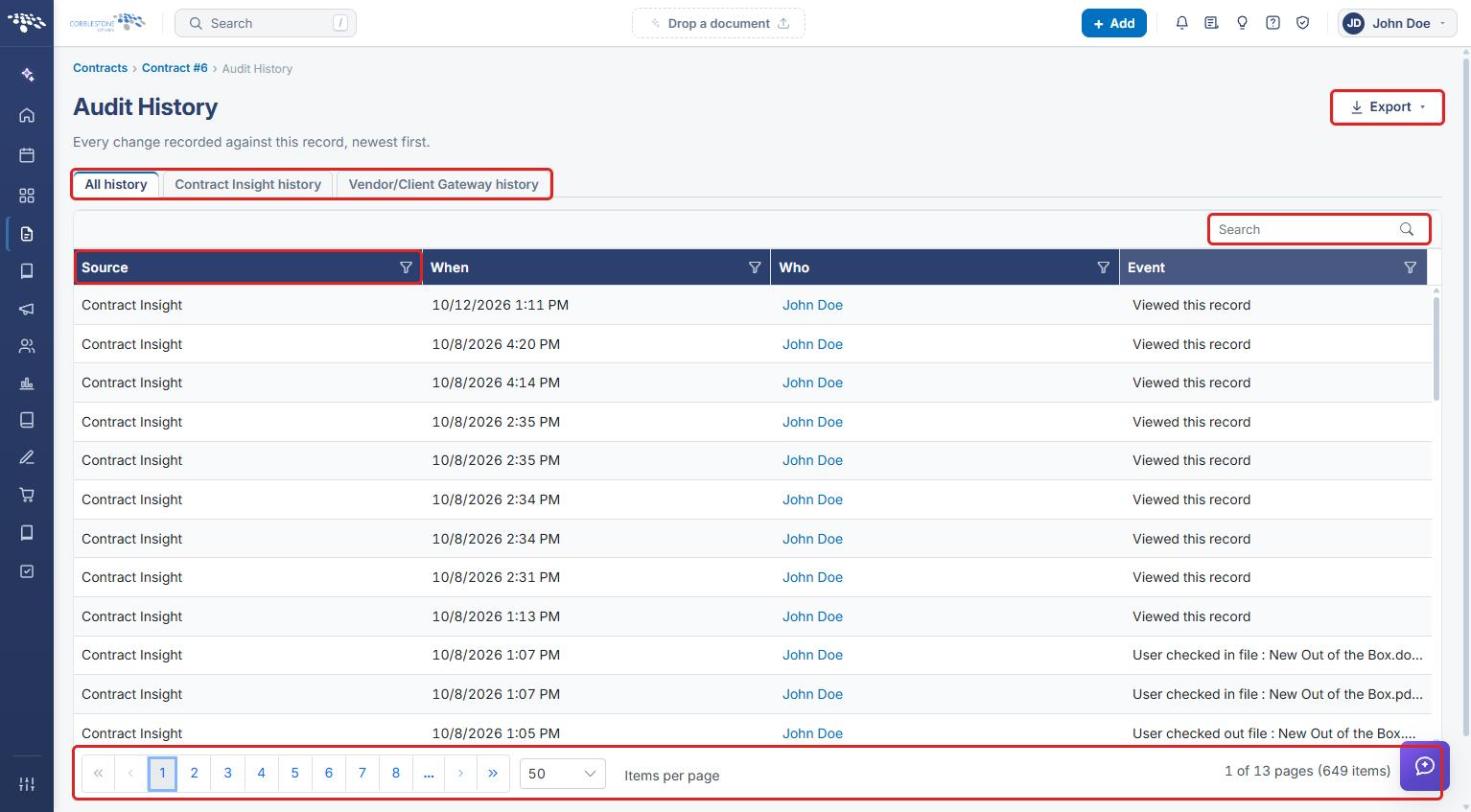
Every record in Contract Insight keeps an Audit History: a newest-first log of everything recorded against that record, such as views, edits, file check-ins/check-outs, and template activity. The history is assembled from two separate logging systems, the core Contract Insight application and the Vendor/Client Gateway portal. The All history tab merges both sources into one chronological timeline (the "merged content"), while the other two tabs show each source on its own.
2. Key Elements
- All history tab (default): the merged timeline from every source. It includes a Source column identifying which system logged each entry.
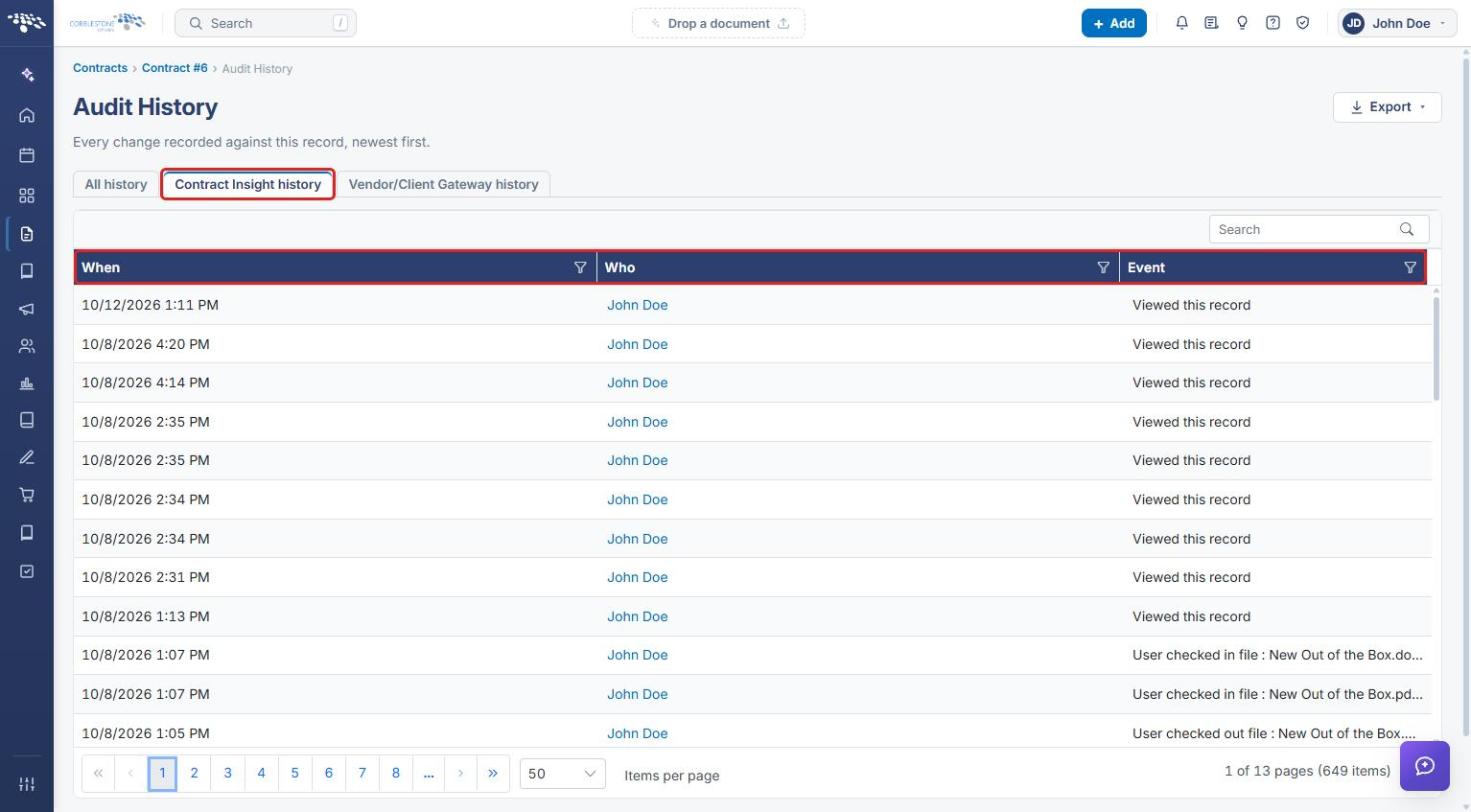
- Contract Insight history tab: only events logged by the core application. The Source column is hidden because it would be redundant.
- Vendor/Client Gateway history tab: only events logged when a vendor or client works with the record through the Gateway portal.
- When / Who / Event columns: shared by all three tabs. Each column header has a filter (funnel) icon.
- Search box: filters the entries on the current tab by keyword.
- Export menu: downloads the current tab's entries as Excel, CSV, or PDF.
- Paging controls: large histories (often hundreds or thousands of entries) are split into pages. Use the page buttons and the Items per page selector to move through them.
3. Opening a Record's Audit History
- From the Contract Insight homepage, hover over the Requests/Contracts icon in the left navigation bar and select Contracts.
.jpg)
- Locate the record (use the Search box if needed) and click Manage on its row.
.jpg)
- On the record page, click Actions in the top-right corner.
- Under Record Actions, select View History.
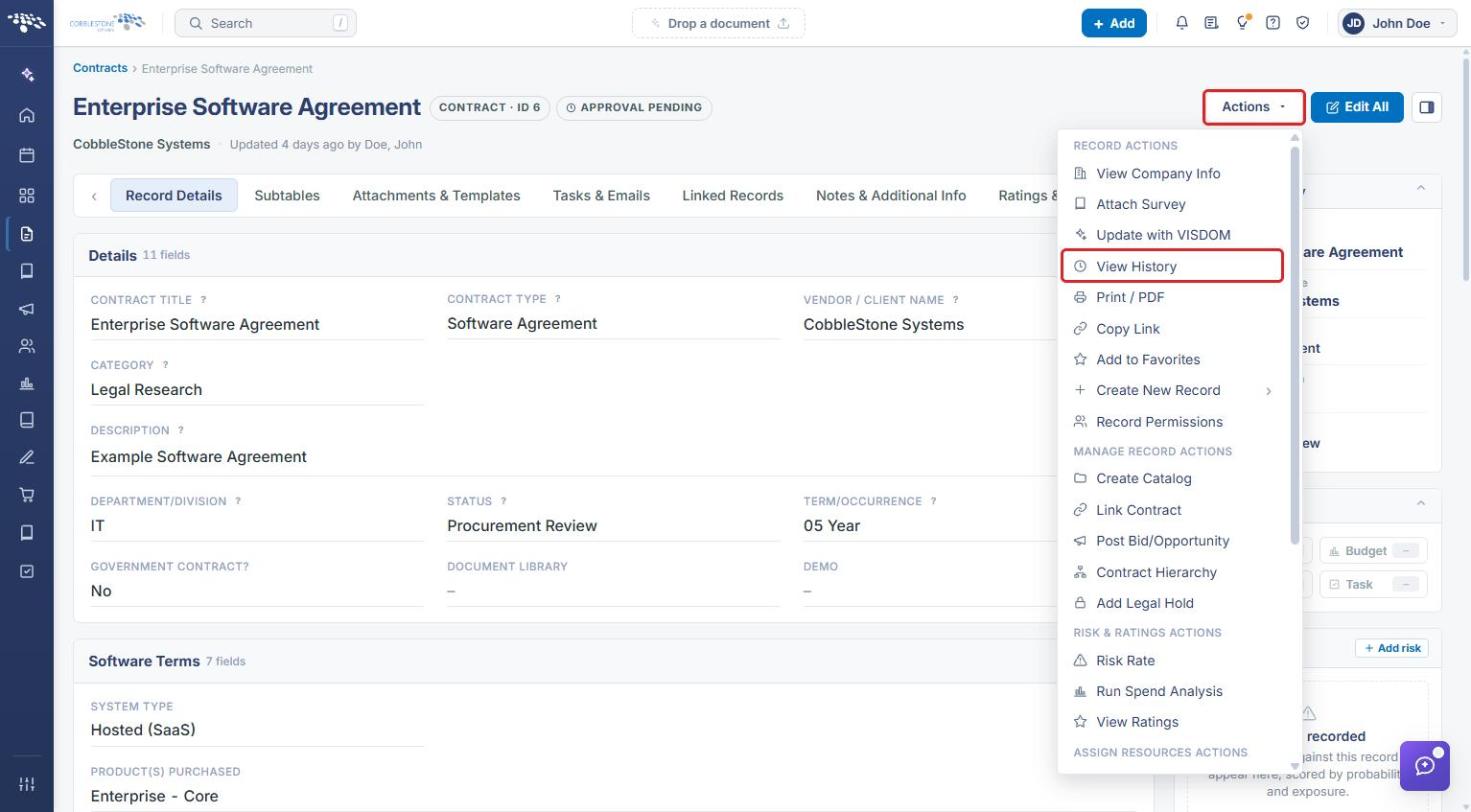
The Audit History page opens on the All history tab. Use the breadcrumb at the top of the page to return to the record.
4. Reviewing the Audit History
4a. All History (Merged View)
- Open the record's Audit History (see Section 3). The All history tab is selected by default.
- Review the entries in the grid. Each row shows the Source (Contract Insight or Vendor/Client Gateway), When the event happened, Who performed it, and the Event description.
- Use the paging controls at the bottom of the grid to move through older entries, or change Items per page.
4b. Contract Insight History
- Click the Contract Insight history tab.
- The grid now shows only events logged by the core application. The Source column is removed, leaving When, Who, and Event.
4c. Vendor/Client Gateway History
- Click the Vendor/Client Gateway history tab.
- The grid shows only events logged through the Vendor/Client Gateway portal, using the same When, Who, and Event columns.
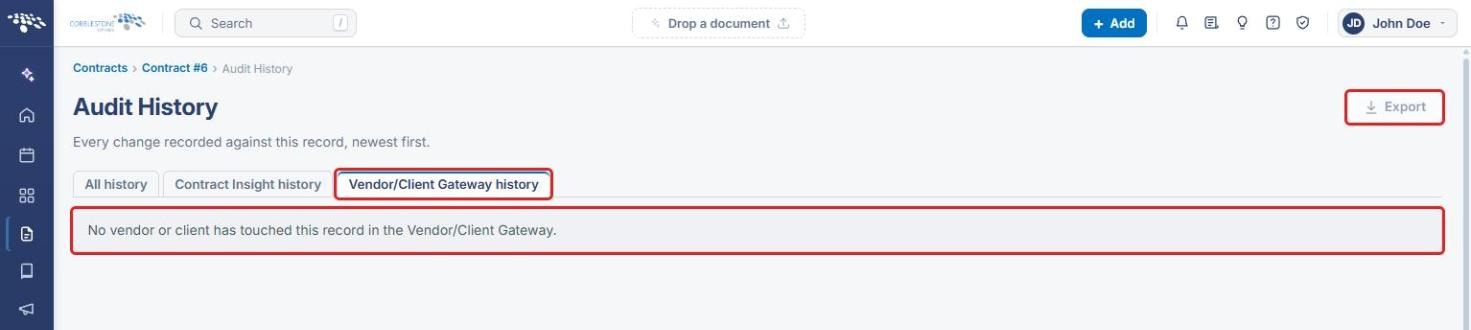
Note: If no vendor or client has worked with the record in the Gateway, the tab displays "No vendor or client has touched this record in the Vendor/Client Gateway." and the Export button is unavailable.
5. Searching and Filtering Entries
- On any tab, type a keyword (for example, a user name or "checked out") in the Search box above the grid to narrow the list.
- To filter a single column, click the filter (funnel) icon in that column's header.
- In the filter panel, either select Text Filters for a condition-based filter, or use the panel's Search box and checkboxes to choose specific values.
- Click OK to apply the filter, or Cancel to close the panel without changes.
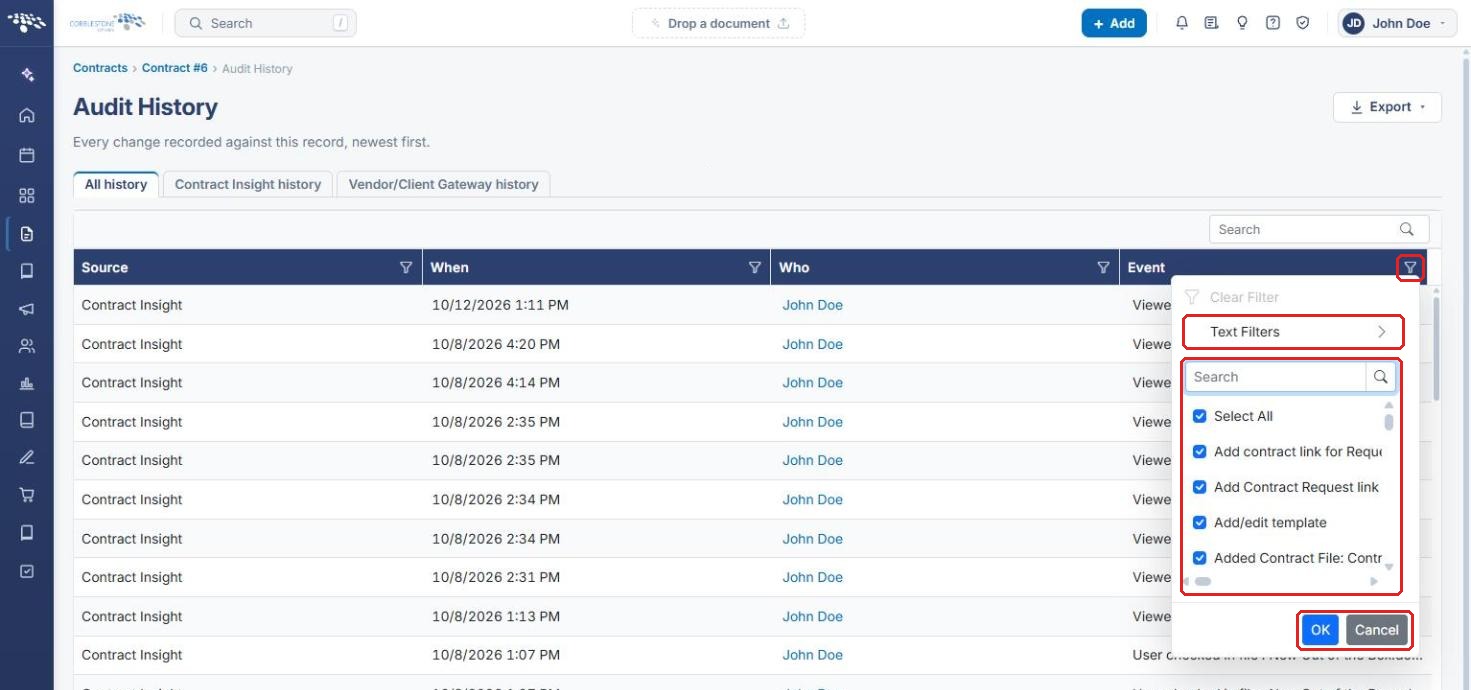
Note: To remove a column filter, reopen the filter panel and click Clear Filter.
6. Exporting the Audit History
- Select the tab containing the entries you want to export (All history, Contract Insight history, or Vendor/Client Gateway history).
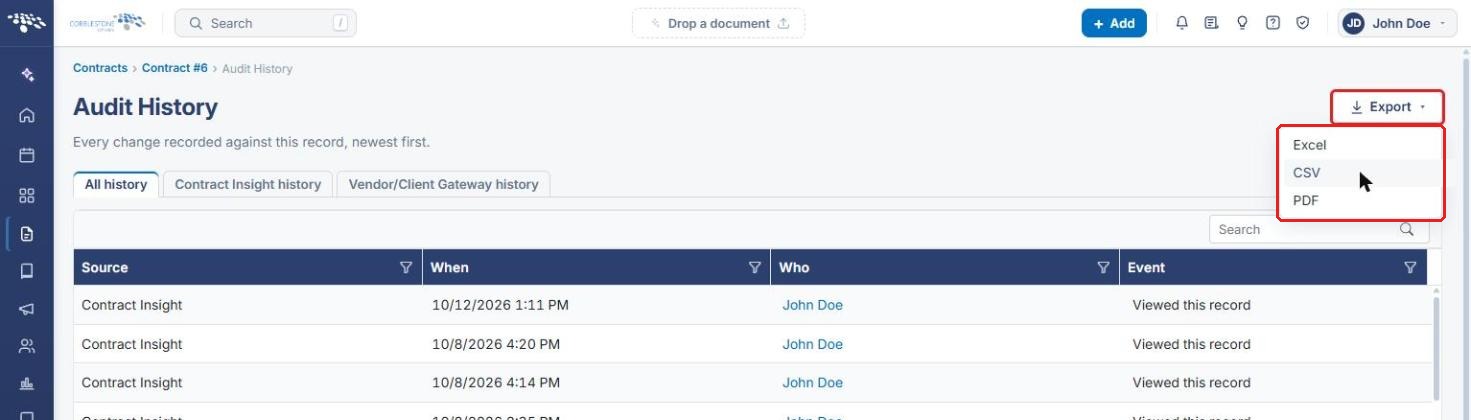
- Click Export in the top-right corner of the page.
- Select Excel, CSV, or PDF. The file downloads through your browser.
7. Quick Reference Summary
| Task | Where | Action |
|---|---|---|
| Open a record's Audit History | Record page | Actions → View History |
| See every event from all sources | Audit History | All history tab (includes Source column) |
| See only core application events | Audit History | Contract Insight history tab |
| See only vendor/client portal events | Audit History | Vendor/Client Gateway history tab |
| Find specific entries | Above the grid | Type in the Search box |
| Filter a column | Column header | Click the funnel icon → choose values → OK |
| Browse older entries | Below the grid | Page buttons / Items per page |
| Download the history | Top-right of page | Export → Excel, CSV, or PDF |