COBBLESTONE SOFTWARE
Contract Insight — User Guide
Select Mergeable Fields
Document Templates Management › Manage Document Package Template › Select Mergeable Fields
Note: Each procedure in this guide begins at the Contract Insight homepage, so any section can be followed on its own. Custom fields are configurable, so the exact field list on a contract category record may vary between environments.
1. Overview
Mergeable fields are the record values that replace placeholders in a document template. A template's Mergeable fields tab reads: "Each field replaces {---Display name---} in the document. Fields come from this template's own table and the tables joined to it — the same joins the merge performs, so anything listed here can resolve to a value." An Add merge fields button adds fields, and the grid tracks each one's Placeholder token, source Table, underlying Field, an optional Date format, and whether it's Offered in bulk — matching the legacy description of database field placeholders with custom display names, tracked across the template wherever they're referenced.
2. Key Elements
- The Mergeable fields tab sits on the template's Core setup step, and its badge shows how many fields the template holds. The Template overview tab also shows a Mergeable fields card with a Manage button.
- Add merge fields opens a picker for adding fields from this template's table or any table joined to it.
- Each field's Placeholder token is {---Display name---}, shown alongside its source Table and Field.
- Date fields carry their own Date format setting and can also be merged as a Days until, Months until, or Years until countdown.
- Offered in bulk marks fields that are offered when documents are generated in bulk.
3. Navigating to a Template's Mergeable Fields
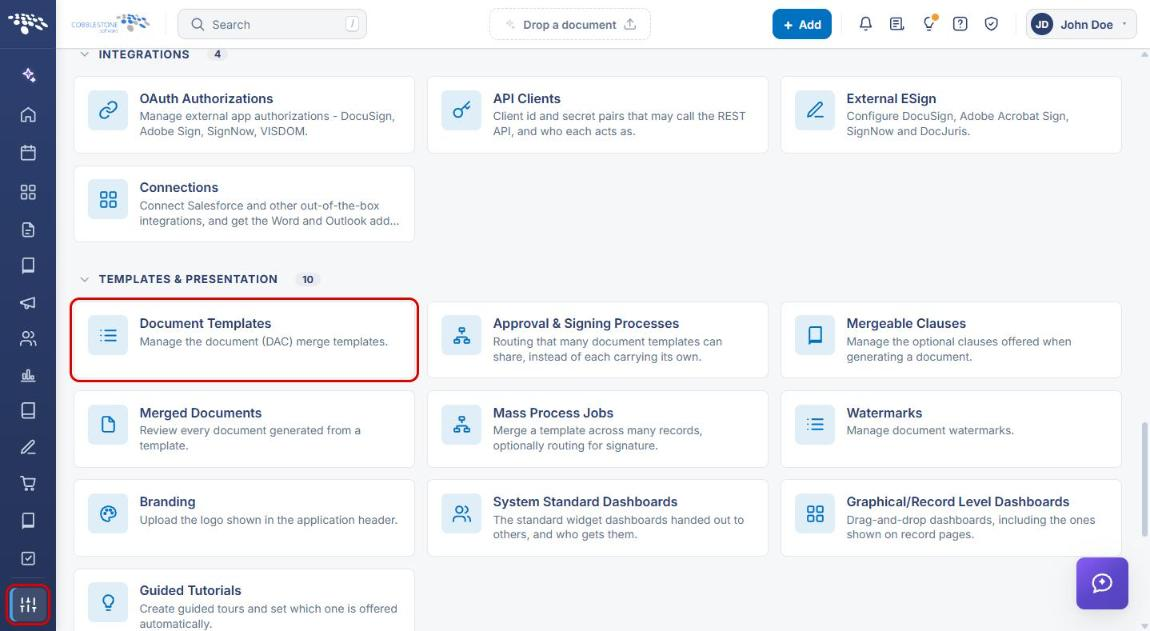
- From the Contract Insight homepage, click the Administration icon (sliders) at the bottom of the left navigation bar.
- Under Templates & Presentation, click Document Templates.
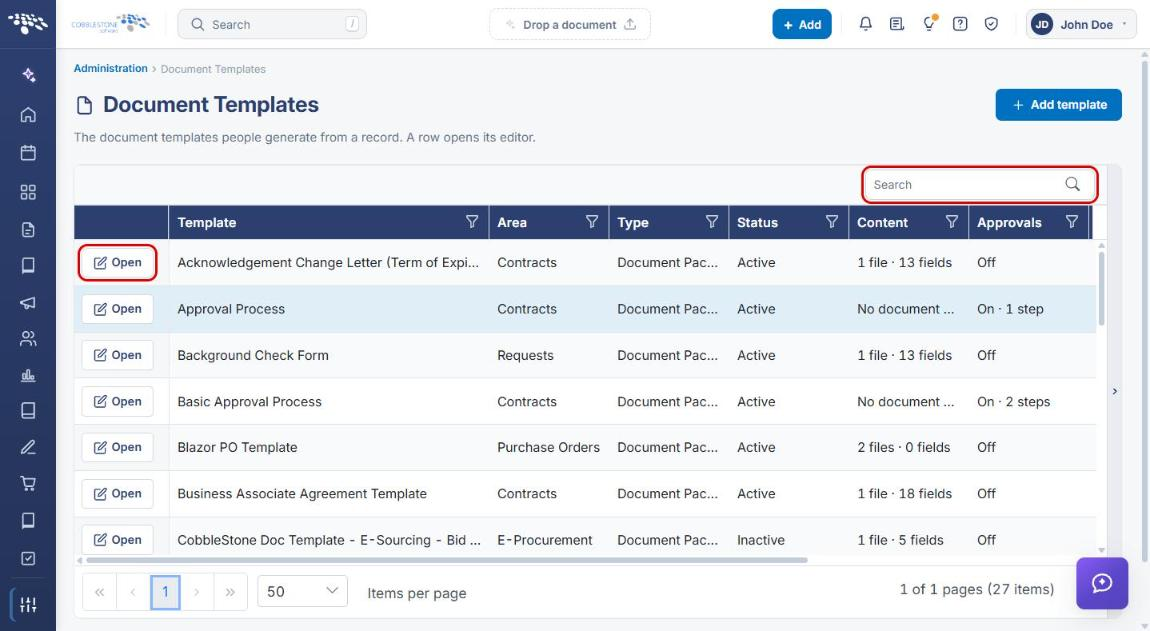
- On the Document Templates page, locate the template (use the Search box if needed) and click Open on its row.
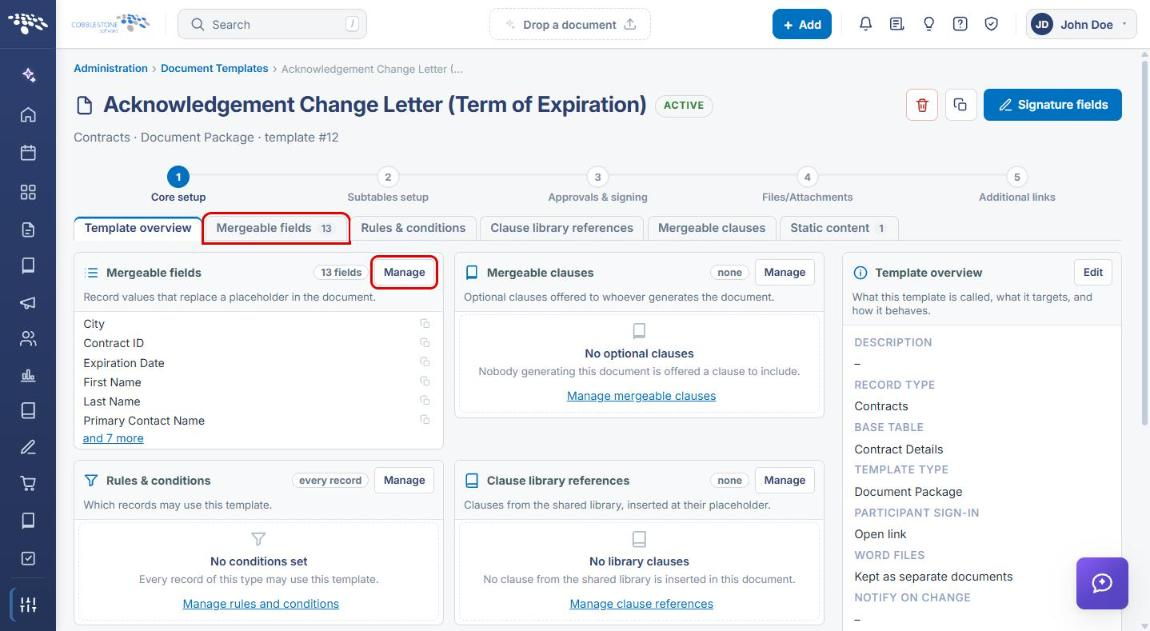
- The template opens on the Core setup step with the Template overview tab selected. Click the Mergeable fields tab, or click Manage on the Mergeable fields card.
4. Reviewing the Mergeable Fields Grid
The Mergeable fields tab lists every field the template can merge. Use the grid's Search box or column filters to find a field.
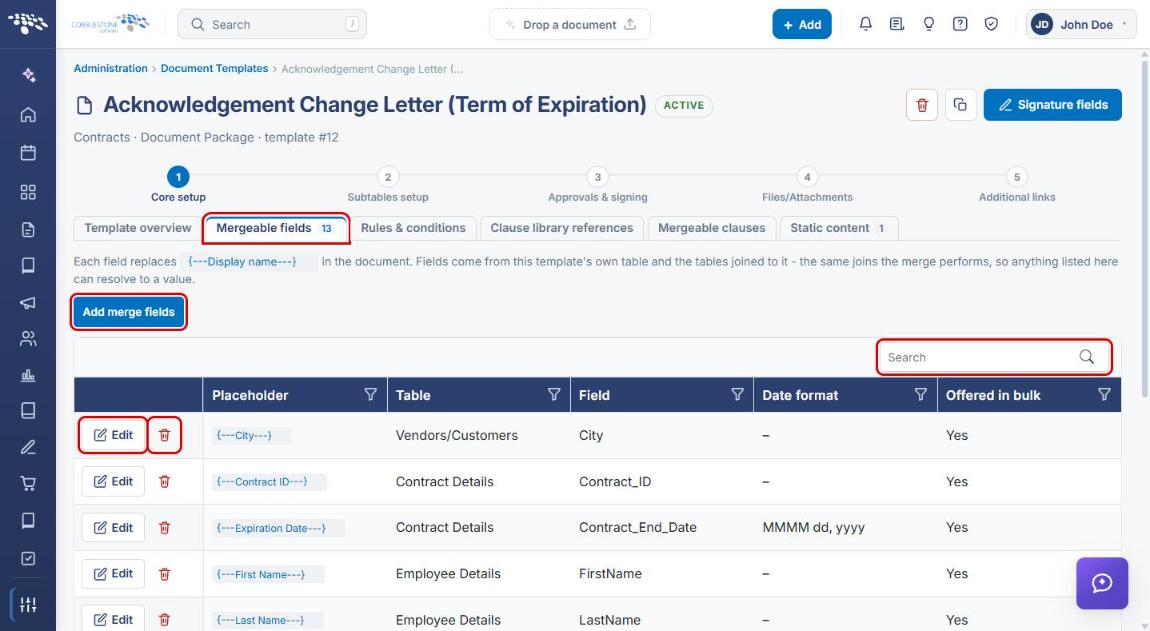
- Placeholder — the token to place in the Word document, in the form {---Display name---}.
- Table and Field — where the value comes from.
- Date format — how a date field is written into the document (blank for non-date fields).
- Offered in bulk — whether the field is offered when documents are generated in bulk.
- Edit and the delete (trash) icon on each row change or remove the field.
5. Adding Merge Fields
- Navigate to the template's Mergeable fields tab (see Section 3).
- Click Add merge fields. The Add merge fields panel opens above the grid.
- Select the source TABLE. The list includes this template's own table and the tables joined to it.
- Use FIND to search the selected table's fields.
- Check each field to add. For a date field, click the arrow beside it to add a Days until, Months until, or Years until countdown instead of the date itself; tick the field as well to merge both.
- Click Add fields (the button shows the number selected, for example Add 1 field).
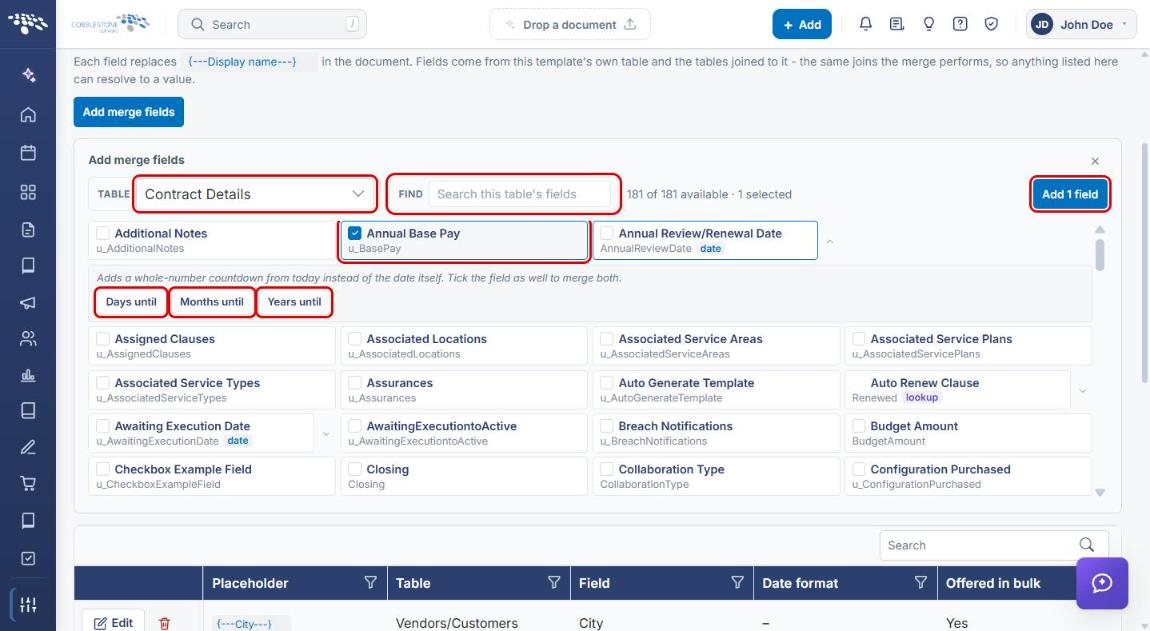
The new fields appear in the grid with their placeholder tokens. Click the × to close the panel without adding anything.
6. Editing a Merge Field
- On the Mergeable fields tab, click Edit on the field's row. The Edit merge field form opens below the grid.
- Update the Display name. This changes the field's placeholder token.
- For date fields, choose a Date format. This setting only applies to date fields.
- Under Options, check or clear Offer this field when documents are generated in bulk.
- Click Save field, or click Cancel to discard changes.
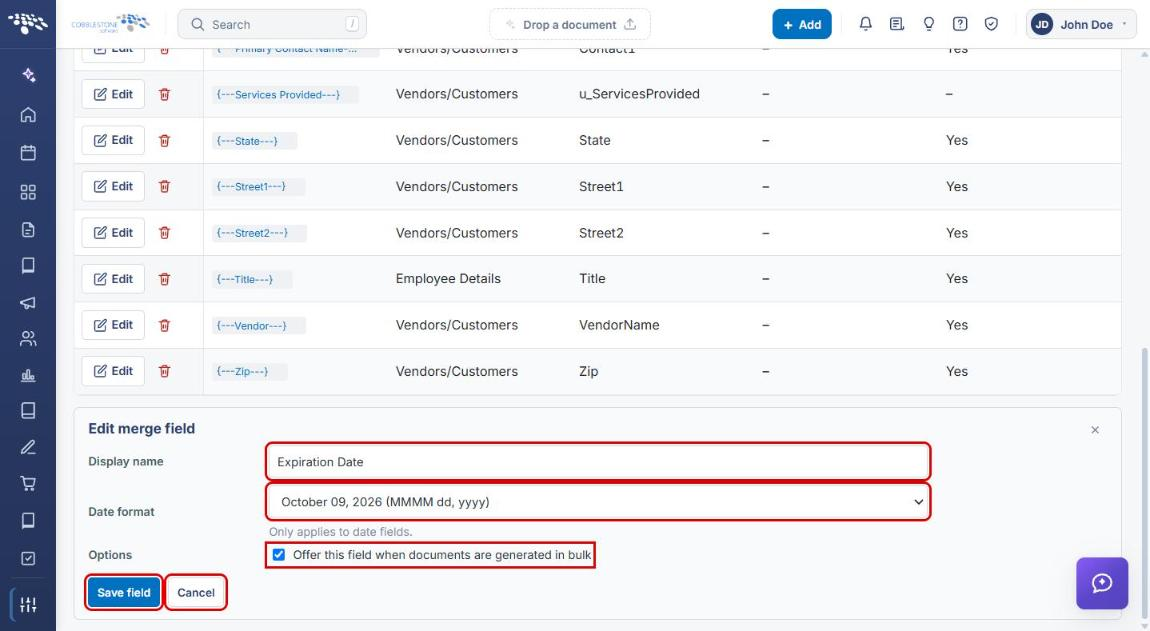
Note: If you change a field's display name, update the matching {---Display name---} placeholder in the template's Word document so it still merges.
7. Removing a Merge Field
- On the Mergeable fields tab, click the delete (trash) icon on the field's row.
- Confirm the removal if prompted.
8. Quick Reference Summary
| Task | How to Complete It |
|---|---|
| Open a template's mergeable fields | Administration → Document Templates → Open → Mergeable fields tab. |
| Add merge fields | Mergeable fields tab → Add merge fields → choose Table → check fields → Add fields. |
| Add a date countdown | Add merge fields → arrow beside a date field → Days until, Months until, or Years until. |
| Rename a field or change its date format | Mergeable fields tab → Edit → Display name / Date format → Save field. |
| Offer a field in bulk generation | Edit → Options → Offer this field when documents are generated in bulk → Save field. |
| Remove a field | Mergeable fields tab → delete (trash) icon on the field's row. |