COBBLESTONE SOFTWARE
Contract Insight — User Guide
Rules & Conditions
Document Templates Management › Manage Document Package Template › Rules & Conditions
Note: Each procedure in this guide begins at the Contract Insight homepage, so any section can be followed on its own. Custom fields are configurable, so the exact field list on a contract category record may vary between environments.
1. Overview
Rules & conditions control which records may use a document template. A template's Rules & conditions tab reads: "Which records may use this template. With no conditions every Contract record may use it; add conditions and only the records that match are offered it." The Filters & conditions builder lets an administrator Match ALL or ANY of a set of Condition rows (field, operator, value) or nested Groups, with a live CONDITION preview rendered as SQL-like text (for example, where ([State] = 'NJ')). Below it, Records this template can be used on shows a live count of matching records with a Refresh button — matching the legacy And/Or filter-builder description with a save-and-preview step.
2. Key Elements
- The Rules & conditions tab sits on the template's Core setup step. The Template overview tab also shows a Rules & conditions card with a Manage button and a summary such as "every record."
- Match ALL or ANY of a set of Condition rows or nested Groups to build the eligibility filter.
- Conditions are written against the template's mergeable fields, so add merge fields first (see Select Mergeable Fields).
- A live CONDITION line shows the resulting rule as it will be evaluated. Until you click Save & preview, a "Not saved yet" note appears and the record preview still reflects the rule in force.
- Records this template can be used on, with Refresh, shows a live count and preview of matching records — 0 if the rule matches nothing.
3. Navigating to a Template's Rules & Conditions
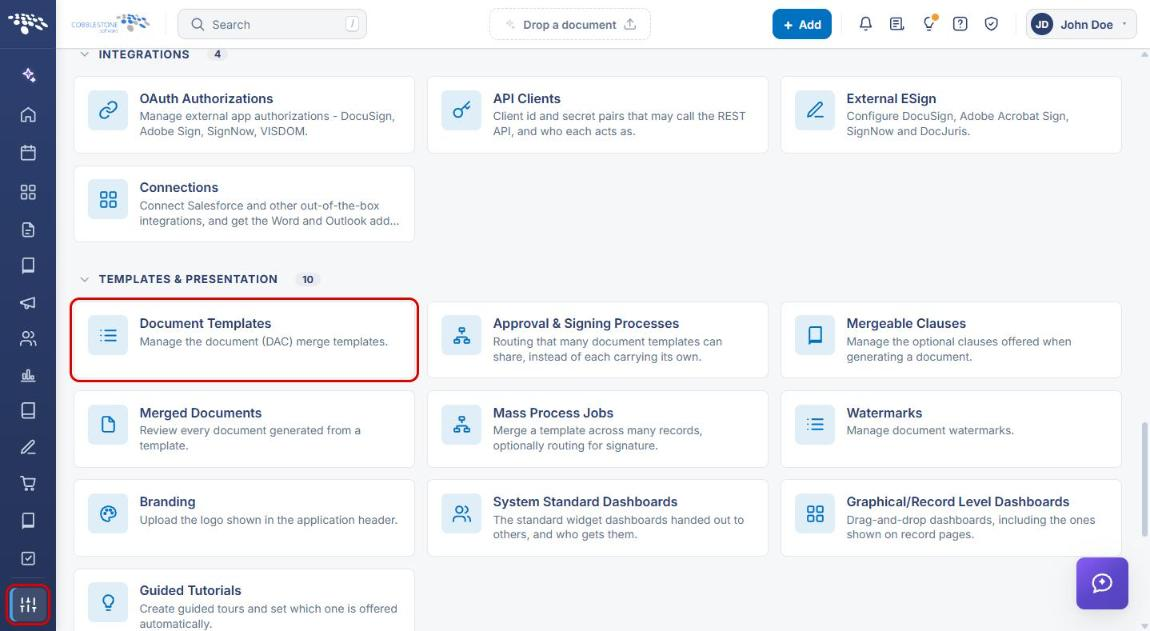
- From the Contract Insight homepage, click the Administration icon (sliders) at the bottom of the left navigation bar.
- Under Templates & Presentation, click Document Templates.
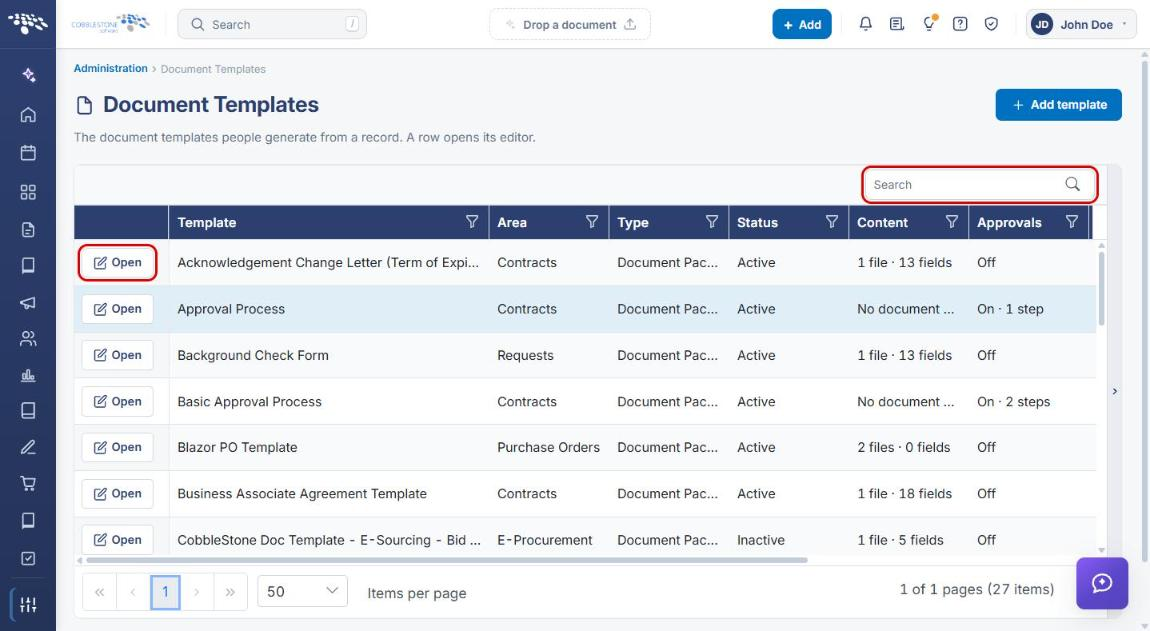
- On the Document Templates page, locate the template (use the Search box if needed) and click Open on its row.
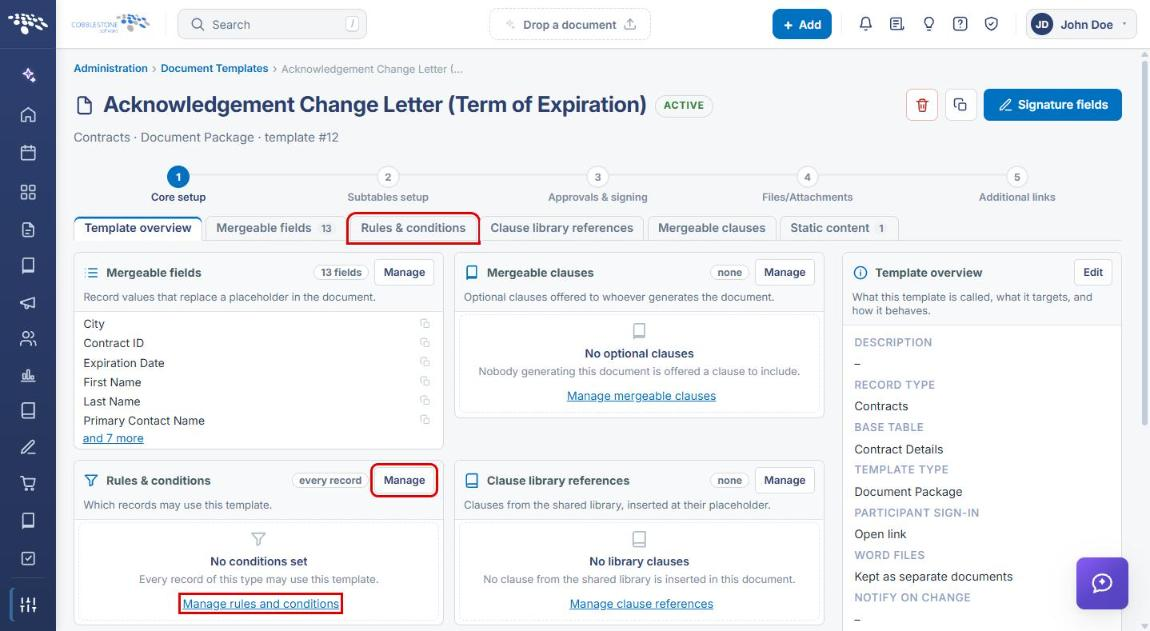
- The template opens on the Core setup step with the Template overview tab selected. Click the Rules & conditions tab, or click Manage (or Manage rules and conditions) on the Rules & conditions card.
4. Understanding the Rules & Conditions Tab
With no conditions, the tab shows "No conditions - this group matches everything," and the CONDITION line reads "(none - every record of this type may use this template)."
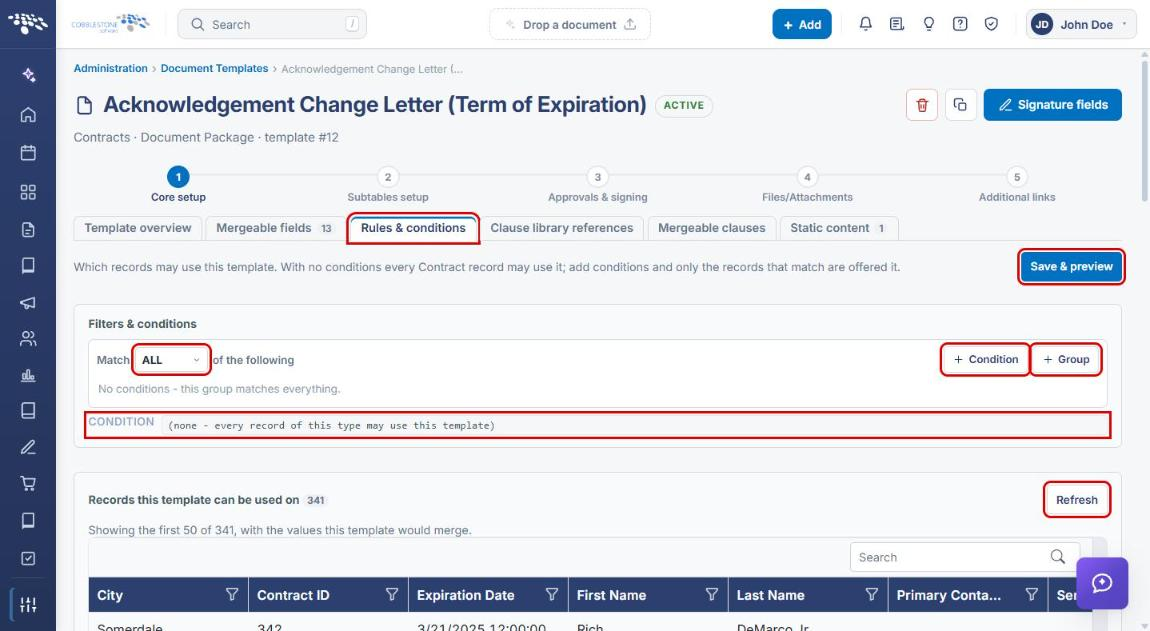
- Match ALL / ANY — whether records must meet all conditions in the group or any one of them.
- + Condition — adds a field / operator / value row.
- + Group — adds a nested group with its own ALL/ANY setting.
- CONDITION — the rule as it will be evaluated.
- Save & preview — saves the rule and refreshes the record preview.
- Refresh — reloads the list of records this template can be used on.
Note: If the template has no mergeable fields yet, the tab reads "Add the merge fields this template uses first - a condition is written against them," with a Go to merge fields link.
5. Adding a Condition
- Navigate to the template's Rules & conditions tab (see Section 3).
- Choose Match ALL or ANY of the following.
- Click + Condition. A new condition row appears.
- Select a field from - select a field -. The list contains the template's mergeable fields.
- Select an operator, such as contains, is equal to, is greater than, is between, is null, or is empty.
- Enter the value to compare against. The CONDITION line updates as you type.
- To remove a condition, click the delete (trash) icon on its row.
- Click Save & preview to save the rule.
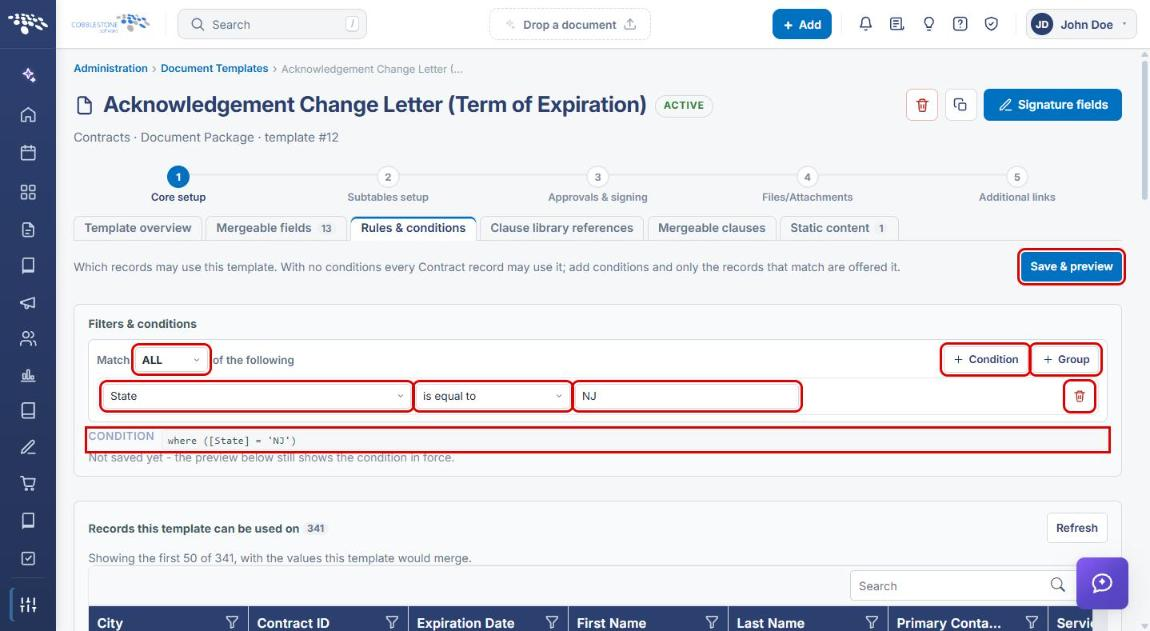
Note: Changes aren't applied until you click Save & preview. Until then, "Not saved yet - the preview below still shows the condition in force" appears under the CONDITION line.
6. Adding a Group of Conditions
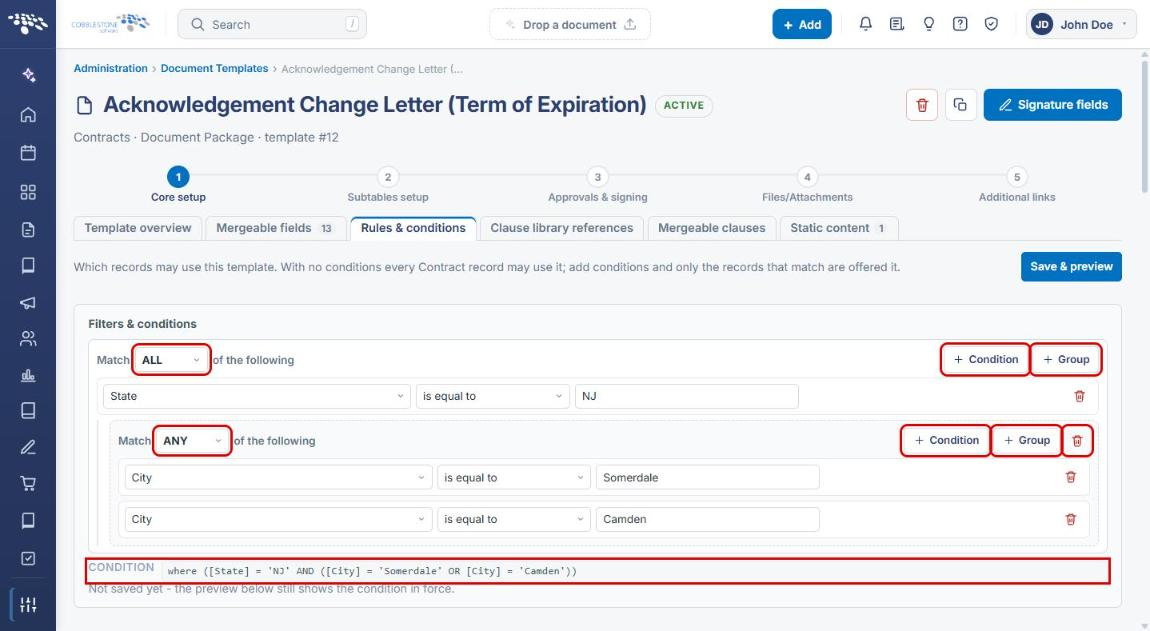
Use groups to combine ALL and ANY logic — for example, State is NJ and the city is either Somerdale or Camden.
- On the Rules & conditions tab, click + Group. A nested group appears with its own Match selector.
- Set the group's Match to ALL or ANY.
- Click the group's + Condition to add rows inside it, or its + Group to nest another group.
- Fill in each row's field, operator, and value. To remove the whole group, click the delete (trash) icon beside the group's buttons.
- Review the CONDITION line, then click Save & preview.
7. Previewing Matching Records
- After saving, scroll to Records this template can be used on. The badge shows how many records currently match.
- The grid shows the first 50 matching records with the values this template would merge. Use Search or the column filters to find a record.
- Click Refresh to reload the count and list.
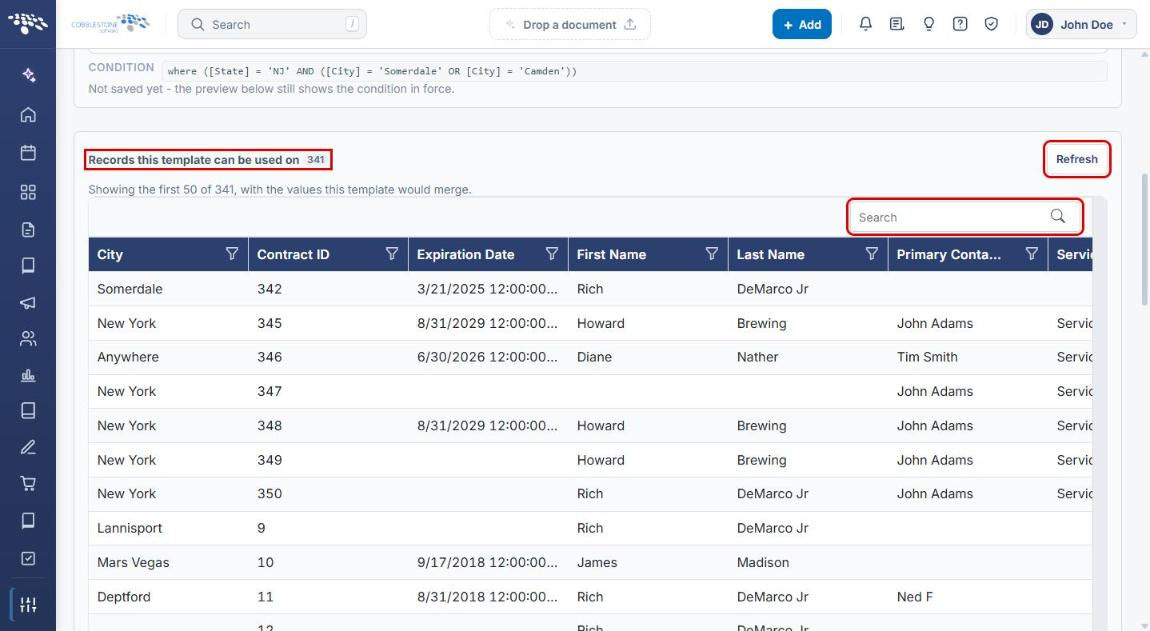
Note: If the count is 0, no records currently match the rule and the template won't be offered on any record. Review the conditions and save again.
8. Quick Reference Summary
| Task | How to Complete It |
|---|---|
| Open a template's rules & conditions | Administration → Document Templates → Open → Rules & conditions tab. |
| Add a condition | Rules & conditions tab → + Condition → field, operator, value → Save & preview. |
| Combine AND/OR logic | + Group → set the group's Match to ALL or ANY → add conditions → Save & preview. |
| Remove a condition or group | Delete (trash) icon on the row or group → Save & preview. |
| Let every record use the template | Remove all conditions → Save & preview. |
| Check which records match | Records this template can be used on → Refresh. |