COBBLESTONE SOFTWARE
Contract Insight — User Guide
Referenced Clauses
Document Templates Management › Manage Document Package Template › Referenced Clauses
Note: Each procedure in this guide begins at the Contract Insight homepage, so any section can be followed on its own. Custom fields are configurable, so the exact field list on a contract category record may vary between environments.
1. Overview
A template's Clause library references tab reads: "Library clauses inserted at {--rcl--Display name--rcl--}. Manage sets a clause's token and which records it is inserted for; the eye previews the clause itself." An "Attach a clause" button adds a reference to a clause already in the shared Clause Library, letting an administrator standardize legal language across templates by pointing at one shared source rather than pasting the text into each template — directly matching the legacy description of inserting Clause Library clauses into document package templates as referenced placeholders with configurable usage rules.
2. Key Elements
- Clause library references tab — found on the Core setup step of a template's editor. The tab label shows how many library clauses the template references.
- Placeholder token — each referenced clause merges at a {--rcl--Display name--rcl--} token placed in the template document.
- Attach a clause — pulls in a clause from the shared Clause Library rather than duplicating its text into the template.
- Manage — sets the clause's Display Title (and so its token) and the conditions that decide which records it is inserted for.
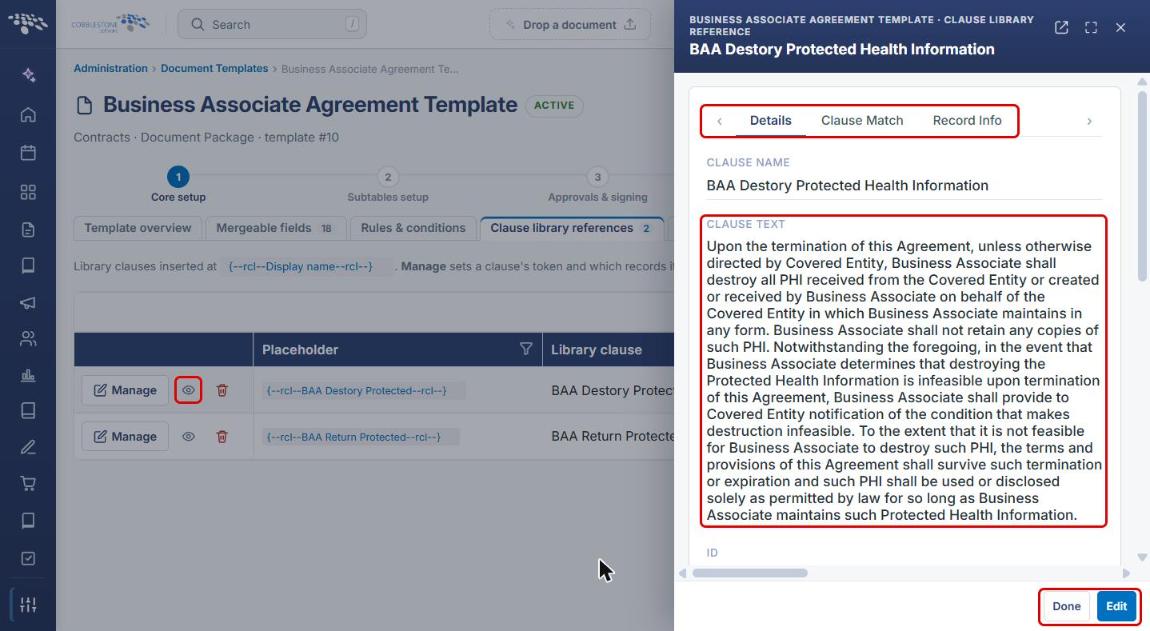
- Eye icon (Preview this clause) — shows the clause's text from the library without leaving the template.
- Trash icon — removes the clause reference from the template. The clause itself stays in the Clause Library.
3. Opening a Template's Clause Library References
- From the Contract Insight homepage, click the Administration icon at the bottom of the left navigation bar, then click Document Templates.
- Find the template in the list (use the Search box if needed) and click Open on its row.
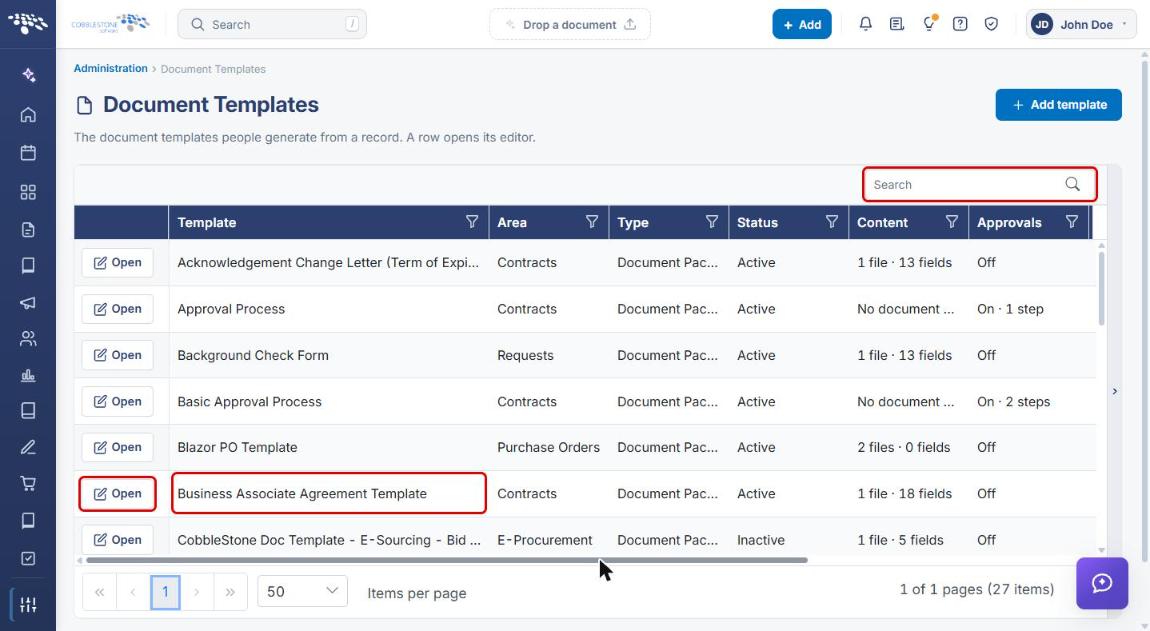
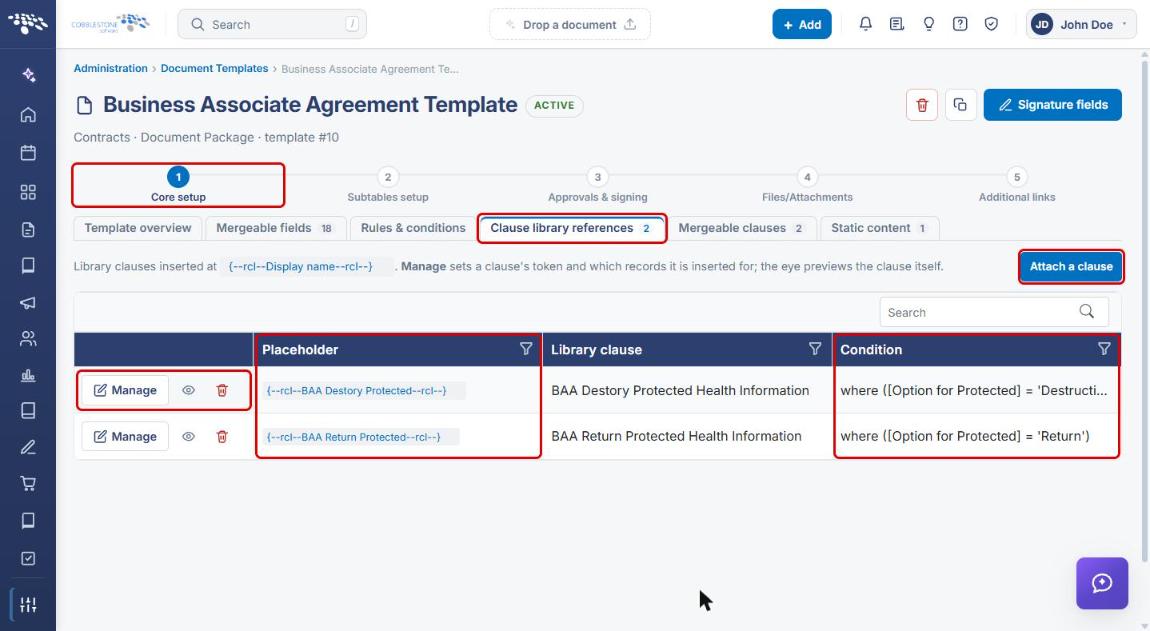
- In the template editor, make sure step 1 Core setup is selected, then click the Clause library references tab.
- The tab lists each referenced clause with its Placeholder token, the Library clause it points to, and the Condition that controls when it is inserted. Each row has Manage, a preview (eye) icon, and a remove (trash) icon.
4. Attaching a Library Clause
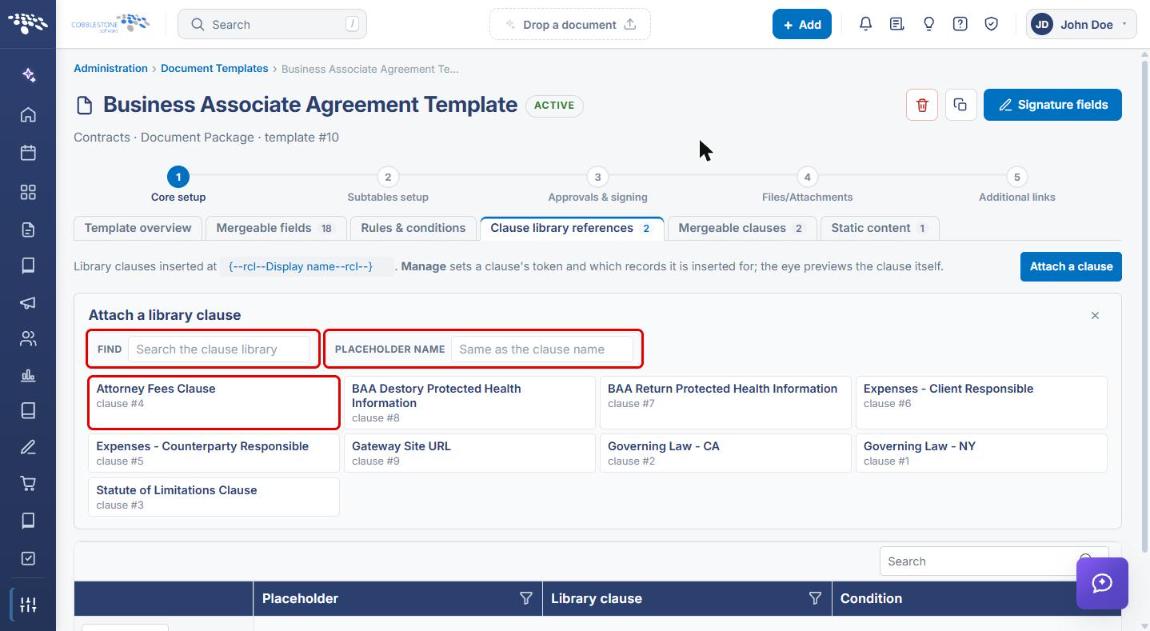
- Open the template's Clause library references tab (see Section 3) and click Attach a clause.
- In the Attach a library clause panel, type in Find to search the Clause Library.
- Optional: enter a Placeholder Name. If left blank, the placeholder uses the clause's name.
- Click the clause you want. It is attached right away as {--rcl--Placeholder Name--rcl--} and added to the list.
- Copy the token (click it in the Placeholder column) and paste it into the template document where the clause should appear.
Note: With no conditions set, an attached clause is inserted every time the template merges. Use Manage (Section 5) to limit it to matching records.
5. Managing a Clause's Placeholder and Conditions
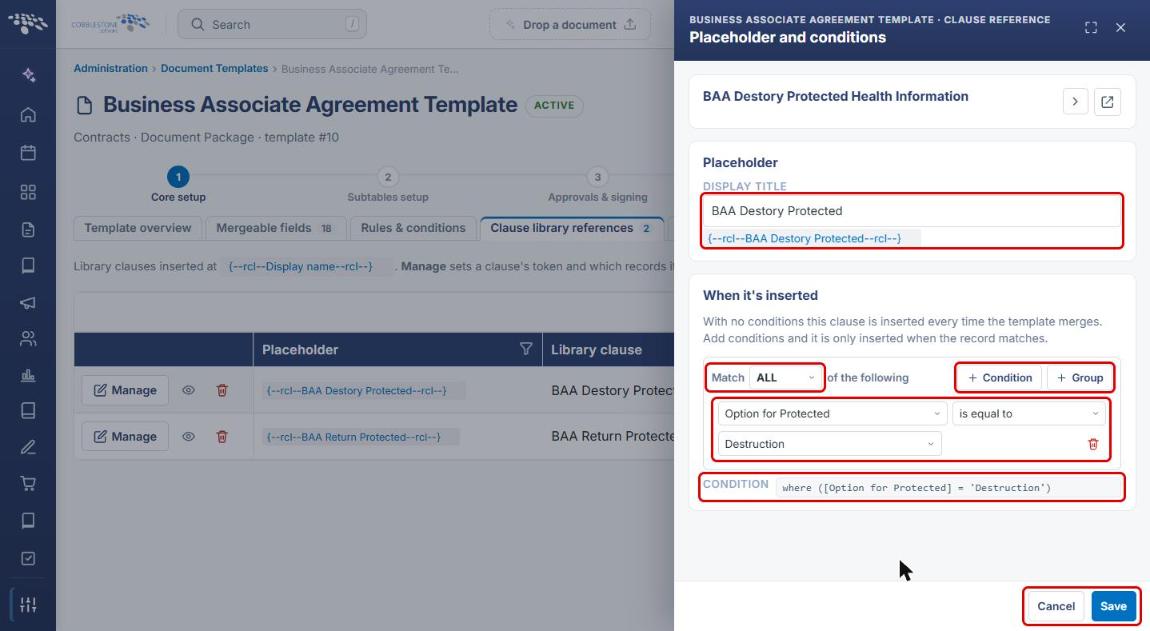
- On the Clause library references tab, click Manage on the clause's row. The Placeholder and conditions panel opens.
- Under Placeholder, edit the Display Title. The token below it updates to match. Make sure the template document uses the same token.
- Under When it's inserted, use the Match list (for example, ALL) to set how the conditions combine.
- Click + Condition to add a rule, then pick the field, the operator (for example, is equal to), and the value. Click + Group to build a nested group of conditions. Use the trash icon to remove a rule.
- Check the Condition line, which shows the full rule in plain form.
- Click Save to keep your changes, or Cancel to close without saving.
6. Previewing a Referenced Clause
- On the Clause library references tab, click the eye icon on the clause's row.
- The preview opens on the Details tab, showing the Clause Text as it is stored in the Clause Library. Use the Clause Match and Record Info tabs for more detail.
- Click Done to close the preview. Click Edit only if you mean to change the clause in the Clause Library; that change affects every template that references it.
7. Quick Reference Summary
| Task | How to Complete It |
|---|---|
| Open a template's library clauses | Administration → Document Templates → Open → Core setup → Clause library references. |
| Attach a library clause | Attach a clause → search with Find → (optional) enter a Placeholder Name → click the clause. |
| Place the clause in the document | Copy the {--rcl--Display name--rcl--} token from the Placeholder column and paste it into the template document. |
| Change a clause's token or conditions | Manage → edit Display Title and/or add conditions under When it's inserted → Save. |
| Preview a clause's text | Click the eye icon on the clause's row → Done. |
| Remove a clause from the template | Click the trash icon on the clause's row. The clause stays in the Clause Library. |