COBBLESTONE SOFTWARE
Contract Insight — User Guide
Reading Results
Risk Compliance › OFAC › Reading Results
Note: Each procedure in this guide begins at the Contract Insight homepage, so any section can be followed on its own. Custom fields are configurable, so the exact field list on a contract category record may vary between environments.
1. Overview
A record's Audit History grid is read via four columns: Source (which system logged the entry — Contract Insight or Vendor/Client Gateway, shown only on the merged All history tab), When (a timestamp, newest first), Who (the acting user), and Event (a plain-language description of what happened, such as "Viewed this record" or "Authored document generated"). Each column has its own filter icon for narrowing results, and a keyword Search box searches across the entries. Because a record's full history can run into the thousands of entries, with the on-screen grid capped at its most recent 5,000, reading a specific event usually means filtering by Who or a date, or searching for a keyword in the Event text, rather than scrolling the full list. The Export menu (Excel, CSV, and PDF) lets the complete, un-capped history be pulled out for review outside the application when the on-screen limit isn't enough.
2. Key Elements
- Audit History results are read across four columns: Source (system of origin, merged view only), When (timestamp, newest first), Who (acting user), and Event (a plain-language description of the change).
- Each column has its own filter icon, and a keyword Search box searches across the entries — both used to narrow a long history down to a specific event.
- Histories can run into the thousands of entries, with the on-screen grid capped at its most recent 5,000 — filtering by Who, a date, or an Event keyword is the practical way to find something specific rather than scrolling.
- The Export menu (Excel, CSV, PDF) retrieves the complete, un-capped history for offline review when the on-screen limit isn't sufficient.
- The same reading approach applies whether viewing the merged All history tab or a single-source tab (Contract Insight history or Vendor/Client Gateway history).
3. Opening a Record's Audit History
- From the Contract Insight homepage, open the record (for example, Requests/Contracts → Contracts → Manage on the contract's row).
- Click Actions in the record header.
- Under Record Actions, select View History.
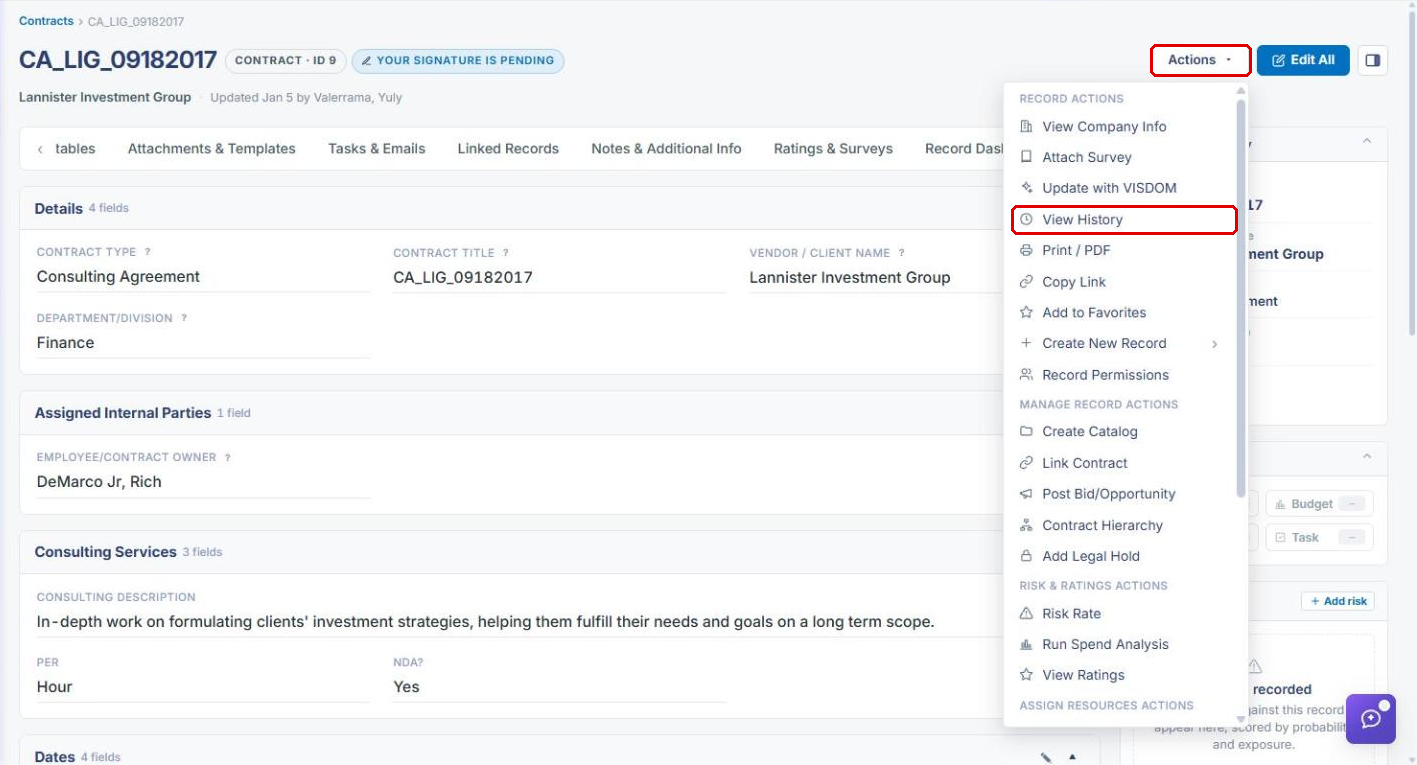
The Audit History page opens on the All history tab, listing every change recorded against the record, newest first. The total number of entries appears at the bottom right.
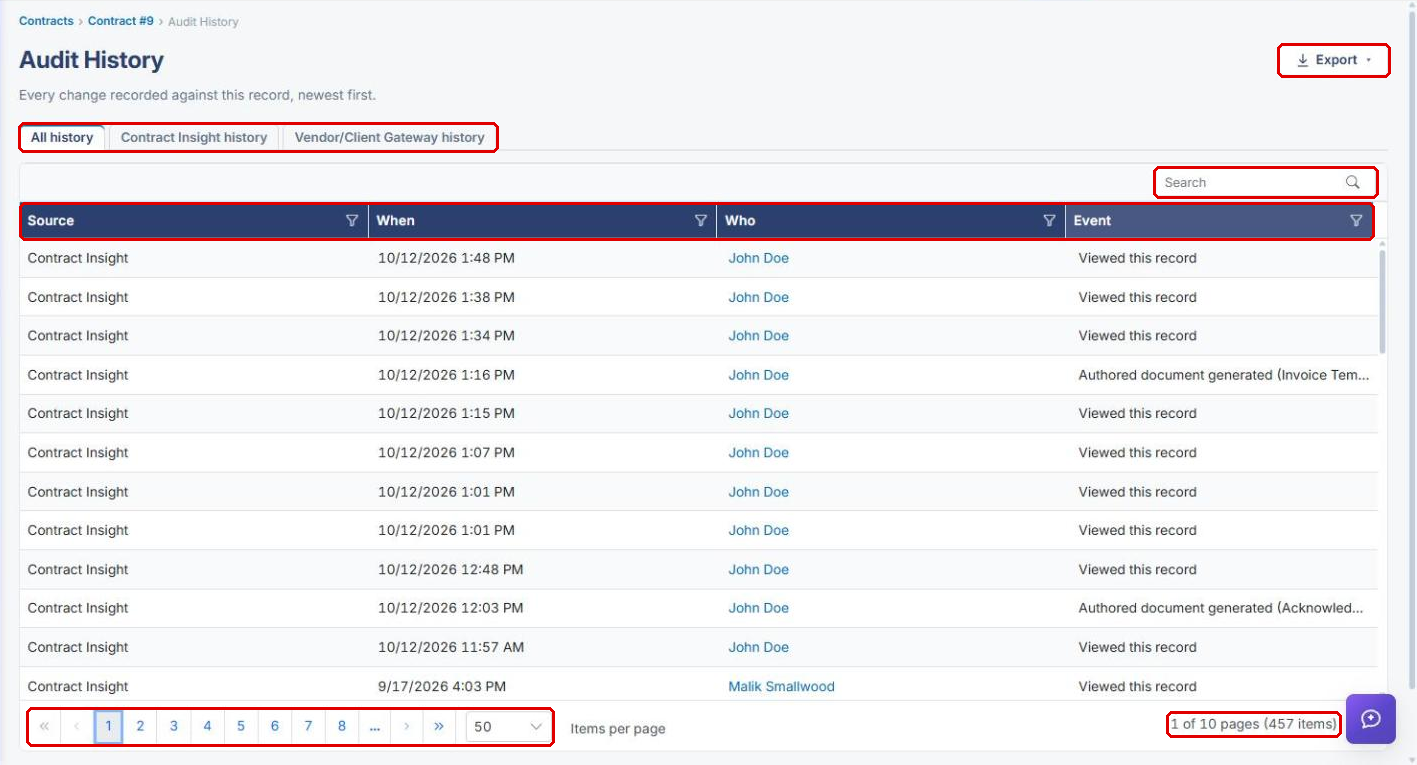
4. Reading the Columns
| Column | What It Shows |
|---|---|
| Source | The system that logged the entry: Contract Insight or Vendor/Client Gateway. Shown only on the All history tab. |
| When | The date and time of the entry. Entries are listed newest first. |
| Who | The user who performed the action. Names appear as links. |
| Event | A plain-language description of what happened (for example, "Viewed this record" or "Authored document generated"). |
Use the page numbers and Items per page at the bottom of the grid to move through long histories.
5. Switching Between History Tabs
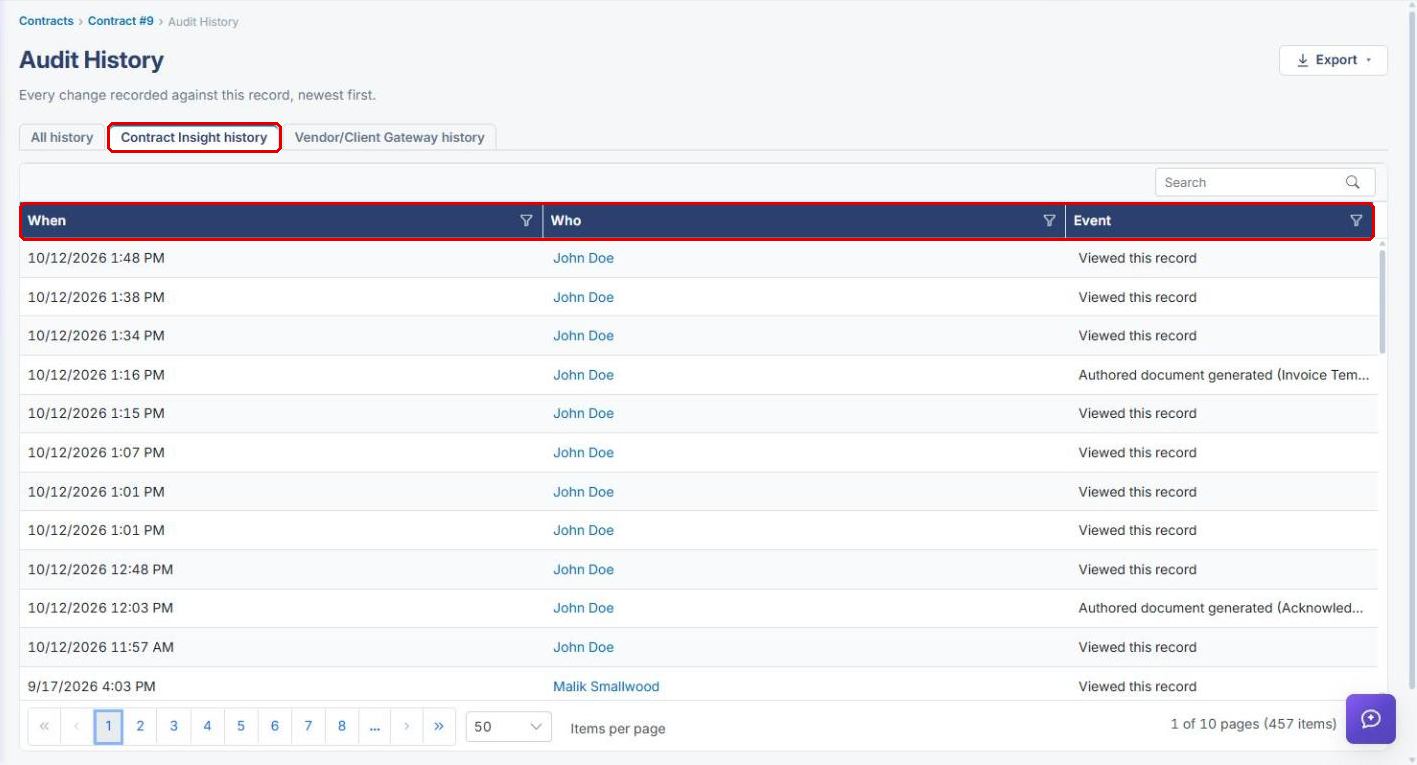
- Click All history to see entries from every source in one merged list, with the Source column.
- Click Contract Insight history or Vendor/Client Gateway history to see entries from a single source. The Source column is hidden, leaving When, Who, and Event.
6. Narrowing the Results
6a. Filtering a Column
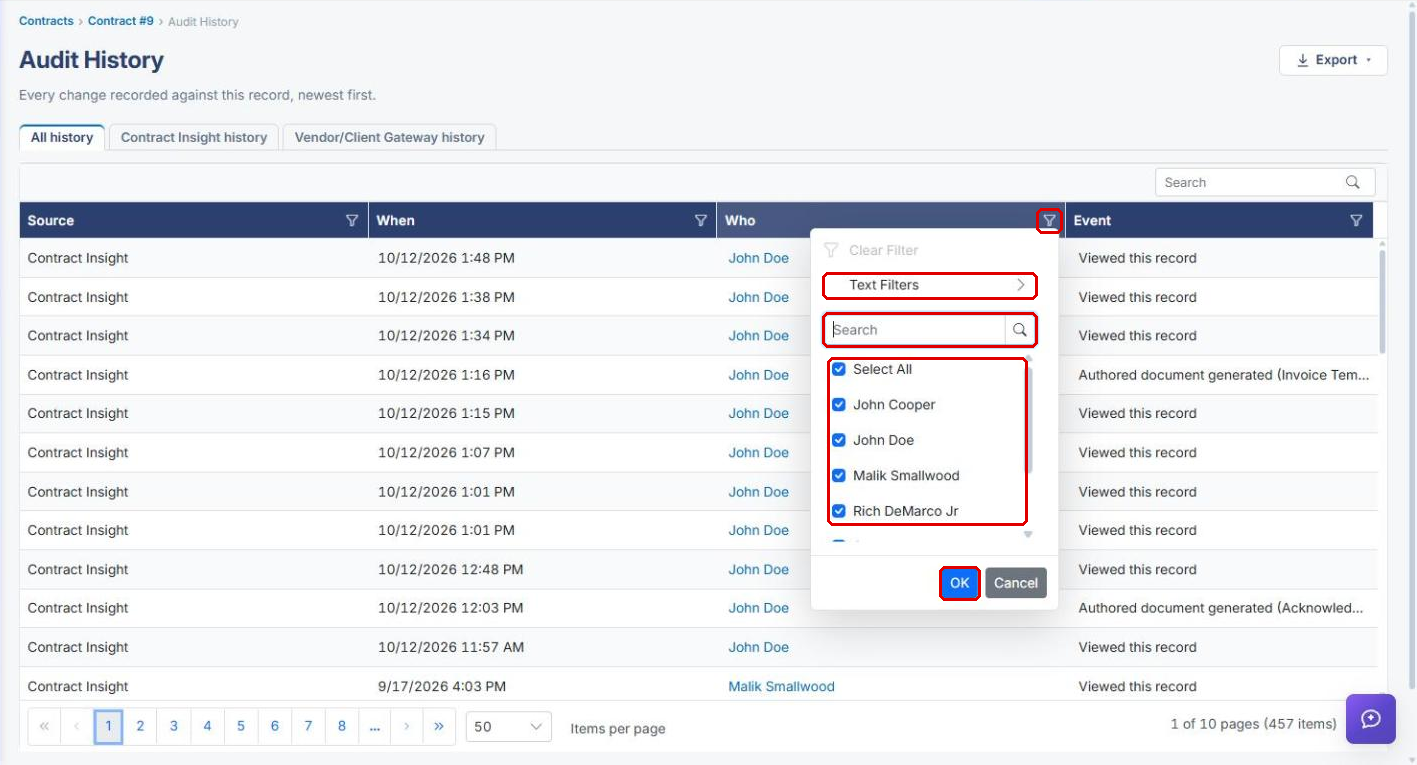
- Click the filter icon on a column header (for example, Who).
- Search the value list, or use Text Filters to filter by a text condition.
- Uncheck Select All, then check the values to keep.
- Click OK. To remove the filter later, open it again and click Clear Filter.
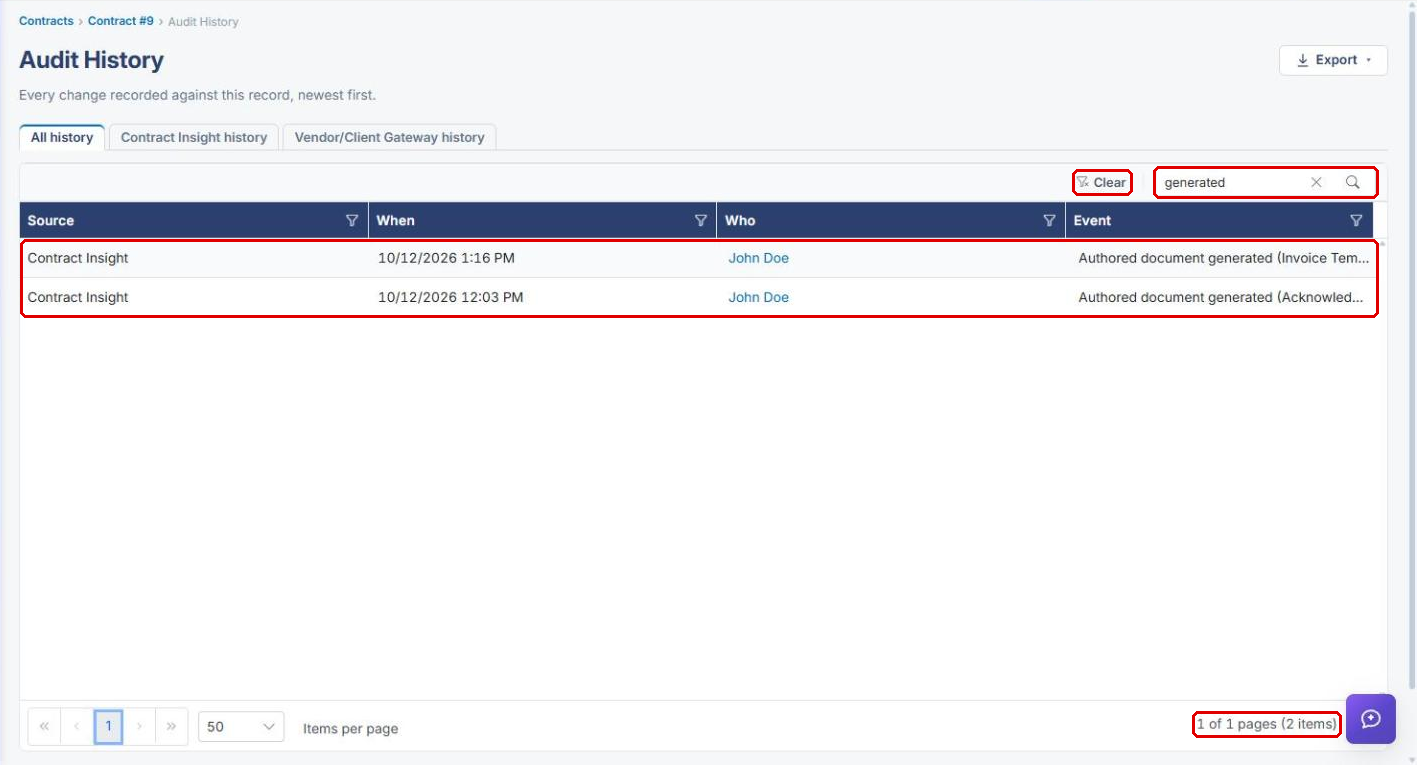
6b. Searching by Keyword
- Type a keyword in the Search box above the grid (for example, "generated") and press Enter.
- The grid shows only matching entries, and the item count updates.
- Click Clear (or the × in the Search box) to return to the full history.
7. Exporting the History
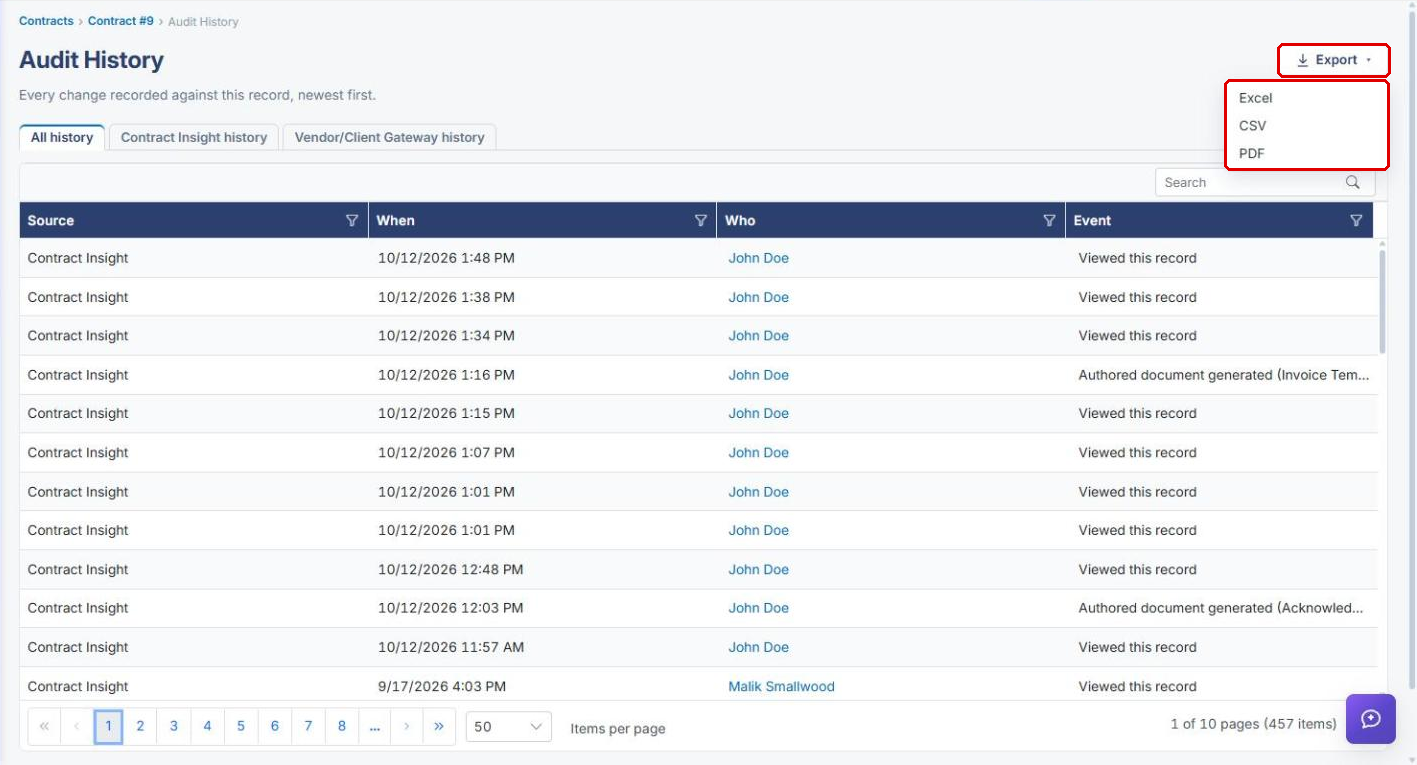
- Click Export at the top right of the Audit History page.
- Select Excel, CSV, or PDF. The export contains the complete history, not just the entries on screen.
8. Quick Reference Summary
| Task | How to Complete It |
|---|---|
| Open a record's Audit History | Record → Actions → View History. |
| See all sources together | All history tab. |
| See one source only | Contract Insight history or Vendor/Client Gateway history tab. |
| Find entries by a specific user | Who filter icon → check the user → OK. |
| Find entries by keyword | Search box → type the keyword → Enter. |
| Remove a search or filter | Clear, or Clear Filter in the column filter. |
| Export the full history | Export → Excel, CSV, or PDF. |