COBBLESTONE SOFTWARE
Contract Insight — User Guide
Configuring Dun and Bradstreet
Risk Compliance › Dun and Bradstreet › Configuring Dun and Bradstreet
Note: Each procedure in this guide begins at the Contract Insight homepage, so any section can be followed on its own. Custom fields are configurable, so the exact field list on a contract category record may vary between environments.
1. Overview
Administration > Data Aggregator Service has a dedicated Dun & Bradstreet tab for this integration, alongside Connection, OFAC, and SAM.gov tabs for the same screening service. Its Connection section holds the D&B-issued API key and API secret (entered as write-only fields that show a placeholder until replaced), a Monitoring reference (the subscription D&B pushes company changes to — left blank if monitoring isn't used), and a Connection in use toggle. Below that, a "What to receive" section lists the data blocks available for purchase from D&B — Company Information, Financial Strength Insights, and Third-Party Risk Insights — each with independent Receive and Watch for changes toggles plus Version and Level selectors, since D&B prices its data in blocks with their own detail levels; a link to D&B's own data-block guide is provided for choosing the right level.
2. Key Elements
- Administration > Data Aggregator Service > Dun & Bradstreet tab holds the API key, API secret, and Monitoring reference, plus a Connection in use toggle.
- A "What to receive" section lists purchasable data blocks — Company Information, Financial Strength Insights, Third-Party Risk Insights — each with Receive/Watch for changes toggles and Version/Level selectors.
- The same Data Aggregator Service screen also has Connection, OFAC, and SAM.gov tabs, since D&B is one of three compliance feeds companies and employees are screened against.
3. Navigating to the Data Aggregator Service
- From the Contract Insight homepage, click the Administration (settings) icon at the bottom of the left navigation bar.
- Under Automation & Data, click Data Aggregator Service.
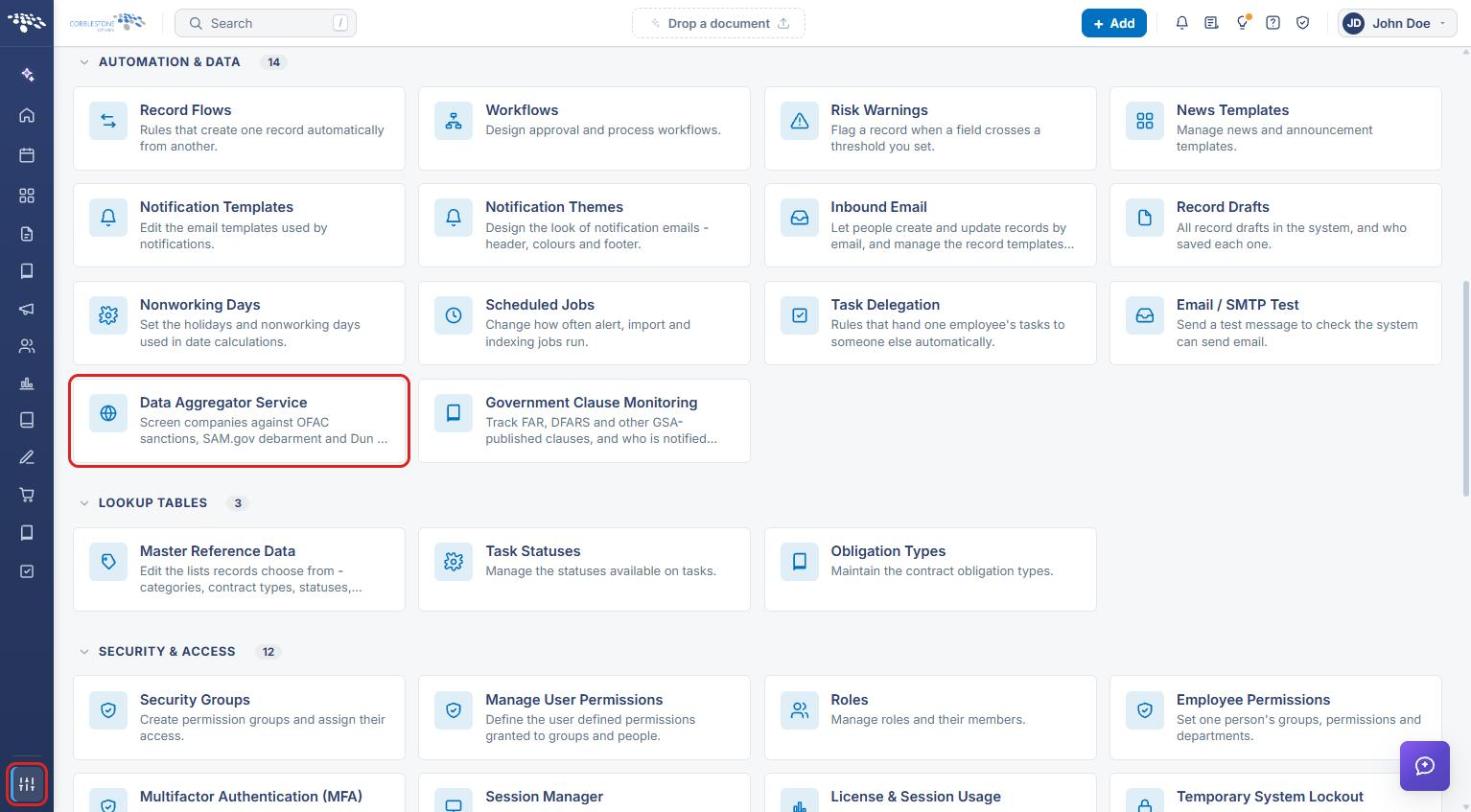
The Data Aggregator Service page opens with Connection, OFAC, SAM.gov, and Dun & Bradstreet tabs.
4. Connecting Dun & Bradstreet
- Navigate to Administration → Data Aggregator Service (see Section 3) and click the Dun & Bradstreet tab.
- In the Connection section, enter the D&B-issued API key and API secret. These are write-only fields; until a value is saved they show a placeholder such as "Not set - type the key".
- Enter the Monitoring reference (the subscription D&B pushes company changes to). Leave it blank if you aren't using monitoring.
- Switch Connection in use on (it reads Disabled while off).
- Click Save changes.
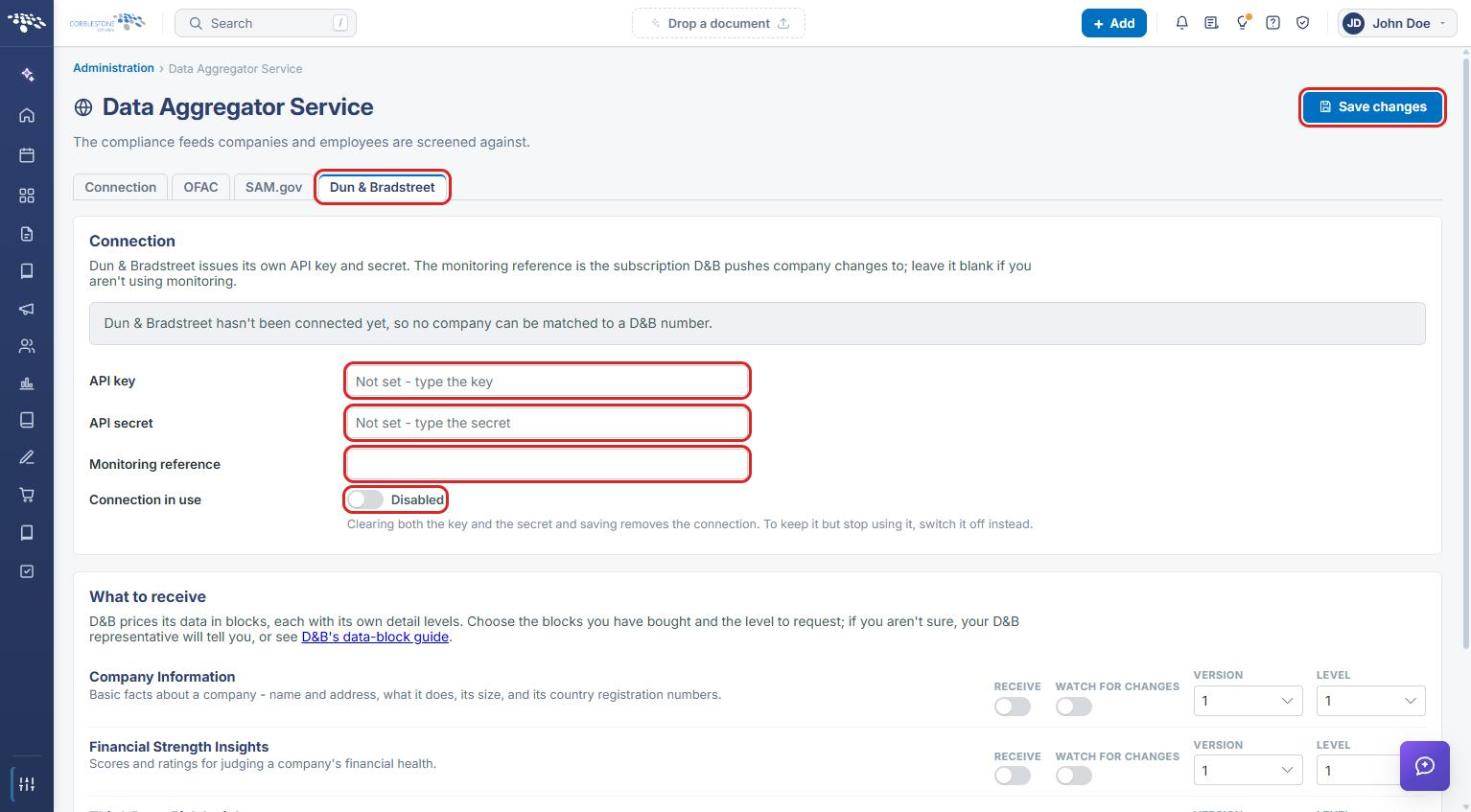
Note: Until a connection is saved, the tab shows "Dun & Bradstreet hasn't been connected yet, so no company can be matched to a D&B number." Clearing both the key and the secret and saving removes the connection. To keep the connection but stop using it, switch Connection in use off instead.
5. Choosing the Data to Receive
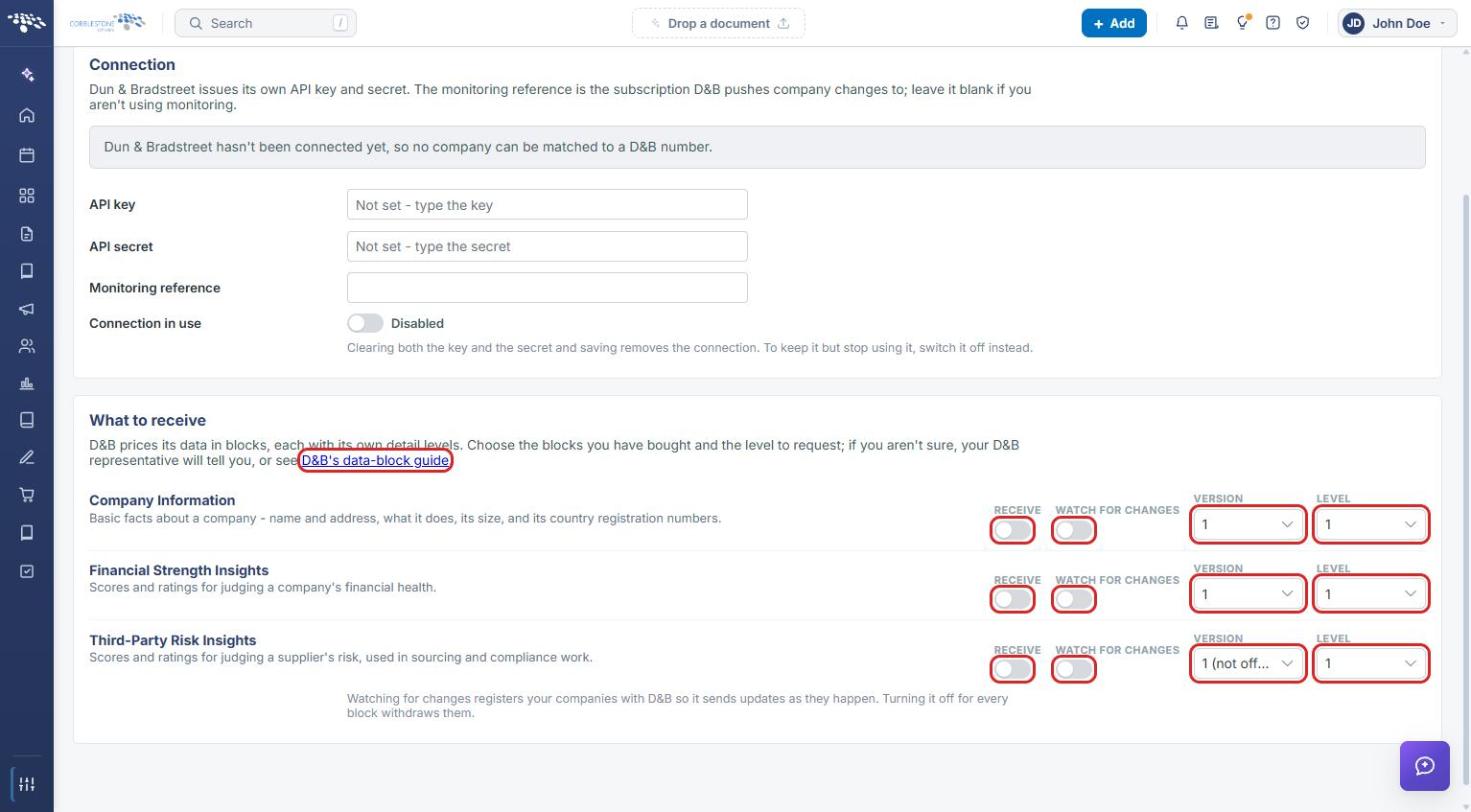
- On the Dun & Bradstreet tab, scroll to the What to receive section.
- For each data block you have bought from D&B — Company Information, Financial Strength Insights, and Third-Party Risk Insights — switch Receive on.
- Switch Watch for changes on for any block you want monitored. This registers your companies with D&B so it sends updates as they happen; turning it off for every block withdraws them.
- Select the Version and Level to request for each block. If you aren't sure which to choose, ask your D&B representative or click D&B's data-block guide.
- Scroll back to the top of the page and click Save changes.
6. Quick Reference Summary
| Task | How to Complete It |
|---|---|
| Open the D&B settings | Administration (settings icon) → Automation & Data → Data Aggregator Service → Dun & Bradstreet tab. |
| Connect to D&B | Enter API key and API secret (and Monitoring reference if used) → switch Connection in use on → Save changes. |
| Pause the connection | Switch Connection in use off → Save changes. |
| Remove the connection | Clear both API key and API secret → Save changes. |
| Choose data blocks | What to receive → switch Receive on and set Version and Level → Save changes. |
| Monitor companies for changes | What to receive → switch Watch for changes on → Save changes. |