COBBLESTONE SOFTWARE
Contract Insight — User Guide
Reading Dun and Bradstreet Results
Risk Compliance › Dun and Bradstreet › Reading Dun and Bradstreet Results
Note: Each procedure in this guide begins at the Contract Insight homepage, so any section can be followed on its own. Custom fields are configurable, so the exact field list on a contract category record may vary between environments.
1. Overview
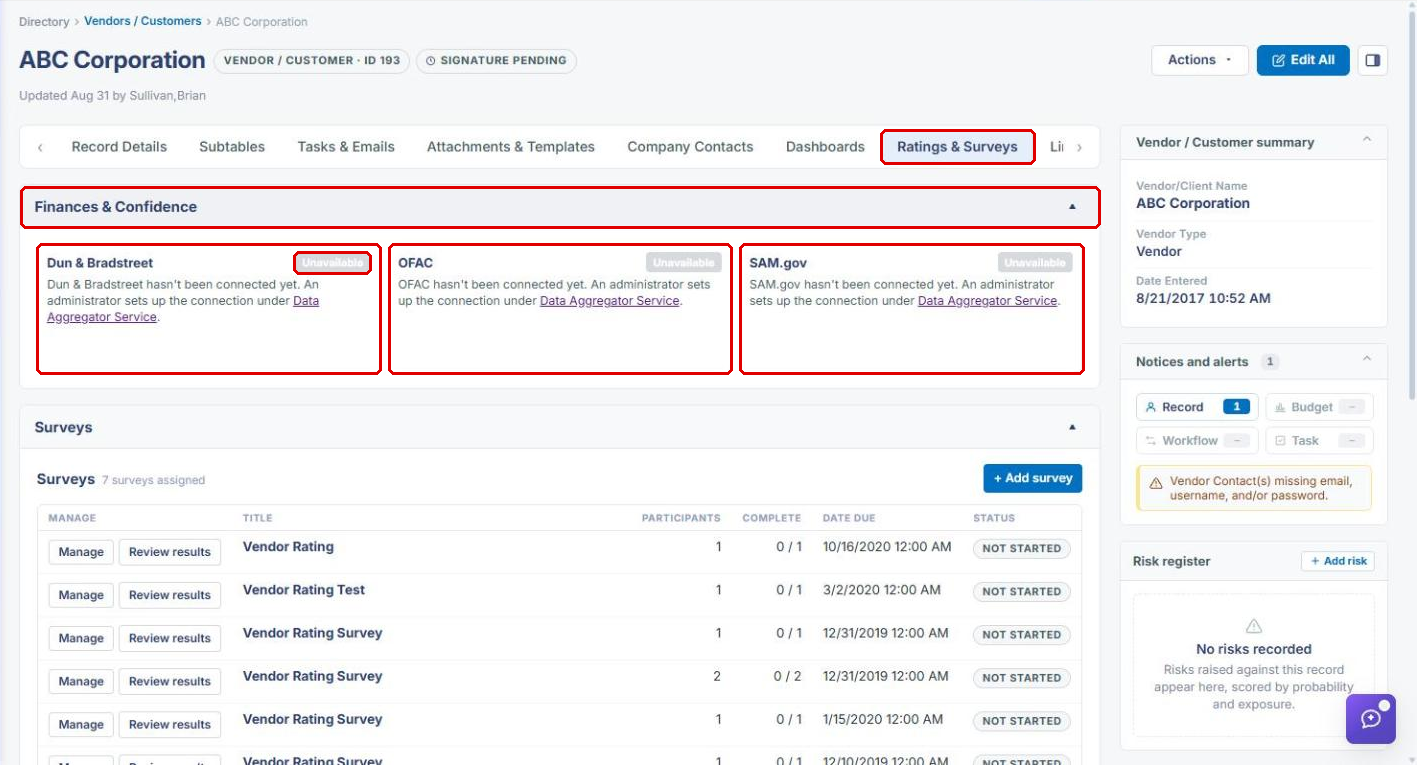
Dun & Bradstreet (D&B) screening results surface on the company's Finances & Confidence panel (on the vendor/customer record's Ratings & Surveys tab), in a Dun & Bradstreet card alongside the OFAC and SAM.gov cards. The results are produced through Administration → Data Aggregator Service, which screens companies against OFAC sanctions, SAM.gov debarment, and Dun & Bradstreet data as a combined risk check. Dun & Bradstreet uses its own connection, set up on the service's Dun & Bradstreet tab, separate from the OFAC and SAM.gov credentials.
2. Key Elements
- The Finances & Confidence panel surfaces Dun & Bradstreet results alongside OFAC and SAM.gov cards.
- Each card shows a status badge. Unavailable means the feed hasn't been connected yet, with a link to Data Aggregator Service.
- The company's Dun and Bradstreet Number field (under Vendor/Client Details) holds the D&B number a company is matched to.
- Data Aggregator Service (Administration) runs the underlying OFAC / SAM.gov / D&B screening. D&B has its own API key, secret, and What to receive settings.
3. Opening a Company's Dun & Bradstreet Results
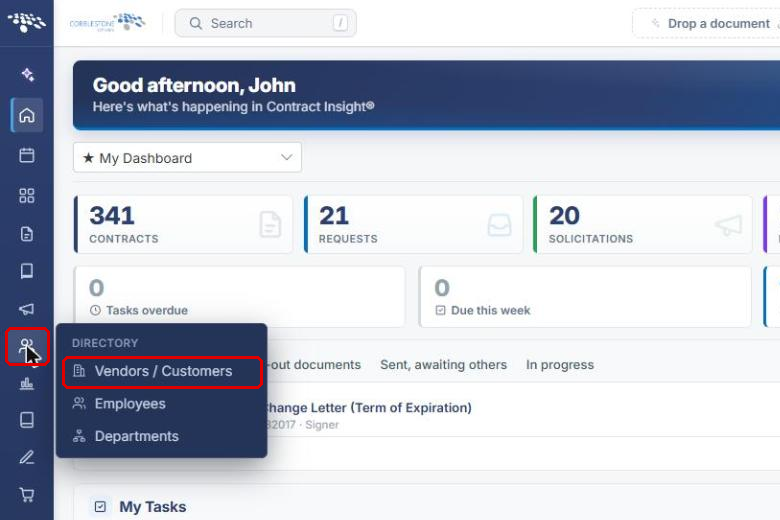
- From the Contract Insight homepage, hover over the Directory icon in the left navigation bar and select Vendors / Customers.
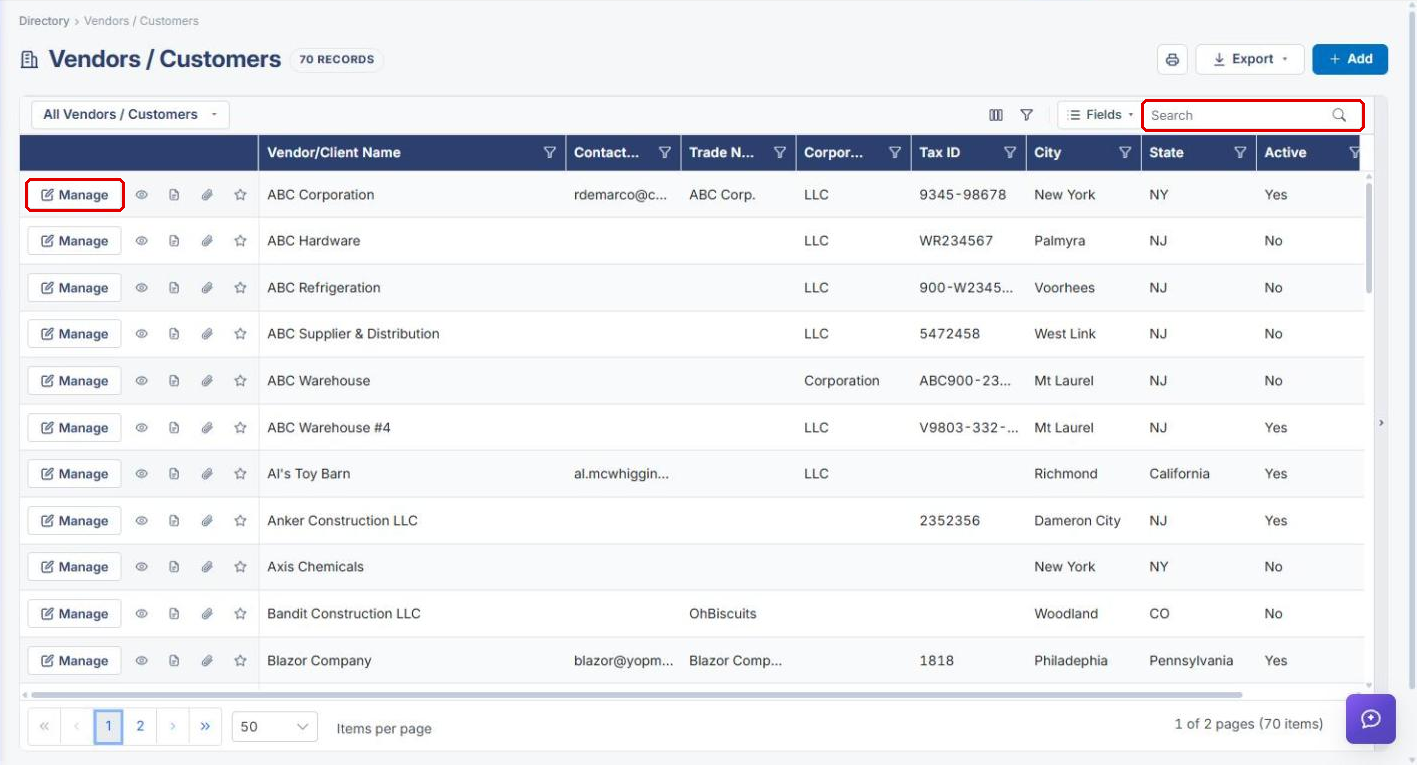
- Locate the company — use the Search box if needed — and click Manage on its row.
- On the company record, click the Ratings & Surveys tab (or select Finances & Confidence in the Sections panel).
- Review the Dun & Bradstreet card in the Finances & Confidence panel, next to the OFAC and SAM.gov cards.
4. Reading the Card Status
| What You See | What It Means |
|---|---|
| Unavailable badge with "Dun & Bradstreet hasn't been connected yet." | No D&B connection is set up, so no results can be shown. An administrator sets up the connection under Data Aggregator Service (see Section 6). |
| D&B data in the card | The connection is set up and the company has been matched. The data shown depends on the D&B data blocks your organization receives (Company Information, Financial Strength Insights, Third-Party Risk Insights). |
Read the D&B card together with the OFAC and SAM.gov cards to get the full combined risk picture for the company.
5. Checking the Company's D&B Number
- On the company record, click the Record Details tab.
- Under Vendor/Client Details, review the Dun and Bradstreet Number field. A dash (–) means no number is on file.
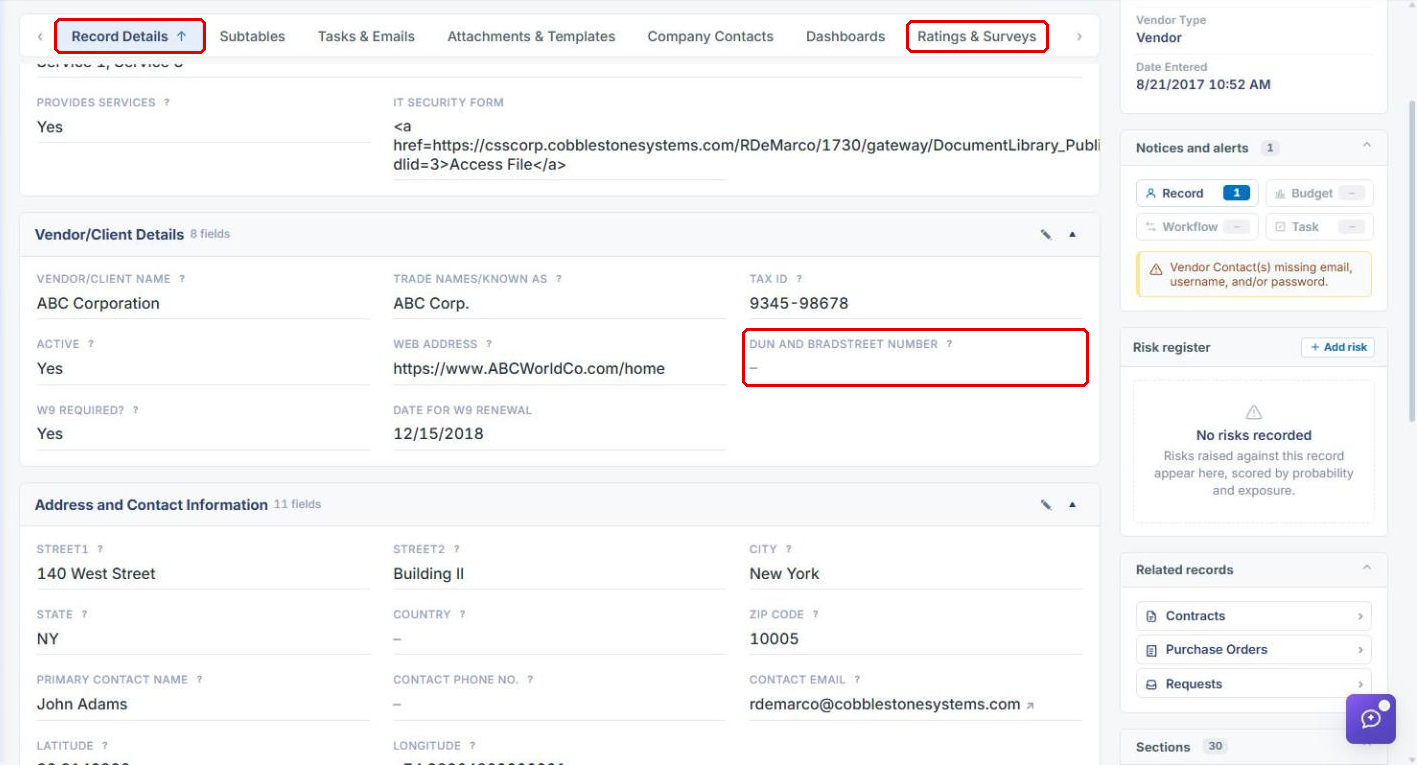
Note: Until Dun & Bradstreet is connected, no company can be matched to a D&B number.
6. Where the Results Come From (Administrators)
6a. Opening the Data Aggregator Service
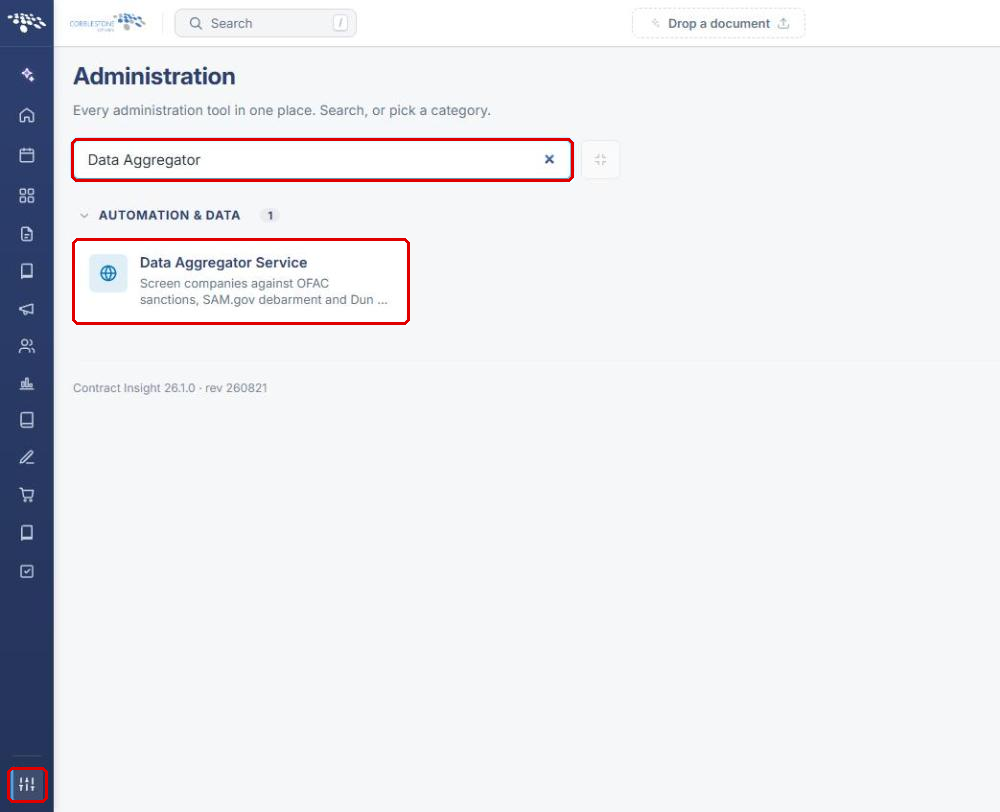
- Click the Administration icon at the bottom of the left navigation bar.
- Type "Data Aggregator" in Search administration and click Data Aggregator Service.
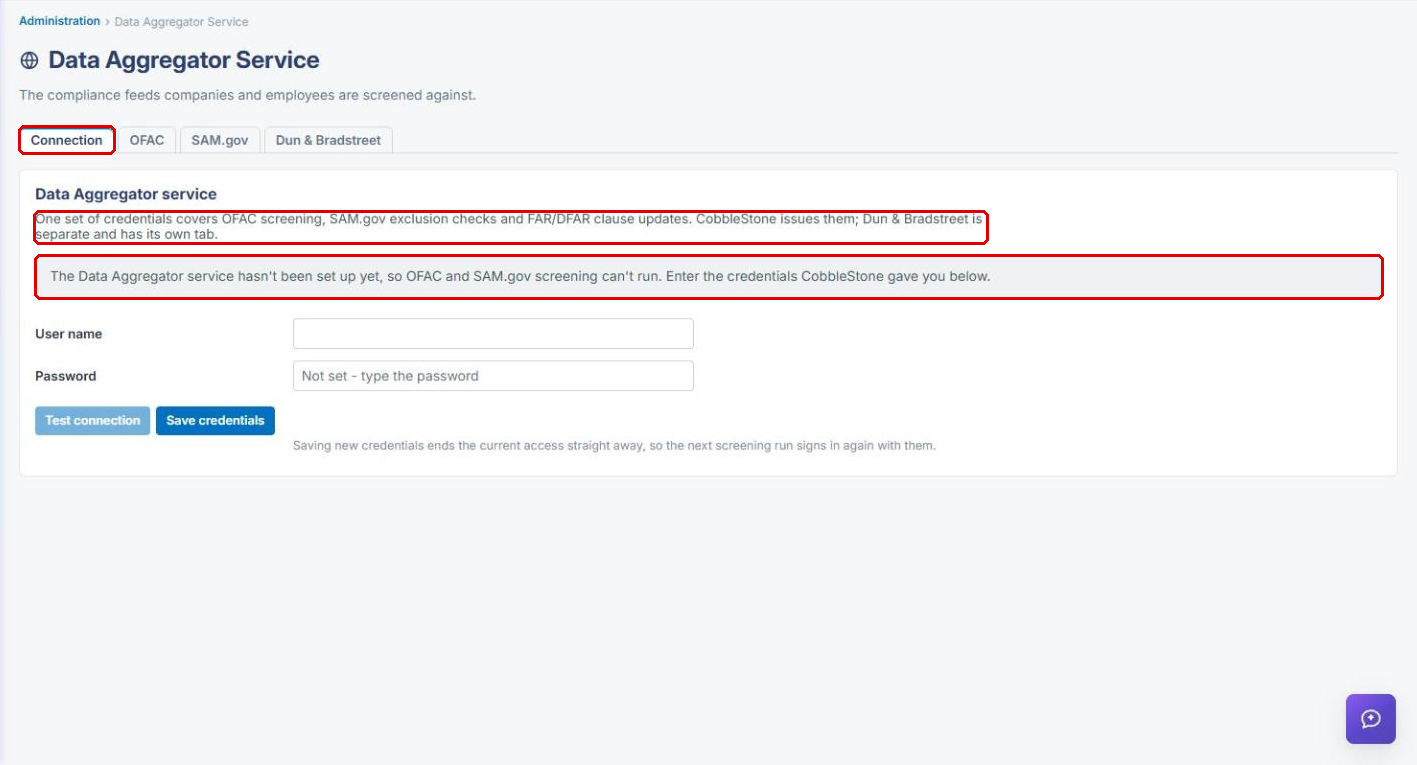
The Connection tab holds the one set of credentials that covers OFAC screening, SAM.gov exclusion checks, and FAR/DFAR clause updates. CobbleStone issues these credentials. Dun & Bradstreet is separate and has its own tab.
6b. Connecting Dun & Bradstreet
- Click the Dun & Bradstreet tab.
- Enter the API key and API secret issued by Dun & Bradstreet.
- Optionally, enter the Monitoring reference — the subscription D&B pushes company changes to. Leave it blank if you aren't using monitoring.
- Turn on Connection in use.
- Under What to receive, turn on Receive for each data block your organization has bought (Company Information, Financial Strength Insights, Third-Party Risk Insights), and choose the Version and Level. Turn on Watch for changes to have D&B send updates as they happen.
- Click Save changes.
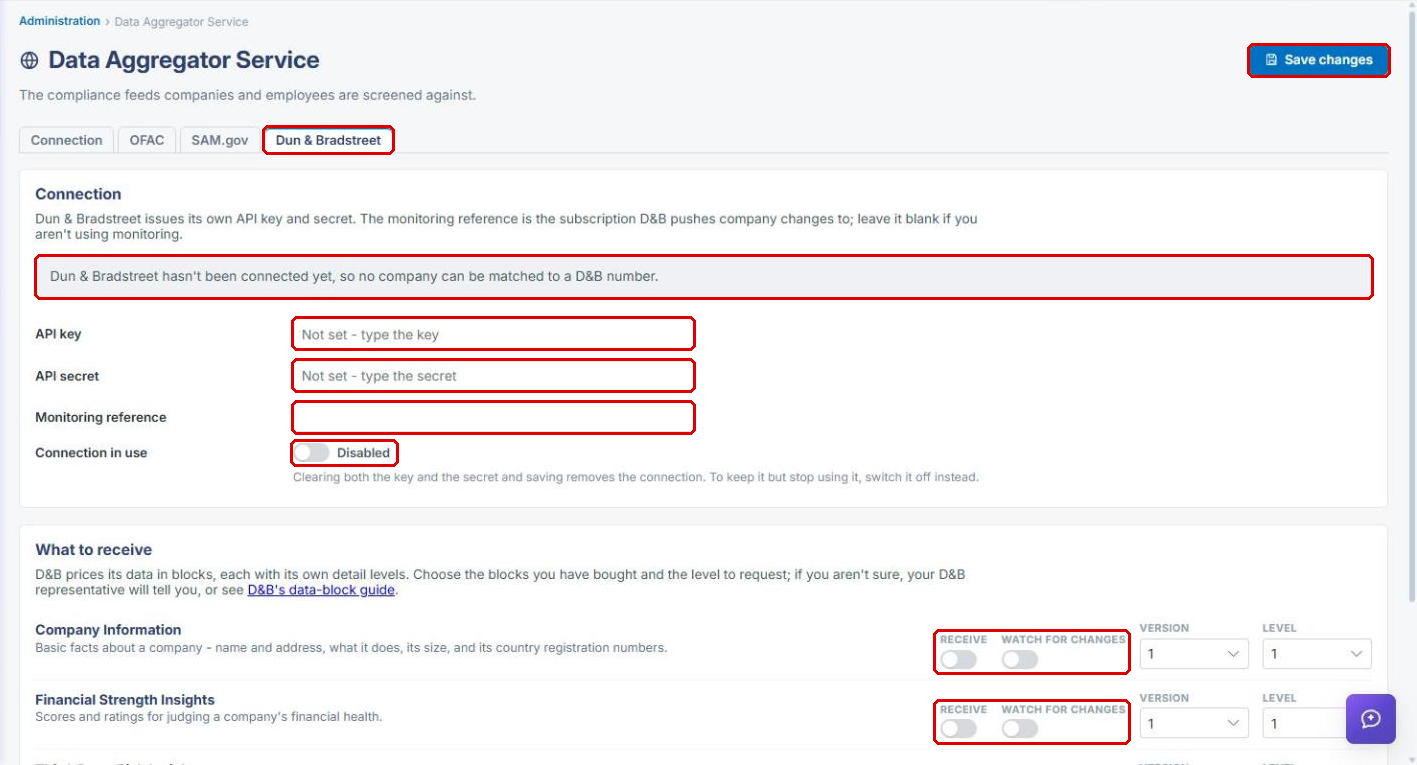
Note: Clearing both the key and the secret and saving removes the connection. To keep it but stop using it, switch off Connection in use instead. Turning off Watch for changes for every block withdraws your companies from D&B monitoring.
7. Quick Reference Summary
| Task | How to Complete It |
|---|---|
| Open a company record | Directory → Vendors / Customers → Manage on the company's row. |
| View D&B results | Company record → Ratings & Surveys tab → Finances & Confidence → Dun & Bradstreet card. |
| Compare with OFAC and SAM.gov | Same panel → OFAC and SAM.gov cards. |
| Check the company's D&B number | Record Details → Vendor/Client Details → Dun and Bradstreet Number. |
| Fix an "Unavailable" card | Administrator: Administration → Data Aggregator Service → Dun & Bradstreet tab. |
| Choose which D&B data to receive | Dun & Bradstreet tab → What to receive → Receive, Version, Level → Save changes. |