COBBLESTONE SOFTWARE
Contract Insight — User Guide
Adding Federal Clause Library (US) Clauses
Risk Compliance › Federal Clause Library (US) › Adding Federal Clause Library (US) Clauses
Note: Each procedure in this guide begins at the Contract Insight homepage, so any section can be followed on its own. Custom fields are configurable, so the exact field list on a contract category record may vary between environments.
1. Overview
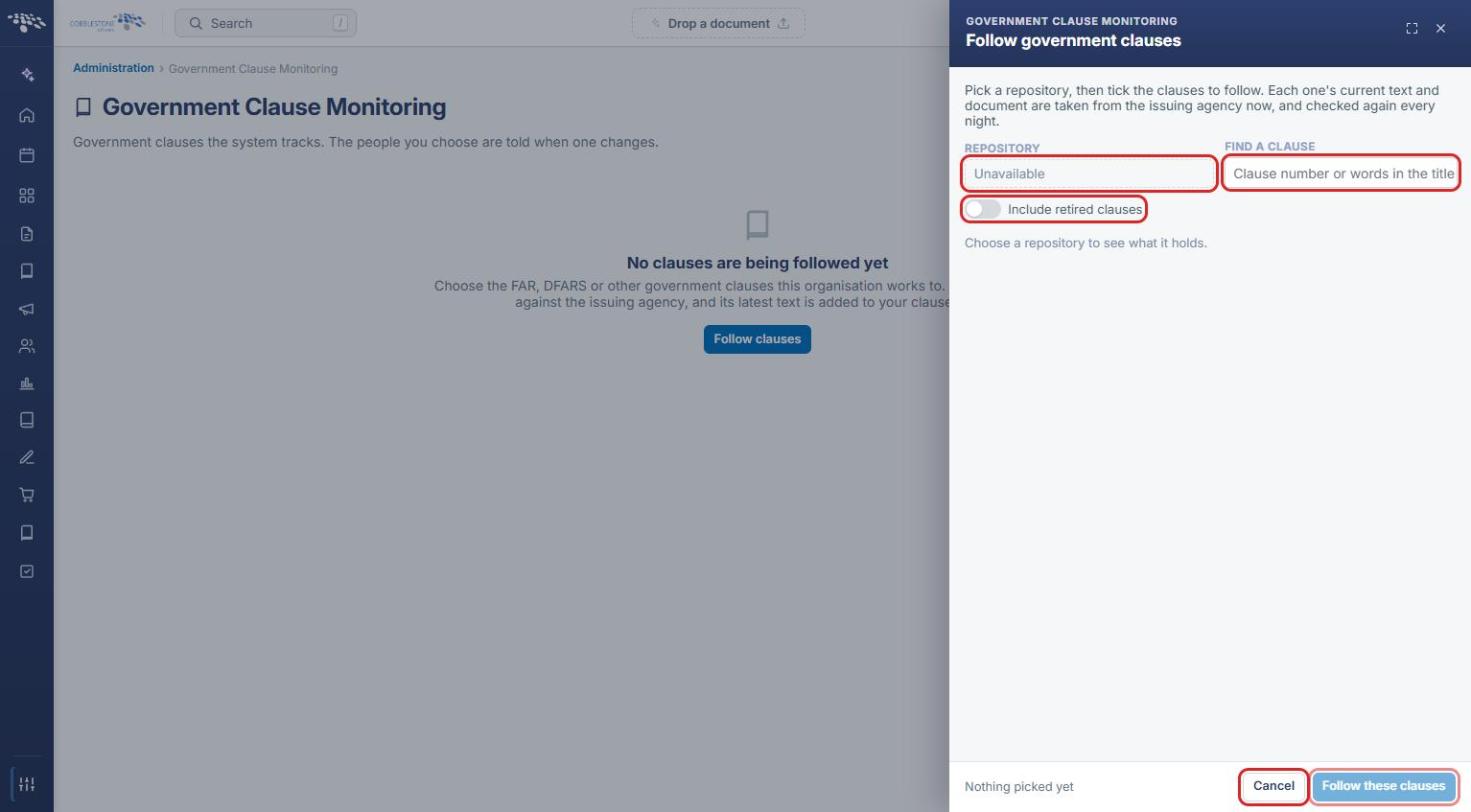
Administration > Government Clause Monitoring is the live equivalent of the legacy Federal Clause Library (US) integration. Its "Follow clauses" button opens a Follow government clauses panel: "Pick a repository, then tick the clauses to follow. Each one's current text and document are taken from the issuing agency now, and checked again every night." A REPOSITORY dropdown selects which government source to pull from, a Find a clause search narrows the list, an "Include retired clauses" toggle broadens it, and Follow these clauses adds the ticked items to the tracked list. The tracked list itself already holds 125 clauses drawn from the same three repositories the legacy wiki described — FAR, DFARS, and NFS.
2. Key Elements
- Administration > Government Clause Monitoring > Follow clauses
- Choose a REPOSITORY (the live list already includes clauses sourced from FAR, DFARS, and NFS)
- Use Find a clause to search by clause number or title, and "Include retired clauses" to widen the search
- Tick the clauses to add and click Follow these clauses; each one's text and document are pulled from the issuing agency immediately and re-checked nightly
3. Navigating to Government Clause Monitoring
- From the Contract Insight homepage, click the Administration (settings) icon at the bottom of the left navigation bar.
- Under Automation & Data, click Government Clause Monitoring.
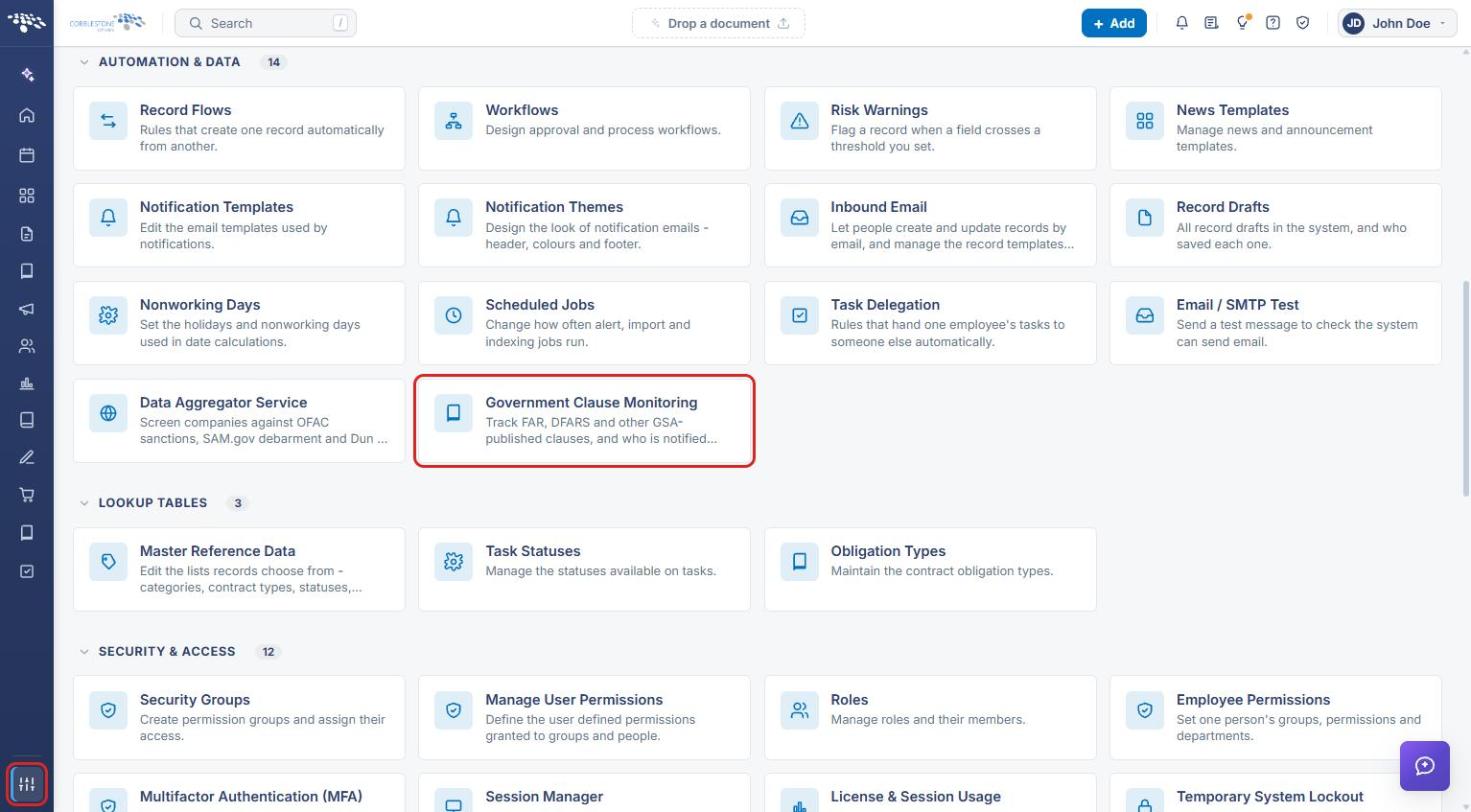
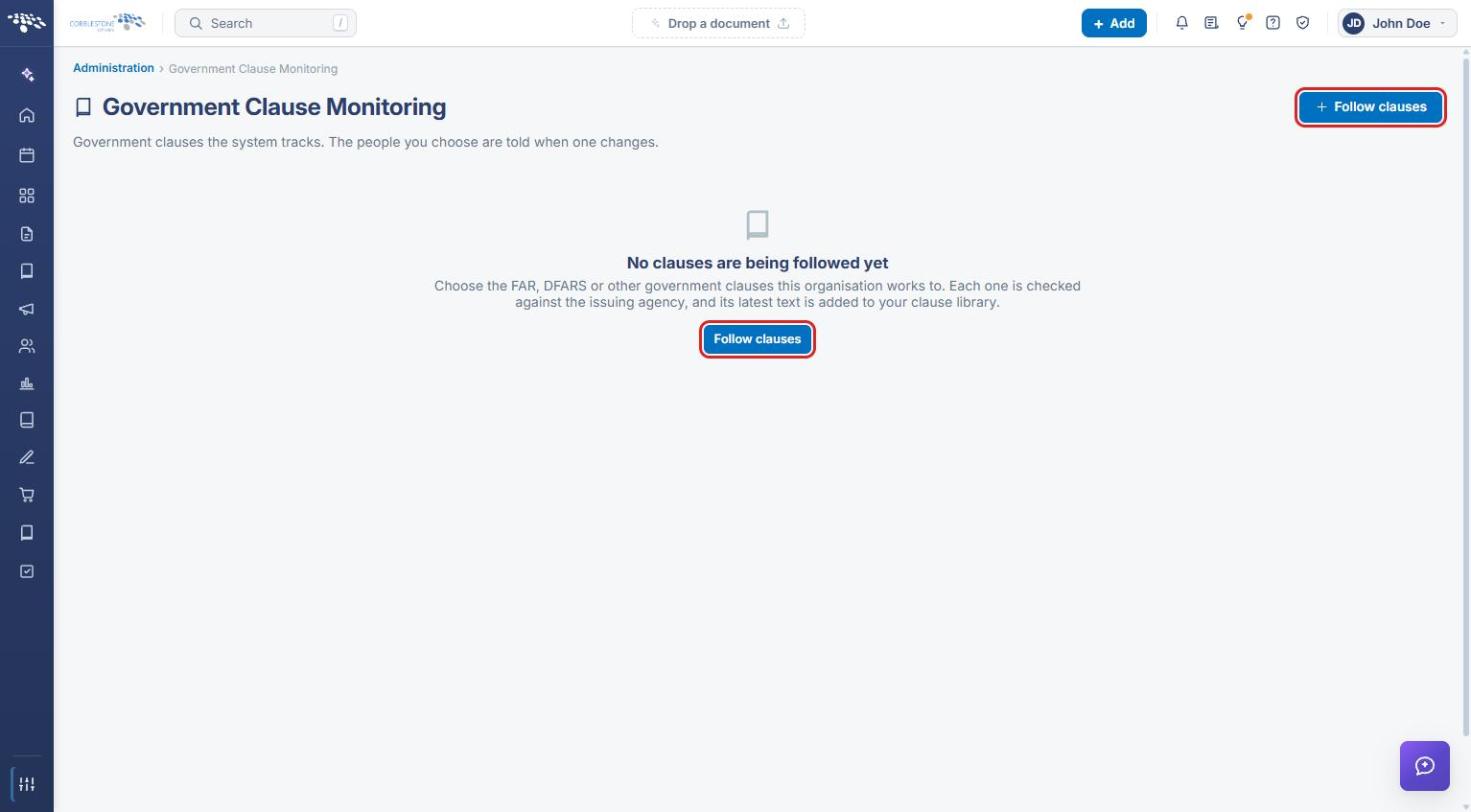
The Government Clause Monitoring page opens and lists the government clauses the system tracks. If none are followed yet, the page shows No clauses are being followed yet.
4. Following Federal Clauses
- Navigate to Administration → Government Clause Monitoring (see Section 3).
- Click + Follow clauses in the upper-right corner (or Follow clauses in the middle of the page when no clauses are followed yet).
- In the Follow government clauses panel, select a Repository (for example, FAR, DFARS, or NFS).
- Optionally type a clause number or words from the title in Find a clause to narrow the list.
- Switch on Include retired clauses if you also need clauses that have been retired.
- Tick each clause you want to follow. The footer shows how many clauses are picked (it reads Nothing picked yet until you tick one).
- Click Follow these clauses. Click Cancel to close the panel without following anything.
Note: Each followed clause's current text and document are taken from the issuing agency immediately and checked again every night. The clause's latest text is added to your clause library.
5. Quick Reference Summary
| Task | How to Complete It |
|---|---|
| Open Government Clause Monitoring | Administration (settings icon) → Automation & Data → Government Clause Monitoring. |
| Open the clause picker | Click + Follow clauses. |
| Choose the clause source | Select a Repository (e.g. FAR, DFARS, NFS). |
| Search for a clause | Type a clause number or title words in Find a clause. |
| Show retired clauses | Switch on Include retired clauses. |
| Add clauses to the tracked list | Tick the clauses → Follow these clauses. |