COBBLESTONE SOFTWARE
Contract Insight — User Guide
Editing a Dun and Bradstreet Number on an existing Record
Risk Compliance › Dun and Bradstreet › Editing a Dun and Bradstreet Number on an existing Record
Note: Each procedure in this guide begins at the Contract Insight homepage, so any section can be followed on its own. Custom fields are configurable, so the section a field appears in and the exact field list may vary between environments.
1. Overview
A company record's Dun and Bradstreet Number field (column DUNS) stores the company's D-U-N-S number. In the standard layout, it appears in the Vendor/Client Details section of a Vendor/Customer record.
Fields on a record are normally edited in one of three ways: the field's own inline edit (pencil) icon, the section's edit (pencil) icon, or Edit All. However, the Dun and Bradstreet Number field can be configured as read-only. When it is, it shows no inline pencil, appears greyed out in edit mode, and displays "This field is locked and can't be edited." This guide shows how to reach the field, how to edit it when it is editable, and how an administrator can check whether it is locked.
2. Key Elements
- Directory → Vendors / Customers: where company records are listed.
- Manage: opens a company record from the list.
- Vendor/Client Details section: contains the Dun and Bradstreet Number field.
- Inline edit (pencil) icon: appears next to an editable field's label when you hover over it. It does not appear on a read-only field.
- Section edit (pencil) icon and Edit All: put one section, or the whole record, into edit mode. Read-only fields stay greyed out.
- Save / Cancel: keep or discard your changes in Edit All mode.
- Field Management → Vendors/Customers: where an administrator can see the field's Behaviour (for example, read-only).
3. Opening the Company Record
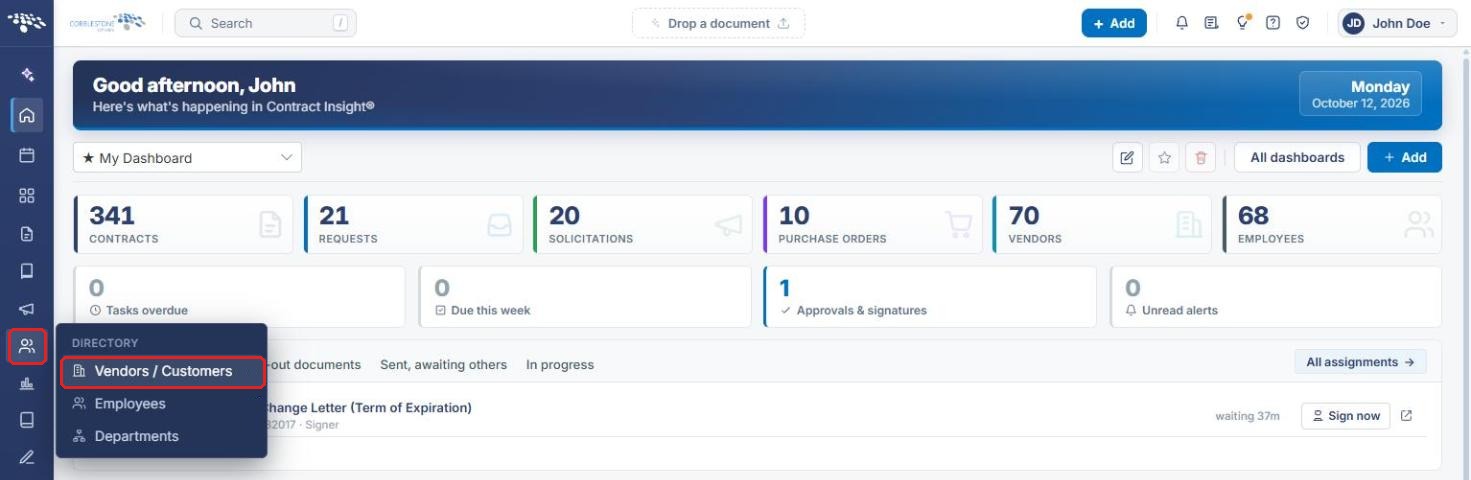
- From the Contract Insight homepage, hover over the Directory icon in the left navigation bar and select Vendors / Customers.
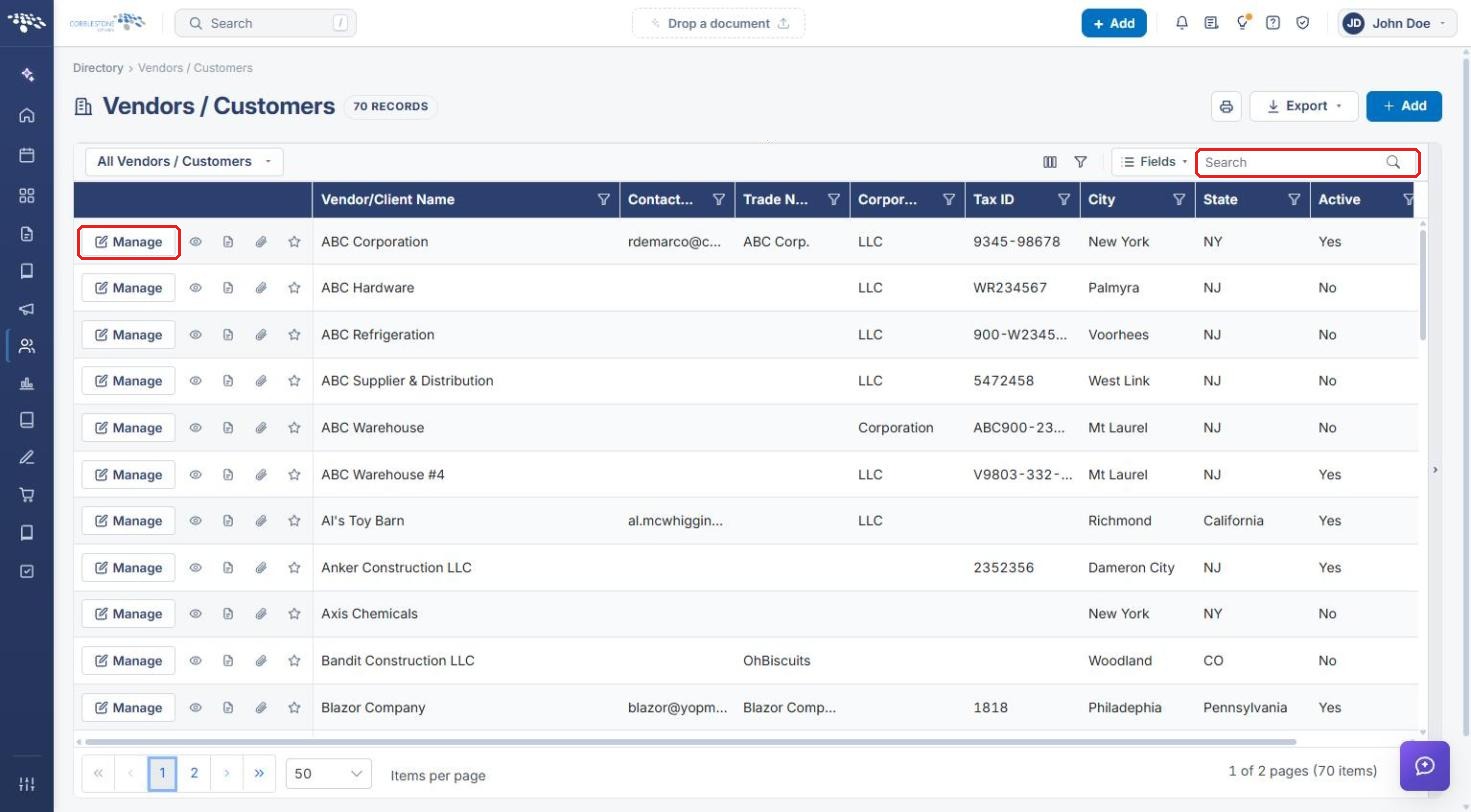
- Locate the company (use the Search box if needed) and click Manage on its row.
4. Editing the Dun and Bradstreet Number
4a. Inline or Section Edit
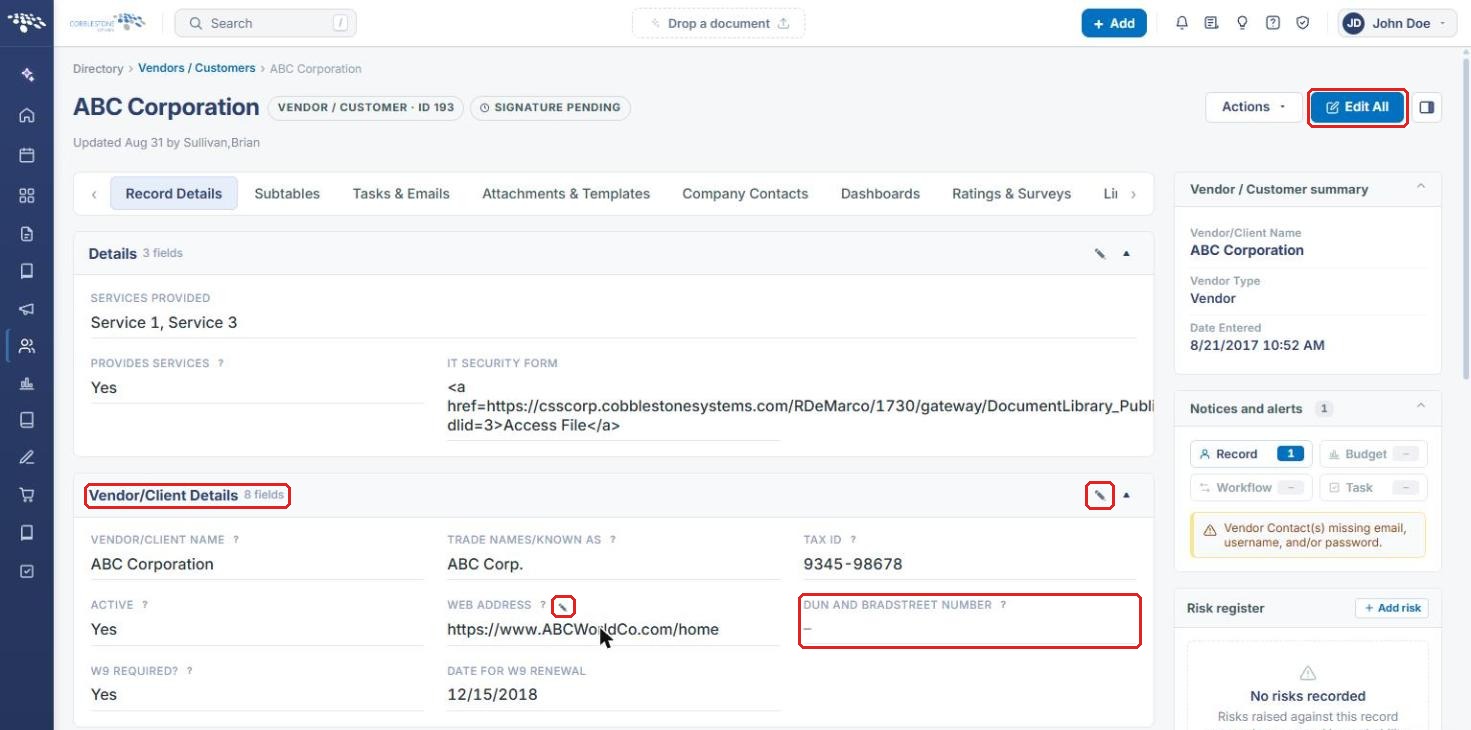
- On the Record Details tab, scroll to the Vendor/Client Details section and find Dun and Bradstreet Number.
- Hover over the field. If it is editable, an inline edit (pencil) icon appears next to the label (as it does for Web Address). Click it, enter the new number, and confirm.
- Alternatively, click the section's edit (pencil) icon to edit every field in Vendor/Client Details at once.
4b. Edit All
- Click Edit All at the top right of the record.
- In Vendor/Client Details, enter the new value in Dun and Bradstreet Number.
- Click Save to keep the change, or Cancel to discard it.
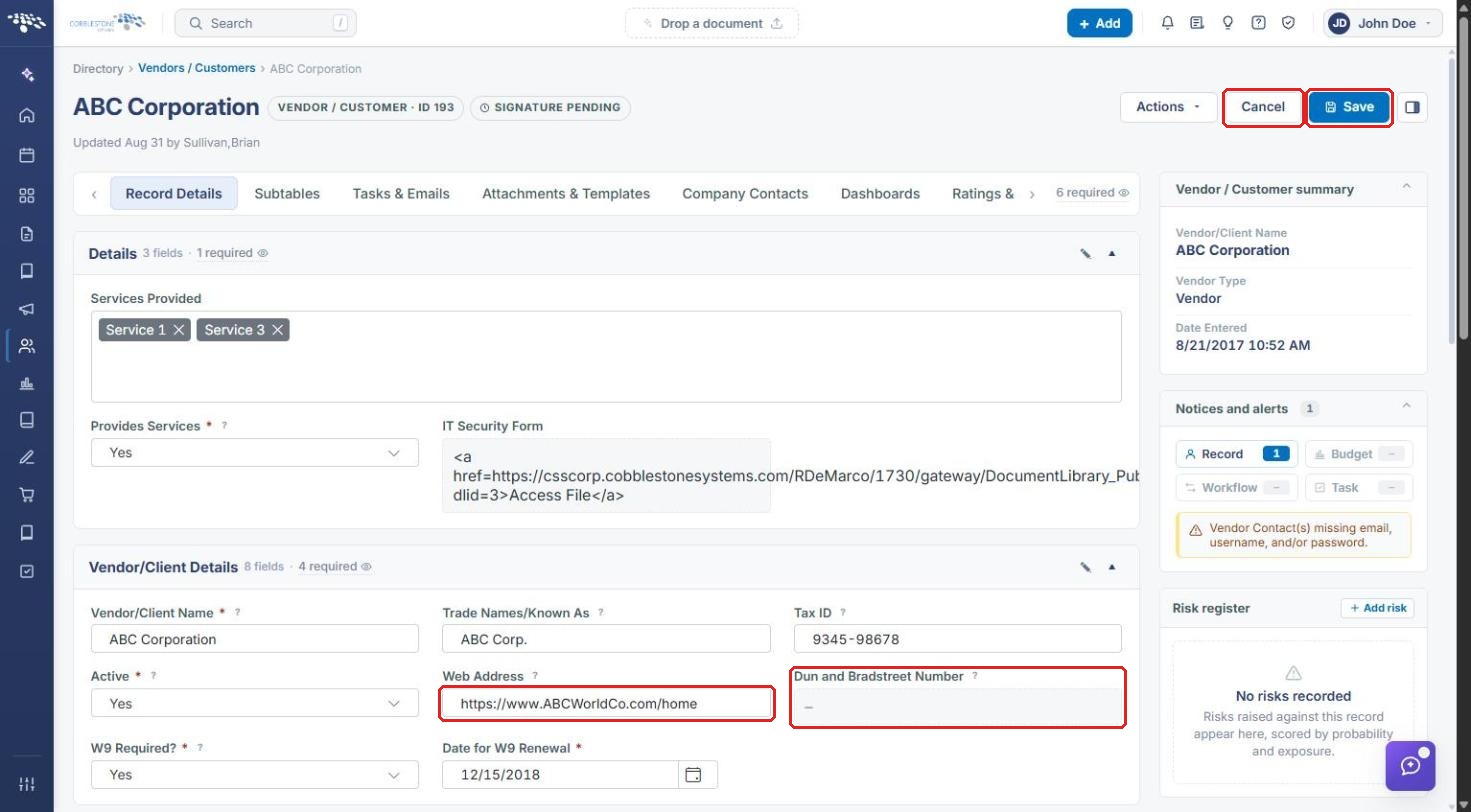
Note: If the field has no inline pencil and appears greyed out in edit mode (as shown above), it is read-only. Hovering over it shows "This field is locked and can't be edited." See Section 5.
5. Checking Whether the Field Is Locked (Administrators)
- Click the Administration icon at the bottom of the left navigation bar and open Field Management.
- In Area, select Vendors/Customers.
- On the Fields tab, find Dun and Bradstreet Number (column DUNS).
- Check the Behaviour column. If it shows read-only, users cannot edit the field on records.
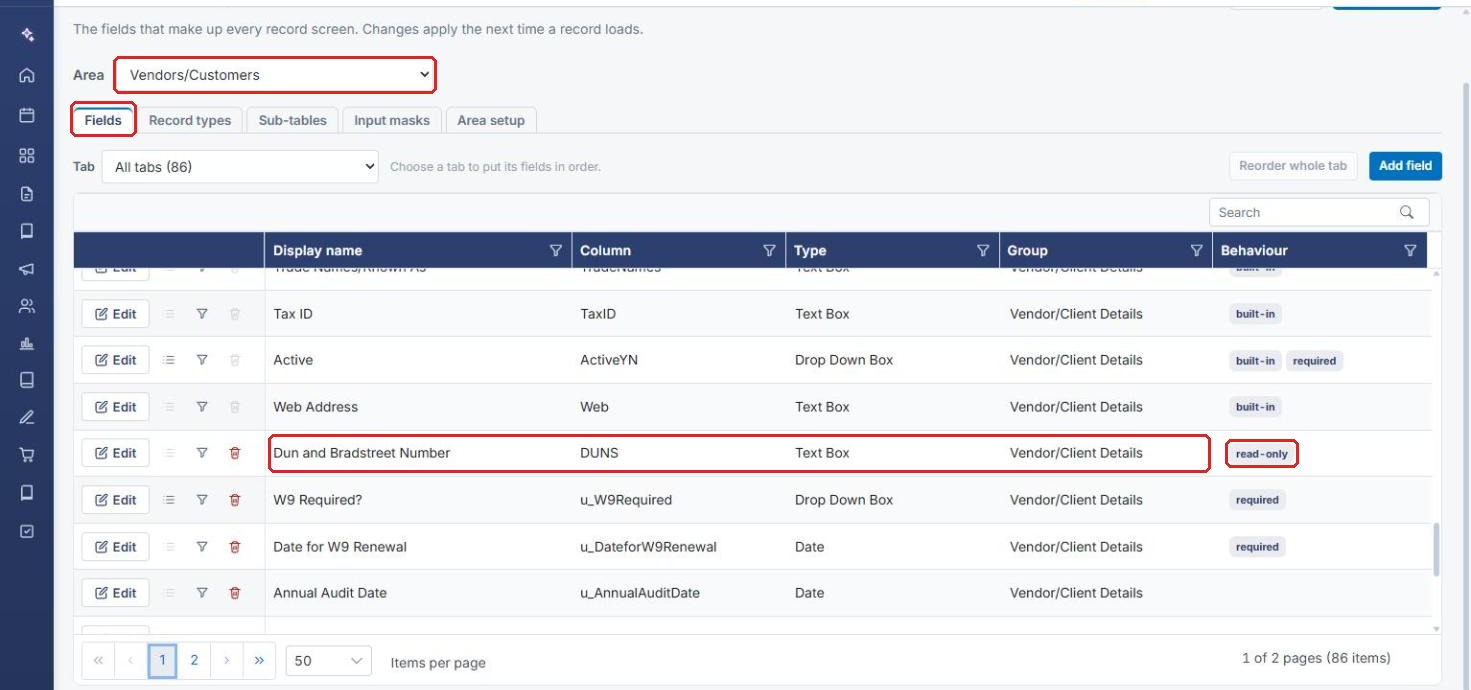
Note: The read-only behaviour is not one of the options in the field's Edit panel, and the field has no show/hide conditions. In the test environment, the Dun & Bradstreet connection (Administration → Data Aggregator Service → Dun & Bradstreet) is not set up. If the number needs to be changed while the field is locked, contact your system administrator.
6. Quick Reference Summary
| Task | Where | Action |
|---|---|---|
| Open a company record | Directory → Vendors / Customers | Click Manage on the row |
| Find the D&B number | Record Details → Vendor/Client Details | Dun and Bradstreet Number field |
| Edit just this field | Field label | Hover → inline pencil icon (only when editable) |
| Edit the whole section | Vendor/Client Details header | Section pencil icon |
| Edit the whole record | Top right of record | Edit All → change → Save |
| Check whether the field is locked | Administration → Field Management → Vendors/Customers | Behaviour column = read-only |