COBBLESTONE SOFTWARE
Contract Insight — User Guide
Product Service Catalog
03. Admin User Manual › Catalog Manager › Product Service Catalog
Note: Each procedure in this guide begins at the Contract Insight homepage, so any section can be followed on its own. Custom fields are configurable, so the exact field list on a contract category record may vary between environments.
1. Overview
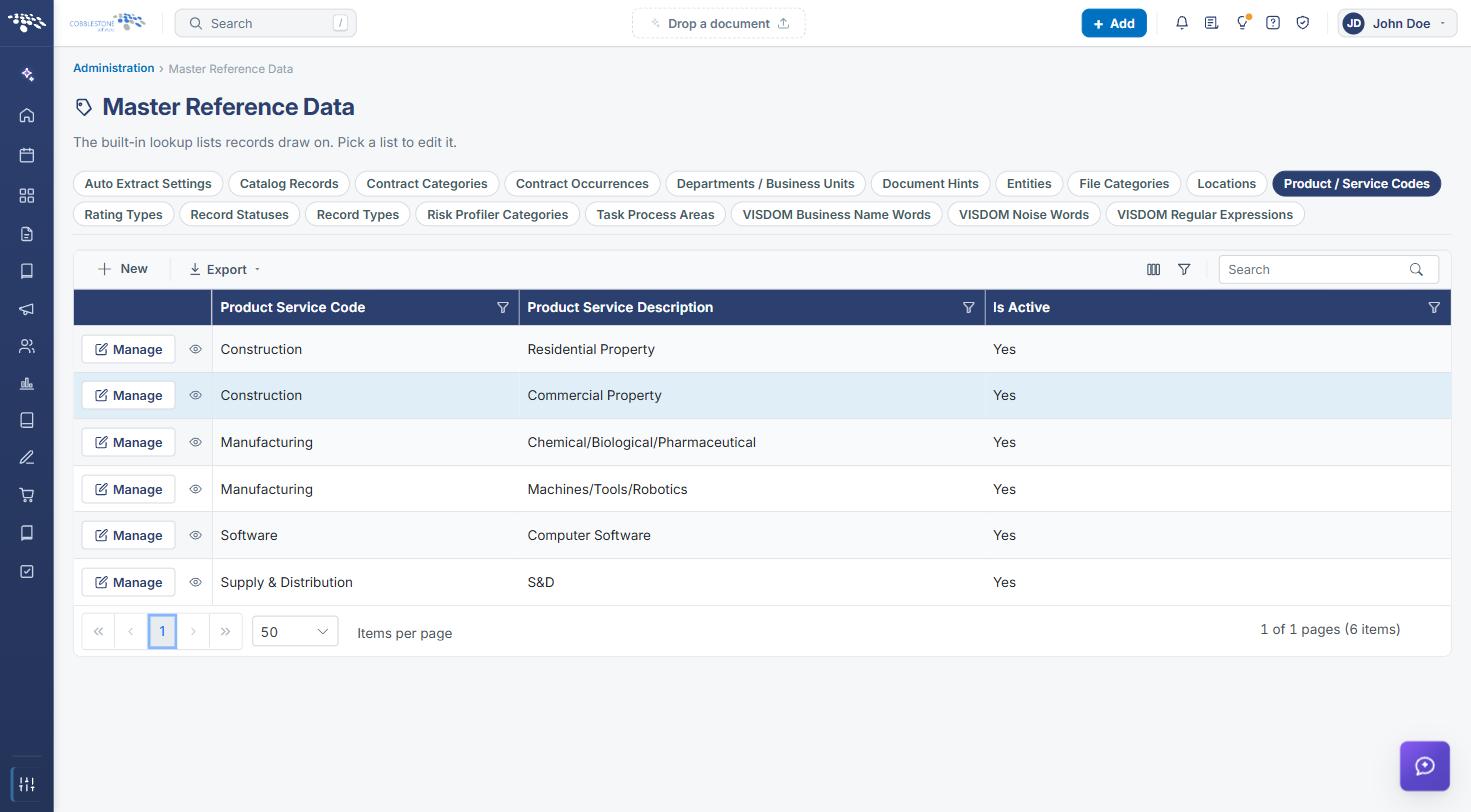
Product and service codes classify what a vendor supplies. The codes themselves are a lookup list kept at Administration → Master Reference Data → Product / Service Codes, where each entry has a Product Service Code (for example, Construction or Software), a Product Service Description (for example, Commercial Property or Computer Software), and an Is Active flag. Codes are assigned to a vendor on the vendor record's Subtables tab, in the Vendor Product Service Codes subtable. Those same vendors appear as the Supplier on items in Procurement → Catalogs, connecting what a vendor is approved to sell with what employees can shop and add to a purchase order.
2. Key Elements
- Product / Service Codes list (Administration → Master Reference Data): Product Service Code, Product Service Description, and Is Active, with New, Manage, preview (eye), and Export.
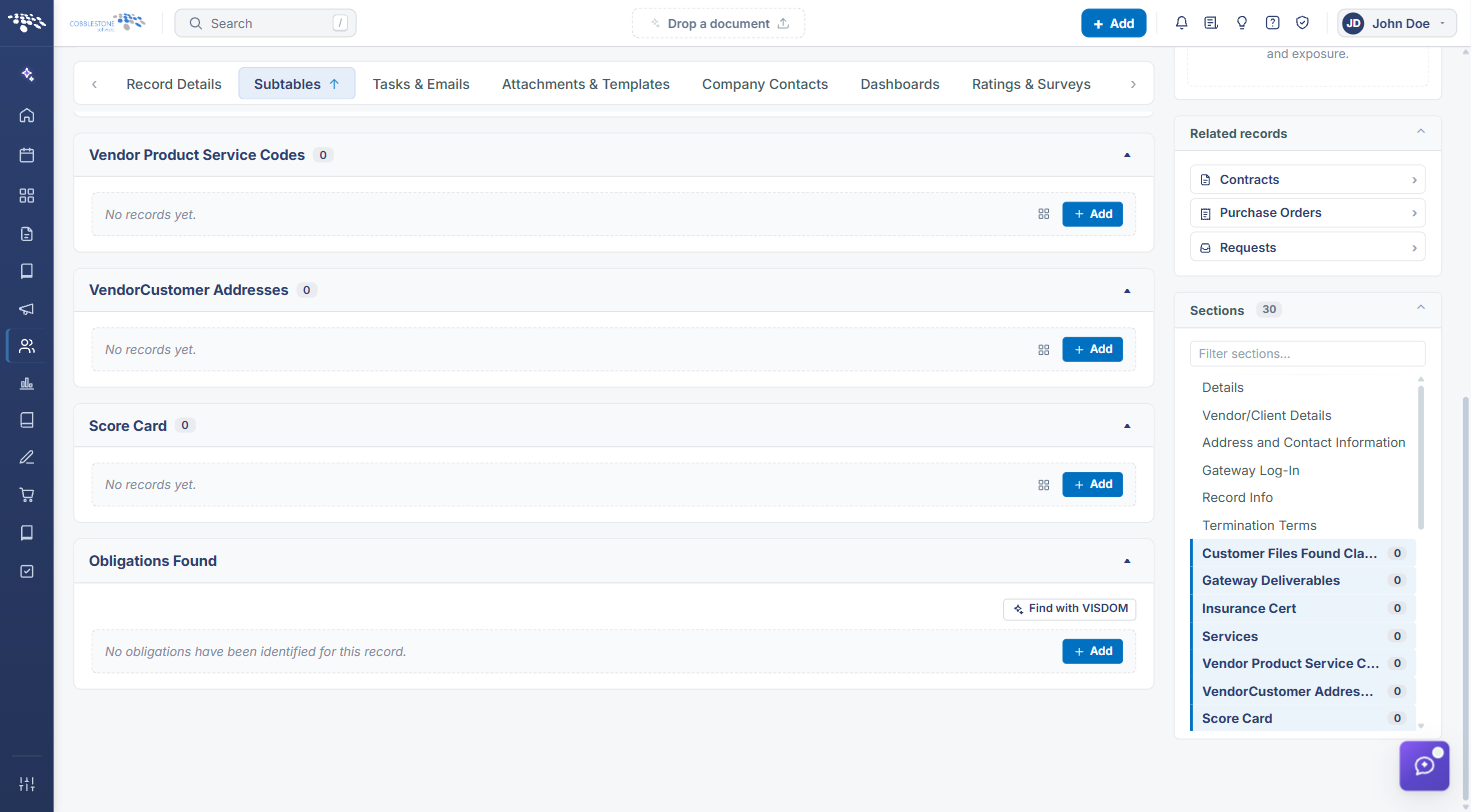
- Vendor Product Service Codes subtable on each vendor/customer record (Subtables tab), where a vendor's codes are added with Add.
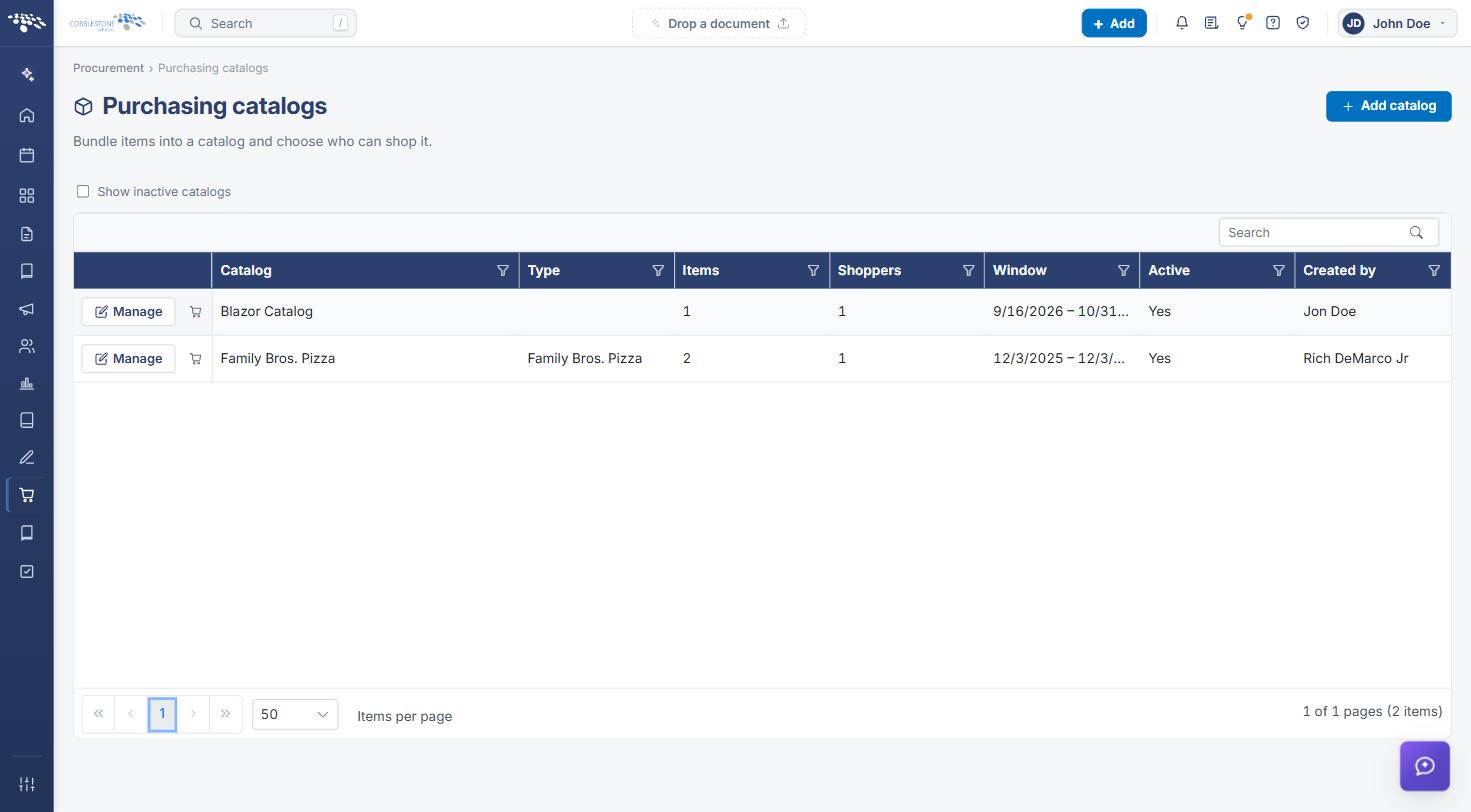
- Procurement → Catalogs (Purchasing catalogs): each catalog's Type, Items, Shoppers, availability Window, Active status, and Created by, with Add catalog.
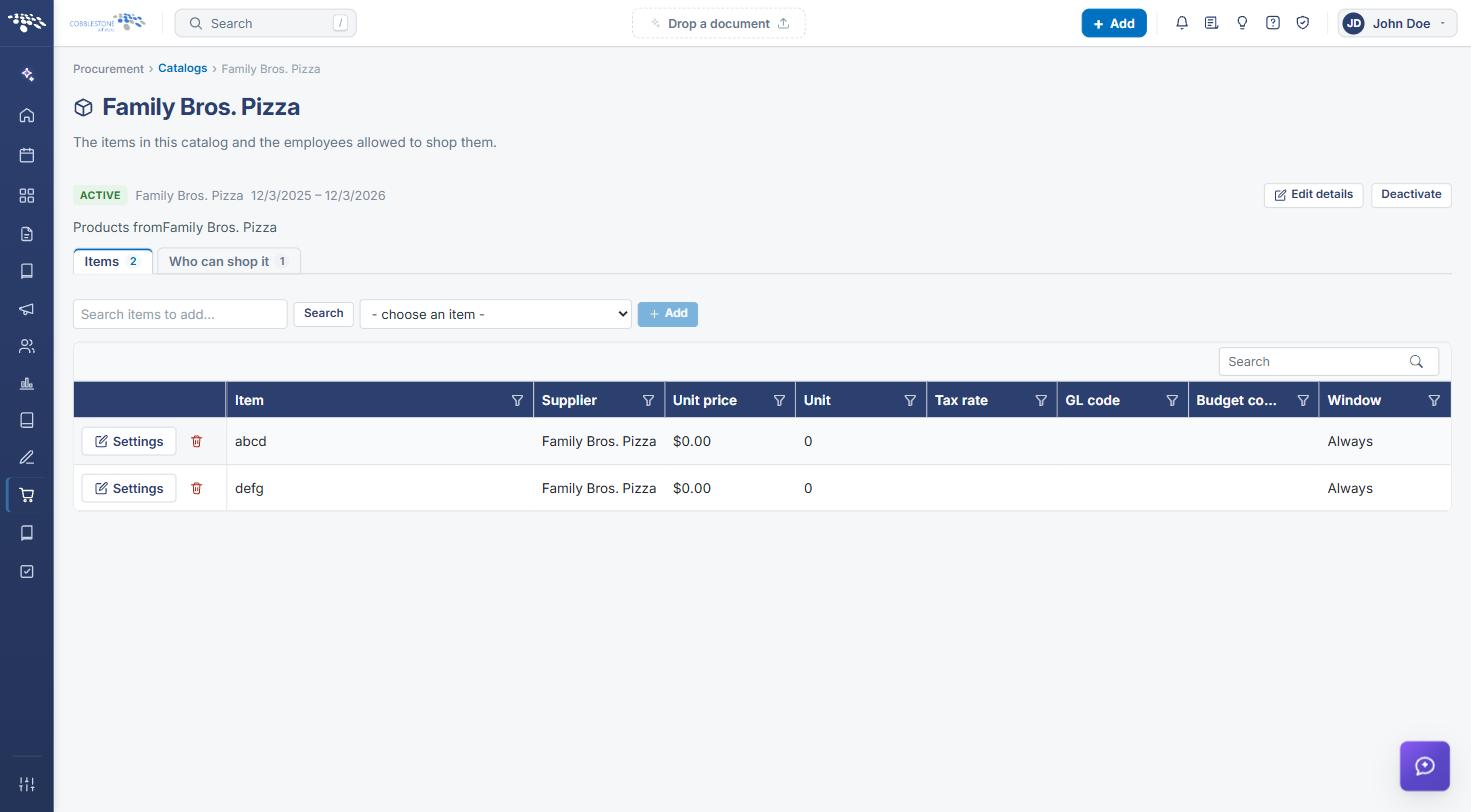
- A catalog's Items tab lists each item with its Supplier, Unit price, Unit, Tax rate, GL code, Budget code, and Window; Settings sets catalog-only values per item.
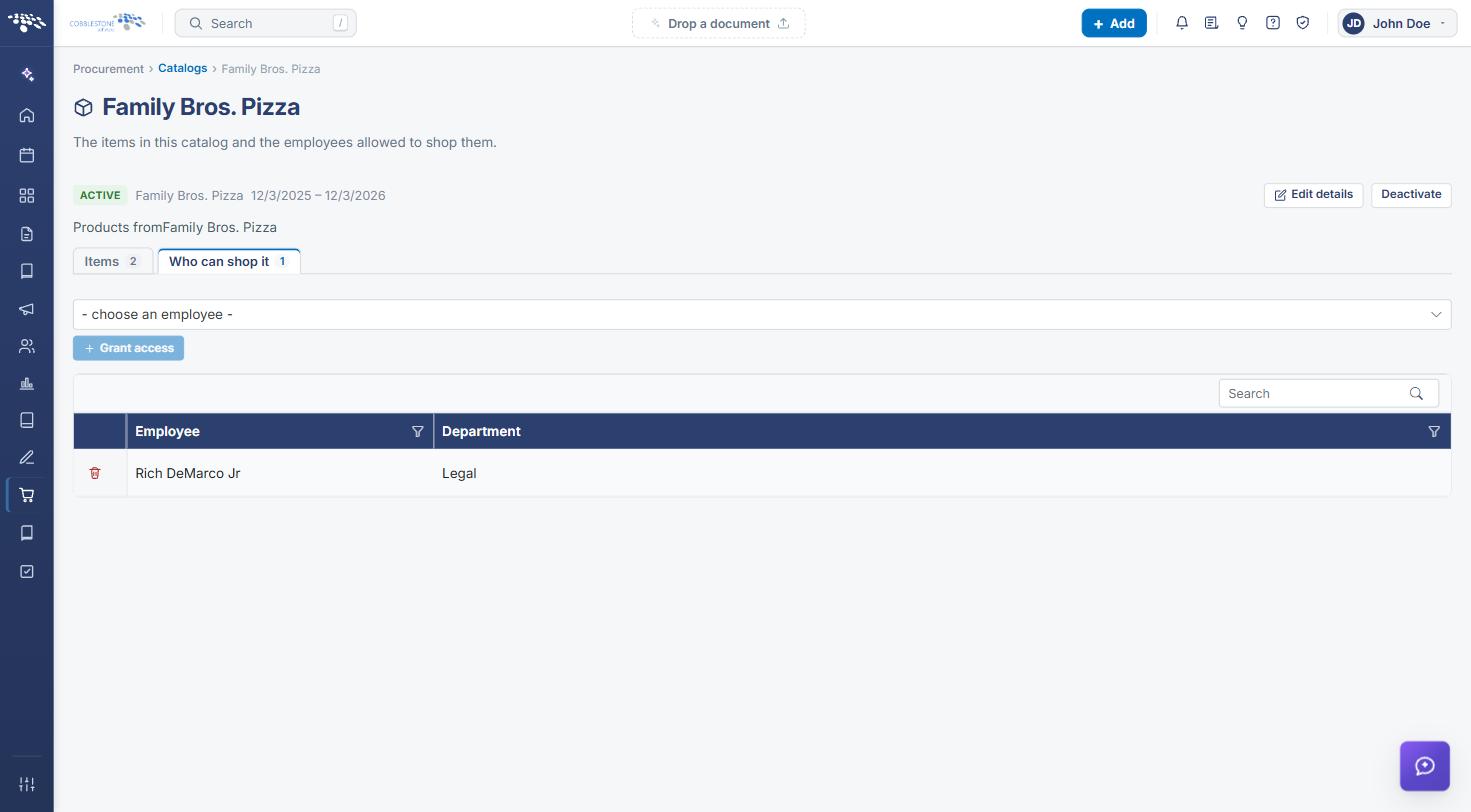
- A catalog's Who can shop it tab lists the employees allowed to purchase from it.
3. Viewing the Product / Service Code List
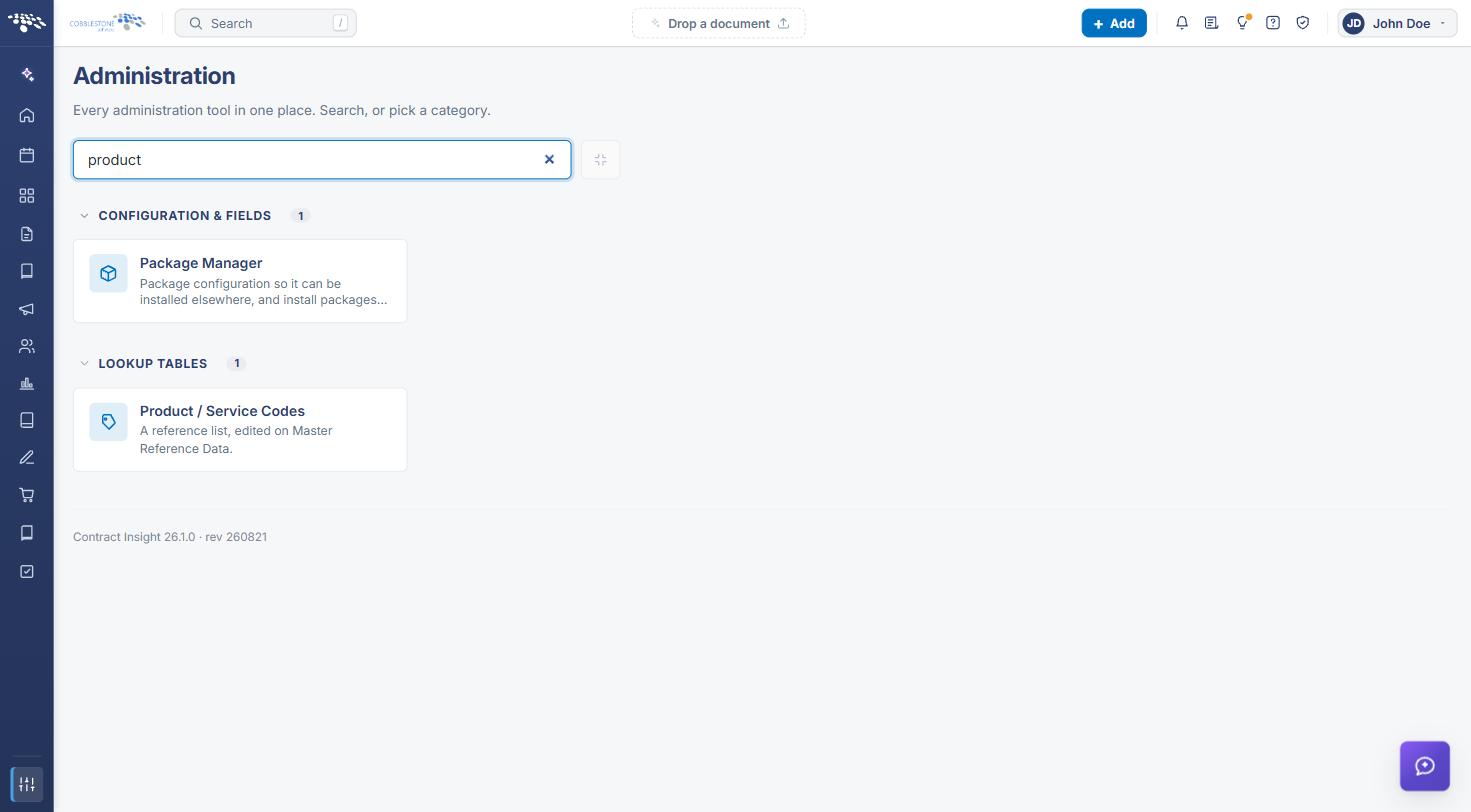
- From the Contract Insight homepage, click the Administration (sliders) icon at the bottom of the left navigation bar.
- Type product in the Search administration box and click Product / Service Codes (under Lookup Tables).
- Master Reference Data opens on the Product / Service Codes tab. Click New to add a code, Manage to edit one, or Export to download the list.
4. Assigning Codes to a Vendor
- Open the vendor (left navigation → Directory → Vendors / Customers → Manage on the vendor's row).
- Click the Subtables tab and scroll to Vendor Product Service Codes (or pick it from the Sections list on the right).
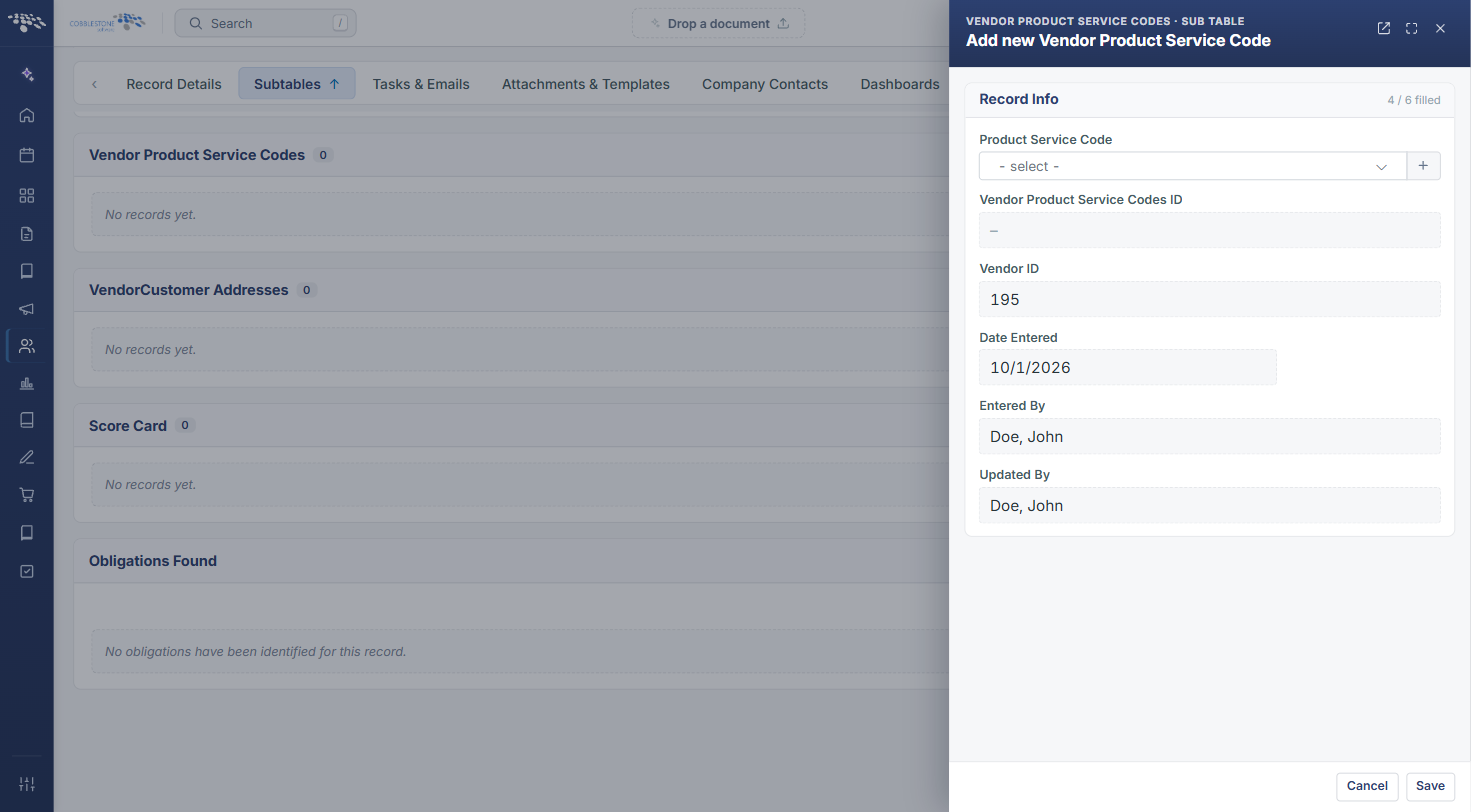
- Click Add. In Add new Vendor Product Service Code, choose a Product Service Code; Vendor ID, Date Entered, Entered By, and Updated By fill in automatically.
- Click Save, or Cancel to discard.
5. Opening Procurement Catalogs
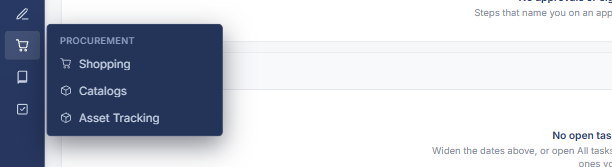
- In the left navigation bar, click the Procurement (cart) icon and choose Catalogs.
- The Purchasing catalogs list shows each catalog's Type, Items, Shoppers, Window, Active status, and Created by. Tick Show inactive catalogs to include inactive ones.
- Click Manage on a catalog to open it, or Add catalog to create one.
6. Reviewing a Catalog's Items and Shoppers
- On the catalog's Items tab, review each item and its Supplier (the vendor). To add an item, search for it, choose it from - choose an item -, and click Add.
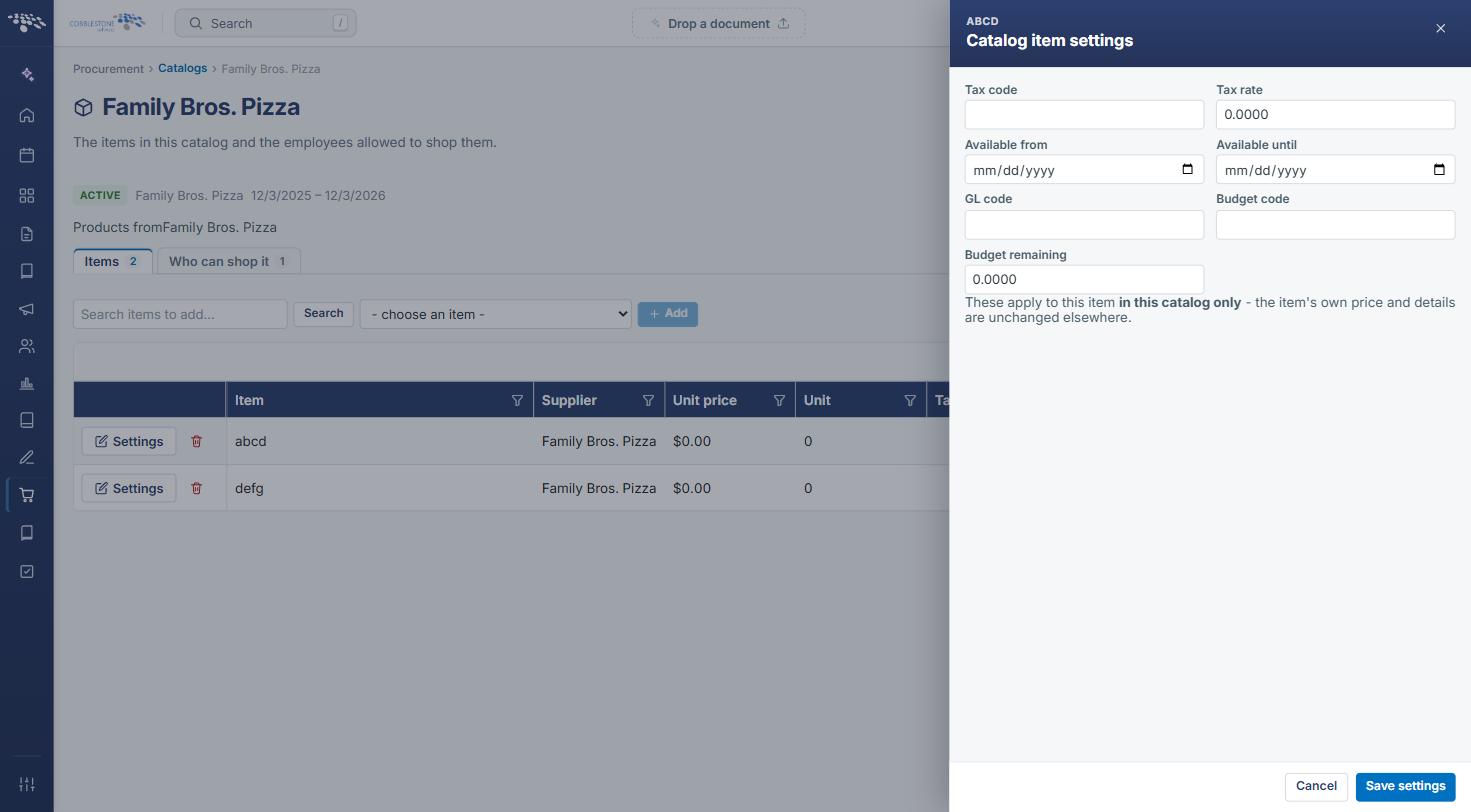
- Click Settings on an item to set its Tax code, Tax rate, Available from/until dates, GL code, Budget code, and Budget remaining for this catalog only, then click Save settings (or Cancel).
- Click the Who can shop it tab to see which employees can purchase from the catalog. Choose an employee and click Grant access to add one.
7. Quick Reference Summary
| Task | How to Complete It |
|---|---|
| View or add product/service codes | Administration → search product → Product / Service Codes → New. |
| Assign a code to a vendor | Vendor record → Subtables → Vendor Product Service Codes → Add → Save. |
| Open purchasing catalogs | Left navigation → Procurement (cart) → Catalogs. |
| See a catalog's items and suppliers | Catalog → Manage → Items tab. |
| Set catalog-only item values | Items tab → Settings → Save settings. |
| Control who can shop a catalog | Catalog → Who can shop it → choose employee → Grant access. |