COBBLESTONE SOFTWARE
Contract Insight — User Guide
Manage Catalogs
03. Admin User Manual › Catalog Manager › Manage Catalogs
Note: Each procedure in this guide begins at the Contract Insight homepage, so any section can be followed on its own. Custom fields are configurable, so the exact field list on a contract category record may vary between environments.
1. Overview
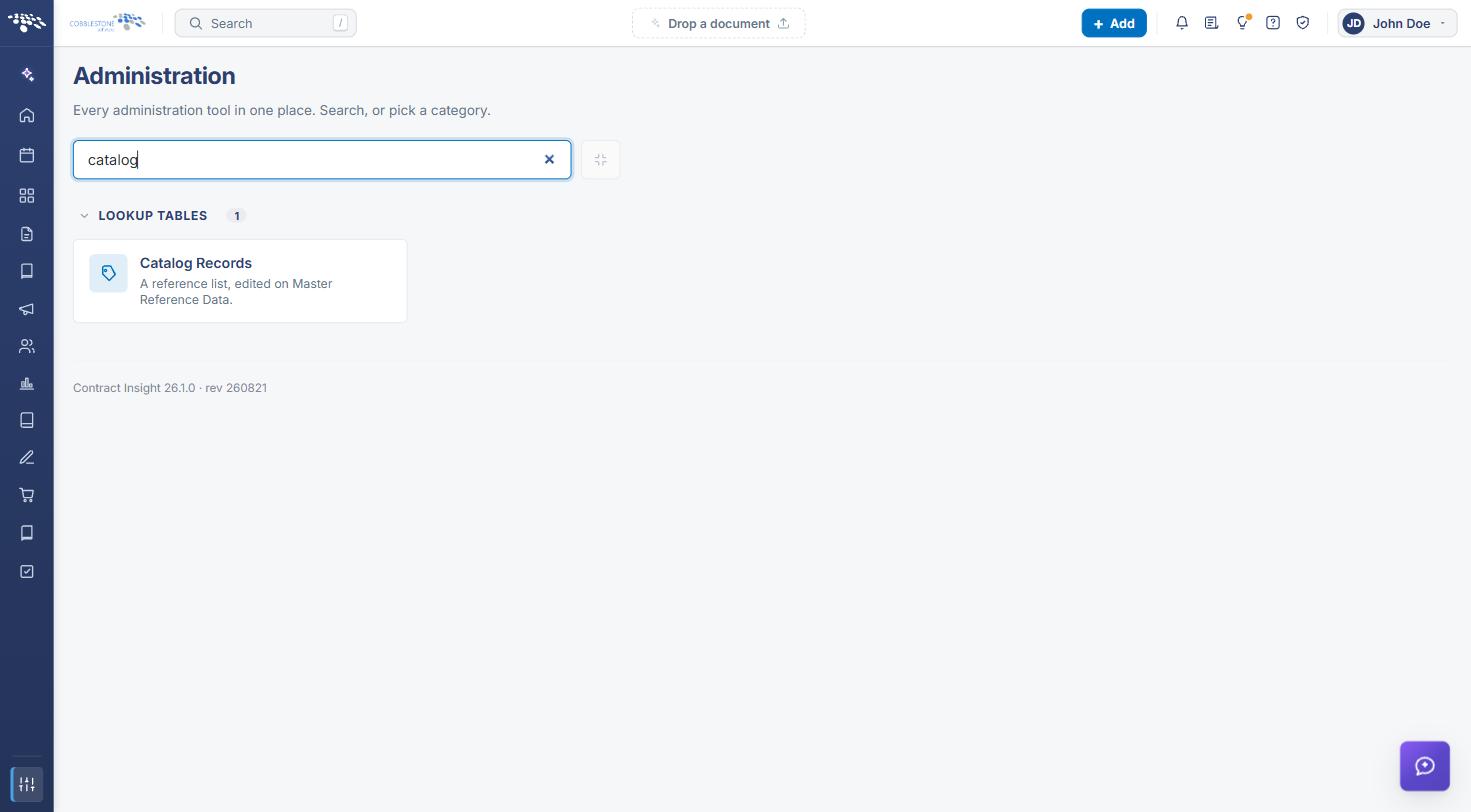
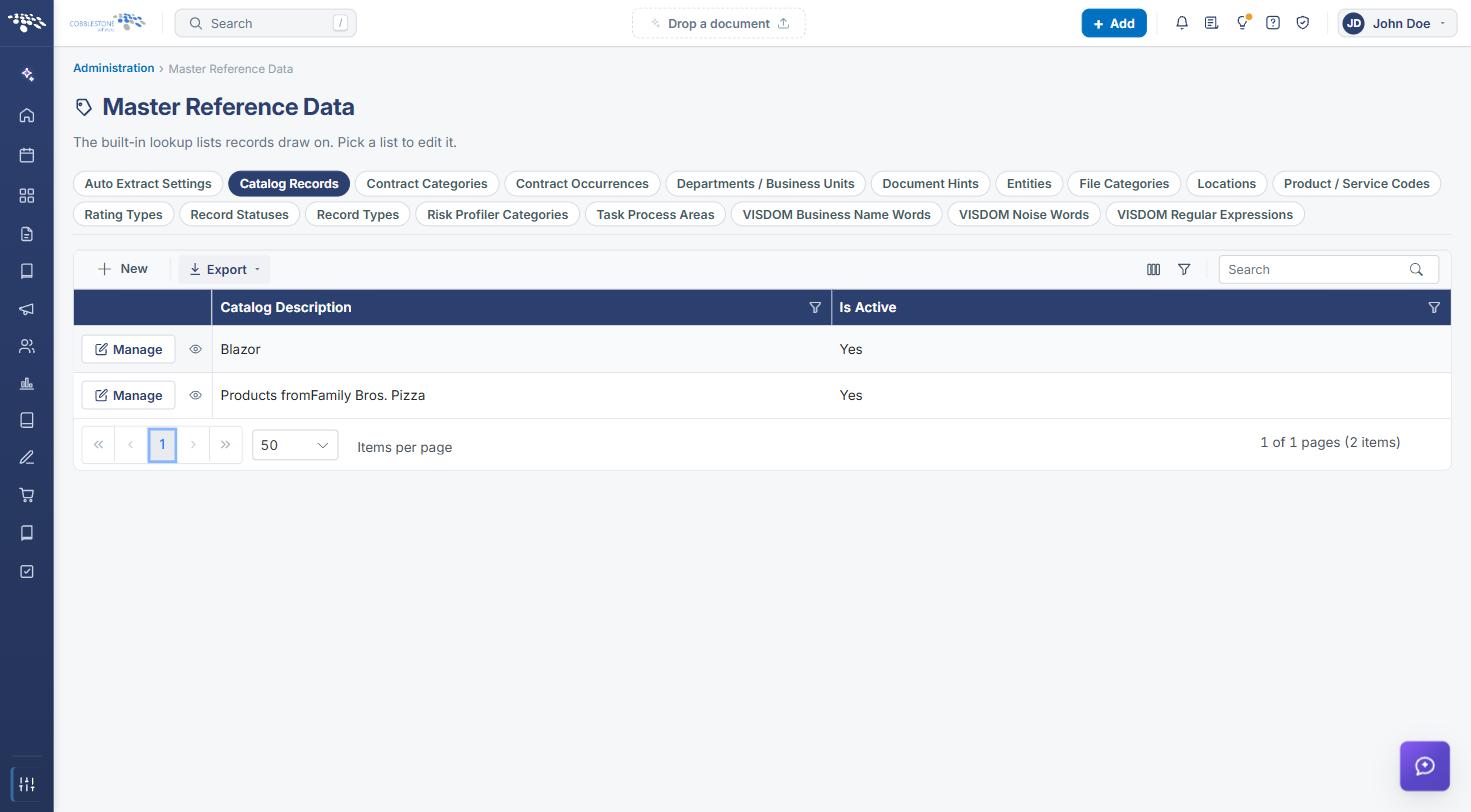
Catalogs are managed from the Catalog Records list, which is reachable from Administration → Master Reference Data → Catalog Records (search the Administration page for "catalog"). In this environment the list shows each catalog's Catalog Description and whether it Is Active, with Manage and preview (eye) actions per row and the same New / Export controls used on every other Master Reference Data list. Opening a catalog shows its details, record info, and the Catalog Items it contains.
2. Key Elements
- Administration → Master Reference Data → Catalog Records tab, alongside the other lookup lists (Contract Categories, Record Statuses, Record Types, and so on).
- Grid columns in this environment: Catalog Description and Is Active. Use the columns icon to choose which fields display.
- New adds a catalog; Manage opens one for editing; the eye icon previews it in a side panel; Export downloads the list.
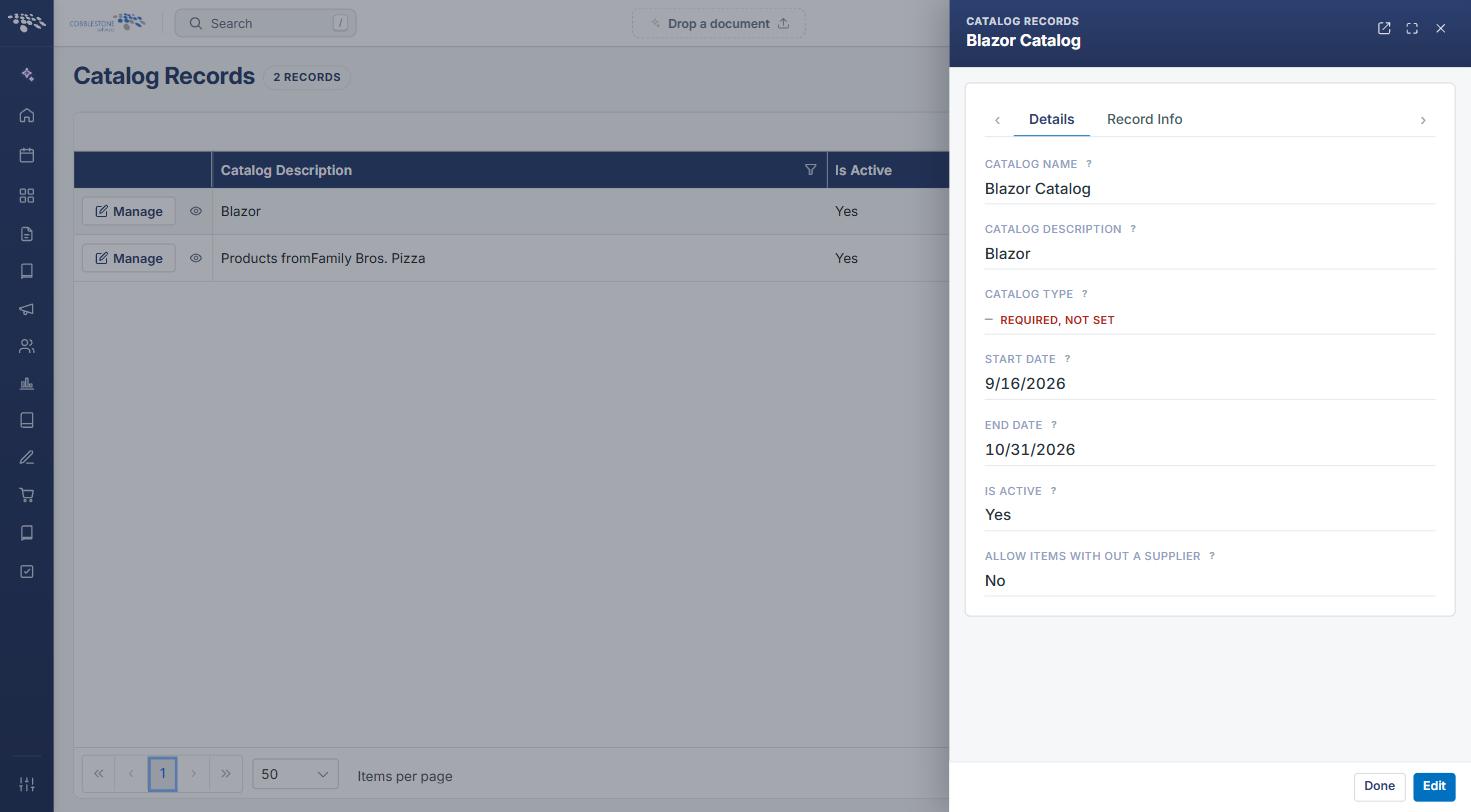
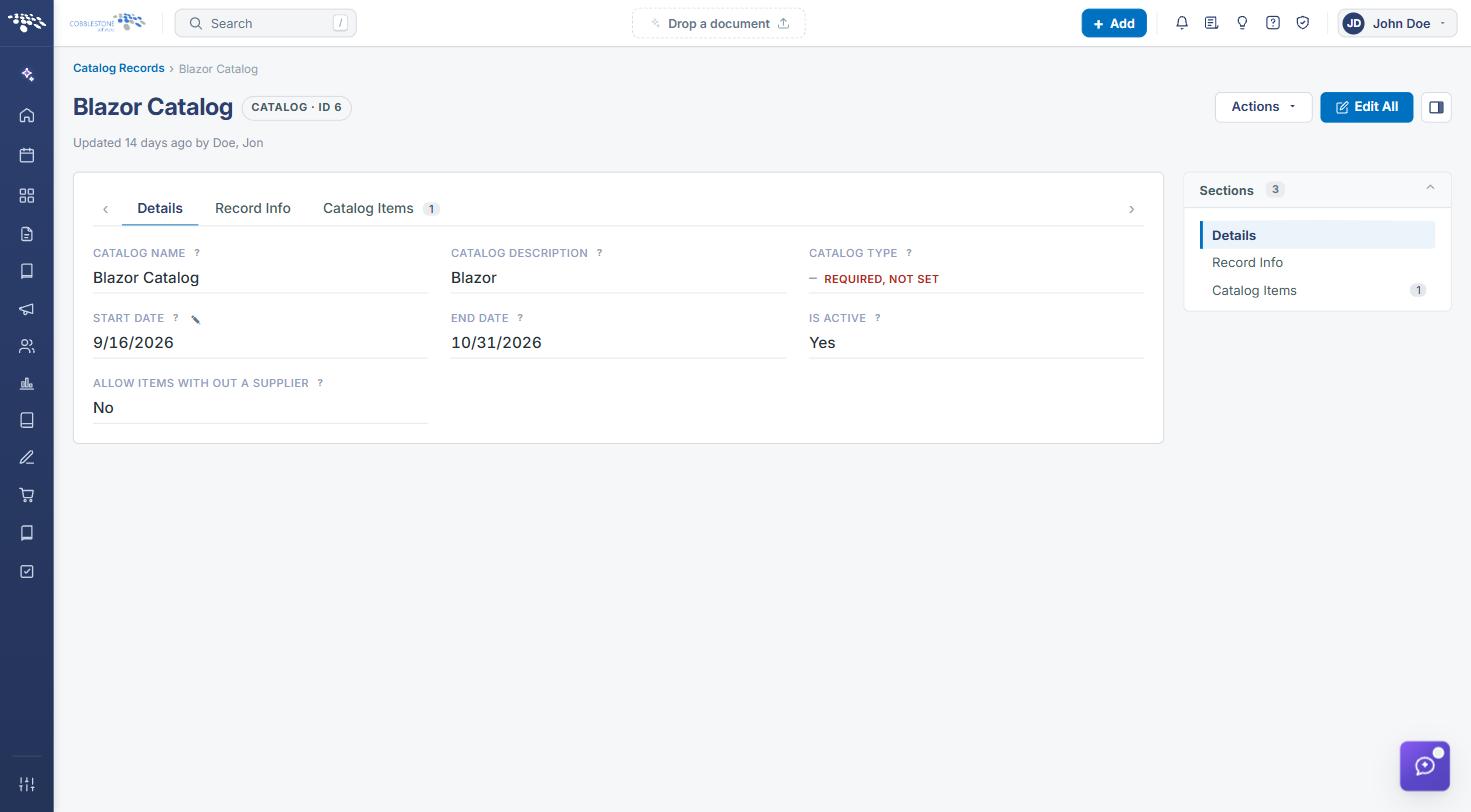
- A catalog record's Details tab holds Catalog Name, Catalog Description, Catalog Type (required), Start Date, End Date, Is Active, and Allow Items Without a Supplier.
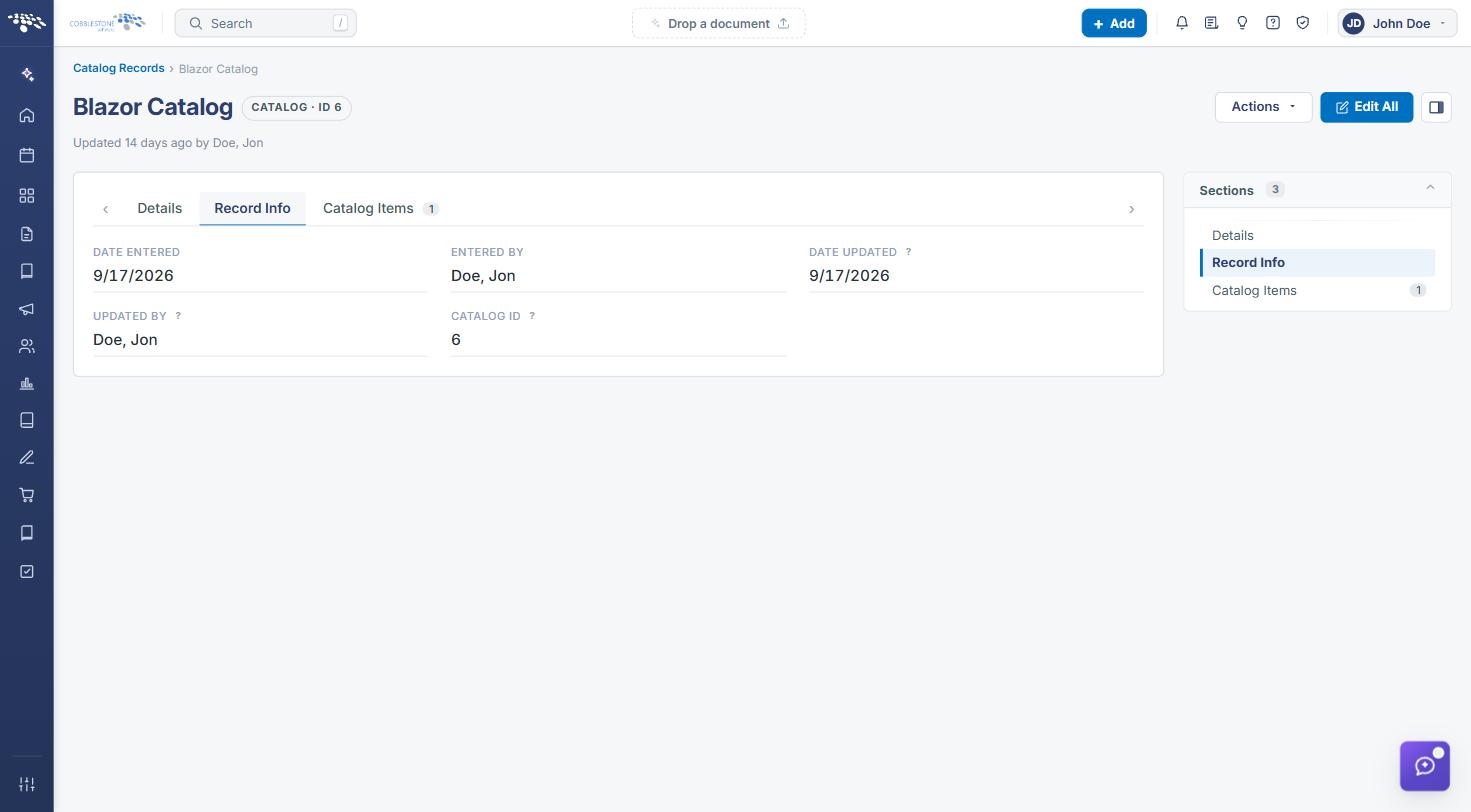
- The Record Info tab shows Date Entered, Entered By, Date Updated, Updated By, and the Catalog ID.
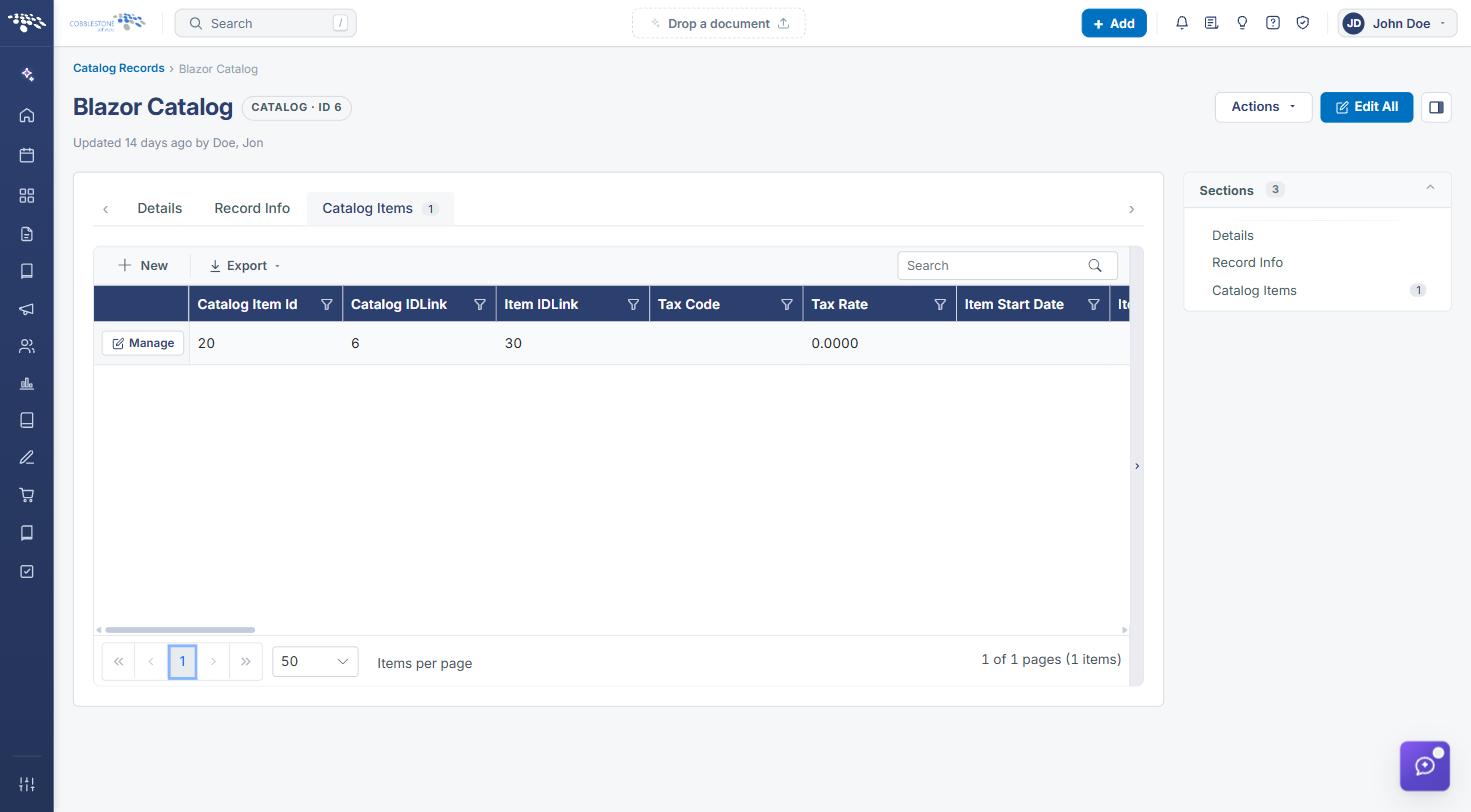
- The Catalog Items tab lists the items in the catalog (Catalog Item Id, Item ID link, Tax Code, Tax Rate, Item Start Date, and more), with New and Export.
3. Opening the Catalog List
- From the Contract Insight homepage, click the Administration (sliders) icon at the bottom of the left navigation bar.
- Type catalog in the Search administration box and click Catalog Records (under Lookup Tables).
- Master Reference Data opens on the Catalog Records tab, listing every catalog.
4. Previewing a Catalog
- Click the eye (preview) icon on the catalog's row.
- The side panel shows the catalog's Details and Record Info.
- Click Edit to change it, or Done to close the panel.
5. Opening and Editing a Catalog
- Click Manage on the catalog's row. The catalog record opens (for example, "Blazor Catalog · CATALOG · ID 6").
- On the Details tab, review or update the catalog's fields. Fields marked REQUIRED, NOT SET (such as Catalog Type) need a value.
- Click Edit All to edit every field at once, or use a field's pencil icon to change one value.
- Click the Record Info tab to see who created and last updated the catalog, and its Catalog ID.
6. Managing a Catalog's Items
- On the catalog record, click the Catalog Items tab. The count beside the tab shows how many items the catalog has.
- Review the items list. Click Manage on an item to open it.
- Click New to add an item to the catalog, or Export to download the item list.
7. Quick Reference Summary
| Task | How to Complete It |
|---|---|
| Open the catalog list | Administration → search catalog → Catalog Records. |
| Add a catalog | Catalog Records → New. |
| Preview a catalog | Row eye icon → Done or Edit. |
| Edit a catalog | Row Manage → Edit All or field pencil icon. |
| See who changed a catalog | Catalog record → Record Info tab. |
| Add items to a catalog | Catalog record → Catalog Items → New. |
| Download the list | Export. |