COBBLESTONE SOFTWARE
Contract Insight — User Guide
Overview of Content on the Gateway
Module: Vendor/Client Gateway › Users: Using the Vendor/Client Gateway › Overview of Content on the Gateway
Note: Each procedure in this guide begins at the Contract Insight homepage, so any section can be followed on its own. Custom fields are configurable, so the exact field list on a contract category record may vary between environments.
1. Overview
"Content" on the Gateway spans two distinct mechanisms: static page and message text — managed on the VCG Settings tab's Content group (Default/Intro Page, Welcome Page, Help Page, Header, Confidentiality Message, and the various Terms and Conditions blocks) — and per-record content, meaning the fields and header tags a vendor or client actually sees on a contract, solicitation, or request, managed on the Fields and Record tags tabs.
2. Key Elements
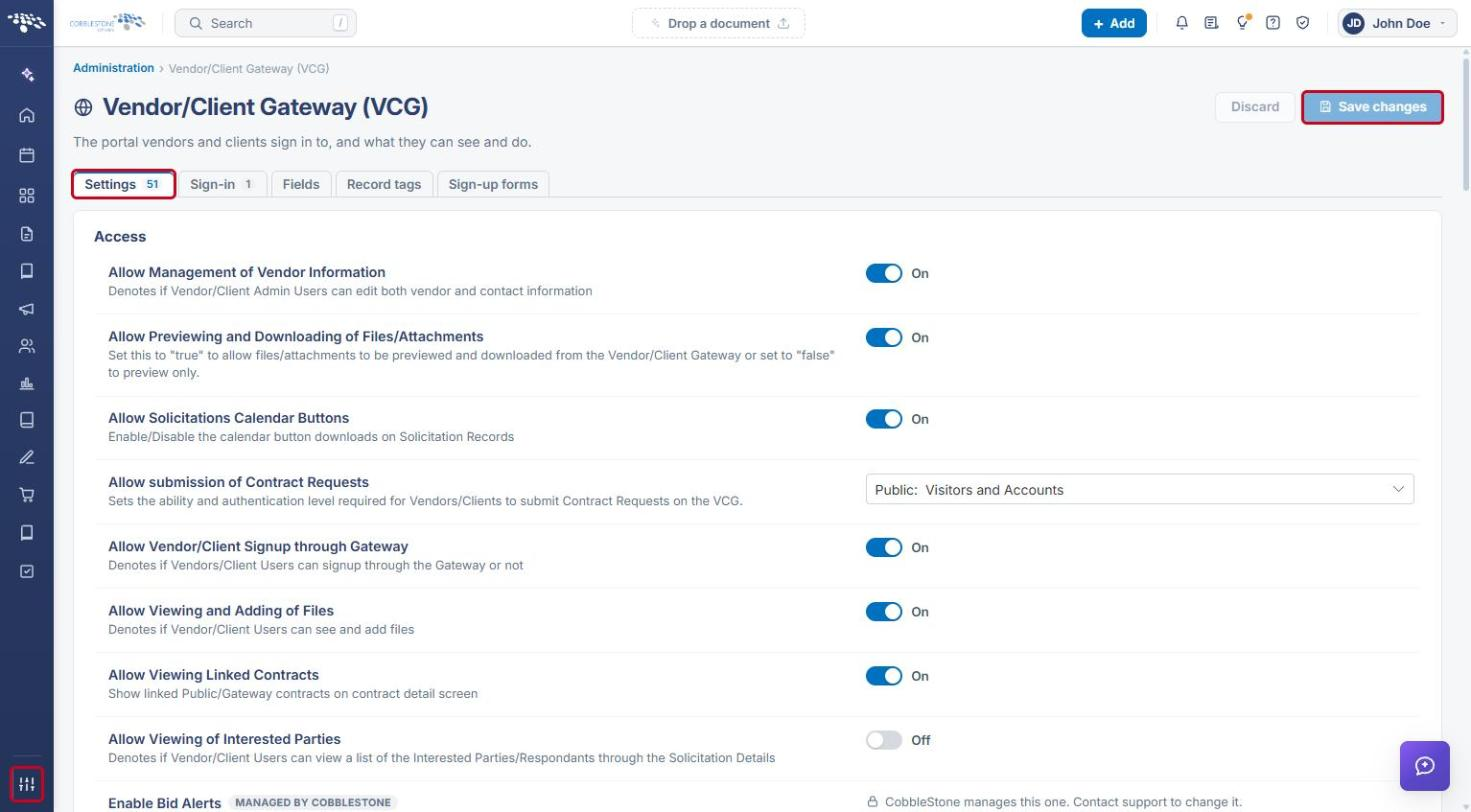
- Static content: VCG Settings → Content group. Titles are edited directly in their text boxes; longer content is edited with the Edit content editor.
- Per-record content: VCG Fields tab (which fields show) and Record tags tab (which values appear in the header).
- Both per-record tabs are scoped by Area and, where records are divided into types, by Record type. The Fields tab covers areas such as Contract Details, Contract Requests, Solicitation Details, and Vendors/Customers Contacts; the Record tags tab covers Contracts, Requests, Vendors/customers, and Employees.
- Changes on the Settings tab are applied with Save changes; changes on the Fields and Record tags tabs save as you make them.
- Emails are a related but separate third category, covered by the Settings tab's Emails group rather than Content.
3. Navigating to the Gateway Settings
- From the Contract Insight homepage, click the Administration (settings) icon at the bottom of the left navigation bar.
- In the Search administration box, type Gateway, then click Vendor/Client Gateway (VCG).
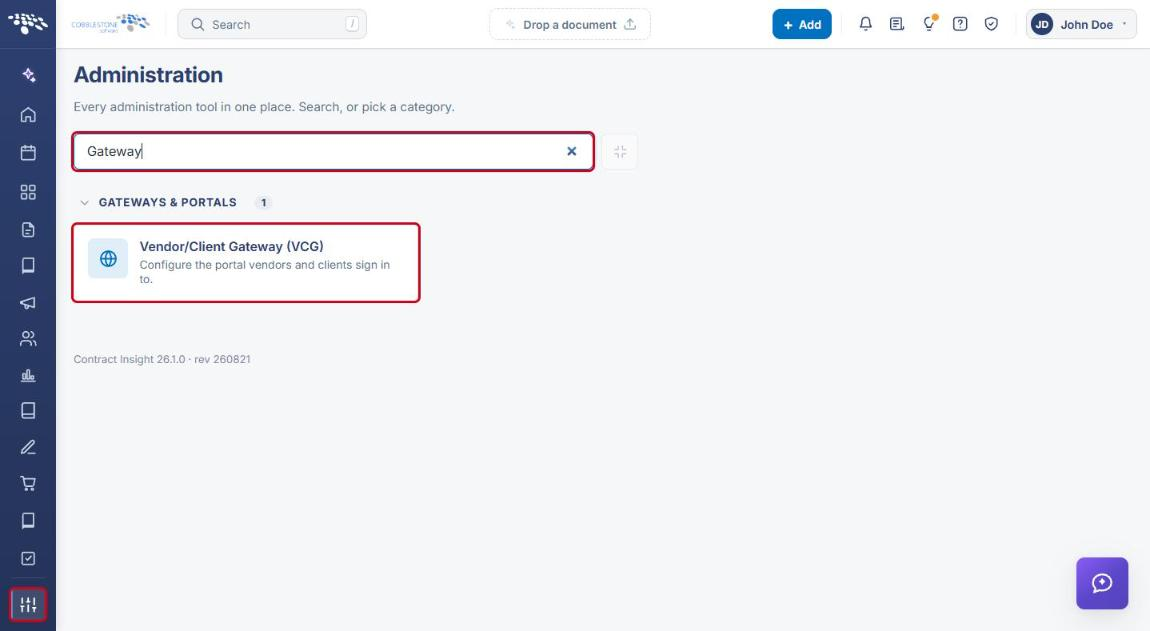
- The VCG page opens on the Settings tab. Use the tabs across the top to move between Settings, Fields, and Record tags.
4. Managing Static Page Content
4a. Editing Page Titles and Content
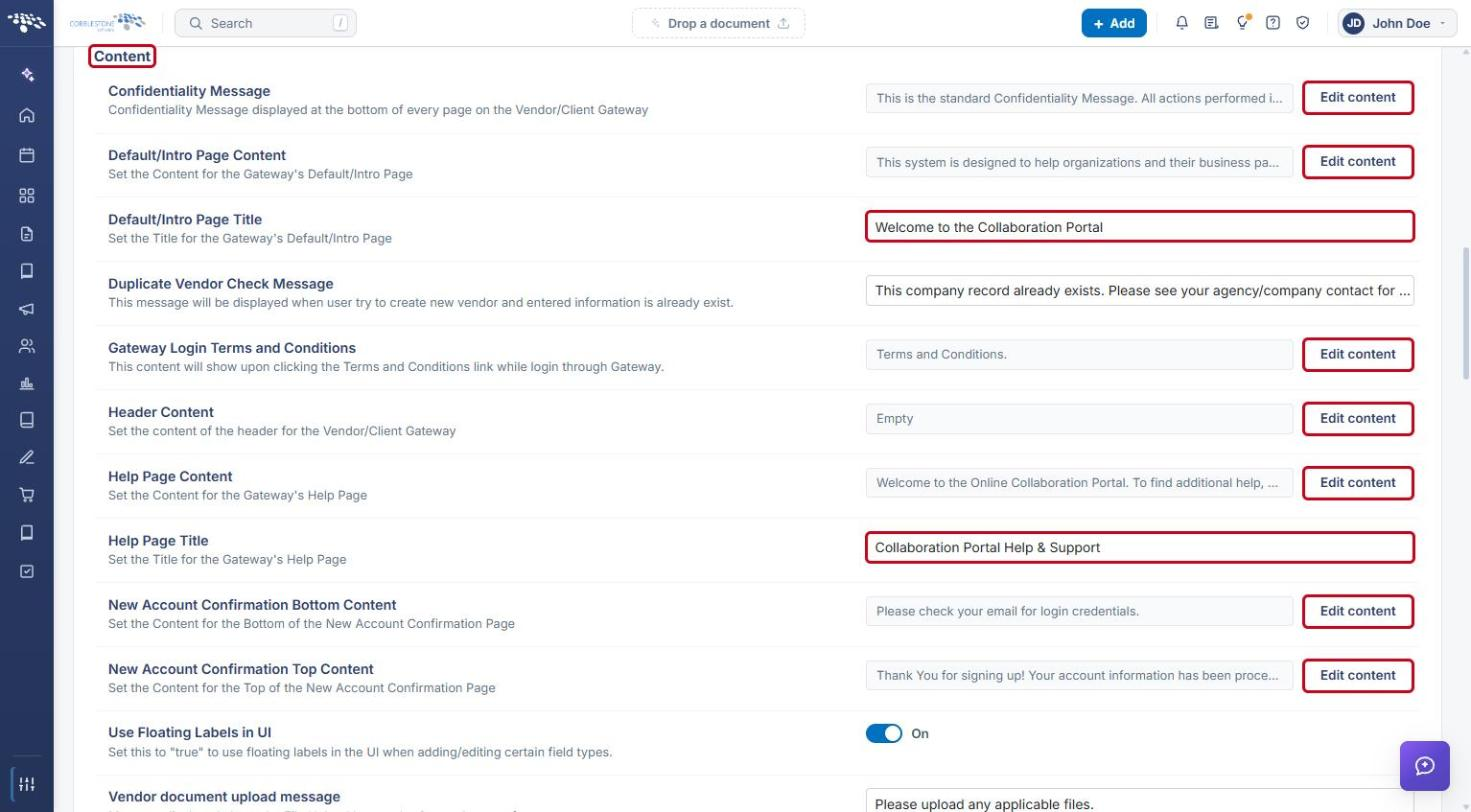
- On the VCG Settings tab, scroll to the Content group.
- To change a title (for example, Default/Intro Page Title or Help Page Title), type the new text directly in its box.
- To change longer content (for example, Confidentiality Message, Default/Intro Page Content, Header Content, Help Page Content, or Gateway Login Terms and Conditions), click Edit content on that row.
4b. Using the Content Editor
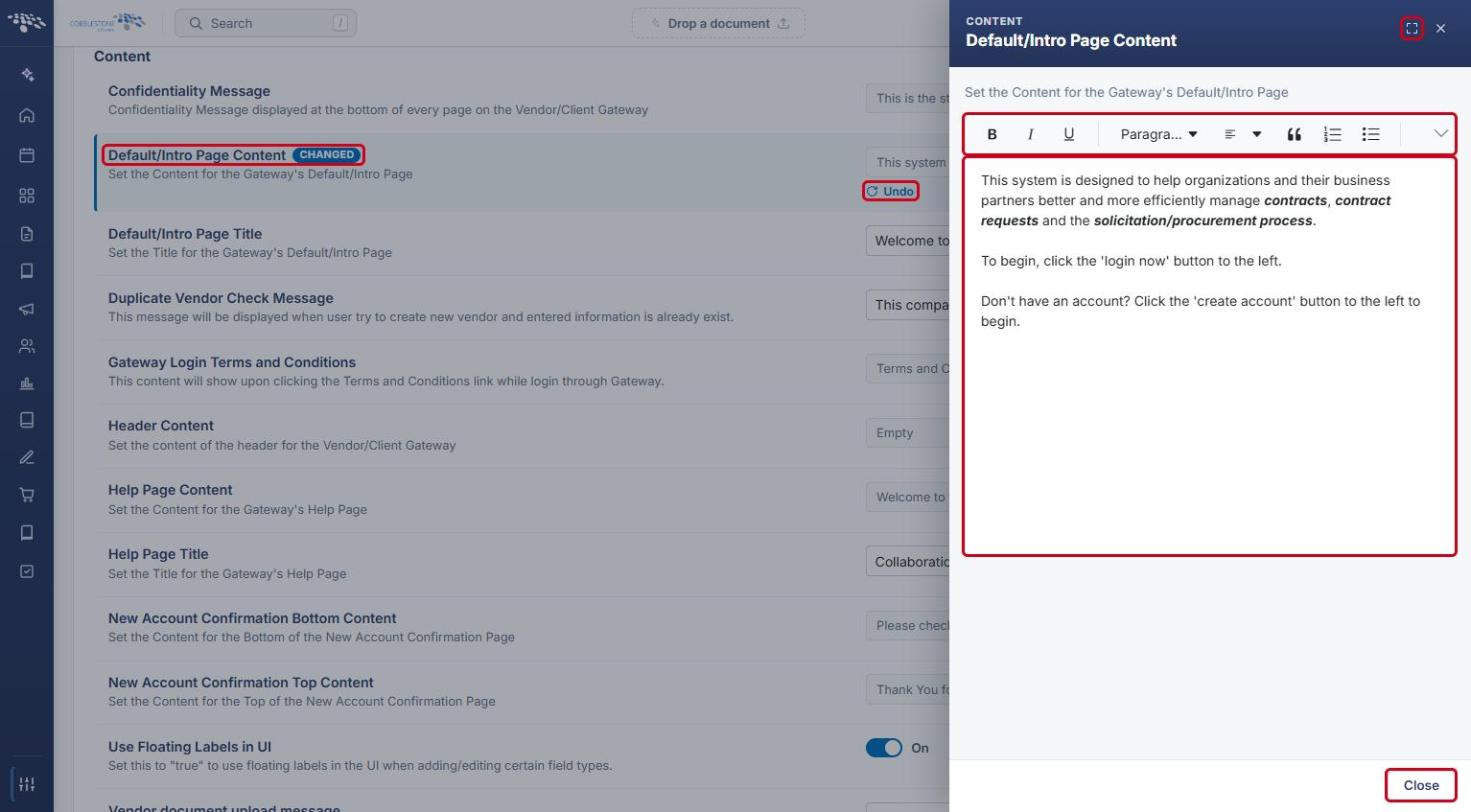
- After clicking Edit content, the editor panel opens on the right.
- Edit the text and use the toolbar to apply formatting (bold, italic, headings, alignment, lists, and so on). Click the expand icon for a larger editing area.
- Click Close to return to the settings list. The row is marked CHANGED; click Undo to revert it if needed.
- Click Save changes at the top of the page to apply your edits.
5. Choosing Which Fields Vendors and Clients See
- On the VCG page, click the Fields tab.
- Select an Area (for example, Contract Details) and, if prompted, a Record type.
- Click « Add next to a field in the Not shown list (use Find a field to search) to move it to On the Gateway. Drag fields in the On the Gateway list to reorder them.
- Use Add every field or Remove all fields to change the whole list at once, or Start from another type to copy the field list from another record type.
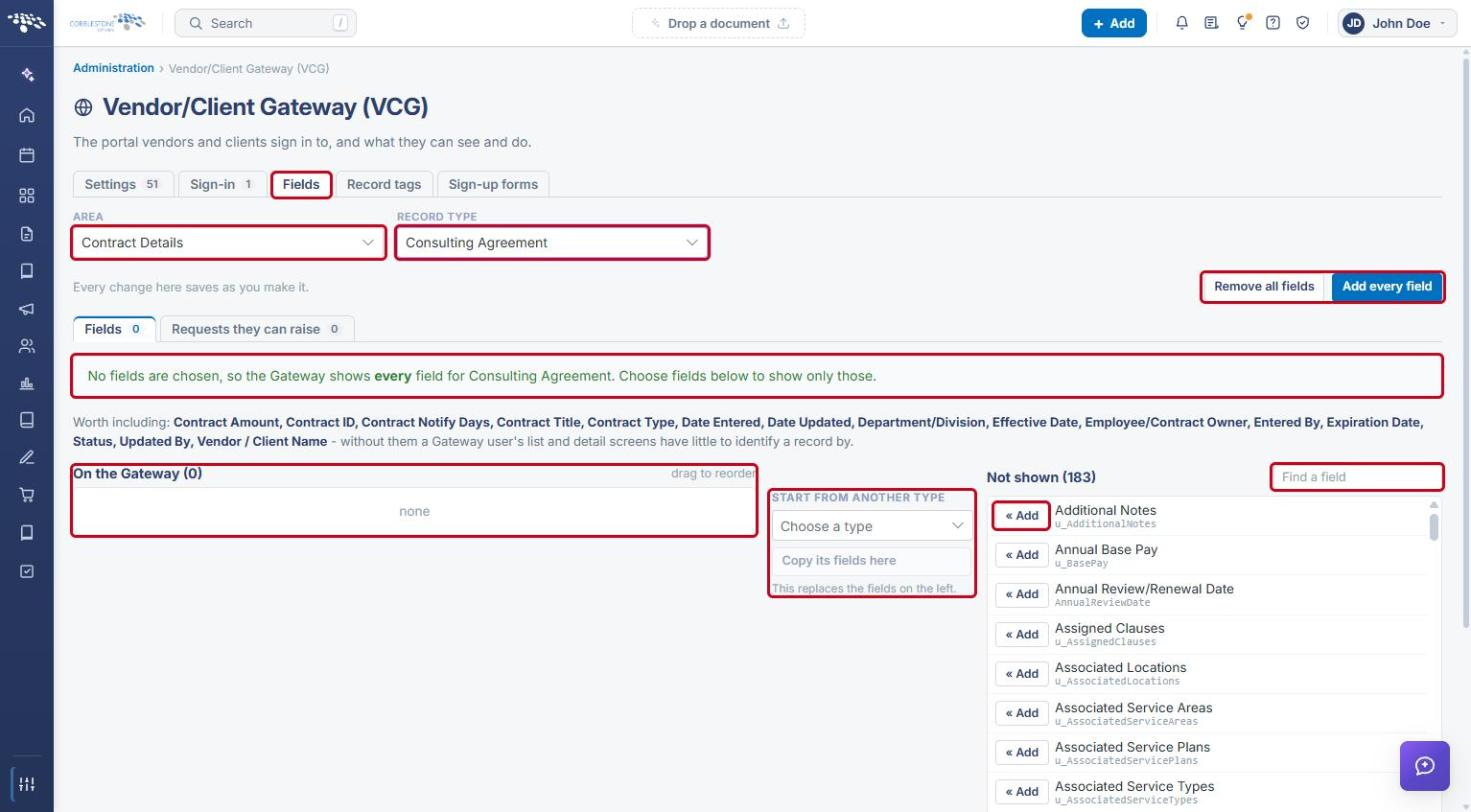
Note: When no fields are chosen for a record type, the Gateway shows every field for that type. Changes on this tab save as you make them.
6. Choosing Header Tags
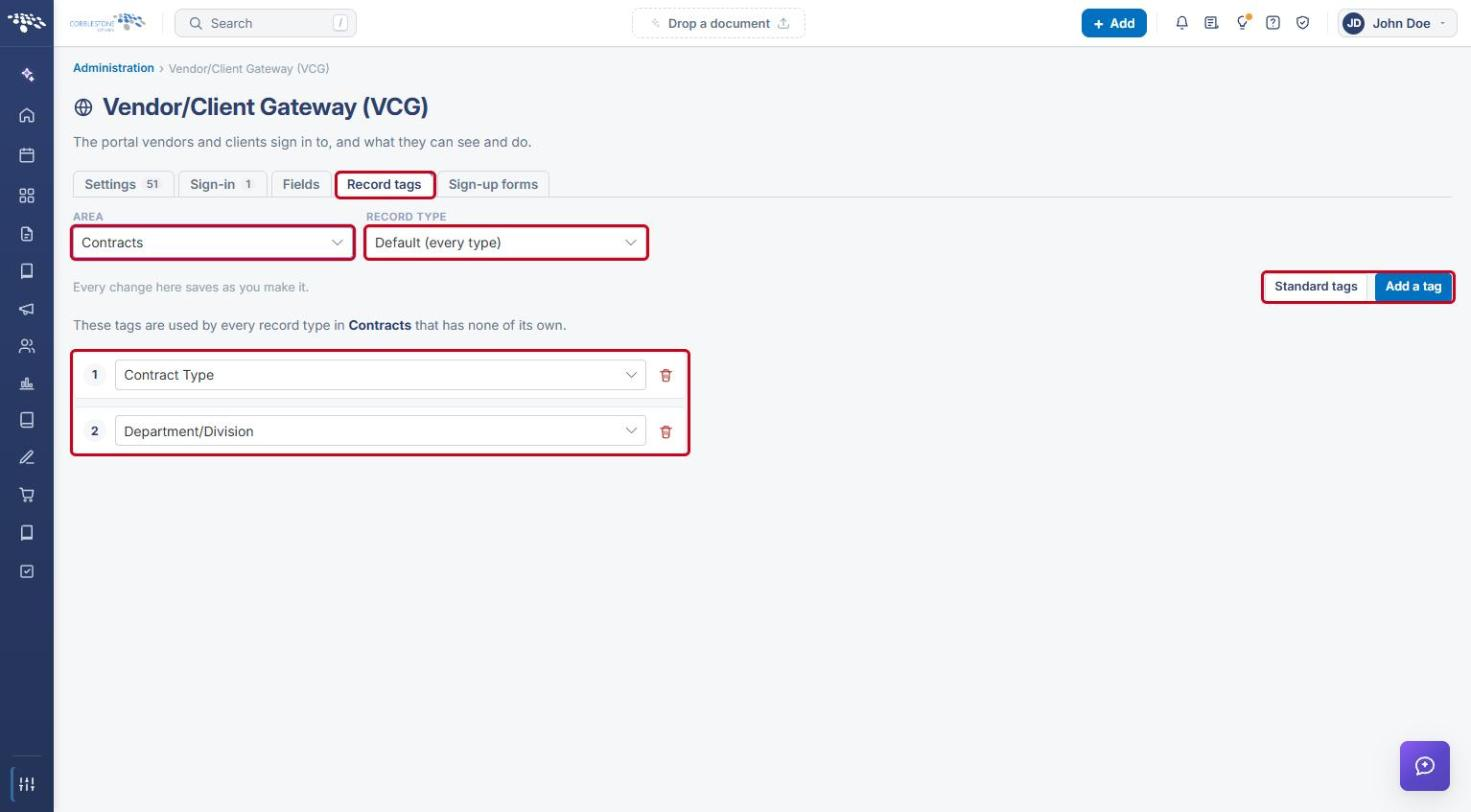
- On the VCG page, click the Record tags tab.
- Select an Area (for example, Contracts) and a Record type. Default (every type) applies to every record type that has no tags of its own.
- Review the numbered list of tags shown in the record header. Use each tag's dropdown to change it, or the delete icon to remove it.
- Click Add a tag to add another, or Standard tags to apply the standard set.
7. Email Content
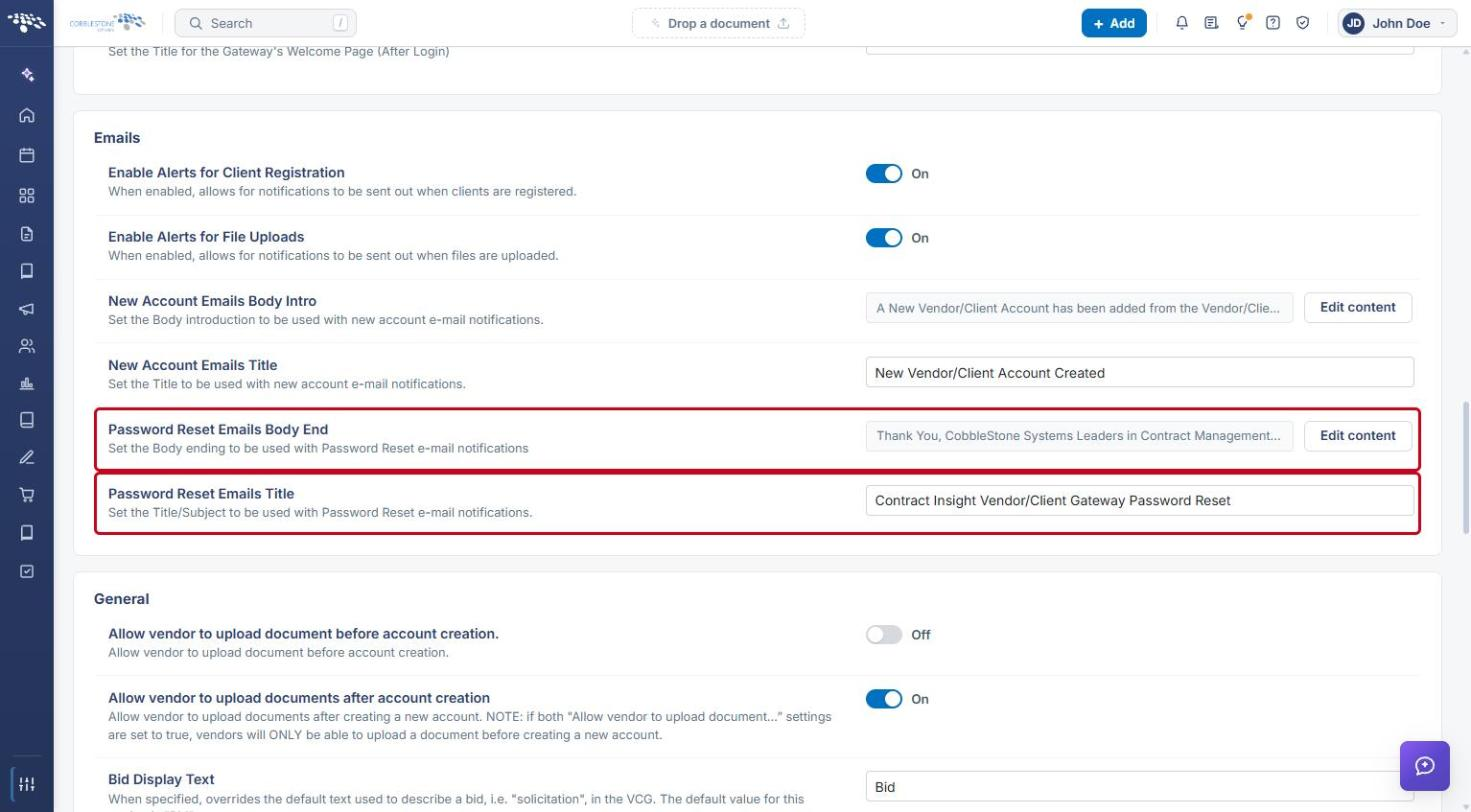
Email subjects and body text are managed separately in the Emails group of the VCG Settings tab. Edit the title boxes directly or click Edit content, then click Save changes.
8. Where Content Appears on the Gateway
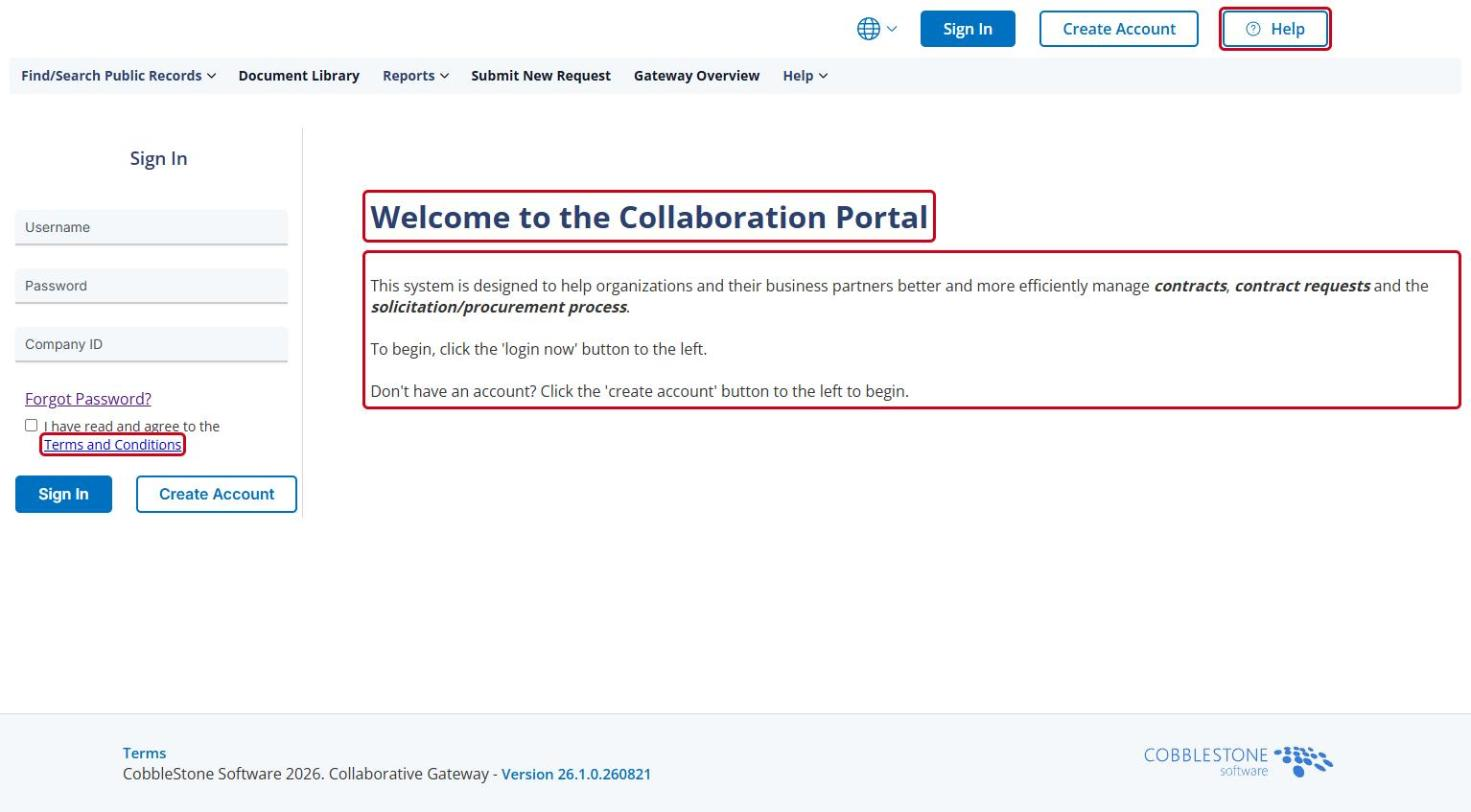
The static content settings appear on the Gateway's public pages. For example, on the sign-in page:
- The page heading comes from Default/Intro Page Title, and the text below it from Default/Intro Page Content.
- The Terms and Conditions link displays Gateway Login Terms and Conditions.
- The Help button opens the Help page, which uses Help Page Title and Help Page Content.
9. Quick Reference Summary
| Task | How to Complete It |
|---|---|
| Open the Gateway settings | Administration → search “Gateway” → Vendor/Client Gateway (VCG). |
| Change a page title | Settings tab → Content → edit the title box → Save changes. |
| Change page or message content | Settings tab → Content → Edit content → edit → Close → Save changes. |
| Choose fields shown on records | Fields tab → choose Area and Record type → « Add / remove fields (saves automatically). |
| Choose header tags | Record tags tab → choose Area and Record type → Add a tag or edit tags (saves automatically). |
| Change email text | Settings tab → Emails → edit title or Edit content → Save changes. |