COBBLESTONE SOFTWARE
Contract Insight — User Guide
1. Down Selection BAFO
Module: Vendor/Client Gateway › Step 6: Down Selection › 1. Down Selection BAFO
Note: Each procedure in this guide begins at the Contract Insight homepage, so any section can be followed on its own. Custom fields are configurable, so the exact field list on a contract category record may vary between environments.
1. Overview
The live down-selection mechanism is a Survey on the solicitation's Ratings & Surveys tab. An example survey named "Survey for Consolidating Respondent Bids" opens a Survey Results screen (Surveys > Survey Results) showing every respondent as its own column (BlueSky Innovations Ltd., Claus Inc., two Clover Industries entries, CobbleStone Image Store, CobbleStone Systems, and more) against each survey question as a row — the same side-by-side comparison the legacy Best and Final Offer (BAFO) down-selection process describes. A Show scores checkbox and a Show questions as columns toggle switch the results grid's orientation and add scoring, letting staff narrow respondents down using the same Survey & Response mechanism.
2. Key Elements
- Ratings & Surveys tab > Surveys section assigns comparison surveys to respondents; Review results opens the Survey Results screen
- Survey Results lists one column per respondent and one row per question, for direct side-by-side comparison of bids
- Show scores adds scoring to the comparison; Show questions as columns flips the grid's orientation
- "Survey for Consolidating Respondent Bids" is a live example survey built for exactly this down-selection purpose
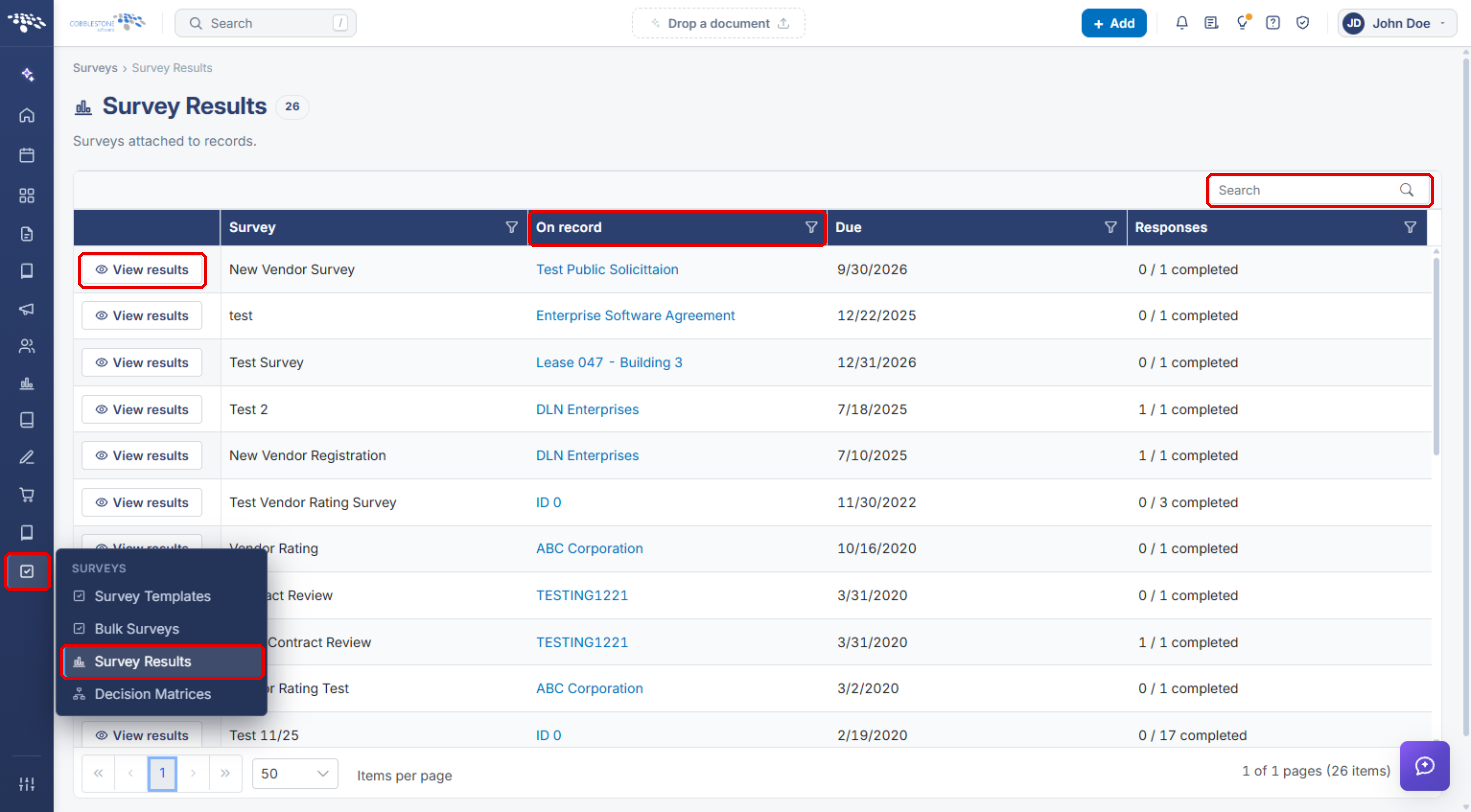
- Surveys menu → Survey Results lists every survey attached to a record, with View results opening the same comparison screen
3. Navigating to a Solicitation's Surveys
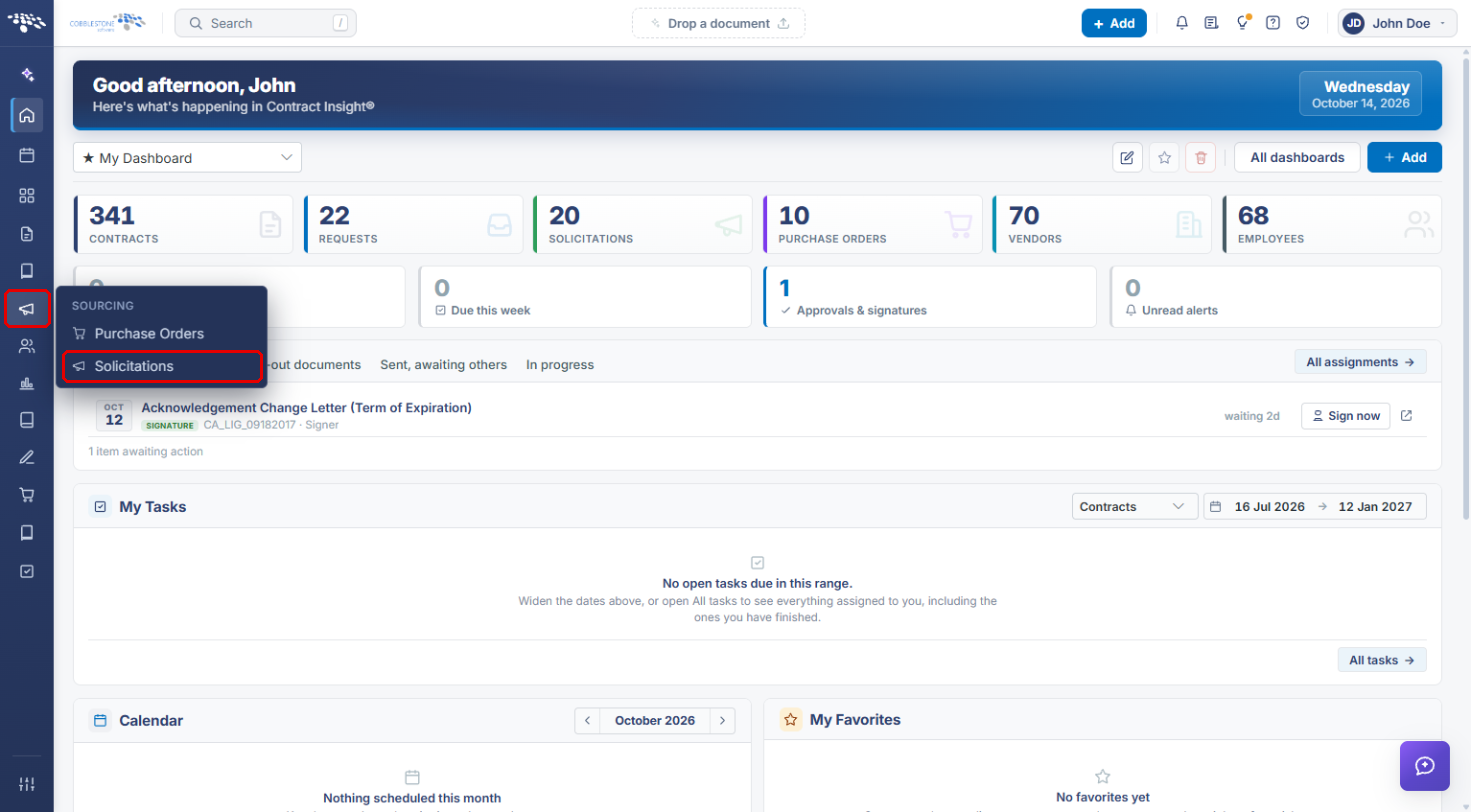
- From the Contract Insight homepage, click the Sourcing icon in the left navigation bar.
- Select Solicitations.
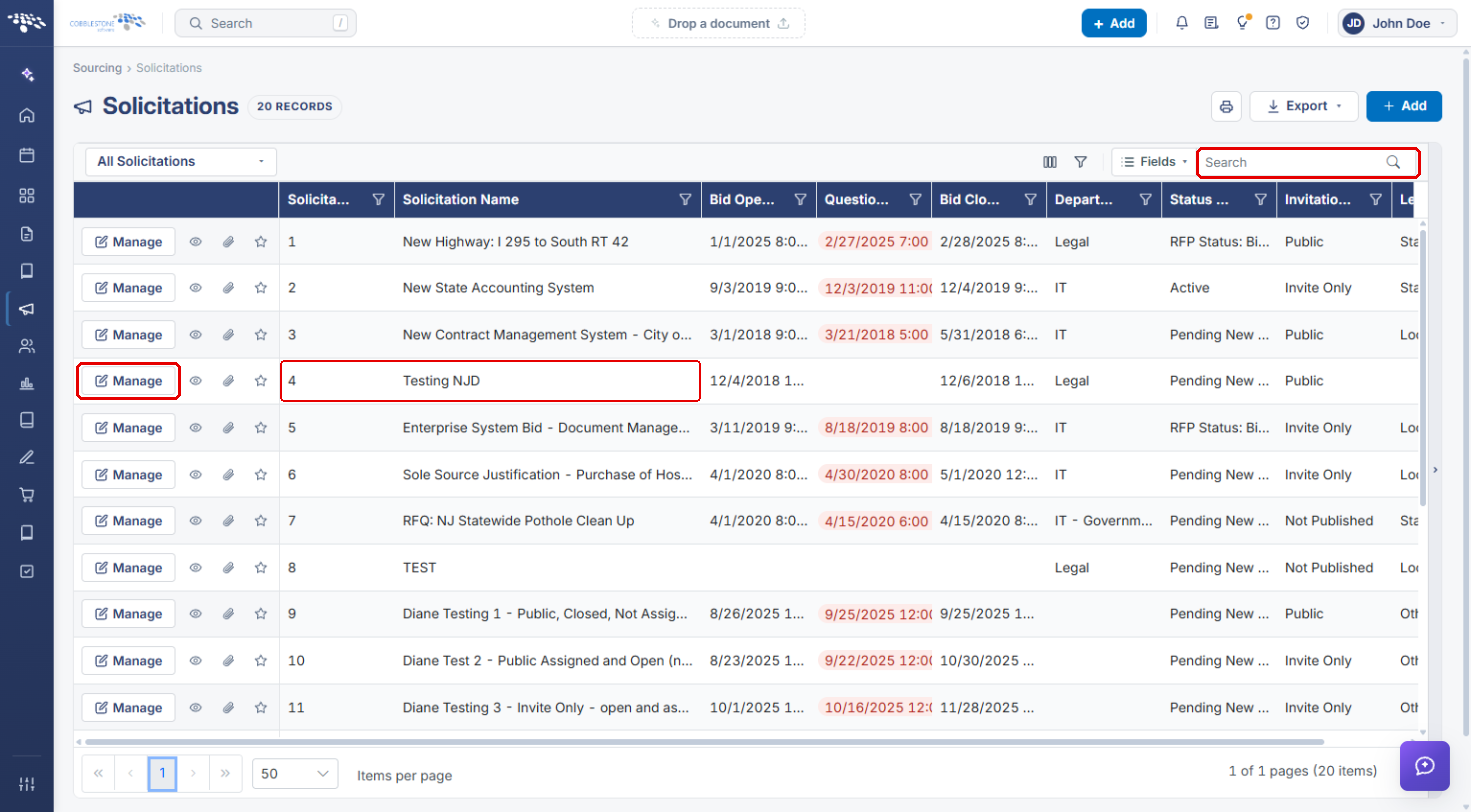
- Locate the solicitation, using the Search box if needed, and click Manage on its row.
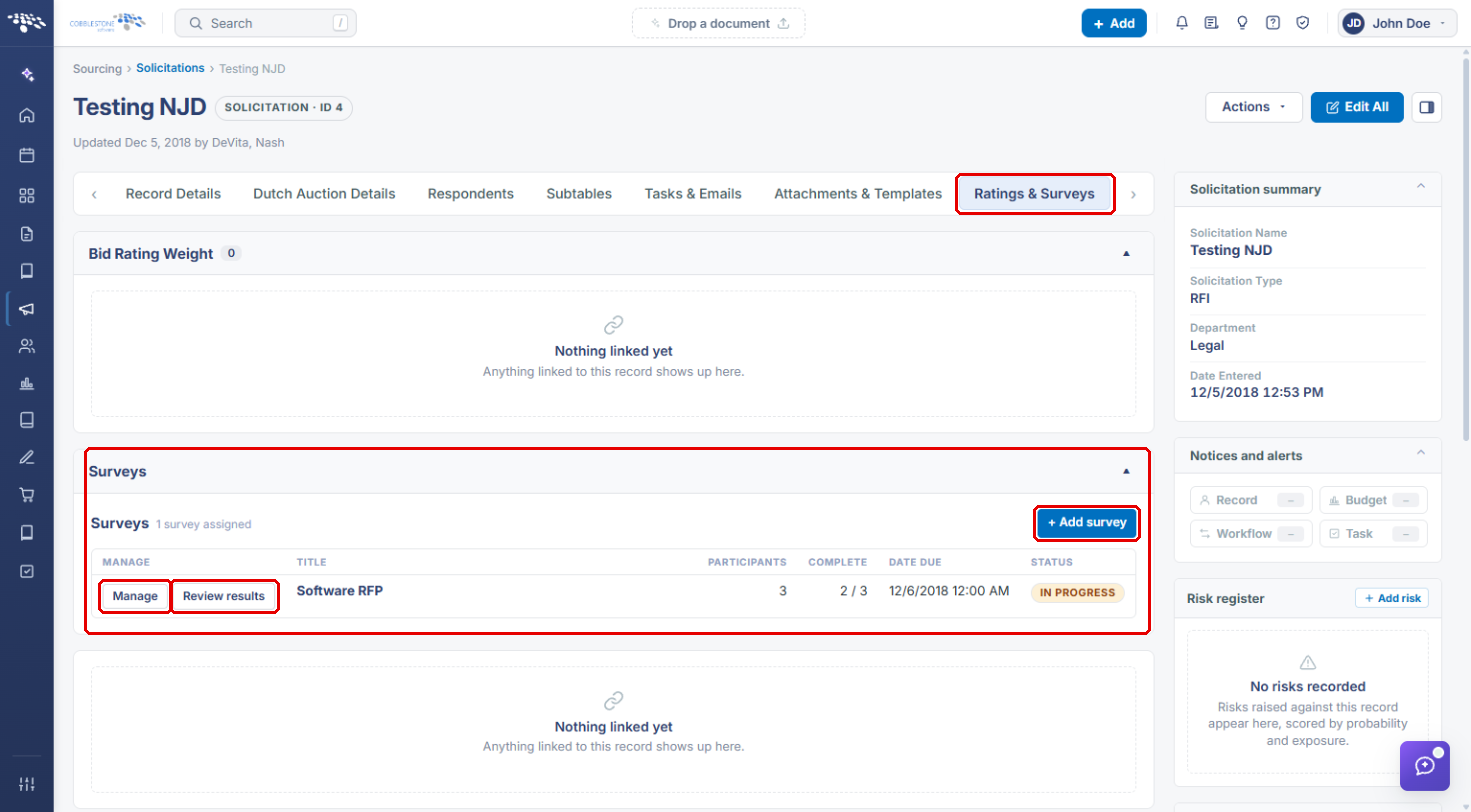
- Click the Ratings & Surveys tab. Use the arrows at either end of the tab bar if the tab is not visible.
- In the Surveys section, review the surveys assigned to the solicitation. Each row shows its Participants, how many are Complete, the Date Due and the Status.
- Click + Add survey to assign a new comparison survey to the respondents, Manage to change an existing assignment, or Review results to open the Survey Results screen.
4. Comparing Respondents in Survey Results
4a. Reviewing Responses Side by Side
- On the Ratings & Surveys tab, click Review results next to the survey.
- The Survey Results screen opens with one column per respondent and one row per question, grouped by survey section. A dash (–) means the respondent has not answered that question.
- Read across a row to compare every respondent's answer to the same question.
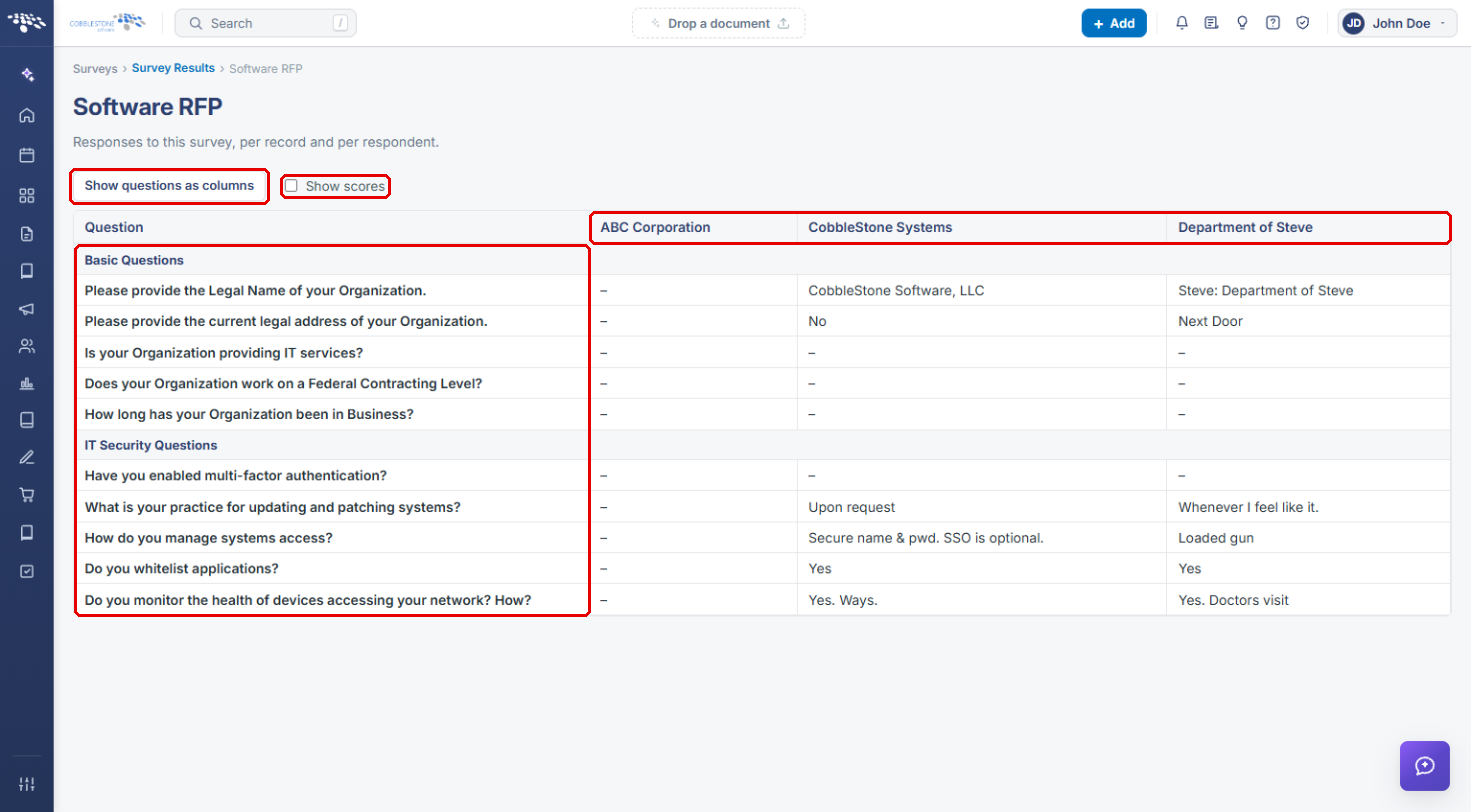
Note: The screenshots in this article use the Software RFP survey on the Testing NJD solicitation. The Survey for Consolidating Respondent Bids example described in the Overview is not present in the current test environment, but its results screen works the same way.
4b. Adding Scores and Changing the Layout
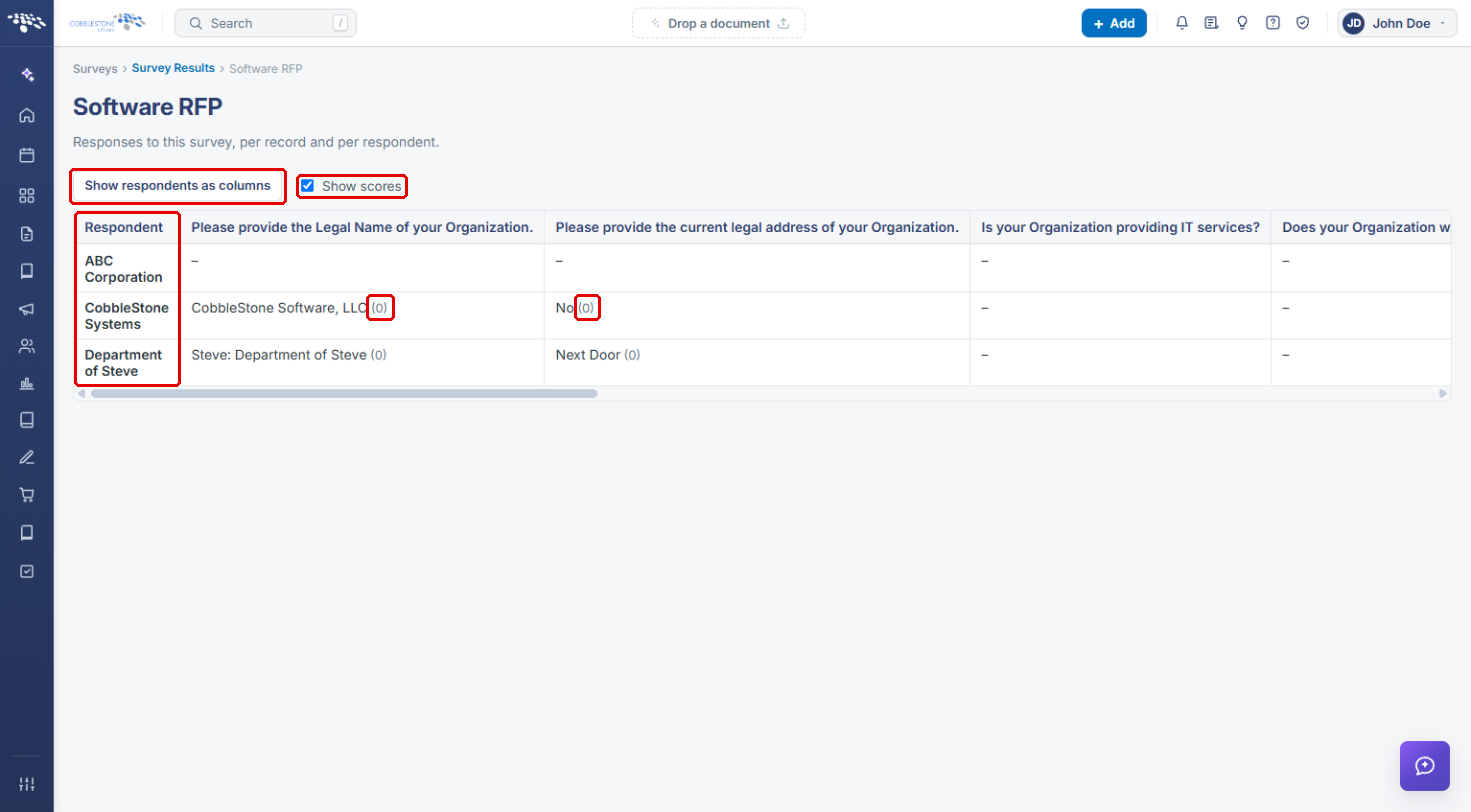
- Tick Show scores to add each answer's score in parentheses next to the response.
- Click Show questions as columns to flip the grid so each respondent is a row and each question is a column. The button then reads Show respondents as columns; click it to switch back.
- Use the scored view to rank respondents and decide which ones move forward in the down-selection (BAFO) round. Scroll horizontally to see every question.
5. Opening Survey Results from the Surveys Menu
- From the Contract Insight homepage, point to the Surveys icon in the left navigation bar and select Survey Results.
- The list shows every survey attached to a record, with its On record link, Due date and Responses count. Use Search to find the solicitation or survey.
- Click View results to open the same comparison screen described in Section 4.