COBBLESTONE SOFTWARE
Contract Insight — User Guide
Online Document Editing
Application Configuration: The Online Document Editor and Collaboration
Note: Each procedure in this guide begins at the Contract Insight homepage, so any section can be followed on its own. The document tools offered on an attachment depend on the file type, on whether it is checked out, and on the settings described here, so the exact set may vary.
1. Overview
Online document editing lets a document attached to a record be created and edited in the browser, without downloading it, editing it locally and uploading it again. The document stays on the record throughout, so the version that everyone sees is always the current one.
Editing is reached from the Attachments & Templates tab of a record. Each attached file offers a set of document tools, grouped by what they do; the Edit & collaborate group holds the online editing options. Alongside them sit signature and approval actions, comparison tools, conversions, and the file’s own versions and history.
Two behaviours matter most in day-to-day use. Track changes can be forced on whenever the online editor loads, so that edits are always marked up rather than made silently. And a document can be checked out while someone works on it, which stops anyone else opening or replacing it until it is checked back in.
Whether online editing is offered at all, whether PDFs can be edited that way, whether check in and check out apply, and how track changes behaves are all controlled by application settings. Those settings are maintained from the Administration area and are normally reserved for Application Administrators or users specifically granted the appropriate permission.
2. Allowing Online Document Creation and Editing
Steps:
- From the Contract Insight homepage, click Administration at the bottom of the left navigation menu. On the Administration page, under Configuration & Fields, select Application Settings.
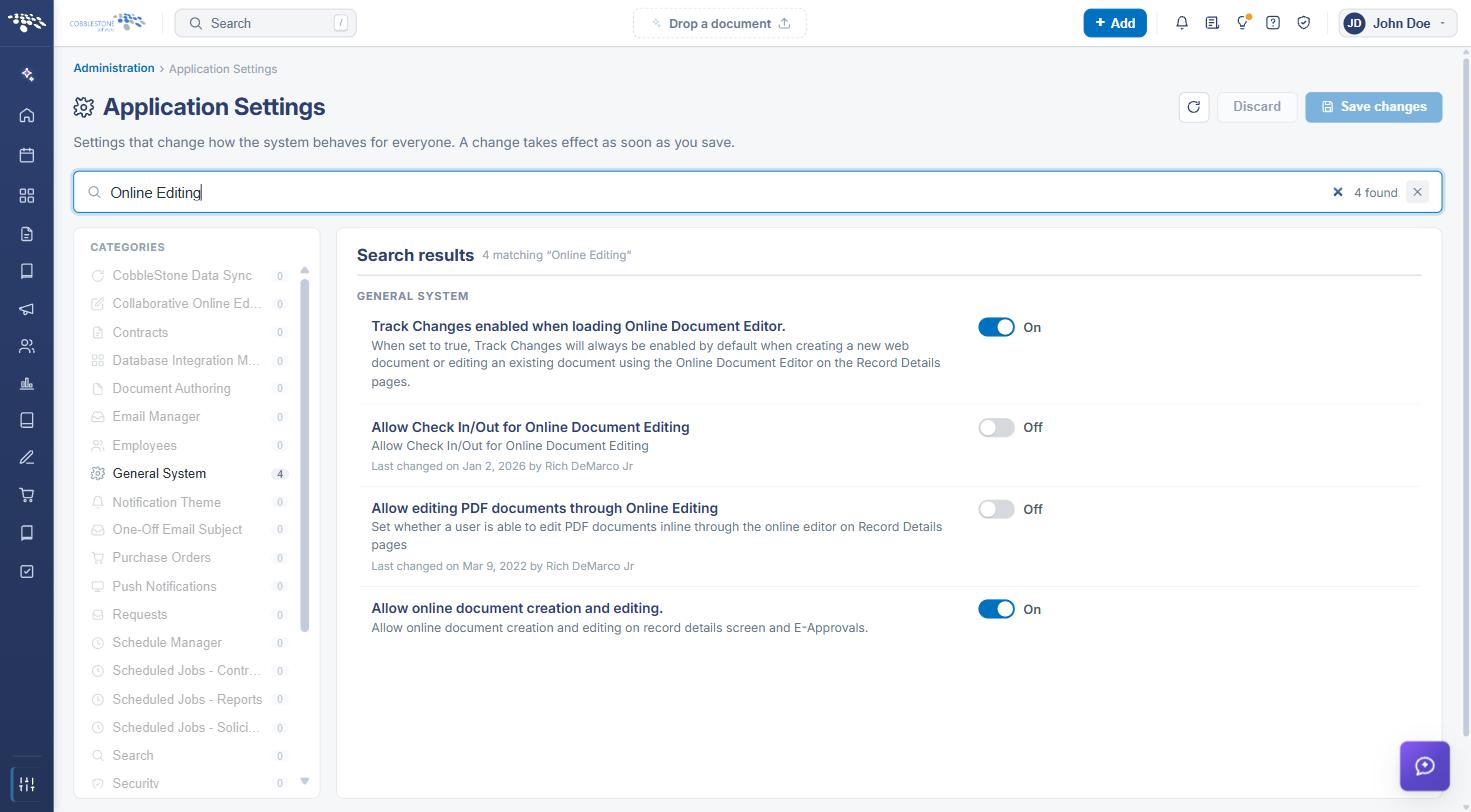
- Search for online, or open the General System category.
- Set Allow online document creation and editing. — “Allow online document creation and editing on record details screen and E-Approvals.” — to On.
- Review the related settings described below and set them as required.
- Click Save changes, or Discard to abandon the change. A change takes effect as soon as it is saved.
The related settings in the General System category are:
- Allow editing PDF documents through Online Editing — whether a PDF can be edited inline through the online editor on record details pages
- Allow Check In/Out for Online Document Editing — whether documents can be checked out and checked back in around an edit
- Track Changes enabled when loading Online Document Editor. — whether track changes is switched on automatically, described in the next section
Note: With online editing turned off, the online editing options are not offered on a record’s attachments and documents have to be downloaded, edited and uploaded again.
3. Track Changes in the Online Document Editor
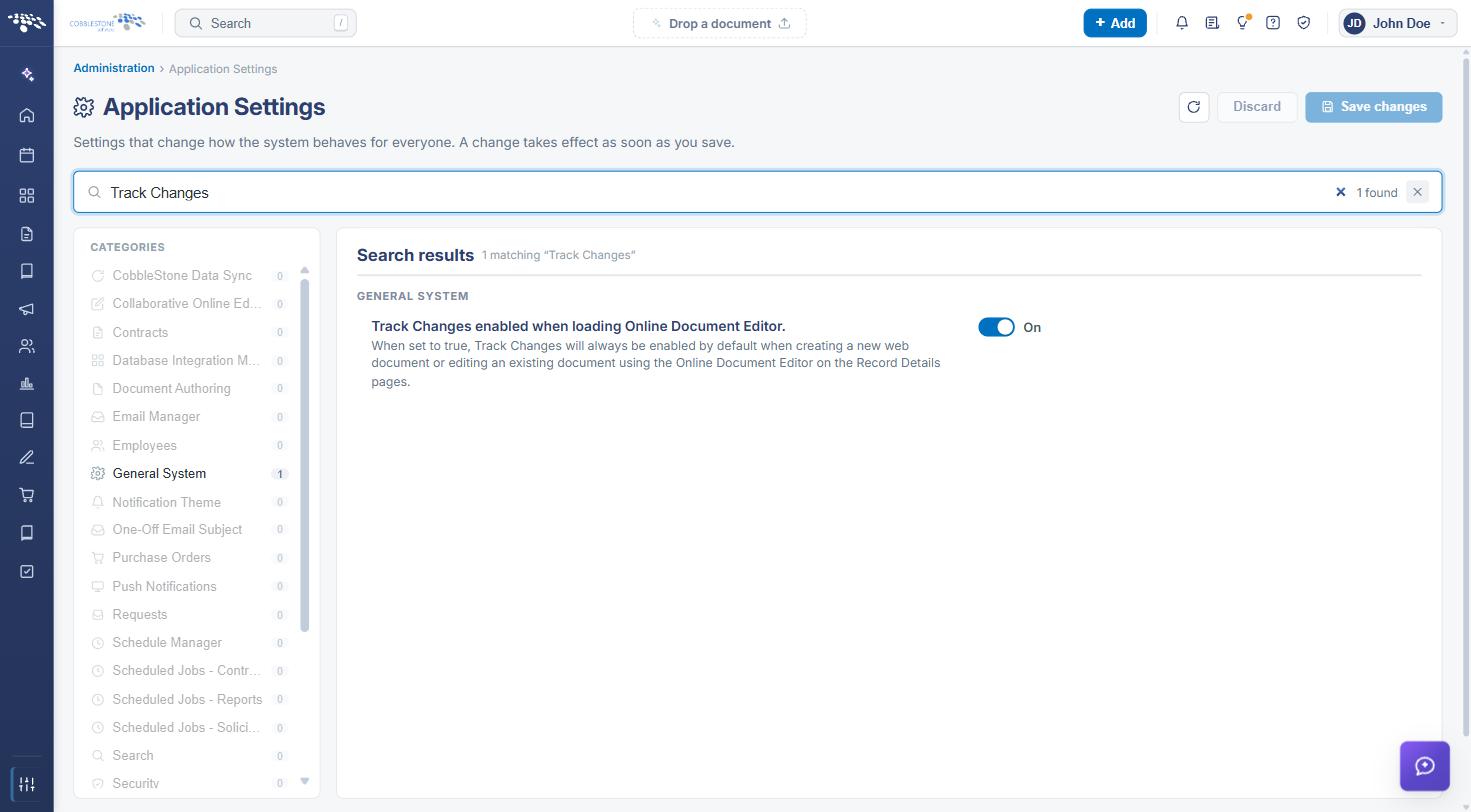
The Track Changes enabled when loading Online Document Editor. setting decides how the editor opens. As its description states: “When set to true, Track Changes will always be enabled by default when creating a new web document or editing an existing document using the Online Document Editor on the Record Details pages.”
Steps:
- From the Contract Insight homepage, click Administration at the bottom of the left navigation menu. On the Administration page, under Configuration & Fields, select Application Settings.
- Search for track changes, or open the General System category.
- Set Track Changes enabled when loading Online Document Editor. to On or Off.
- Click Save changes.
Note: Leaving this on is the safer choice where documents are negotiated: every edit made in the browser is marked up, so the other side — and the record’s own history — show what changed rather than only the final wording.
4. Collaborative Online Editor Settings
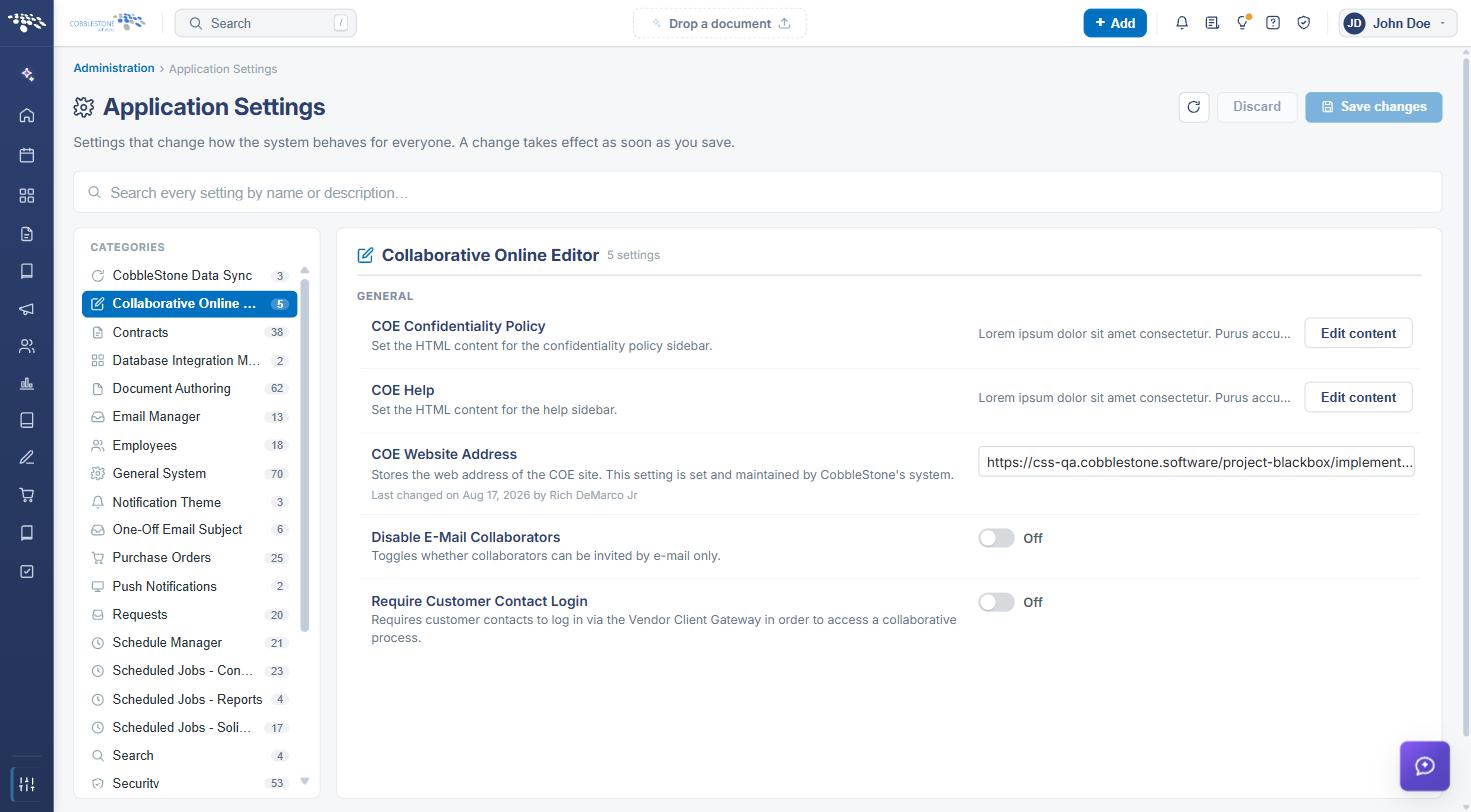
The editor used for online collaboration has its own settings category, Collaborative Online Editor, reached the same way through Application Settings. It holds:
- COE Website Address — the web address of the editor site; this is set and maintained by CobbleStone’s system
- COE Help — the HTML content shown in the editor’s help sidebar, maintained with Edit content
- COE Confidentiality Policy — the HTML content shown in the editor’s confidentiality policy sidebar, also maintained with Edit content
- Disable E-Mail Collaborators — whether collaborators may be invited by e-mail only
- Require Customer Contact Login — whether customer contacts must sign in through the Vendor/Client Gateway to reach a collaborative process
- Open AI Key — the authorization key used by the editor’s AI features
A further setting in the Document Authoring category, Display clause library on the Doc Collab for Online Editor, shows or hides the clause library inside the collaborative editor.
Note: Each setting records when it was last changed and by whom. The two sidebar settings hold HTML, so their wording — help text and the confidentiality notice people see while editing — can be tailored to the organization.
5. Opening a Document for Online Editing
Steps:
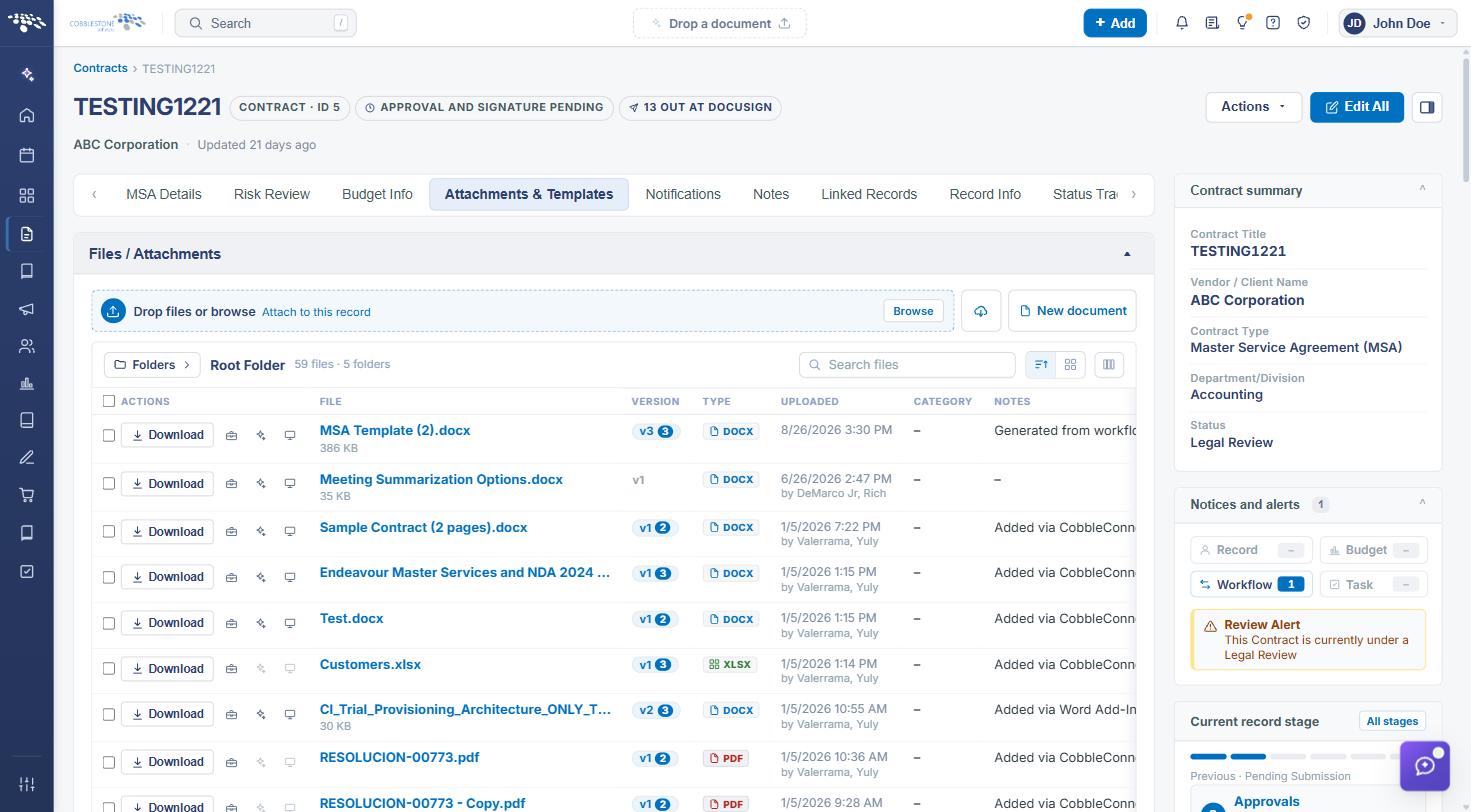
- From the Contract Insight homepage, open the record — for example a contract — and click the Attachments & Templates tab.
- Find the file in the Files / Attachments grid. Its columns are ACTIONS, FILE, VERSION, TYPE, UPLOADED, NOTES, COLLABORATION TYPE, CHECKED OUT TO and LAST VIEWED BY.
- Click Collaborative edit on the row, or open Document tools and choose it from the Edit & collaborate group.
- Edit the document in the browser. Where track changes is enabled on load, the edits are marked up as they are made.
The Edit & collaborate group offers:
- Collaborative edit — opens the document in the collaborative online editor
- Edit with VISDOM — opens the document for AI-assisted editing
- Edit in Word — opens the document in Word where that route is available for the file
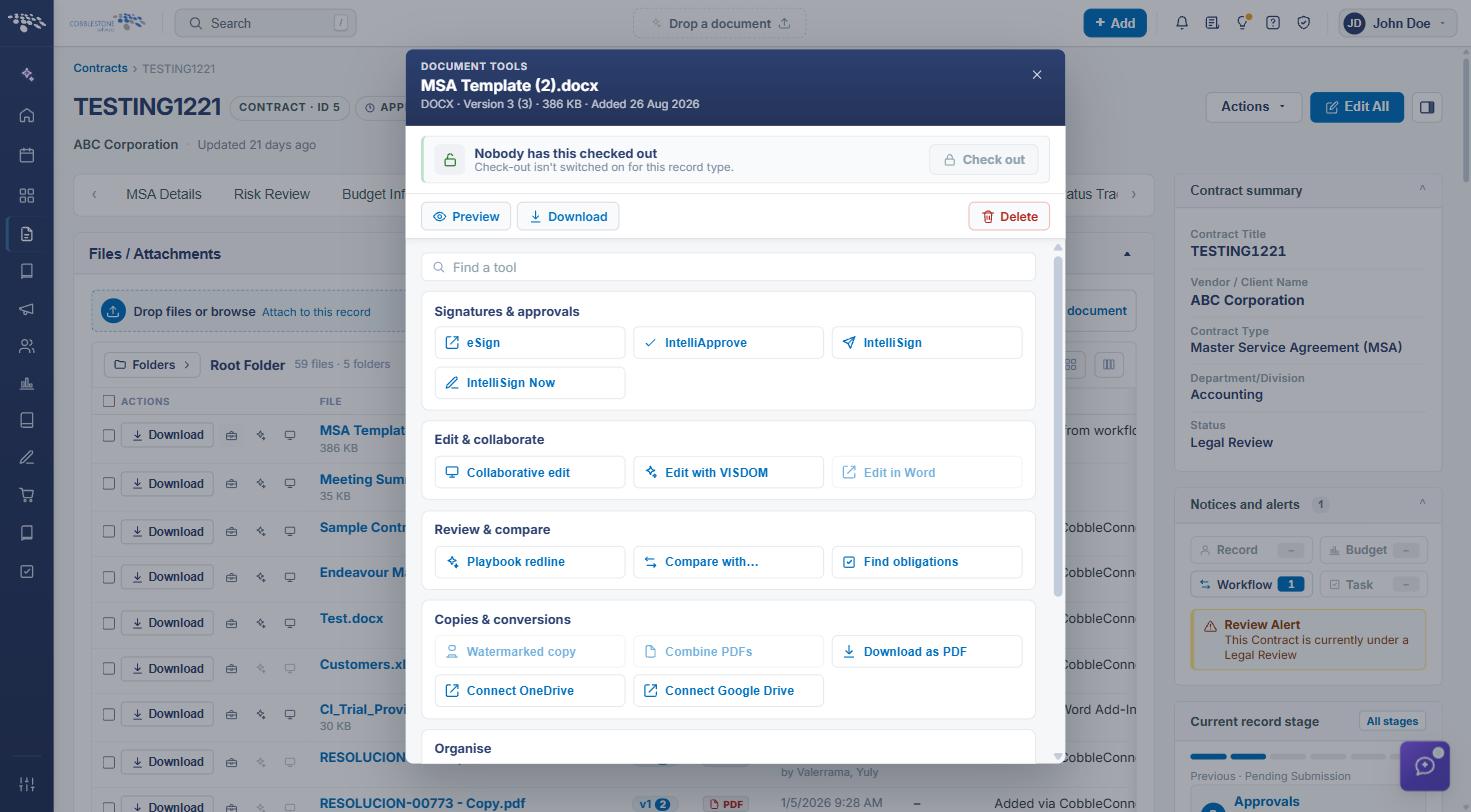
The same Document tools dialog also carries Preview, Download and Delete at the top, a Find a tool box, and groups for Signatures & approvals, Review & compare, Copies & conversions and Organise.
Note: New documents can also be created online where the setting allows it; they are added to the record in the same way as an uploaded file and are versioned from the start.
6. Checking a Document Out and Back In
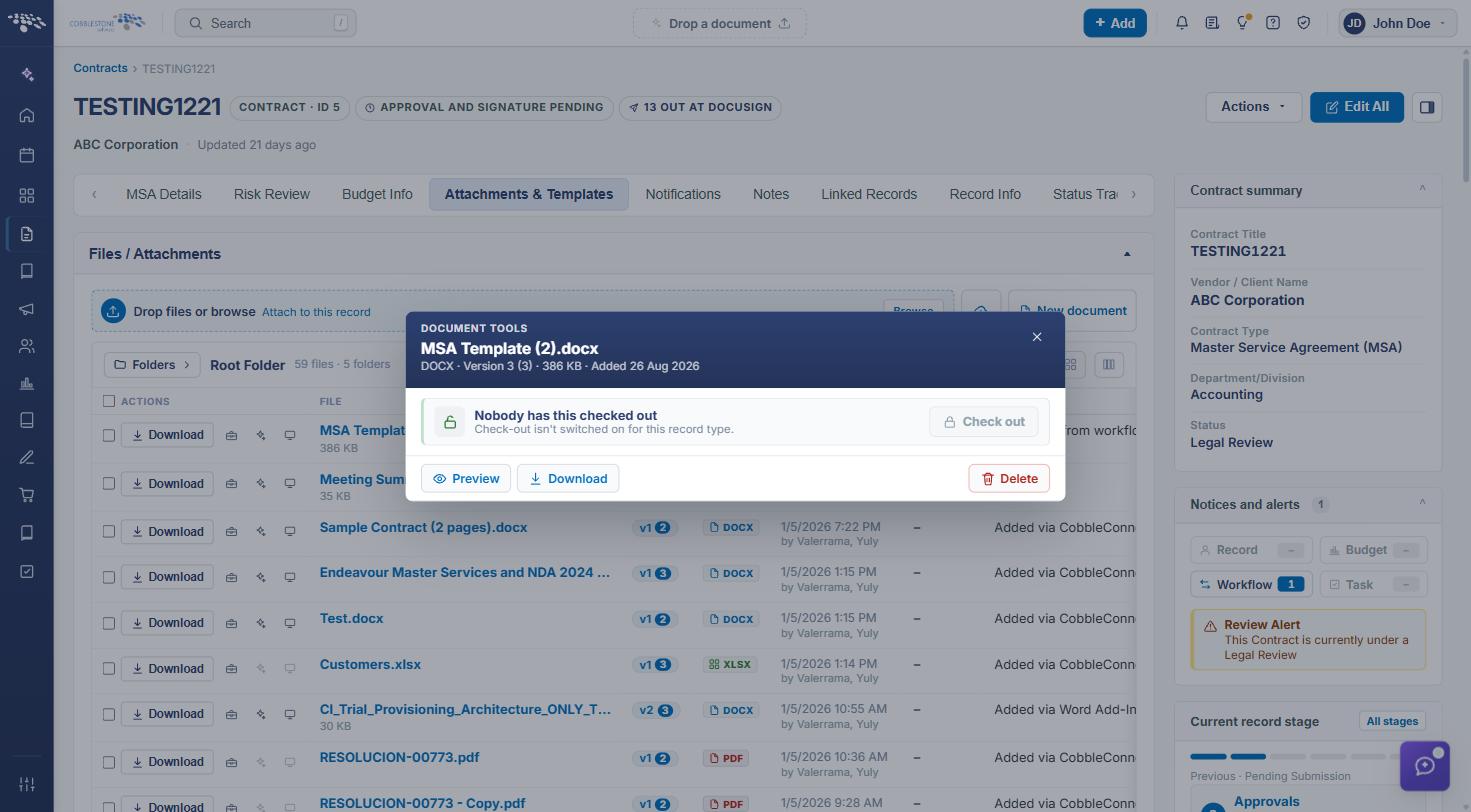
Checking a document out reserves it while it is being worked on. The Document tools dialog states the current position at the top and offers the matching action.
Steps:
- From the Contract Insight homepage, open the record — for example a contract — and click the Attachments & Templates tab.
- Open Document tools for the file. When nobody has it, the dialog reads “Nobody has this checked out — Anyone with permission can change or replace it.”
- Click Check out to reserve the document while you work on it.
- When the work is finished, open Document tools again and click Check in.
While a document is checked out:
- The dialog names the holder — “Checked out by <name> — It can’t be opened or replaced until it’s checked back in.”
- The CHECKED OUT TO column on the attachments grid shows who holds it, and the file is marked with a lock
- Preview, Download, Delete, Collaborative edit and the version tools are unavailable to everyone else
Note: Check in as soon as the editing is done. A document left checked out blocks everyone else from opening or replacing it, which is the most common cause of “I can’t open this file” reports.
7. Versions and History
Each attachment keeps its own versions. The VERSION column on the attachments grid shows the current version and how many exist, and the version marker itself opens the list — “2 versions — the newest is shown. Open the list.”
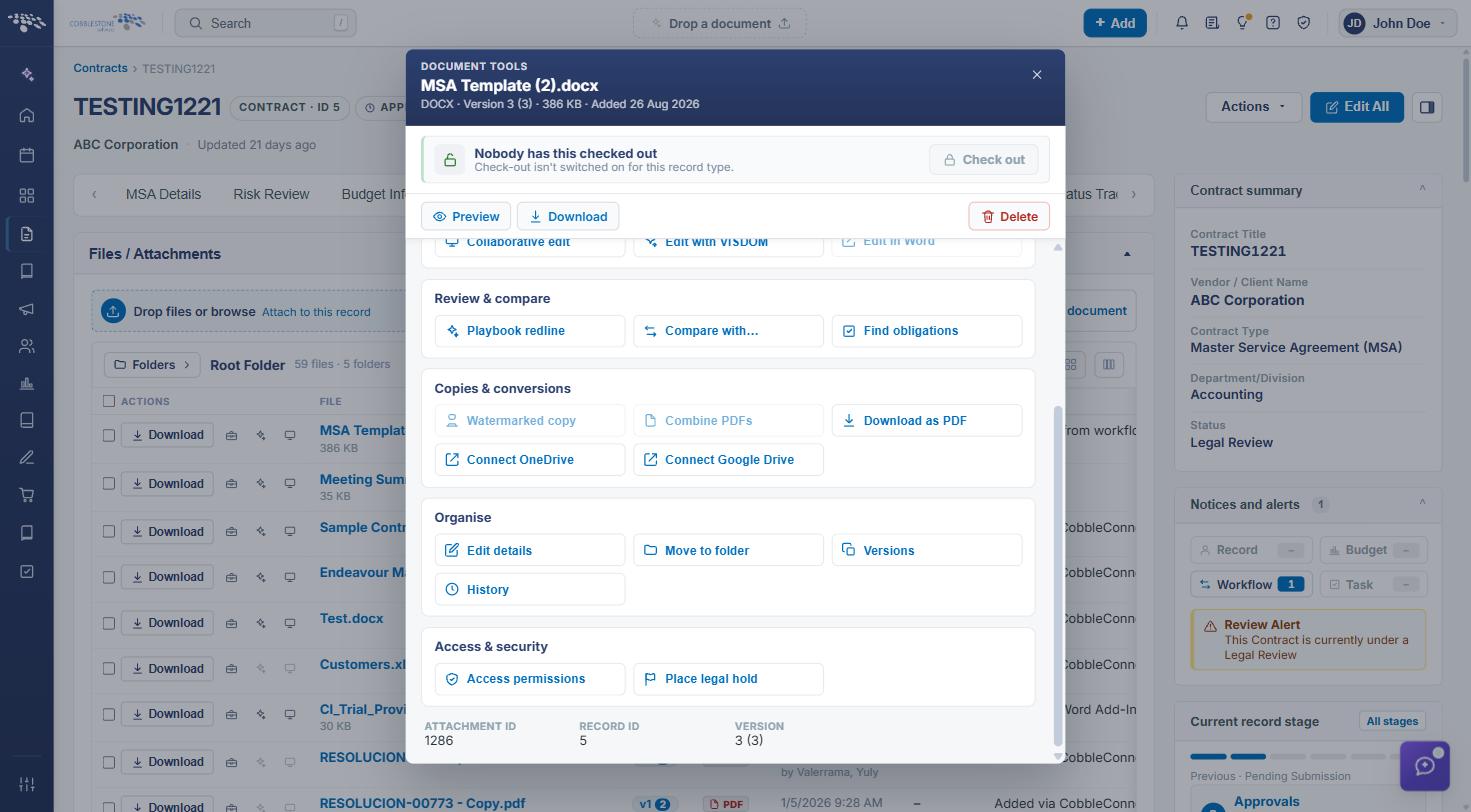
The Organise group of the Document tools dialog holds the rest:
- Edit details — the file’s title, notes and other details
- Move to folder — files the document under one of the record’s attachment folders
- Versions — the list of versions kept for the document
- History — what has happened to the document
Note: Because online editing works on the document in place, its versions and history are the record of what changed and when — which is why check in, check out and track changes are worth using together on a negotiated document.
8. Quick Reference Summary
Task | How to Complete It |
Turn online editing on | Application Settings → General System → Allow online document creation and editing. → On. |
Allow PDF editing | General System → Allow editing PDF documents through Online Editing. |
Allow check in / out | General System → Allow Check In/Out for Online Document Editing. |
Force track changes | General System → Track Changes enabled when loading Online Document Editor. → On. |
Editor settings | Application Settings → Collaborative Online Editor — website address, help and confidentiality sidebars, collaborator options. |
Show the clause library | Document Authoring → Display clause library on the Doc Collab for Online Editor. |
Edit a document online | Record → Attachments & Templates → the file row → Collaborative edit. |
Other editing routes | Document tools → Edit & collaborate → Edit with VISDOM, or Edit in Word. |
Reserve a document | Document tools → Check out; release it again with Check in. |
See who holds a file | The CHECKED OUT TO column on the attachments grid. |
Review what changed | The VERSION column, and Versions or History in the Organise group. |