COBBLESTONE SOFTWARE
Contract Insight — User Guide
Application Settings
App Config: Overview of the Application Configuration
Note: Each procedure in this guide begins at the Contract Insight homepage, so any section can be followed on its own. The categories and settings available are driven by the modules licensed for the environment, so the exact list on any one system may vary.
1. Overview
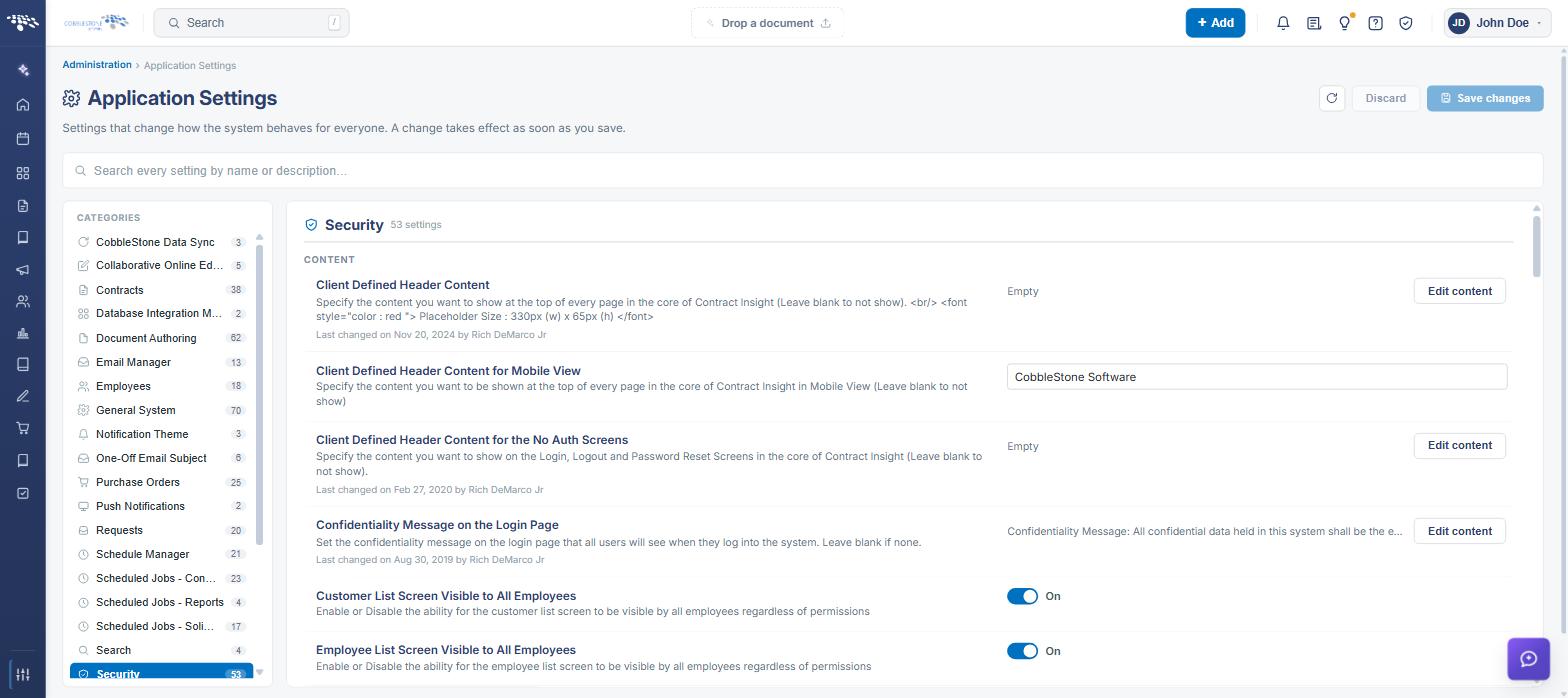
Application Settings is the central configuration screen for Contract Insight. It holds the system-wide settings that control how the application behaves for everyone who uses it — reporting and export behavior, attachment and document handling, notification and email delivery, security, scheduled jobs, the Vendor/Client Gateway, and VISDOM AI services, among others. As the screen itself states, these are “Settings that change how the system behaves for everyone. A change takes effect as soon as you save.”
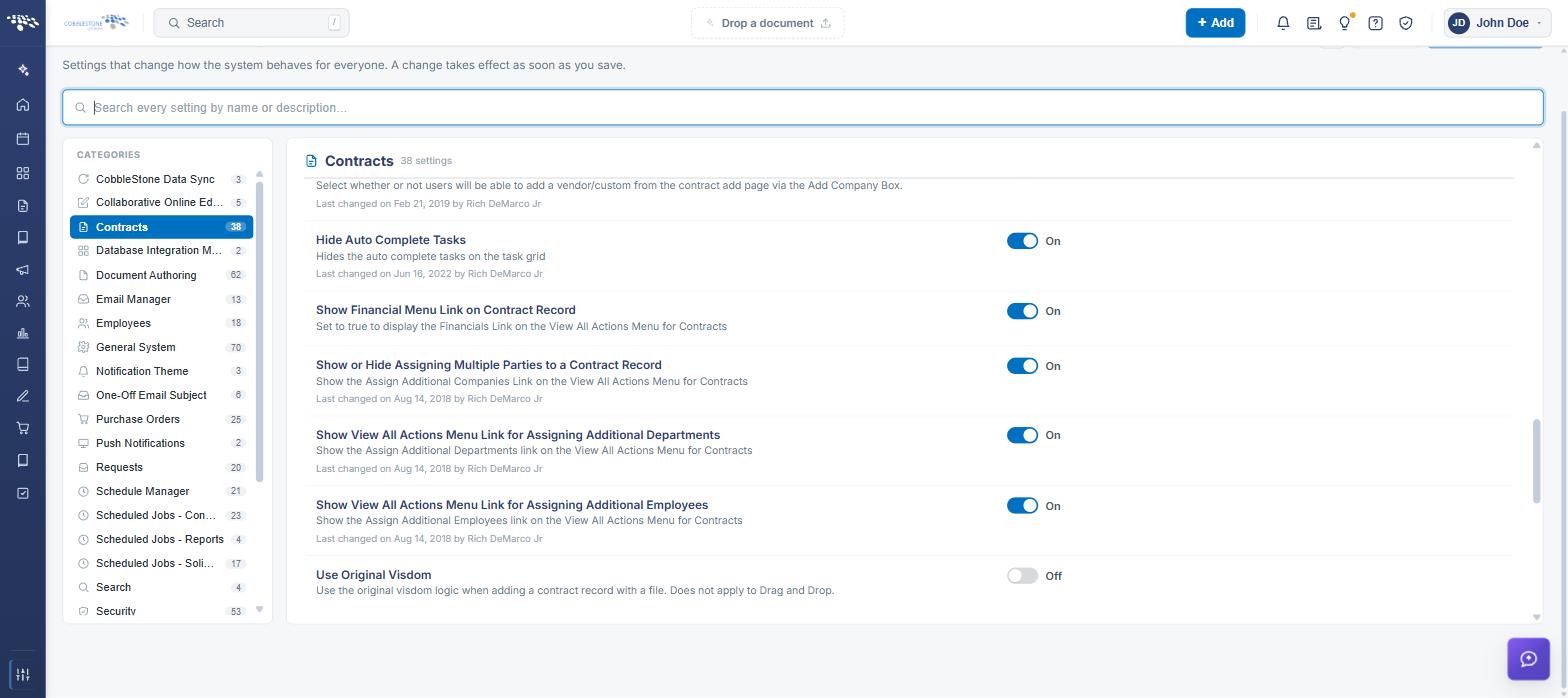
Settings are organized into configuration categories, listed in the CATEGORIES rail on the left of the screen with a count of the settings each one contains. Selecting a category loads its settings into the panel on the right, where they are further grouped under subsection headings such as AUTHORIZATION, GENERAL, ATTACHMENTS, FIELDS, or TABLES/GRIDS.
Each setting is presented as a single row containing:
- The name of the application setting
- A description of what the setting does
- An editing control holding the current value — a toggle, a text box, a dropdown, or an Edit content button for rich-text settings
- A “Last changed” line recording when the setting was last modified and by whom
Because Application Settings is maintained from the Administration area, only Application Administrators — or other users specifically granted the appropriate permission — can view and change these values. Standard users are affected by the settings but cannot reach the screen.
Caution: These settings manage important aspects of the Contract Insight application and apply to every user. Exercise care when modifying them, and change one setting at a time so the effect of each change can be confirmed.
2. Accessing Application Settings
Application Settings is reached from the Administration page. To open it:
- From the Contract Insight homepage, click Administration at the bottom of the left navigation menu. On the Administration page, under Configuration & Fields, select Application Settings.
- The Application Settings screen opens, headed by the breadcrumb Administration › Application Settings.
The Application Settings screen includes the following elements:
- A page title of Application Settings with the subtitle “Settings that change how the system behaves for everyone. A change takes effect as soon as you save.”
- A refresh icon in the upper right that reloads the settings, picking up anything changed outside this screen
- A Discard button that puts every changed setting back
- A Save changes button that saves every changed setting
- A Search box spanning the width of the screen, to search every setting by name or description
- A CATEGORIES rail on the left listing each configuration category with a count of its settings
- A settings panel on the right, headed with the selected category name and its setting count
- Subsection headings within the panel that group related settings (for example AUTHORIZATION, GENERAL, ATTACHMENTS, FIELDS, QUICK SEARCH, TABLES/GRIDS, TASKS)
- A row for each setting, showing its name, description, current value control, and a “Last changed” byline
- A MANAGED BY COBBLESTONE badge on settings that only CobbleStone can change
3. Configuration Categories
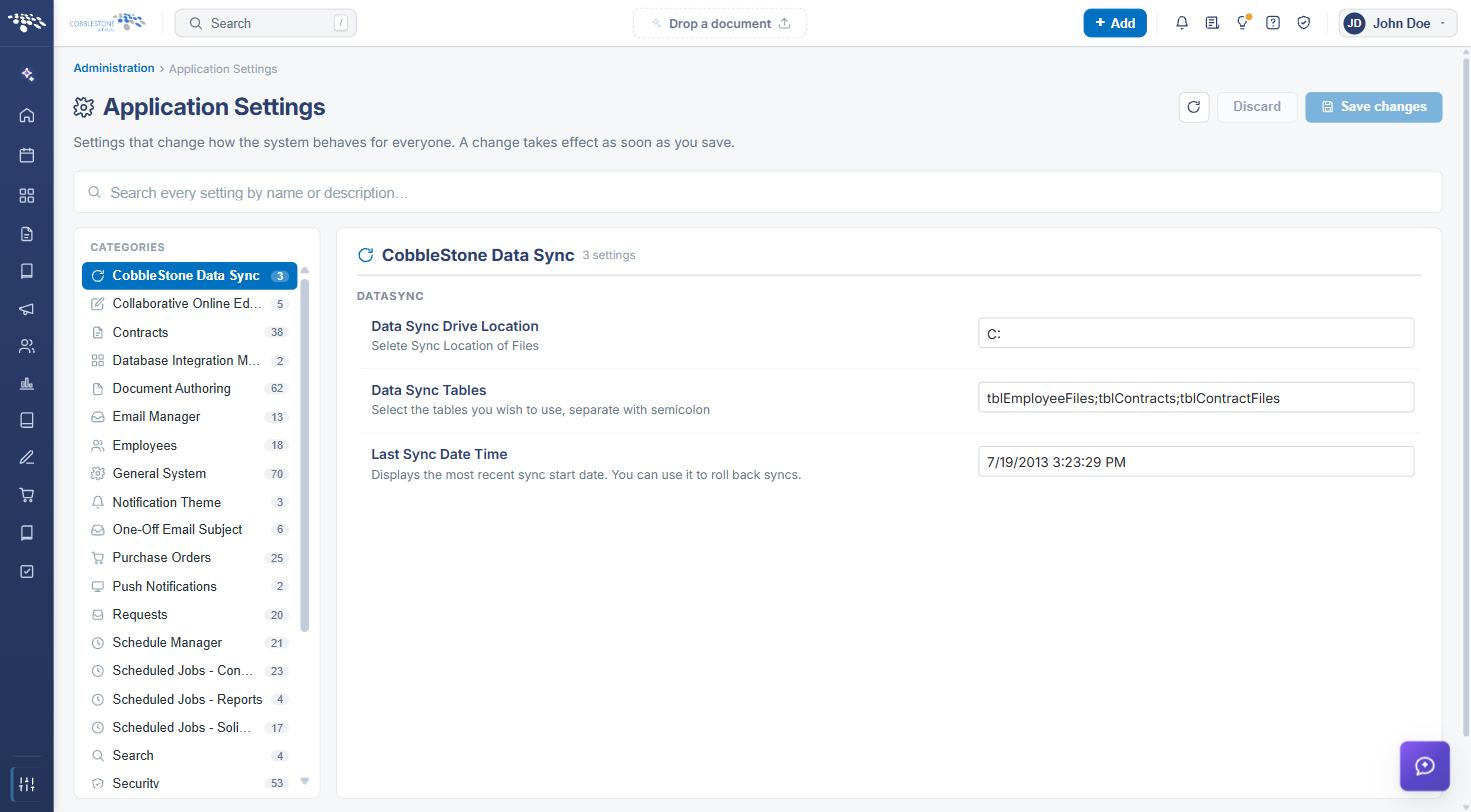
The CATEGORIES rail organizes every application setting into groups. Click a category to load its settings into the panel on the right; the selected category is highlighted, and the number beside each category name is the count of settings it contains.
The configuration categories are:
- Collaborative Online Editor — online document collaboration, including the confidentiality policy and help content shown in the sidebar
- Contracts — behavior of contract records
- Database Integration Manager — database integration options
- Document Authoring — document generation, templates, and merge behavior
- Email Manager — outbound and inbound email handling
- Employees — employee record behavior
- General System — application-wide behavior, including ad-hoc reports, attachments, fields, the header user menu, profiling, quick search, surveys, tables/grids, and tasks
- Notification Theme — the look of notification emails
- One-Off Email Subject — default subject lines for one-off emails
- Purchase Orders — purchase order record behavior
- Push Notifications — push notification delivery
- Requests — request record behavior
- Schedule Manager — scheduling behavior
- Scheduled Jobs - Contracts, Scheduled Jobs - Reports, and Scheduled Jobs - Solicitations — how often each set of scheduled jobs runs
- Search — search behavior
- Security — authentication, password, and access settings
- SMS Messaging — text message delivery
- Solicitations — solicitation record behavior
- System Out Date — the out-of-date system warning
- System Requests — the system request process
- Team Server Config — team server configuration
- Vendor/Client Gateway — the portal vendors and clients sign in to
- Vendors / Customers — vendor and customer record behavior
- Visdom Services — VISDOM AI service configuration
- Other — settings that do not fall under one of the categories above
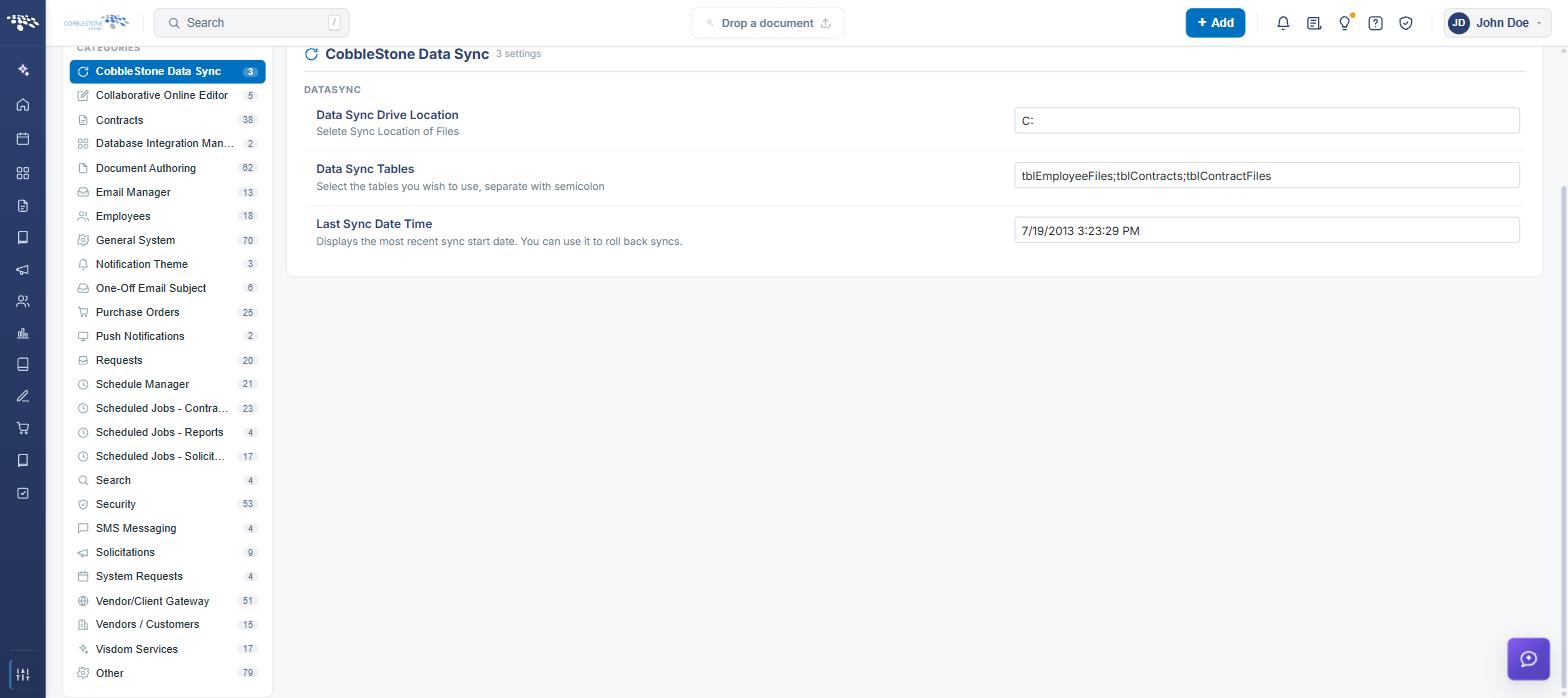
Note: Organizations that have not purchased a given Optional Add-On Module will see different category options in the CATEGORIES rail, and different settings within them.
4. Searching for a Setting
Because a single environment can hold several hundred settings, the quickest way to reach a specific one is to search for it rather than browse the categories.
Steps:
- From the Contract Insight homepage, click Administration at the bottom of the left navigation menu. On the Administration page, under Configuration & Fields, select Application Settings.
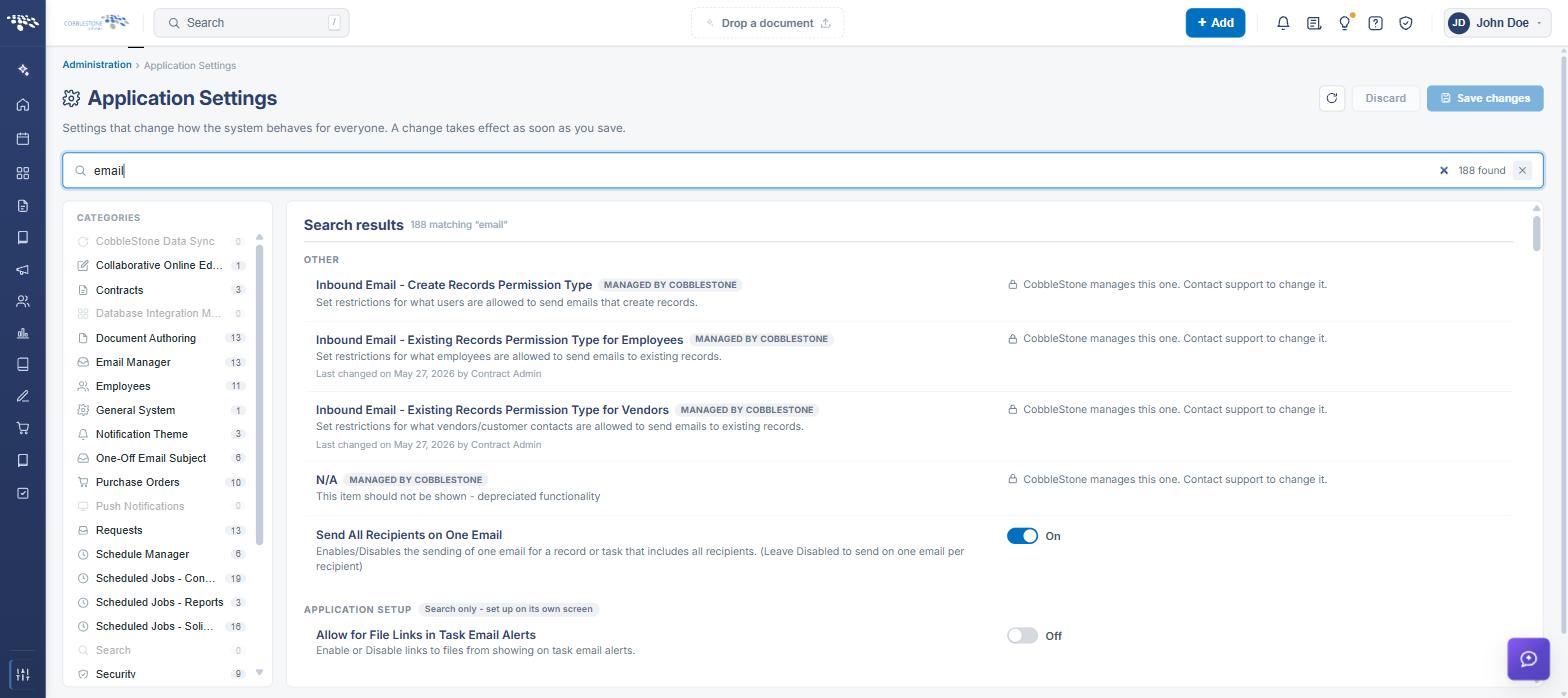
- Click the Search box at the top of the screen (“Search every setting by name or description…”).
- Type any part of a setting’s name or description. Results are filtered as you type.
- The panel heading changes to Search results, with a count of matching settings (for example “30 matching ‘notification’”), and a found count appears at the right of the search box.
- In the CATEGORIES rail, each category’s count changes to the number of matches it contains, and categories with no matches are dimmed — showing at a glance where the matching settings live.
- Edit any result directly from the search results list, or clear the search using the × at the right of the search box to return to category browsing.
5. Modifying a Setting
Function: Changes the value of an application setting for the entire system.
Steps:
- From the Contract Insight homepage, click Administration at the bottom of the left navigation menu. On the Administration page, under Configuration & Fields, select Application Settings.
- Select the category that contains the setting from the CATEGORIES rail, or find the setting using the Search box as described in Section 4.
- Locate the setting by name and read its description to confirm what the value controls.
- Change the value using the control on the right of the setting row (see the control types below).
- The setting is marked with a CHANGED badge, an Undo link appears beneath it, a dot appears beside its category in the CATEGORIES rail, and a banner at the top of the screen reports how many changes are ready to save.
- Click Save changes in the upper right to commit every pending change, or Discard to put every changed setting back to its saved value.
Settings use one of the following controls, depending on the type of value they hold:
- Toggle — a two-state switch reading On or Off, used for true/false settings such as Graphical Dashboard or Disable Delegation
- Text box — free-text or numeric entry, used for values such as NLP Wait Time, Table/Grid Default Height, or an email address list
- Dropdown — a list of permitted values, used for settings such as LLM Model, OCR Engine, or Session Profiling Mode; an empty dropdown reads “Choose a value”
- Edit content — opens a rich-text HTML editor for settings that store display text or HTML, as described in Section 6
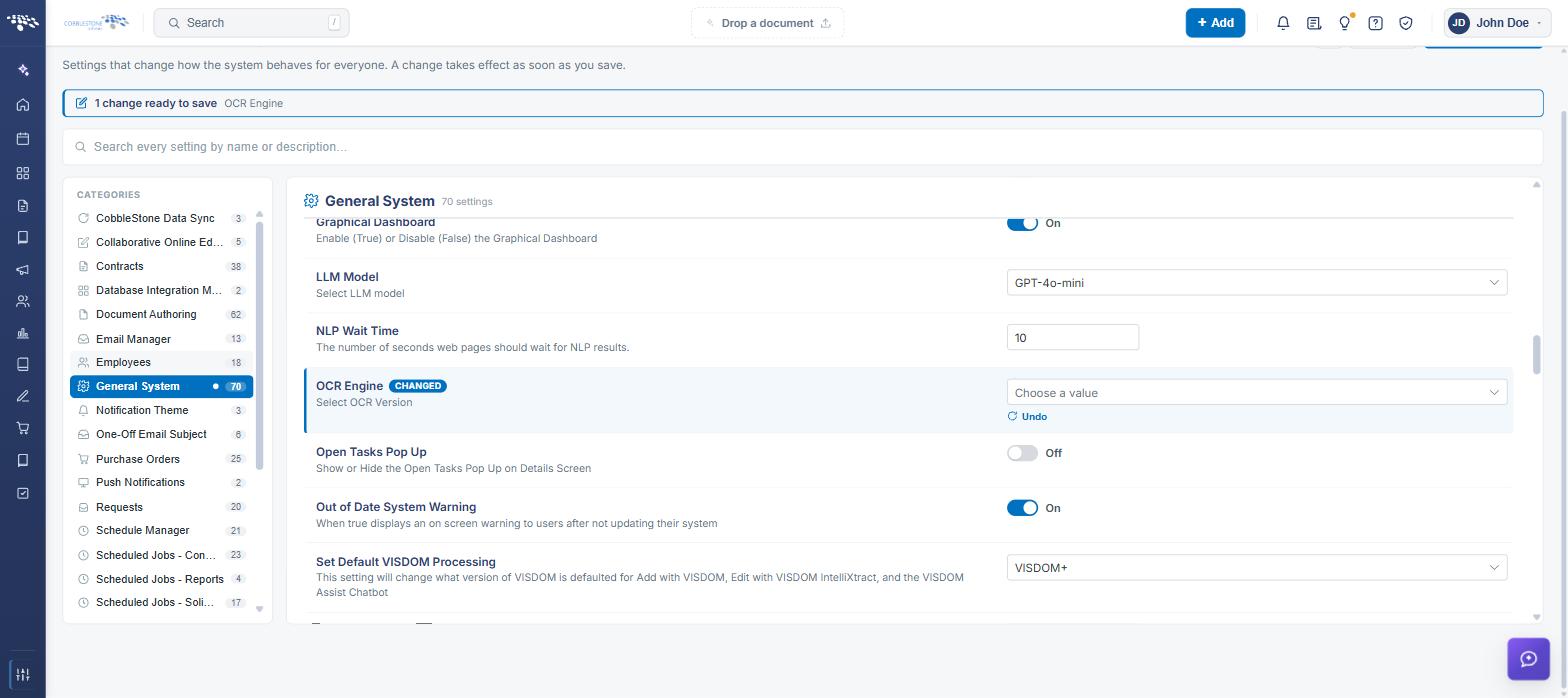
Note: Changes are held on the screen until they are saved, so several settings can be adjusted and then committed together. A change takes effect as soon as it is saved, and applies to every user of the system.
6. Text and Display Settings
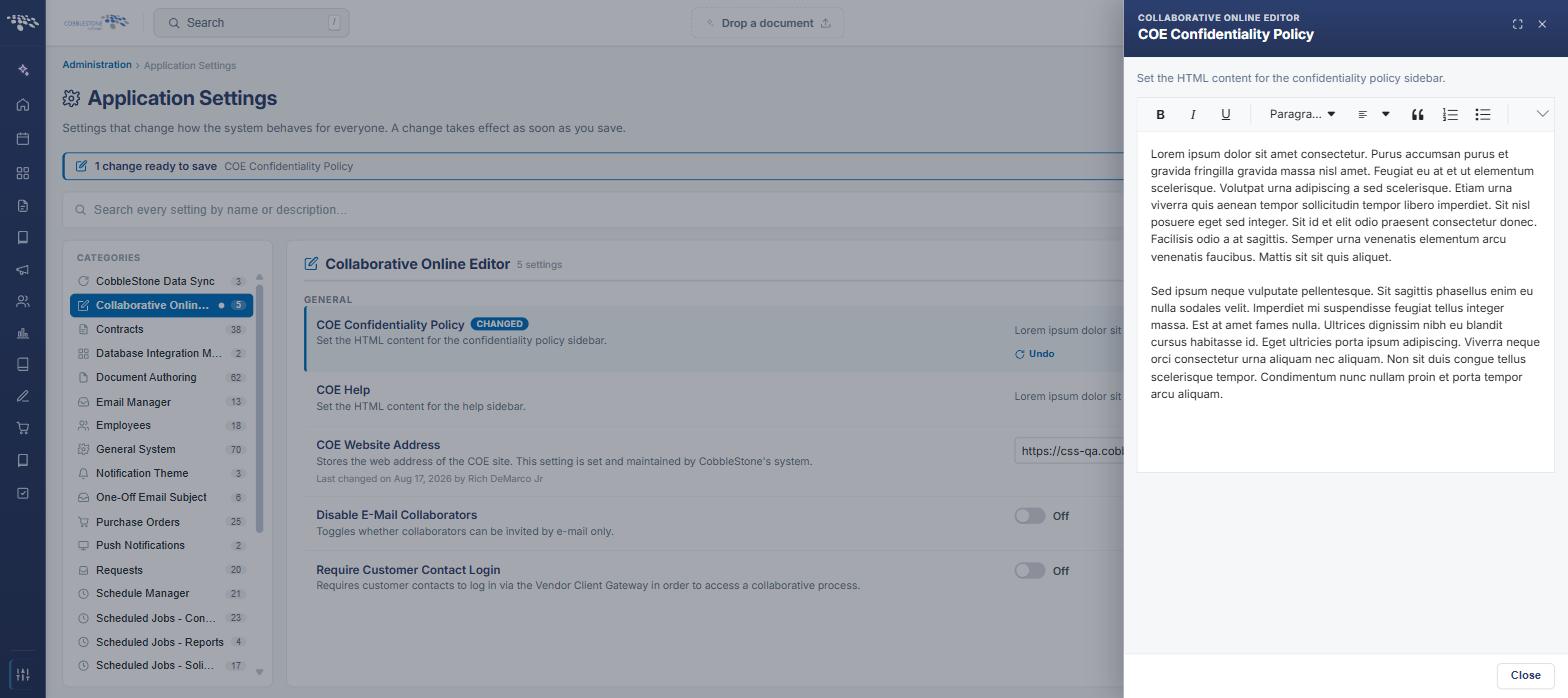
Some settings store display text or HTML rather than a simple value — for example the Collaborative Online Editor confidentiality policy and help sidebars. These settings are edited in a rich-text, Word-like HTML editor rather than in a text box, and show a preview of their current content beside the Edit content button.
Steps:
- From the Contract Insight homepage, click Administration at the bottom of the left navigation menu. On the Administration page, under Configuration & Fields, select Application Settings.
- Select the category containing the setting, and locate the setting in the panel on the right.
- Click Edit content on the setting row.
- A drawer slides out from the right, headed with the category name and the setting name, with the setting’s description beneath it and the current content loaded into the editor.
- Edit the content using the editor toolbar, then click Close to return to the settings list.
- Click Save changes in the upper right of the Application Settings screen to commit the new content, or Undo on the setting row to put it back to the saved content.
The rich-text editor toolbar provides:
- Bold (Ctrl+B), Italic (Ctrl+I), and Underline (Ctrl+U)
- A Paragraph format dropdown for paragraph and heading styles
- Blockquote, Numbered List (Ctrl+Shift+O), and Bulleted List (Ctrl+Alt+O)
- Insert Hyperlink (Ctrl+K) and Insert Image (Ctrl+Shift+I) — see the Image Library page for managing images
- Code View (Ctrl+Shift+H) for editing the underlying HTML directly
- Undo (Ctrl+Z) and Redo (Ctrl+Y)
- An overflow control at the end of the toolbar that reveals the remaining tools when the drawer is narrow
- A widen icon and a close icon in the drawer header, to expand the drawer to full width or close it
7. Saving, Discarding, and Refreshing
Changes made on the Application Settings screen are held until they are saved, and the screen indicates clearly what is pending:
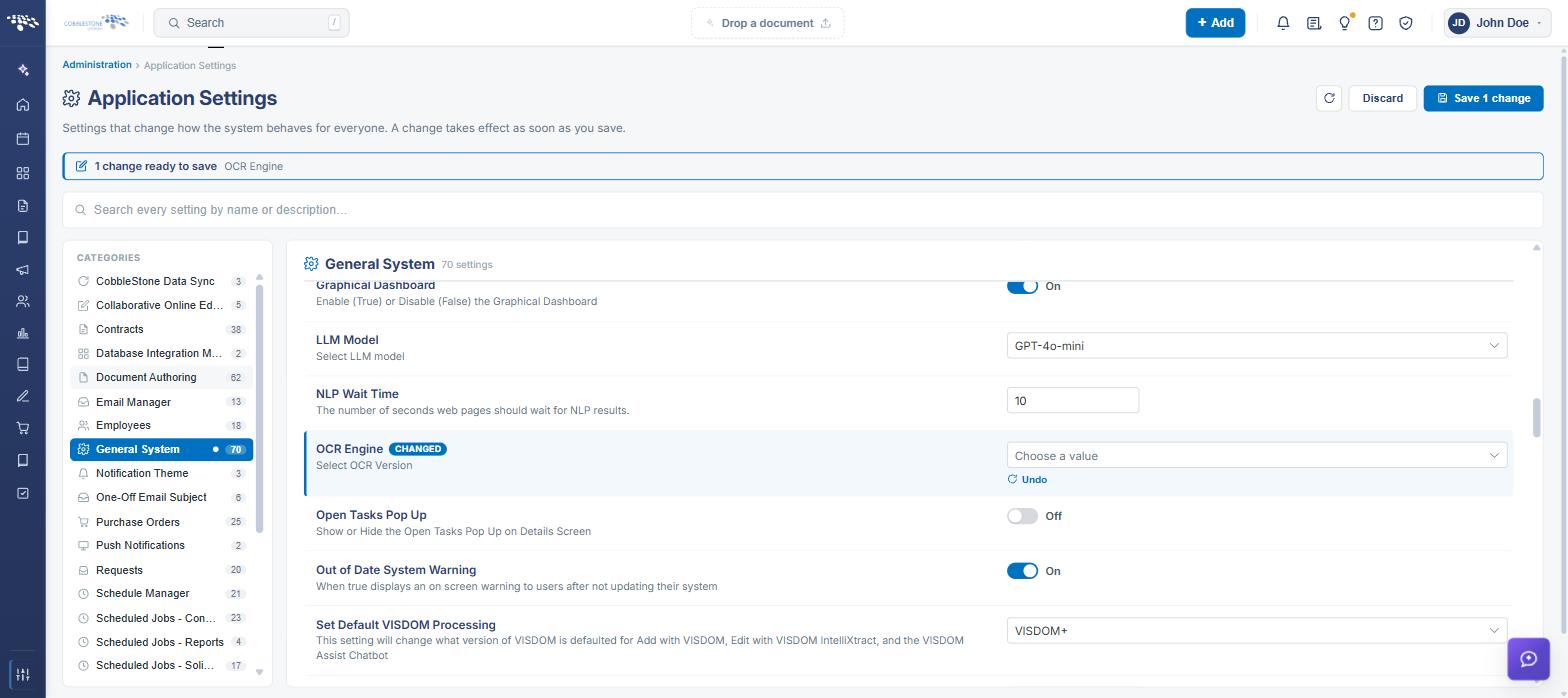
- A banner at the top of the screen reads “1 change ready to save” (or the appropriate count), followed by the name of each changed setting
- The changed setting is marked with a CHANGED badge
- A dot appears beside the affected category in the CATEGORIES rail
- Undo on the setting row puts that one setting back to its saved value
- Discard in the upper right puts every changed setting back
- Save changes in the upper right commits every changed setting; the change takes effect immediately
- The refresh icon beside Discard reloads the settings, picking up any values changed outside this screen
8. Settings Managed by CobbleStone
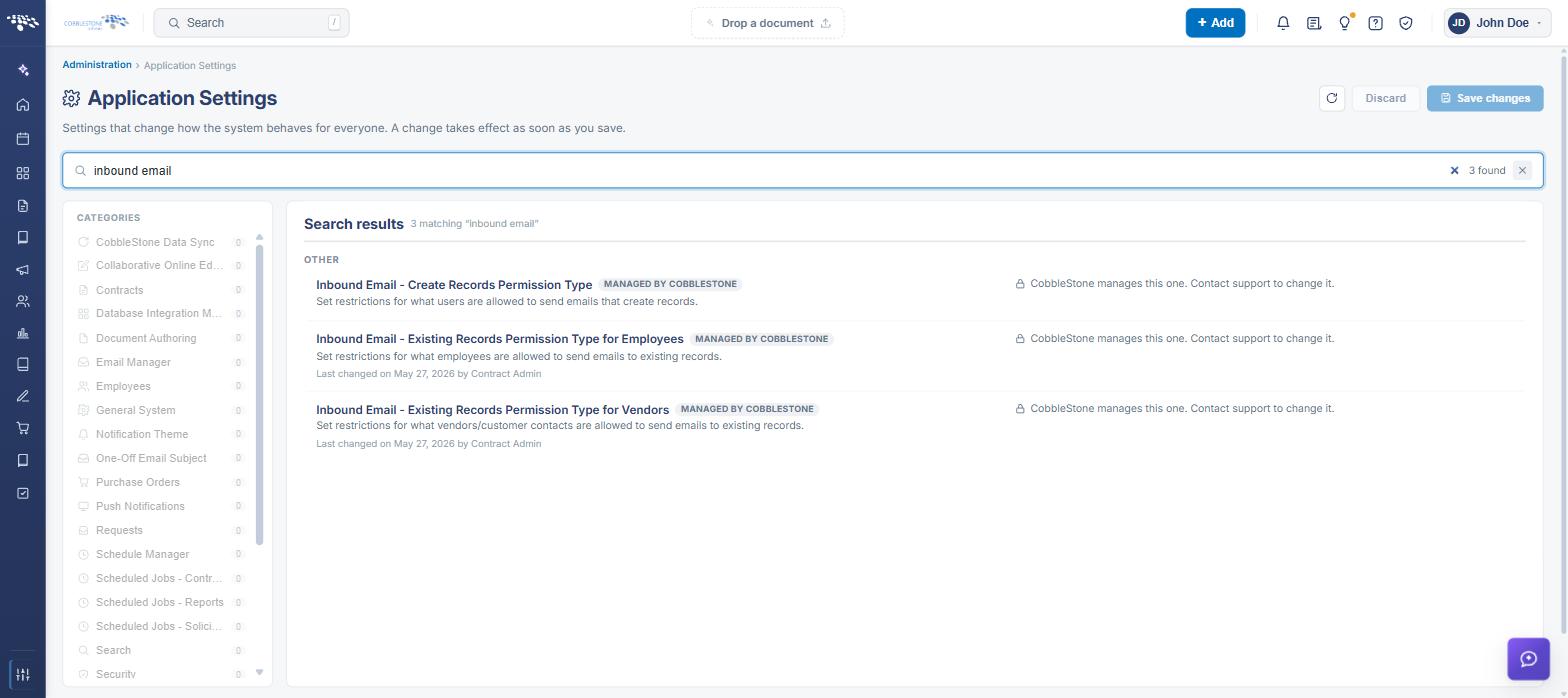
A small number of settings are maintained by CobbleStone rather than by the customer. These are marked with a MANAGED BY COBBLESTONE badge beneath the setting name, carry no editing control, and read “CobbleStone manages this one. Contact support to change it.” in place of a value.
Other settings, such as the Collaborative Online Editor website address, remain editable but note in their description that they are set and maintained by CobbleStone’s system; these should not be changed without guidance from CobbleStone Support.
9. Reviewing When a Setting Last Changed
Each setting records its own change history line beneath the description, so administrators can see whether a value has been adjusted and by whom:
- Recent changes are shown in relative form — for example “Last changed 7 days ago by Nick Luckangelo”
- Older changes are shown with a full date — for example “Last changed on 3 Feb 2026 by Chris Kessel”
- A setting with no byline has not been changed from its delivered value in this environment
See the additional Wiki pages in the Application Configuration section for a detailed breakdown of each configuration category and the settings it contains.
10. Quick Reference Summary
Task | How to Complete It |
Open the screen | Homepage → Administration → Configuration & Fields → Application Settings. |
Browse by category | Click a category in the CATEGORIES rail; the count beside it is the number of settings it holds. |
Find a setting | Type any part of the name or description in the Search box; category counts update and empty categories dim. |
Change a value | Use the toggle, text box, or dropdown on the setting row, then Save changes. |
Edit display text/HTML | Edit content on the setting row, edit in the rich-text drawer, Close, then Save changes. |
Undo one change | Undo on the setting row, before saving. |
Undo all changes | Discard in the upper right, before saving. |
Reload current values | Refresh icon in the upper right, beside Discard. |
Locked settings | Settings badged MANAGED BY COBBLESTONE are changed only by CobbleStone Support. |